
 Chameera Dulanga
TL;DR: High‑frequency events like typing, scrolling, and resizing can silently kill your app’s performance. Debounce delays execution until the user stops interacting, while throttle limits how often a function runs during continuous activity. Use the right technique, and your JavaScript apps instantly feel faster, smoother, and more efficient.
What really slows your UI down?
Smooth interactions and fast responses define modern web experiences. But events like typing, scrolling, resizing, or mouse movement can fire dozens of times per second. If each event triggers expensive logic, or worse, an API call, your UI becomes sluggish, your backend becomes overloaded, and your users become frustrated.
That’s where debouncing and throttling come in. These two tiny JavaScript techniques are performance power tools. They make the browser feel faster by controlling how often your functions run during rapid-fire events.
This guide breaks down debounce vs throttle with simple analogies, real code, and clear recommendations so you’ll always pick the right one.

Why do debounce and throttle matter?
Usually, developers have the freedom to decide when to call a function. But sometimes, they have to hand over control to users.
For example, event triggers are widely used in apps to trigger functions based on events like key presses, button clicks, and mouse movements. In such situations, users can trigger those events far more than required and cause significant performance issues in the application.
Consider a search bar where we need to display a suggestion list as the user types. We can implement this using an event listener to bring data from the backend on each key press. However, it will negatively impact app performance, since it will make an API call each time the user presses a key.
The following code shows an example of this scenario. It will make 10 API calls if we type the word JavaScript.
<html>
  <body>
    <label>Search Here : </label>
    <input type="text" id="search-bar" />
  </body>
</html>var searchBarDom = document.getElementById('search-bar');
var numberOfKeyPresses = 0;
var numberOfApiCalls = 0;
function getSearchResult() {
numberOfApiCalls += 1;
console.log('Number of API Calls : ' + numberOfApiCalls);
}
searchBarDom.addEventListener('input', function (e) {
numberOfKeyPresses += 1;
console.log('Search Keyword : ' + e.target.value);
console.log('Number of Key Presses : ' + numberOfKeyPresses );
getSearchResult();
});Refer to the following image:
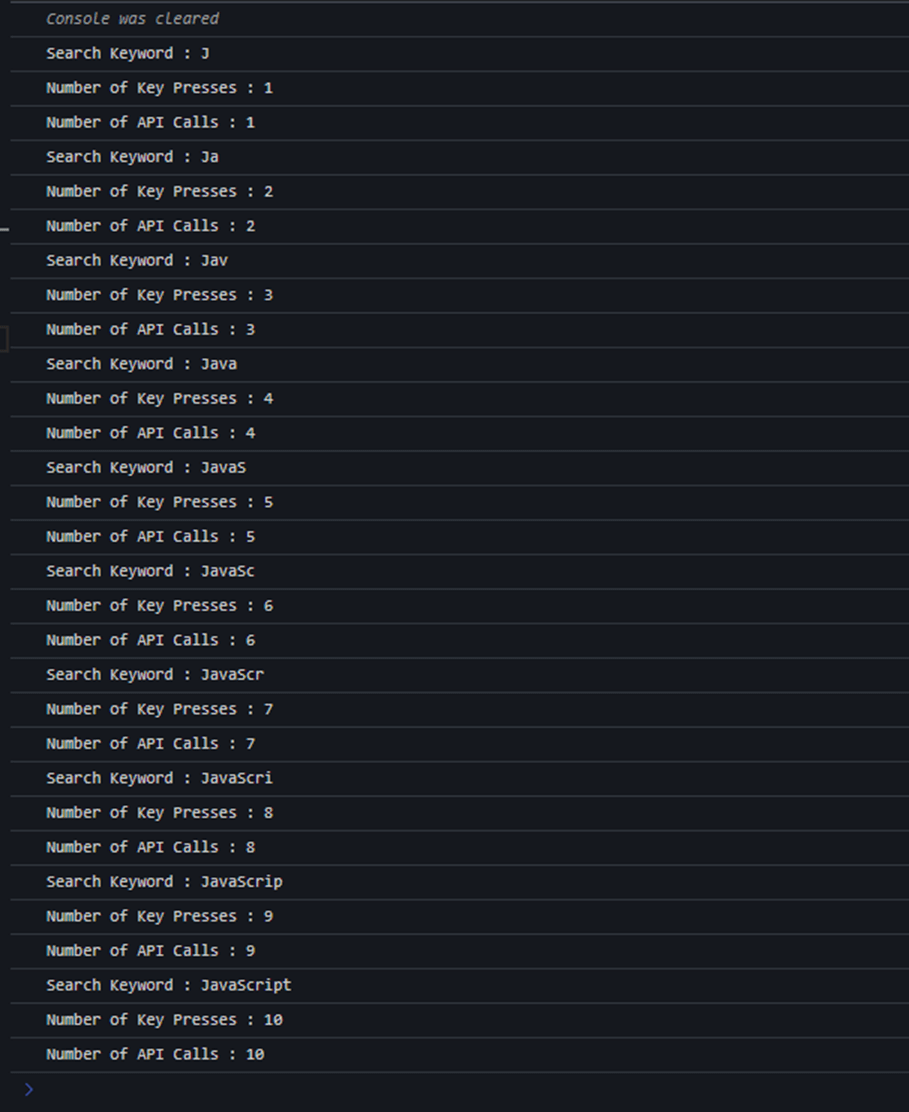
Note: You can find a working example of this code in StackBlitz.
Typing the word “JavaScript” triggers 10 API calls, one per keystroke. Most of those calls return outdated results before they even arrive. This wastes network resources, overloads the backend, and can make the UI feel laggy.
This is exactly the problem debounce and throttle solve, in different ways.
What is debounce?
The concept of debouncing is pretty straightforward. It delays the function invocation by a defined period of time to avoid unnecessary invocations. So, the function will only be invoked if no event is triggered within that time. If the user triggers a new event during that time, the time will be reset.
Think of it like an elevator door. It stays open and waits. Only after no one presses the button for a few seconds does it finally close. It does not close on every key press; it waits for a pause.
How to implement a debounce function
Let’s consider the previous example again. The issue with the scenario was unnecessary API calls. So, if we define a debounce function with a delay of one second, it will hold back the API call until one second passes without any user events. If the user presses a key within that second, the debounce function will reset the delay and wait for another second to make the API call.
We can easily implement a debounce function using the setTimeout() and clearTimeout() functions. It should also take a callback function and the delay as input parameters.
Here’s the code you need for implementation:
function debounce(callback, delay = 1000) {
  var time;

  return (...args) => {
    clearTimeout(time);
    time = setTimeout(() => {
      callback(...args);
    }, delay);
  };
}
As you can see, the debounce function acts as a wrapper for the callback function and ensures that it will be invoked after the delay. In this case, the default delay is 1,000 milliseconds.
The clearTimeout on every call is what makes it work; each new event cancels the previous scheduled call and starts a fresh timer.
Let’s now modify the search bar example code with a debounce function.
var searchBarDom = document.getElementById('search-bar');
var numberOfKeyPresses = 0;
var numberOfApiCalls = 0;

const getSearchResult = debounce(() => {
  numberOfApiCalls += 1;
  console.log('Number of API Calls : ' + numberOfApiCalls);
}, 1000);

searchBarDom.addEventListener('input', function (e) {
  numberOfKeyPresses += 1;
  console.log('Search Keyword : ' + e.target.value);
  console.log('Number of Key Presses : ' + numberOfKeyPresses);
  getSearchResult();
});

function debounce(callback, delay = 1000) {
  var time;
  return (...args) => {
    clearTimeout(time);
    time = setTimeout(() => {
      callback(...args);
    }, delay);
  };
}
See the following image for visual clarity.
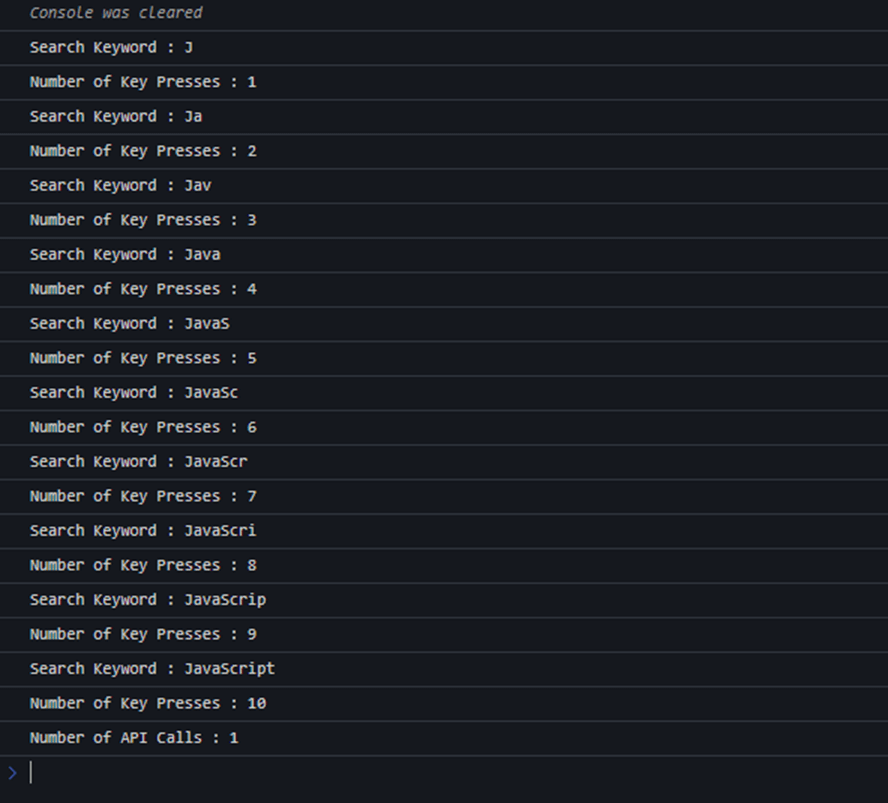
Now typing “JavaScript” triggers only 1 API call instead of 10. The call fires only after the user stops typing for 1 second. Nine unnecessary requests are eliminated entirely.
Note: You can find a working example of this code in StackBlitz.
Use debounce function when the final value matters and it is not suitable for continuous visual updates, because it produces no output while the user is in an active state. It only starts working after they pause.
Best for:
- Search boxes
- Form validation
- Autosave after inactivity

What is throttle?
Throttle is another technique to minimize unnecessary function invocations when using event listeners. However, throttle takes a different approach. Instead of delaying, it invokes the callback function at regular intervals as long as the event trigger is active. No matter how many times the event fires, the function runs at most once per defined interval.
Think of it like a security camera. It takes a snapshot every few seconds regardless of how much movement is happening. It does not wait for things to stop; it samples at a steady rate while activity is ongoing.
How to implement a throttle function
For example, assume we have set the delay to 1 second in a throttle function. First, it will immediately invoke the callback function. Then, it will use the delay time as the waiting time and invoke the callback function every second until the event trigger becomes inactive.
We can implement a throttle function using the setTimeout() function and a flag variable. It should take a callback function and the delay as input parameters.
Refer to the following code example for implementation.
function throttle(callback, delay = 1000) {
  let shouldWait = false;

  return (...args) => {
    if (shouldWait) return;

    callback(...args);
    shouldWait = true;
    setTimeout(() => {
      shouldWait = false;
    }, delay);
  };
}
In debouncing, we implemented the debounce function as a wrapper of the callback function, since we delay the callback function invocation. But in throttle implementation, we immediately invoke the callback function if the shouldWait flag is false. Then, the setTimeout() function is used to update the flag value based on the delay we define.
The shouldWait flag blocks all calls during the interval. Once the timer expires, the flag resets, and the next call goes through.
The following code shows the initial search bar example optimized with a throttle function.
var searchBarDom = document.getElementById('search-bar');
var numberOfKeyPresses = 0;
var numberOfApiCalls = 0;

const getSearchResult = throttle(() => {
  numberOfApiCalls += 1;
  console.log('Number of API Calls : ' + numberOfApiCalls);
}, 1000);

searchBarDom.addEventListener('input', function (e) {
  numberOfKeyPresses += 1;
  console.log('Search Keyword : ' + e.target.value);
  console.log('Number of Key Presses : ' + numberOfKeyPresses);
  getSearchResult();
});


function throttle(callback, delay = 1000) {
  let shouldWait = false;

  return (...args) => {
    if (shouldWait) return;

    callback(...args);
    shouldWait = true;
    setTimeout(() => {
      shouldWait = false;
    }, delay);
  };
}
Here’s what the output looks like:
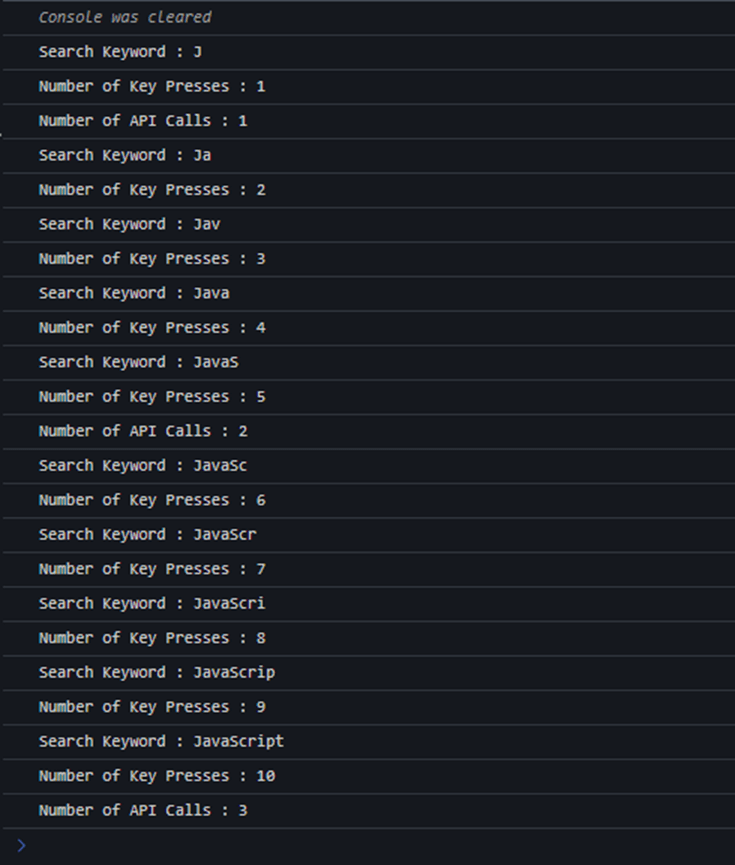
Now typing “JavaScript” triggers only 3 API calls instead of 10. The first call is the initial call, and the other two were made after 5 and 10 key presses, respectively. So, the throttle function has reduced seven unnecessary API calls.
Note: You can find a working example of this code in StackBlitz.
Use throttle when ongoing updates matter, not just the final one. Unlike debounce, it keeps responding while the user is still active.
Best for:
- Scroll and resize handlers.
- Drag interactions.
- Analytics during continuous actions.
Debounce vs. Throttle: Key difference
Both techniques reduced API calls in the same example, but for different reasons and with different trade-offs:
| Behavior | Debounce | Throttle |
| When does it run? | After the user stops for the set time. | Immediately, then at regular intervals. |
| Does it capture the final event? | Yes, always runs with the last input. | Not always, the last event can be skipped. |
| Output during activity | None, silent until the user pauses. | Regular updates throughout. |
| API call reduction | Most aggressive, typically one per burst. | Moderate, fewer calls, but multiple during long activity. |
| UX feel | Slight delay, then one clean response. | Continuous feedback, may not reflect the very last state. |
The key question to ask yourself is: “Do I care about what the user is doing right now, or only what they end up with?”
- If you care about the end result → use debounce.
- If you care about what’s happening along the way → use throttle.
What most developers miss
1. The last event is not always captured in the throttle.
Basic throttle fires on the first event and skips events during the interval. This means the last event, the user’s final scroll position or final pointer location, may never be processed. The UI can end up showing a slightly outdated state.
The fix is a trailing call: one final run after the last event in the burst. Libraries like Lodash support this with a { trailing: true } option. If you build your own throttle, you need to add this explicitly.
2. Cancel and flush are required in real apps.
Imagine a user filling in a form, triggers a debounced autosave, and then immediately navigates away. The debounce timer is still running. When it fires, it attempts to update a state that no longer exists, resulting in errors or stale writings.
- Cancel: Stops the pending call entirely. Call this when a component unmounts, or the user navigates away.
- Flush: Forces the pending call to run immediately. Use this before navigation when you need to guarantee the last action is saved.
Neither debounce nor throttle handles this automatically. You need to add it.
3. For visual updates, consider requestAnimationFrame.
For scroll-linked visuals, drag effects, or progress bars, a fixed millisecond timer is not ideal. The requestAnimationFrame (rAF) aligns updates with the browser’s actual rendering cycle, typically 60 times per second on most screens. This produces smoother animations than a setTimeout-based throttle and avoids painting more frames than the display can show.
Use rAF for anything that directly affects how content looks on screen. Use throttle for everything else (analytics, API calls, layout recalculations).
When to use what
| Use cases | Use | Reason |
| Search-as-you-type API calls | Debounce | One request fire after typing pauses. |
| Form validation while typing | Debounce | Validates only after the user finishes editing. |
| Autosave drafts | Debounce + flush | Saves after a pause; flush writes before navigation. |
| Infinite scroll “load more” trigger | Throttle | Periodic checks while scrolling. |
| Scroll/resize UI updates | Throttle | Steady update rate during continuous events. |
| Scroll-linked animations | requestAnimationFrame(rAF) | Syncs with the browser’s paint cycle. |
| Analytics during continuous actions | Throttle | Limits volume while still capturing user behavior. |
Frequently Asked Questions
What is the difference between debounce and throttle in JavaScript?
Debounce runs a function after events stop firing, while throttle runs it at fixed intervals during continuous events.
Is debounce better than throttle?
No. Debounce is better for delayed actions, while throttle is better for continuous updates.
When should I use debounce?
Use debounce for search inputs, form validation, or actions triggered after typing stops.
When should I use throttle?
Use throttle for scroll, resize, or mouse events that need regular updates.
Does React or Angular support debounce and throttle?
Yes. Both frameworks support them through libraries like Lodash or RxJS.
Ready to build faster, smoother JavaScript apps?
Thanks for reading! Debounce and throttle are small techniques with a big impact on performance. Use:
- Debounce when only the final result matters after user input stops.
- Throttle when continuous activity needs steady, controlled updates.
Understanding your use case and implementing trailing calls, cleanup, and reliability guards is what elevates simple utilities into production‑ready performance tools.
Looking for UI components that stay fast even under heavy user interactions like rapid typing, scrolling, and resizing?
The Syncfusion JavaScript UI controls library is the only suite you’ll need. It includes 145+ high‑performance, lightweight, modular, and responsive components built to handle high‑frequency events smoothly. Plus, its built‑in AI coding assistant boosts development speed and streamlines your workflow so you can ship polished apps faster.
👉 Build robust, responsive, and performance‑optimized interfaces with Syncfusion JavaScript UI controls.
If you’re a Syncfusion user, you can download the setup from the license and downloads page. Otherwise, you can download a free 30-day trial.
You can also contact us through our support forum, support portal, or feedback portal for queries. We are always happy to assist you!
 No spam, just valuable updates.