
 Chinnu Muniyappan
TL;DR: Embedding fonts in PDFs ensures consistent rendering across devices. This guide shows how to embed standard, TrueType, and OpenType fonts in PDF using C#, handle Unicode and complex scripts, and optimize file size with font subsetting and PDF/A conversion.
When you send a PDF to a client or colleague, you want it to look the same on their device as yours. Without embedded fonts, a PDF viewer might substitute missing fonts, causing your carefully designed invoice or certificate to break. As Adobe explains, embedding fonts ensures the document maintains its intended design and layout. In this tutorial, you’ll learn how to embed standard and custom fonts in PDF documents using the Syncfusion® .NET PDF Library. You’ll also see how to handle Unicode and complex scripts, reduce file sizes through font subsetting, and embed fonts in existing documents by converting to PDF/A.
Why Embed fonts?
A PDF referencing fonts not installed on the viewer’s device can display incorrectly. Embedding fonts solves this problem by storing the font data inside the PDF, which:
- Preserves your document’s typography and layout.
- Maintains corporate branding without relying on external font installations.
- Supports multilingual and complex scripts without substitution.
- Ensures consistency across printers and platforms.
Types of fonts you can embed
Learn about the various types of fonts you can embed in a PDF document:
- Standard fonts (e.g., Helvetica, Courier): Built into PDF viewers; no need to embed.
- TrueType fonts (TTF): Widely used; supports Unicode and is easy to embed.
- OpenType fonts (OTF): Offers extended typographic features; supports Unicode.
- Complex script fonts: Ideal for non-Latin scripts like Arabic, Hindi, and Chinese.
Embedding strategies
- Full embedding: Includes the complete font file within the PDF.
- Subset embedding: Includes only the characters used in the document.
- Base 14 fonts: Standard fonts that don’t require embedding.

Setting up a .NET Core project
First, create a console application and add the Syncfusion.Pdf.Net.core package from NuGet.org.
1. Create a new console project
Open your terminal or command prompt and run:
dotnet new console –n create-pdf-with-standard-font2. Add the Syncfusion® PDF library
Install the Syncfusion® PDF package from NuGet.org:
dotnet add package Syncfusion.Pdf.Net.Core3. Add the imaging package for PDF/A conversion
If you need to convert PDFs to PDF/A format, install the imaging package:
dotnet add package Syncfusion.Pdf.Imaging.Net.Core4. Import required namespaces
In your Program.cs file, import the following namespaces:
using Syncfusion.Pdf;
using Syncfusion.Pdf.Graphics;
using Syncfusion.Drawing;
Embedding fonts
Standard fonts
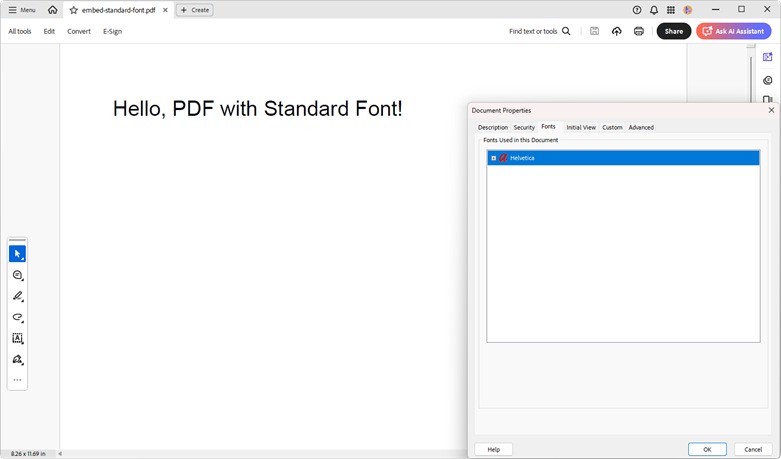
Standard Base-14 fonts (e.g., Helvetica, Times, Courier) are built into most PDF viewers. When you use the Syncfusion® PdfStandardFont class, these fonts are embedded automatically:
Refer to the following code example to learn how to create a PDF file with standard fonts embedded by default.
//Create a new PDF document
using (PdfDocument document = new PdfDocument())
{
    //Add a page to the document
    PdfPage page = document.Pages.Add();
    //Create a font
    PdfStandardFont font = new PdfStandardFont(PdfFontFamily.Helvetica, 18);
    //Draw text on the page
    page.Graphics.DrawString("Hello, World! - This text uses an embedded Helvetica font!", font, PdfBrushes.Black, new PointF(10, 10));
    //Save the document
    document.Save("embed-standard-font.pdf");
}
By executing the above code, you will get the generated output document.
Note: To view the font details, open the document in Adobe PDF Reader and navigate to File -> document properties, or press Ctrl + D.
TrueType fonts (TTF)
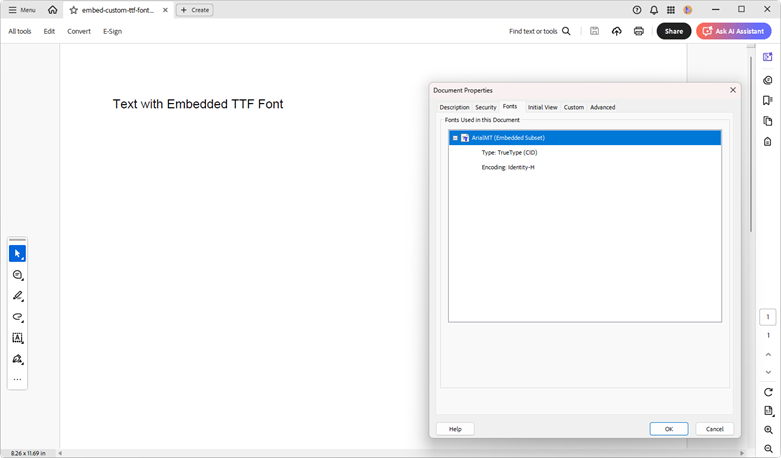
To embed a custom TrueType font, use the PdfTrueTypeFont class. The constructor accepts a Font or Stream and two boolean parameters: embed (embed the font data) and subset. Setting embed to true ensures the font travels with the PDF, and enabling subset reduces file size.
Refer to the following code example to learn how to embed a TrueType font in a PDF document using Syncfusion®.
PdfDocument document = new PdfDocument();
PdfPage page = document.Pages.Add();
PdfGraphics graphics = page.Graphics;

Font font = new Font("Arial", 12);
PdfTrueTypeFont pdfFont = new PdfTrueTypeFont(font, 12, true, false); // embed = true, subset = false

graphics.DrawString("Hello, world!", pdfFont, PdfBrushes.Black, new PointF(10, 10));

document.Save("TTFEmbedded.pdf");
document.Close(true);
After executing the above code, the output PDF will include the TrueType font, ensuring consistent text styling regardless of the viewer’s system configuration.
OpenType fonts (OTF)
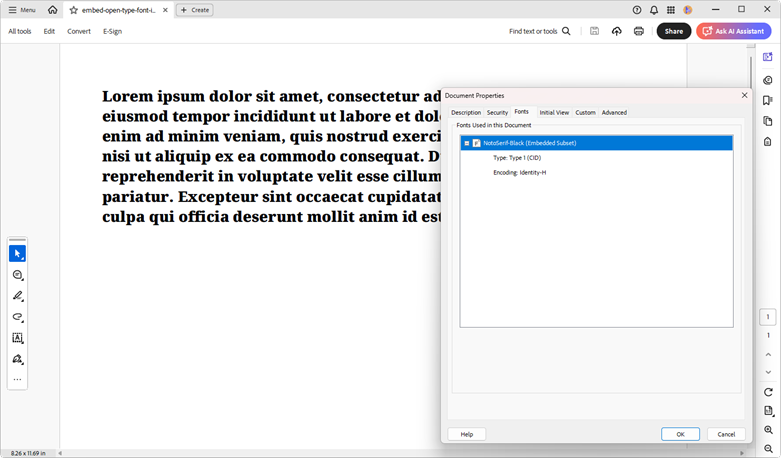
OpenType fonts often support advanced typographic features and extended character sets. You can embed them similarly by loading the font from a stream:
Refer to the following code example to learn how to embed an OpenType font in a PDF document using Syncfusion®.
//Text to draw
string text = "Lorem ipsum...";

//Create a new PDF document
using (PdfDocument document = new PdfDocument())
{
    //Add a page
    PdfPage page = document.Pages.Add();

    //Create font
    using FileStream fontFileStream = new FileStream("../../../../data/NotoSerif-Black.otf", FileMode.Open, FileAccess.Read, FileShare.ReadWrite);
    PdfFont font = new PdfTrueTypeFont(fontFileStream, 14);

    //Get the page client size
    SizeF clipBounds = page.Graphics.ClientSize;
    //Create rect to draw text
    RectangleF rect = new RectangleF(0, 0, clipBounds.Width, clipBounds.Height);
    //Draw text.
    page.Graphics.DrawString(text, font, PdfBrushes.Black, rect);

    //Save the document to a file
    document.Save("embed-open-type-font-in-pdf.pdf");
    document.Close(true);
}
After executing the above code, the resulting PDF will include the embedded OpenType font, ensuring consistent and professional text rendering across all devices
Rendering Unicode and complex scripts
For multilingual documents, you need fonts that support the required scripts and, in some cases, special formatting instructions:
Unicode text
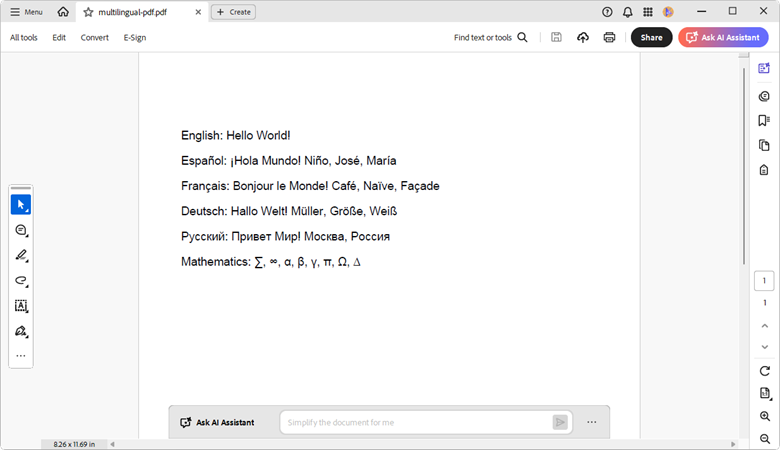
Unicode text allows you to represent characters from virtually any language or symbol set, making it essential for creating multilingual PDF documents. Whether working with accented characters, non-Latin scripts, or special symbols, the Syncfusion® PDF library provides full support for Unicode rendering using the PdfTrueTypeFont class. This ensures that your text appears correctly across all platforms and devices.
Refer to the following code example to learn how to render Unicode text in a PDF.
using (PdfDocument document = new PdfDocument())
{
    PdfPage page = document.Pages.Add();
    PdfGraphics graphics = page.Graphics;

    // Create fonts that support Unicode
    PdfTrueTypeFont unicodeFont = new PdfTrueTypeFont(new FileStream("../../../../data/arial.ttf", FileMode.Open), 14);

    // Ensure the font supports a wide range of characters
    PdfSolidBrush brush = new PdfSolidBrush(Color.Black);

    float yPosition = 50;

    // English text
    graphics.DrawString("English: Hello World!", unicodeFont, brush, new PointF(10, yPosition));
    yPosition += 30;

    // Spanish text with accents
    graphics.DrawString("Español: ¡Hola Mundo! Niño, José, María", unicodeFont, brush, new PointF(10, yPosition));
    yPosition += 30;

    // French text with accents
    graphics.DrawString("Français: Bonjour le Monde! Café, Naïve, Façade", unicodeFont, brush, new PointF(10, yPosition));
    yPosition += 30;

    // German text with umlauts
    graphics.DrawString("Deutsch: Hallo Welt! Müller, Größe, Weiß", unicodeFont, brush, new PointF(10, yPosition));
    yPosition += 30;

    // Russian text (Cyrillic)
    graphics.DrawString("Русский: Привет Мир! Москва, Россия", unicodeFont, brush, new PointF(10, yPosition));
    yPosition += 30;

    // Mathematical symbols
    graphics.DrawString("Mathematics: ∑, ∞, α, β, γ, π, Ω, ∆", unicodeFont, brush, new PointF(10, yPosition));

    using (FileStream stream = new FileStream("multilingual-pdf.pdf", FileMode.Create))
    {
        document.Save(stream);
    }
}
After executing the above code, the PDF will display the Unicode characters correctly, ensuring accurate multilingual support.
Complex script text
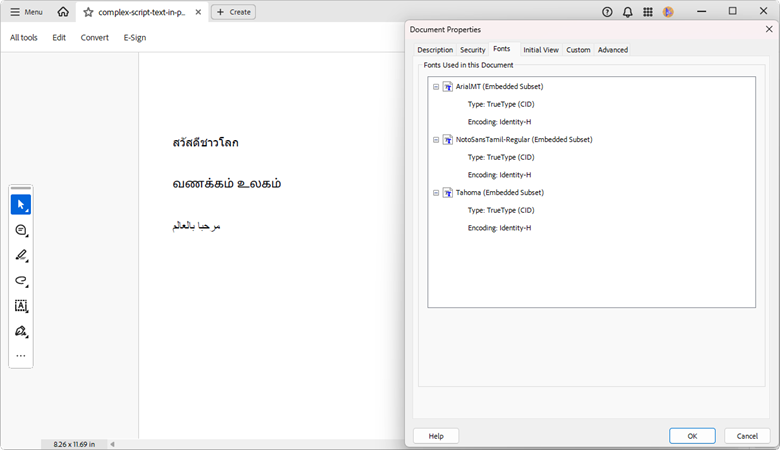
Complex scripts, such as Tamil, Thai, and Arabic, require advanced handling to ensure correct character shaping and alignment in PDF documents. The Syncfusion® PDF Library supports rendering these scripts using the PdfTrueTypeFont class along with PdfStringFormat, which offers a ComplexScript option for script shaping and a TextDirection option to handle right-to-left (RTL) languages properly.
//Create a new PDF document
using (PdfDocument document = new PdfDocument())
{
      //Add a page to the document
    PdfPage page = document.Pages.Add();

      //Create string format and enable complex script support
    PdfStringFormat format = new PdfStringFormat() { ComplexScript = true };

      //Load a TrueType font for the Thai language
    PdfTrueTypeFont thaiUnicodeFont = new PdfTrueTypeFont(new FileStream("../../../../data/tahoma.ttf", FileMode.Open), 14);

      //Draw the Thai text
    page.Graphics.DrawString("สวัสดีชาวโลก", thaiUnicodeFont, PdfBrushes.Black, new RectangleF(0, 130, 300, 50), format);

      //Create a Unicode font for the Indic language
    PdfTrueTypeFont indicUnicodeFont = new PdfTrueTypeFont(new FileStream("../../../../data/NotoSansTamil-Regular.ttf", FileMode.Open), 14);

      //Draw the Indic text
    page.Graphics.DrawString("வணக்கம் உலகம்", indicUnicodeFont, PdfBrushes.Black, new RectangleF(0, 180, 300, 50), format);

      //Load a Unicode font for the Arabic language
    PdfTrueTypeFont arabicUnicodeFont = new PdfTrueTypeFont(new FileStream("../../../../data/arial.ttf", FileMode.Open), 14);

      //Set the text direction for right-to-left languages
    format.TextDirection = PdfTextDirection.RightToLeft;

    page.Graphics.DrawString("مرحبا بالعالم", arabicUnicodeFont, PdfBrushes.Black, new RectangleF(0, 230, 300, 50), format);

      //Save the document
    document.Save("complex-script-text-in-pdf.pdf");
}
Key Points:
- Choose fonts that include the necessary glyphs.
- Set ComplexScript = true for scripts requiring ligatures and shaping (Thai, Tamil, Hindi)
- Set TextDirection = RightToLeft for right-to-left languages like Arabic
- The chosen font must support the target scripts for proper rendering
By executing the above code, you will get the output document as follows.
Optimising file size with font subsetting
Embedding full font files in a PDF can noticeably increase the file size, especially when only a few characters from the font are used. Font subsetting addresses this by embedding only the glyphs actually used in the document. The Syncfusion® PDF Library supports automatic font subsetting when using the PdfTrueTypeFont class, just set the subset parameter to true.
Refer to the following code example to learn how to subset fonts in a PDF using Syncfusion®.
//Load the custom font file
using (FileStream fontStream = new FileStream("../../../../data/arial.ttf", FileMode.Open, FileAccess.Read))
{
    //Create a PDF font using the font stream and enable both embed and subset options.
    PdfFont font = new PdfTrueTypeFont(fontStream, 12, true, true);

    //Create a PDF document
    using (PdfDocument document = new PdfDocument())
    {
        //Add page
        PdfPage page = document.Pages.Add();
        //Draw text using the arial font
        page.Graphics.DrawString("Optimized PDF with subsetted font!", font, PdfBrushes.Black, new PointF(10, 10));
        //Save the document
        document.Save("embed-without-subset-font.pdf");
    }
}
The resulting PDF will embed only the glyphs in your strings, significantly reducing file size.

Embed fonts in an existing PDF via PDF/A conversion
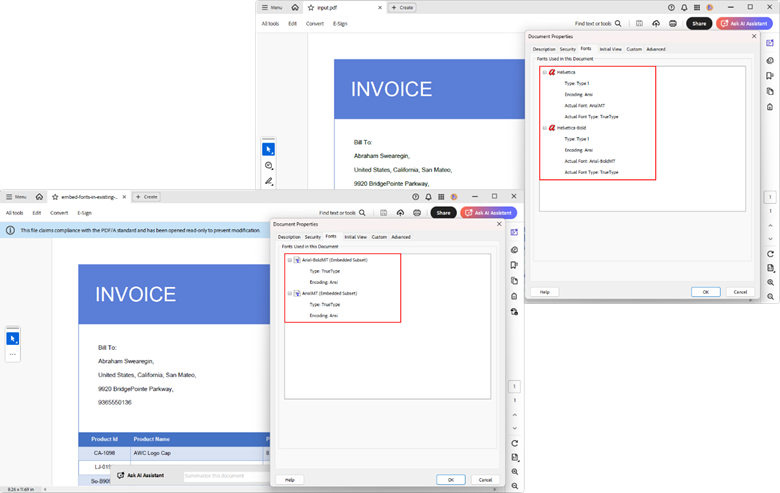
To ensure all fonts are embedded in an existing PDF, convert it to a PDF/A conformance level. PDF/A is an archival format that requires fonts to be embedded. Syncfusion’s ConvertToPDFA method handles the details.
Install-Package Syncfusion.Pdf.Imaging.Net.CoreFor Linux environments, refer to the documentation for detailed information on the required NuGet packages.
Refer to the following code example to learn how to convert an existing PDF to PDF/A and embed its fonts:
//Load the PDF document.
using (PdfLoadedDocument loadedDocument = new PdfLoadedDocument("../../../../data/input.pdf"))
{

      //Subscribe to the SubstituteFont event to supply the required font.
      loadedDocument.SubstituteFont += LoadedDocument_SubstituteFont;

      //Create a PdfConformance option
      PdfConformanceOptions pdfConformanceOptions = new PdfConformanceOptions
      {
          // Set the conformance level to PDF/A-1B.
          ConformanceLevel = PdfConformanceLevel.Pdf_A1B,
          // Set the option to subset the embedded fonts.
          SubsetFonts = true
      };

      //Convert the PDF document to PDF/A-1B format to embed the fonts.
      loadedDocument.ConvertToPDFA(pdfConformanceOptions);

      //Save the PDF document to file.
      loadedDocument.Save("embed-fonts-in-existing-pdf.pdf");

      //Close the document.
      loadedDocument.Close(true);
}
To provide the necessary font during the conversion process, add the following code to the event handler. In this example, the SkiaSharp library is used to retrieve the font stream based on the font name obtained from the event.
void LoadedDocument_SubstituteFont(object sender, PdfFontEventArgs args)
{
    //Get the font name.
    string fontName = args.FontName.Split(',')[0];

    //Map PdfFontStyle to SKFontStyle
    SKFontStyle sKFontStyle = args.FontStyle switch
    {
        PdfFontStyle.Bold => SKFontStyle.Bold,
        PdfFontStyle.Italic => SKFontStyle.Italic,
        PdfFontStyle.Bold | PdfFontStyle.Italic => SKFontStyle.BoldItalic,
        _ => SKFontStyle.Normal
    };

    using SKTypeface typeface = SKTypeface.FromFamilyName(fontName, sKFontStyle);
    if (typeface == null)
    {
        args.FontStream = null;
        return;
    }

    using SKStreamAsset typeFaceStream = typeface.OpenStream();
    if (typeFaceStream == null || typeFaceStream.Length == 0)
    {
        args.FontStream = null;
        return;
    }

    byte[] fontData = new byte[typeFaceStream.Length];
    int bytesRead = typeFaceStream.Read(fontData, fontData.Length);
    if (bytesRead != fontData.Length)
    {
        args.FontStream = null;
        return;
    }

    //Create a new memory stream from the font data.
    args.FontStream = new MemoryStream(fontData);
}
Executing the above code will convert a PDF/A document with embedded fonts, ensuring compliance and consistent display.
Real-world use cases
Business invoice generation
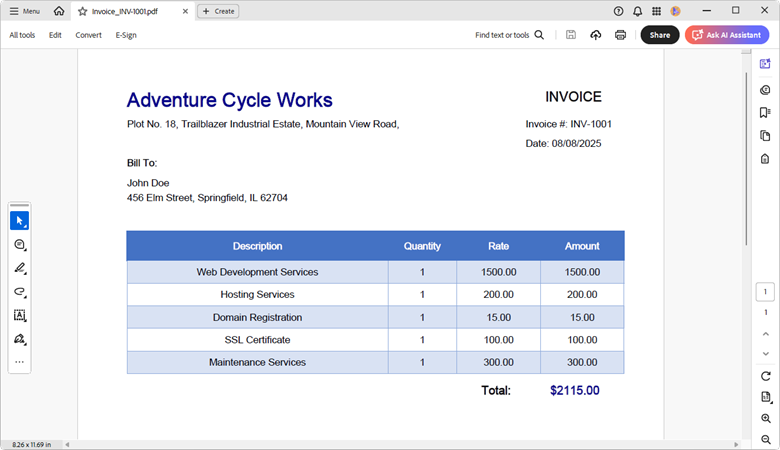
Create professional invoices with consistent branding by embedding custom fonts using the Syncfusion® PDF Library. This ensures that your invoices are polished and uniform across different platforms and devices.
Once you execute the sample, the output document will be generated as shown below.
Certificate generation
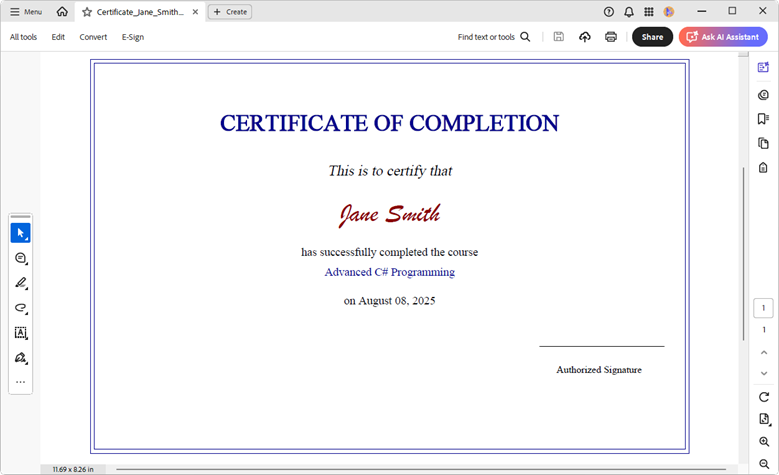
Design and generate professional certificates with custom fonts to reflect your organization’s branding and style. Using the Syncfusion® PDF Library, you can embed custom fonts to ensure consistent typography across devices and platforms, enhancing your certificates’ visual appeal and authenticity.
Once you run the sample, the output certificate will be generated as shown below.
Best practices
- Always embed custom fonts when distributing PDFs externally to prevent substitution.
- Use font subsetting for documents where only a fraction of the font’s characters are used.
- Select Unicode fonts that cover all languages you need, and enable complex script shaping when necessary.
- Verify the final PDF using a viewer’s font properties; embedded fonts are typically marked as Embedded or Embedded Subset.
GitHub reference
For details on the implementation, refer to the GitHub demo.
Conclusion
Embedding fonts in PDFs with C# using Syncfusion’s .NET PDF Library is straightforward: decide whether you need standard or custom fonts, load the appropriate font files, and set the embed and subset options accordingly. Handling Unicode and complex scripts requires selecting fonts with the right glyph coverage and enabling shaping and text direction flags. For existing PDFs, converting to PDF/A embeds fonts automatically and ensures compliance. By following these techniques and best practices, you’ll produce professional, consistent PDFs that render correctly on any device.
Explore Syncfusion’s .NET PDF Library today! You can examine our online examples and documentation for more features and functionalities. Existing Syncfusion® users can download the newest version of Essential Studio® from the license and download page, while new users can start a 30-day free trial to experience its full potential.
Our dedicated support team is also available via the support forum, support portal, or feedback portal for any questions or concerns and is committed to providing prompt and comprehensive assistance.
 No spam, just valuable updates.