
 Sastha Prathap
TL;DR: Are key Excel formulas missing in your React app? This guide shows how to create custom formulas in React Spreadsheet using JavaScript UDFs, adding logic like ISBLANK or SUBSTITUTE in minutes.
As a React developer in 2025, you’re crafting dynamic web apps, but hitting a wall when your spreadsheet component lacks critical Excel formulas. That’s a pain point we’ve all faced.
The Syncfusion® React Spreadsheet is a feature-rich component that brings Excel-like capabilities to your web applications. It supports a wide range of built-in formulas such as SUM, IF, and VLOOKUP. However, some useful and widely used Excel formulas like INDIRECT, TEXTJOIN, or LEFT are not yet supported natively in Syncfusion® Spreadsheet.
To bridge this gap, Syncfusion® provides a powerful feature: Custom formulas, also known as user-defined functions (UDFs). These allow developers to implement missing Excel formulas or define entirely new logic using JavaScript.
In this blog, we’ll focus on how to create custom formulas in the Syncfusion® React Spreadsheet, with a practical example of implementing the ISBLANK, SUBSTITUTE, and PERCENTAGE formulas.
Why use custom formulas?
Custom formulas are ideal when:
- You need to replicate Excel formulas that are not supported in Syncfusion® Spreadsheet.
- Your application requires custom business logic or domain-specific calculations.
- You want to extend spreadsheet functionality with reusable JavaScript logic.
How do custom formulas in Spreadsheet work?
The addCustomFunction method allows you to:
- Register a formula by name.
- Associate it with a JavaScript function.
- Use it like any built-in formula in spreadsheet cells.
Note: Custom formula handlers accept string or number parameters. Object values are not supported. The return value can be a string or a number.
Let’s walk through a few examples on how to implement custom formulas.
Implementing SUBSTITUTE, ISBLANK, and PERCENTAGE formulas
ISBLANK Formula
The ISBLANK formula checks if a cell is empty, returning TRUE if it contains no data and FALSE otherwise. Since this function isn’t natively supported in the spreadsheet, it is implemented using the addCustomFunction method to replicate its behavior.
const onCreated = () => {
    // Register ISBLANK formula as a custom formula
    spreadsheet.addCustomFunction(isBlankFormulaHandler, 'ISBLANK');
};

// Custom function for ISBLANK
const isBlankFormulaHandler = (value) => {
    return value === null || value === undefined || value === '';
};
SUBSTITUTE
The SUBSTITUTE function replaces specific text within a string. It can target all or a particular instance of a substring. As it’s not natively available in the spreadsheet, it’s implemented using the addCustomFunction method to enable flexible text replacement.
For example, if cell A1 contains the text Syncfusion® Spreadsheet and you want to replace Spreadsheet with Grid in cell B1, using the formula =SUBSTITUTE(A1, Spreadsheet, Grid) would result in Syncfusion® Grid being displayed in B1.
const onCreated = () => {
    // Register SUBSTITUTE formula as a custom formula
    spreadsheet.addCustomFunction(substituteFormulaHandler, 'SUBSTITUTE');
};

// Custom function for SUBSTITUTE
const substituteFormulaHandler = (text, oldText, newText, instanceNum) => {
    // Return error if oldText or newText is undefined, null, or empty
    if (
        oldText === undefined || oldText === null || oldText === '' ||
        newText === undefined || newText === null || newText === ''
    )   {
        return 'Invalid arguments';
    }

    // Remove surrounding quotes if present
    [text, oldText, newText] = [text, oldText, newText].map(str =>
        typeof str === 'string' && str.startsWith('"') && str.endsWith('"')
            ? str.slice(1, -1)
            : str
    );
    if (instanceNum === undefined) {
        // Replace all occurrences
        return text.split(oldText).join(newText);
    } else {
        const parts = text.split(oldText);
        const index = Number(instanceNum);
        if (isNaN(index) || index < 1 || index >= parts.length) {
            return text; // No replacement if instance number is invalid
        }
        return (
            parts.slice(0, index).join(oldText) +
            newText +
            parts.slice(index).join(oldText)
        );
    }
};
PERCENTAGE
Excel does not have a specific PERCENTAGE function. In this example, we’ve created a custom formula using the addCustomFunction method. The function calculates what percentage the value num1 is of the value num2.
For example, if you score 45 points out of 60, the function returns 75.
const onCreated = () => {
    // Register PERCENTAGE formula as a custom formula
    spreadsheet.addCustomFunction(percentageHandler, 'PERCENTAGE');
};

// Custom function for PERCENTAGE (The function calculates what percentage the value num1 is of the value num2).
const percentageHandler = (num1, num2) => {
    if (num1 === undefined || num1 === null || num1 === '') return '#VALUE!';
    if (num2 === undefined || num2 === null || num2 === '') return '#VALUE!';
    const numerator = Number(num1);
    const denominator = Number(num2);
    if (isNaN(numerator) || isNaN(denominator)) return '#VALUE!';
    if (denominator === 0) return '#DIV/0!';
    return (numerator / denominator) * 100;
};
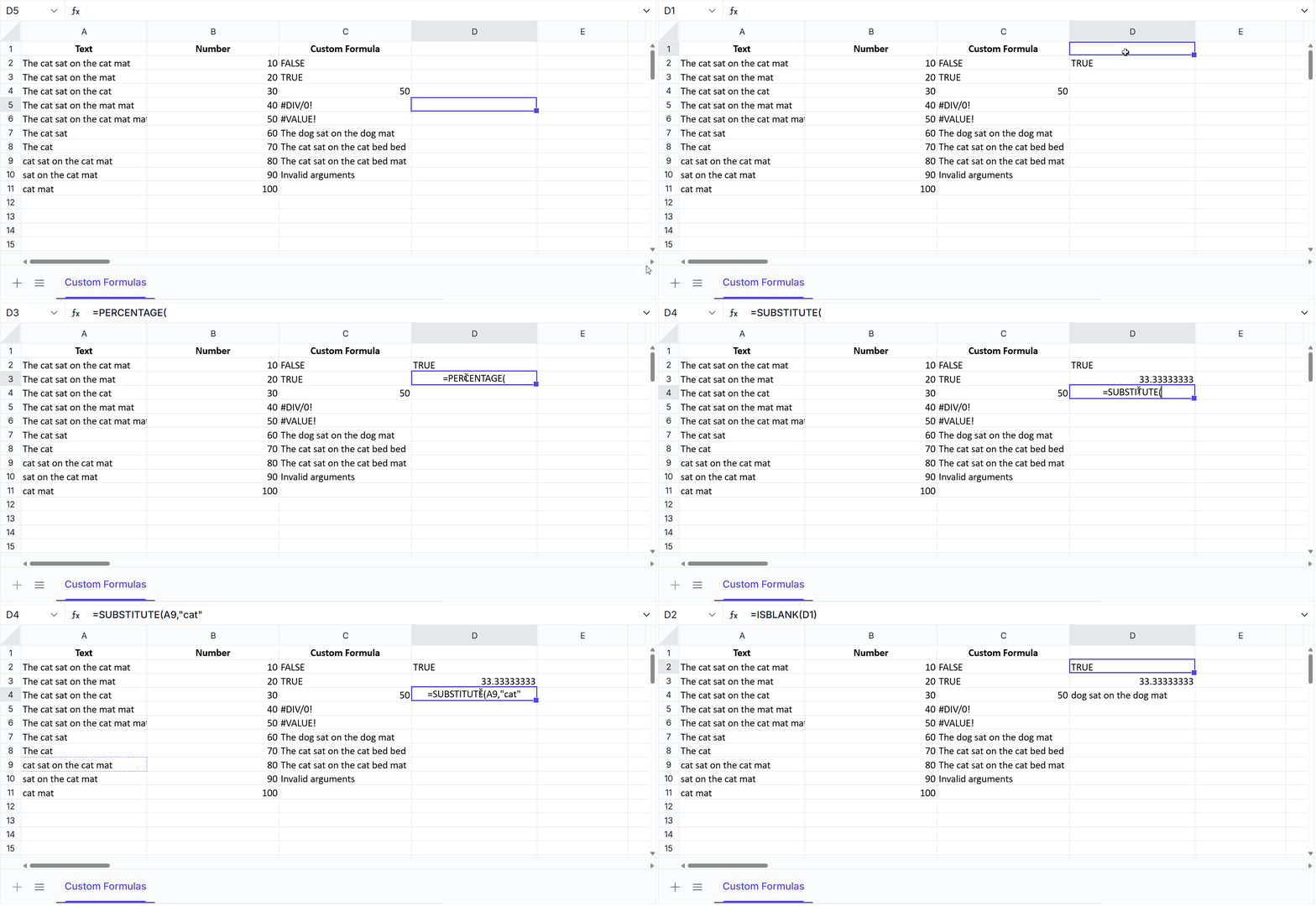
The image below illustrates the ISBLANK, PERCENTAGE, and SUBSTITUTE formulas in the Syncfusion® React Spreadsheet.
Reference
Try the live demo on StackBlitz here.

Conclusion
Mastering spreadsheet formulas in Syncfusion® React Spreadsheet opens up a world of possibilities for your data-driven React apps. Whether you’re replicating Excel’s TEXTJOIN or building unique business logic, custom spreadsheet formulas keep your projects efficient.
Custom formulas in Syncfusion® React Spreadsheet empower developers to:
- Extend spreadsheet functionality with JavaScript
- Replicate unsupported Excel formulas
- Implement business-specific logic seamlessly
You can explore the complete list of supported formulas and advanced usage examples in the official documentation. Whether you’re building dashboards or data-driven apps, custom formulas give you the flexibility to meet your unique requirements.
Syncfusion® Spreadsheet is also available for JavaScript, Angular, Vue, ASP.NET Core, and ASP.NET MVC platforms, making it easy to integrate across your tech stack.




 No spam, just valuable updates.