
 UdhayaKumar Duraisamy
TL;DR: Implementing a Blazor file upload with video preview allows users to play videos before uploading. This tutorial explains how to integrate pre-upload playback using Blazor components and JavaScript interop for a smooth media upload experience.
Modern web applications demand intuitive file upload experiences, especially for media-heavy platforms. A common challenge is ensuring users select the correct video before uploading. In this guide, you’ll learn how to add video preview functionality to the Syncfusion Blazor File Upload component, allowing users to visually verify their selected video files before starting the upload. This reduces errors and improves usability, making your Blazor apps more user-friendly.
By leveraging the flexibility of the Blazor File Upload component, developers can integrate seamless file handling with features like custom templates, event handlers, and JavaScript Interop, all without sacrificing performance. Whether you’re building media platforms or enterprise tools, this approach delivers a practical solution for implementing video previews in Blazor applications.
Let’s get started!
Prerequisites
Before implementing this feature, ensure the following:
- System requirements for Syncfusion Blazor
- Syncfusion Blazor File Upload component installed
- JavaScript Interop knowledge
Implementation overview
The solution centers on the customization capabilities of the Blazor File Upload component. Here’s the high-level process:
- Configure the File Upload component with AutoUpload=”false” to allow manual control over uploads.
- Handle the FileSelected event to extract file metadata when a user selects a file.
- Use JavaScript Interop to create a temporary object URL for the selected video file, enabling client-side preview.
- Display the video preview using the HTML <video> tag within UploaderTemplates.
Manage the upload lifecycle and provide feedback using event handlers like BeforeUpload, Progressing, Success, and OnFailure.
Step-by-step guide to adding video preview to Syncfusion Blazor File Upload
Step 1: Configure the File Upload component
Start by setting up the Blazor File Upload component with AutoUpload=”false”. This prevents automatic uploads and gives users the chance to preview their video before submitting.
<div style="margin: 150px auto; width: 50%">
    <SfUploader @ref="uploadObj"
                ID="UploadFiles"
                AutoUpload="false"
                AllowMultiple="false"
                AllowedExtensions=".mp4,.avi,.mov,.wmv,.flv,.mkv">
        <UploaderAsyncSettings SaveUrl="api/SampleData/Save"
                               RemoveUrl="api/SampleData/Remove">
        </UploaderAsyncSettings>
    </SfUploader>
</div>

@code {
    private SfUploader? uploadObj { get; set; }
}
Key configurations:
- Single file upload: Set AllowMultiple=”false” to allow only one file at a time.
- Video format restriction: To ensure that only video files are uploaded, restrict file types using the AllowedExtensions property.
- Async settings: Configure UploaderAsyncSettings with backend API endpoints such as SaveUrl and RemoveUrl for saving and deleting files.
- Component reference: Use the @ref directive to bind the component to a variable for programmatic control.
Step 2: Backend controller setup
Create a backend controller to handle file operations. The API should:
- Save the uploaded video file to the server.
- Remove the file when requested by the user.
[Route("api/[controller]")]
public class SampleDataController : Controller
{
    [HttpPost("[action]")]
    public async Task<IActionResult> Save(IFormFile UploadFiles) // Save the uploaded file here
    {
        // Your file saving logic here!
        return Ok();
    }

    [HttpPost("[action]")]
    public async Task<IActionResult> Remove(IFormFile UploadFiles) // Delete the uploaded file here
    {
        // Your file deleting logic here!
        return Ok();
    }
}
Step 3: Handle file selection and enable JavaScript Interop
When a file is selected, capture its metadata and generate a client-side object URL for preview using JavaScript Interop.
@inject IJSRuntime JSRuntime

<div style="margin: 150px auto; width: 50%">
    <SfUploader @ref="uploadObj"
                ID="UploadFiles"
                AutoUpload="false"
                AllowMultiple="false"
                AllowedExtensions=".mp4,.avi,.mov,.wmv,.flv,.mkv">
        <UploaderAsyncSettings SaveUrl="api/SampleData/Save"
                               RemoveUrl="api/SampleData/Remove">
        </UploaderAsyncSettings>
        <UploaderEvents FileSelected="@FileSelectedHandler">
        </UploaderEvents>
    </SfUploader>
</div>

@code {
    private SfUploader? uploadObj { get; set; }

    private class FileData
    {
        public string? Name { get; set; }
        public string? Type { get; set; }
        public double? Size { get; set; }
        public string? Status { get; set; }
        public string? StatusClass { get; set; }
        public string? ObjectUrl { get; set; }
    }

    private FileData? SelectedFile = new FileData();

    private async Task FileSelectedHandler(Syncfusion.Blazor.Inputs.SelectedEventArgs args)
    {
        SelectedFile = null;

        if (args.FilesData.Count == 0)
        {
            return;
        }

        if (args.FilesData[0].Status == "Ready to upload")
        {
            SelectedFile = new FileData
            {
                Name = args.FilesData[0].Name,
                Type = args.FilesData[0].Type,
                Size = args.FilesData[0].Size,
                Status = args.FilesData[0].Status,
                StatusClass = "text-muted"
            };

            try
            {
                SelectedFile.ObjectUrl = await JSRuntime.InvokeAsync<string>("createObjectUrl", "#UploadFiles");
            }
            catch (Exception ex)
            {
                Console.WriteLine($"Error creating object URL: {ex.Message}");
            }
        }
    }
}
Key points:
- FileSelectedHandler: Captures metadata such as name, type, size, and status.
- JavaScript Interop: Use JSRuntime.InvokeAsync to call the createObjectUrl function, passing the uploader’s ID (#UploadFiles) to locate the file input element.
- FileData class: Stores file metadata and the generated object URL for rendering the preview.
Step 4: JavaScript Interop function
Next, create a JavaScript function that generates a temporary object URL for the selected video file. This enables client-side preview without uploading the file to the server.
<script>
        window.createObjectUrl = function (selector) {
            const inputEl = document.querySelector(selector);
            if (inputEl && inputEl.files && inputEl.files.length > 0) {
                const file = inputEl.files[0];
                try {
                    return URL.createObjectURL(file);
                } catch (e) {
                    console.error("Could not create object URL:", e);
                    return null;
                }
            }
            return null;
        };
</script>
How it works:
The createObjectUrl function retrieves the file from the input element using the provided selector, generates a temporary URL via URL.createObjectURL(), and returns it to Blazor for rendering in the <video> tag. Built-in error handling ensures the function fails gracefully if the file or input is invalid.
Step 5: Customize the video preview template
Use the UploaderTemplates component to display the video preview alongside file details and action buttons.
<SfUploader @ref="uploadObj"
            ID="UploadFiles"
            AutoUpload="false"
            AllowMultiple="false"
            AllowedExtensions=".mp4,.avi,.mov,.wmv,.flv,.mkv">
    <UploaderAsyncSettings SaveUrl="api/SampleData/Save"
                           RemoveUrl="api/SampleData/Remove">
    </UploaderAsyncSettings>

    <UploaderEvents FileSelected="@FileSelectedHandler">
    </UploaderEvents>

    <UploaderTemplates>
        <Template>
            <div style="display: flex;
                        align-items: flex-start;
                        margin: 0 auto;
                        padding: 10px;
                        gap: 20px;
                        width: 100%;
                        flex-wrap: wrap;">
                @if (SelectedFile != null)
                {
                    <!-- Video Preview Section -->
                    <div style="flex: 0 0 320px; max-width: 100%;">
                        @if (SelectedFile.ObjectUrl != null && !string.IsNullOrEmpty(SelectedFile.ObjectUrl))
                        {
                            <video controls autoplay muted style="width: 100%; height: auto; border-radius: 8px; box-shadow: 0 4px 8px rgba(0, 0, 0, 0.2);">
                                @SelectedFile.ObjectUrl
                                Your browser does not support the video tag.
                            </video>
                        }
                        else
                        {
                            <div style="display: flex; flex-direction: column; align-items: center; justify-content: center; height: 180px; background-color: #f8f9fa; border-radius: 8px; text-align: center;">
                                <i class="bi bi-play-circle fs-1 mb-2" style="color: #6c757d;"></i>
                                <p style="margin: 0; color: #6c757d; font-size: 14px;">No video selected</p>
                            </div>
                        }
                    </div>

                    <!-- File Information Panel -->
                    <div style="flex: 1; padding: 10px; max-width: 100%;">
                        <div class="text-muted mt-1"><strong>File Name:</strong> @(SelectedFile.Name ?? "No file selected")</div>
                        <div class="text-muted mt-1"><strong>File Type:</strong> @(SelectedFile.Type)</div>
                        <div class="text-muted mt-1"><strong>File Size:</strong> @(SelectedFile.Size.ToString()) bytes</div>
                        <div class="mt-1 @SelectedFile.StatusClass"><strong>Status:</strong> @(SelectedFile?.Status?.ToString())</div>
                    </div>

                    <!-- Delete/Remove Button -->
                    <div style="flex: 0 0 auto; padding: 10px;">
                        @if (SelectedFile?.Status == "File uploaded successfully")
                        {
                            <span class="e-icons e-file-delete-btn" id="deleteIcon" title="Delete" @onclick="DeleteFile"></span>
                        }
                        else
                        {
                            <span class="e-icons e-file-remove-btn" id="remove_btn" title="Remove" @onclick="DeleteFile"></span>
                        }
                    </div>
                }
                else
                {
                    <div style="display: flex; flex-direction: column; align-items: center; justify-content: center; height: 180px; background-color: #f8f9fa; border-radius: 8px; text-align: center; width: 100%;">
                        <i class="bi bi-play-circle fs-1 mb-2 e-danger"></i>
                        <p style="margin: 0; color: #6c757d; font-size: 14px;">No video selected</p>
                    </div>
                }
            </div>
        </Template>
    </UploaderTemplates>
</SfUploader>
What this does:
- Displays the video preview using the ObjectUrl from the FileData class.
- Shows file metadata such as name, type, size, and status.
- Provides Remove/Delete buttons for user control.
- Uses a responsive flexbox layout for a clean UI.
Step 6: Implement upload status handlers
Finally, we add event handlers to manage the upload lifecycle and update the UI with real-time status feedback.
<UploaderEvents FileSelected="@FileSelectedHandler"
                BeforeUpload="@BeforeUploadHandler"
                Progressing="@ProgressingHandler"
                Success="@SuccessHandler"
                OnFailure="@OnFailureHandler"
                OnClear="@OnClearHandler">
</UploaderEvents>

@code {
    private void BeforeUploadHandler(Syncfusion.Blazor.Inputs.BeforeUploadEventArgs args)
    {
        if (SelectedFile != null)
        {
            SelectedFile.Status = "Upload Started!";
        }
    }

    private void ProgressingHandler(Syncfusion.Blazor.Inputs.ProgressEventArgs args)
    {
        if (SelectedFile != null)
        {
            SelectedFile.Status = "Uploading...";
        }
    }

    private async Task SuccessHandler(Syncfusion.Blazor.Inputs.SuccessEventArgs args)
    {
        if (SelectedFile != null)
        {
            SelectedFile.Status = "Uploaded Successfully!";
            SelectedFile.StatusClass = "e-success";
        }

        if (args.Operation == "remove")
        {
            SelectedFile = null;
            if (uploadObj != null)
            {
                await uploadObj.ClearAllAsync();
            }
        }
    }

    private void OnFailureHandler(Syncfusion.Blazor.Inputs.FailureEventArgs args)
    {
        if (SelectedFile != null)
        {
            SelectedFile.Status = "Upload Failed!";
            SelectedFile.StatusClass = "e-error";
        }
    }

    public async Task DeleteFile()
    {
        if (uploadObj != null)
        {
            await uploadObj.RemoveAsync();
        }
    }

    private void OnClearHandler(Syncfusion.Blazor.Inputs.ClearingEventArgs args)
    {
        SelectedFile = null;
    }
}- BeforeUploadHandler: Sets the status to “Upload Started!” when the upload process begins.
- ProgressingHandler: Updates the status to “Uploading…!” during the upload.
- SuccessHandler: Marks the upload as “Uploaded Successfully!” and applies a success style. For the remove operations, it clears the file selection.
- OnFailureHandler: Sets the status to “Upload Failed!” with an error style if the upload fails.
- DeleteFile: Initiates file removal by calling RemoveAsync, which triggers the backend Remove endpoint.
- OnClearHandler: Resets the SelectedFile state when the user clears the selection.
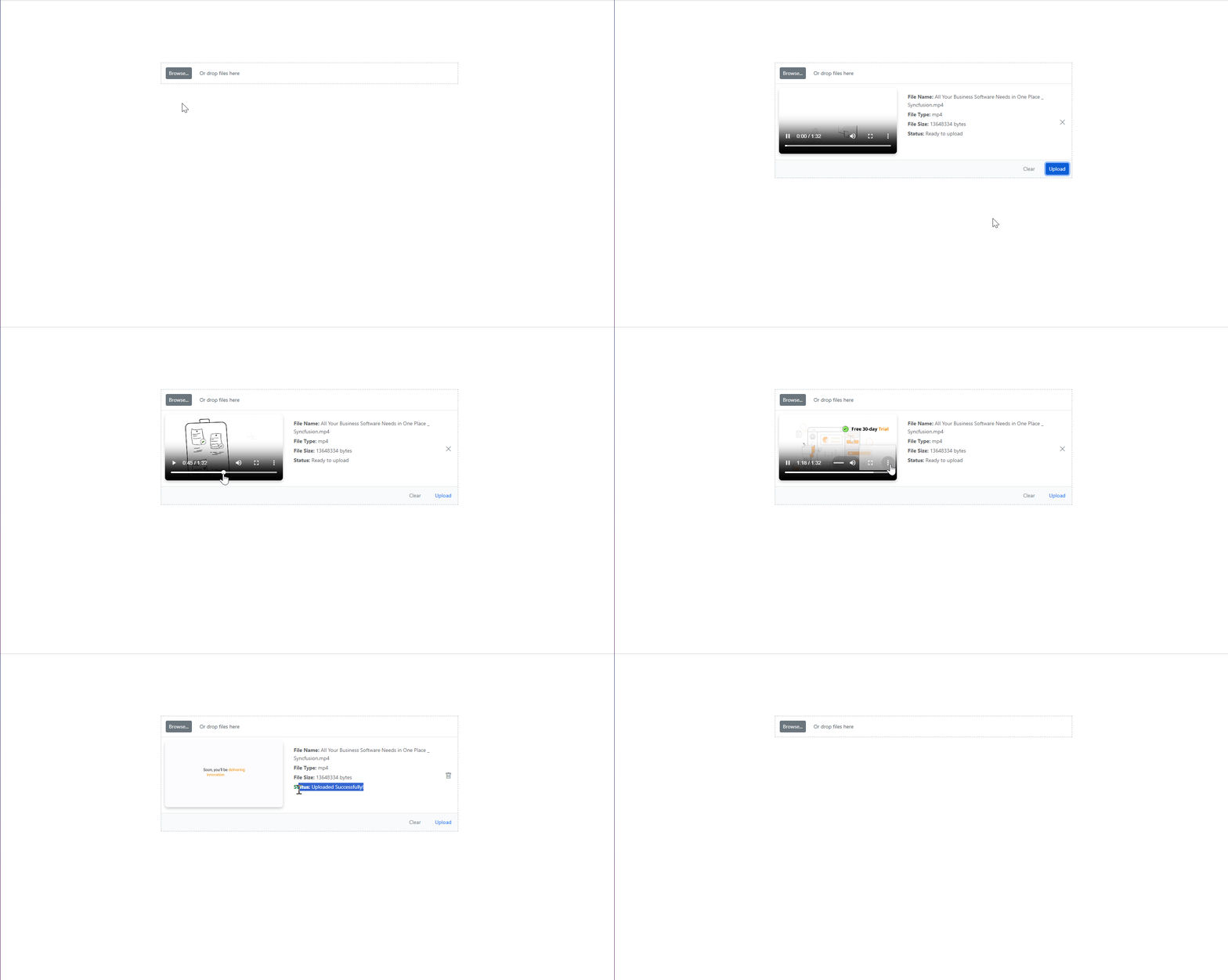
By running the above code examples, you’ll see the Blazor File Upload component with video preview in action.
Use cases
Incorporating a video preview before upload with the Syncfusion Blazor File Upload component addresses several practical scenarios:
- Media management systems: Enable users to verify video content quality and relevance before uploading, streamlining content curation.
- Social media platforms: Enable users to verify video content quality and relevance before uploading, streamlining content curation.
- E-learning portals: Help instructors verify lecture videos or tutorials before submission, enhancing educational content delivery.
- Customer support tools: Let users validate screen recordings or demo videos before attaching them to tickets, reducing support resolution times.
These use cases demonstrate how the Syncfusion Blazor File Upload enables developers to create user-centric experiences, directly addressing common pain points in file upload workflows.
GitHub reference
Check out the GitHub demo showcasing Blazor File Upload with Video Preview.

Conclusion
Thank you for reading! By enabling video previews before upload, the Blazor File Upload component transforms file handling into a more reliable and interactive process. Its flexible API, rich event hooks, and template customization empower developers to create advanced UI solutions without adding complexity.
Ready to enhance your Blazor application with a video preview feature? Try implementing this solution in your project today! For more advanced features and customization options, explore the Syncfusion Blazor documentation or check out their GitHub repository for additional samples. Share your feedback or questions in the comments below!
If you’re a Syncfusion user, you can download the setup from the license and downloads page. Otherwise, you can download a free 30-day trial.
You can also contact us through our support forum, support portal, or feedback portal for queries. We are always happy to assist you!





 No spam, just valuable updates.