
 Mathan Kumar Varadharaja
TL;DR: Manual summaries often vary in quality and miss critical details, leading to inaccurate or incomplete information. Learn how to build an AI-powered Word document summarizer in C# using OpenAI GPT. This guide covers prerequisites, code implementation, and best practices for automating document summarization to enable faster and smarter workflows.
Word documents are essential for creating and sharing information, whether it’s project reports, proposals, or technical documentation. However, as these documents grow in length and complexity, extracting key insights quickly becomes a challenge. Manual summarization is time-consuming and error-prone. That’s where AI-powered summarization steps in.
In this blog post, you’ll learn how to build a C# console application that reads Word files using the Syncfusion® .NET Word library and generates intelligent summaries using OpenAI GPT. This approach combines the power of document processing with cutting-edge AI, enabling you to transform lengthy content into concise, actionable insights.

Prerequisites
To follow along, ensure you have:
- .NET SDK 8.0 or later.
- Syncfusion DocIO and OpenAI NuGet packages.
- An OpenAI API key
Building a Word document summarizer with OpenAI GPT
Follow these steps to create a Word document summarizer in C# with OpenAI GPT and Syncfusion .NET Word Library:
Step 1: Install the required NuGet packages
Begin by installing the latest Syncfusion.DocIO.NET.Core and OpenAI NuGet packages in your app.
Step 2: Add required namespaces
Next, add the following namespaces to your C# file:
using Syncfusion.DocIO;
using Syncfusion.DocIO.DLS;
using OpenAI;
using OpenAI.Chat;
using System.ClientModel;
Step 3: Implement a method for OpenAI responses
Now, create a helper method to send document content to OpenAI and receive the summarized response.
private static async Task<string> AskOpenAIAsync(
    string apiKey,
    string model,
    string systemPrompt,
    string userContent)
{
    // Initialize OpenAI client
    OpenAIClient openAIClient = new OpenAIClient(apiKey);

    // Create chat client for the specified model
    ChatClient chatClient = openAIClient.GetChatClient(model);

    // Get AI response
    ClientResult<ChatCompletion> chatResult =
        await chatClient.CompleteChatAsync(
            new SystemChatMessage(systemPrompt),
            new UserChatMessage(userContent));

    string response = chatResult.Value.Content[0].Text ?? string.Empty;
    return response;
}Step 4: Capture the file path and the summarized length
In this step, we ask the user for two essential inputs:
- Word file path: The absolute path to the .docx file that needs summarization.
- Summary length: The number of sentences for the AI-generated summary.
The method performs input validation to ensure:
- The file exists.
- The sentence count is a valid integer.
- The OpenAI API key is configured before proceeding.
If any validation fails, the program exits gracefully with error messages. Once validated, the method calls SummarizeWordContent() asynchronously to process the document.
private async static Task()
{
    Console.WriteLine("AI Powered Word Summarizer");

    Console.WriteLine("Enter full Word file path (e.g., C:\\Data\\Input.docx):");

    // Read user input for Word file path
    string? wordFilePath = Console.ReadLine()?.Trim().Trim('"');
    Console.WriteLine("Please enter the number of sentences you would like the summary to be (e.g., 3, 5):");

    // Read user input for required number of lines
    string? sentencesCount = Console.ReadLine()?.Trim().Trim('"');

    if (string.IsNullOrWhiteSpace(wordFilePath) || !File.Exists(wordFilePath))
    {
        Console.WriteLine("Invalid path. Exiting.");
        return;
    }

    if (string.IsNullOrWhiteSpace(sentencesCount) || !int.TryParse(sentencesCount, out int result))
    {
        Console.WriteLine("Invalid Count. Exiting.");
        return;
    }

    if (string.IsNullOrWhiteSpace(openAIApiKey))
    {
        Console.WriteLine("OPENAI_API_KEY not set. Exiting.");
        return;
    }

    try
    {
        // Summarize Word content
        await SummarizeWordContent(wordFilePath, sentencesCount);
    }
    catch (Exception ex)
    {
        Console.WriteLine($"Failed to Summarize Word document: {ex.StackTrace}");
        return;
    }
}
Step 5: Implementing the method for summarizing Word documents
In this step, we implement the core logic that performs document extraction and AI-powered summarization:
- Open the Word document and extract text using DocIO.
- Define a system prompt for OpenAI with the desired sentence count.
- Send the extracted text to OpenAI GPT for summarization.
- Create a new Word document, insert the summarized text, and save it with a new filename.
Refer to the following code example.
private static async Task SummarizeWordContent(string wordFilePath, string sentencesCount)
{
    // Open the Existing Word document
    WordDocument wordDocument = new WordDocument(wordFilePath);

    // Define the system prompt that instructs OpenAI how to summarize the content,
   // including the desired number of sentences in the summary.
    string systemPrompt = @"You are a professional document summarizer integrated into a DocIO automation tool.
                          Your job is to summarize the word document content into the " + sentencesCount + " sentences";

    string originalText = wordDocument.GetText();
    wordDocument.Close();

    // Call OpenAI to summarize the text and store the summarized result
    string summarizedText = await AskOpenAIAsync(openAIApiKey, openAImodel, systemPrompt, originalText);

    WordDocument summarizedDocument = new WordDocument();
    summarizedDocument.EnsureMinimal();
    summarizedDocument.LastParagraph.AppendText(summarizedText);
    summarizedDocument.Save(wordFilePath.Replace(".docx", "_DocIOsummarized.docx"));
    summarizedDocument.Close();
}
Example:
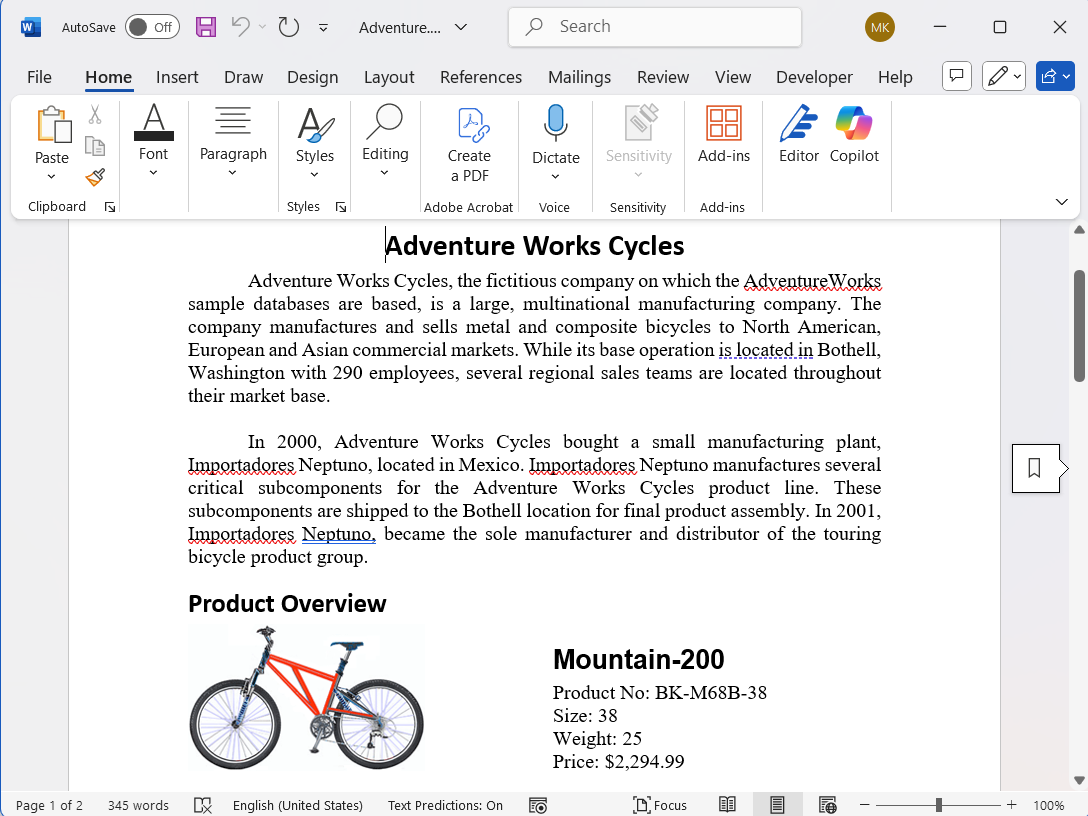
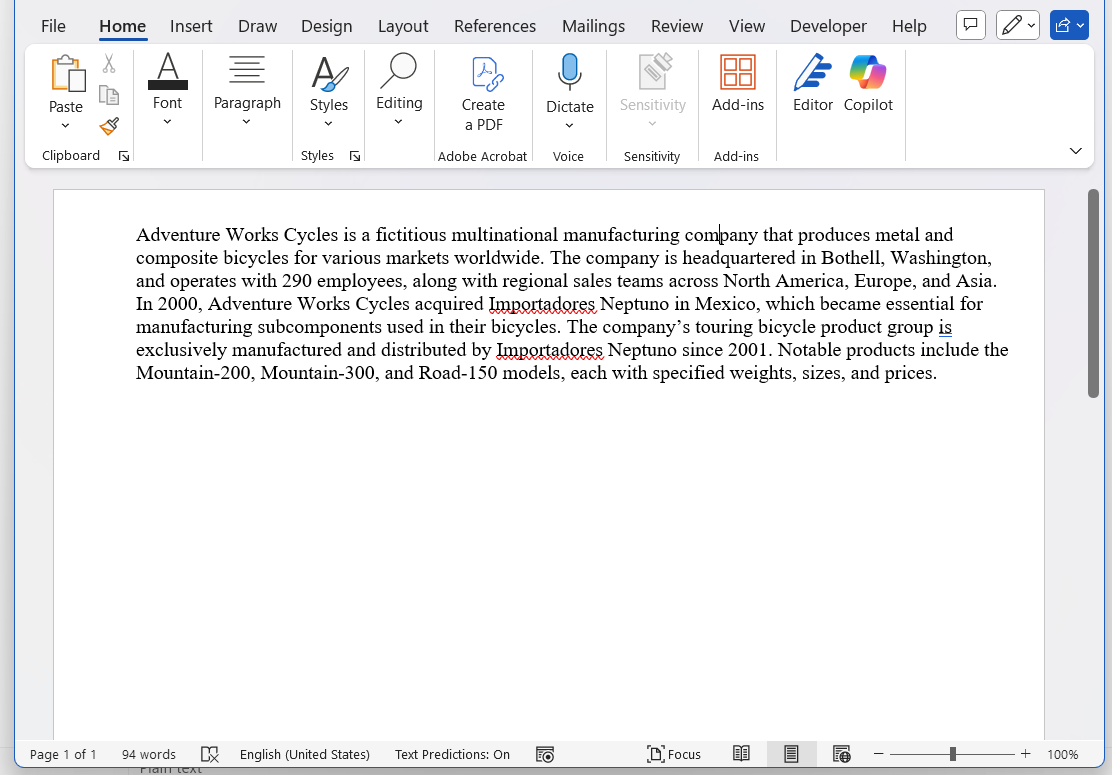
The following screenshots illustrate how a Word document is summarized.
Original document:
Summarized output:
Use cases
- Human resources: Summarize lengthy employee handbooks, policy documents, and training materials for quick reference.
- Legal & compliance: Condense contracts, agreements, and compliance reports into key clauses and actionable points.
- Marketing & communications: Create concise summaries of campaign reports, newsletters, and press releases for executive review.
- Education: Generate brief overviews of course materials, research papers, and administrative documents for students and faculty.
- Government & public services: Summarize official notices, policy drafts, and public service reports for internal teams.
- Technical documentation: Summarize API documentation, developer guides, and product manuals for easier onboarding and faster understanding.
- Project management: Summarize meeting minutes, project reports, and requirement documents for stakeholders.
- Finance: Condense audit reports, financial statements, and investment proposals for quick analysis.
GitHub reference
For more details, refer to the example for building an AI-powered Word document summarizer in C# with OpenAI in the GitHub repository.
FAQs
Q1: Can I use a different OpenAI model?
Absolutely. This example uses gpt-4o-mini for cost efficiency, but you can switch to gpt-4o or any other supported model by updating the model parameter in the AskOpenAIAsync method.
Q2: Is my data secure when sent to OpenAI?
Yes. All data is transmitted securely over HTTPS to OpenAI’s API. For sensitive information, review OpenAI’s data usage policy and consider anonymizing personal identifiers before sending.
Q3: Does this work offline?
No. Summarization requires an active internet connection to access OpenAI’s API.
Conclusion
Thanks for reading! AI-powered summarization transforms how we interact with lengthy Word documents by turning complex content into concise, actionable insights. By combining Syncfusion .NET Word library for document processing with OpenAI GPT for summarization, you can build solutions that save time, improve productivity, and enhance decision-making.
Start implementing AI-driven summarization today and unlock smarter, more efficient document workflows.
If you are new to our Word Library, we highly recommend following our getting started guide. You can find more Word Library examples at this GitHub location.
If you’re a Syncfusion user, you can download the setup from the license and downloads page. Otherwise, you can download a free 30-day trial.
You can also contact us through our support forum, support portal, or feedback portal for queries. We are always happy to assist you!



 No spam, just valuable updates.