
 Ramkumar Ravy
TL;DR: Developers often struggle with manual PDF form handling and redaction. This guide shows how to build an AI-powered Blazor PDF Viewer that automates form filling, smart redaction, and semantic search using Azure OpenAI.
Why developers need a smarter PDF Viewer
Ever spent hours manually redacting PDFs or filling forms in your Blazor apps? It’s frustrating and error-prone. That’s why we’re thrilled to introduce the Syncfusion® AI-Powered Blazor PDF Viewer Component in the 2025 Volume 3 release.
The Syncfusion® AI-Powered Blazor PDF Viewer enhances the PDF experience with a layer of artificial intelligence. While it retains all the robust core features, including displaying PDFs from byte arrays, streams, or file paths, support for printing, annotations, and easy navigation via bookmarks and thumbnails, it now introduces next-generation capabilities. These include:
- AI assistance for instant answers from your documents
- Smart fill to automate form filling with a single click
- Advanced smart redaction to effortlessly protect sensitive data
- Flexible AI integration for connecting with custom AI services
It’s a complete solution for viewing and navigating PDFs and working with them more intelligently and securely.
Key AI-Powered features:
The Syncfusion® AI-Powered Blazor PDF Viewer incorporates below powerful AI-driven features.
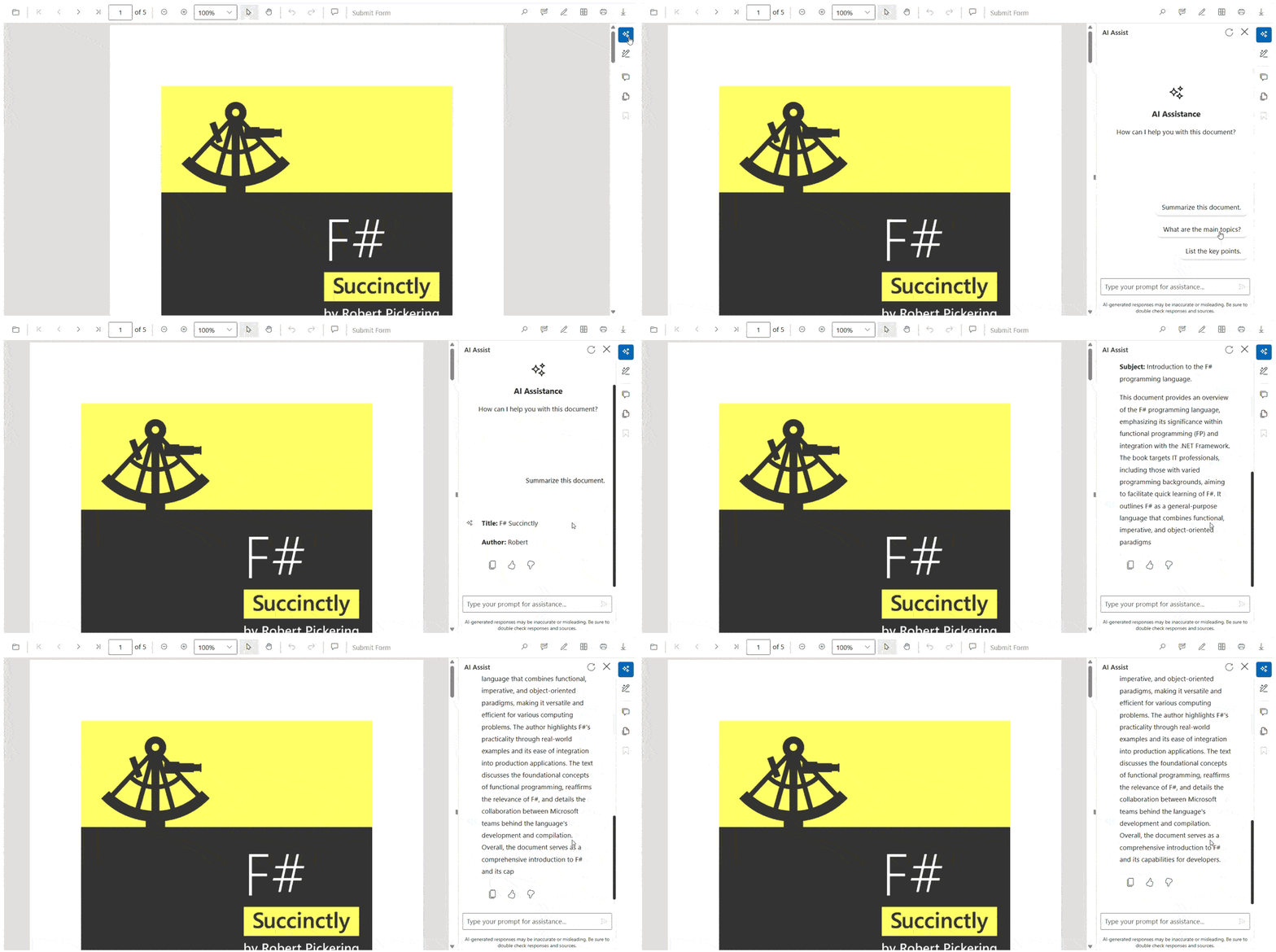
AI Assistance – Transform PDFs into conversations
This feature leverages advanced AI to deliver intelligent document analysis and deeper content understanding. Highlights include:
- Easy understanding: Automatically analyzes PDF content and helps users grasp key points quickly without reading the entire document.
- Interactive Q&A: Allows users to ask custom questions or choose from AI-suggested queries for deeper insights.
- Ideal for complex documents: Perfect for legal contracts, research papers, business reports, and other lengthy or technical PDFs.
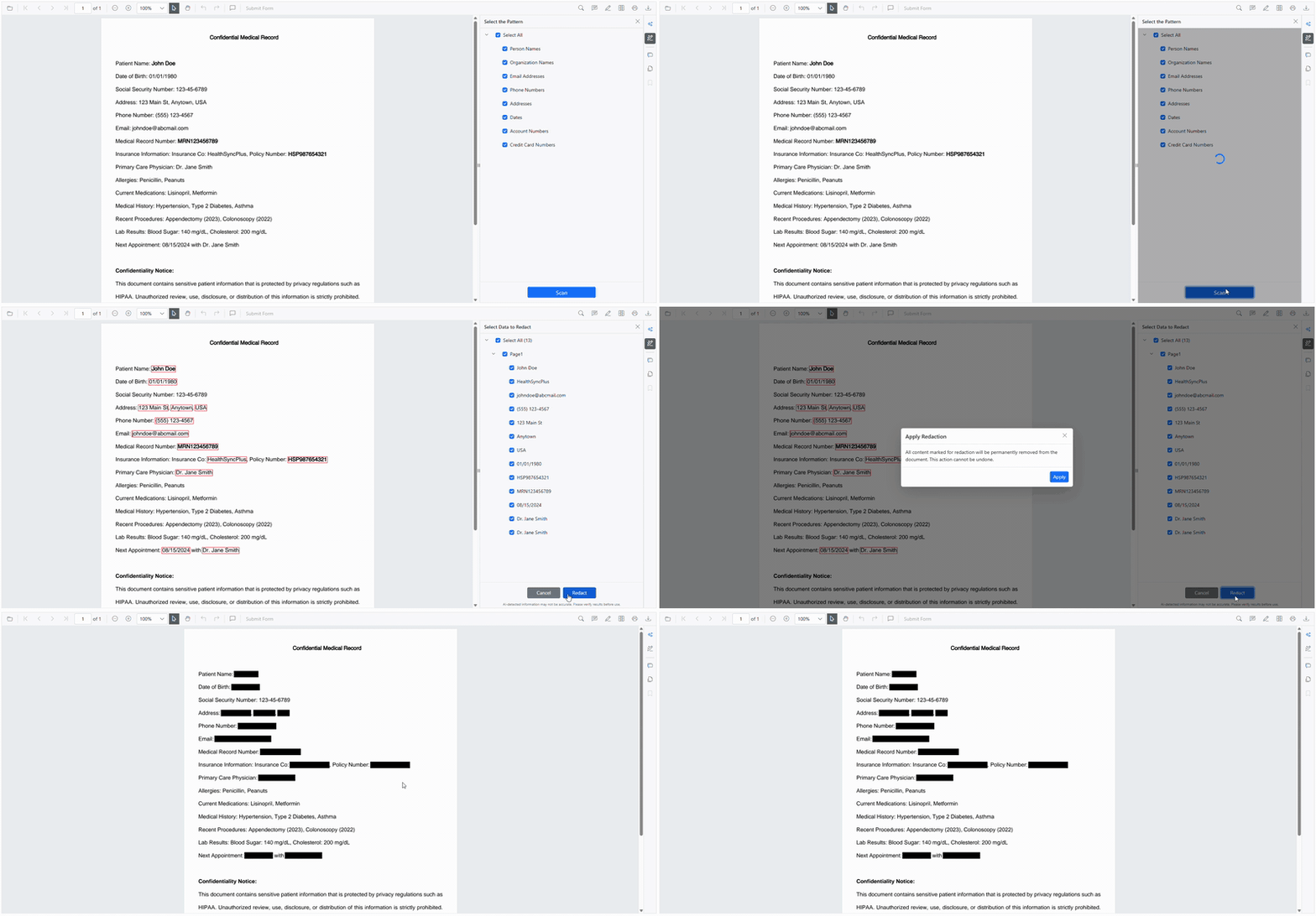
Smart redaction: AI-Powered privacy protection for sensitive documents
The AI-Powered Blazor PDF Viewer includes an AI-powered redaction system that intelligently identifies and safeguards sensitive information. Key capabilities:
- PII data detection: Automatically identifies Personally Identifiable Information such as Social Security Numbers, email addresses, and phone numbers.
- Customizable redaction patterns: Supports domain-specific data recognition for medical records, financial details, and other industry-specific compliance needs.
- Consistent redaction: Ensures secure and uniform redaction across all documents to maintain privacy and regulatory standards.
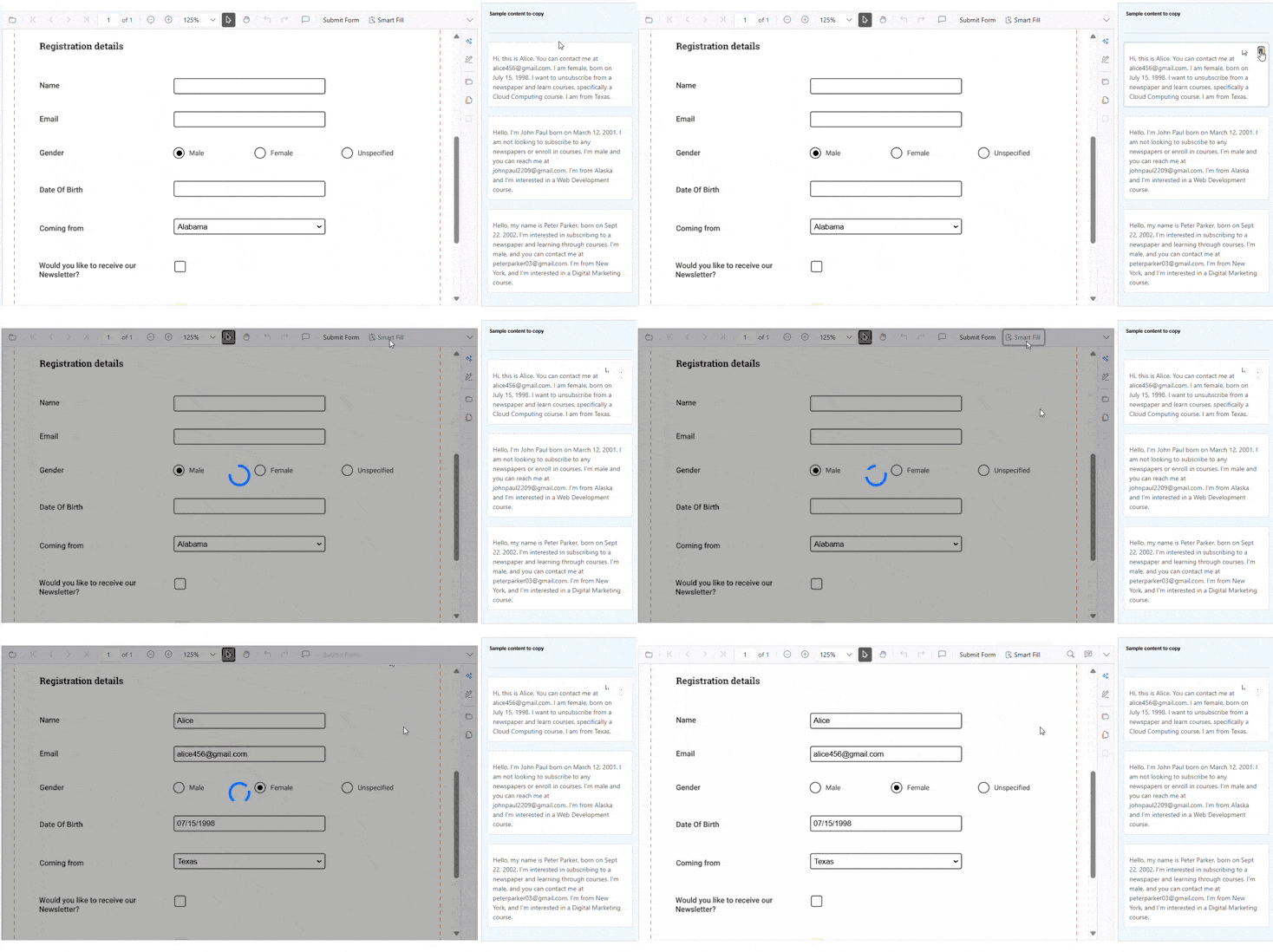
Smart Fill: AI-Enhanced smart form filling and data extraction
This feature streamlines data entry using AI. Key benefits:
- Clipboard data extraction: Automatically extracts relevant information from clipboard content copied from any document or structured data source.
- Intelligent field mapping: Accurately assigns extracted data to the appropriate form fields using AI.
- Efficient data entry: Reduces manual input while improving accuracy and overall form-filling speed.
Flexible AI Integration – Unlock smarter document experiences with your preferred AI
The Syncfusion® AI-Powered Blazor PDF Viewer allows you to integrate your custom AI services using the IChatInferenceService interface. This interface acts as a bridge between the Smart PDF Viewer and your own AI backend.
The AI-Powered PDF Viewer communicates with your custom AI service through a secure user token-based authentication system. When users interact with AI features, the viewer sends the relevant document content to your AI service endpoint. Your service processes the content and returns intelligent responses, which are then displayed directly within the PDF interface, creating a seamless and interactive experience.
Note: You can refer to the Official Syncfusion® documentation to integrate your preferred AI services, such as Gemini AI, Groq AI, and DeepSeek AI, in your Blazor Application.
Integrating AI into your Blazor PDF Viewer
Let’s use Visual Studio to integrate the Blazor AI-Powered PDF Viewer component with Azure OpenAI in your Blazor Web Applications.
Note: Syncfusion® Blazor Smart Component fully support Server Interactivity mode applications.
Prerequisites:
- System requirements for Blazor components
- Azure OpenAI service subscription.
Step 1: Create a new Blazor project
You can create a Blazor server app using Visual Studio.
Step 2: Install NuGet packages
To use the Smart PDF Viewer and its AI features, install the necessary NuGet packages.
Open the NuGet Package Manager Console in Visual Studio and run:
Install-Package Syncfusion.Blazor.SfSmartPdfViewer -Version 31.2.*
Install-Package Syncfusion.Blazor.Themes -Version 31.2.*
Install-Package Azure.AI.OpenAI
Install-Package Microsoft.Extensions.AI
Install-Package Microsoft.Extensions.AI.OpenAI -Version 9.8.0-preview.1.25412.6
These packages include the Smart PDF Viewer component, theme support, and Azure OpenAI integration.
Step 3: Register Syncfusion® Blazor service
Open ~/_Imports.razor file, in the Components folder, and add the following namespaces:
@using Syncfusion.Blazor
@using Syncfusion.Blazor.SmartPdfViewer
Then, register the Syncfusion® Blazor service in the ~/Program.cs file:
using Syncfusion.Blazor;

var builder = WebApplication.CreateBuilder(args);

// Add service to the container.
builder.Services.AddSyncfusionBlazor();

var app = builder.Build();
....
Step 4: Configure AI service
To enable AI-powered features, configure the Azure OpenAI service in your Blazor Server app.
In ~/Program.cs, add the following:
using Azure.AI.OpenAI;
using Microsoft.Extensions.AI;
using Sample.Components;
using Syncfusion.Blazor;
using Syncfusion.Blazor.AI;
using System.ClientModel;

var builder = WebApplication.CreateBuilder(args);

builder.Services.AddSignalR(o => { o.MaximumReceiveMessageSize = 102400000; });

builder.Services.AddMemoryCache();

string azureOpenAiKey = "api-key";
string azureOpenAiEndpoint = "endpoint URL";
string azureOpenAiModel = "deployment-name";
AzureOpenAIClient azureOpenAIClient = new AzureOpenAIClient(new Uri(azureOpenAiEndpoint), new ApiKeyCredential(azureOpenAiKey));
IChatClient azureOpenAiChatClient = azureOpenAIClient.GetChatClient(azureOpenAiModel).AsIChatClient();
builder.Services.AddChatClient(azureOpenAiChatClient);

builder.Services.AddSingleton<IChatInferenceService, SyncfusionAIService>();

var app = builder.Build();
....
Note: For Azure OpenAI, first deploy an Azure OpenAI Service resource and model, then you’ll receive the values for apiKey, endpoint, and deploymentName.
Step 5: Add stylesheet and script resources
The theme stylesheet and script are available via Static Web Assets from NuGet.
In ~/Components/App.razor, include the following:
<head>
    ....
    <link href="_content/Syncfusion.Blazor.Themes/fluent2.css" rel="stylesheet" />
</head>

<body>
    ....
    <script src="_content/Syncfusion.Blazor.SfSmartPdfViewer/scripts/syncfusion-blazor-sfsmartpdfviewer.min.js" type="text/javascript"></script>
</body>
Note: Check out the Blazor Themes topic to discover various methods (Static Web Assets, CDN, and CRG) for referencing themes in your Blazor application. Also, check out the Adding Script Reference topic to learn different approaches for adding script references in your Blazor application.
Step 6: Add Syncfusion® Blazor Smart PDF Viewer component
In ~Pages/Home.razor, insert the code below:
@using Syncfusion.Blazor.SmartPdfViewer;

<SfSmartPdfViewer Height="100%" Width="100%" DocumentPath="wwwroot/Fsharp_Succinctly.pdf">
</SfSmartPdfViewer>
Step 7: Run the application
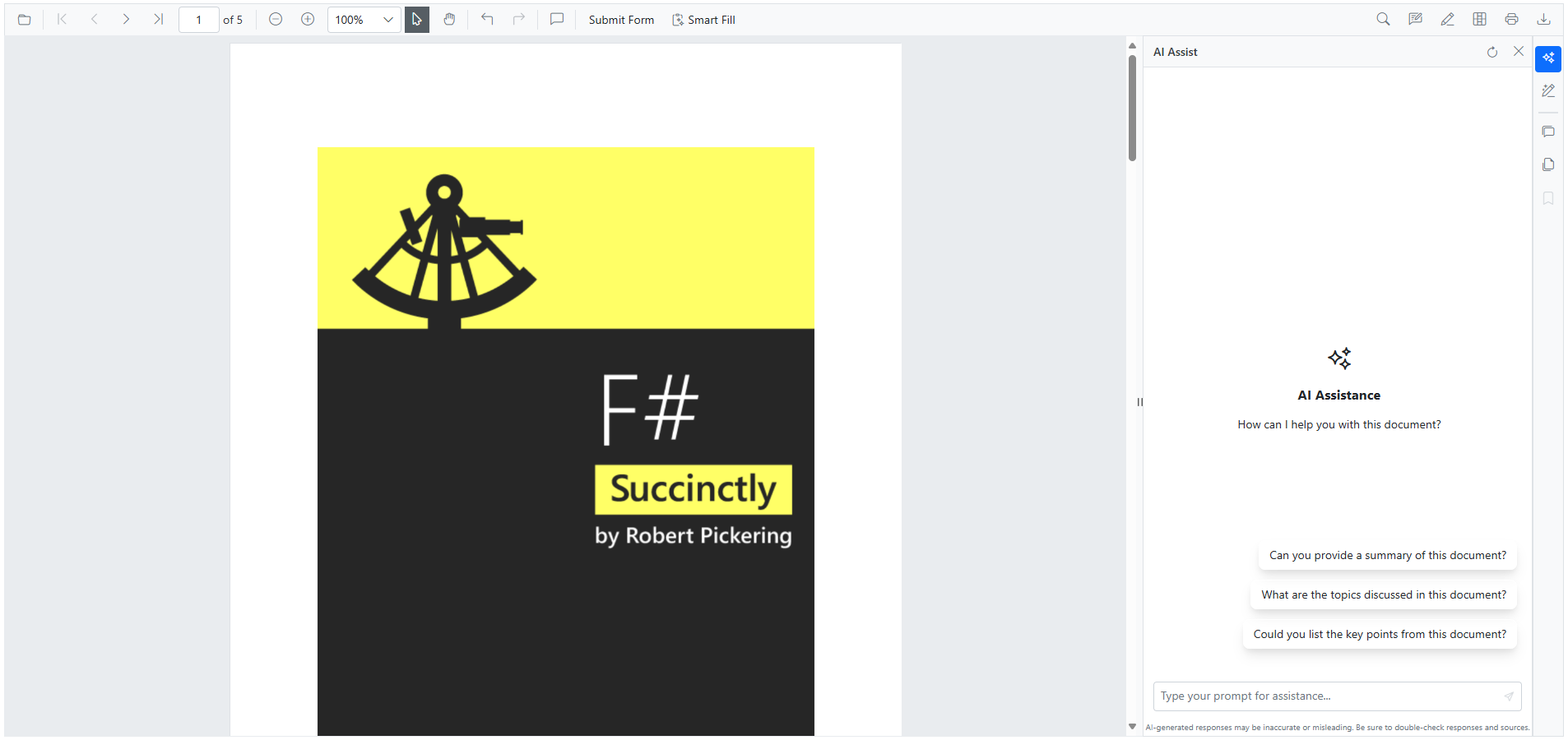
Press Ctrl+F5 (Windows) or ⌘+F5 (macOS) to launch the application. The Syncfusion® Blazor AI-Powered PDF Viewer will render in your default browser, ready to deliver an intelligent and interactive PDF experience.
Once the application is running, the AI-Powered PDF Viewer will appear as shown below:
References
Want to explore the Blazor Smart PDF Viewer? Visit our official documentation and GitHub demos. You can also visit the live demos for an interactive session with the Blazor Smart PDF Viewer Component.

Conclusion
Thanks for reading! In this blog post, we explored the key features of the new AI-Powered Blazor PDF Viewer component introduced in our 2025 Volume 3 release. This powerful component empowers users to manage documents more efficiently and securely, with AI-driven capabilities that enhance productivity and streamline workflows.
By integrating the AI-Powered PDF Viewer into your Blazor applications, you can deliver a more intelligent and interactive document experience to your users. Explore more Syncfusion® AI solutions for other supported platforms in this GitHub demo.
If you are not a Syncfusion® customer, download a free trial of Essential Studio® for Blazor to start evaluating its controls immediately.
Have questions? Reach out to us through our support forum, support portal, or feedback portal. We are always happy to help!







 No spam, just valuable updates.