
 Dharanidharan Dharmasivam
TL;DR: Ever feel like Flutter development in VS Code could be faster and way less frustrating? You’re not alone! The trick isn’t coding harder, it’s coding smarter. Discover the 10 VS Code extensions that make Flutter development smooth, organized, and actually fun.
Flutter is everywhere right now, and for good reason. It’s a joy to build beautiful apps across mobile, desktop, and web. But even a great framework can feel clunky in the editor without the right helpers. That’s where extensions shine: they turn everyday tasks into one-click wins.
In this blog, we’ll explore the following top 10 Visual Studio Code extensions to clean up code, squash errors faster, and keep your Flutter projects moving.
They are:
- Error Lens
- Flutter Tree
- Dart Data Class Generator
- Flutter Stylizer
- Better Comments Next
- Coverage Gutters
- Color Highlight
- Image Preview
- Markdownlint
- JSON to Dart Model
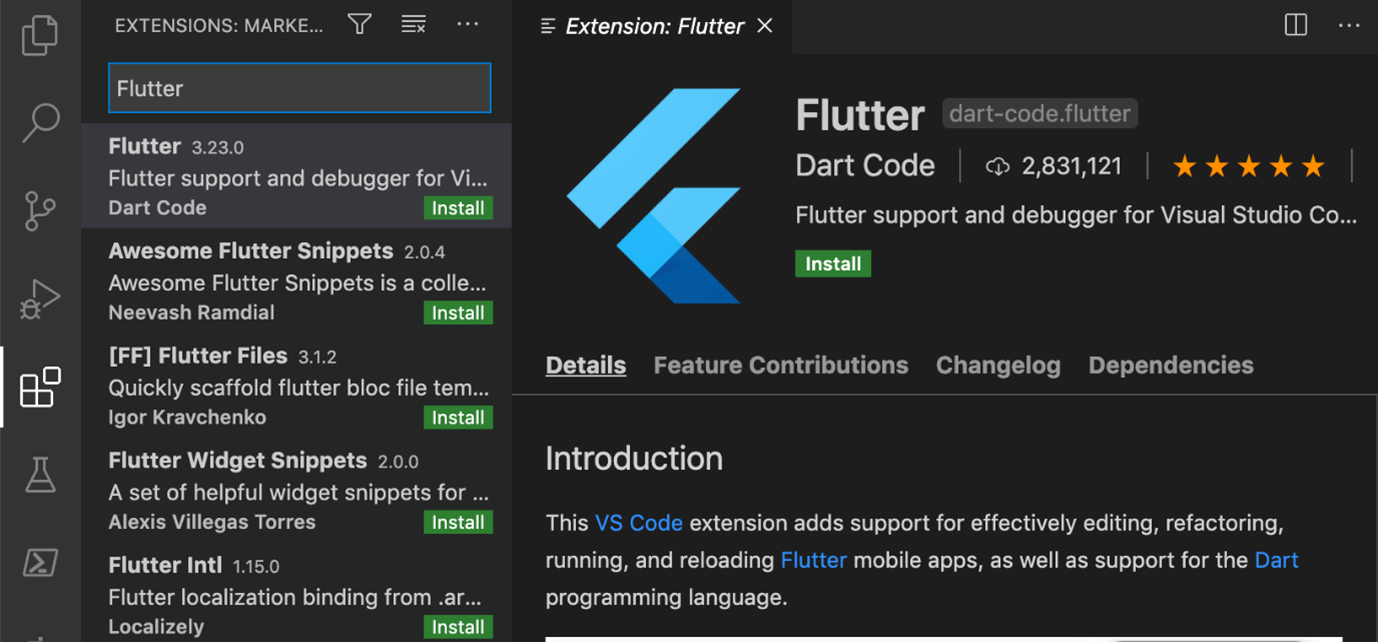
You might be familiar with installing extensions in VS Code. If you’re new to VS Code extensions: open the Extensions icon on the left, search the name, click Install, and you’re done, super simple.
Pro tip: Make sure you’ve installed the official Flutter and Dart extensions first (they’re the foundation for everything else).
Now, let’s dive into the list of extensions.
#1 Error Lens: Spot mistakes before they trip you up
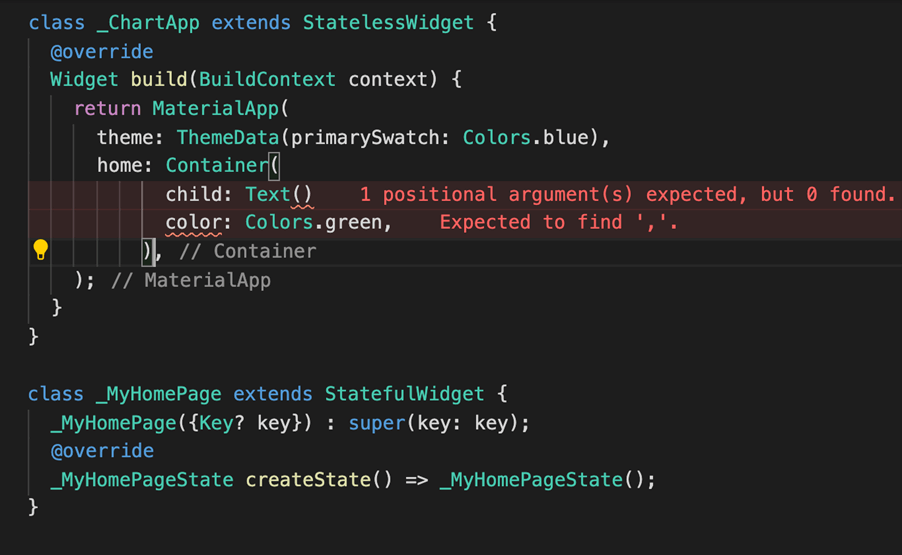
Errors and warnings are normal during development, but the methods we use to handle them are unique. In the VS Code editor, the errors and warnings are usually shown at the bottom, and we must scroll through the list to see if there are additional problems.
The Error Lens extension highlights the error lines in the code and appends the error details at the end of the line. Error icons are also displayed in the gutter.
Also, you can customize the color of the error highlight in the settings.json file. This will make your mistakes appear more enticing.
#2 Flutter Tree: Build widget trees without the headache
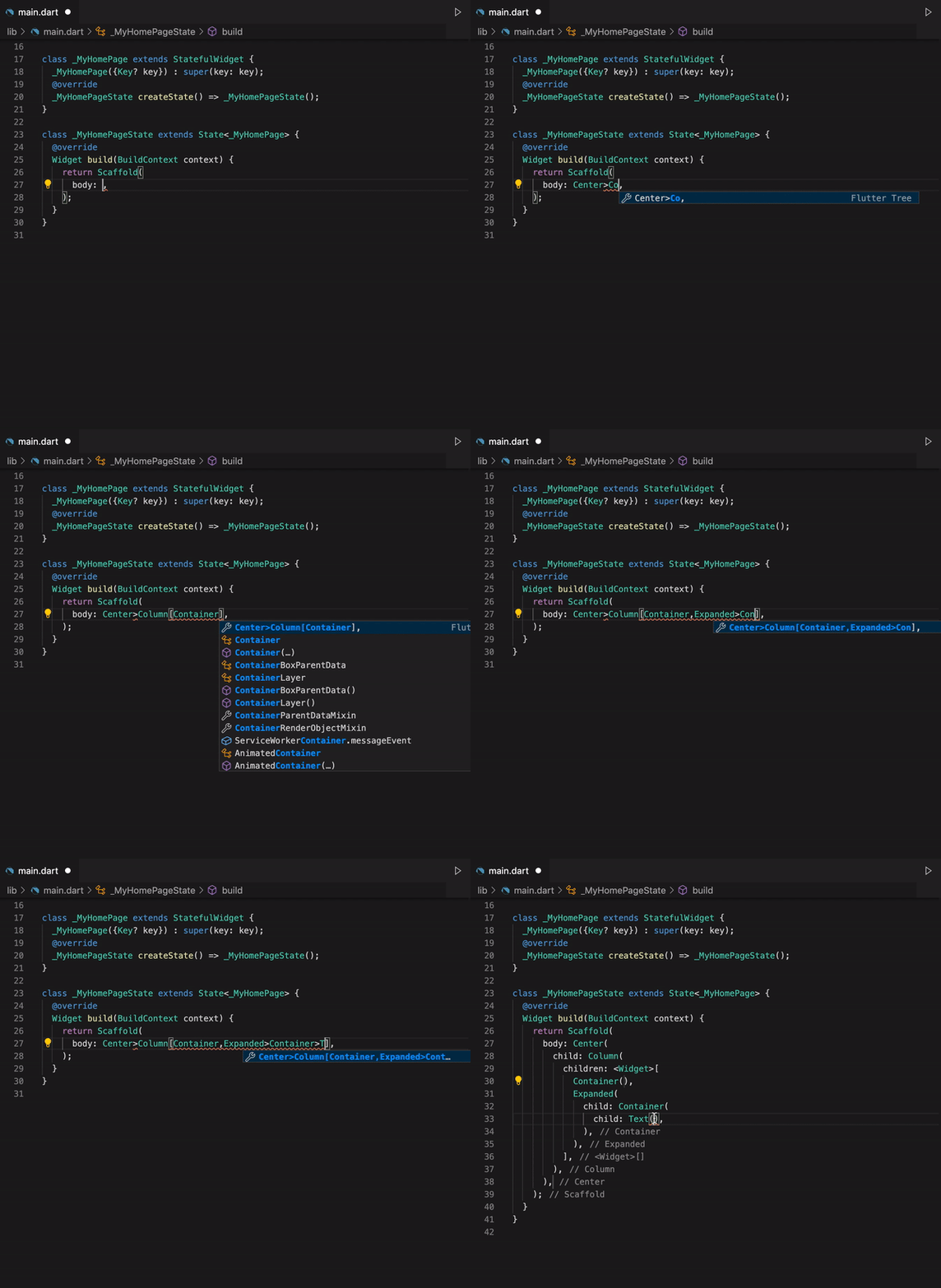
It’s difficult to recognize widgets in a tree when you construct an application with many widgets. The Flutter Tree extension creates the desired widget tree with simplified syntax. This makes the creation of widget trees much easier, but you have to use its own syntax to do so, which is as follows.
Syntax
OneChild>MultipleChild[OneChild,MultipleChild[OneChild,OneChild],OneChild>OneChild]
Code generated
OneChild(
    child: MultipleChild(
        children: <Widget>[
            OneChild(),
            MultipleChild(
                children: <Widget>[
                    OneChild(),
                    OneChild(),
                ]
            ),
            OneChild(
                child: OneChild(),
            ),
        ]
    ),
)
#3 Dart Data Class Generator: Say goodbye to boilerplate
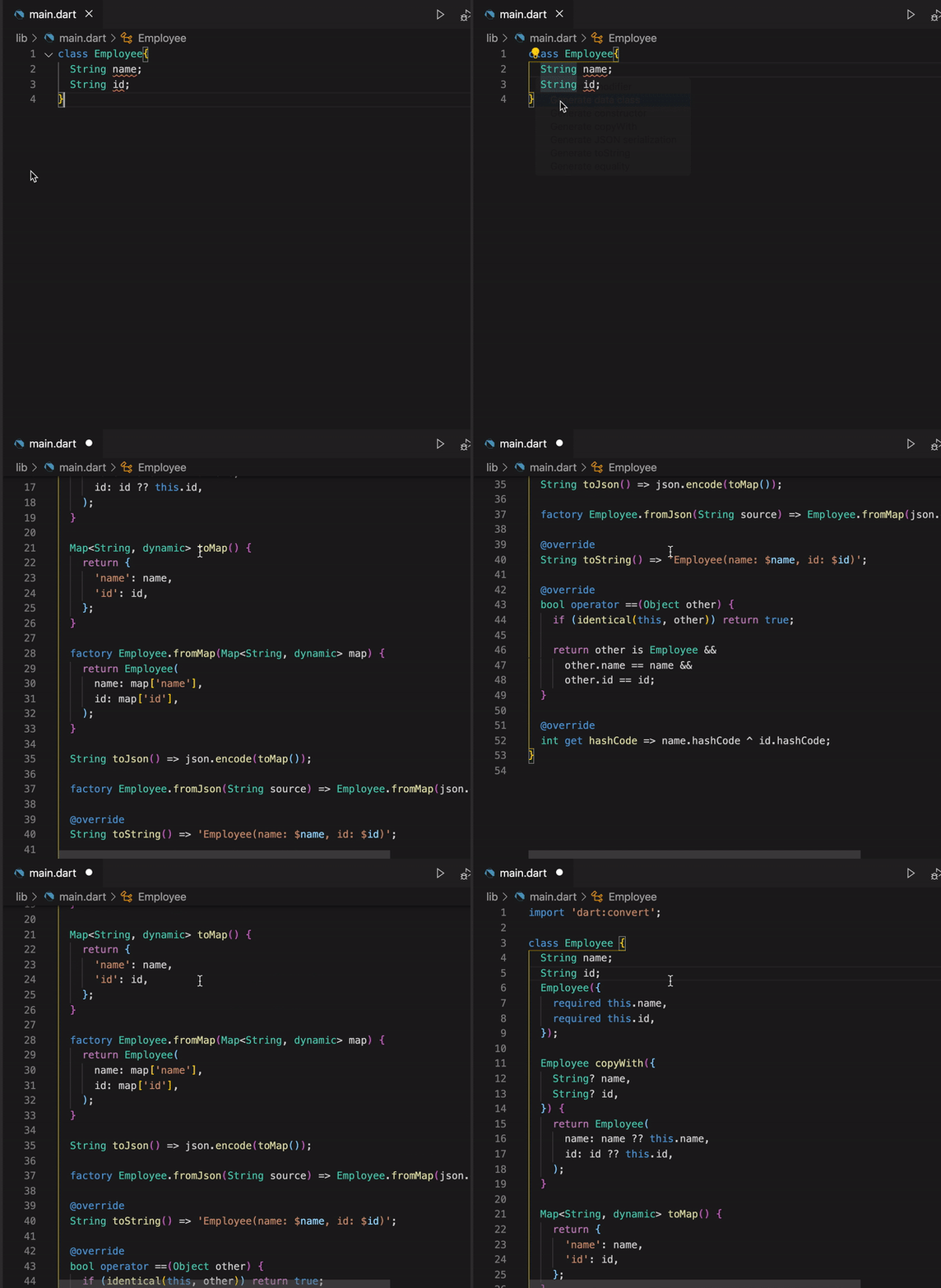
Often, we overlook the creation of required methods in a class. VS Code has a feature that allows you to add missing methods, but you can only add one at a time. The Dart Data Class Generator overcomes this by building Dart data classes with the constructor, copyWith, toMap, fromMap, toJson, fromJson, toString, operator ==, and hashCode methods based on class attributes or raw JSON, as the name implies.
This extension also sorts the imports alphabetically and converts them to a proper format.
#4 Flutter Stylizer: Keep your code neat and tidy
Dealing with a huge code base that is not organized properly decreases developer productivity. The Flutter Stylizer extension erases this problem by organizing your methods in a consistent and opinionated way.
This tool organizes the classes within the file in the following manner:
Constructor – named constructor – public static variables – public instance variables – public override variables – private static variables – private instance variables – public override methods – other public methods – build method.
Flutter itself provides formatting choices, however, it only formats Dart files and it doesn’t re-order the code. Flutter formats the code based on these formatting rules.

#5 Better Comments Next: Make your comments pop
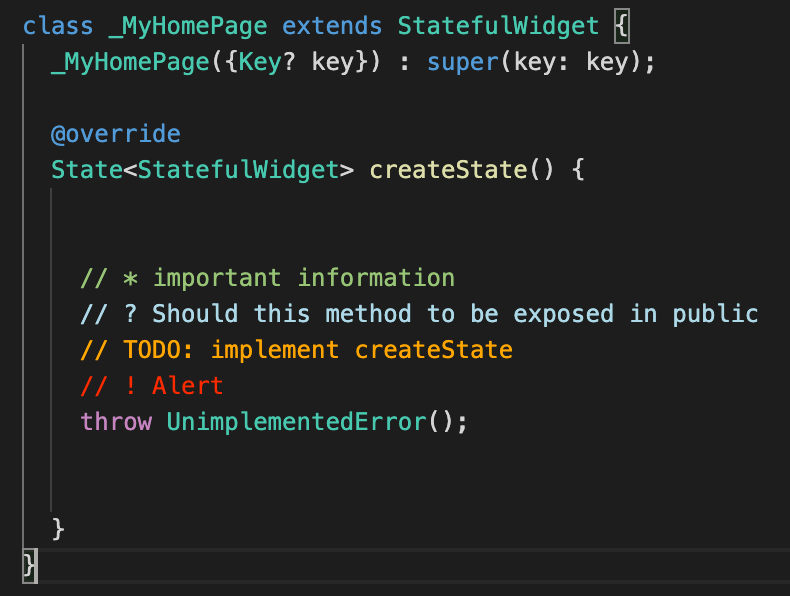
If all comments are in the same format, we won’t be able to prioritize the job, and there’s a risk of ignoring important tasks. The Better Comments Next extension aids in the creation of colorful comments, which makes them more readable. This makes it easier to keep track of the code comments.
All you have to do is start a comment with *, !, ?, or TODO, and it will be colored in an assigned way. You can also create your own comment styles using the settings.json file.
#6 Coverage Gutters: See your test coverage at a glance
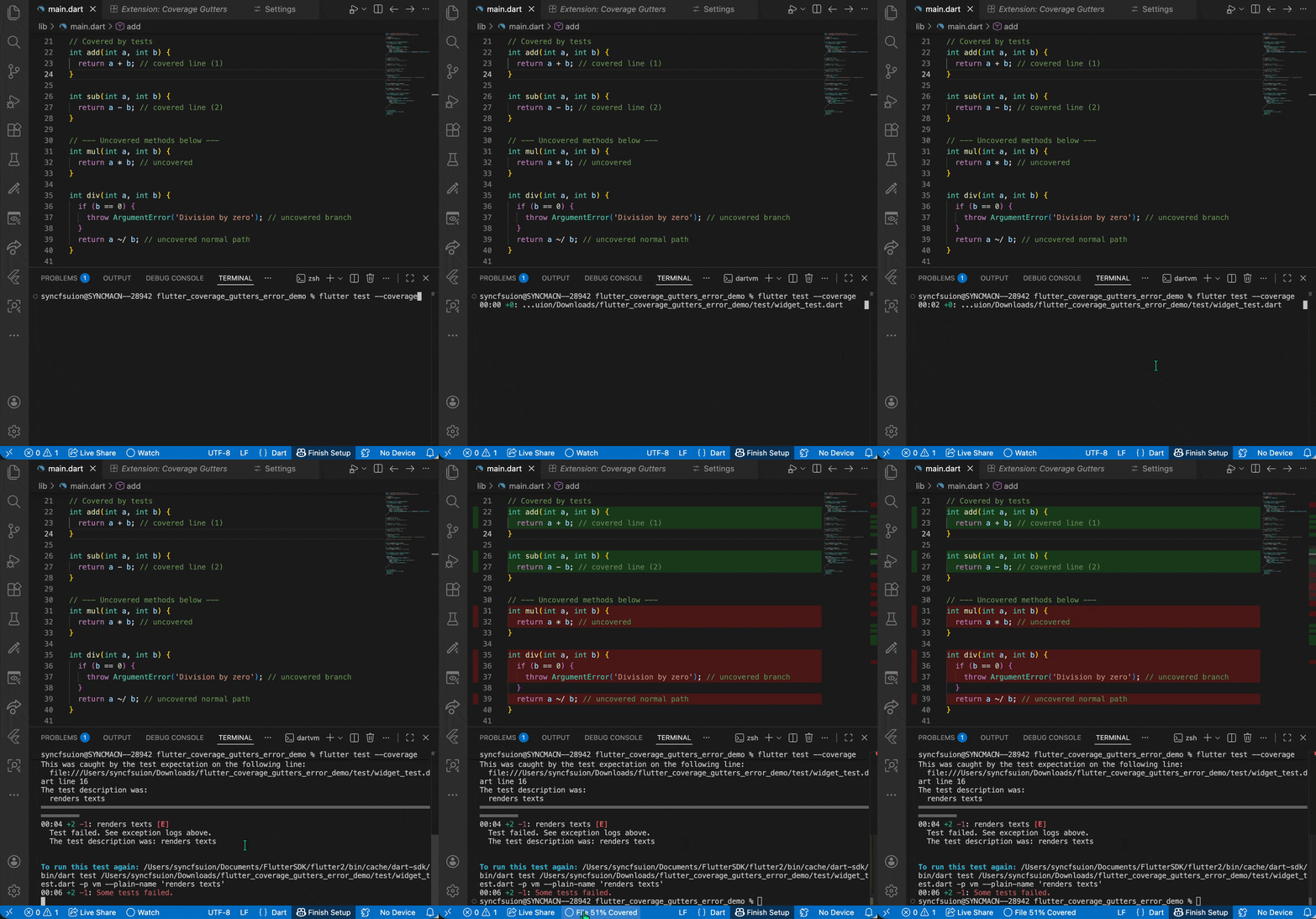
It’s often challenging in Flutter development to determine which code is tested, making it easy to miss untested logic or assume complete coverage.
Solving this problem, the Coverage Gutters extension brings test coverage visualization directly into VS Code. In the editor gutter, it highlights lines of code based on whether tests cover them. As a result, you gain instant visibility without the hassle of switching tools.
Executed lines appear in green in coverage gutters, while unexecuted lines are shown in red. Instantly, you can see which sections are tested and which aren’t. This visibility makes it easier to spot testing gaps, improve coverage, and ultimately deliver reliable and robust Flutter projects with confidence.
#7 Color Highlight: Bring colors to life in your editor
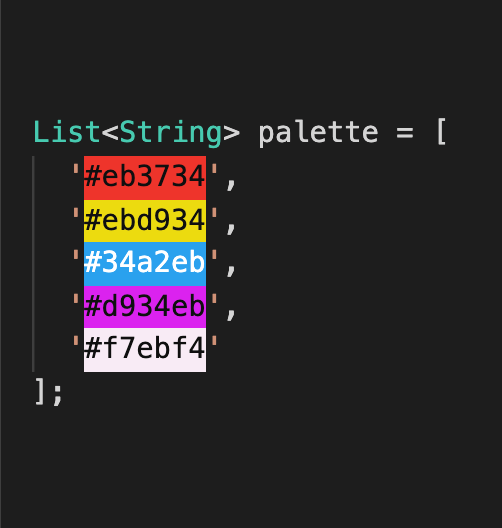
We deal with a wide range of colors when designing an application, but what if the colors we’re coding were visible in the code editor? This would be very productive by showing us the application colors without having to run the application. The Color Highlight add-on makes it possible to view the colors that are specified by styling the color in our code.
#8 Image Preview: No more guessing your asset paths
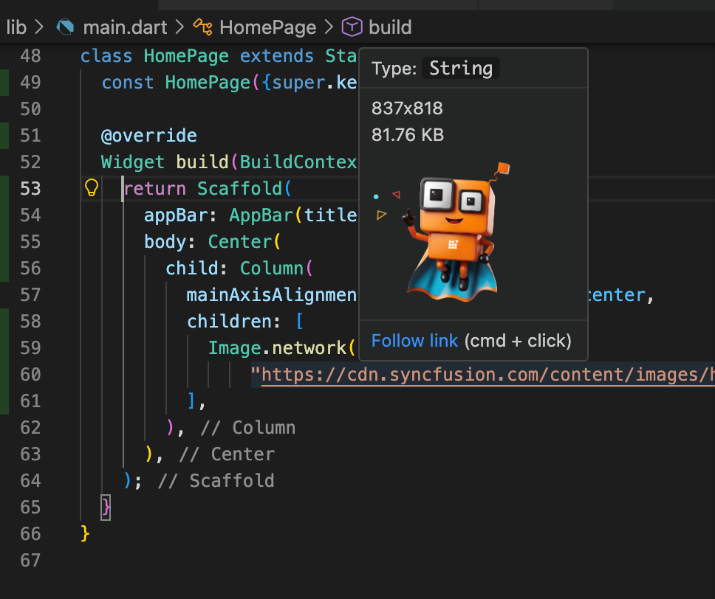
In Flutter projects, developers often reference image assets without verifying the correctness of their paths or the success of image loading. This can cause runtime errors, like ‘Unable to load asset,’ and waste time switching between the editor and external viewers.
The Image Preview extension resolves this by showing inline previews of images directly in VS Code. Instantly, you can validate asset paths and confirm you’re using the correct image. As a result, errors are reduced, and Flutter asset management is streamlined.
#9 Markdownlint: Keep your docs clean and professional
There are no compilers in the Flutter project that guarantee to find issues in README.md or CHANGELOG.md files. To remedy this, the Markdownlint plugin provides a set of guidelines to encourage Markdown file standards and uniformity. You can use this extension to check for problems locally and verify the content before publishing it live. Browse the user manual to learn more about rules.
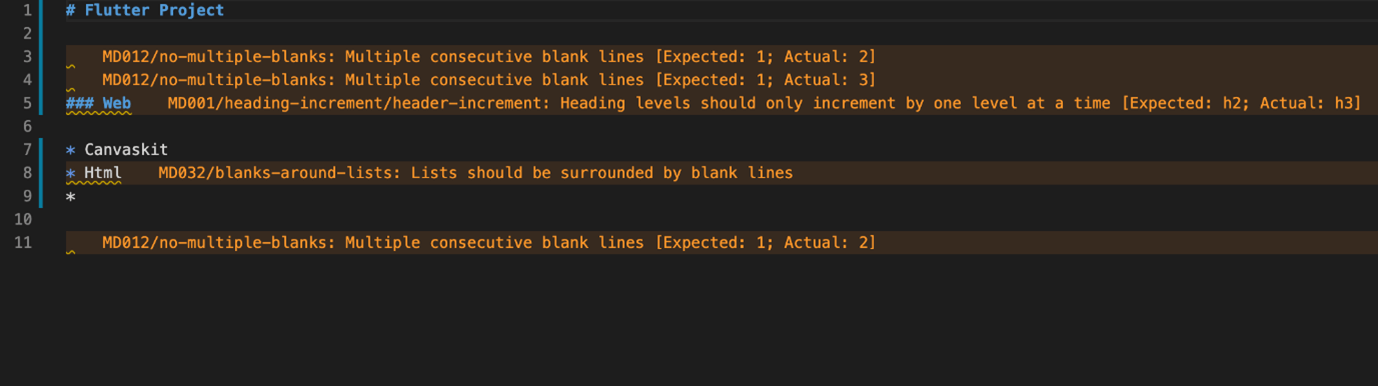
In the following image, you can see errors like multiple consecutive blank lines, heading levels should increment by one, and the list should be surrounded by blank lines. On a related note, I would like to remind you that you can preview Markdown files in VS Code by using the Preview button.
#10 JSON to Dart Model: Convert JSON like a pro
When working with n number of JSON files, creating Dart models for all of them is time-consuming. JSON to Dart Model creates a Dart class for the given JSON string. It’s possible to make JSON values required or default by adding r@ or d@ to your JSON key, and JSON to Dart Model will produce Dart models for you.
In the following figure, the JSON file is shown on the left, and the required classes and properties are shown on the right, which are produced from the JSON file using the JSON to Dart Model extension.

Special mention: Syncfusion® Document Viewer Extension
If you often find yourself switching between apps just to check a Word or Excel file, this handy tool is for you. The Syncfusion Document Viewer Extension for Visual Studio Code lets you open and view documents like Word, Excel, and more; right inside your coding environment.
You can preview high-fidelity files and even make light edits such as text changes and formatting tweaks, all without leaving VS Code. It’s a simple way to stay focused and keep your project documentation within reach.
The Syncfusion Document Viewer Extension is available for free download on the Visual Studio Code Marketplace.

Conclusion
That’s a wrap! These extensions can completely change the way you work with Flutter in VS Code, less clutter, more speed, and way fewer headaches. So, which one are you going to install first? Drop your favorites in the comments. We’d love to hear what’s in your toolkit.
Want to go further? Browse our documentation to learn more about Syncfusion Flutter widgets. You can also view our Syncfusion Flutter app, which includes many examples, in this GitHub repository. Don’t miss our demo app in Google Play, App Store, web, Windows Store and Snapcraft (Linux).
If you aren’t a customer yet, you can try our 30-day free trial to check out our Flutter features.
You can also contact us through our support forums, feedback portal, or support portal. We are always happy to assist you!










 No spam, just valuable updates.
Comments (4)
Are you try https://marketplace.visualstudio.com/items?itemName=gornivv.vscode-flutter-files? It’s a quick and flexible way to generate new features in the project.
Hi KRAVCHENKO,
Yes, the Flutter Files plugin is useful in generating new features in the project, and thanks for your suggestion. We will use this in our day-to-day development process.
Thanks,
Dharani.
Kindly check the below extenstion,
https://marketplace.visualstudio.com/items?itemName=circlecodesolution.ccs-flutter-color
Hi NILESH,
Thanks for suggesting this plugin. This plugin is very much useful in predicting the colors, this converts our color codes and shows the color box. We will use this in our development environment.
Thanks,
Dharani.