
 Lokesh Arjunan
TLDR: Multi-user Gantt charts become unreliable when users work from different local views of the project timeline. SignalR helps solve that by pushing task changes from the server to connected Angular clients as they happen. In this guide, you’ll connect a Syncfusion Angular Gantt Chart to an ASP.NET Core SignalR hub, listen for task-change events, and refresh or update the chart when another user modifies the schedule. For production apps, you should persist changes on the server, scope updates by project, and handle concurrency with versioning or conflict rules.
In most project management tools, things start breaking the moment multiple users start editing at the same time.
- One person updates a task.
- Another modifies a dependency.
- Someone else shifts a timeline.
Before long, everyone looks at a slightly different version of the same data.
A Gantt Chart helps organize all of this; it visualizes dependencies, timelines, and resources clearly. But by default, it’s still just a local snapshot. Once multiple users are involved, keeping everyone in sync becomes the real problem.
This is where real-time updates change the behavior completely.
Instead of relying on refreshes or polling, SignalR keeps a persistent connection and pushes updates instantly to all connected clients.
The result is simple: everyone sees the same timeline, in real time, without second-guessing whether their view is up to date.
In this guide, we’ll walk you through integrating SignalR into the Syncfusion® Angular Gantt Chart setup to make that happen.
Problem: Why multi-user Gantt timelines drift
When multiple users edit the same project in a Gantt Chart, several challenges can arise:
- Delayed updates: Users see changes only after refreshing the page.
- Concurrent edits: Simultaneous modifications can create schedule conflicts.
- Polling delays: Periodic data requests introduce latency and stale views.
- Dependency impacts: Changes to one task can affect multiple downstream tasks.
These issues can lead to inconsistent timelines and reduced team coordination.
Benefits of real-time synchronization
Once real-time updates are in place, the Gantt Chart behaves more like a shared system than a static UI:
- Immediate updates: Changes made by one user appear for everyone instantly.
- No refresh cycles: The UI stays current without manual intervention.
- Event-driven behavior: Updates are pushed only when something changes.
- Less coordination overhead: Everyone stays aligned without follow-ups.
Where this approach actually matters
Integrating SignalR with the Angular Gantt Chart is most useful when multiple roles interact with the same timeline.
For example, in a sprint planning tool:
- A product owner adjusts deadlines.
- Developers update tasks and dependencies.
- A QA engineer modifies testing windows.
Without real-time sync, updates get missed or overwritten, and teams fall back to messaging each other for confirmation.
With SignalR in place, the Gantt Chart behaves like a shared workspace; updates are visible immediately, and everyone works off the same state.
You’ll see similar benefits in tools like:
- Construction scheduling,
- Resource planning dashboards, or
- Internal workflow trackers,
….. and anywhere multiple users actively edit the timeline.
Architecture: How Angular, ASP.NET Core, SignalR, and Gantt Chart work together
So how does a task update made by one user instantly appear for everyone else?
The architecture follows a simple request-and-broadcast pattern. A task change is first sent to the backend for validation and persistence. Once the update is confirmed, SignalR broadcasts it to all connected clients, which then update their Gantt Chart data source automatically.
The following diagram illustrates the complete flow:
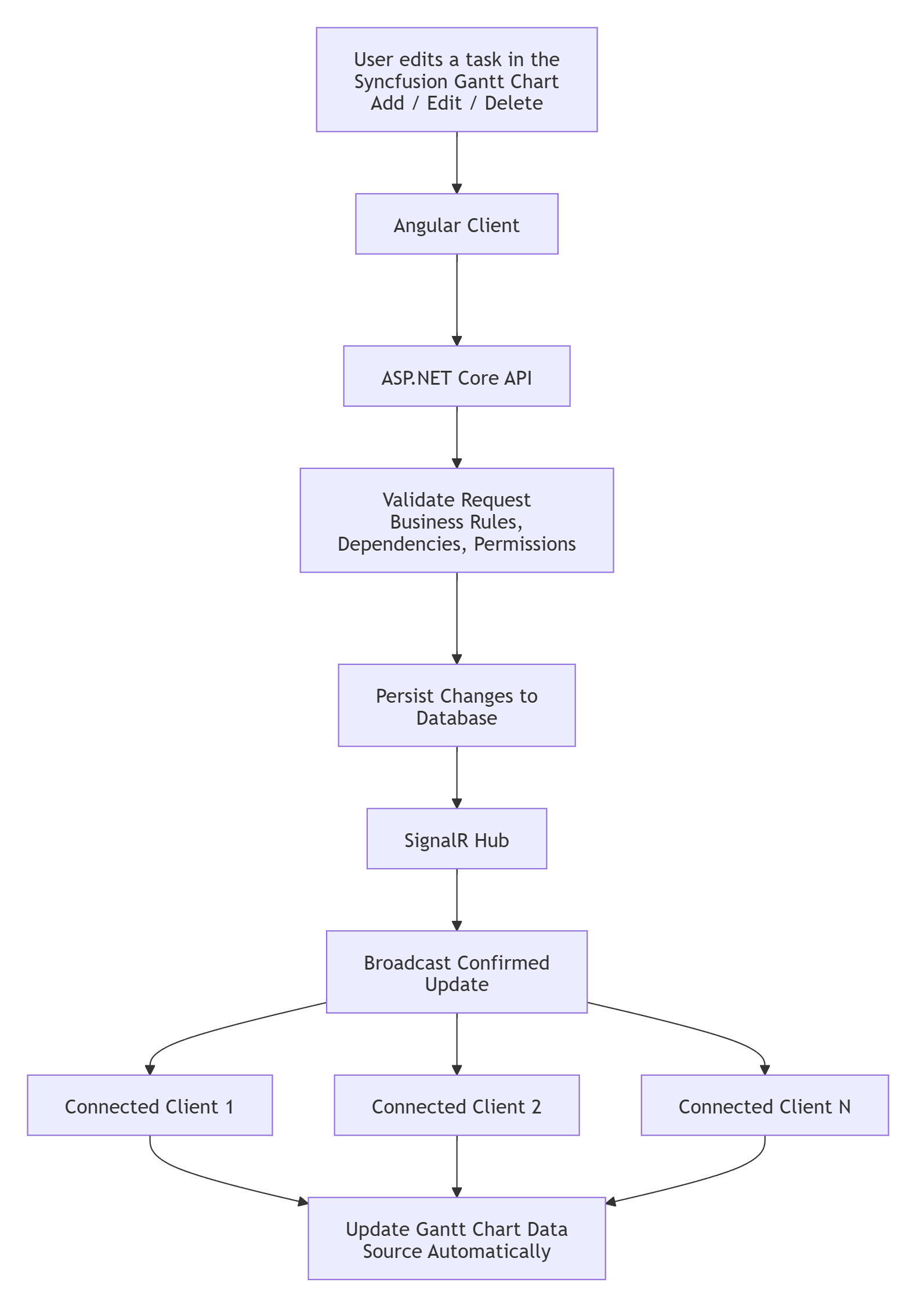
This approach ensures that updates are validated, persisted centrally, and reflected across all connected users in real time.
What you need to get started
The setup is fairly lightweight:
- Visual Studio or VS Code
- Angular application
- .NET 8+ backend
- SignalR
- Node.js and Angular CLI (ng new gantt-signalr)
- A valid Syncfusion license key
Setting up the backend: .NET Core with SignalR
Before moving on to the Angular side, it’s worth getting the backend ready. This is where the real-time behavior actually lives. Instead of thinking of it as just another API, think of it more like an event relay that pushes updates whenever something changes.
If you’ve tried solving multi-user sync with polling before, you already know how quickly it becomes inefficient. SignalR avoids that entirely by maintaining a connection and pushing updates only when needed.
#1: Getting a basic API in place
Start with a standard ASP.NET Core Web API project. Nothing unusual here.
If you already have a backend serving your Gantt data, you’re in a good place; you don’t need to rebuild anything. Just add SignalR on top of what you already have.
#2: Adding the SignalR hub (your real-time bridge)
Once the project is ready, the next step is adding a SignalR hub. The hub allows clients to join a specific project group via a projectId, ensuring updates are shared only with users working on that project.
Create a folder named Hubs and add a file called GanttHub.cs. This hub manages project-group communication and defines a BroadcastTaskChange method that sends task updates to other connected clients.
using Microsoft.AspNetCore.SignalR;

namespace GanttSignalRBackend.Hubs
{
    public class GanttHub : Hub
    {

        public async Task JoinProject(string projectId)
        {
            await Groups.AddToGroupAsync(Context.ConnectionId, projectId);
        }

        public async Task BroadCastTaskChange(string projectId, TaskChange change)
        {
            await Clients.OthersInGroup(projectId)
                         .SendAsync("ReceiveTaskChange", change);
        }

    }
    public class TaskChange
    {
        public string ProjectId { get; set; }
        public string Type { get; set; }
        public object Data { get; set; }
        public string Sender { get; set; }
    }
}
At this point, you’re not doing anything complex; you’re just broadcasting a message to every connected client. That’s enough to build your sync loop.
#3: Wiring it up so Angular can talk to it
With the hub in place, the next step is to register SignalR services and enable CORS (Cross-Origin Resource Sharing) and make sure your frontend can actually connect to it.
using GanttSignalRBackend.Hubs;

builder.Services.AddSignalR(); // Add SignalR services

builder.Services.AddCors(options =>
{
    options.AddPolicy("AngularDevClient", policy =>
    {
        policy.WithOrigins("http://localhost:xxxx") //Configure client-side port number
              .AllowAnyHeader()
              .AllowAnyMethod()
              .AllowCredentials();
    });
});
app.UseCors("AngularDevClient");
app.MapHub<GanttHub>("/ganttHub");//Map the ganttHub
The CORS setup is important during development, since our Angular app typically runs on a different port. Without it, the connection won’t go through.
#4: Run the project
At this point, you can just start the backend using the following command:
dotnet runIt should start on:
http://localhost:xxxx //Configure server-side port number.Now, the backend is ready! It can accept connections and push updates to any client that’s listening.
Setting up the frontend: Angular with Syncfusion Gantt Chart
With the backend ready to push updates, the front-end is where things start to feel different.
Up until now, your Gantt chart has probably behaved like a snapshot; render data once, and that’s it. Now, you’re going to make it react to changes happening elsewhere.
You don’t need a complex setup to get there. A regular Angular app with a working Gantt chart is enough.
#1: Start with your usual Angular setup
Create your Angular project and set up the Gantt Chart however you normally would. Nothing has changed here yet.
#2: Add the SignalR client package
To handle real-time updates, we need the SignalR client:
npm install @microsoft/signalr Once that’s installed, Angular is ready to connect to the backend and start listening for updates.
#3: Register the Syncfusion license key
Before moving further, make sure your license key is registered in your component:
import { registerLicense } from '@syncfusion/ej2-base';
registerLicense('YOUR_SYNCFUSION_LICENSE_KEY');
After that, your Gantt Chart setup remains exactly as usual.
#4: Connecting user actions to real-time updates
Now comes the part that actually changes behavior.
Instead of just updating the UI locally, you’ll start broadcasting those changes so every connected user sees them.
At a minimum, you only need two hooks from the Gantt Chart:
- created → when the chart initializes.
- actionComplete → when a user makes a change.
<ejs-gantt #gantt id="ganttDefault" (actionComplete)="actionComplete($event)" (created)="created()">
    ...
</ejs-gantt>
These two events are enough to build the entire real-time loop.
#5: Implement SignalR connection
The next step is getting your Angular app to actually connect to it.
This happens inside the ngOnInit() method, where you create a SignalR connection. Think of this as preparing a live channel for your server but not opening it just yet.
We’ll use the HubConnectionBuilder from the @microsoft/signalr library to configure that connection:
import { HubConnection} from '@microsoft/signalr';
import * as signalR from '@microsoft/signalr';

private connection!: HubConnection;
private projectId = "1";
...
public ngOnInit(): void {
    ...
    this.connection = new signalR.HubConnectionBuilder()
      .withUrl("http://localhost:xxxx/ganttHub") //Configure server-side port number
      .withAutomaticReconnect()
      .build();
}
A couple of things are happening here (nothing complicated, but worth understanding):
- The withUrl() method specifies the hub endpoints and allows credentials, which is useful if your app relies on authentication.
- The build() method creates the connection object.
At this stage, the connection is only configured, not active yet. No network calls are happening, and nothing is listening.
That’s intentional, you’ll actually start the connection and attach listeners in the next step, once your Gantt component is ready.
#6: Establishing the connection when the Gantt loads
At this point, you’ve defined the SignalR connection, but it’s still not doing anything yet.
The right moment to bring it to life is when your Gantt chart is initializing. That’s exactly what the created() hook is for. It runs just before the chart is rendered, which makes it a good place to both start the connection and hook into incoming updates.
First, you register a listener for the ReceiveTaskChange event using the this.connection.on() method:
created()
{
    this.connection.on("ReceiveTaskChange", (message: any) => {

     console.log("SignalR connection established successfully", message);

     const { projectId, type, data, sender } = message;

     if (projectId !== this.projectId) return;
     if (sender === this.connectionId) return;

     this.toRefreshGantt  = true;

     switch (type) {
      case 'add':
        this.ganttObj.addRecord(data);
        break;
      case 'update':
        this.ganttObj.updateRecordByID(data);
        break;
      case 'delete':
        this.ganttObj.deleteRecord(data.taskId);
        break;
     }
   });
This does one simple but important thing:
- When the server broadcasts the ReceiveTaskChange event, the Gantt chart data is updated using its public methods to reflect the corresponding CRUD action.
You’re not manually merging changes or reconciling state here; the refresh ensures the UI always reflects the latest data. Simple and reliable.
Once the listener is in place, you can safely start the connection by calling the this.connection.start() method:
// IMPORTANT: make sequential flow
  this.connection.start()
    .then(() => {
      this.connectionId = this.connection.connectionId!;

      // RETURN this promise
      return this.connection.invoke("JoinProject", this.projectId);
    })
    .then(() => {
      console.log("Joined group successfully");
    })
    .catch(err => console.error(err));
}
A couple of things to notice here:
- The connection only starts after the listener is ready—so you don’t miss any updates.
- On a successful connection, you immediately invoke BroadcastTaskChange. This acts like a quick “sync signal,” making sure other clients are aware of this new connection.
- If something goes wrong, you’ll see it in the logs instead of silently failing.
#7: Broadcasting changes when users interact
So far, your app can receive updates. Now it needs to send them.
Whenever a user edits the Gantt chart—adding a task, updating one, or deleting—you want that change to propagate to everyone else.
This is where the actionComplete() method comes into play. It listens for Gantt chart actions and, based on the request type, calls the broadcastTaskUpdate() method to send the corresponding task data. The toRefreshGantt flag helps prevent updates received from other clients from being broadcast again, avoiding duplicate notifications.
For supported actions, a payload containing the action type, task data, and connection ID is sent to the SignalR hub using the BroadCastTaskChange method.
actionComplete(args: any)
{
    if (this.toRefreshGantt  && (args.requestType == "save" || args.requestType == "add" ||
args.requestType == "delete")) {
      this.toRefreshGantt  = false;
      return;
    }
    switch (args.requestType) {
      case 'save':
        this.broadcastTaskUpdate('update', args.data.taskData);
        break;
      case 'add':
        this.broadcastTaskUpdate('add', args.newTaskData);
        break;
      case 'delete':
        this.broadcastTaskUpdate('delete', args.data[0].taskData);
        break;
    }
}
private broadcastTaskUpdate(type: string, data: any) {
    const payload = {
      ProjectId: this.projectId.toString(),
      Type: type,
      Data: data,
      Sender: this.connectionId
    };
    this.connection.invoke(
      'BroadCastTaskChange',
      this.projectId.toString(),  // routing
      payload          // data
    ).catch(err => console.error(err));
  }
}
Here’s what’s happening:
- You watch for meaningful changes (add, edit, delete).
- When one occurs, you send a message to the hub.
- The hub broadcasts that message to all connected clients.
- Every client (including this one) receives it and refreshes.
That’s the full loop: user action → broadcast → all clients update.
No polling, no manual refresh, and no guessing whether your data is stale.
#8: Test real-time synchronization
Once everything is wired up, run your Angular app:
ng serve or npm startWith the backend and frontend configured, it’s time to verify that real-time collaboration works as expected.
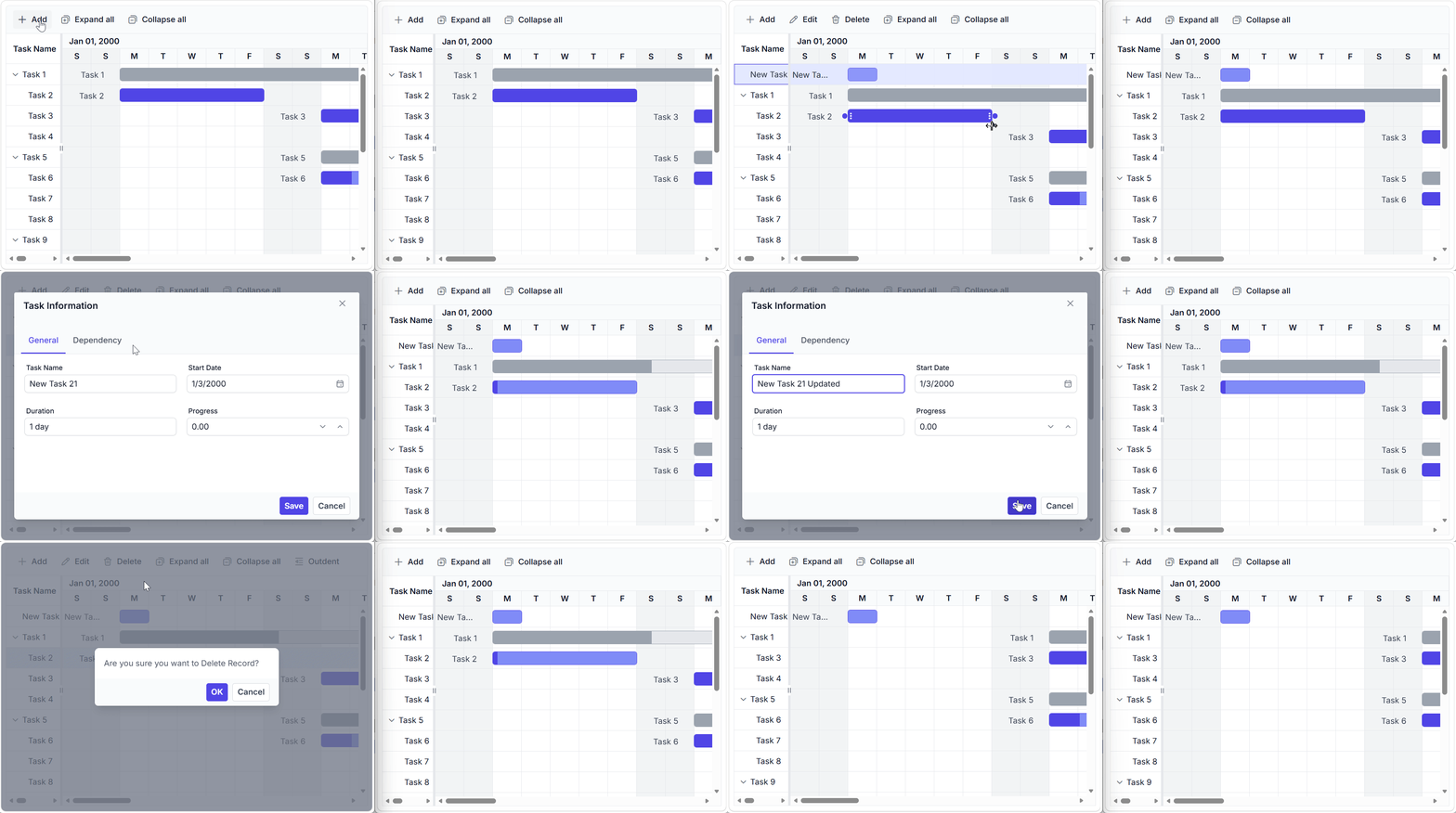
- Open your app in two browser tabs.
- Make a change in one tab.
- Watch the other update instantly.
That moment when both screens stay in sync is where the whole setup clicks.
GitHub reference
For more details, refer to the example for connecting real-time data to Angular Gantt Chart using SignalR on GitHub.
This example demonstrates the real-time communication loop. In a production app, persist task changes on the server before broadcasting updates, scope messages to the relevant project or workspace, and use versioning or timestamps to handle concurrent edits.
Frequently Asked Questions
Why is my Angular Gantt chart not updating even though SignalR messages are received?
This usually happens when incoming SignalR data is not properly mapped to the Gantt chart’s data source, or when Angular change detection is not triggered. You must explicitly update the Gantt dataSource (or use methods like refresh()/setProperties) after receiving SignalR events to reflect changes in the UI.
How can I handle real-time updates using SignalR without reloading the entire Gantt Chart?
Instead of rebinding the entire data source, update only the affected task (insert/update/delete) using Gantt APIs. This avoids performance issues and flickering, especially in large datasets. SignalR events should carry minimal payloads (only changed records) to perform partial updates efficiently.
What is the best way to manage concurrent updates from multiple users in a Gantt Chart using SignalR?
You should handle concurrency on the server side (either the SignalR hub or the backend). Implement conflict-resolution strategies, such as timestamps/versioning or locking mechanisms. The Gantt chart itself does not manage conflicts, so you must ensure consistent updates before broadcasting them to all clients.

Turn your Angular Gantt Chart into a shared, real-time workspace with SignalR
Once multiple users start interacting with the same timeline, real-time sync stops being optional; it becomes the difference between data you trust and data you constantly double-check.
By integrating SignalR with the Gantt Chart, you move from a static snapshot to an event-driven system. Updates propagate instantly, every client stays in sync, and the UI reflects the actual state instead of lagging behind it.
At its core, this is a shift from pull-based updates (polling and refresh) to push-based communication. That change alone removes a large number of synchronization issues common in multi-user apps.
From here, you can extend the setup: persist changes, scope updates to users or teams, or refine how events are triggered. But even at this level, it solves one of the most persistent problems in collaborative workflows: stale, inconsistent data.
If you’re already using the Syncfusion Angular Gantt Chart, this approach integrates naturally into your existing setup. You can access the implementation through the license and downloads page or explore it using the free 30-day trial.
For any questions or deeper exploration, the support forum, support portal, and feedback portal are available to help you get the most out of your implementation.


 No spam, just valuable updates.