
 Deepa Thiruppathy
TL;DR: Simplify loan processing by building a React-based workflow with an embedded PDF viewer to handle form filling, document review, approvals, e-signatures, audit trails, and final delivery in one place. Using a React PDF viewer from Syncfusion, you can replace fragmented processes with a unified, secure, and compliance-ready solution.
Loan processing breaks where documents begin
Loan processing is document-intensive by nature, and that’s exactly where most workflows break down.
Loan officers juggle email threads, outdated file copies, fragmented review tools, and customers wait for long days for approvals, and incomplete audit trails. When form filling, reviewing, annotating, signing, and approving all happen in separate systems, every transition is a potential point of failure.
This blog shows how to solve that problem by building a complete, role-based loan document review workflow by embedding the Syncfusion® React PDF Viewer, all inside a single React application. You’ll get a step-by-step walkthrough, key code snippets, and a working GitHub sample to reproduce the full flow.
Why digital loan workflows matter more than ever
Loan processing is the end-to-end sequence that turns an application into a sanctioned loan: intake, verification, review, approval, and delivery. When each stage depends on manual handoffs or disconnected tools, the entire pipeline slows down.
Here’s what that looks like in practice:
- Slow turnaround: Manual routing and email threads add days or weeks.
- Broken context: Reviewers work from copies or fragmented annotations, causing rework.
- Compliance exposure: Incomplete audit trails and versioning gaps increase risk.
- Operational cost: Multiple-point tools and manual steps inflate headcount and processing cost.
- Poor customer experience: Long waits and repeated document requests kill conversion.
In 2026, a unified, auditable digital workflow isn’t just a modernization effort. It’s a competitive advantage that turns loan pipelines into predictable revenue engines.
What a unified digital workflow delivers
Replacing fragmented processes with structured, automated digital document flows in a single interface changes the picture entirely:
- Speed: Digital workflows cut decision time. Faster approvals mean more closed loans.
- Accuracy: Inline validation and single-source PDFs reduce errors and resubmission.
- Visibility: Real-time dashboarding and status badges eliminate chase work for staff.
- Compliance: Embedded signatures, stamps, and audit logs create defensible records.
- Lower cost, higher conversion: Fewer touchpoints, less rework, and better customer experience directly boost margins.
Architecture overview: One app, one document, full traceability
The loan processing application uses a clean, modern architecture that pairs an intuitive frontend review experience with a secure, auditable backend. The result is a seamless end-to-end workflow, form filling, annotation, review, approval, and final PDF generation, all inside a unified digital system.
Technology stack
Frontend (React + Syncfusion PDF Viewer)
A React application embeds the Syncfusion PDF Viewer, enabling users to:
- Fill form fields directly in the browser.
- Add annotations (highlights, comments, notes).
- Apply E-signatures.
- Download final PDFs.
All interactions happen inside a single interface. No external viewers, no file switching, and no context loss.
Backend services
A lightweight backend service handles the business logic and compliance needs:
- Persist annotation JSON for each review cycle.
- Manage workflow status across the loan requester → loan officer → manager.
- Record audit events (timestamps, actions, version history) for compliance.
- Generate flattened PDFs with embedded stamps, signatures, and metadata.
- Store documents with version tracking for future verification or audits.
Together, the stack ensures a secure, traceable, and fully digital review flow.
End-to-end role-based architecture workflow
The loan processing workflow is structured with a role-based workflow, each interacting with the PDF viewer differently:
- Loan requester: Fills out loan applications, uploads supporting documents, and signs forms.
- Loan officer: Reviews applications, adds annotations, and provides preliminary approval.
- Site officer: Verifies the details submitted by the loan requester and completes the verification fields in the loan application.
- Manager: Final review, approval authority, and sanction letter generation.
This architecture delivers a fully connected, auditable, and efficient loan processing ecosystem powered by an embedded PDF experience.
Building the end-to-end loan processing workflow with Syncfusion React PDF Viewer
Let’s break down the steps to build the loan document review processing workflow using the Syncfusion React PDF Viewer.
Step 1: Initialize the React PDF Viewer
Setting up the Syncfusion React PDF Viewer is quick and developer-friendly. All you need to do is:
- Install the Syncfusion React packages.
- Import the required style CSS reference.
- Then, add the PDF Viewer component to your React app.
From there, you can load PDFs, enable form filling, annotations, and signatures, and connect the viewer to your backend APIs.
Below is a code snippet to initialize the React PDF Viewer component.
import * as ReactDOM from 'react-dom/client';
import * as React from 'react';
import './index.css';
import { PdfViewerComponent, Toolbar, Magnification, Navigation, LinkAnnotation, BookmarkView,
         ThumbnailView, Print, TextSelection, Annotation, TextSearch, FormFields, FormDesigner, Inject} from '@syncfusion/ej2-react-pdfviewer';

function App() {
    return (<div>
    <div className='control-section'>
    {/* Render the PDF Viewer */}
      <PdfViewerComponent
        id="container"
        documentPath="https://cdn.syncfusion.com/content/pdf/pdf-succinctly.pdf"
        resourceUrl="https://cdn.syncfusion.com/ej2/31.2.2/dist/ej2-pdfviewer-lib"
        style={{ 'height': '640px' }}>

         <Inject services={[ Toolbar, Magnification, Navigation, Annotation, LinkAnnotation, BookmarkView,
                             ThumbnailView, Print, TextSelection, TextSearch, FormFields, FormDesigner ]}/>

      </PdfViewerComponent>
    </div>
  </div>);
}
For more details, explore the setup guide for the Syncfusion React PDF Viewer!
Step 2: Building a unified user login
The application uses a single login page for all four roles:
- Loan Requester
- Loan Officer
- Site Officer
- Manager
Users select their role at login, and after authentication, they’re directed to a role-specific dashboard showing only the tasks, documents, and permissions relevant to their stage in the workflow.
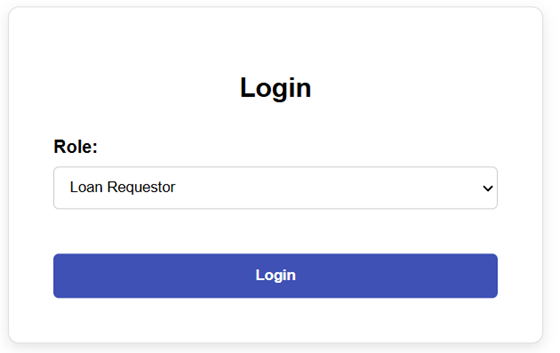
Note: This demo uses mock user-role details. In a production environment, you can integrate it with your organization’s authentication system to enforce actual access control.
Step 3: Filling out the loan application
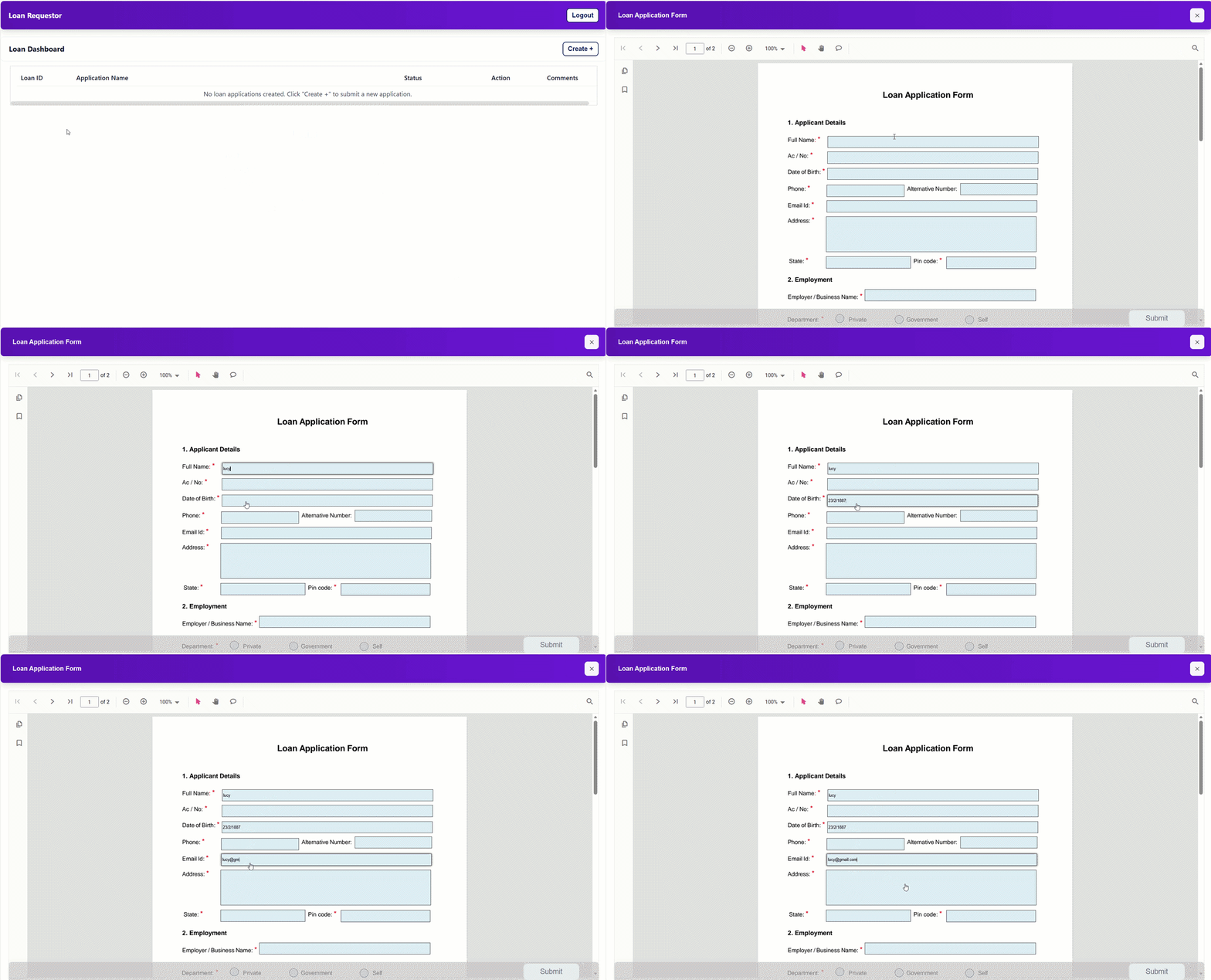
After logging in, the loan requester lands on their dashboard, where they can view existing applications, check statuses, and create a new loan request. The dashboard shows the following key details:
- Loan ID
- Application Name
- Status
- Action
- Comments
When the customer clicks the Create button, the loan form opens directly inside the Syncfusion React PDF Viewer. The loan form includes sections for applicant details, employment information, and loan specifics. Attachment fields allow applicants to upload supporting documents without leaving the interface.
The customers need to complete all required fields, add their e-signature, and submit.
The built-in validation enforces clean data entry. Fields like Date of Birth and Phone Number accept only valid formats, preventing errors before submission.
Refer to the following code example to implement numeric field validation.
if (targetName) {
    // If field name references numeric fields (date, phone, amount, tenure, etc.), enforce digits-only
    const numericKeywords = [
        'date',
        'dob',
        'dateofbirth',
        'phone',
        'mobile',
        'contact',
        'amount',
        'tenure',
        'number',
        'no',
        'age'
    ];

    let isNumericField = numericKeywords.some(k => targetName.includes(k));

    // If the field is a signature field, skip numeric sanitization even if the name contains keywords
    const fieldTypeRaw =
        (args.field && (args.field.type || args.field.fieldType || '')) || '';

    const fieldType = (fieldTypeRaw + '').toString().toLowerCase();
    const isSignatureField = fieldType.includes('signature');

    if (isSignatureField && isNumericField) {
        console.debug(
            'Skipping numeric sanitization for signature field',
            { targetName, fieldType }
        );
        isNumericField = false;
    }
}
Refer to the following image.
Step 4: Site officer reviews
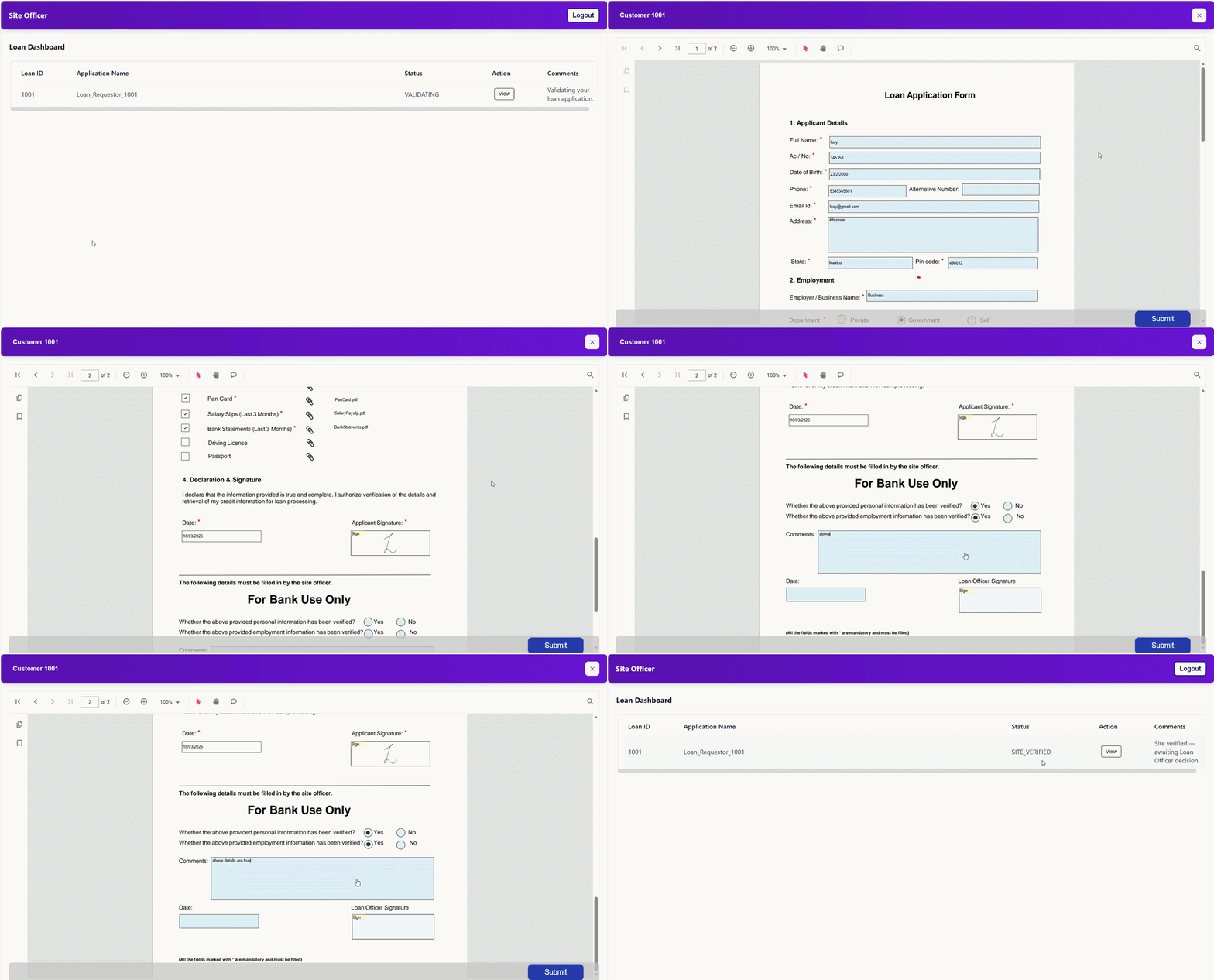
Now, the loan officer checks the loan details filled by the loan requester and forwards them to the site officer for verification.
The site officer can access all pending verification loan forms from their dashboard. Their primary responsibility is to confirm that the information provided by the loan requester is accurate, genuine, and complete. The site officer also fills site‑specific fields and returns the application to the loan officer with all relevant verification details added as comments.
This step introduces an essential layer of field‑level authentication, strengthening the reliability of the loan approval process before the application moves forward for final approval.
See the following image for more information.
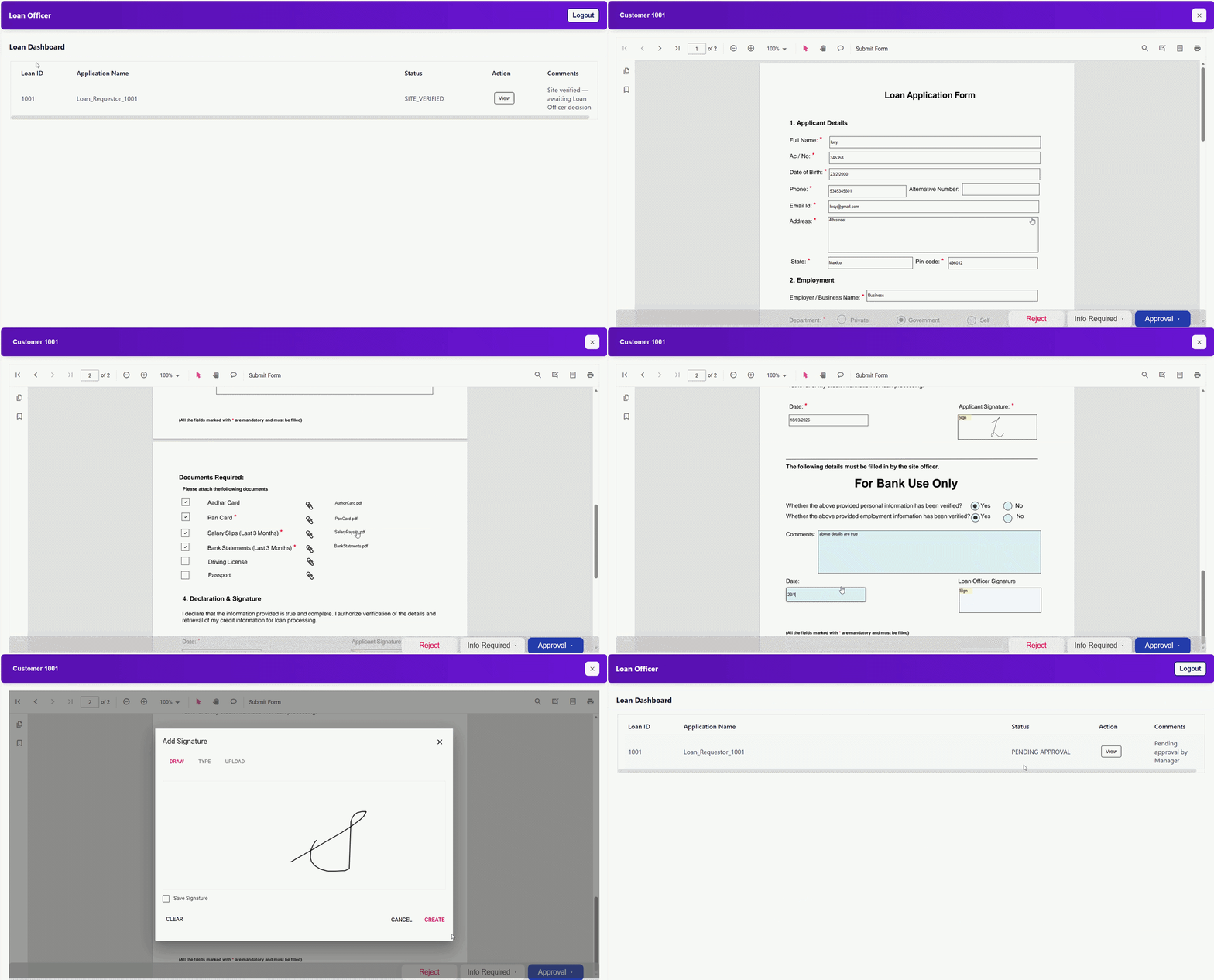
Step 5: Loan officer reviews
Loan officers access their dedicated dashboard listing all pending applications. Selecting an application opens it inside the React PDF Viewer.
Loan officers cannot edit fields submitted by the loan requester. Instead, they use annotations, highlights, and comments to review the document and provide structured feedback.
After site officer verification, a loan officer can:
- Request additional information from the loan requester.
- Reject the application with comments.
- Approve and forward to the manager for final review.
Implement the following code example to prevent editing field values submitted by the customer.
/**
 * onDocumentLoad
 */
const onDocumentLoad = () => {
    evaluateFields();

    // Apply read-only mode based on loan status and role
    const canEdit =
        loanStatus === LoanStatus.INFO_REQUIRED &&
        (role === "Manager" || role === "Loan Officer");

    if (
        (!canEdit || loanStatus !== LoanStatus.INFO_REQUIRED) &&
        loanStatus !== ""
    ) {
        readOnly();
    }
};
The following GIF image provides visual clarity about the loan reviewing process.
Step 6: Manager reviews and approvals
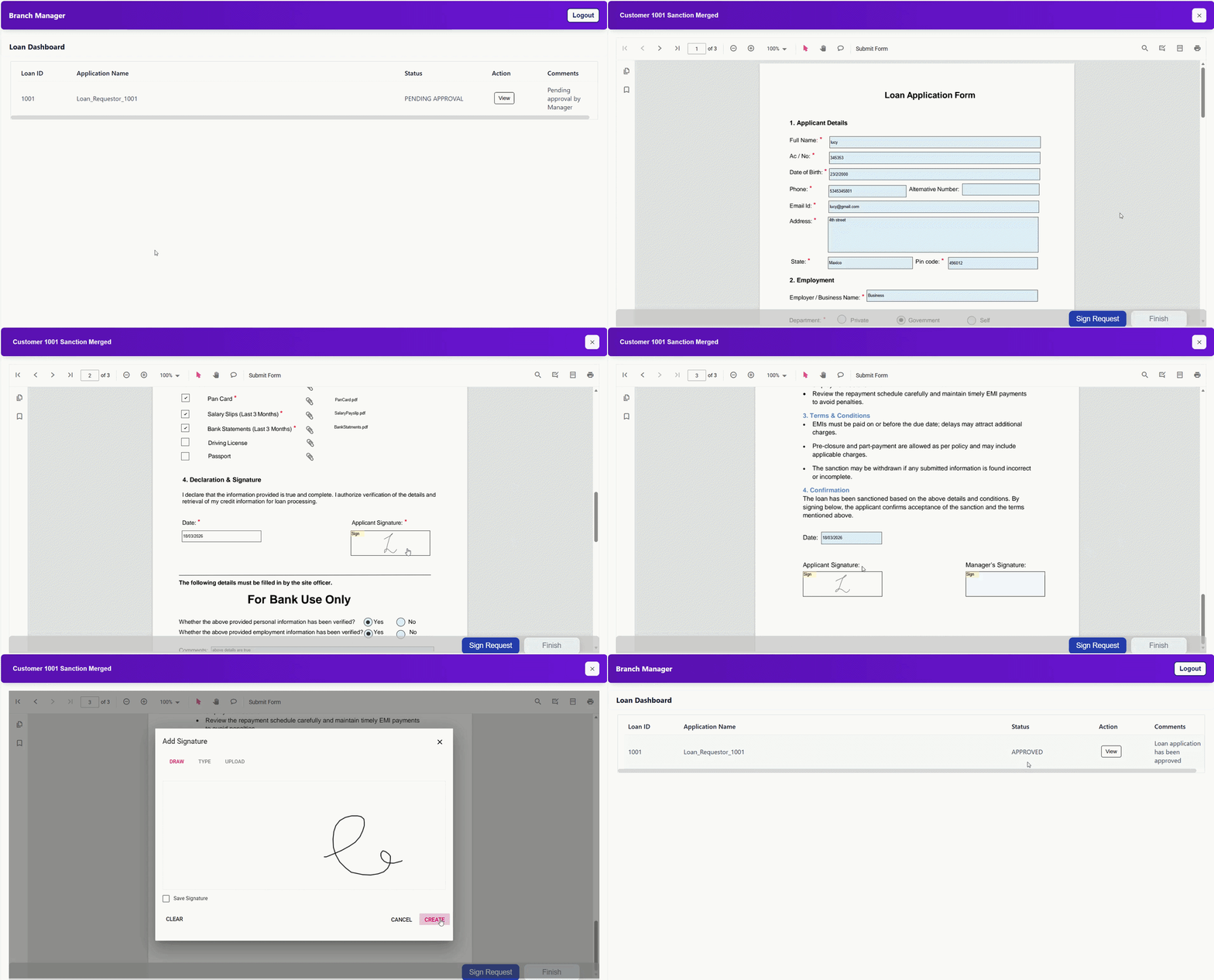
Managers hold final approval authority. Their dashboard displays all applications waiting for approval, and each document opens directly inside the React PDF Viewer for review. Managers cannot modify customer-submitted fields but can review all annotations added by other officers and verify supporting documents.
From here, they can:
- Approve the application and trigger the sanction‑letter creation.
- Reject the application with comments.
Once approved, the manager sends the sanction letter to the customer for signature. After the customer signs, the manager completes the final signing and closes the loan process.
The following code example explains how sanction letter fields are populated and locked during the approval stage.
/**
 * UpdateForm
 * Populate sanction letter fields with values collected during approval
 * and set them to read-only.
 */
function UpdateForm() {
    const viewer = viewerRef.current;
    if (!viewer) return;

    let forms = viewer.retrieveFormFields();

    for (let i = 0; i < forms.length; i++) {
        const field = forms[i];

        // Populate sanction fields based on field name
        if (field.name === "ApplicantName") {
            field.value = sanctionValues.name;
        } else if (field.name === "Amount") {
            field.value = sanctionValues.amount;
        } else if (field.name === "Tenure") {
            field.value = sanctionValues.tenure;
        } else if (field.name === "Date") {
            field.value = new Date().toLocaleDateString("en-GB");
        }

        // If the field has a value, update and lock as read-only
        if (field.value !== "") {
            viewer.updateFormFieldsValue(field);
            viewer.formDesignerModule.updateFormField(field, {
                isReadOnly: true
            });
        }
    }
}
Step 7: Downloading the loan sanction letter
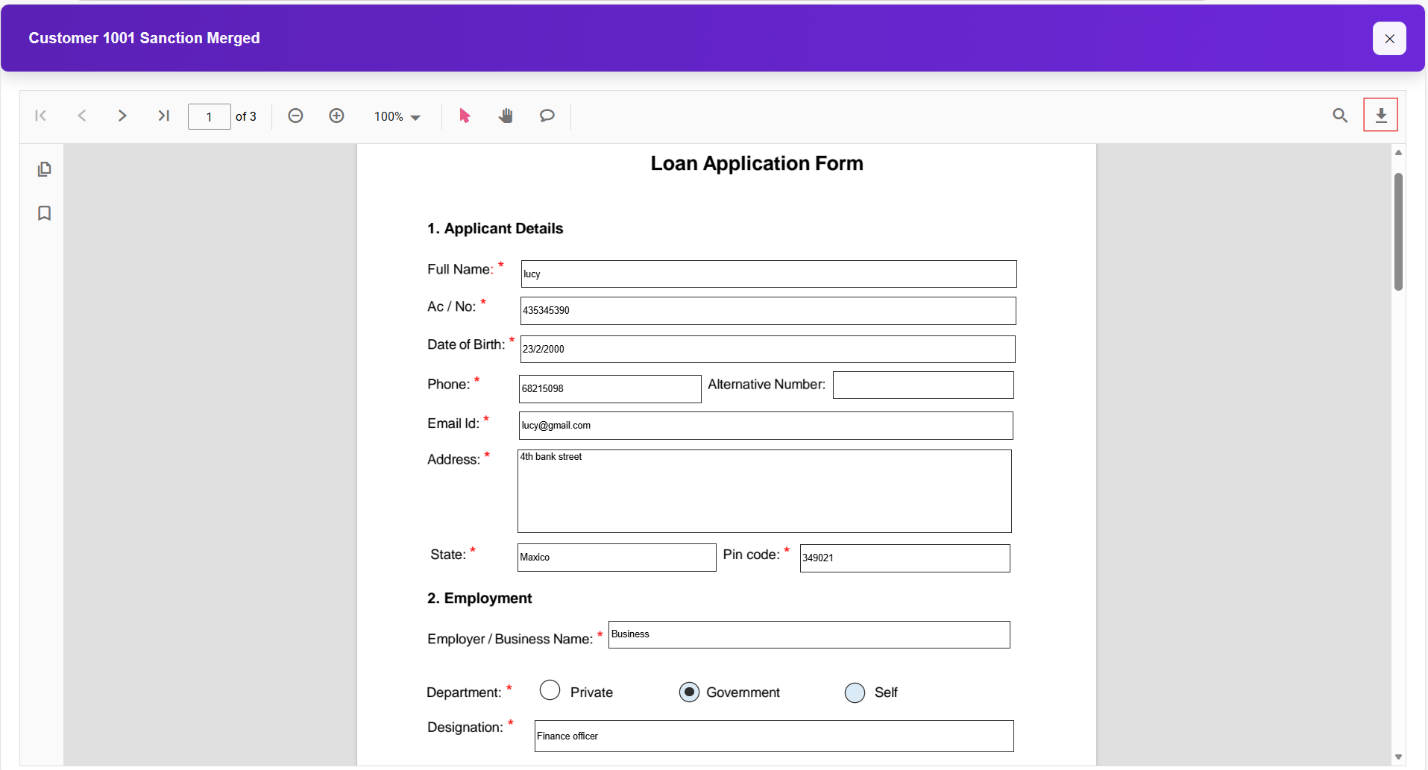
After the manager approves the loan, the loan requester’s dashboard updates the application status to “APPROVED.” They can now open the sanction letter directly inside the React PDF Viewer and use the built-in Download option to save a signed copy locally.
Comparing manual vs. digital loan processing workflow
The move from manual loan processing to an embedded digital workflow significantly reduces delays, errors, and compliance risks. The table below shows how each stage improves when using the Syncfusion React PDF Viewer instead of traditional, fragmented tools.
| Stage | Traditional approach | Embedded PDF Viewer workflow |
| Application submission | Email attachments or physical forms require manual data entry. | Inline form filling with real-time validation and instant submission. |
| Document review | Printed markups, handwritten notes, or separate annotation tools require scanning. | Built-in annotation directly on the PDF with digital commenting. |
| Approval and signing | In-person meetings or wet signatures require physical presence. | E-signatures can be completed within the viewer, entirely remotely, in just seconds. |
| Status tracking | Manual email updates with no centralized visibility. | Real-time dashboard status is visible to all authorized parties. |
| Sanction letter delivery | Postal or email attachment with security risks. | Instant in-app download with full encryption and audit trail. |
| Integration complexity | 4-5 separate tools. | Single embedded component with unified functionality. |
GitHub reference
Ready to try it yourself? Clone the Loan processing demo on GitHub, run it in minutes, and experience a complete end‑to‑end loan review and approval process firsthand.
Frequently Asked Questions
Can I customize the workflow for my application?
Absolutely. The workflow, UI, permissions, backend logic, and viewer tools can all be configured to match your organization’s loan lifecycle and approval structure.
Can we automate notifications for each workflow step?
Yes. Email, SMS, Teams, or in-app notifications can be triggered by backend workflow events such as form submission, loan officer information requests, or manager approvals.
Can we add custom validation rules to the form fields?
Yes. Beyond the default PDF field validation, you can add custom form field validation rules (e.g., PAN format, IFSC validation, salary range logic).
Does the demo support multiple loan types with different workflows?
Yes. You can configure different PDF template forms, add custom approval pipelines, and include additional review steps as required by your banking solution.
Can multiple customers and loan officers work on apps at the same time?
Yes. Because the app runs in the browser and is role-based, multiple customers and loan officers can work on the loan document review demo and submit loan forms concurrently.
Can we integrate the system with OCR or document classification tools?
Yes. You can integrate Syncfusion OCR engines to auto-extract data from customer‑uploaded documents like pay slips, IDs, or bank statements before reviewing.
Does the viewer support dark mode?
Yes. Syncfusion supports built‑in theme variations, including Material, Tailwind, Fabric, Bootstrap, and custom themes with dark mode variants to match your brand style.
How does the system prevent tampering after a document is signed?
Once the document is signed, signatures and loan details are set to read-only form fields to prevent unauthorized edits from others.
Build faster, compliant loan workflows directly inside your React app
Thanks for reading! The Syncfusion React PDF Viewer brings together every capability needed to build a seamless, end-to-end digital loan processing workflow directly inside the browser. Its comprehensive built-in features eliminate the need for external tools, reduce operational friction, and ensure a secure, compliant loan lifecycle from app to sanction letter.
Ready to modernize your loan processing? Start exploring the full power of the React PDF Viewer:
- Form filling & annotations: Interactive form fields with validation plus rich markup tools for reviewing documents.
- E‑Signature support: Secure electronic signing without the need for wet signatures.
- Role‑based access: Customizable toolbars and permissions tailored for each user role.
- API & customization: Deep customization with 200+ APIs and easy backend integration for workflow state, audits, and versioning.
- Performance & compliance: Fast, secure rendering (client or server) with GDPR, HIPAA, and SOC 2 compliant infrastructure.
- Multi‑platform support: Works across React, Angular, Vue, Blazor, ASP.NET Core, and more.
If you’re a Syncfusion user, you can download the setup from the license and downloads page. Otherwise, you can download a free 30-day trial.
You can also contact us through our support forum, support portal, or feedback portal for queries. We are always happy to assist you!




 No spam, just valuable updates.