
 Deepa Thiruppathy
TL;DR: A practical guide for building a role-based LMS assignment workflow in React with an embedded PDF viewer, covering in-document learning, form-based submissions, annotations, automated scoring, review cycles, and retest handling, all within a single, consistent LMS experience.
Traditional Learning Management Systems often rely on fragmented workflows for assignments. Learning materials are downloaded separately, submissions happen outside the LMS, and reviews require multiple tools. This fragmentation slows down reviews, increases errors, and disrupts the learning experience.
As EdTech platforms evolve, expectations have shifted. A modern LMS assignment workflow must support the full lifecycle, from learning and submission to review, scoring, and retest, within a single, consistent interface.
A role-based LMS assignment workflow built with an embedded React PDF viewer enables learners and staff to complete every step, viewing content, filling assignments, submitting responses, reviewing work, and scoring, directly inside the LMS without downloads or external tools.
This post outlines how to build a complete LMS assignment workflow using the Syncfusion® React PDF Viewer, including architecture, role-based design, and a demo-ready implementation adaptable to real-world LMS applications.
Why LMS assignment workflows fail without an embedded PDF Viewer
Many LMS platforms still treat assignments as static files instead of interactive learning components. Assignments move between emails, downloads, external PDF tools, and manual tracking systems, creating friction for both educators and learners.
Common issues include:
- Slow turnaround caused by offline submissions and manual collection
- Broken context due to switching between tools during review
- Lack of clear status visibility for assignments
- Manual grading bottlenecks for structured PDFs
- Delayed and disconnected feedback for learners
These problems make assignment workflows inefficient, hard to track, and frustrating at scale.
How an embedded PDF Viewer fixes these problems
An LMS with an embedded PDF viewer transforms assignments into an interactive, streamlined process. Learners and staff interact with the same document inside the LMS throughout the assignment lifecycle.
Key improvements include:
- In-app completion without file downloads
- Built-in form validation to reduce submission errors
- Real-time assignment status tracking (New → In‑Progress → Completed / Retest)
- Automated scoring for structured assessments
- Contextual comments and annotations tied directly to the document
By keeping every interaction inside the PDF viewer, LMS workflows become faster, more reliable, and easier to manage.
Architectural overview of LMS assignment workflows with Syncfusion React PDF Viewer
A scalable LMS assignment workflow needs a clear architecture that supports role-based access, real-time status tracking, and seamless document interaction. This implementation uses React and the Syncfusion React PDF Viewer to keep the entire assignment lifecycle, learning, submission, review, and scoring, within a single interface.
Technology stack (React + Syncfusion React PDF Viewer)
The architecture is built using the following core components:
- React functional components with Hooks to handle role-based UI state and status updates.
- The Syncfusion PDF Viewer powers form filling, annotations, comments, and role-specific toolbars inside a single embedded PDF Viewer.
- exportFormFieldsAsObject extracts submitted field values from the assignment PDF and feeds them into the PDF autoscoring logic.
- A local JSON store tracks per-learner status across sessions (suitable for demo). In production, replace this with a database + API.
All interactions, learning, answering, reviewing, commenting, and scoring happen within the same embedded PDF Viewer. This removes file downloads, tool switching, and context loss.
Role-based LMS workflow design
The LMS workflow is built around two clearly defined roles, each with different permissions and interactions inside the PDF Viewer:
Staff
- Upload learning materials and assignment PDFs
- Define correct answers for autoscoring
- Track learner progress and assignment status
- Respond to learner questions with in-document comments
- Review submissions and monitor scores
Learner
- View assigned learning materials
- Raise questions directly inside the document
- Receive contextual comments and feedback
- Fill assignment PDF form fields
- Submit assignments and view results
- Retake assignments if required
This role-based design ensures a connected, trackable, and auditable assignment lifecycle, where every action, from upload to final review, is handled through a single embedded PDF experience.
The next section walks through the implementation of this architecture, step by step, to build a working LMS assignment workflow using the Syncfusion React PDF Viewer.
Building the LMS assignment workflow with Syncfusion React PDF Viewer
Let’s break down the LMS assignment workflow built using the Syncfusion React PDF Viewer step-by-step.
Step 1: Installing the Syncfusion React PDF Viewer
Setting up the Syncfusion React PDF Viewer is quick and straightforward: install the Syncfusion React PDF Viewer package, import the required CSS style references, and render the PdfViewerComponent to your React application.
Below is a code snippet to initialize the PDF Viewer component:
{/* Render the PDF Viewer */}
<PdfViewerComponent
    documentPath="https://cdn.syncfusion.com/content/pdf/pdf-succinctly.pdf"
    resourceUrl="https://cdn.syncfusion.com/ej2/33.1.47/dist/ej2-pdfviewer-lib"
    enableToolbar={true}
    enablePrint={false}
    enableDownload={false}
    toolbarSettings={{
        showTooltip: true,
        toolbarItems: ['MagnificationTool', 'PageNavigationTool']
    }}
>
    <Inject services={[ Toolbar, Magnification, Navigation]}/>
</PdfViewerComponent>
Want a detailed walkthrough to embed it into your application? Explore Syncfusion React PDF Viewer setup guide!
Step 2: Role-based login (Staff and learner access control)
The application uses a single login page for both the Staff and Learner roles. Users select their role at login and submit their credentials. After authentication, they are directed to a role-specific dashboard that shows only the relevant details for that role.
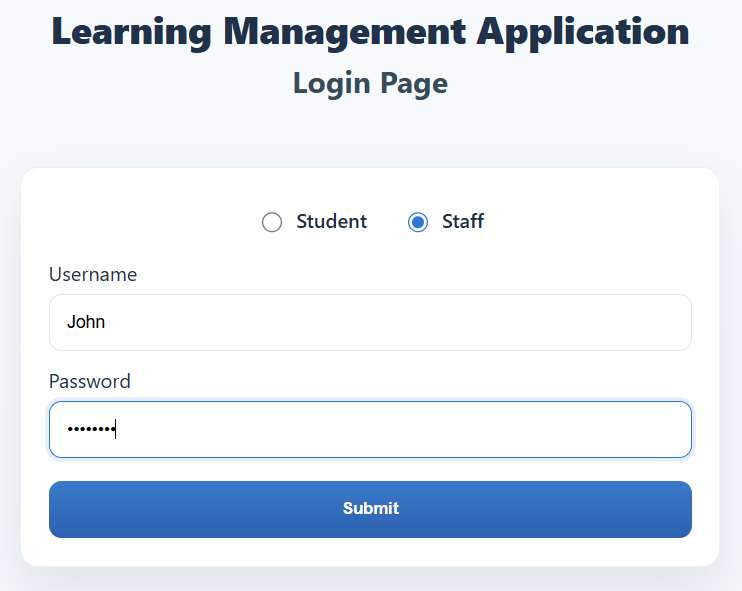
Note: The demo uses mock user-role details. User credentials are available in the README file. In production, integrate with your organization’s authentication system to enforce actual access control.
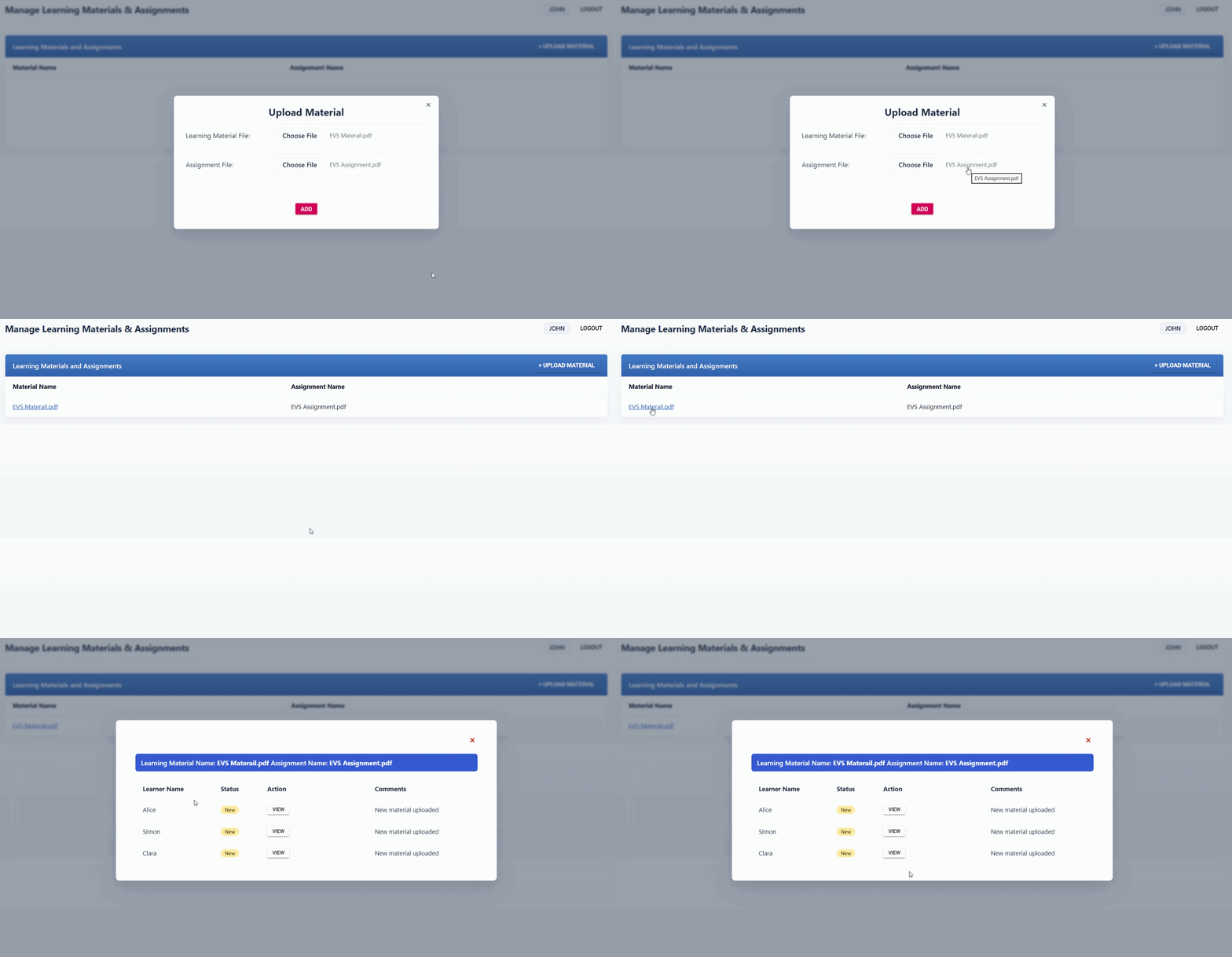
Step 3: Staff uploads learning materials and assignments
Once logged in, Staff are redirected to their dashboard, which displays all uploaded learning materials, assignments, and current learner progress. From this dashboard, the staff clicks the Upload Material button to add content to the LMS.
Staff uploads two types of PDFs:
- Learning material PDF: Study content that learners must review before accessing the assignment.
- Assignment PDF: A fillable, form‑based PDF used to assess learner understanding.
Assignment preparation and status initialization
As soon as the materials are uploaded, the LMS automatically initializes the assignment status as New for every enrolled learner. Tracking begins immediately when the content becomes available.
For assignments, the staff upload the PDF with predefined correct answers. These answers are stored securely and used later for PDF autoscoring. Before the assignment is shared with learners, all form fields are cleared, ensuring learners receive a blank assessment to complete.
When learners submit the assignment, the system compares their responses with the stored answers and automatically calculates the score, eliminating manual grading for structured assessments.
This approach ensures:
- Accurate and consistent evaluation
- Faster assignment review cycles
- A clean separation between learner input and Staff-defined answers
At this stage, the LMS is fully prepared to guide learners from learning material to assignment completion in a controlled, trackable workflow.
Step 4: Learner reviews and completes learning
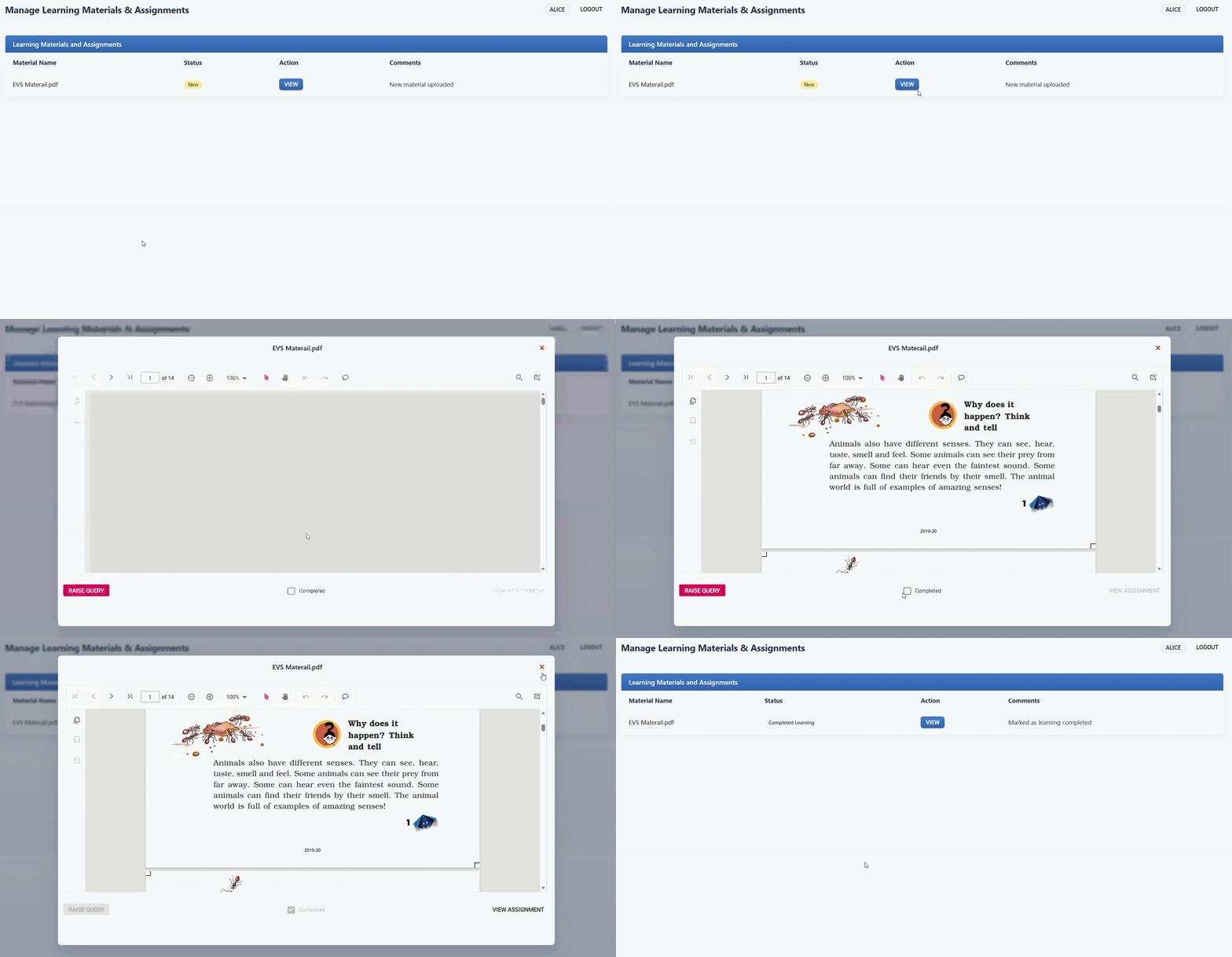
After logging in, Learners are redirected to their dashboard, where they can view all assigned learning materials and their current status. When a learner opens a learning material, the PDF loads directly inside the embedded Syncfusion React PDF Viewer, no downloads or external applications required.
As soon as the material is opened for the first time, the assignment status automatically changes from New to In‑Progress. This allows instructors to track learner engagement without any manual updates.
Once they have completed the learning, they mark it as complete by selecting the Completed checkbox (implemented in this demo workflow). This action updates the status to Completed Learning and unlocks access to the assignment PDF.
This step ensures learners complete the required study material before attempting the assessment, while providing clear visibility into learning progress.
// Fired when learner checks the "Completed" checkbox control in this demo.
function handleCompletedChangeSyncfusion(args) {
    const checked = !!(
        args && (args.checked !== undefined ? args.checked : args.value)
    );
    setCompleted(checked);

    if (checked) {
        // Mark Learning as Completed → unlocks assignment access
        onUpdateStatus(item.id, {
            forUser: activeLearnerKey,
            status: 'Completed Learning'
        });
    }
}
Step 5: In-document queries and staff responses (Optional)
During the learning phase, learners may have questions or need clarification on specific parts of the content. Instead of leaving the LMS or sending separate messages, they can raise queries directly inside the PDF document.
Using the comments and annotation tools available in the Syncfusion React PDF Viewer, learners add questions at the exact location where clarification is needed. Staff responds to these queries within the same document, keeping all communication contextual and easy to follow.
This in-document query workflow:
- Eliminates separate messaging tools
- Prevents loss of context
- Keeps discussions tied to the relevant content
Once learners receive clarification, they can complete the learning step and proceed to the assignment without leaving the LMS.
Here’s a role-based toolbar setup pattern for Learner and Staff views:
<PdfViewerComponent
    id="ejs-pdf-viewer"
    ref={viewerRef}
    resourceUrl="https://cdn.syncfusion.com/ej2/33.1.47/dist/ej2-pdfviewer-lib"
    enableToolbar={true}
    documentPath={undefined}
    documentLoad={onDocumentLoad}
    enableAnnotation={!isStudentAssignmentView && !isCompletedUI && !isTeacherViewingSubmission}
    enableCommentPanel={!isStudentAssignmentView && !isCompletedUI && !isTeacherViewingSubmission}
    toolbarSettings={{
        showTooltip: true,
        toolbarItems: (
            isStudentAssignmentView || isCompletedUI
                ? [
                    'PageNavigationTool',
                    'MagnificationTool',
                    'PanTool',
                    'SelectionTool',
                    'SearchOption'
                  ]
                : (
                    isTeacherViewingSubmission
                        ? [
                            'PageNavigationTool',
                            'MagnificationTool',
                            'PanTool',
                            'SelectionTool',
                            'SearchOption',
                            'PrintOption',
                            'DownloadOption'
                          ]
                        : [
                            'PageNavigationTool',
                            'MagnificationTool',
                            'PanTool',
                            'SelectionTool',
                            'SearchOption',
                            'UndoRedoTool'
                            'AnnotationEditTool',
                            'CommentTool'
                          ]
                  )
        )
    }}
    style={{ width: '100%', height: '100%', minHeight: 420 }}
>
    <Inject
        services={[
            Toolbar,
            Magnification,
            Navigation,
            Annotation,
            LinkAnnotation,
            ThumbnailView,
            BookmarkView,
            TextSelection,
            TextSearch,
            FormFields,
            FormDesigner
         ]}
    />
</PdfViewerComponent>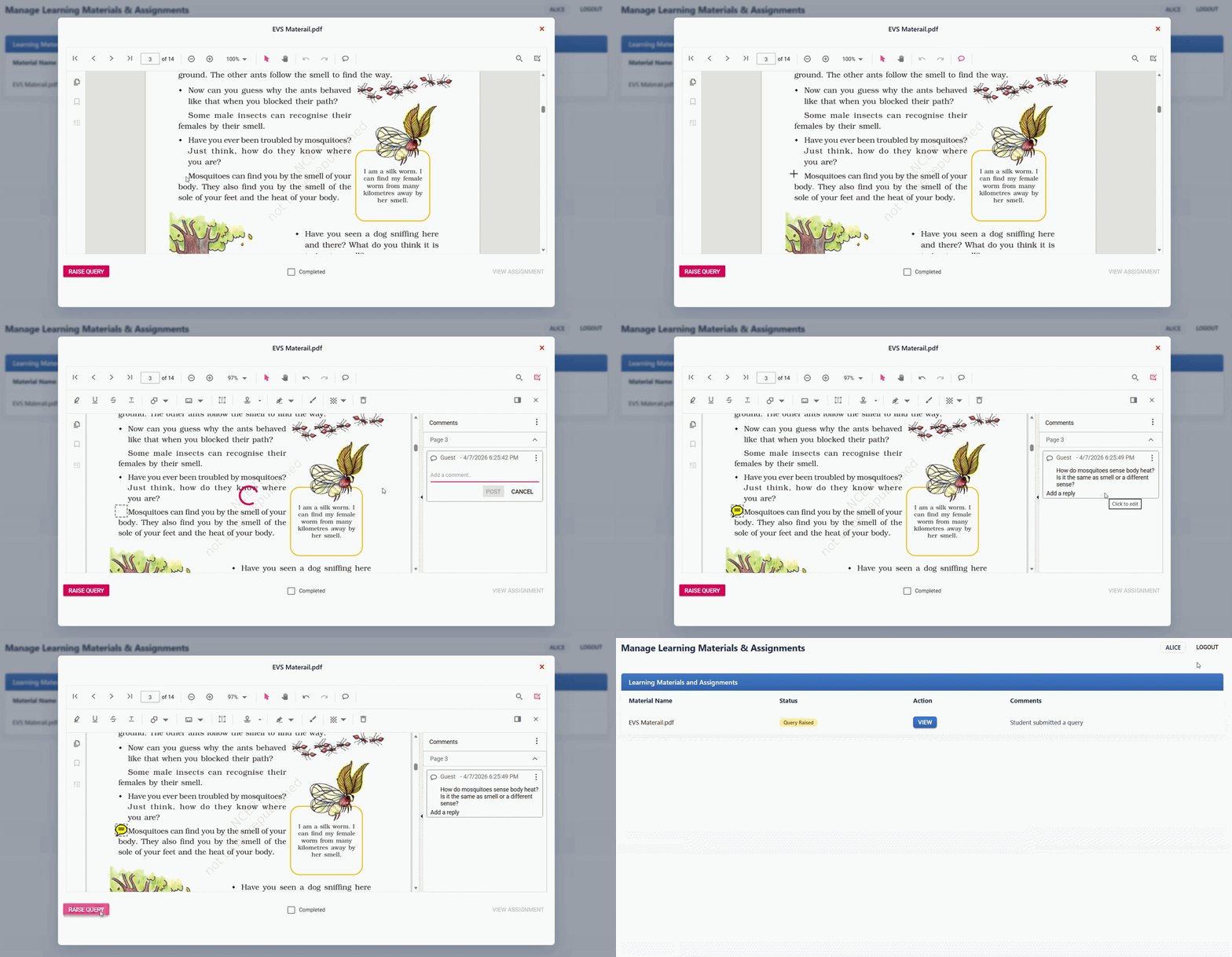
Step 6: Assignment submission and automatic scoring
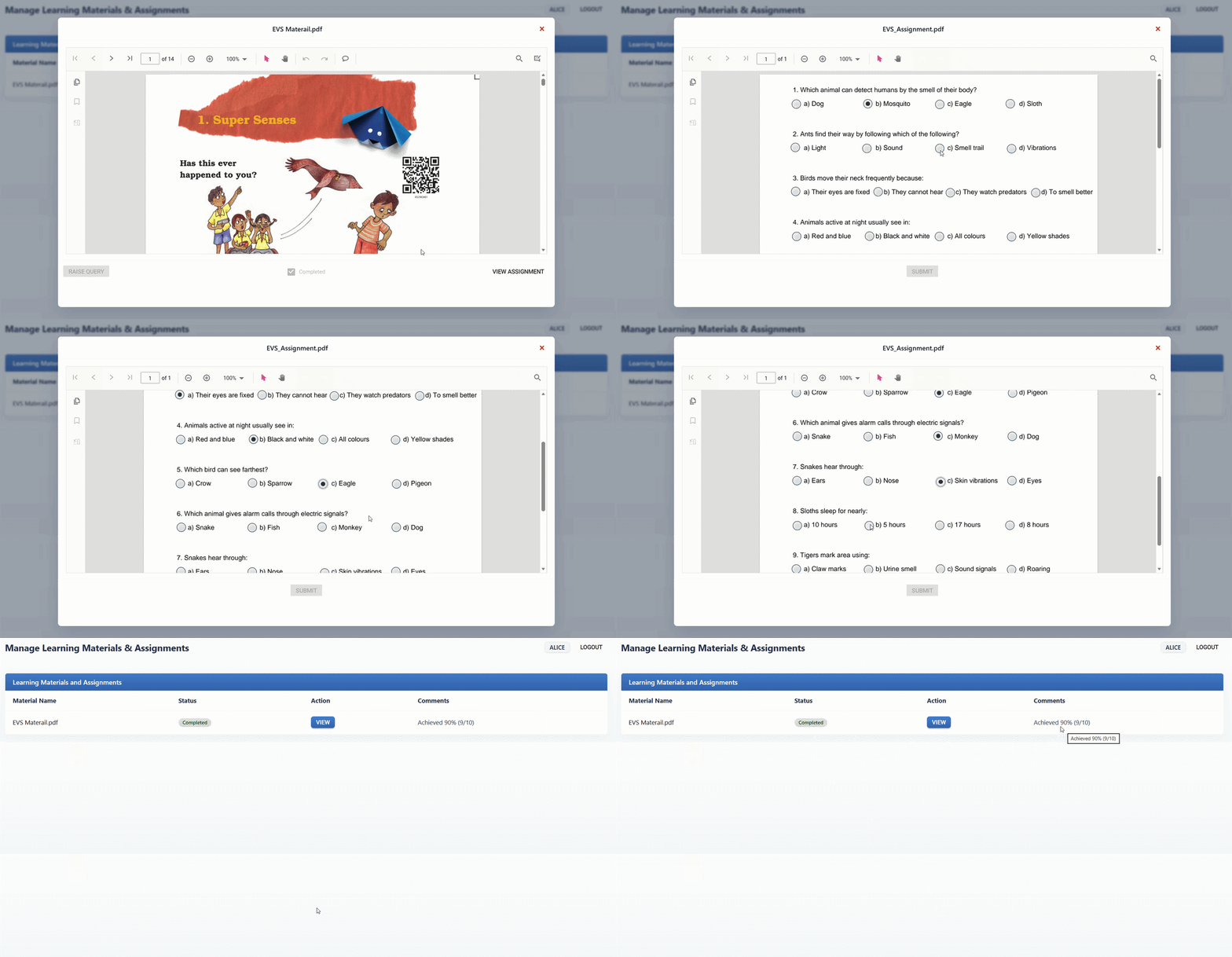
After completing the learning material, the assignment PDF becomes available to the learner. The learner opens the assignment directly in the embedded PDF Viewer, completes the form fields, and submits it within the LMS.
On submission:
- Form field values are extracted using the exportFormFieldsAsObject method.
- Submitted answers are compared with the predefined Staff answers.
- A percentage score is calculated automatically.
Based on the score:
Score ≥ 80%→ Status is updated to Completed, and the learner can view the score.Score < 80%→ Status is updated to Retest, allowing the learner to reattempt the assignment.
Staff can view submission details and scores from their dashboard, while learners receive immediate feedback based on the outcome. This automated process reduces manual grading effort while ensuring consistent and transparent evaluation.
Note: In this demo workflow, scoring is handled on the client side. In a production LMS, scoring should be performed on the server to ensure security and prevent answer manipulation.
Here’s the auto-scoring logic used in the workflow:
// Triggered when learner clicks "Submit" — extracts fields, scores, updates status
async function asyncSubmitAndExit() {
    const inst = viewerRef.current;

    // Export submitted field values from the assignment PDF
    const submitRaw = await inst.exportFormFieldsAsObject();

    // Load Staff-defined answer captured at upload time
    const checkRaw = data;

    // Normalize and compare submitted vs correct answers
    const normalize = (obj) => {
        const out = {};
        Object.keys(obj || {}).forEach(k => {
            out[String(k).toLowerCase().trim()] = String(obj[k] ?? '')
                .toLowerCase()
                .trim();
        });
        return out;
    };

    const submit = normalize(submitRaw);
    const check = normalize(checkRaw);
    const keys = Object.keys(check);

    let matches = 0;
    keys.forEach(k => {
        if (submit[k] !== undefined && submit[k] === check[k]) matches++;
    });

    // Calculate percentage score
    const total = keys.length;
    const percent = total > 0 ? Math.round((matches * 100) / total) : 0;

    // Assign status — Completed (≥80%) or Retest (<80%)
    const status = percent >= 80 ? 'Completed' : 'Retest';
    onUpdateStatus(item.id, { forUser: activeLearnerKey, status });

    // Score stored for Staff visibility — hidden from learner if score < 80%
    const achievedText = `Achieved ${percent}% (${matches}/${total})`;
    if (percent < 80) {
        addCommentEntry(item.id, 'Marked for retest', activeLearnerKey);
        addCommentEntry(item.id, achievedText, activeLearnerKey);
    } else {
        addCommentEntry(item.id, achievedText, activeLearnerKey);
    }
}
Note: This workflow demonstrates a reference implementation using mock data. In a real LMS application, assignment flow, scoring logic, data storage, and user permissions may vary based on your requirements. You can customize and extend this approach to fit your LMS architecture.
GitHub reference
A demo implementation of the role-based LMS assignment workflow is available on GitHub.
Frequently Asked Questions
Yes, the workflow, UI, permissions, auto-scoring logic, and viewer tools can all be configured to match your curriculum and assessment structure. The GitHub sample demonstrates the end-to-end workflow pattern, and you can extend it as needed.Can I customize this LMS workflow for my institution's assignment structure?
Yes. Email, SMS, or in-app notifications can be triggered by your backend on workflow events, assignment submission, query raises, staff feedback, or retest triggers. The PDF Viewer’s event callbacks (like documentLoad, annotationAdd, and commentAdd) provide the integration hooks to fire these notifications.Can I automate notifications for each assignment’s status change?
Form field values are extracted after submission and compared against the Staff-defined answer uploaded with the assignment. Syncfusion React PDF Viewer supports all standard form fields: text fields, dropdowns, checkboxes, and radio buttons.How does PDF autoscoring work with different question types?
Yes, because the application is role-based and browser-based, multiple learners can fill, submit, and retest concurrently without interference.Can multiple learners work on assignments simultaneously?
Yes. Syncfusion supports built-in theme variations, including Material, Tailwind, Fabric, Bootstrap, and custom themes, with dark mode variants to match your education brand style.Does the viewer support dark mode or custom themes?
Yes. By design, newly uploaded materials and assignments are assigned to all learners enrolled in this demo. For advanced scenarios, you can create custom learner groups and customize the demo flow to assign specific materials to each group at upload time.Can the system support different assignment PDFs for different learner groups?
Conclusion: One embedded viewer for the full assignment lifecycle
Thank you for reading! The LMS assignment lifecycle, uploading content, reviewing materials, filling assignments, submitting responses, annotating, scoring, and retesting, does not require multiple disconnected tools.
By combining a role-based workflow with an embedded React PDF viewer, all assignment interactions can be handled within a single LMS experience. Learners receive immediate feedback, staff reduce manual overhead, and developers gain a scalable, maintainable architecture for modern EdTech applications.
The Syncfusion React PDF Viewer provides the core building blocks for this workflow:
- Form filling & extraction: Form fields with built-in validation + value extraction via exportFormFieldsAsObject for autoscoring.
- Annotation tools: Inline highlights, comments, stamps, and freehand notes for precise teacher feedback.
- Role-based viewer modes: Customizable toolbars and permissions for Staff review vs. Learner fill mode.
- Autoscoring engine (demo pattern): Answer comparison → instant score calculation → automated Completed/Retest status.
- Query-feedback cycle: In-context queries raised with annotation-based Staff responses.
- Status state machine: New → In-Progress → Completed Learning → Submitted → Completed/Retest (and optional query states).
Modernize your LMS assignment workflow with a role‑based PDF solution.
Read the user guide to get the complete technical reference and see how a single embedded PDF Viewer can power the full assignment lifecycle.
If you’re a Syncfusion user, you can download the setup from the license and downloads page. Otherwise, you can download a free 30-day trial.
You can also contact us through our support forum, support portal, or feedback portal for queries. We are always happy to assist you!


 No spam, just valuable updates.