
 Farjana Parveen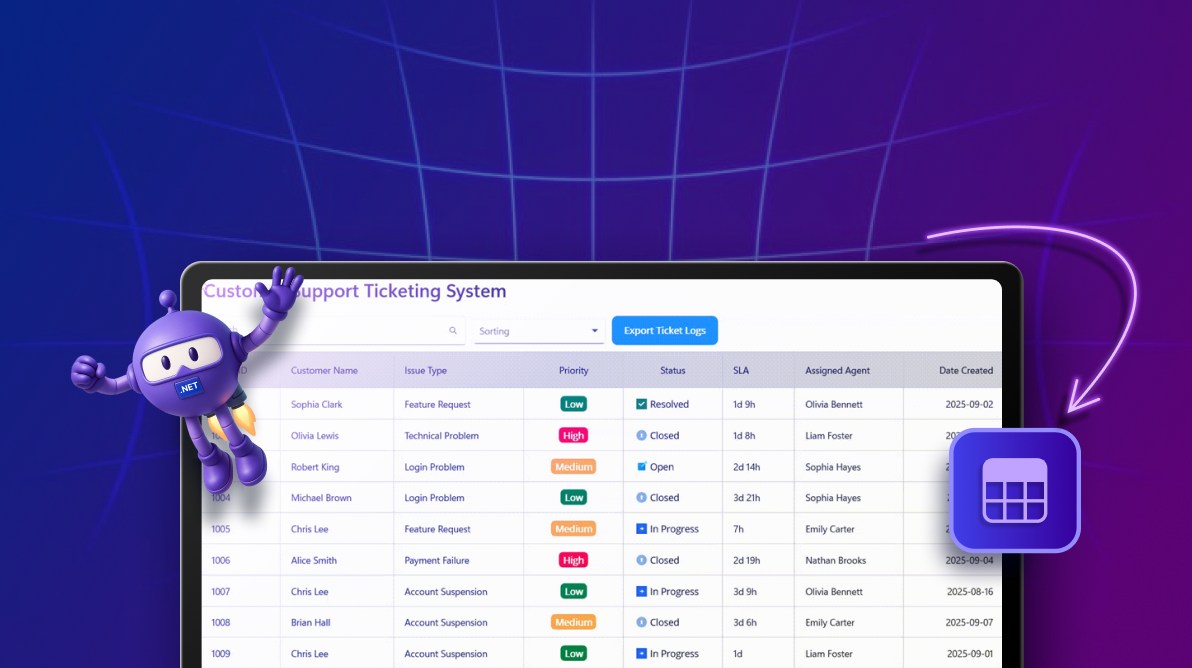
TL;DR: Build a responsive, production-ready support ticket dashboard using Syncfusion .NET MAUI DataGrid (SfDataGrid). We’ll set up a ticket model with real-time UI updates, load data from Firestore into an observable collection, bind it to the UI via MVVM, and create a polished grid UI with sorting, templates, and export.
Support systems depend on clear, fast, and consistent data visualization to manage tickets, agent workloads, and service metrics. Whether your team is tracking escalations, monitoring SLAs, or coordinating assignments, the way data is presented directly impacts response time and decision-making.
That’s where the Syncfusion® .NET MAUI DataGrid (SfDataGrid) shines. It enables you to display complex support data across iOS, Android, macOS, and Windows using a single codebase. With its rich feature set and effortless integration, you can transform raw ticket data into actionable insights while maintaining a consistent workflow across devices.
Let’s see how to build a responsive, production-ready support ticket dashboard using .NET MAUI DataGrid.
Why Syncfusion .NET MAUI DataGrid for support systems?
Choosing the right grid isn’t just a UI decision; it’s a workflow decision. A strong grid component improves how quickly agents can find the right ticket, understand urgency, and take action. Here’s why SfDataGrid is a great fit for support scenarios:
1. Multi-platform consistency
One of the biggest operational wins is delivering the same experience everywhere. With SfDataGrid, we can:
- Display identical data layouts across platforms from a single codebase.
- Avoid platform-specific rendering inconsistencies for unified operations.
- Reduce maintenance overhead with shared UI logic and components.
- Ensure agents have access to identical views, whether mobile or desktop.
In practice, this means fewer surprises, lower upkeep, and consistent workflows.
2. Real-time data synchronization
Supports quick operations changes, ticket updates, priority shifts, and assignment moves. A grid becomes significantly more useful when it reacts immediately:
- Instantly reflect ticket status changes and agent reassignments in real time.
- Refresh the UI automatically when backend data sources change.
- Enable live monitoring of SLA compliance metrics.
- Support collaborative workflows with immediate visual feedback.
The payoff is faster decisions, better coordination, and fewer missed escalations.
3. High-performance rendering
As ticket history grows, performance becomes non-negotiable. SfDataGrid is built for scale:
- Smoothly handle 10,000+ records using UI virtualization.
- Reduce memory usage with on-demand row rendering.
- Maintain responsiveness during sorting and filtering operations.
- Optimize scroll performance for large ticket histories.
Bottom line, this means speed stays consistent even as data grows.
4. Customizable workflows
No two support teams operate the same way. SfDataGrid adapts to your process instead of facing a rigid layout:
- Tailor columns to show priority, SLA deadlines, or escalation paths.
- Apply conditional formatting to highlight critical tickets.
- Add context menus for quick actions (reassign/close tickets).
- Implement role-based views for agents vs. managers.
This flexibility helps you align the UI with how your team actually works.
Building a support ticket dashboard using .NET MAUI DataGrid
Now that the benefits are clear, it’s time to put them into practice. In the next steps, we’ll build an app using Syncfusion SfDataGrid. By the end, you’ll have a responsive, sortable, filterable, groupable, and editable grid tailored for managing support tickets.
Prerequisites
Before you begin, make sure you have the following in place:
- A .NET MAUI app targeting .NET 8 or later.
- Syncfusion NuGet packages:
Step 1: Designing the SupportTicket model
The SupportTicket model represents a single ticket entity used for binding in the .NET MAUI DataGrid. This model includes core support fields such as TicketID, CustomerName, IssueType, Priority, Status, SLA, AssignedAgent, and DateCreated.
The support data often changes in real-time (status updates, reassignment, SLA changes), so the model implements INotifyPropertyChanged interface to reflect live updates in the UI.
This model uses string or enum types for Priority/Status to enable sorting and filtering. Supports validation rules to prevent invalid states (e.g., empty CustomerName). Enables computed helpers, such as IsOverdue and DueBy, for SLA visuals. It is optimized for grouping by Status/AssignedAgent and date-based filtering.
It also remains extensible, so you can easily add tags, attachments, and timestamps, such as LastUpdated, later.
public class SupportTicket : INotifyPropertyChanged
{
    private string _customerName = string.Empty;
    private string _issueType = string.Empty;
    private string _priority = string.Empty;
    private string _status = string.Empty;
    private string _sla = string.Empty;
    private string _assignedAgent = string.Empty;
    private DateTime _dateCreated = DateTime.Now;
    private int _ticketID = 0;

    public string CustomerName
    {
        get => _customerName;
        set { if (_customerName != value) { _customerName = value; OnPropertyChanged(); } }
    }

    public string IssueType
    {
        get => _issueType;
        set { if (_issueType != value) { _issueType = value; OnPropertyChanged(); } }
    }

    public string Priority
    {
        get => _priority;
        set { if (_priority != value) { _priority = value; OnPropertyChanged(); } }
    }

    public string Status
    {
        get => _status;
        set { if (_status != value) { _status = value; OnPropertyChanged(); } }
    }

    public int TicketID
    {
        get => _ticketID;
        set { if (_ticketID != value) { _ticketID = value; OnPropertyChanged(); } }
    }

    public string SLA
    {
        get => _sla;
        set { if (_sla != value) { _sla = value; OnPropertyChanged(); } }
    }

    public string AssignedAgent
    {
        get => _assignedAgent;
        set { if (_assignedAgent != value) { _assignedAgent = value; OnPropertyChanged(); } }
    }

    public DateTime DateCreated
    {
        get => _dateCreated;
        set { if (_dateCreated != value) { _dateCreated = value; OnPropertyChanged(); } }
    }

    public event PropertyChangedEventHandler? PropertyChanged;

    protected void OnPropertyChanged([CallerMemberName] string propertyName = null!)
    {
        PropertyChanged?.Invoke(this, new PropertyChangedEventArgs(propertyName));
    }
}
With the model ready, the next step is to load the ticket data from your backend.
Step 2: Firestore service: Fetching support tickets for .NET MAUI DataGrid
To populate the DataGrid, we’ll fetch ticket records from Firestore and convert them into SupportTicket instances. This includes:
- Initializing Firestore once (lazy initialization).
- Reading
firebase_credentials.jsonfile from the app package. - Building the Firestore client with
FirestoreDbBuilderand the credentials. - Reusing a single database instance across calls for efficiency.
- Using the
GetTicketsAsyncmethod to query a collection and orders byTicketID. - Fetching the data by executing the query and iterating over snapshot documents.
- Converting the
DateCreatedfrom Firestore Timestamp toDateTime. - Deserializing each document as a support ticket and adding it to the
ObservableCollection.
Note: Replace placeholders, include the credentials file, and add error handling/pagination as needed.
public class Firestore_Service
{
    private FirestoreDb? db;
    private async Task SetUpFireStore()
    {
        if(db == null)
        {
            using var stream = await FileSystem.OpenAppPackageFileAsync("firebase_credentials.json");
            using var reader = new StreamReader(stream);
            var contents = reader.ReadToEnd();

            db = new FirestoreDbBuilder
            {
                ProjectId = "Enter your projectId",
                JsonCredentials = contents
            }.Build();
        }
    }

    public async Task<ObservableCollection<SupportTicket>> GetTicketsAsync()
    {
        await SetUpFireStore();
        if (db != null)
        {
            ObservableCollection<SupportTicket> tickets = new ObservableCollection<SupportTicket>();
            CollectionReference colRef = db.Collection("Enter your collection name");
            Query query = colRef.OrderBy("TicketID");
            QuerySnapshot snapshot = await query.GetSnapshotAsync();

            foreach (DocumentSnapshot document in snapshot.Documents)
            {
                if (document.Exists)
                {
                    Dictionary<string, object> ticketData = document.ToDictionary();

                    if (ticketData["DateCreated"] is Timestamp timestamp)
                    {
                        ticketData["DateCreated"] = timestamp.ToDateTime();
                    }

                    string json = JsonSerializer.Serialize(ticketData);
                    if (!string.IsNullOrWhiteSpace(json))
                    {
                        SupportTicket ticket = JsonSerializer.Deserialize<SupportTicket>(json)!;
                        if (ticket != null)
                            tickets.Add(ticket);
                    }
                }
            }
        }
    }
}
Now that data loading is in place, we’ll expose it to the UI through a ViewModel.
Step 3: Designing the TicketViewModel class
The TicketViewModel serves as the binding context for both the toolbar controls and the DataGrid itself. It:
- Initializes UI metadata for user interactions (e.g., sorting and filtering).
- Loads ticket data asynchronously from the Firestore service.
- Publishes observable state so the UI updates automatically.
- Raises change notifications to refresh the view efficiently.
- Follows MVVM for clean separation of concerns and testability.
- Provides ready to host commands for search, refresh, export, and navigation.
- Gracefully handles loading, empty, and error states.
- Extends support to grouping, paging, caching, and offline modes.
- Provides resilience support for logging, retries, and cancellation.
public class TicketViewModel : INotifyPropertyChanged
{
    public ObservableCollection<SupportTicket>? Tickets { get; set; }

    public ObservableCollection<string> TicketProperties { get; set; }

    public TicketViewModel()
    {

        TicketProperties = new ObservableCollection<string>
        {"TicketID", "CustomerName", "IssueType", "Priority", "Status", "SLA", “AssignedAgent",
            "DateCreated"};  LoadTickets();
    }

    private async void LoadTickets()
    { var service = new Firestore_Service();
        Tickets = await service.GetTicketsAsync();  OnPropertyChanged(nameof(Tickets)); }

    public event PropertyChangedEventHandler? PropertyChanged;
    protected void OnPropertyChanged(string name) =>
        PropertyChanged?.Invoke(this, new PropertyChangedEventArgs(name));
}
With the ViewModel set, you can now build the UI that brings everything together.
Step 4: Support Ticket View: Generic overview
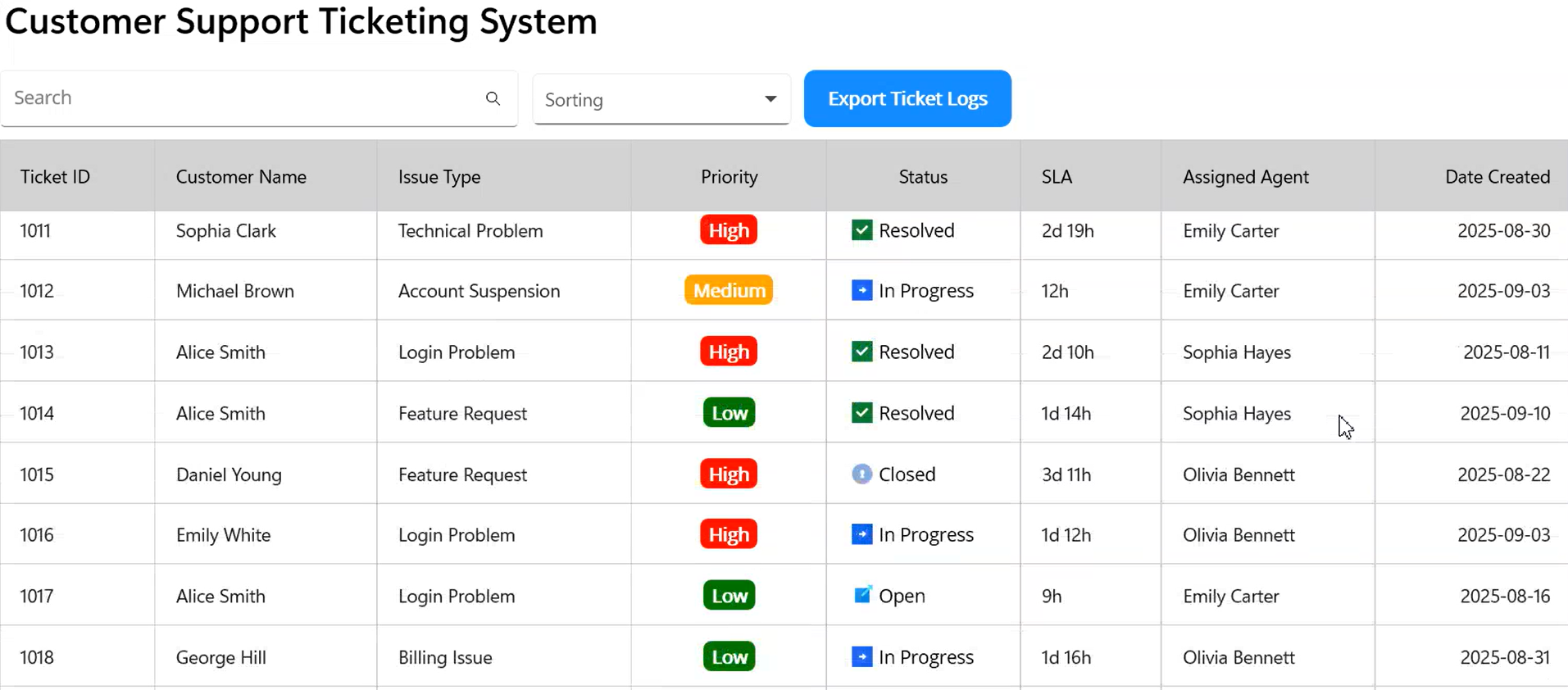
Finally, we’ll create a layout that’s optimized for scanning and action. The layout contains:
- A compact header bar above a data table for clear hierarchy.
- Search input enables quick, in-place filtering without navigating away.
- A dropdown lets users choose how to organize or refine the list.
- An export action provides one-tap download for reporting and audits.
- The main table displays core ticket details in readable columns.
- Visual templates add color and icons to emphasize key states and urgency.
- Date values are shown in a consistent, user-friendly format.
- Auto sizing and grid lines improve scanability across device sizes.
- Data is bound to a view model so updates reflect instantly in the UI.
- Event hooks connect user actions to filtering, sorting, and export logic.
Together, these choices help agents triage tickets quickly and reduce the time spent hunting for critical items.
<Grid RowDefinitions="Auto,*" Padding="10" RowSpacing="10">
      <Grid Grid.Row="0" ColumnDefinitions="Auto,Auto,Auto" ColumnSpacing="10">
          <SearchBar x:Name="SearchBar" Placeholder="Search"
                                  SearchButtonPressed="searchBar_SearchButtonPressed"
                 TextChanged="searchBar_TextChanged"/>
          <input:SfComboBox x:Name="CustomerComboBox"
                        x:DataType="local:TicketViewModel"
                        Placeholder="Sorting"
                        DisplayMemberPath="Name"
                        ItemsSource="{Binding TicketProperties}"
                        SelectionChanged="CustomerComboBox_SelectionChanged"
                        EnableAutoSize="True"/>
          <Button Text="Export Ticket Logs" Clicked="OnExportClicked"/>
      </Grid>

      <syncfusion:SfDataGrid x:Name="dataGrid"
                         x:DataType="local:TicketViewModel"
                         AutoGenerateColumnsMode="None"
                         ColumnWidthMode="Auto"
                         GridLinesVisibility="Both"
                         HeaderGridLinesVisibility="Both"
                         ItemsSource="{Binding Tickets}">

      <syncfusion:SfDataGrid.Columns>

          <syncfusion:DataGridTextColumn MappingName="TicketID" HeaderText="Ticket "/>
          <syncfusion:DataGridTextColumn MappingName="CustomerName" HeaderText="Customer Name"/>
          <syncfusion:DataGridTextColumn MappingName="IssueType" HeaderText="Issue Type"/>

          <syncfusion:DataGridTemplateColumn MappingName="Priority" HeaderText="Priority" Width="150">
              <syncfusion:DataGridTemplateColumn.CellTemplate>
                      <DataTemplate x:DataType="model:SupportTicket">
                          <Border StrokeThickness="0"
                                  Background="{Binding Priority, Converter={StaticResource priorityColorConverter}}">
                          <Label Text="{Binding Priority}"/>
                      </Border>
                  </DataTemplate>
              </syncfusion:DataGridTemplateColumn.CellTemplate>
          </syncfusion:DataGridTemplateColumn>

          <syncfusion:DataGridTemplateColumn MappingName="Status">
              <syncfusion:DataGridTemplateColumn.CellTemplate>
                  <DataTemplate x:DataType="model:SupportTicket">
                      <Grid Padding="20,0,0,0" ColumnSpacing="5" VerticalOptions="Center">
                          <Grid.ColumnDefinitions>
                              <ColumnDefinition Width="Auto"/>
                              <ColumnDefinition Width="*"/>
                          </Grid.ColumnDefinitions>

                          <Image Grid.Column="0"
                                  Source="{Binding Status, Converter={StaticResource statusIconConverter}}"
                                  WidthRequest="16"
                                  HeightRequest="16"
                                  VerticalOptions="Center"/>

                          <Label Grid.Column="1"
                                  Text="{Binding Status}"
                                  VerticalOptions="Center"
                                  HorizontalOptions="Start"
                                  FontSize="14"/>
                      </Grid>
                  </DataTemplate>
              </syncfusion:DataGridTemplateColumn.CellTemplate>
          </syncfusion:DataGridTemplateColumn>

          <syncfusion:DataGridTextColumn MappingName="SLA" HeaderText="SLA"/>
          <syncfusion:DataGridTextColumn MappingName="AssignedAgent" HeaderText="Assigned Agent"/>

          <syncfusion:DataGridDateColumn MappingName="DateCreated"
                                          HeaderText="Date Created"
                                          Format="yyyy-MM-dd" />

      </syncfusion:SfDataGrid.Columns>

  </syncfusion:SfDataGrid>
</Grid>
After executing the above code example, our app is ready to go.
GitHub reference
For more details, refer to designing a support ticket dashboard using .NET MAUI GitHub demo.
Frequently Asked Questions
How does real-time sync work in the .NET MAUI support ticket dashboard?
The dashboard uses observable collections and backend data sources (such as Firestore) to automatically reflect updates. When ticket data changes, such as status updates or reassignments, the UI refreshes instantly without requiring manual reloads.
What architecture is recommended for the .NET MAUI support ticket dashboard?
The MVVM (Model-View-ViewModel) pattern is recommended. It separates UI, business logic, and data handling, making the app easier to maintain, test, and extend.
What UI customization options are available in the .NET MAUI DataGrid support ticket dashboard?
You can customize column templates, cell styling, sorting and filtering behavior, row appearance, and layout. This level of customization enables you to create a dashboard that aligns with your team’s workflow, increases efficiency, and enhances user satisfaction.
Can the .NET MAUI support ticket dashboard export data?
Yes. The dashboard supports exporting data to formats such as Excel and PDF, enabling easy sharing of reports and insights outside the app.
How does the .NET MAUI support dashboard support collaboration?
Real-time UI updates ensure agents see the latest ticket changes instantly, improving coordination and reducing missed escalations and duplicate work.
Is the .NET MAUI DataGrid support ticket dashboard production-ready?
Yes. With MVVM architecture, real-time updates, and high-performance rendering, the dashboard can be used to build scalable, production-ready support systems.

Conclusion
Thank you for reading! The Syncfusion .NET MAUI DataGrid (SfDataGrid) streamlines how support teams view, explore, and act on ticket data across devices. With fast sorting, filtering, grouping, and summaries, agents gain clarity and speed where it matters most. Additionally, MVVM binding, conditional styling, and templates transform raw ticket records into actionable views, while export, localization, and accessibility features help keep your solution production-ready.
As your ticket volume grows, the grid continues to perform well through virtualization, and it also supports real-time updates for live operations. To extend this further, consider adding paging, offline caching, and role-based views to match your workflow and scale with your team.
You can download Essential Studio from the license and downloads page if you’re already a customer. If you’re not a Syncfusion customer yet, you can start with a 30-day trial to evaluate the components.
Finally, if you have any questions or need assistance, feel free to reach out through the support forum, support portal, or feedback portal. We’re always happy to help!







 No spam, just valuable updates.