
 Arun Kumar Chandrakesan
TL;DR: Learn how to turn Syncfusion’s Angular PDF Viewer into a full PDF Editor with tools for annotation, form filling, digital signatures, page manipulation, and toolbar customization. This guide walks you through setup, integration, and advanced editing capabilities to deliver a powerful PDF workflow directly in your Angular application.
Ever thought about editing PDFs directly inside your Angular app, without relying on bulky desktop tools? You’re definitely not alone. As more teams move toward digital‑first workflows, the demand for smooth, in‑browser PDF editing has grown rapidly.
These days, simply viewing a PDF isn’t enough. Users expect to interact with documents: highlight text, add comments, fill out forms, rearrange pages, and even sign documents, all without leaving the browser. To meet those expectations, you need more than a basic PDF viewer. You need a solution that combines powerful viewing and editing features.
That’s exactly where Syncfusion® Angular PDF Viewer fits in. It goes far beyond rendering PDFs by offering built‑in tools for annotations, form fields, signatures, and page organization. In other words, it turns a standard viewer into a complete Angular PDF Editor, without complex setup or heavy coding.
In this blog, we’ll walk through how to build a feature‑rich PDF Editor in Angular using a clean, developer‑friendly approach.
Let’s get started!

Set up your Angular PDF Viewer
Getting started with Syncfusion’s Angular PDF Viewer is straightforward. In the next few steps, we will go from creating a new Angular app to loading a PDF in the browser, with editing tools ready to go.
Step 1: Create an Angular application
First, create a new Angular app using the Angular CLI, which simplifies both project creation and configuration. Run the following commands in your terminal:
# Install Angular CLI globally
npm install -g @angular/cli

# Create a new Angular application and navigate into it
ng new my-app
cd my-app
Step 2: Install the Angular PDF Viewer package
After your Angular project is set up, add the Syncfusion Angular PDF Viewer. This component serves as the foundation for the PDF Editor app, providing all the essential features for viewing and editing PDFs directly within your Angular app.
To install the PDF Viewer, navigate to your project directory and run the following command:
npm install @syncfusion/ej2-angular-pdfviewer --saveStep 3: Adding CSS reference
To ensure our PDF Viewer looks professional and functions correctly, we need to include the required Syncfusion CSS files in the src/styles.css file. These styles provide layout, themes, and visual contrast for all PDF Viewer components.
@import '../node_modules/@syncfusion/ej2-base/styles/material.css';
@import '../node_modules/@syncfusion/ej2-buttons/styles/material.css';
@import '../node_modules/@syncfusion/ej2-dropdowns/styles/material.css';
@import '../node_modules/@syncfusion/ej2-inputs/styles/material.css';
@import '../node_modules/@syncfusion/ej2-navigations/styles/material.css';
@import '../node_modules/@syncfusion/ej2-popups/styles/material.css';
@import '../node_modules/@syncfusion/ej2-splitbuttons/styles/material.css';
@import '../node_modules/@syncfusion/ej2-pdfviewer/styles/material.css';
@import '../node_modules/@syncfusion/ej2-notifications/styles/material.css';Build powerful PDF viewing experiences in Angular with built-in support for annotations, highlighting, form filling, signatures, page navigation, thumbnails, bookmarks, and text search.
Build Angular PDF ViewerStep 4: Integrating the Angular PDF Viewer component
Now, render the PDF Viewer in the Angular app. First, register the Syncfusion PDF Viewer module and add its component to the template. This ensures the viewer is fully integrated and ready to display PDFs with all its built-in viewing and editing features.
import { Component, OnInit } from '@angular/core';
import {
  PdfViewerModule, LinkAnnotationService, BookmarkViewService,
  MagnificationService, ThumbnailViewService, ToolbarService,
  NavigationService, TextSearchService, TextSelectionService,
  PrintService, FormDesignerService, FormFieldsService,
  AnnotationService, PageOrganizerService
} from '@syncfusion/ej2-angular-pdfviewer';

@Component({
  selector: 'app-root',
  standalone: true,
  //declaration of ej2-angular-pdfviewer module into imports
  imports: [ PdfViewerModule],
  // specifies the template string for the PDF Viewer component
  template: `<div class="content-wrapper">
                <ejs-pdfviewer id="pdfViewer"
                    [documentPath]='document'
                    [resourceUrl]='resource'
                    style="height:640px;display:block">
                </ejs-pdfviewer>
             </div>`,
  providers: [LinkAnnotationService, BookmarkViewService, MagnificationService,
    ThumbnailViewService, ToolbarService, NavigationService,
    TextSearchService, TextSelectionService, PrintService,
    AnnotationService, FormDesignerService, FormFieldsService, PageOrganizerService]
})
export class AppComponent implements OnInit {
  public document: string = 'https://cdn.syncfusion.com/content/pdf/pdf-succinctly.pdf';
  public resource: string = "https://cdn.syncfusion.com/ej2/31.2.2./dist/ej2-pdfviewer-lib";
  ngOnInit(): void {
  }
}
Step 5: Run the application
Use the command ng serve --open to start the Angular app. Once compiled, the app will launch at http://localhost:4200.
Here’s what the basic PDF Viewer looks like.
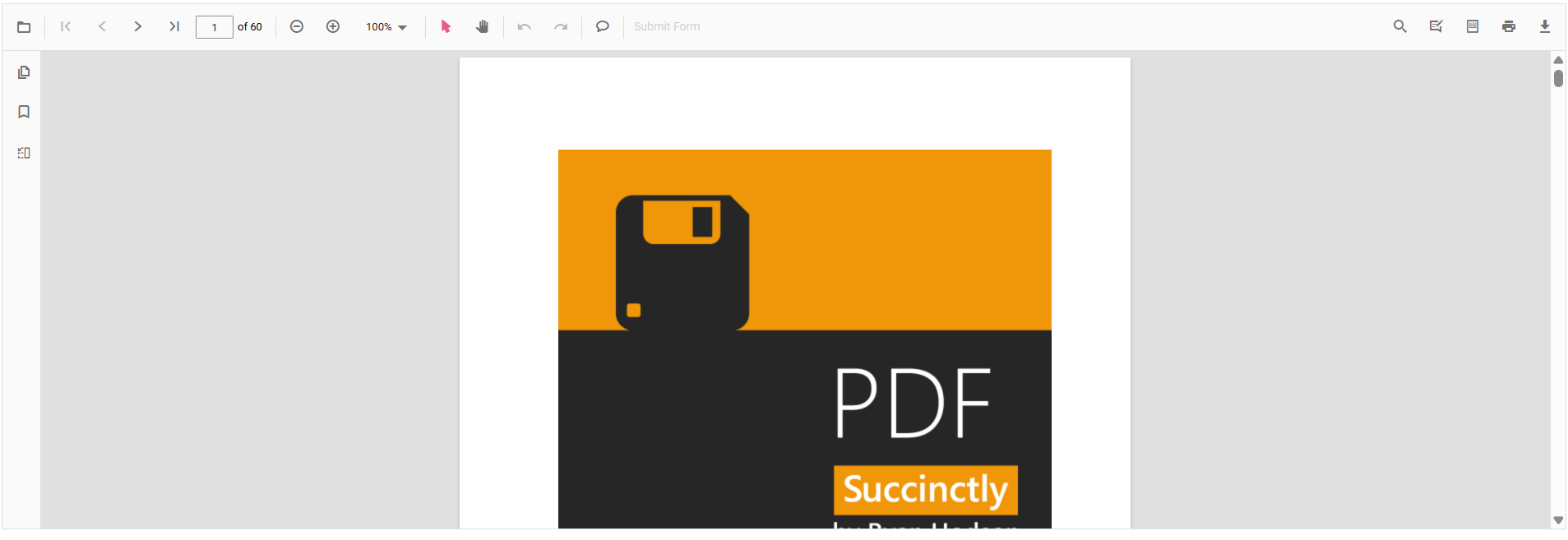
Note: For more detailed guidance on installing the Angular PDF Viewer, check out our official documentation.
Customizing the toolbar in Angular PDF Viewer
Toolbar customization is key to building flexible PDF editors. With Angular PDF Viewer, you can remove unused buttons, add custom actions, and organize tools to match your app’s workflow, delivering a tailored user experience.
Build a customized toolbar
With Syncfusion Angular PDF Viewer, the default toolbar can be replaced with a fully customized version tailored to specific workflows. Developers can disable the built-in toolbar using the enableToolbar property or the showToolbar method. Then, introduce custom icons, grouped actions, and specialized tools for tasks such as PDF annotation, signing, or form field editing.
Beyond functionality, the Angular PDF Viewer also enhances the visual experience with built-in themes like Material, Bootstrap, and Fluent. These themes instantly style the toolbar, ensuring a consistent and professional look across apps. For deeper customization, the layout and styling can be refined to deliver a truly unique interface.

Note: For more insights, refer to the toolbar customization in the Angular PDF Viewer documentation.
PDF annotation tools for advanced document editing
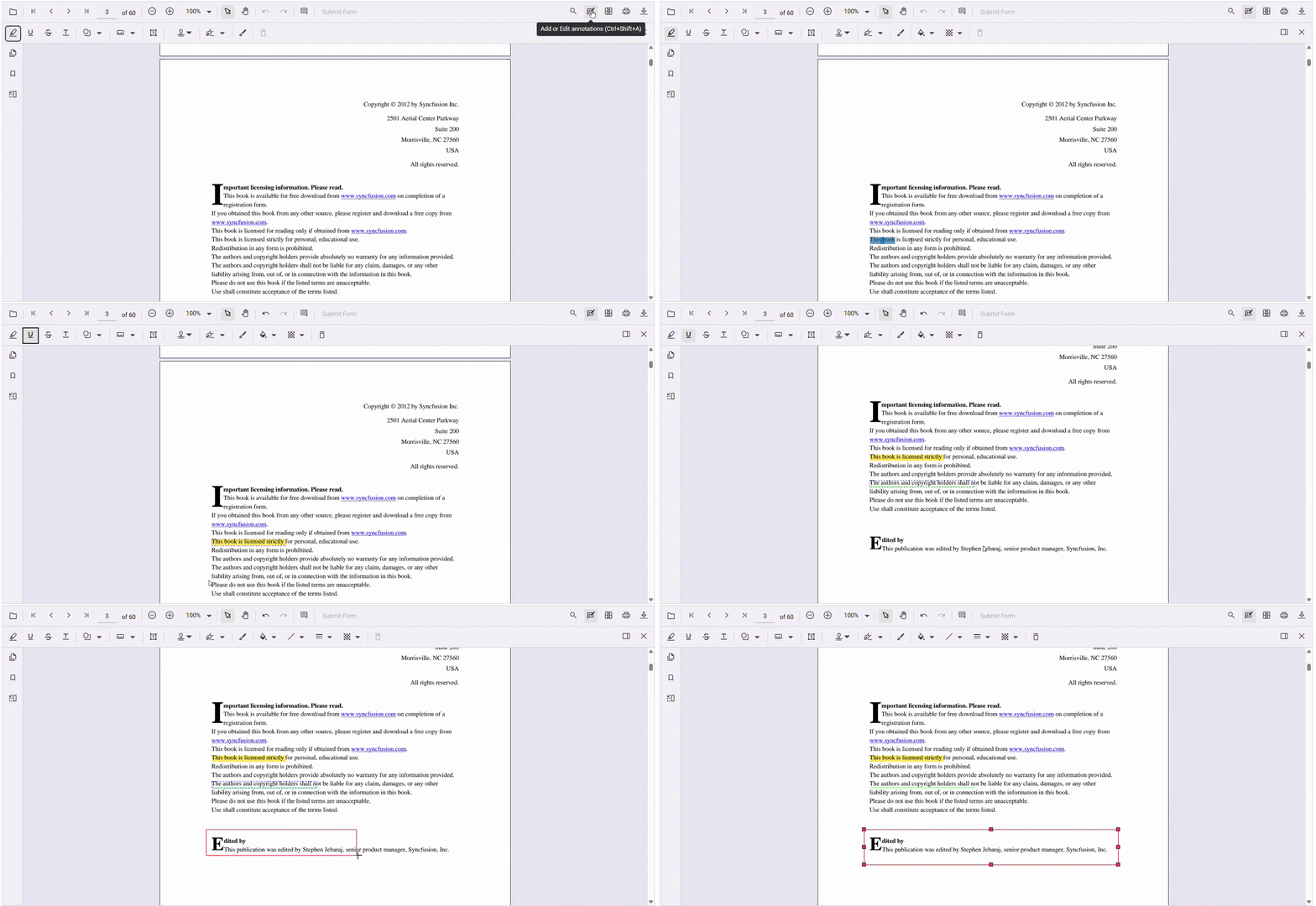
PDF annotations turn static documents into interactive experiences, making them an essential feature in any modern Angular PDF Viewer. With Syncfusion’s Angular PDF Viewer, users can easily highlight text, underline key points, draw shapes, add sticky notes, use ink, and more without changing the original content. These tools allow users to edit PDFs directly within your Angular PDF Editor application.
Adding annotations is simple: select the Annotation button in the toolbar and choose the desired option, as demonstrated visually below.
Adding PDF annotations programmatically
Syncfusion’s Angular PDF Viewer goes beyond UI‑based tools by giving developers complete control through its API. With just a few lines of code, annotations can be added, updated, or removed, making it easy to automate workflows or connect with backend systems.
The code example below demonstrates the basics of adding annotations programmatically.
var pdfviewer = (<any>document.getElementById('pdfViewer')).ej2_instances[0];

pdfviewer.annotation.addAnnotation("Highlight", {
    bounds: [{ x: 97, y: 110, width: 350, height: 14 }],
    pageNumber: 3
} as HighlightSettings);

pdfviewer.annotation.addAnnotation("Underline", {
    bounds: [{ x: 250, y: 148, width: 345, height: 14 }],
    pageNumber: 3
} as HighlightSettings);
Note: For more advanced examples and features, check the official documentation.
Adding and managing form fields for editing PDFs
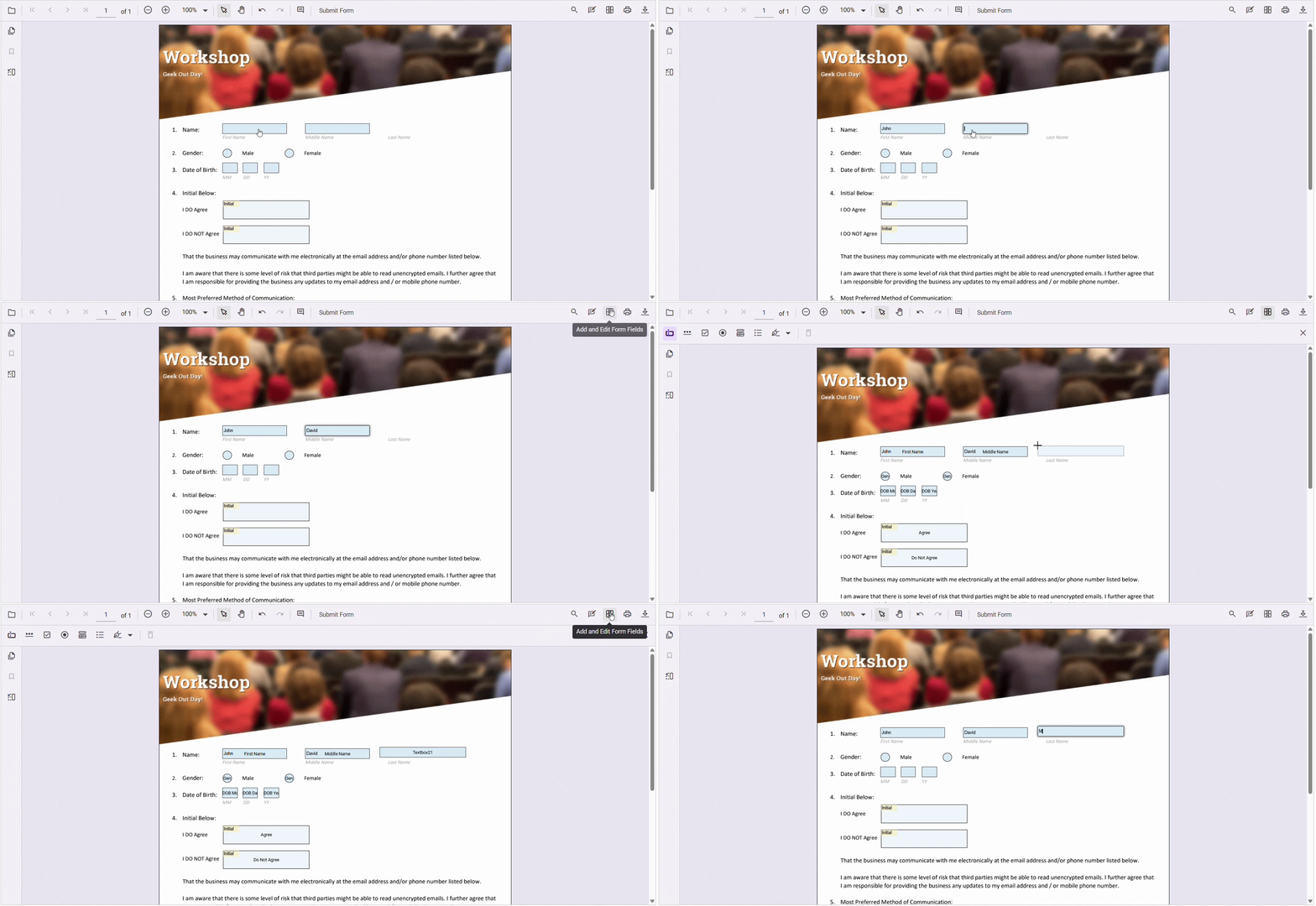
Form fields transform a fixed PDF into an interactive document. With Syncfusion’s Angular PDF Viewer, users can fill out forms, capture data, and create fields like text boxes, checkboxes, and radio buttons, all powered by the built-in Form Designer. This makes adding and editing PDF form fields quick and effortless for real-world workflows such as contracts, applications, or surveys.
Adding fields is simple: open the Form Designer from the toolbar, select the field type, and drag it into place, as shown in the visual below.
Note: For more insights about form designers, check out our official documentation.
Managing form fields programmatically
With Syncfusion Angular PDF Viewer’s flexible API, you can dynamically add fields, update properties, or remove them based on user actions, perfect for automated workflows and advanced customization.
The code examples below show the basics of adding, updating, and deleting form fields.
this.pdfviewerControl?.formDesignerModule.addFormField("Textbox", {
    name: 'First Name',
    bounds: { X: 146, Y: 229, Width: 150, Height: 24 },
} as TextFieldSettings);

this.pdfviewerControl?.formDesignerModule.addFormField("Textbox", {
    name: "Middle Name",
    bounds: { X: 338, Y: 229, Width: 150, Height: 24 },
} as TextFieldSettings);

this.pdfviewerControl?.formDesignerModule.updateFormField(
    this.pdfviewerControl?.formFieldCollections[0],
    { backgroundColor: 'red' } as TextFieldSettings
);

this.pdfviewerControl?.formDesignerModule.deleteFormField(
    this.pdfviewerControl.formFieldCollections[0]
);
Note: For details about toolbar Customization, check our official documentation.
Simply sign PDFs instantly: Simplify your PDF signing experience
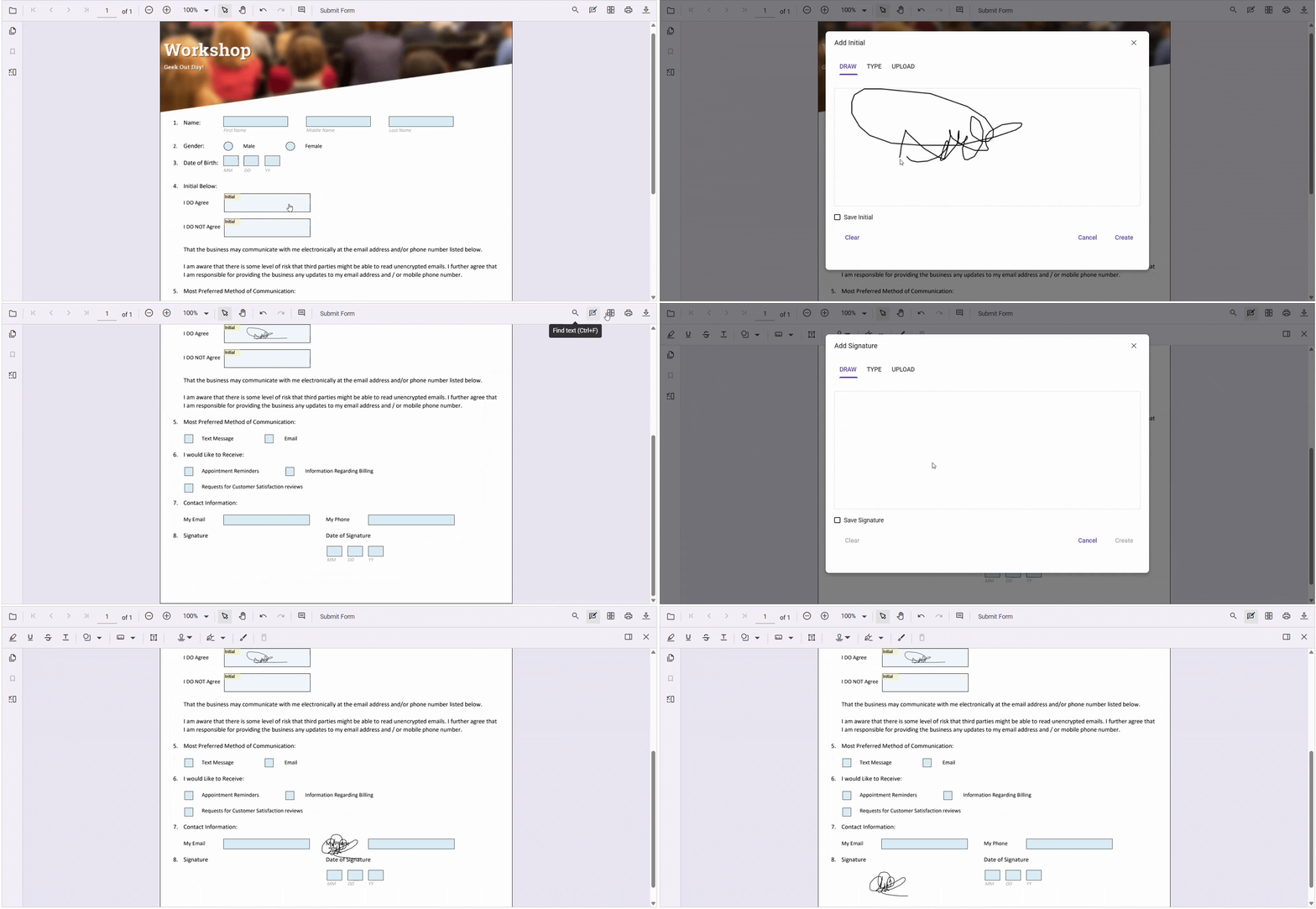
Signatures turn a PDF into more than just a text document; they make it official. Whether you’re approving a proposal, signing a contract, or confirming an agreement, adding a signature is essential for trust and compliance. With Syncfusion’s Angular PDF Viewer, signing is fast, easy, and secure. Users can draw or type their signature, upload an image, or fill signature fields directly in the PDF using the built-in UI.
If you’re looking to add a signature to a PDF programmatically, Syncfusion also provides robust APIs that enable seamless automation, making it ideal for integrating smooth workflows.
Here’s a quick demo of the feature in action:
Role of signatures in modern PDF workflows
Digital signatures bring authenticity and integrity to PDF documents, ensuring they remain tamper-proof and legally valid. They play a critical role in compliance and secure workflows, making them indispensable for contracts, approvals, and sensitive agreements. With Syncfusion’s Angular PDF Viewer, users can seamlessly view digitally signed PDFs within the application, providing transparency and confidence in every document.
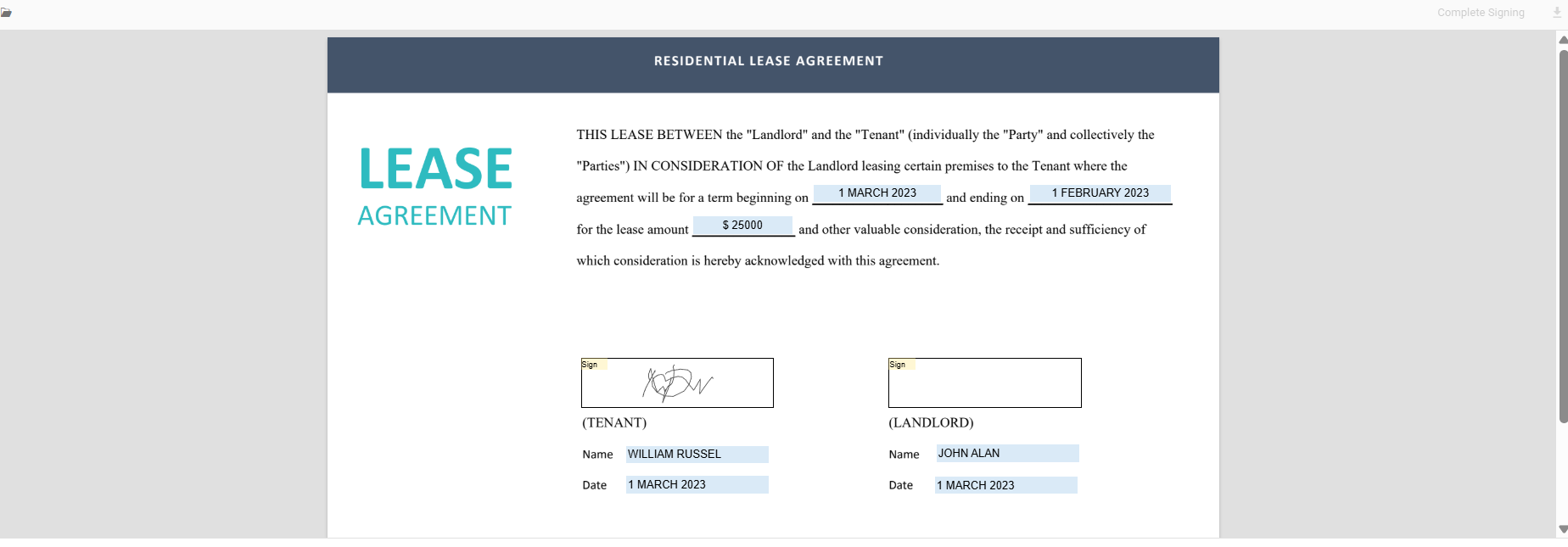
Note: To explore all options, check the official Digital Signature documentation.
Organize PDF pages: Insert, remove, and reorder with ease
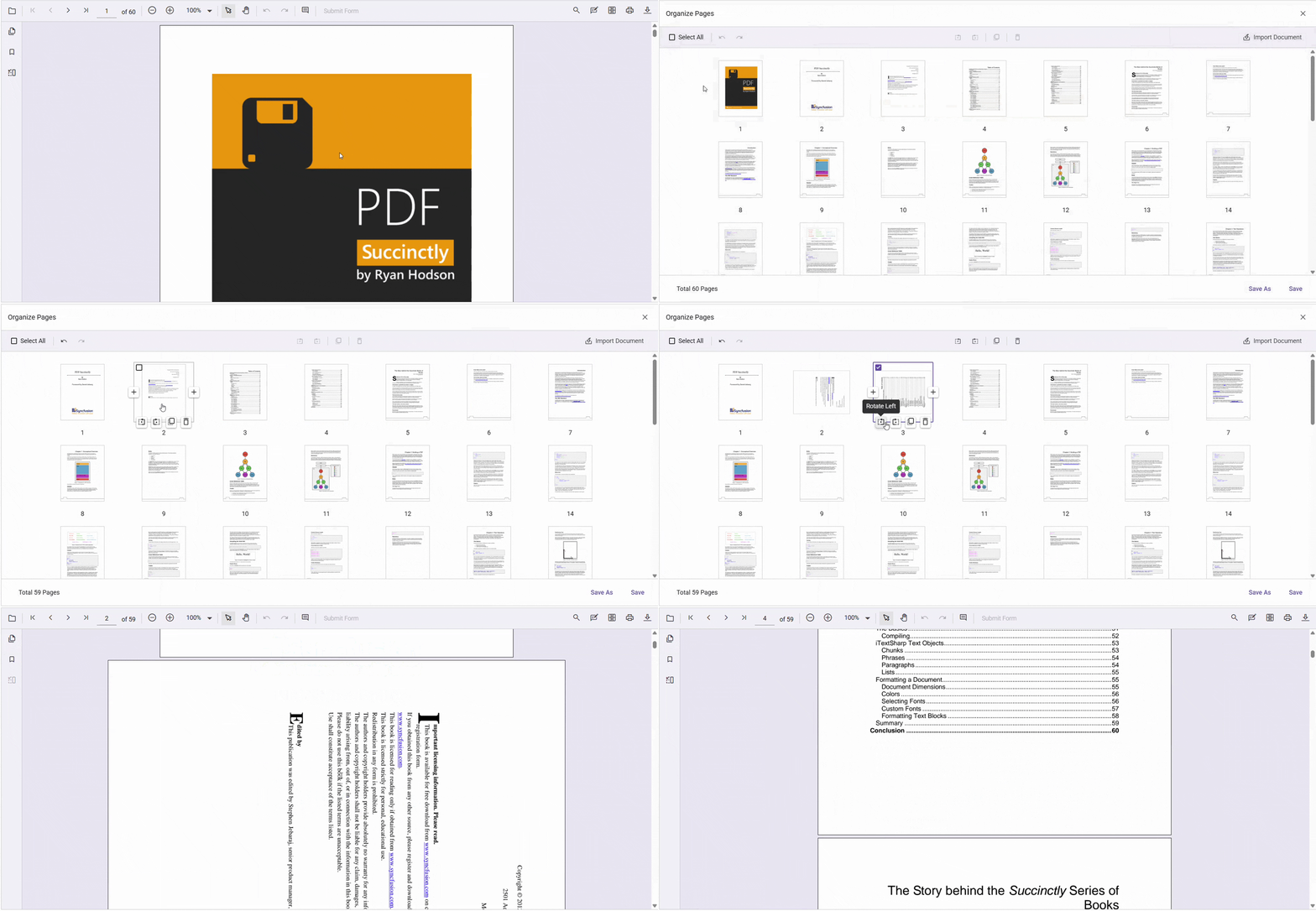
Keeping PDFs organized is simple with Syncfusion PDF Viewer. You can insert new pages, remove unwanted ones, reorder, or rotate for perfect alignment, all in just a few clicks. These tools give you complete control over document structure, helping users maintain professional, well-organized documents effortlessly.
To get started, open the Organize PDF tool in the sidebar. A dialog appears where you can add, remove, or reorder pages, then save and view the updated document.
Here’s a quick demo of the feature in action:
Note: For detailed guidance on page management and toolbar customization, check the official overview documentation.
Frequently Asked Questions
Syncfusion PDF Viewer supports exporting annotations in three formats: XFDF (a standards‑based format used across PDF workflows), JSON (a lightweight format ideal for database storage), and a JavaScript object (retrieved using the exportAnnotationsAsObject() method for direct programmatic access).What formats are supported for exporting annotations?
Absolutely. You can lock fields or mark them as read‑only. This is useful when you want certain fields to remain visible but not editable.Can I stop users from editing certain form fields?
Yes. You can control which toolbar tools and annotation actions are available based on the user’s role. You can check it out to learn more.Can I enable annotations only for specific roles?
Yes. After editing, whether annotating, signing, or reorganizing pages, users can save the updated PDF locally or upload it to the server for further processing.Can I save or download edited PDFs?
Yes. The viewer adapts seamlessly to mobile devices and supports touch interactions for annotations, zooming, panning, and signatures.Does Syncfusion PDF Viewer support mobile responsiveness?
Syncfusion PDF Viewer supports modern Angular versions (Angular 12 and above).Which Angular versions are supported?
Yes. The Syncfusion Angular PDF Viewer allows full customization of the context menu. You can add, remove, or modify context menu items using the viewer’s customization APIs.Can I customize the context menu in the Syncfusion Angular PDF Viewer?
Conclusion
Thank you for exploring how to build a complete PDF Editor with Syncfusion’s Angular PDF Viewer. Creating a powerful editor doesn’t have to be complex; beyond simple viewing, you can enable annotations, form fields, page organization, and digital signatures, all ready to use out of the box. With customization options and robust APIs, the experience can be tailored perfectly to your workflow.
Ready to see the full capabilities of Syncfusion’s Angular PDF Viewer in action? Check out the official demo and documentation.
If you’re a Syncfusion user, you can download the setup from the license and downloads page. Otherwise, you can download a free 30-day trial.
You can also contact us through our support forum, support portal, or feedback portal for queries. We are always happy to assist you!


 No spam, just valuable updates.