
 UdhayaKumar Duraisamy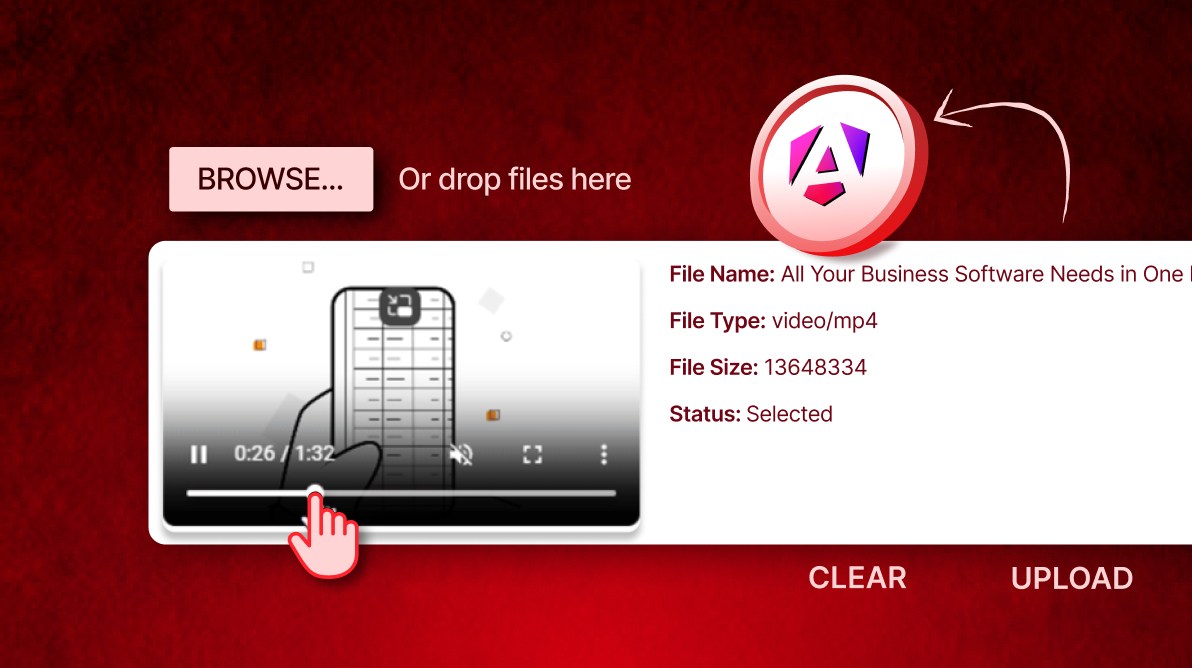
TL;DR: Want to boost your Angular file upload UX? Add video preview before upload to validate files, show instant playback, and track progress with Angular events.
Building a video-sharing platform or media dashboard? If you’re creating a video-sharing platform or a media management dashboard, adding a video preview before upload can significantly enhance the user experience. This feature allows users to confirm they’ve selected the correct file, reduces upload errors, and boosts confidence all with minimal effort.
In this guide, you’ll discover how to implement video preview functionality in Angular using the Syncfusion® Angular Uploader component. We’ll walk through the essential components, events, and clean Angular code needed for a seamless integration.
Why video preview matters
Video preview is a must-have for platforms such as:
- Video content platforms (e.g., YouTube-like apps).
- Admin dashboards for media management.
- Educational portals for lecture upload.
- Marketing tools for promotional videos.
This feature lets users verify the file type, content, and quality before uploading. It helps prevent mistakes and saves time for both users and administrators.
Prerequisites
Before you begin, ensure the following requirements are met:
- Review the System requirements for Syncfusion Angular components.
- Complete the Angular installation guide.
- Install the Angular Uploader component following it’s setup guide.
Key concepts
To implement video preview functionality, we’ll use the following:
- Syncfusion EJ2 Angular Uploader for file selection and upload.
- Event binding for selected, beforeUpload, progress, success, and failure events.
- Blob URL via
URL.createObjectURL()to generate video previews. - Status handling for real-time upload feedback
- Memory cleanup using URL.revokeObjectURL() to release resources efficiently.
Step-by-step implementation
Follow these steps to implement video preview before upload in Angular while maintaining manual control and a simple workflow.
Step 1: Configure the Uploader
The first step is to initialize the Syncfusion Angular Uploader component in your Angular template. To ensure proper functionality, apply the following settings:
- Restrict file types to video formats (.mp4, .avi, .mov, etc.) using an allowedExtensions property.
- Set autoUpload property to false for manual control over uploads.
- Disable the multiple property to allow only one file at a time.
- Define asyncSettings property for API endpoints to handle save and remove operations.
Here is the code example for the template:
<ejs-uploader
    id="videoUploader"
    #videoUploader
    [autoUpload]='false'
    dropArea="#container"
    multiple='false'
    allowedExtensions='.mp4,.avi,.mov,.wmv,.flv,.mkv,.webm,.mpeg'
    [asyncSettings]='path'>
</ejs-uploader>
Component setup
Next, configure the component logic in app.component.ts.
import { Component, ElementRef, ViewChild } from '@angular/core';
import { CommonModule } from '@angular/common';
import { UploaderModule, SelectedEventArgs, UploaderComponent } from '@syncfusion/ej2-angular-inputs'

@Component({
    selector: 'app-root',
    imports: [CommonModule, UploaderModule],
    templateUrl: './app.component.html',
    styleUrl: './app.component.css'
})
export class AppComponent {
    title = 'VideoPreviewforAngularUploader';

    @ViewChild('videoUploader') uploadObj!: UploaderComponent;

    public path: Object = {
        saveUrl: 'https://services.syncfusion.com/angular/production/api/FileUploader/Save',
        removeUrl: 'https://services.syncfusion.com/angular/production/api/FileUploader/Remove'
    };
}
Step 2: Handle file selection
Ones the uploader is configures, the next step is to handle file selection. Use the selected event to trigger the onFileSelected() method, which extracts the selected file’s details. Here’s what you need to do:
- Validate the file type to ensure it’s a video.
- Store metadata such as name, size, type, and status.
- Generate a Blob URL for preview using
URL.createObjectURL().
Add the event binding in your template:
<ejs-uploader
    id="videoUploader"
    #videoUploader
    [autoUpload]='false'
    dropArea="#container"
    multiple='false'
    allowedExtensions='.mp4,.avi,.mov,.wmv,.flv,.mkv,.webm,.mpeg'
    [asyncSettings]='path'
    (selected)="onFileSelected($event)">
</ejs-uploader>
Component setup
Next, configure the component to store and manage file information. Define an object to hold the file details.
// Object to store file information
public fileInfo: {
    name: string;
    size: number;
    type: string;
    status: string;
    StatusClass: string;
    blobUrl: string;
} = {
    name: '',
    size: 0,
    type: '',
    status: '',
    StatusClass: '',
    blobUrl: ''
};
Step 3: Generate video preview
After handling file selection, the next step is to generate a video preview. To do this, create a temporary Blob URL using URL.createObjectURL() and bind it to a <video> element in your template.
Refer to the code snippet.
export class AppComponent {

    @ViewChild('videoPlayer') videoPlayer!: ElementRef;

    public onFileSelected(args: SelectedEventArgs) {
        const file = args.filesData[0].rawFile as File;

        // Validate if the selected file is a video file
        if (file instanceof File && file.type.startsWith('video/')) {
            const blobUrl = URL.createObjectURL(file);
            this.fileInfo = {
                name: file.name,
                size: file.size,
                type: file.type,
                status: 'Selected',
                StatusClass: 'text-muted',
                blobUrl: blobUrl
            };
        } else {
            // Reset file info if not a video file
            this.fileInfo = {
                name: file.name,
                size: file.size,
                type: file.type,
                status: 'Invalid File Type. Please select a video file.',
                StatusClass: 'text-danger',
                blobUrl: ''
            };
        }
    }
}
Note: The fileInfo.blobUrl property is used to dynamically bind the video source.
Step 4: Display preview and file details
Now display the video preview along with the file’s metadata (name, type, size, and status) using Angular template bindings and *ngIf. Apply dynamic CSS classes for status-based styling.
Add this to your project:
<ejs-uploader
    id="videoUploader"
    #videoUploader
    [autoUpload]='false'
    dropArea="#container"
    multiple='false'
    allowedExtensions='.mp4,.avi,.mov,.wmv,.flv,.mkv,.webm,.mpeg'
    [asyncSettings]='path'
    (selected)="onFileSelected($event)">
    <ng-template #template>
        <div *ngIf="fileInfo.name" style="display: flex; align-items: flex-start; margin: 0 auto; padding: 10px; gap: 20px; width: 100%; flex-wrap: wrap;">

            <!-- Video Preview Section -->
            <div style="flex: 0 0 320px; max-width: 100%;">
                <div *ngIf="fileInfo.blobUrl; else noVideoSelected" style="width: 100%; height: auto; border-radius: 8px; box-shadow: 0 4px 8px rgba(0, 0, 0, 0.2);">
                    <video controls autoplay [muted]="true" style="width: 100%; height: auto; border-radius: 8px;">
                        <source [src]="fileInfo.blobUrl" />
                        Your browser does not support the video tag.
                    </video>
                </div>
                <ng-template #noVideoSelected>
                    <div style="width: 100%; height: 200px; display: flex; align-items: center; justify-content: center; background-color: #f8f9fa; border: 2px dashed #dee2e6; border-radius: 8px;">
                        <p style="color: #6c757d; font-size: 16px; margin: 0;">Select a Valid File</p>
                    </div>
                </ng-template>
            </div>

            <!-- File Information Panel -->
            <div class="{{ fileInfo.StatusClass }}" style="flex: 1; padding: 10px; max-width: 100%;">
                <div class="mt-3"><strong>File Name:</strong> {{ fileInfo.name }}</div>
                <div class="mt-3"><strong>File Type:</strong> {{ fileInfo.type }}</div>
                <div class="mt-3"><strong>File Size:</strong> {{ fileInfo.size }}</div>
                <div class="mt-3"><strong>Status:</strong> {{ fileInfo.status }}</div>
            </div>
        </div>
    </ng-template>
</ejs-uploader>
Step 5: Track file upload status
To provide real-time feedback during the upload process, use the beforeUpload, progress, success, and failure events. These events update the fileInfo.status and fileInfo.StatusClass dynamically:
- beforeUpload: Indicates upload start.
- progress: Displays upload percentage.
- success: Confirms successful upload.
- failure: Shows error message.
Below is the code you need:
<ejs-uploader
    id="videoUploader"
    #videoUploader
    [autoUpload]='false'
    dropArea="#container"
    multiple='false'
    allowedExtensions='.mp4,.avi,.mov,.wmv,.flv,.mkv,.webm,.mpeg'
    [asyncSettings]='path'
    (selected)="onFileSelected($event)"
    (beforeUpload)="onBeforeUpload($event)"
    (progress)="onProgress($event)"
    (success)="onSuccess($event)"
    (failure)="onFailure($event)">
    <ng-template #template>
        ...
        ...
    </ng-template>
</ejs-uploader>
Component methods:
public onBeforeUpload(args: any) {
    // Update status when upload starts
    this.fileInfo.status = 'Uploading...';
    this.fileInfo.StatusClass = 'text-info';
}

public onProgress(args: any) {
    // Update status with upload progress percentage
    const progressPercentage = Math.round((args.e.loaded / args.e.total) * 100);
    this.fileInfo.status = `Uploading... ${progressPercentage}%`;
    this.fileInfo.StatusClass = 'text-primary';
}

public onSuccess(args: any) {
    // Update status when upload is successful
    this.fileInfo.status = 'File uploaded successfully';
    this.fileInfo.StatusClass = 'text-success';
}

public onFailure(args: any) {
    // Update status when upload fails
    this.fileInfo.status = 'Upload failed. Please try again.';
    this.fileInfo.StatusClass = 'text-danger';
}
Step 6: Remove files
Finally allow users to remove a selected or uploaded file and reset the UI. To achieve this, display a remove button that appears based on the upload status. When the button is clicked, call the deleteFile() method to:
- Revoke the Blob URL using URL.revokeObjectURL(), to free memory.
- Reset the uploader using Syncfusion’s
remove()orclearAll()methods. - Clear the
fileInfo objectto refresh the UI.
Add this to your project:
<ng-template #template>
    <div
        *ngIf="fileInfo.name"
        style="display: flex; align-items: flex-start; margin: 0 auto; padding: 10px; gap: 20px; width: 100%; flex-wrap: wrap;">

        <!-- Video Preview Section -->
        ...
        ...

        <!-- File Information Panel -->
        ...
        ...

        <!-- Delete/Remove Button -->
        <div style="flex: 0 0 auto; padding: 10px;">
            <span
                *ngIf="fileInfo.status === 'File uploaded successfully'; else removeButton"
                class="e-icons e-file-delete-btn"
                id="deleteIcon"
                title="Delete"
                (click)="deleteFile('Delete')"
                style="cursor: pointer;">
            </span>
            <ng-template #removeButton>
                <span
                    class="e-icons e-file-remove-btn"
                    id="remove_btn"
                    title="Remove"
                    (click)="deleteFile('Remove')"
                    style="cursor: pointer;">
                </span>
            </ng-template>
        </div>
    </div>
</ng-template>
Component method:
public deleteFile(operation: string) {
    // Clean up the blob URL to free memory
    if (this.fileInfo.blobUrl) {
        URL.revokeObjectURL(this.fileInfo.blobUrl);
    }

    // Reset the file information
    this.fileInfo = {
        name: '',
        size: 0,
        type: '',
        status: '',
        StatusClass: '',
        blobUrl: ''
    };
    if (operation == "Delete") {
        this.uploadObj.remove(this.uploadObj.getFilesData());
    }else {
        this.uploadObj.clearAll();
    }
}
How it works
To help you understand the process, here’s a quick breakdown of how the feature works:
- File selection: The user selects a video file via the Syncfusion Uploader.
- Validation and preview: The onFileSelected method validates the file and generates a Blob URL for preview.
- UI rendering: The template displays the video and file metadata, updating dynamically based on fileInfo.
- Upload tracking: Syncfusion events monitor the upload process, updating the status in real time.
- Error handling: Non-video files trigger an error message, and upload failures are reported.
- File removal: The remove/delete button clears the file, resets the UI, and frees memory.
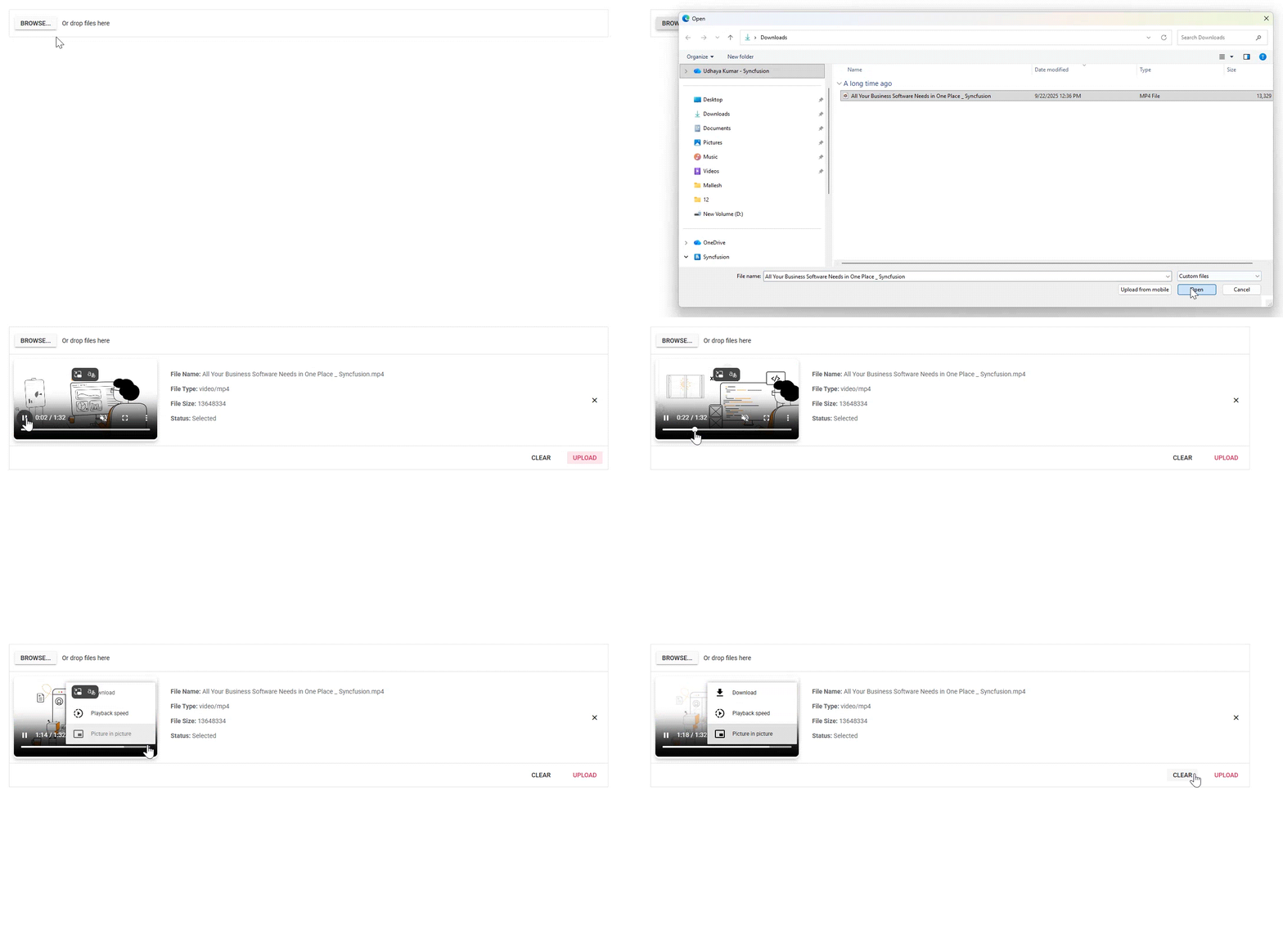
Here’s a quick demo of the feature in action.
GitHub reference
Check out the GitHub demo for Angular video preview implementation using the Uploader component.
FAQs
Q1: What is the best way to handle very large video files (e.g., over 1GB) to prevent browser crashes?
A: For files larger than a few hundred megabytes, implement Chunk Uploading. This technique splits the large file into smaller binary pieces and uploads them sequentially, reducing memory usage and allowing pause/resume if the network fails.
Q2: How do I send authentication tokens (like JWT) along with the video upload request?
A: Intercept the upload request using the Uploader’s uploading event. Modify the underlying XMLHttpRequest (AJAX) object to inject custom Authorization headers required by your backend security configuration.
Q3: Can I allow users to upload an entire directory of video files at once instead of selecting them individually?
A: Yes. Enable the directoryUpload property to true. This switches the file dialog to directory selection mode, allowing upload of all compatible files within the chosen folder.

Conclusion
Thanks for reading! This guide showed you how to combine Angular, Blob URLs, and event handling to build a powerful video upload component with preview support. By validating files, generating instant previews, tracking upload progress, and managing cleanup, you deliver a smooth and reliable user experience.
Want to take it further? Add multi-file uploads, server-side validation, or even custom progress indicators to make your uploader more advanced.
Ready to upgrade your Angular app? Implement this feature today and share your results! For more ideas and advanced techniques, explore Angular documentation or check out community samples. Drop your feedback or questions in the comments, we’d love to hear how this improves your app’s UX!
If you’re a Syncfusion user, you can download the setup from the license and downloads page. Otherwise, you can download a free 30-day trial.
You can also contact us through our support forum, support portal, or feedback portal for queries. We are always happy to assist you!



 No spam, just valuable updates.