
 Chinnu Muniyappan
TL;DR: Need professional PDFs in C#? This guide shows how to add text, images, page numbers, odd/even layouts, and section-based headers and footers using a production-ready .NET PDF library.
PDFs without headers, footers, or page numbers look unfinished, especially in invoices, reports, or legal documents.
If you’re generating PDFs using C#, manually editing them isn’t scalable, and stitching layouts page by page is painful.
In this guide, you’ll learn how to programmatically add dynamic headers, footers, and page numbers to PDFs using C#, including:
- Logos and branded headers
- “Page X of Y” numbering
- Odd and even page layouts
- Section-specific headers and footers
- Adding headers/footers to existing PDFs
Setting up a .NET Core project
Before we start adding headers and footers to PDFs, let’s set up a simple console application and install the Syncfusion.Pdf.Net.core package.
Step 1: Create a new console project
First, open your terminal or command prompt and run the following command to create a new project.
dotnet new console –n create-pdf-with-header-and-footerThis command creates a basic console application where we’ll add our PDF generation logic.
With the project ready, the next step is to add the PDF library and configure the required namespaces.
Step 2: Add the Syncfusion PDF library
To enable PDF creation and customization, install the Syncfusion PDF package from NuGet using the command below.
dotnet add package Syncfusion.Pdf.Net.Core This package provides APIs to create and customize PDF documents, including headers, footers, and page numbers. Once the package is installed, we will import the necessary namespaces.
Step 3: Import required namespaces
Open Program.cs file and add these namespaces at the top.
using Syncfusion.Pdf;
using Syncfusion.Pdf.Graphics;
using Syncfusion.Drawing;
Step 4: Register your Syncfusion license
If you’re using a licensed library, you need to register your license key to avoid watermarks. Open your Program.cs file and add the following code at the start of your application’s entry point.
using Syncfusion.Licensing;
// Replace "YOUR_LICENSE_KEY" with the key from your Syncfusion account
SyncfusionLicenseProvider.RegisterLicense("YOUR_LICENSE_KEY");
With the project set up and the PDF library configured, you’re now ready to start adding headers, footers, and page numbers to your PDF documents.

Create a PDF document with a header and a footer
Now that the project setup is complete, let’s move on to creating a PDF document and adding a header and footer. This will give your PDF a professional look and consistent structure.
Step 1: Add minimal working code
To get started, open your Program.cs file, and include the following code. The snippet creates a new PDF document and adds a simple text-based header and footer to every page.
Refer to the code example below.
// Create a new PDF document and define page settings
using (PdfDocument document = new PdfDocument())
{
    //Set the page margins
    document.PageSettings.Margins.Top = 0;
    document.PageSettings.Margins.Bottom = 0;

    //Add page to the document
    PdfPage page = document.Pages.Add();

    //Get the page size
    SizeF pageSize = page.GetClientSize();

    //Create the header template and add to the document
    document.Template.Top = CreateHeaderTemplate(new SizeF(pageSize.Width, 50));

    //Create the footer template and add to the document
    document.Template.Bottom = CreateFooterTemplate(new SizeF(pageSize.Width, 50));

    PdfFont font = new PdfStandardFont(PdfFontFamily.Helvetica, 12);

    //Read the text from the text file
    string text = System.IO.File.ReadAllText("../../../../data/input.txt");

    PdfTextElement element = new PdfTextElement(text, font);

    element.Draw(page, new PointF(0, 0));

    //Save the document
    document.Save("HeaderFooter.pdf");

    document.Close(true);
}
Step 2: Create the header template
Next, let us define the header template, which defines the content that appears at the top of every page. The following code centers a title and adds a subtle separator line for a clean look, as shown below.
//Create header template and return
PdfPageTemplateElement CreateHeaderTemplate(SizeF headerSize)
{
    //Create PdfPageTemplateElement
    PdfPageTemplateElement header = new PdfPageTemplateElement(new RectangleF(0, 0, headerSize.Width, headerSize.Height));
    string headerText = "PDF Succinctly";
    //font
    PdfStandardFont font = new PdfStandardFont(PdfFontFamily.Helvetica, 16, PdfFontStyle.Regular);

    //Measure the text size
    SizeF textSize = font.MeasureString(headerText);

    //Draw the text with center alignment
    header.Graphics.DrawString("PDF Succinctly", font, PdfBrushes.Gray, new PointF((headerSize.Width - textSize.Width)/2, (headerSize.Height - font.Height)/2));

    //Draw a line to separate the header
    header.Graphics.DrawLine(new PdfPen(PdfBrushes.LightGray, 0.5f), new PointF(0, headerSize.Height - 1), new PointF(headerSize.Width, headerSize.Height - 1));

    return header;
}
Step 3: Create the footer template
Now, define the footer template. This appears at the bottom of every page and can include metadata or branding information.
Refer to the code below.
//Create footer template and return
PdfPageTemplateElement CreateFooterTemplate(SizeF footerSize)
{
    PdfPageTemplateElement footer = new PdfPageTemplateElement(new RectangleF(0, 0, footerSize.Width, footerSize.Height));
    PdfFont font = new PdfStandardFont(PdfFontFamily.Helvetica, 12);
    footer.Graphics.DrawString("Generated by Syncfusion .NET PDF library", font, PdfBrushes.Gray, new PointF(0, (footerSize.Height - font.Height)/2));
    //Draw a line to separate the footer
    footer.Graphics.DrawLine(new PdfPen(PdfBrushes.LightGray, 0.5f), new PointF(0, 0), new PointF(footerSize.Width, 0));
    return footer;
}
Both header and footer methods return PdfPageTemplateElement objects, which you assign to the document.Template.Top and document.Template.Bottom. This ensures the header and footer automatically appear on every page without extra code.
By executing the above code, you will get the output PDF document as follows.

Step 4: Enhance headers and footers with images
While text-based headers are functional, adding images, such as a company logo, can elevate your PDF to look polished and professional. Let’s update the header to include a logo alongside the text.
Before you start, make sure you have an image file, for example, logo.png in your project’s output directory. The following code example demonstrates how to add an image to the header.
//Create PdfPageTemplateElement
PdfPageTemplateElement header = new PdfPageTemplateElement(new RectangleF(0, 0, headerSize.Width, headerSize.Height));

//Load an image from a file
FileStream imageStream = new FileStream("../../../../data/logo.png", FileMode.Open, FileAccess.Read);
PdfBitmap logo = new PdfBitmap(imageStream);

header.Graphics.DrawImage(logo, new RectangleF(0, 7, 150, 36));

string headerText = "PDF Succinctly";
//font
PdfStandardFont font = new PdfStandardFont(PdfFontFamily.Helvetica, 12, PdfFontStyle.Regular);

//Measure the text size
SizeF textSize = font.MeasureString(headerText);

//Draw the text with center alignment
header.Graphics.DrawString("PDF Succinctly", font, PdfBrushes.Gray, new PointF(headerSize.Width - textSize.Width, headerSize.Height - (font.Height + 2)));

//Draw line to separate header
header.Graphics.DrawLine(new PdfPen(PdfBrushes.LightGray, 0.5f), new PointF(0, headerSize.Height - 1), new PointF(headerSize.Width, headerSize.Height - 1));

return header;
In the above example, we load an image using PdfBitmap and draw it on the header’s graphics surface using DrawImage. You can easily adjust the position and size to fit your layout. This approach is perfect for branding and professional document design. By executing the above code, you will get the output PDF file as follows.

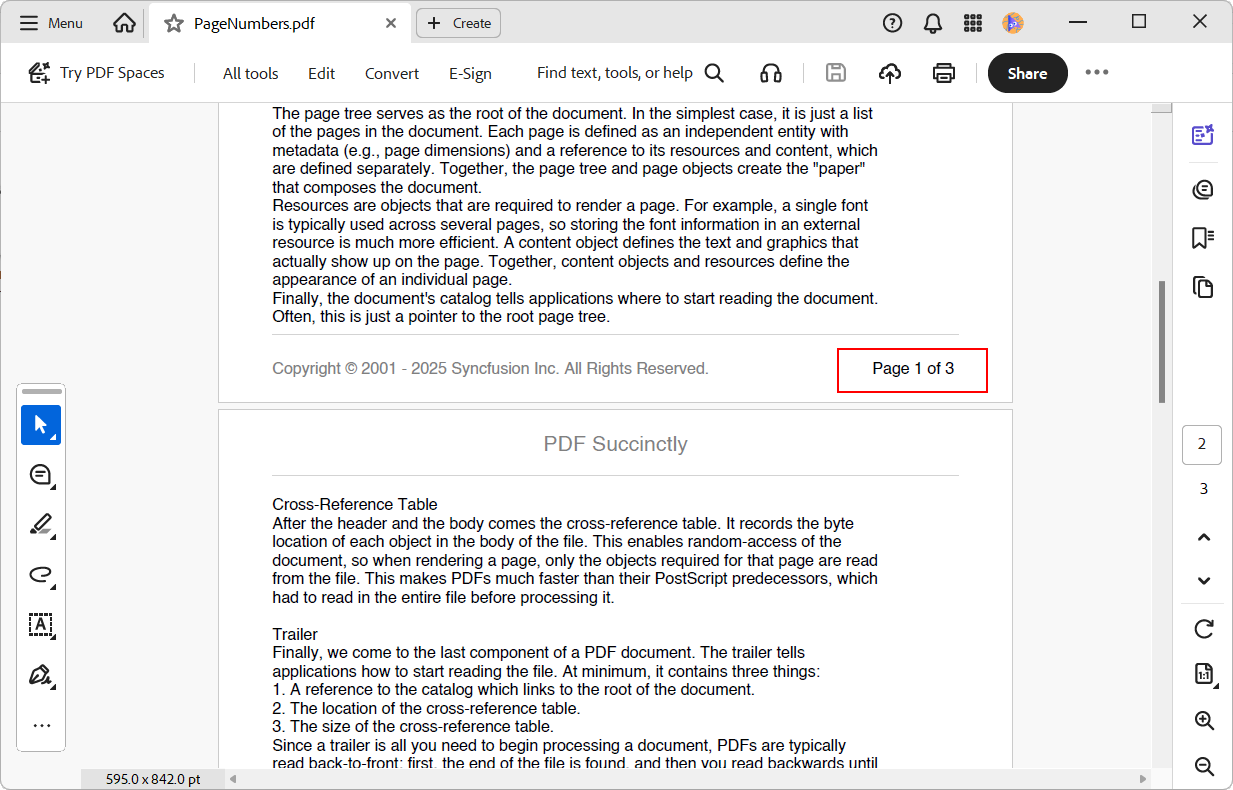
Step 5: Add page numbers in page X of Y format
Headers and footers often include page numbers for easy navigation. The classic format is “Page X of Y”, and you can implement it with just a few lines of code using automatic fields, as shown below.
//Create the footer template
PdfPageTemplateElement footer = new PdfPageTemplateElement(new RectangleF(0, 0, footerSize.Width, footerSize.Height));
//Create font to draw the text
PdfFont font = new PdfStandardFont(PdfFontFamily.Helvetica, 12);
//Draw the text
footer.Graphics.DrawString("Copyright © 2001 - 2025 Syncfusion Inc. All Rights Reserved.", font, PdfBrushes.Gray, new PointF(0, (footerSize.Height - font.Height) / 2));

// Create the page number field
PdfPageNumberField pageNumber = new PdfPageNumberField(font, PdfBrushes.Black);

// Create the page count field
PdfPageCountField count = new PdfPageCountField(font, PdfBrushes.Black);

// Create a composite field to combine page number and count
PdfCompositeField compositeField = new PdfCompositeField(font, PdfBrushes.Black, "Page {0} of {1}", pageNumber, count);

compositeField.Bounds = footer.Bounds;

//Draw the composite field in footer.
compositeField.Draw(footer.Graphics, new PointF(450, (footerSize.Height - font.Height) / 2));

//Draw line to separate footer
footer.Graphics.DrawLine(new PdfPen(PdfBrushes.LightGray, 0.5f), new PointF(0, 0), new PointF(footerSize.Width, 0));
return footer;
The PdfPageNumberField and PdfPageCountField are special classes that automatically resolve to the current page number and total page count when the document is rendered. By combining them in a PdfCompositeField, you can easily add page numbers to PDFs in C#.
Step 6: Customize headers and footers for odd and even pages
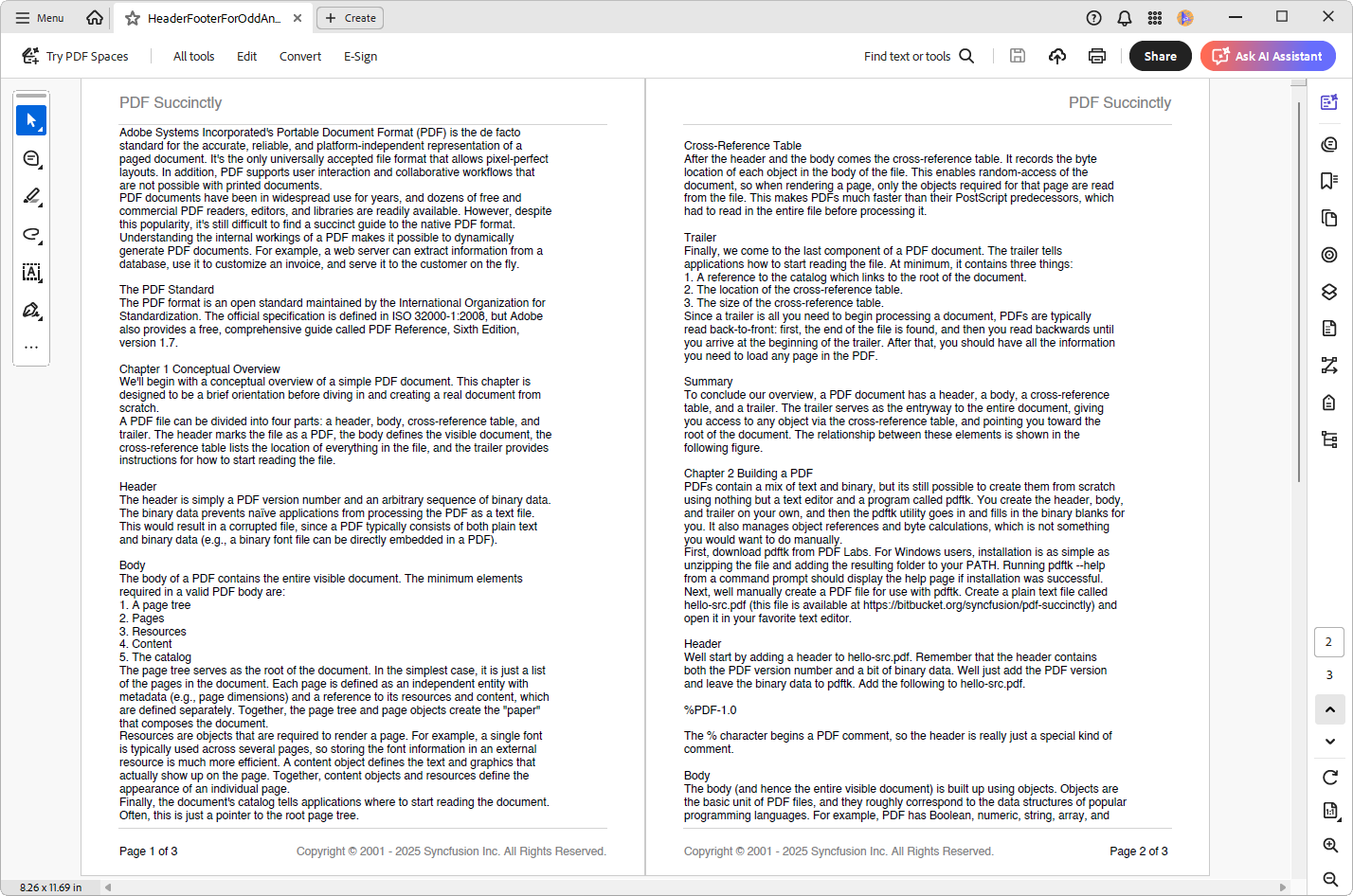
When creating documents like books or lengthy reports, you often need different headers and footers for odd and even pages, also referred to as recto and verso pages. This layout gives your PDF a polished, print-ready look. Here’s the code example to add a header and a footer template.
// Create a new PDF document and define page settings
using (PdfDocument document = new PdfDocument())
{
    …
    …
    //Create the header template and add to the document
    document.Template.OddTop = CreateHeaderTemplate(new SizeF(pageSize.Width, 50), true);

    //Create the header template for even pages and add to the document
    document.Template.EvenTop = CreateHeaderTemplate(new SizeF(pageSize.Width, 50), false);

    //Create the footer template and add to the document
    document.Template.Bottom = CreateFooterTemplate(new SizeF(pageSize.Width, 50), true);

    //Create the footer template for even pages and add to the document
    document.Template.EvenBottom = CreateFooterTemplate(new SizeF(pageSize.Width, 50), false);

    …
    …
    //Save the document
    document.Save("HeaderFooterForOddAndEvenPages.pdf");

    document.Close(true);
}
The header template changes alignment based on whether the page is odd or even. Odd pages typically align text to the left, while even pages align it to the right.
Use the following code to create headers for odd and even pages.
//Create header template and return
PdfPageTemplateElement CreateHeaderTemplate(SizeF headerSize, bool isOddHeader)
{
    //Create PdfPageTemplateElement
    PdfPageTemplateElement header = new PdfPageTemplateElement(new RectangleF(0, 0, headerSize.Width, headerSize.Height));
    string headerText = "PDF Succinctly";
    //font
    PdfStandardFont font = new PdfStandardFont(PdfFontFamily.Helvetica, 16, PdfFontStyle.Regular);

    //Measure the text size
    SizeF textSize = font.MeasureString(headerText);

    //Draw text on different locations for odd and even pages
    PointF location = isOddHeader ? new PointF(0, (headerSize.Height - font.Height) / 2) : new PointF(headerSize.Width - textSize.Width, (headerSize.Height - font.Height) / 2);

    //Draw the text with center alignment
    header.Graphics.DrawString("PDF Succinctly", font, PdfBrushes.Gray, location);

    //Draw a line to separate the header
    header.Graphics.DrawLine(new PdfPen(PdfBrushes.LightGray, 0.5f), new PointF(0, headerSize.Height - 1), new PointF(headerSize.Width, headerSize.Height - 1));

    return header;
}
Footers can also vary by page type. Here, we include copyright text and dynamic page numbers in the Page X of Y format.
//Create footer template and return
PdfPageTemplateElement CreateFooterTemplate(SizeF footerSize, bool isOddFooter)
{
    //Create the footer template
    PdfPageTemplateElement footer = new PdfPageTemplateElement(new RectangleF(0, 0, footerSize.Width, footerSize.Height));
    //Create font to draw the text
    PdfFont font = new PdfStandardFont(PdfFontFamily.Helvetica, 12);

    string footerText = "Copyright © 2001 - 2025 Syncfusion Inc. All Rights Reserved.";

    //Measure the text size
    SizeF textSize = font.MeasureString(footerText);

    //Draw text on different location for odd and even pages
    PointF location = isOddFooter ?  new PointF(footerSize.Width - textSize.Width, (footerSize.Height - font.Height) / 2) : new PointF(0, (footerSize.Height - font.Height) / 2);

    //Draw the text
    footer.Graphics.DrawString(footerText, font, PdfBrushes.Gray, location);

    // Create the page number field
    PdfPageNumberField pageNumber = new PdfPageNumberField(font, PdfBrushes.Black);

    // Create the page count field
    PdfPageCountField count = new PdfPageCountField(font, PdfBrushes.Black);

    // Create a composite field to combine page number and count
    PdfCompositeField compositeField = new PdfCompositeField(font, PdfBrushes.Black, "Page {0} of {1}", pageNumber, count);

    compositeField.Bounds = footer.Bounds;

    //Draw the page number based on odd or even pages
   PointF pageNumberLocation = isOddFooter ? new PointF(0, (footerSize.Height - font.Height) / 2) : new PointF(450, (footerSize.Height - font.Height) / 2);

    //Draw the composite field in footer.
    compositeField.Draw(footer.Graphics, pageNumberLocation);

    //Draw line to separate footer
    footer.Graphics.DrawLine(new PdfPen(PdfBrushes.LightGray, 0.5f), new PointF(0, 0), new PointF(footerSize.Width, 0));
    return footer;
}
By using document.Template.OddTop and document.Template.EvenTop and their bottom counterparts, you can define separate templates for odd and even pages, allowing for more sophisticated layouts.
Step 7: Section-based headers, footers, and page numbers
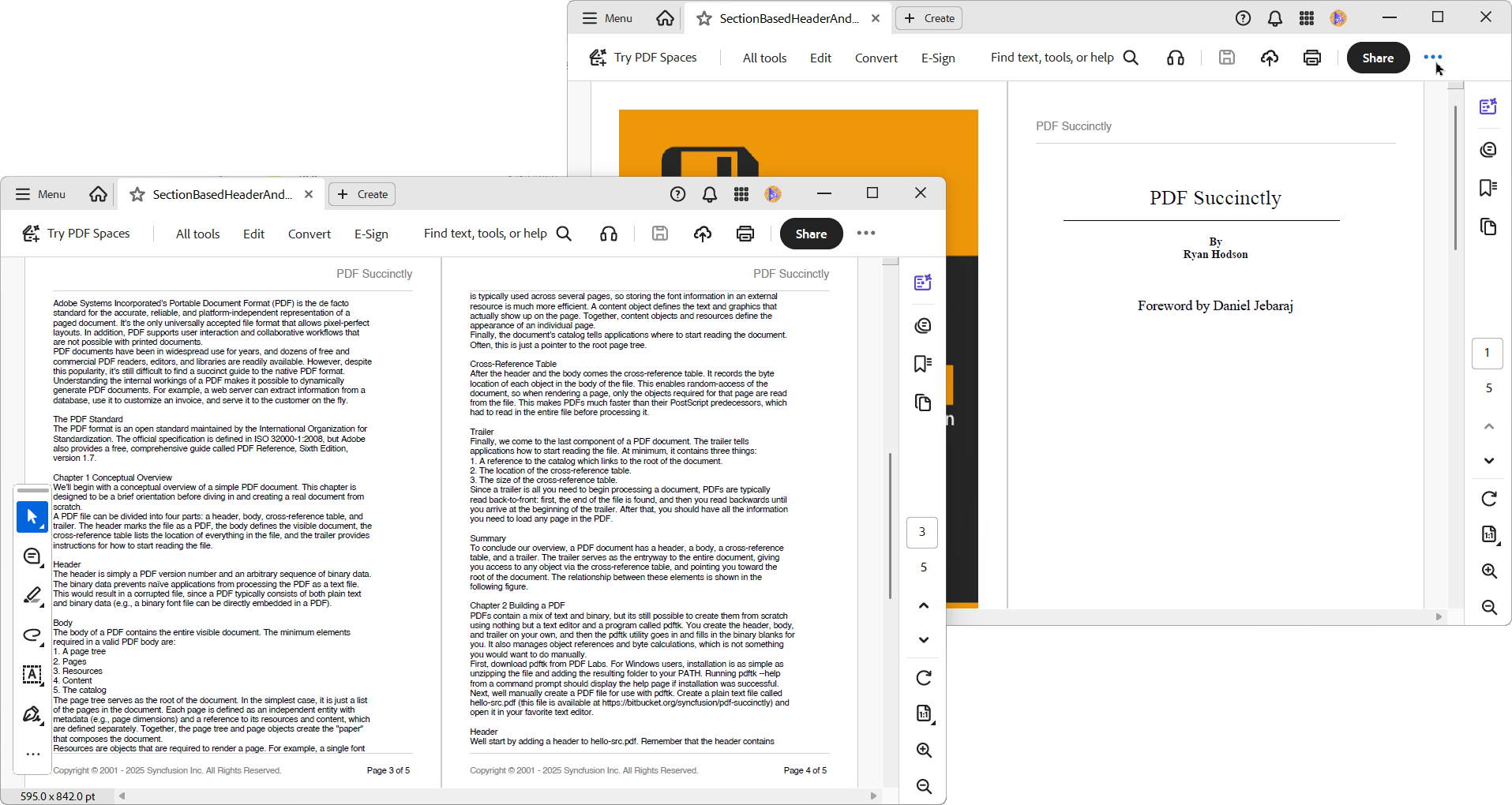
Sometimes, a large document is divided into multiple sections, like introduction, main content, and appendix, each of which requires a unique header, footer, or page numbering scheme.
The Syncfusion PDF .NET library handles this with the PdfSection class, as shown below.
// Create a new PDF document and define page settings
using (PdfDocument document = new PdfDocument())
{
    //Create section for cover page
    PdfSection coverPageSection = document.Sections.Add();

    //Add page and insert the cover page image
    PdfPage coverPage = coverPageSection.Pages.Add();

    //Draw the image
    PdfBitmap coverPageImage = new PdfBitmap(new FileStream("../../../../data/cover-page.jpg", FileMode.Open));

    coverPage.Graphics.DrawImage(coverPageImage, new RectangleF(0, 0, coverPage.GetClientSize().Width, coverPage.GetClientSize().Height));

    //Create another section for author page and add header
    PdfSection authorSection = document.Sections.Add();

    //Add author page
    PdfPage authorPage = authorSection.Pages.Add();

    authorSection.Template.Top = CreateHeaderTemplate(new SizeF(authorPage.GetClientSize().Width, 50), true);

    //Add author page content
    authorPage.Graphics.DrawString("PDF Succinctly", new PdfStandardFont(PdfFontFamily.TimesRoman, 30), PdfBrushes.Black, new RectangleF(0, 60, authorPage.GetClientSize().Width, authorPage.GetClientSize().Height), new PdfStringFormat(PdfTextAlignment.Center));

    authorPage.Graphics.DrawLine(PdfPens.Black, new PointF(40, 110), new PointF(435, 110));

    authorPage.Graphics.DrawString("By\r\nRyan Hodson", new PdfStandardFont(PdfFontFamily.TimesRoman, 16, PdfFontStyle.Bold), PdfBrushes.Black, new RectangleF(0, 130, authorPage.GetClientSize().Width, authorPage.GetClientSize().Height), new PdfStringFormat(PdfTextAlignment.Center));

    authorPage.Graphics.DrawString("Foreword by Daniel Jebaraj", new PdfStandardFont(PdfFontFamily.TimesRoman, 20), PdfBrushes.Black, new RectangleF(0, 220, authorPage.GetClientSize().Width, authorPage.GetClientSize().Height), new PdfStringFormat(PdfTextAlignment.Center));


    //Create content section
    PdfSection mainContentSection = document.Sections.Add();

    //Add the main content page
    PdfPage mainContentPage = mainContentSection.Pages.Add();

    //Add header and footer for the main content section
    mainContentSection.Template.Top = CreateHeaderTemplate(new SizeF(mainContentPage.GetClientSize().Width, 50), false);

    mainContentSection.Template.Bottom = CreateFooterTemplate(new SizeF(mainContentPage.GetClientSize().Width, 50));

    //Create font to draw main content
    PdfFont font = new PdfStandardFont(PdfFontFamily.Helvetica, 12);

    //Read the text from the text file
    string text = System.IO.File.ReadAllText("../../../../data/input.txt");

    PdfTextElement element = new PdfTextElement(text, font);

    element.Draw(mainContentPage, new PointF(0, 10));

    //Save the document
    document.Save("SectionBasedHeaderAndFooter.pdf");

    document.Close(true);
}
This powerful feature enables you to customize PDF layouts in C# with great precision, making it ideal for complex documents.
Here’s what the PDF looks like:
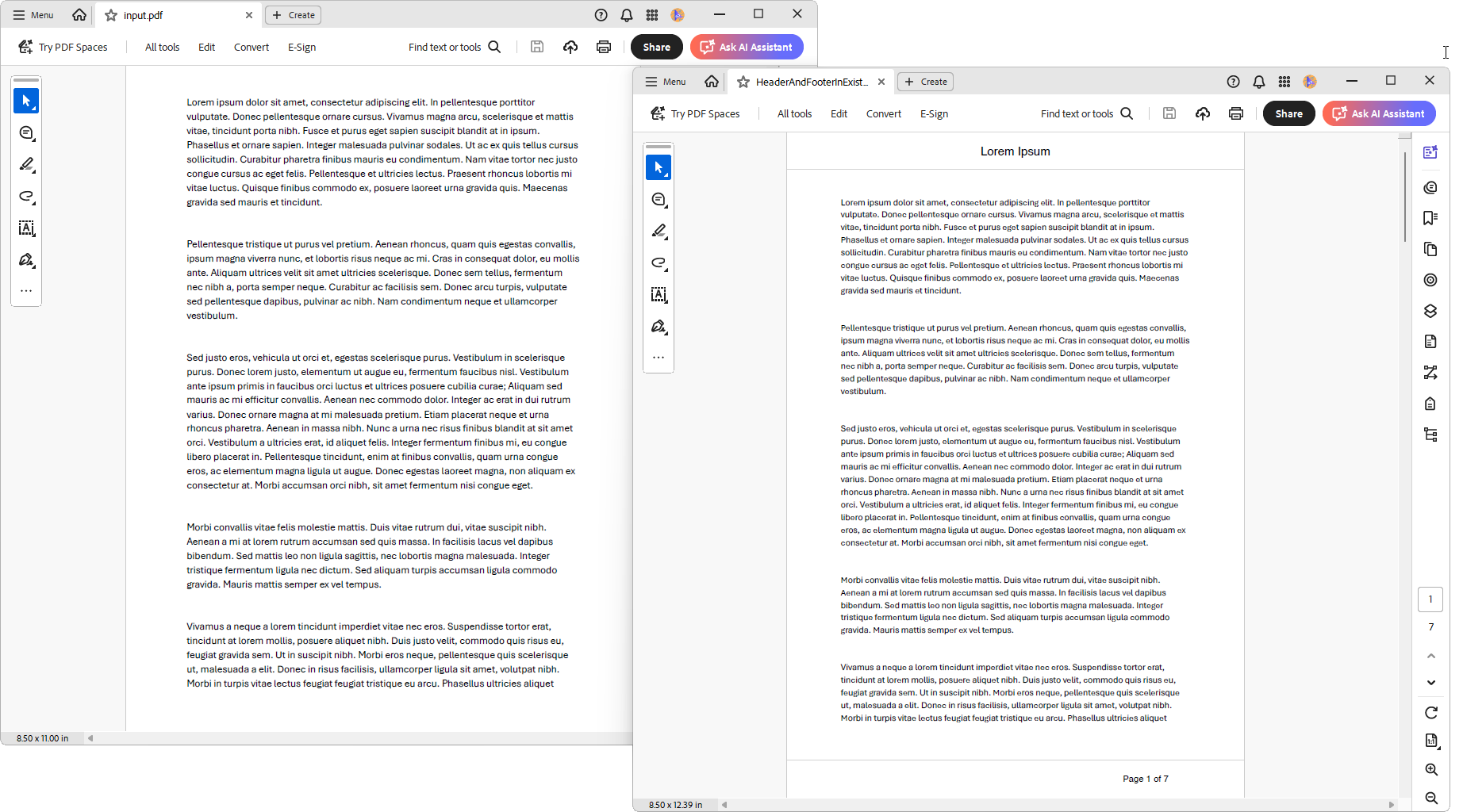
Step 8: Add headers and footers in an existing PDF document
What if you have an existing PDF and need to add headers and footers to it? The Syncfusion library can also handle this by loading the document first.
using (PdfLoadedDocument loadedDocument = new PdfLoadedDocument("../../../../data/input.pdf"))
{
    //Create a new PDF document to add a header and footer.
    PdfDocument document = new PdfDocument();

    //Create header and footer template and assign to the new document.
    document.Template.Top = CreateHeaderTemplate(new SizeF(loadedDocument.Pages[0].Size.Width, 50));
    document.Template.Bottom = CreateFooterTemplate(new SizeF(loadedDocument.Pages[0].Size.Width, 50));

    //Iterate the pages of the loaded document
    foreach (PdfPageBase page in loadedDocument.Pages)
    {
        //Add new section in the new document
        PdfSection section = document.Sections.Add();
        section.PageSettings.Margins.All = 0;
        //Set page size '100 is reserved for header and footer'
        section.PageSettings.Size = new SizeF(page.Size.Width, page.Size.Height + 100);

        //Add a page in the section
        PdfPage pdfPage = section.Pages.Add();
        //Draw the loaded page to the new page.
        pdfPage.Graphics.DrawPdfTemplate(page.CreateTemplate(), new PointF(0, 0));
    }
    //Save the document
    document.Save("HeaderAndFooterInExistingPDF.pdf");
    //Close the document
    document.Close(true);
    loadedDocument.Close(true);
}
You can load a PDF using PdfLoadedDocument and then apply templates just as you would with a new document. The library will iterate through the pages and apply the elements.
After running the code, you’ll see a PDF like this.
Why use Syncfusion for PDF headers and footers in C#?
When generating PDFs in real-world .NET applications, reliability and maintainability matter just as much as features. Syncfusion’s .NET PDF library is designed to handle production scenarios without fragile workarounds.
Here’s why it stands out:
- No manual PDF manipulation
Apply headers and footers using reusable templates. - Built-in page numbering
Easily create formats like Page X of Y. - Section-based layouts
Use different headers and footers per section. - Works with existing PDFs
Load and enhance PDFs of any size.
This makes Syncfusion a strong choice for invoices, reports, legal documents, and enterprise workflows in C#.
GitHub reference
For more details on adding headers, footers, and page numbers in C#, refer to the GitHub demo.
FAQs
1. What is the easiest way to add headers and footers to all pages in a PDF?
You can use page templates to define headers and footers that automatically appear on every page of the document.
2. Can I add images or logos in headers and footers?
Absolutely. Headers and footers can include images such as company logos or branding elements alongside text.
3. Is it possible to have different headers and footers for odd and even pages?
Yes, you can apply conditional logic to display different headers or footers on odd and even pages, which is useful for mirrored layouts in printed documents.
4. Can I include dynamic information like date, time, and page numbers in headers and footers?
Yes, you can insert dynamic fields such as the current date, time, page numbers in headers and footers.
5. Does the library support Unicode or right-to-left languages in headers and footers?
Yes, headers and footers can display multilingual text, including Unicode characters and right-to-left scripts like Arabic or Hebrew.
6. Can I add headers and footers to an existing PDF?
Yes, you can load an existing PDF and stamp headers, footers, or page numbers onto its pages.
Conclusion
Thank you for reading! Customizing headers, footers, and page numbers is a fundamental aspect of professional PDF generation. As we’ve seen, the Syncfusion .NET PDF library offers a comprehensive and user-friendly API for developers working with C#.
From basic text and images to advanced layouts, such as section-specific headers, and modifying existing files, the .NET PDF library offers the flexibility to handle almost any requirement.
To explore more, be sure to check out the official Syncfusion PDF documentation for even more features and examples.
If you’re a Syncfusion user, you can download the setup from the license and downloads page. Otherwise, you can download a free 30-day trial.
You can also contact us through our support forum, support portal, or feedback portal for queries. We are always happy to assist you!




 No spam, just valuable updates.