
 Balavignesh RaviChandran
TL;DR: Diagram containers in Blazor UI libraries offer a structured way to group related nodes, making complex diagrams easier to manage and visually intuitive. This guide explains how to implement containers for scalable architecture and interactive diagrams.
Designing complex diagrams in Blazor, whether for system architecture, workflows, or UML models, can quickly become cluttered and hard to manage. The new container feature in Blazor Diagram offers a clean, scalable way to group related nodes and improve diagram clarity.
In this blog post, we’ll discuss containers, how they work, and how you can use them to build structured, dynamic diagrams in Blazor applications.
What is a container?
Containers offer developers a more structured and efficient way to manage complex diagrams. Whether you are creating network topologies, UML component diagrams, or any other visual structures, containers allow you to logically group and organize elements, making your diagrams more intuitive and easier to understand.
Key features
The Container offers several key features that make it an invaluable addition to your Blazor Toolkit:
- Logical grouping: The Container allows you to group multiple diagram elements logically, enabling collective management. This ensures that related elements stay together, improving organization and readability.
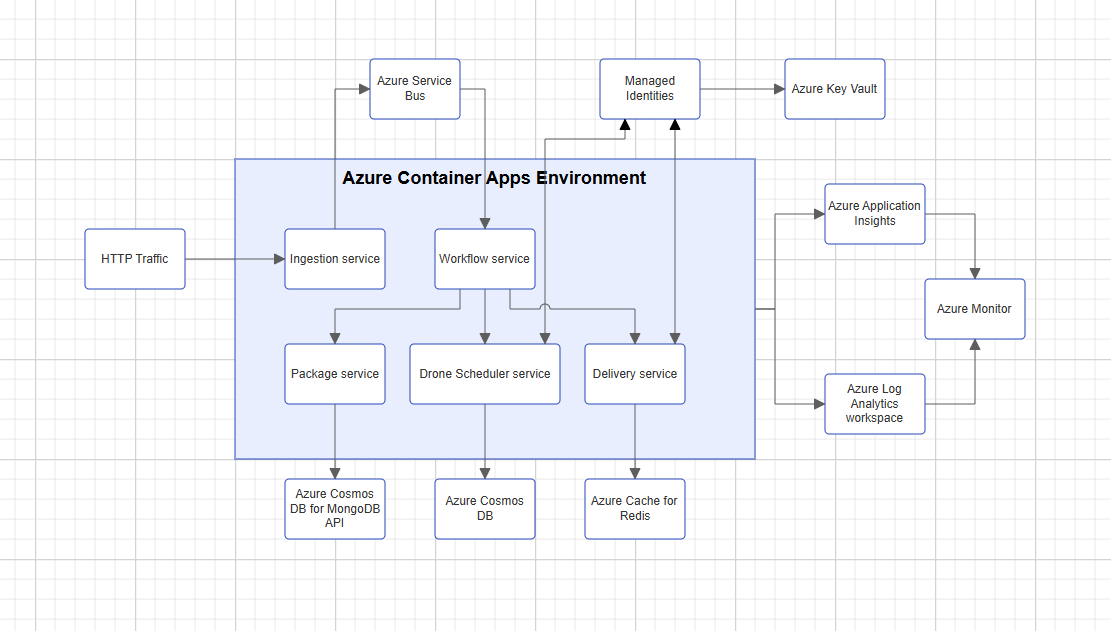
Group multiple Diagram elements in Blazor using containers - Hierarchical structuring: With support for nested containers, you can build multi-level hierarchies within your diagrams. This is especially useful for modeling systems with layers, subdivisions, or organizational charts, where visualizing relationships like parent-child structures or dependencies is crucial.
Basic implementation
To add a container to your diagram, define a Container node and list its children in the Children property. Here is a basic example:
protected override void OnInitialized()
{
    // Create individual nodes
    Node node1 = new Node()
    {
        ID = "node1",
        Height = 60,
        Width = 100,
        OffsetX = 310,
        OffsetY = 210,
        Style = new ShapeStyle()
        {
            Fill = "CornflowerBlue",
            StrokeColor = "transparent"
        },
        Annotations = new DiagramObjectCollection()
        {
            new ShapeAnnotation() { Content = "Node1" }
        }
    };

    Node node2 = new Node()
    {
        ID = "node2",
        Height = 60,
        Width = 100,
        OffsetX = 465,
        OffsetY = 210,
        Style = new ShapeStyle()
        {
            Fill = "CornflowerBlue",
            StrokeColor = "transparent"
        },
        Annotations = new DiagramObjectCollection()
        {
            new ShapeAnnotation() { Content = "Node2" }
        }
    };

    Node node3 = new Node()
    {
        ID = "node3",
        Height = 60,
        Width = 100,
        OffsetX = 640,
        OffsetY = 390,
        Style = new ShapeStyle()
        {
            Fill = "CornflowerBlue",
            StrokeColor = "transparent"
        },
        Annotations = new DiagramObjectCollection()
        {
            new ShapeAnnotation() { Content = "Node3" }
        }
    };

    Node node4 = new Node()
    {
        ID = "node4",
        Height = 60,
        Width = 100,
        OffsetX = 820,
        OffsetY = 390,
        Style = new ShapeStyle()
        {
            Fill = "CornflowerBlue",
            StrokeColor = "transparent"
        },
        Annotations = new DiagramObjectCollection()
        {
            new ShapeAnnotation() { Content = "Node4" }
        }
    };

    // Create a container with node3 and node4 as children
    Container container = new Container()
    {
        ID = "container",
        Header = new ContainerHeader()
        {
            ID = "containerHeader",
            Height = 50,
            Annotation = new ShapeAnnotation()
            {
                ID = "label",
                Content = "Container Title"
            },
            Style = new TextStyle()
            {
                Fill = "#ccc"
            }
        },
        Height = 200,
        Width = 300,
        OffsetX = 730,
        OffsetY = 380,
        Children = new string[] { "node3", "node4" }
    };

    // Create a parent container with container, node1, and node2 as children
    Container container1 = new Container()
    {
        ID = "container1",
        Header = new ContainerHeader()
        {
            ID = "containerHeader1",
            Height = 50,
            Annotation = new ShapeAnnotation()
            {
                ID = "label",
                Content = "Container Title"
            },
            Style = new TextStyle()
            {
                Fill = "teal"
            }
        },
        Height = 400,
        Width = 500,
        OffsetX = 650,
        OffsetY = 300,
        Children = new string[] { "container", "node1", "node2" }
    };

    // Add all nodes and containers to the collection
    nodes.Add(node1);
    nodes.Add(node2);
    nodes.Add(node3);
    nodes.Add(node4);
    nodes.Add(container);
    nodes.Add(container1);
}
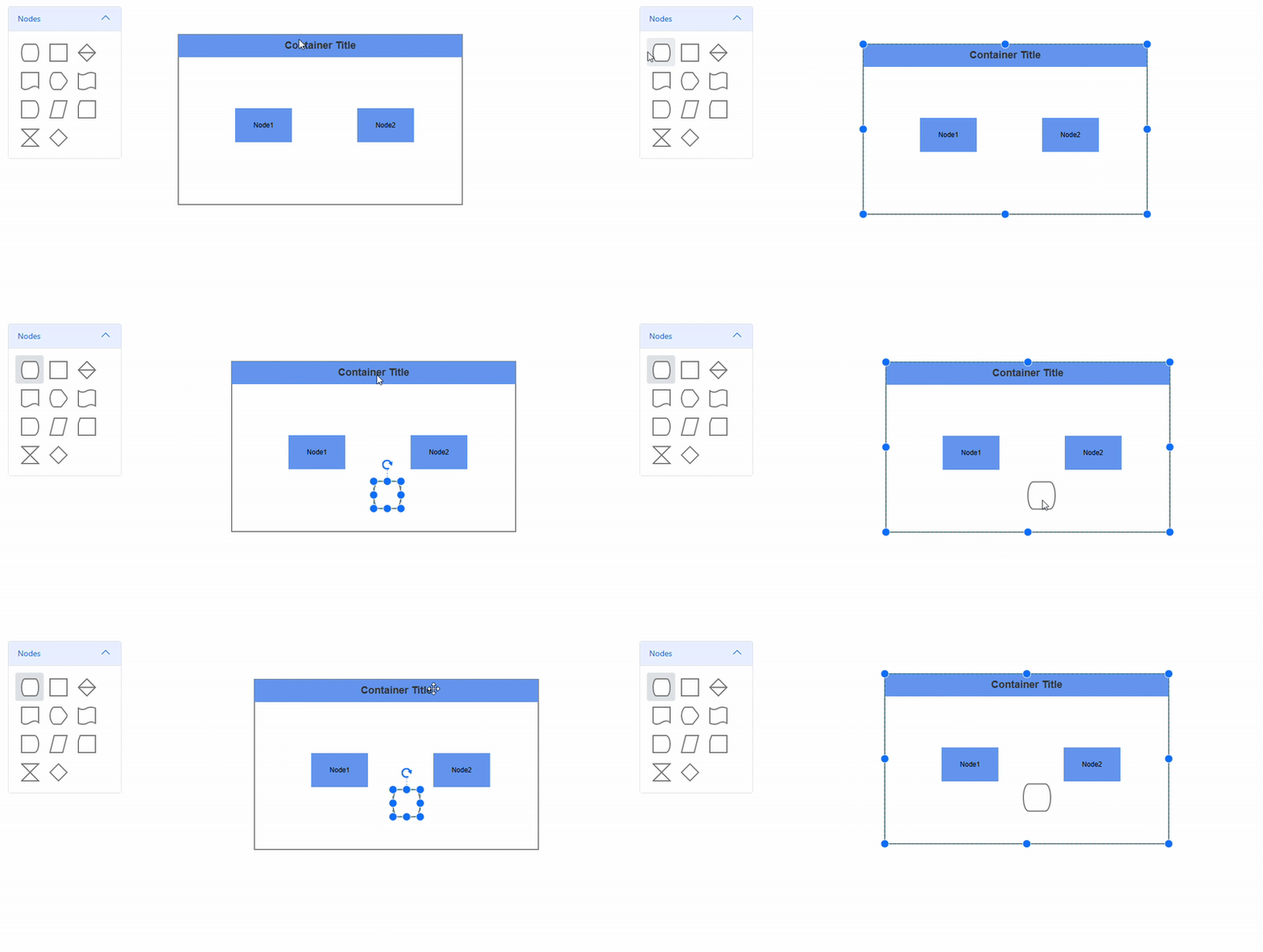
- Interactive features: Containers are fully interactive, just like individual nodes. You can select, drag, resize, and rotate them. However, resizing a container only changes its boundary, it does not resize the child nodes inside. This gives you precise control over layout adjustments without altering the appearance of internal elements.
- Customizable appearance: Containers are highly customizable, allowing you to tailor their visual style to match your app’s theme or the specific meaning of each group. You can adjust colors, borders, background fills, headers fonts, and even add animations.
Note: To know more about the interactive features, refer to the following demo.
protected override void OnInitialized()
{
    Node node1 = new Node()
    {
        ID = "node1",
        Height = 60,
        Width = 100,
        OffsetX = 250,
        OffsetY = 210,
        Style = new ShapeStyle()
        {
            Fill = "CornflowerBlue",
            StrokeColor = "transparent"
        },
        Annotations = new DiagramObjectCollection() {
            new ShapeAnnotation()
            {
                Content = "Node1"
            }
        }
    };
    Node node2 = new Node()
    {
        ID = "node2",
        Height = 60,
        Width = 100,
        OffsetX = 465,
        OffsetY = 210,
        Style = new ShapeStyle()
        {
            Fill = "CornflowerBlue",
            StrokeColor = "transparent"
        },
        Annotations = new DiagramObjectCollection() {
            new ShapeAnnotation()
            {
                Content = "Node2"
            }
        }
    };
    Container container = new Container()
    {
        ID = "container",
        Header = new ContainerHeader()
        {
            ID = "containerHeader",
            Height = 40,
            Annotation = new ShapeAnnotation()
            {
                Content = "Container Title",
                Style = new TextStyle() { FontSize = 18, Bold = true, Color = "#343434" }
            },
            Style = new TextStyle()
            {
                Fill = "CornflowerBlue"
            }
        },
        Height = 300,
        Width = 500,
        OffsetX = 350,
        OffsetY = 200,
        Children = new string[] { "node1", "node2" }
    };
    nodes.Add(node1);
    nodes.Add(node2);
    nodes.Add(container);
}
Dynamic container operations
You can also modify containers and their contents at runtime using the diagram’s public API methods.
Runtime container creation
We can use AddDiagramElementsAsync method to dynamically add new containers based on user interactions or data changes:
private void AddContainer()
    {
        var container = new Container
        {
            ID = "newContainer",
            OffsetX = 200,
            OffsetY = 200,
            Height = 300,
            Width = 300,
            Header = new ContainerHeader()
            {
                ID = "containerHeader",
                Height = 40,
                Annotation = new ShapeAnnotation()
                {
                    Content = "Container Title",
                    Style = new TextStyle() { FontSize = 18, Bold = true, Color = "#343434" }
                },
                Style = new TextStyle()
                {
                    Fill = "CornflowerBlue"
                }
            },
        };
        diagram.AddDiagramElementsAsync(new DiagramObjectCollection() { container });
    }
Container population with elements
You can also add containers along with their child elements using the AddDiagramElementsAsync() method:
private void AddContainer()
    {
        var container = new Container
        {
            ID = "newContainer",
            OffsetX = 200,
            OffsetY = 200,
            Height = 300,
            Width = 300,
            Header = new ContainerHeader()
            {
                ID = "containerHeader",
                Height = 40,
                Annotation = new ShapeAnnotation()
                {
                    Content = "Container Title",
                    Style = new TextStyle() { FontSize = 18, Bold = true, Color = "#343434" }
                },
                Style = new TextStyle()
                {
                    Fill = "CornflowerBlue"
                }
            },
            Children = new string[] { "container" }

        };
        diagram.AddDiagramElementsAsync(new DiagramObjectCollection() { container });
    }
Palette-based container integration
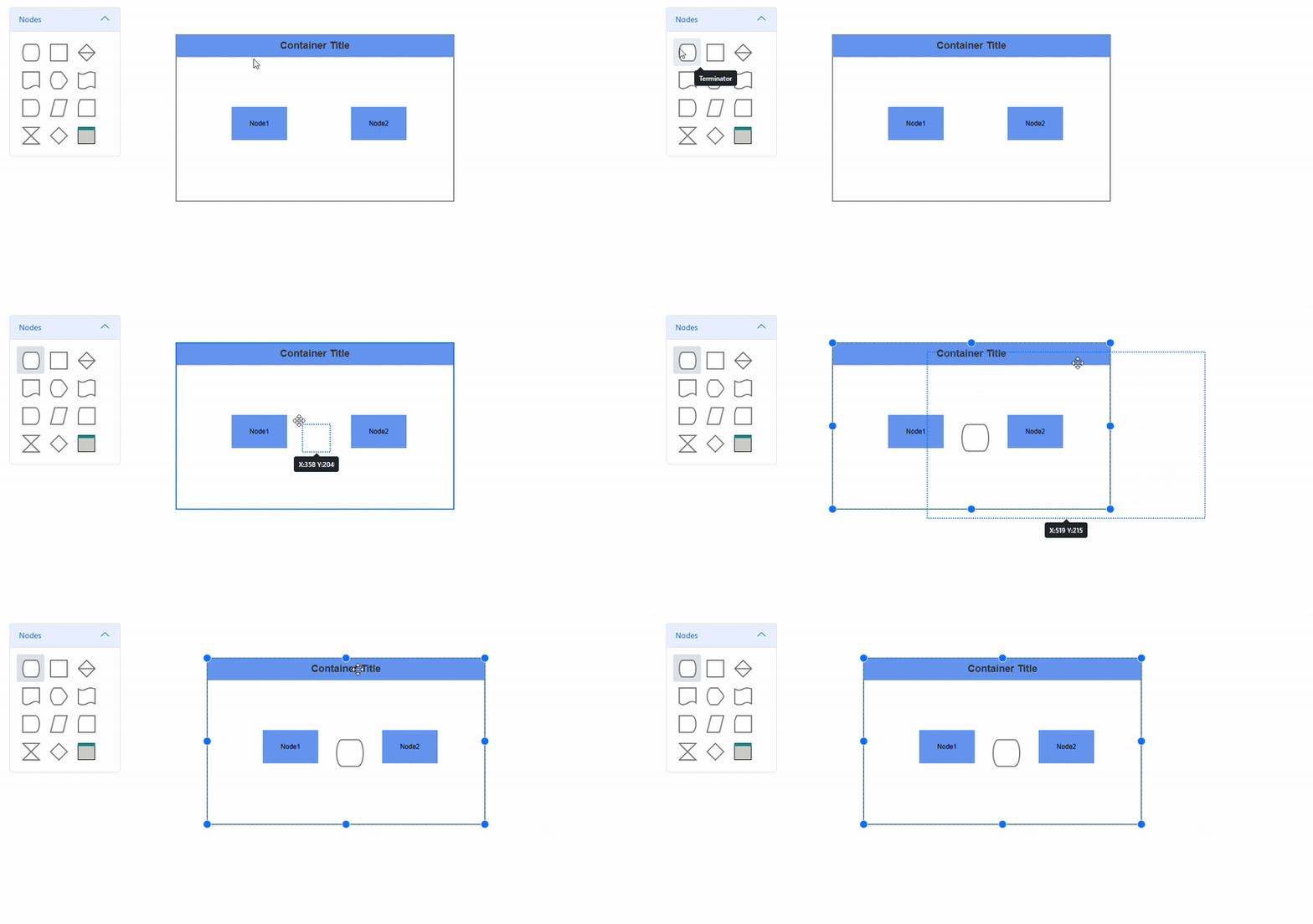
We can configure containers as reusable templates within symbol palettes. This enables drag-and-drop functionality for rapid diagram construction. Once placed, containers can accept new elements either programmatically or via direct drop operations.
Practical container applications
Containers are essential building blocks for production-ready diagrams that prioritize usability and maintainability. Here are key scenarios where containers provide exceptional value.
Infrastructure architecture visualization
In network and cloud infrastructure diagrams, containers help represent logical boundaries such as availability zones, security groups, or resource collections. This approach simplifies understanding data flow patterns, security configurations, and system dependencies, while maintaining internal element relationships during container positioning.
Software architecture modeling
Containers are perfect for encapsulating architectural components in software systems and UML diagrams. They group related classes, interfaces, and modules to reinforce principles like modularity and separation of concerns. This visualization approach helps development teams understand system boundaries and component interactions from high-level and detailed perspectives.

Conclusion
The new Container in Blazor Diagram component provides a significant advantage for developers aiming to build organized and interactive diagrams. Whether you’re working on simple flowcharts or complex system architectures, containers offer the flexibility and structure needed to create clear, maintainable visuals.
For more information and detailed examples, refer to the official documentation.
If you’re a Syncfusion user, you can download the product setup from the license and downloads page. Otherwise, you can download a free 30-day trial.
Do you have queries? Drop them in the comments or reach out via our support channels: support forum, support portal, or feedback portal. We are always happy to assist you!






 No spam, just valuable updates.