
Xamarin Community Toolkit Succinctly®

CHAPTER 1
Introducing the Xamarin Community Toolkit
When working on several Xamarin.Forms projects, developers often tend to replicate some elements used in one project into another one. This is very common with value converters, custom views, and behaviors. In addition, sometimes developers need to build views that are common in modern mobile app design, and that the Xamarin.Forms code base does not include. In order to simplify reusing elements across projects, Microsoft offers a new library called Xamarin Community Toolkit. This chapter introduces the library and explains some conventions that I will be using across the book.
What to expect from this book
After reading this book, you will be able to use all the new elements offered by the Xamarin Community Toolkit, and this will improve your productivity and skills on Xamarin.Forms. However, this book assumes you already have good knowledge of Xamarin.Forms as a development platform and of Microsoft Visual Studio 2019 as the development tool you use to build apps with Xamarin.Forms. The main reason for this is to keep this book succinct and provide you with productivity tools in a faster way, so it’s not possible to explain how Xamarin.Forms works.
If you are a beginner, I recommend you read my free book Xamarin.Forms Succinctly first, since it will give you all the necessary knowledge you need. In addition, and for exactly the same reasons, it will not be possible to describe the architecture and the implementation of such elements, except where strictly necessary. If you need to understand more about architecture and implementation, you can always look at the official Microsoft documentation and investigate the source code yourself. You will discover that the backing code is not complex at all, and that it is very well commented.
Note: At this writing, the latest stable version of the Xamarin Community Toolkit is 1.2.0, which also adds support for F#. Keep in mind that this library continuously evolves, which means that new elements might be added over time (after the release of this book). This is another reason to bookmark the documentation for further updates.
Xamarin Community Toolkit: Solving common problems
The Xamarin Community Toolkit is an open-source collection of reusable elements for mobile development with Xamarin.Forms and works with all the supported operating systems (OS). It includes views, value converters, behaviors, animations, color themes, and helper classes that you will be able to reuse across projects, and that will solve common problems without the need to share your code manually or reinvent the wheel.
Some of the views included in the Xamarin Community Toolkit bridge the gap between modern mobile app designs and the Xamarin.Forms code base. Technically speaking, it is a .NET Standard library that you can quickly add to your projects via NuGet, and for which a GitHub repository is available. This repository is very important, not only because of the availability of the source code of the library, but also for the availability of sample code and for the product roadmap.
Using the Xamarin Community Toolkit
The Xamarin Community Toolkit is available to the general public as a NuGet package. At this writing, the latest version available is 1.2.0. When you work with Xamarin.Forms, you can install the library to all the projects in the solution. Figure 1 shows how the library appears in the NuGet Package Manager user interface of Visual Studio 2019.
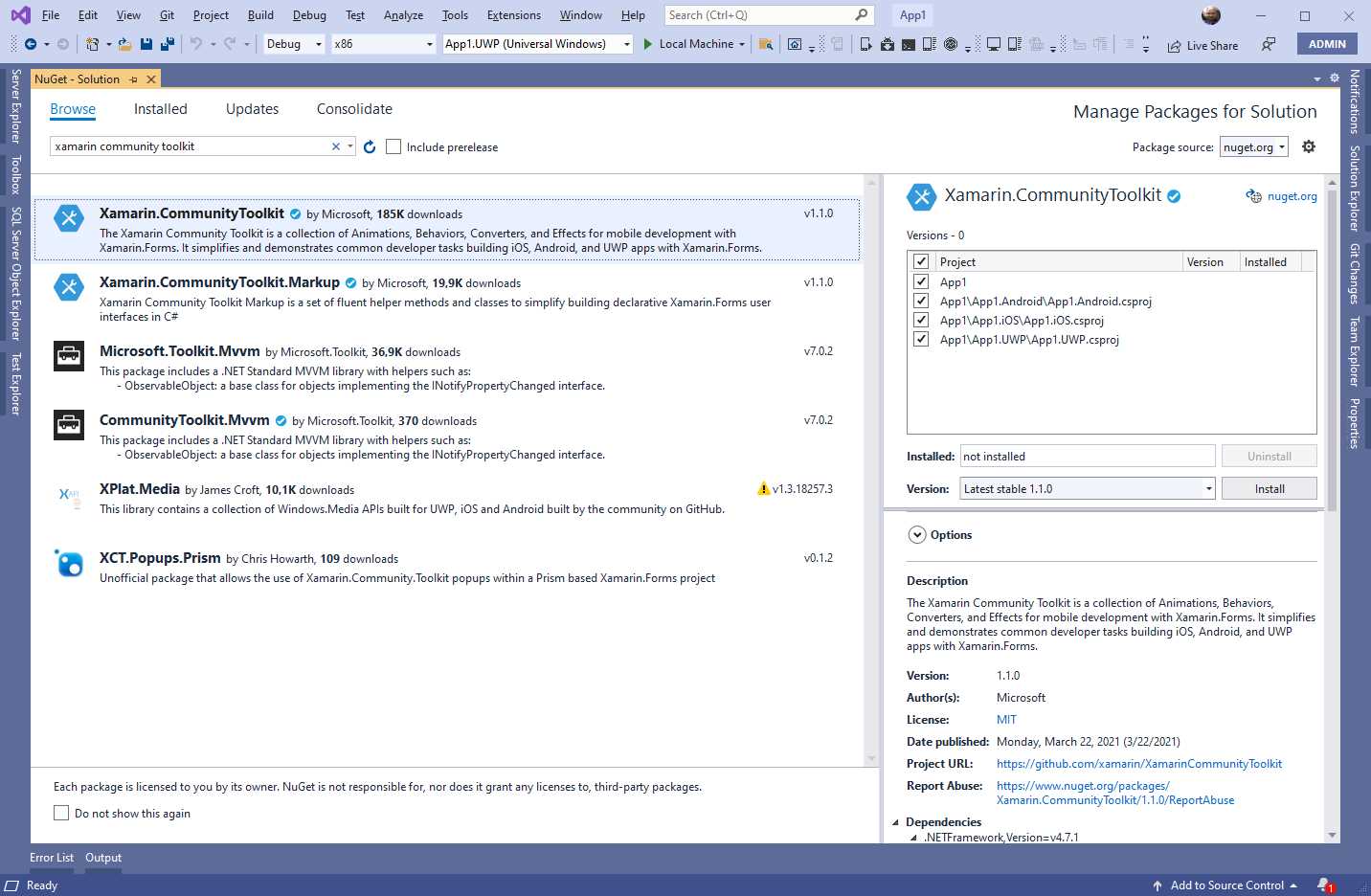
Figure 1: Installing the Xamarin Community Toolkit
There is also another NuGet package called Xamarin.Community.Toolkit.Markup, which is actually necessary only if you want to work with C# Markup Extensions. These are discussed in Chapter 8. Once you have installed the library, you will be able to use all the objects discussed in this book. However, it is not necessary to create a new project now. In the next paragraph, I will explain how to use the official sample app.
Tip: Although some of the elements provided by the Xamarin Community Toolkit will work with previous versions of Xamarin.Forms, some of them require Xamarin.Forms 5.0. My recommendation is that you ensure your projects are using Xamarin.Forms version 5.0 or later to use all the features discussed in the book.
Setting up the development environment
It is possible to combine efficiency, productivity, and learning purposes by using the official sample app created by Microsoft to demonstrate how the Xamarin Community Toolkit works. It’s very well organized, so all the discussions and examples in the book will be based on the official sample. In addition, this is always updated as new releases are available, so you can more easily stay up to date. Having that said, first open the GitHub repository for the project. Click the Code button, as shown in Figure 2.

Figure 2: The official repository for the Xamarin Community Toolkit
At this point, you can decide how to get the source code between cloning the repository in Visual Studio or downloading the full ZIP archive. The repository contains the full source code of the library, plus the source code for a complete sample application.
If you want to explore the source code for the Xamarin Community Toolkit, you can open the Xamarin.CommunityToolkit.sln solution file in Visual Studio. For the purposes of this book, the solution you need to open is called XCT.Sample.sln, which is in the samples folder of the repository. Figure 3 shows how the solution appears in Solution Explorer.

Figure 3: The official sample project in Visual Studio 2019
The project of interest throughout this book is the shared project called Xamarin.CommunityToolkit.Sample, highlighted in red in Figure 3. This contains the sample pages, ViewModels, assets, and resources required to build the sample app, which provides access to examples of all the objects exposed by the toolkit.
Tip: The reason why I told you to download the source code for the full repository instead of only the source code for the sample app is that the Xamarin Community Toolkit in the sample project is not downloaded from NuGet; it is referenced via the Visual Studio projects in the repository. If you only downloaded the sample app source code, you would have had to install the NuGet package manually and make some changes that would result in a waste of time.
Choose a platform project as the startup project, select an appropriate device (either physical or emulated), and then press F5 to start the sample application. I will use the Android platform project and an Android emulator, but everything will work similarly on a different device.
When the app is running, you will see a welcome page that you can scroll through to see a list of cards. Each card represents a shortcut to examples about a specific collection of features. When you click a card, you access a sublist of cards, and each card provides examples about a specific feature. If you look at Figure 4, starting from left to right, you can see part of the list of cards, then the list of subcards for a given feature, behaviors in the figure, and the example page about a specific feature (one specific behavior, in this case). When topics and features are discussed, keep in mind this way of accessing examples about features, as this will be assumed later on.
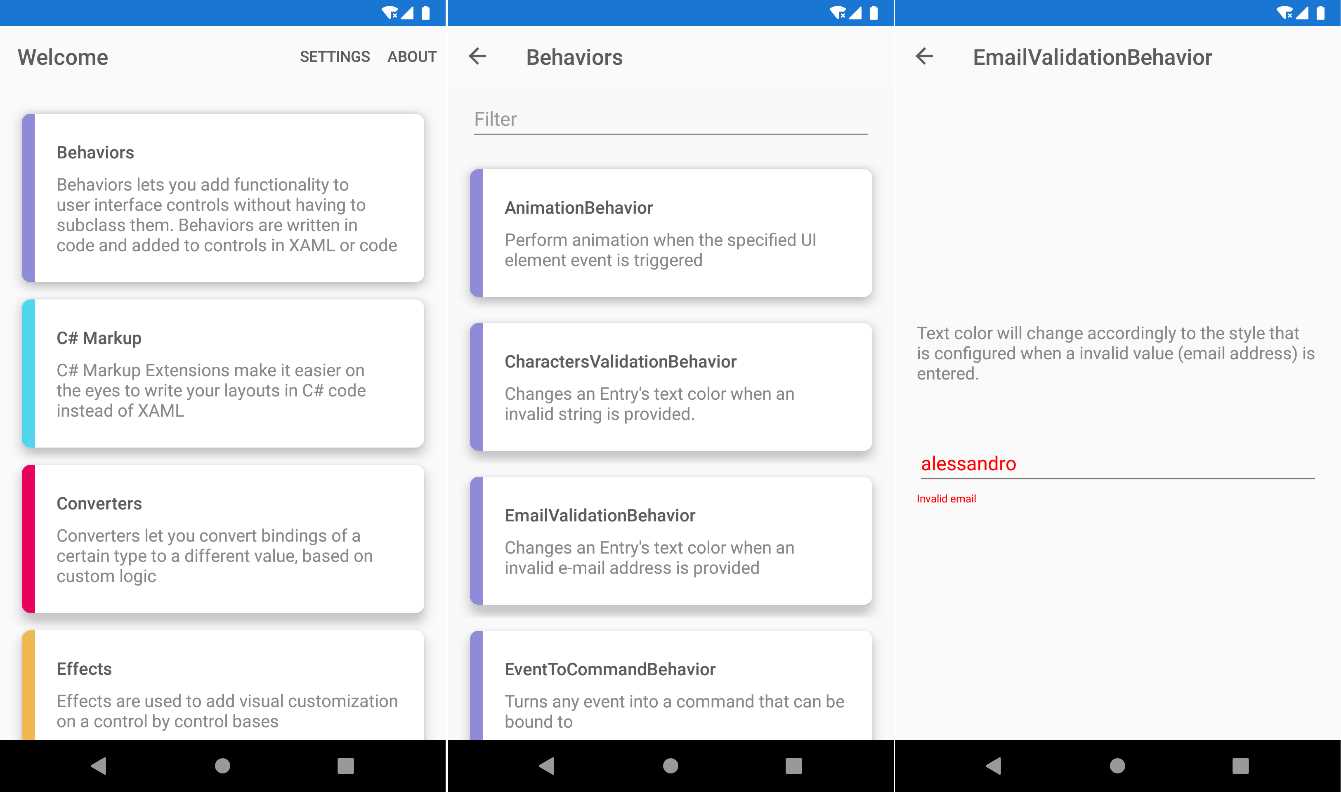
Figure 4: The official sample app running
In addition to discovering and running examples, it is a good idea to define some conventions that will be used across the book, and that will simplify your reading.
Conventions used in this book
In the next chapter, you will start looking at all the available elements in the Xamarin Community Toolkit, so it is useful to provide you with some indications that are shared across the book, and that will not be repeated every time. Because each element is presented with an example in the official sample app, I will always point you to the page in the app, and I will always tell you where to find the XAML page files in the project.
By project, unless where expressly specified, I mean the shared Xamarin.CommunityToolkit.Sample project in the solution. The XAML page files are located in the Pages folder of the shared project. Each page populates its own data context with a dedicated viewmodel class. ViewModel .cs files are located within specific subfolders of the ViewModels folder of the project. They are declared and assigned directly in the XAML of the page, and they are identified via either the vm: or the viewmodel: XML namespaces. ViewModel names and page names are based on the name of the object currently discussed; for example, for the ImageResourceConverter class, the sample page is called ImageResourceConverterPage.xaml, and the ViewModel is called ImageResourceConverterViewModel.cs. Pages that use views, converters, behaviors, or any other feature provided by the Xamarin Community Toolkit will always include the following namespace declaration.
xmlns:xct="http://xamarin.com/schemas/2020/toolkit"
In this way, a view like the MediaElement will be accessed as follows.
<xct:MediaElement />
Now that you know what the xct identifier refers to, it will not be repeated in the next chapters, as well as all the other indications, for the sake of simplicity.
Chapter summary
The Xamarin Community Toolkit is an open-source project backed by Microsoft that provides common, reusable elements for Xamarin.Forms. In this chapter, you got an introduction to the library, how to get the sample source code that will be used in the book, and how to set up the development environment. Next, you got some indications about conventions used in the book that will make your reading better and clearer. It is now time to start working with all the goodies that the Xamarin Community Toolkit has to offer, and certainly the more natural way to do so is by looking at new views.


- 155+ high-performance Xamarin controls, including DataGrid, Charts, and ListView.
- Elegant XAML layouts for common scenarios.
- Layouts optimized for mobile and desktop.