
Writing Native Mobile Apps in a Functional Language Succinctly®

CHAPTER 6
Adding PDF, Word, and Excel Functionality from Syncfusion to CSCS
“A guy who builds a nice chair doesn’t owe money to everyone who ever has built a chair.”
Mark Zuckerberg
In this chapter, we are going to see how to create different types of documents using the Syncfusion framework. Namely, we are going to see how to create PDF, Microsoft Word, and Excel files.
One of the differences with the controls that we developed in the previous chapter is that the Syncfusion implementation for iOS and Android is almost the same (including the class and the method names). Since the platform-specific code is minimal, this allows us to use the same code for both platforms, putting the Syncfusion wrappers in the shared project.
Adding PDF file creation to CSCS
To add a Syncfusion widget for PDF (Portable Document Format) file creation, we extend the iOSVariable class on iOS, and the DroidVariable class on Android. Check out the details in Code Listing 34.
Code Listing 34: A Fragment of the SfPdf Class
#if __ANDROID__ PdfFontFamily.Helvetica, 12); public void Init() public void AddText(string text, int x, int y, PdfBrush color) public void AddLine(int x1, int y1, int x2, int y2, PdfBrush color, float width) public void AddRectangle(int x, int y, int w, int h, PdfBrush color) public void AddPie(int x, int y, int w, int h, float startAngle, public void Save(string filename) |
To register all the Syncfusion PDF-related functions with the parser, we use the following statements:
ParserFunction.RegisterFunction("SfPdfNew", new CreatePdf());
ParserFunction.RegisterFunction("SfPdfOpen", new OpenPdf());
ParserFunction.RegisterFunction("SfSetPdfText", new SetPdfText());
ParserFunction.RegisterFunction("SfSetPdfImage", new SetPdfImage());
ParserFunction.RegisterFunction("SfSetPdfLine", new SetPdfLine());
ParserFunction.RegisterFunction("SfSetPdfRectangle", new SetPdfRectangle());
ParserFunction.RegisterFunction("SfSetPdfPie", new SetPdfPie());
ParserFunction.RegisterFunction("SfSetPdfFont", new SetPdfFont());
ParserFunction.RegisterFunction("SfSavePdf", new SavePdf());
Tip: All the classes deriving from the ParserFunction class are the glue between the CSCS parser and our C# wrapper over the Syncfusion classes.
See fragments of some of them in Code Listing 35.
Code Listing 35: Fragments of the CreatePdf and SetPdfText Classes
public class CreatePdf : ParserFunction Utils.CheckArgs(args.Count, 0, m_name); SfPdf pdf = new SfPdf(true); public class SetPdfText : ParserFunction Utils.CheckArgs(args.Count, 3, m_name); |
Now you can create PDF files with a few lines of CSCS code: check out Code Listing 36.
Code Listing 36: The CSCS Code to Create a PDF File
pdf = SfPdfNew(); |
The result of running Code Listing 36 is shown in Figure 21.
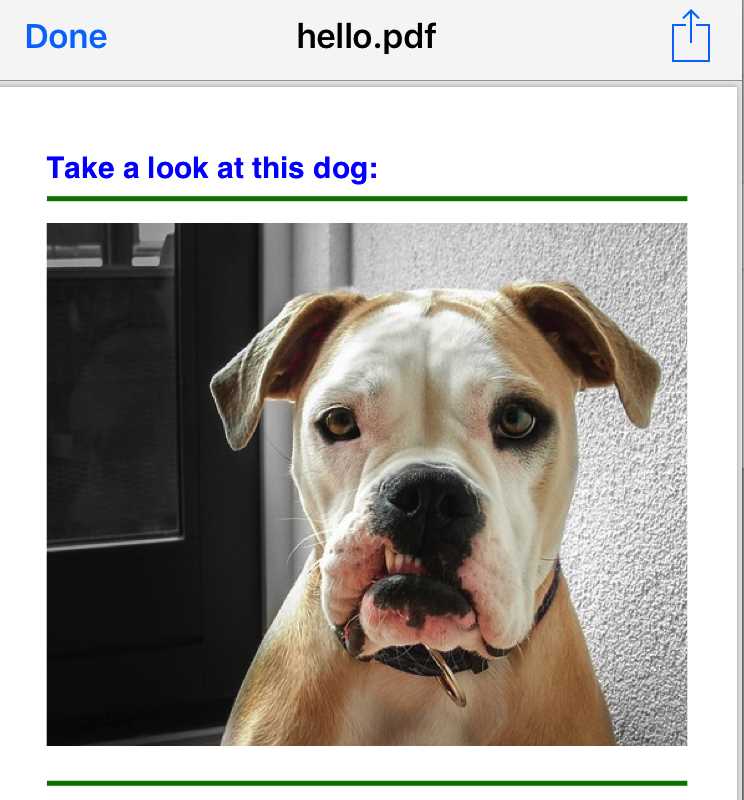
Figure 21: A Sample PDF File Created Using Syncfusion
Adding Microsoft Word file creation to CSCS
Adding the Syncfusion widget for Microsoft Word is very similar to the PDF widget. See Code Listing 37 for a fragment of the SfWord class. This class is a wrapper over the Syncfusion Word widget.
Code Listing 37: A Fragment of the SfWord Class
public class SfWord : BASE_VARIABLE void Init() m_document = new WordDocument(); public void AddTable(int rows, int cols, string styleStr) SfUtils.String2BorderStyle(styleStr); |
To register the Word-specific functions with the parser, we use the statements in Code Listing 38.
Code Listing 38: Registration of the Syncfusion Word Classes with the Parser
ParserFunction.RegisterFunction("SfWordNew", new CreateWord()); new AddWordTextRange()); new AddWordParagraph()); |
We won’t show the implementation of the CreateWord(), OpenWord(), and other methods, since they are very similar to Code Listing 35 for PDF documents. Using the functions defined in Code Listing 38, it is easy to create non-trivial Word documents with just a few lines of CSCS code. Code Listing 39 contains some CSCS code to create a Word document containing images and a table using different colors, fonts, and styles.
Code Listing 39: CSCS Code to Create a Microsoft Word Document
word = SfWordNew(); "Times New Roman", 12); "Times New Roman", 12); "Times New Roman", 12); |
The result of running Code Listing 39 is shown in Figure 22.
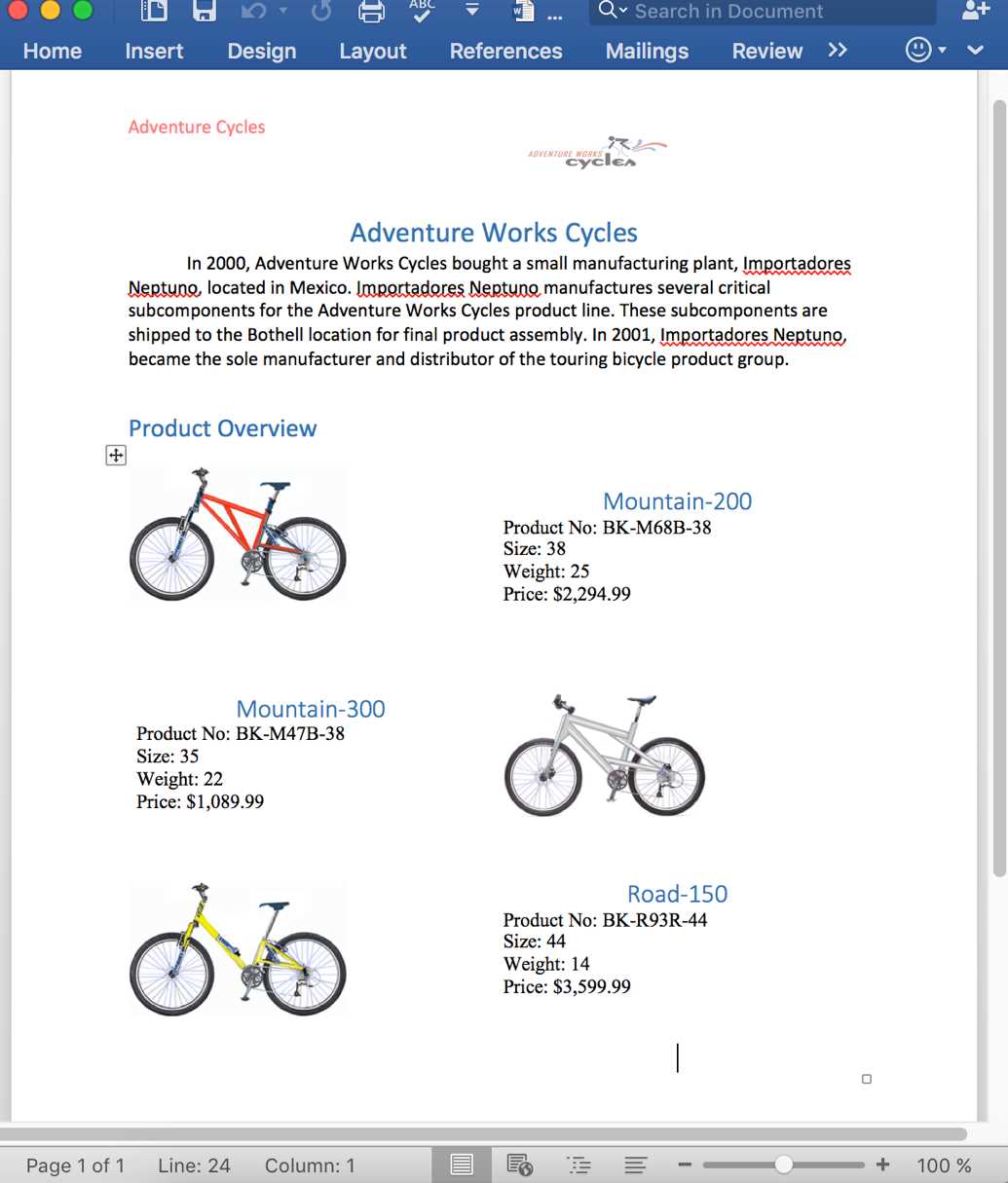
Figure 22: A Word Document Created by CSCS Using Syncfusion
Adding Microsoft Excel file creation to CSCS
Adding the Syncfusion widget for the Microsoft Excel file creation is very similar to the PDF and Word file creation as well. See Code Listing 40 for a fragment of the SfExcel class. This class is a wrapper over the Syncfusion Excel widget.
Code Listing 40: A Fragment of the SfExcel Class
public class SfExcel : BASE_VARIABLE public void Init() int left, int right) } |
Code Listing 41 shows the statements to register the Excel-specific functions with the parser.
Code Listing 41: Registration of the Syncfusion Excel Classes with the Parser
ParserFunction.RegisterFunction("SfExcelNew", new CreateExcel()); new AddExcelWorksheet()); new RenameExcelWorksheet()); new ActivateExcelWorksheet()); |
We won’t show the implementation of the CreateExcel(), OpenExcel(), and other methods, since they are very similar to Code Listing 35 for PDF.
Using the functions defined in Code Listing 41, it is easy to create non-trivial Excel documents with just a few lines of CSCS code.
Code Listing 42 contains some CSCS code to create an Excel document with charts and formulas using different colors, fonts, and styles.
Code Listing 42: CSCS Code to Create a Microsoft Word Document
excel = SfExcelNew(); |
The result of running Code Listing 42 is shown in Figure 23.
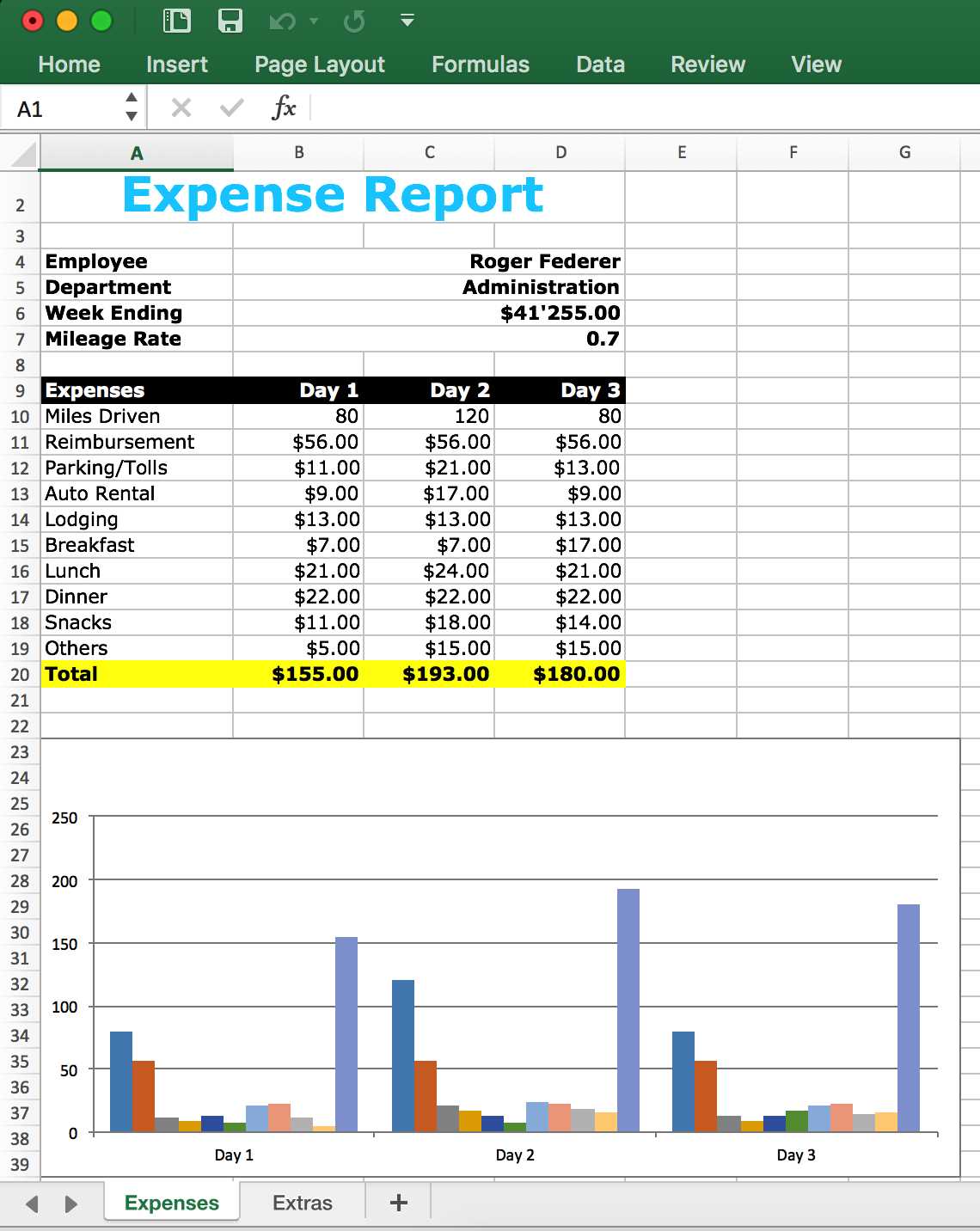
Figure 23: An Excel Document Created by CSCS using Syncfusion
Summary
In this chapter, we saw how to create PDF, Microsoft Word, and Excel documents using the Syncfusion framework. You can create Microsoft PowerPoint presentations with it as well. If you want to add PowerPoint to CSCS, just mimic what we did in this chapter.
In the next chapter, we are going to see how to add non-GUI related functionality to CSCS, in particular, text-to-speech and speech recognition.


- 1800+ high-performance UI components.
- Includes popular controls such as Grid, Chart, Scheduler, and more.
- 24x5 unlimited support by developers.