
WPF Succinctly®

CHAPTER 4
WPF Applications
Navigation-based Windows WPF applications
WPF applications can be designed to use a more navigation-based user interface much like a website. To accomplish this design, you will generally use pages instead of window objects. Pages can be hosted in two built-in navigation containers: Frames and NavigationWindows. They provide the ability to browse from page to page as well as provide a journal mechanism to keep track of the navigation history.
Much like its name implies, a Frame container works a lot like the IFRAME element of a website. A NavigationWindow is a top-level element where a frame can take up a rectangular region within another element. The NavigationWindow has a bar across the top with back and forward buttons by default, much like a web browser. This bar can be shown or hidden by changing the ShowsNavigationUI property of the parent page markup.
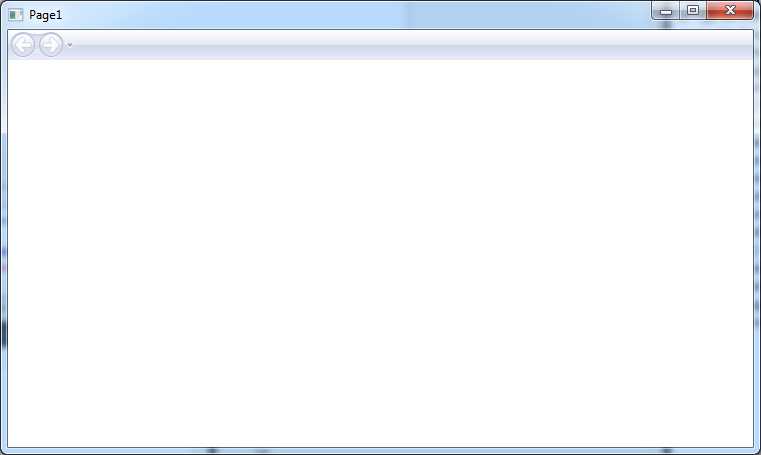
- NavigationWindow with Navigation Bar
Data binding
Some of the content in this section is reproduced from the Data Binding and LINQ to DataSet documentation at docs.microsoft.com/en-us/dotnet/framework/data/adonet/data-binding-and-linq-to-dataset, and the Data Binding Overview documentation at docs.microsoft.com/en-us/dotnet/framework/wpf/data/data-binding-overview.
Data binding is a process that establishes a connection between the application UI and the business logic. If the binding has the correct settings and the data provides the proper notifications, when the data changes its value, the elements that are bound to the data reflect changes automatically. Data binding also means that if an outer representation of the data in an element changes, then the underlying data can automatically be updated to reflect the change. One example is if a user edits the value in a TextBox element, then the underlying data value is automatically updated to reflect that change.
For WPF, this concept is expanded to include the binding of a broad range of properties to a variety of data sources. Also, WPF dependency properties of elements can be bound to CLR objects, ADO.NET objects, other elements, or XML data.
Basic data binding concepts
Much of the content in this section and the next is reproduced from the Data Binding Overview documentation at docs.microsoft.com/en-us/dotnet/framework/wpf/data/data-binding-overview.
Regardless of what element you are binding and the nature of your data source, each binding always follows the model illustrated by the following figure:
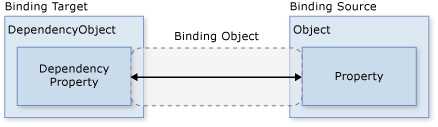
- Data Binding Diagram
As illustrated by the previous figure, data binding is essentially the bridge between your binding target and the binding source. The figure demonstrates the following fundamental WPF data binding concepts:
- Typically, each binding has four components: a binding target object, a target property, a binding source, and a path to the value in the binding source to use. For example, if you want to bind the content of a TextBox to the Name property of an Employee object, your target object is the TextBox, the target property is the Text property, the value to use is Name, and the source object is the Employee object.
- The target property must be a dependency property. In UIElement properties, most are dependency properties, and most dependency properties, except read-only ones, support data binding by default. Only the DependencyObject types can define dependency properties, and all UIElements derive from DependencyObject.
- Although not specified in the figure, it should be noted that the binding source object is not restricted to being a custom CLR object. To provide some examples, your binding source may be a UIElement, any list object, a CLR object that is associated with ADO.NET data or web services, or an XmlNode that contains your XML data.
Data flow direction
As mentioned previously and indicated by the arrow in the previous figure, the data flow of a binding can go from the binding target to the binding source, (e.g., the source value changing when a user edits the value of a TextBox), from the binding source to the binding target (e.g., a TextBox's content updating when changes in the binding source occur if the binding source provides the proper notifications), or both. If you want your application to enable users to change the data and propagate it back to the source object, you can control this behavior by setting the Mode property of your Binding object. The following figure illustrates the different types of data flow:
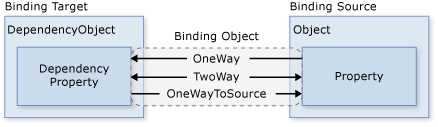
- Data Flow in Data Binding
- The OneWay binding causes changes to the source property to automatically update the target property, but changes to the target property are not propagated back to the source property. This type of binding is appropriate if the control being bound is implicitly read-only. For instance, you may bind to a source such as a stock ticker, or perhaps your target property has no control interface provided for making changes, such as a data-bound TextBlock control. If there is no need to monitor the changes of the target property, the OneWay binding mode avoids the overhead of the TwoWay binding mode.
- The TwoWay binding causes changes to either the source property or the target property to automatically update the other. This type of binding is appropriate for editable forms or other fully interactive user interface scenarios. Most properties default to OneWay binding, but some dependency properties (typically properties of user-editable controls such as the Text property of TextBox and the IsChecked property of CheckBox) default to TwoWay binding. A programmatic way to determine whether a dependency property binds one-way or two-way by default is to get the property metadata using GetMetadata and then check the Boolean value of the BindsTwoWayByDefault property.
- OneWayToSource is the reverse of OneWay binding; it updates the source property when the target property changes. One example scenario is if you only need to re-evaluate the source value from the UI.
- OneTime binding is not illustrated in Figure 10. It causes the source property to initialize the target property, but subsequent changes do not propagate. This means that if the data context undergoes a change or the object in the data context changes, then the change is not reflected in the target property. This type of binding is appropriate if you are using data where either a snapshot of the current state is appropriate to use or the data is truly static. This type of binding is also useful if you want to initialize your target property with some value from a source property and the data context is not known in advance. This is essentially a simpler form of OneWay binding that provides better performance in cases where the source value does not change.
DataContext
Some of the content in this section is reproduced from the “DataContext in WPF” article by Kishore Gaddam for CodeProject, published at codeproject.com/Articles/321899/DataContext-in-WPF.
The DataContext property is a vital part of one of the most important concepts in WPF: data binding. When implementing data binding in WPF, the C# representation involves creating a Binding object. The Binding object needs a data source, and there are a few ways to specify the data source. One way to define the source of the data-binding operation is to set the Binding.Source property to the object in which you wish to retrieve as well as store the bound control’s data. There is also an attached property called the DataContext. This DataContext can be set at the Window level and propagate down to each data-bound control by way of property value inheritance. You can also set the ElementName and RelativeSource properties in the Binding object. The DataContext property is the most common way to define the source of a data-binding expression.
User interface elements in WPF have a DataContext attached property. That property has the standard dependency property value inheritance behavior by default. This means if you set the DataContext on an element to a Student object, the DataContext property on all of the parent’s logical descendant elements will inherit the Student object reference. This means that all data bindings contained within the root element’s tree will automatically bind against the Student object, unless explicitly told to bind against something else.
INotifyPropertyChanged
The INotifyPropertyChanged interface is another key element involved in the data-binding functionality of any WPF application. The INotifyPropertyChanged interface provides an event handler that will raise an event to indicate that a data-bound value has changed, thus communicating this change to the XAML user interface.
In the following example, we will set the DataContext value of the MainWindow in the code behind instead of the XAML markup. I will show you how this can be done using XAML only in the MVVM chapter. In this example, we have a window, a grid, two text boxes, and a button. The TextBox controls will represent the FirstName property and LastName property of a Person object. We will set the DataContext of the window equal to an instance of a Person object in which we wish to allow users to modify the Person’s names.
Person.cs
using System; using System.Collections.Generic; using System.ComponentModel; using System.Linq; using System.Text; using System.Threading.Tasks; namespace SimpleData-binding { public class Person : INotifyPropertyChanged { private string _FirstName; private string _LastName; private string _FullName; #region "Public Properties" public string FirstName { get { return _FirstName; } set { if (_FirstName != value) { _FirstName = value; this.FullName = string.Format("{0} {1}", _FirstName, _LastName); OnPropertyChanged("FirstName"); } } } public string LastName { get { return _LastName; } set { if (_LastName != value) { _LastName = value; this.FullName = string.Format("{0} {1}", _FirstName, _LastName); OnPropertyChanged("LastName");
} } } public string FullName { get { return _FullName; } set { _FullName = value; OnPropertyChanged("FullName"); } } #endregion #region "INotifyPropertyChanged members" public event PropertyChangedEventHandler PropertyChanged; private void OnPropertyChanged(string propertyName) { var handler = PropertyChanged; if (handler != null) { handler(this, new PropertyChangedEventArgs(propertyName)); } } #endregion } } |
<Window x:Class="SimpleData-binding.MainWindow" xmlns="http://schemas.microsoft.com/winfx/2006/xaml/presentation" xmlns:x="http://schemas.microsoft.com/winfx/2006/xaml" Title="MainWindow" Height="218.905" Width="525"> <Grid> <Grid.RowDefinitions> <RowDefinition Height="87*" /> <RowDefinition Height="47*" /> <RowDefinition Height="54*" /> <RowDefinition Height="54*" /> <RowDefinition Height="54*" /> </Grid.RowDefinitions> <Grid.ColumnDefinitions> <ColumnDefinition /> <ColumnDefinition /> </Grid.ColumnDefinitions> <TextBlock Grid.Column="0" Grid.ColumnSpan="2" Grid.Row="0" FontSize="40" Text="Enter Person's Name" /> <TextBlock Grid.Column="0" Grid.Row="1" FontSize="20" Text="First Name" />
<TextBox Name="txtFirstName" Grid.Column="1" Grid.Row="1" FontSize="20" Text="{Binding Path=FirstName}" />
<TextBlock Grid.Column="0" Grid.Row="2" FontSize="20" Text="Last Name" /> <TextBox Name="txtLastName" Grid.Column="1" Grid.Row="2" FontSize="20" Text="{Binding Path=LastName}" /> <TextBlock Grid.Column="0" Grid.Row="3" FontSize="20" Text="Full Name" /> <TextBlock Name="txtFullName" Grid.Column="1" Grid.Row="3" FontSize="20" Text="{Binding Path=FullName}" /> <Button Name="btnClose" Grid.Row="4" Grid.Column="1" Width="140" Height="30" Content="Close" Click="btnClose_Click" />
</Grid> </Window> |
MainWindow.xaml.cs
using System; using System.Collections.Generic; using System.Linq; using System.Text; using System.Threading.Tasks; using System.Windows; using System.Windows.Controls; using System.Windows.Data; using System.Windows.Documents; using System.Windows.Input; using System.Windows.Media; using System.Windows.Media.Imaging; using System.Windows.Navigation; using System.Windows.Shapes; namespace SimpleData-binding { /// <summary> /// Interaction logic for MainWindow.xaml. /// </summary> public partial class MainWindow : Window { private Person _person; public MainWindow() { InitializeComponent(); //Create an instance of the Person object. _person = new Person {FirstName = "<Enter first name>", LastName = "<Enter last name>" }; //Set the DataContext of the Window. this.DataContext = _person; } private void btnClose_Click(object sender, RoutedEventArgs e) { this.Close(); } } } |
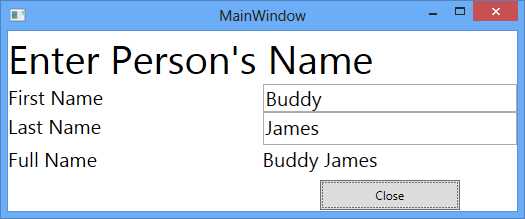
- Rendered Data-Bound Window
MultiBinding
As you can see, data binding is a very important and powerful concept in WPF. In the previous example, we had to implement a rather ugly implementation regarding the person’s full name display. This is only one example of using more than one element’s values to produce the value of a single data-bound element.
As it turns out, WPF offers a much better way to implement this scenario. I’m referring to MultiBindings. A MultiBinding involves creating an IMultiValueConverter and binding the converter to the txtFullName element. The IMultiValueConverter interface works just like the IValueConverter interface except that it accepts an array of values to convert. The array of values comes from the element properties that we define in the MultiBinding xaml definition. A brief example will make things clearer.
As you can see, the Convert method takes an array of values. It iterates through the array and concatenates the strings into a single value that it returns. We haven’t implemented the ConvertBack method because it’s not used in this example.
FullnameConverter.cs
using System; using System.Collections.Generic; using System.Linq; using System.Text; using System.Threading.Tasks; using System.Windows.Data; namespace MultiBinding { /// <summary> /// This class is a MultiValueConverter. It works much like a ValueConverter, except that it takes an array of values in the convert /// method and it returns an array of values from the ConvertBack routine. /// </summary> public class FullnameConverter : IMultiValueConverter { public object Convert(object[] values, Type targetType, object parameter, System.Globalization.CultureInfo culture) { StringBuilder fullNameBuilder = new StringBuilder(); foreach (object name in values) { fullNameBuilder.AppendFormat("{0} ", name.ToString()); } return fullNameBuilder.ToString(); } public object[] ConvertBack(object value, Type[] targetTypes, object parameter, System.Globalization.CultureInfo culture) { throw new NotImplementedException(); } } } |
The Person class no longer contains a full name property for data binding.
Person.cs
using System; using System.Collections.Generic; using System.ComponentModel; using System.Linq; using System.Text; using System.Threading.Tasks; namespace MultiBinding { public class Person : INotifyPropertyChanged { #region "private members"
private string _FirstName; private string _LastName;
#endregion #region "Public Properties" public string FirstName { get { return _FirstName; } set { if (_FirstName != value) { _FirstName = value; OnPropertyChanged("FirstName"); } } } public string LastName { get { return _LastName; } set { if (_LastName != value) { _LastName = value; OnPropertyChanged("LastName");
} } } #endregion #region "INotifyPropertyChanged members" public event PropertyChangedEventHandler PropertyChanged; private void OnPropertyChanged(string propertyName) { var handler = PropertyChanged; if (handler != null) { handler(this, new PropertyChangedEventArgs(propertyName)); } } #endregion } } |
We create a resource dictionary in the window definition and create a resource to our custom MultiValueConverter. Next, we change the txtFullName element to use a MultiBinding definition. The definition specifies the converter to use, as well as the elements and their properties that we will use as the values array in the Convert method of the converter.
MainWindow.xaml
<Window x:Class="MultiBinding.MainWindow" xmlns="http://schemas.microsoft.com/winfx/2006/xaml/presentation" xmlns:x="http://schemas.microsoft.com/winfx/2006/xaml" Title="MainWindow" Height="218.905" Width="525" xmlns:tc="clr-namespace:MultiBinding"> <Window.Resources> <tc:FullnameConverter x:Key="fullNameConverter" /> </Window.Resources> <Grid> <Grid.RowDefinitions> <RowDefinition Height="87*" /> <RowDefinition Height="47*" /> <RowDefinition Height="54*" /> <RowDefinition Height="54*" /> <RowDefinition Height="54*" /> </Grid.RowDefinitions> <Grid.ColumnDefinitions> <ColumnDefinition /> <ColumnDefinition /> </Grid.ColumnDefinitions> <TextBlock Grid.Column="0" Grid.ColumnSpan="2" Grid.Row="0" FontSize="40" Text="Enter Person's Name" /> <TextBlock Grid.Column="0" Grid.Row="1" FontSize="20" Text="First Name" /> <TextBox Name="txtFirstName" Grid.Column="1" Grid.Row="1" FontSize="20" Text="{Binding Path=FirstName}" /> <TextBlock Grid.Column="0" Grid.Row="2" FontSize="20" Text="Last Name" /> <TextBox Name="txtLastName" Grid.Column="1" Grid.Row="2" FontSize="20" Text="{Binding Path=LastName}" /> <TextBlock Grid.Column="0" Grid.Row="3" FontSize="20" Text="Full Name" /> <TextBox Name="txtFullName" Grid.Column="1" Grid.Row="3" FontSize="20"> <TextBox.Text> <MultiBinding Converter="{StaticResource fullNameConverter}"> <Binding ElementName="txtFirstName" Path="Text" /> <Binding ElementName="txtLastName" Path="Text" /> </MultiBinding> </TextBox.Text> </TextBox> <Button Name="btnClose" Grid.Row="4" Grid.Column="1" Width="140" Height="30" Content="Close" Click="btnClose_Click" /> </Grid> </Window> |
MainWindow.xaml.cs
using System; using System.Collections.Generic; using System.Linq; using System.Text; using System.Threading.Tasks; using System.Windows; using System.Windows.Controls; using System.Windows.Data; using System.Windows.Documents; using System.Windows.Input; using System.Windows.Media; using System.Windows.Media.Imaging; using System.Windows.Navigation; using System.Windows.Shapes; namespace MultiBinding { /// <summary> /// Interaction logic for MainWindow.xaml. /// </summary> public partial class MainWindow : Window { private Person _person; public MainWindow() { InitializeComponent();//Create an instance of the Person object. _person = new Person { FirstName = "<Enter first name>", LastName = "<Enter last name>" }; //Set the DataContext of the Window. this.DataContext = _person; } private void btnClose_Click(object sender, RoutedEventArgs e) { this.Close(); } } } |
As you can see, this implementation is flexible compared to our previous implementation. This technique is useful in situations where you need to data-bind to an aggregate computation such as the average of text box values, or any situation where you need one element to bind to the values of multiple element values.


- 100+ essential WPF UI controls like DataGrid, Charts, and Diagram.
- 10+ built-in themes, plus Theme Studio app for designing custom themes.
- Powerful document processing libraries for Excel, PDF, Word, and PowerPoint file formats.