
WPF Succinctly®

CHAPTER 7
Advanced WPF Concepts
Property value inheritance
WPF dependency properties support a concept called property value inheritance. Property value inheritance is a mechanism by which a property of a parent element will propagate down to the same property on child elements. For instance, you can set the FontSize of a window object and all text controls will share the same font size unless the size is explicitly set on a child control.
Routed events
Routed events are much like your typical Windows Forms events except for some key differences. Event routing provides a mechanism for events to originate in an element and propagate the event up the tree to other elements that are listed for the event. This is much like the property value inheritance in dependency properties.
WPF documents
Many times you will find yourself with a lot of content to display in a window. WPF provides classes for formatting your content on the screen. This is accomplished with WPF documents. Documents allow you to display large amounts of content without worrying about the size of the window in which the content is contained. The WPF document types are separated into fixed documents and flow documents.
Fixed documents
Fixed documents are generally documents meant for print. Microsoft has included one type of fixed document to be used in WPF. These fixed documents are called XPS documents (XML Paper Specification). The XPS file structure is actually a compressed file that contains files for each element of the document (images, fonts, and text content). The WPF programming model provides a lot of interesting options for dealing with fixed documents. You can load, print, write, and even annotate the documents using WPF programming techniques.
Tip: You can rename an XPS document by replacing its extension with .zip and then view the contents of the compressed file in your preferred zip compression tool.
To display a fixed XPS document in a WPF application, use the DocumentViewer object. This object will create user interface elements for searching and zooming in the document. You must add a reference to the ReachFramework assembly in order to access the System.Windows.Xps.Packaging.XpsDocument object. The following example shows how to load an XPS file for viewing in a WPF application.
MainWindow.xaml
<Window x:Class="XPSDocumentViewer.MainWindow" xmlns="http://schemas.microsoft.com/winfx/2006/xaml/presentation" xmlns:x="http://schemas.microsoft.com/winfx/2006/xaml" Title="MainWindow" Height="350" Width="525"> <Grid> <DocumentViewer x:Name="xpsDocViewer">
</DocumentViewer> </Grid> </Window> |
MainWindow.xaml.cs
using System; using System.Collections.Generic; using System.Linq; using System.Text; using System.Windows; using System.Windows.Controls; using System.Windows.Data; using System.Windows.Documents; using System.Windows.Input; using System.Windows.Media; using System.Windows.Media.Imaging; using System.Windows.Navigation; using System.Windows.Shapes; using System.Windows.Xps.Packaging; using System.IO; namespace XPSDocumentViewer { /// <summary> /// Interaction logic for MainWindow.xaml. /// </summary> public partial class MainWindow : Window { XpsDocument mydoc = new XpsDocument("lettertest.xps", FileAccess.Read); public MainWindow() { InitializeComponent(); xpsDocViewer.Document = mydoc.GetFixedDocumentSequence(); mydoc.Close(); } } } |
The following figure is a screenshot of the application:
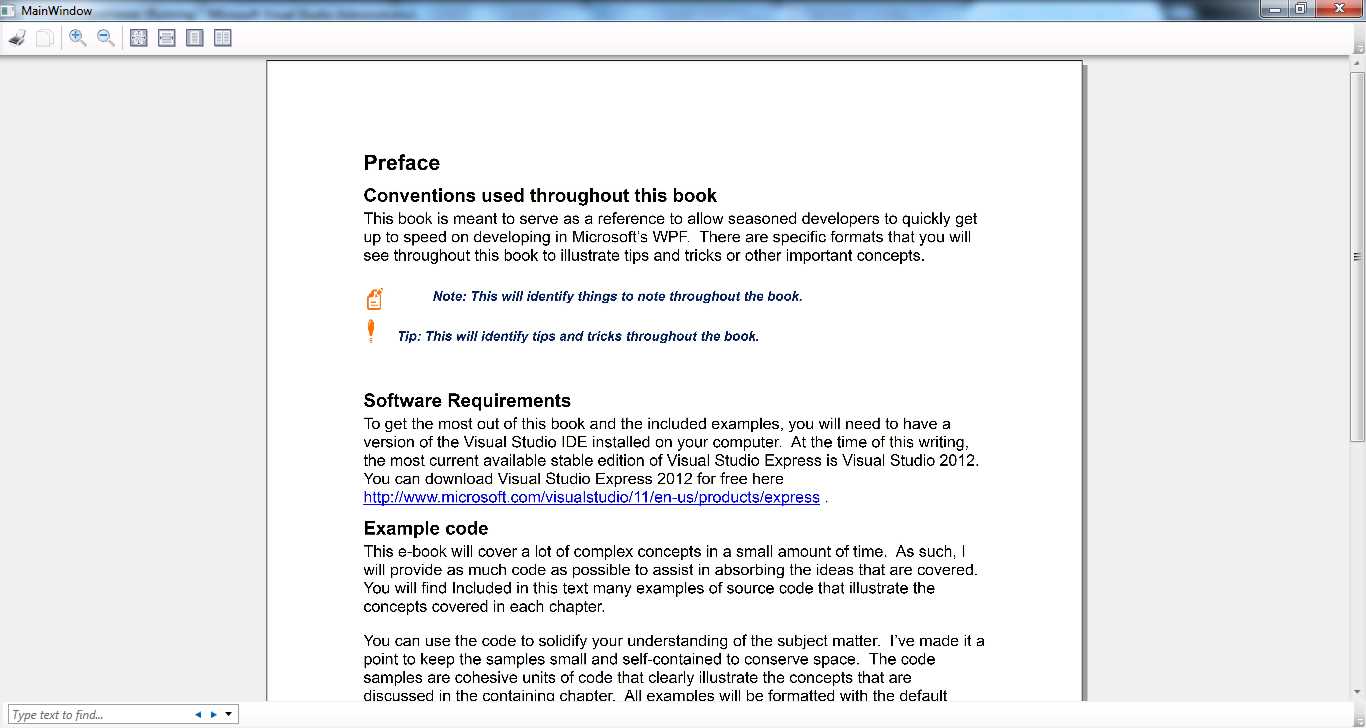
- Rendered Fixed Document
Flow documents
The other type of WPF document is called a flow document. A WPF flow document is created by combining different flow elements within a container. FlowElements are unique in that they don't inherit from the UIElement and FrameworkElement classes. Instead, they represent a completely separate branch of classes that derive from ContentElement and FrameworkContentElement.
Content element classes are scaled down in comparison to other UIElements. They have events for handling many of the same basic features like mouse and keyboard events and drag-and-drop operations. The main difference between content and non-content elements is that content elements do not handle their own rendering. They rely on the container in which they are placed to render them. This allows the container to defer rendering to perform some last-minute optimizations, such as paragraph layout and hyphenating words.
Flow documents can be resized and their container will handle the rendering to make sure that the FlowElements are rendered as you expect in reference to their container's size and position.
The following is a list of the flow content elements used to lay out your flow document:
|
|
One of the flow document containers is the FlowDocumentScrollViewer. As the name suggests, this container allows your content to be scrolled. A flow document can be laid out much like an HTML document. There are even table-related classes for showing tabular data. Here is an example of a table-based flow document.
MainWindow.xaml
<Window x:Class="FlowDocument.MainWindow" xmlns="http://schemas.microsoft.com/winfx/2006/xaml/presentation" xmlns:x="http://schemas.microsoft.com/winfx/2006/xaml" Title="MainWindow" Height="350" Width="525"> <FlowDocumentScrollViewer> <FlowDocument> <Paragraph FontSize="20pt">Here is an example of a flow document paragraph.</Paragraph> <Table> <TableRowGroup> <TableRow> <TableCell> <Paragraph> Cell one </Paragraph> </TableCell> <TableCell> <Paragraph> Cell Two </Paragraph> </TableCell> <TableCell> <Paragraph> Cell Three </Paragraph> </TableCell> <TableCell> <Paragraph> Cell Four </Paragraph> </TableCell> </TableRow> <TableRow> <TableCell> <Paragraph> Data one </Paragraph> </TableCell> <TableCell> <Paragraph> Data Two </Paragraph> </TableCell> <TableCell> <Paragraph> Data Three </Paragraph> </TableCell> <TableCell> <Paragraph> Data Four </Paragraph> </TableCell> </TableRow> </TableRowGroup> </Table> </FlowDocument> </FlowDocumentScrollViewer> </Window> |
The following screenshots show the application's output; they represent the same output with the window size changed.

- Rendered Flow Document
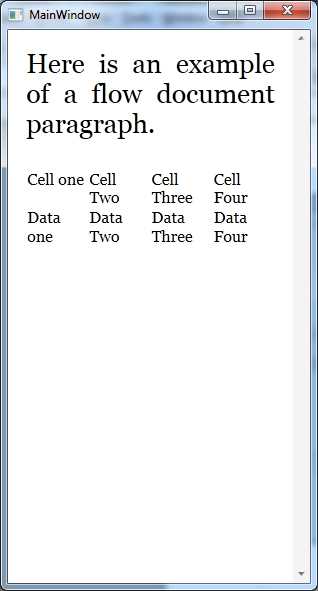
- Rendered Flow Document Resized


- 100+ essential WPF UI controls like DataGrid, Charts, and Diagram.
- 10+ built-in themes, plus Theme Studio app for designing custom themes.
- Powerful document processing libraries for Excel, PDF, Word, and PowerPoint file formats.