
Developing Windows Services Succinctly®

CHAPTER 2
The Windows Event Log
Windows Services have no interaction with the user, so it doesn’t have an interface. Whatever output is needed to be produced is typically written to some sort of log, such as a database. One good place to log to is the Windows Event Log.
The Windows Event Log is a record of a computer's alerts and notifications. Microsoft defines an event as "any significant occurrence in the system or in a program that requires users to be notified or an entry added to a log."
The Windows operating system classifies events by type. For example, an information event describes the successful completion of a task, such as installing an application. A warning event notifies the administrator of a potential problem, such as low disk space. An error message describes a significant problem that may result in a loss of functionality. A success audit event indicates the completion of an audited security event, such as an end user successfully logging on. A failure audit event describes an audited security event that did not complete successfully, such as an end user locking himself out by entering incorrect passwords.
Each event in a log entry contains the following information:
- Date: The date the event occurred
- Time: The time the event occurred
- User: The name of the user who was logged on when the event occurred
- Computer: The name of the computer
- Event ID: A Windows identification number that specifies the event type
- Source: The program or component that caused the event
- Type: The type of event (information, warning, error, security success audit, or security failure audit)
The Windows Event Viewer
The Windows Event Viewer is a tool that displays detailed information about significant events (for example, programs that don't start as expected or updates that are downloaded automatically). The Windows Event Viewer can be helpful when troubleshooting problems and errors with Windows and other programs, such as Windows Services. The Windows Event Viewer can be found in the Administrative Tools section of the Control Panel.
Entries in the Windows Event Log can be viewed through Windows Event Viewer. This can be used to debug service code. In fact, this is the only way to do this, since a Windows Service has no user interface. The Windows Event Viewer’s main window is shown in the following figure.
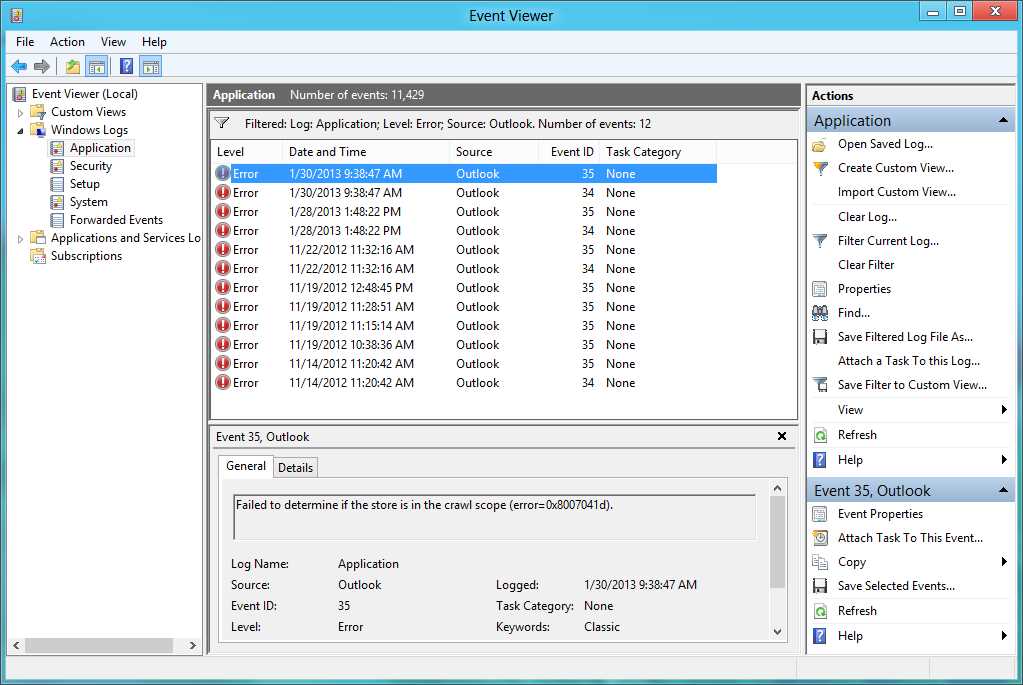
- Windows Event Viewer
Bounding the service to the Windows Event Log
The service needs to be bounded to the Windows Event Log in order to write entries in it. To accomplish that, the following code needs to be placed in the OnStart method.
Code Sample 5
if (!System.Diagnostics.EventLog.SourceExists("MonitorService")) System.Diagnostics.EventLog.CreateEventSource("MonitorService", "Application"); |
As shown, the service first inquires the Event Log asking if an event source for MonitorService has been created previously. If not, the event source is created with the CreateEventSource method specifying that every log sent by the service will be written in the Application type log.
Now, the code for the OnStart method looks like this:
Code Sample 6
protected override void OnStart(string[] args) { if (!System.Diagnostics.EventLog.SourceExists("MonitorService")) System.Diagnostics.EventLog.CreateEventSource("MonitorService", "Application");
this.serviceTimer = new System.Timers.Timer(300); this.serviceTimer.AutoReset = true; this.serviceTimer.Elapsed += new System.Timers.ElapsedEventHandler(this.timer_Elapsed); this.serviceTimer.Start(); } |
Writing events to the Windows Event Log
The service needs to write into the Windows Event Log in order to communicate with users. To simplify the code, a method to log events will be written in class definition code. This method will receive two parameters: a string containing the message that will be written into the log, and another one that will indicate the type of event that’s being saved.
Event types
As previously mentioned, the Windows Event Log allows you to specify what type of event is being saved. The EventLogEntryType enumeration will be used to that purpose.
The types allowed are the following:
- Information
- Warning
- Error
- Security success audit (SucessAudit): This type of event occurs when a user successfully logged on to a network or a computer.
- Security failure audit (FailureAudit): This type of event occurs when a user fails to log on to a network or a computer.
The LogEvent method
The code for this method is shown in the following sample.
Code Sample 7
private void LogEvent(string message, EventLogEntryType entryType) { System.Diagnostics.EventLog eventLog = new System.Diagnostics.EventLog();
eventLog = new System.Diagnostics.EventLog(); eventLog.Source = "MonitorService"; eventLog.Log = "Application"; eventLog.WriteEntry(message, entryType);
} |
As previously shown, every time the method is executed, it creates an EventLog instance. To perform log entry writing, the Source and Log properties need to store the event source and the log section in which the entry will be written. For this case, MonitorService will be the source of the entry and Application the log section. Once the values are stored in their respective properties, the WriteEntry method writes the entry in the Windows Event Log.
How class definition code looks so far
At this point, the code for service class definition looks like this:
Code Sample 8
public partial class monitorservice : ServiceBase { private System.Timers.Timer serviceTimer = null;
public monitorservice() { InitializeComponent(); }
protected override void OnStart(string[] args) { if (!System.Diagnostics.EventLog.SourceExists("MonitorService")) System.Diagnostics.EventLog.CreateEventSource("MonitorService", "Application");
this.LogEvent(String.Format("MonitorService starts on {0} {1}", System.DateTime.Now.ToString("dd-MMM-yyyy"), DateTime.Now.ToString("hh:mm:ss tt")), EventLogEntryType.Information);
this.serviceTimer = new System.Timers.Timer(300); this.serviceTimer.AutoReset = true; this.serviceTimer.Elapsed += new System.Timers.ElapsedEventHandler(this.timer_Elapsed); this.serviceTimer.Start(); }
private void timer_Elapsed(object sender, System.Timers.ElapsedEventArgs e) {
}
protected override void OnStop() { this.serviceTimer.Stop(); this.serviceTimer.Dispose(); this.serviceTimer = null;
this.LogEvent(String.Format("MonitorService stops on {0} {1}", System.DateTime.Now.ToString("dd-MMM-yyyy"), DateTime.Now.ToString("hh:mm:ss tt")), EventLogEntryType.Information);
}
private void LogEvent(string message, EventLogEntryType entryType) { System.Diagnostics.EventLog eventLog = new System.Diagnostics.EventLog();
eventLog = new System.Diagnostics.EventLog(); eventLog.Source = "MonitorService"; eventLog.Log = "Application"; eventLog.WriteEntry(message, entryType);
}
} |
Notice that the OnStart and OnStop methods write to the Windows Event Log, notifying the date and time when each of them were fired. In this case, it’s been considered an Information log entry type for both of them.
Tip: Log entry type should be used every time a program writes to the Windows Event Log, in order to clarify the reason the program is writing.
Chapter summary
The Windows Event Log is a record of a computer's alerts and notifications. An event can be defined as "any significant occurrence in the system or in a program that requires users to be notified or an entry added to a log." The Windows operating system classifies events by type. An information event describes the successful completion of a task; a warning event notifies the administrator of a potential problem; an error message describes a significant problem that may result in a loss of functionality; a success audit event indicates the completion of an audited security event, such as an end user successfully logging on; and a failure audit event describes an audited security event that did not complete successfully, such as an end user locking himself out by entering incorrect passwords.
Entries written in the Windows Event Log can be viewed through the Windows Event Viewer, which can be found in the Administrative Tools section of Control Panel. The Windows Event Viewer is a tool that displays detailed information about significant events (for example, programs that don't start as expected or updates that are downloaded automatically) on the computer, and can be helpful when troubleshooting problems and errors with Windows and other programs, such as Windows Services.
Since a Windows Service has no interface, writing entries in the Windows Event Log is a preferred way to communicate with users. In order to write these entries, the service needs to be bounded to the Windows Event Log. This can be accomplished using the CreateEventSource() method of the System.Diagnostics.EventLog namespace.
It’s suggested to write a separate method to deal with entries writing activity. The EventLogEntryType enumeration must be used in order to clarify why each entry was written by the program.


- 1800+ high-performance UI components.
- Includes popular controls such as Grid, Chart, Scheduler, and more.
- 24x5 unlimited support by developers.