
Developing Windows Services Succinctly®

CHAPTER 6
Creating a User Interface to Configure the Service
Overview
Throughout this book it has been stated that a Windows Service has no interface, and that a configuration file is the proper way to control the behavior of a service. Usually, this configuration file can be written in a text editor and saved to disk, but it looks more professional if a program with a user interface is built for this purpose. Many known services (such as Filezilla FTP Server) make these programs available to the user, in order to create or modify its own configuration files in an intuitive and easy way.
This chapter is intended to build a Windows Forms program named MonitorServiceGUI, which will deal with creating and editing the configuration file needed by the service that was built previously.
Creating the solution in Visual Studio
The first step is to create a Windows Forms project named MonitorServiceGUI using Visual Studio. The programming language to use will be C# and the target framework will be .NET 4.

- Figure 11: MonitorServiceGUI project dialog
When Visual Studio ends project creation, two files named Form1.cs and Program.cs can be found in the Solution Explorer’s tree. For clarity, these files will be renamed to mainform.cs and mainprogram.cs, respectively. Now, the Solution Explorer will look like the following figure.

- Figure 12: Solution Explorer for MonitorServiceGUI project
The mainprogram.cs file contains the application’s entry point, which is handled by a static class named mainprogram. This class has one method named Main, which sets the application environment, creates an instance of the mainform class (defined in mainform.cs), and shows it on the screen. It can be seen in the following code sample.
Code Sample 25
using System; using System.Collections.Generic; using System.Linq; using System.Windows.Forms;
namespace monitorservicegui { static class mainprogram { /// <summary> /// The main entry point for the application. /// </summary> [STAThread] static void Main() { Application.EnableVisualStyles(); Application.SetCompatibleTextRenderingDefault(false); Application.Run(new mainform()); } } } |
The mainform will be the only form in the project. This will contain all GUI elements in order to set up the service behavior parameters, and will deal with creation of the configuration file needed for the service to run.
Setting up the project’s main form
The main form needs only a few graphic elements to accomplish its purpose. These elements are:
- A combo box to select the day of the week in which the backup will be done. The DropDownStyle property for this element must be set to DropDownList. Using the Designer, the item list will be filled with the names of all week days. The first name for this list will be Every day.
- A label placed to the left of the combo box, with the legend Day of Week
- A masked text box to enter the hour in which the backup will be done
- A label placed to the left of the masked text box, with the legend Hour
- A textbox to enter the path in which the files to be backed up are
- A label placed to the left of the previous textbox, with the legend Source Path
- A textbox to enter the path in which the zipped backup will be stored
- A label placed to the left of the previous textbox, with the legend Destination Path
- A Save button to store the parameters in an XML file
- A Cancel button to close the form and ignore the changes that could be made
Besides the elements mentioned previously, the following properties need to be set to finish the mainform design:
- Text – This property will be set to “Backup Service Interface.”
- FormBorderStyle – This property will be set to FixedSingle.
- MaximizeBox – This property will bet set to False.
- CancelButton – This property will be set to the Cancel button graphic element mentioned previously.
When all graphic elements are placed in the form, and the values for the properties mentioned previously are set, the Designer View for the mainform will look like the following figure.
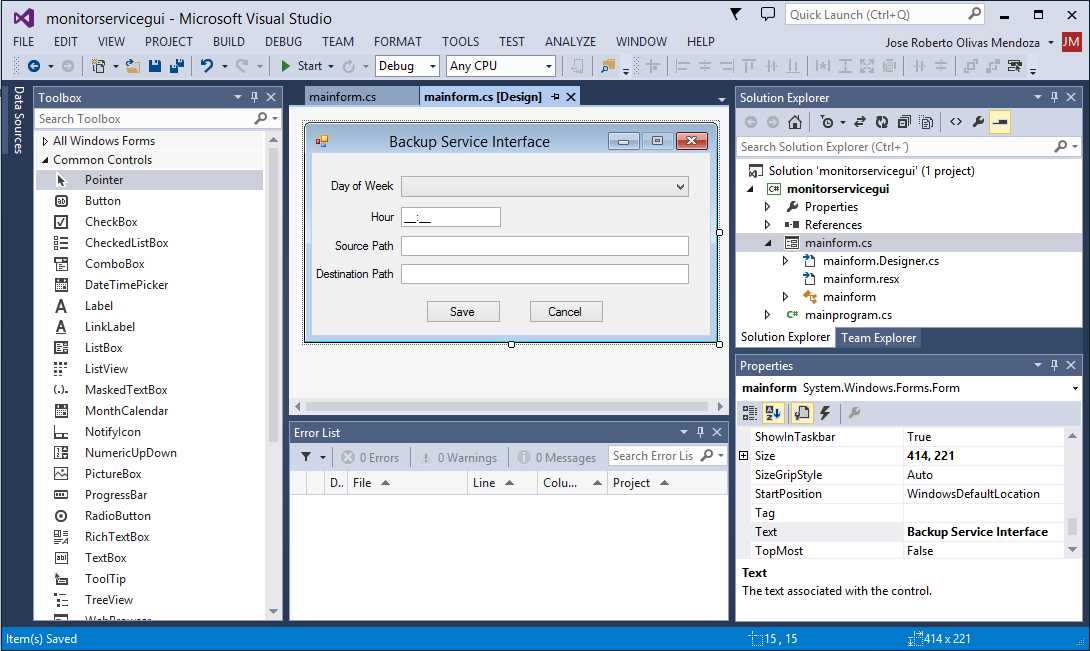
- Mainform.cs Designer View
Looking for a previous XML parameters file
The first thing that must be done is to check if a XML parameters file already exists. If it does, all values stored in the file need to be passed to the graphic elements in the form, in order to show them to the user. If the file doesn’t exist, the program must pass a set of initial values to the graphics elements in the form and show them. To do this, we’ll use the Load event of mainform, as shown in the following code sample.
Code Sample 26
using System; using System.Collections.Generic; using System.ComponentModel; using System.Data; using System.Drawing; using System.IO; using System.Linq; using System.Text; using System.Windows.Forms; using System.Xml;
namespace monitorservicegui { public partial class mainform : Form { string HomeDir = Path.GetDirectoryName(Application.ExecutablePath).Trim(); public mainform() { InitializeComponent(); }
private void mainform_Load(object sender, EventArgs e) { if (!this.check_parameters()) { this.comboBox1.SelectedIndex = 0; this.comboBox1.Refresh(); this.maskedTextBox1.Text = "00:00"; this.maskedTextBox1.Refresh(); this.textBox1.Text = ""; this.textBox1.Refresh(); this.textBox2.Text = ""; this.textBox2.Refresh(); } }
private Boolean check_parameters() { Boolean result = default(Boolean);
if (!System.IO.Directory.Exists(this.HomeDir + "\\parameters")) { System.IO.Directory.CreateDirectory(this.HomeDir + "\\parameters"); result = false; } else { if (System.IO.File.Exists(this.HomeDir + "\\parameters\\srvparams.xml")) { result = true; XmlDocument parametersdoc = new XmlDocument();
try { parametersdoc.Load(this.HomeDir + "\\parameters\\srvparams.xml"); } catch { result = false;
}
if (result) { XmlNode BackupParameters = parametersdoc.ChildNodes.Item(1).ChildNodes.Item(0); this.textBox1.Text = BackupParameters.Attributes.GetNamedItem("source").Value.Trim(); this.textBox1.Refresh(); this.textBox2.Text = BackupParameters.Attributes.GetNamedItem("destination").Value.Trim(); this.textBox2.Refresh(); this.comboBox1.SelectedIndex = Convert.ToInt32(BackupParameters.Attributes.GetNamedItem("dayofweek").Value.Trim()); this.comboBox1.Refresh(); this.maskedTextBox1.Text = BackupParameters.Attributes.GetNamedItem("hour").Value.Trim(); this.maskedTextBox1.Refresh(); }
parametersdoc = null; } else { result = false; } }
return (result); }
} } |
A separate method called check_parameters() is created with the purpose of inquiring the existence of the XML file. If the file exists, the method uses the XmlDocument object in order to parse the file and get all parameter values. Then, these values are passed to their corresponding graphic elements in the form. A value of true is returned in order to indicate that the file was found and all the parameters were properly loaded. Else, if the XML file is not found or can’t be parsed, a value of false is returned to indicate that the parameter values were not available.
The Load event checks for the value returned from the check_parameters() method. If a value of false is returned, all graphic elements are filled with initial values and refreshed to show these values to the user.
Dealing with data entry
At this point, the user interface for the backup service checks for XML file existence and loads the parameter values if this file is present.
Now, it’s time to control data entry to prevent storage of wrong values in the XML file that can cause the service malfunction. The following tasks must be performed:
- Avoid time values out of 00:00 to 23:59 range.
- Verify the existence of the source and destination path.
The value of DayofWeek is controlled by the combobox automatically, because the SelectedIndex property value will be between 0 and 7, depending on which day is selected by the user, including the Every day option.
Validating time values
For time values validation, you’ll use the TypeValidationCompleted event of the maskedTextbox control. The following code sample shows how this is accomplished.
Code Sample 27
private void maskedTextBox1_TypeValidationCompleted(object sender, TypeValidationEventArgs e) { if (!e.IsValidInput) { e.Cancel = true; } } |
The method checks for the value of the IsValidInput property that belongs to the TypeValidationEventArgs parameter passed. If this value is false, the Cancel property of the parameter is set to true. This avoids passing the focus to another control, including the Cancel button and the Close button, in the form.
Checking existence of source and destination paths
Source and destination paths must exist in the disk in order to ensure the service will work. The design of mainform has two textboxes in which these paths can be entered. To validate the existence of these folders, the Validating event for both paths will be used, as in the following code snippet.
Code Sample 28
private void textBox1_Validating(object sender, CancelEventArgs e) { if (this.textBox1.Text.Trim().Length == 0) { e.Cancel = true; } else { if (!System.IO.Directory.Exists(this.textBox1.Text.Trim())) { MessageBox.Show("The Source Path entered doesn't exist.", "Backup Service Interface"); e.Cancel = true; } } }
private void textBox2_Validating(object sender, CancelEventArgs e) { if (this.textBox2.Text.Trim().Length == 0) { e.Cancel = true; } else { if (!System.IO.Directory.Exists(this.textBox2.Text.Trim())) { MessageBox.Show("The Destination Path entered doesn't exist.", "Backup Service Interface"); e.Cancel = true; } }
} |
For both methods, if there’s no input in the textbox, the method stores true in the Cancel property of the CancelEventArgs parameter. This prevents the textbox from losing the focus, and the cursor remains in it. Else, the method checks if the entry in the textbox corresponds to a valid path in the system. If the path doesn’t exist, the method shows an error message dialog and sets the Cancel property of the CancelEventArgs parameter to the value of true, in order to make sure the cursor remains in the textbox.
Saving the parameters in the XML file
Once all the parameters values are entered, the last step is to store these values in the XML file that the service will use to work properly. The following task list needs to be completed to succeed:
- Create an XmlDocument object with the proper attributes to hold the parameters’ values.
- Use the Save method of the XmlDocument to store the file.
- Tell the service that the parameters were changed, in order to make the service change its behavior.
Using the XmlDocument object
A method called Save_Parameters will be created to perform the XML file creation. This method will be called from the Click event of the Save button, as seen in the following code sample.
Code Sample 29
private void button1_Click(object sender, EventArgs e) { this.Save_Parameters(); }
private void Save_Parameters() { XmlDocument oparamsxml = new XmlDocument();
XmlProcessingInstruction _xml_header = oparamsxml.CreateProcessingInstruction("xml", "version='1.0' encoding='UTF-8'");
oparamsxml.InsertBefore(_xml_header, oparamsxml.ChildNodes.Item(0));
XmlNode parameters = oparamsxml.CreateNode(XmlNodeType.Element, "Parameters", ""); XmlNode backup = oparamsxml.CreateNode(XmlNodeType.Element, "Backup", "");
XmlAttribute attribute = oparamsxml.CreateAttribute("source"); attribute.Value = this.textBox1.Text.Trim(); backup.Attributes.Append(attribute);
attribute = oparamsxml.CreateAttribute("destination"); attribute.Value = this.textBox2.Text.Trim(); backup.Attributes.Append(attribute);
attribute = oparamsxml.CreateAttribute("dayofweek"); attribute.Value = this.comboBox1.SelectedIndex.ToString("00"); backup.Attributes.Append(attribute);
attribute = oparamsxml.CreateAttribute("hour"); attribute.Value = this.maskedTextBox1.Text.Trim(); backup.Attributes.Append(attribute);
parameters.AppendChild(backup); oparamsxml.AppendChild(parameters);
if (!Directory.Exists(this.HomeDir + "\\parameters")) { Directory.CreateDirectory(this.HomeDir + "\\parameters"); }
oparamsxml.Save(this.HomeDir + "\\parameters\\srvparams.xml"); } |
First, the method creates an XmlDocument object and the Parameters root node. Then, the Backup child node is created along with all its attributes. Each attribute corresponds to a parameter needed for the service to work, and its proper value is taken from the graphics elements placed in the form for that purpose.
At the end, the Save method of the XmlDocument object stores the file in the disk.
Notifying the service that the parameters were changed
The action of saving the parameters in the disk means that the service behavior needs to change. To notify the service, the program needs to perform the following tasks:
- Check to see if the service is installed in the target system.
- Stop the execution of the service.
- Start the execution of the service in order to make it load the new parameters.
A method named Notify_Changes will be created to execute the previous tasks, and will be called from the Click event of the Save button, just after the calling of the Save_Parameters method discussed in the previous section. Now, the code will look like the following.
Code Sample 30
private void button1_Click(object sender, EventArgs e) { this.Save_Parameters(); this.Notify_Changes(); this.Close(); }
private void Save_Parameters() { XmlDocument oparamsxml = new XmlDocument();
XmlProcessingInstruction _xml_header = oparamsxml.CreateProcessingInstruction("xml", "version='1.0' encoding='UTF-8'");
oparamsxml.InsertBefore(_xml_header, oparamsxml.ChildNodes.Item(0));
XmlNode parameters = oparamsxml.CreateNode(XmlNodeType.Element, "Parameters", ""); XmlNode backup = oparamsxml.CreateNode(XmlNodeType.Element, "Backup", "");
XmlAttribute attribute = oparamsxml.CreateAttribute("source"); attribute.Value = this.textBox1.Text.Trim(); backup.Attributes.Append(attribute);
attribute = oparamsxml.CreateAttribute("destination"); attribute.Value = this.textBox2.Text.Trim(); backup.Attributes.Append(attribute);
attribute = oparamsxml.CreateAttribute("dayofweek"); attribute.Value = this.comboBox1.SelectedIndex.ToString("00"); backup.Attributes.Append(attribute);
attribute = oparamsxml.CreateAttribute("hour"); attribute.Value = this.maskedTextBox1.Text.Trim(); backup.Attributes.Append(attribute);
parameters.AppendChild(backup); oparamsxml.AppendChild(parameters);
if (!Directory.Exists(this.HomeDir + "\\parameters")) { Directory.CreateDirectory(this.HomeDir + "\\parameters"); }
oparamsxml.Save(this.HomeDir + "\\parameters\\srvparams.xml"); }
private void Notify_Changes() {
ServiceController controller = ServiceController.GetServices().FirstOrDefault(s => s.ServiceName == "MonitorService");
if (controller!=null) //The service is installed { if (controller.Status == ServiceControllerStatus.Running) //The service is running, so it needs to be stopped and started again to reload the parameters { controller.Stop(); //Stops the service controller.WaitForStatus(ServiceControllerStatus.Stopped); //Waits until the service is really stopped controller.Start(); //Starts the service and reload the parameters } }
} |
The ServiceController class
A ServiceController component allows us to access and manage Windows Services running on a machine. The ServiceController class can be used to connect to and control the behavior of existing services. When an instance of the ServiceController class is created, its properties can be set to interact with a specific Windows service. The class can be used to start, stop, and otherwise manipulate the service.
After an instance of ServiceController is created, two properties must be set within it to identify the service with which it interacts: the computer name, and the name of the service you want to control.
Note: By default, MachineName is set to the local computer, so you don’t need to change it unless you want to set the instance to point to another computer.
Adding a System.ServiceProcess Reference
A ServiceController represents a Windows Service and is defined in the System.ServiceProcess namespace. Before this namespace can be imported, you must add a reference to the System.ServiceProcess assembly.
To add a reference to an assembly, right-click on the project name in Visual Studio and select Add Reference, and then browse the assembly you need to add to your application.

- Add Reference dialog with the System.ServiceProcess assembly
What does Notify_Changes code do?
The ServiceController.GetServices static method returns the list of all services running on the computer. Along with this method, the Enumerable.FirstOrDefault associated method is used to scan the entire list, seeking a service named MonitorService. If the name is not found, FirstOrDefault returns a null value; otherwise, it returns an instance of a ServiceController object associated to the MonitorService.
If an instance associated to the MonitorService is returned, the program inquires for the value stored in the Status property of the instance. The possible values that can be stored in the property are:
- ServiceControllerStatus.ContinuePending – The service continue is pending. This corresponds to the Win32 SERVICE_CONTINUE_PENDING constant, which is defined as 0x00000005.
- ServiceControllerStatus.Paused – The service is paused. This corresponds to the Win32 SERVICE_PAUSED constant, which is defined as 0x00000007.
- ServiceControllerStatus.PausePending – The service pause is pending. This corresponds to the Win32 SERVICE_PAUSE_PENDING constant, which is defined as 0x00000006.
- ServiceControllerStatus.Running – The service is running. This corresponds to the Win32 SERVICE_RUNNING constant, which is defined as 0x00000004.
- ServiceControllerStatus.StartPending – The service is starting. This corresponds to the Win32 SERVICE_START_PENDING constant, which is defined as 0x00000002.
- ServiceControllerStatus.Stopped – The service is not running. This corresponds to the Win32 SERVICE_STOPPED constant, which is defined as 0x00000001.
- ServiceControllerStatus.StopPending – The service is stopping. This corresponds to the Win32 SERVICE_STOP_PENDING constant, which is defined as 0x00000003.
In this case, the method needs to perform actions only if the value of Status is ServiceControllerStatus.Running. This means that the service is currently running in the computer and needs to be stopped in order to reload the parameters. The Stop method is used to perform this action.
Ensuring that the service is really stopped
To start the service execution again, the program needs to be sure that it is really stopped. The time consumed by the service to stop depends on how many dependencies it has. The WaitForStatus method is used to delay program execution until the service reaches the Stopped status. Now, the program is sure that the service is not running.
Reloading service parameters
Since the parameters file is read every time the service starts its execution, once the service is stopped, the program executes the Start method of the ServiceController instance. This action causes the parameters to be reloaded from the XML file.
The mainform.cs entire code
Now, the mainform.cs code looks like the following sample.
Code Sample 31
using System; using System.Collections.Generic; using System.ComponentModel; using System.Data; using System.Drawing; using System.IO; using System.Linq; using System.Text; using System.Windows.Forms; using System.ServiceProcess; using System.Xml;
namespace monitorservicegui { public partial class mainform : Form { string HomeDir = Path.GetDirectoryName(Application.ExecutablePath).Trim(); public mainform() { InitializeComponent(); }
private void mainform_Load(object sender, EventArgs e) { if (!this.check_parameters()) { this.comboBox1.SelectedIndex = 0; this.comboBox1.Refresh(); this.maskedTextBox1.Text = "00:00"; this.maskedTextBox1.Refresh(); this.textBox1.Text = ""; this.textBox1.Refresh(); this.textBox2.Text = ""; this.textBox2.Refresh(); } }
private Boolean check_parameters() { Boolean result = default(Boolean);
if (!System.IO.Directory.Exists(this.HomeDir + "\\parameters")) { System.IO.Directory.CreateDirectory(this.HomeDir + "\\parameters"); result = false; } else { if (System.IO.File.Exists(this.HomeDir + "\\parameters\\srvparams.xml")) { result = true; XmlDocument parametersdoc = new XmlDocument();
try { parametersdoc.Load(this.HomeDir + "\\parameters\\srvparams.xml"); } catch { result = false;
}
if (result) { XmlNode BackupParameters = parametersdoc.ChildNodes.Item(1).ChildNodes.Item(0); this.textBox1.Text = BackupParameters.Attributes.GetNamedItem("source").Value.Trim(); this.textBox1.Refresh(); this.textBox2.Text = BackupParameters.Attributes.GetNamedItem("destination").Value.Trim(); this.textBox2.Refresh(); this.comboBox1.SelectedIndex = Convert.ToInt32(BackupParameters.Attributes.GetNamedItem("dayofweek").Value.Trim()); this.comboBox1.Refresh(); this.maskedTextBox1.Text = BackupParameters.Attributes.GetNamedItem("hour").Value.Trim(); this.maskedTextBox1.Refresh(); }
parametersdoc = null; } else { result = false; } }
return (result); }
private void button2_Click(object sender, EventArgs e) { this.Close(); }
private void maskedTextBox1_TypeValidationCompleted(object sender, TypeValidationEventArgs e) { if (!e.IsValidInput) { e.Cancel = true; } }
private void textBox1_Validating(object sender, CancelEventArgs e) { if (this.textBox1.Text.Trim().Length == 0) { e.Cancel = true; } else { if (!System.IO.Directory.Exists(this.textBox1.Text.Trim())) { MessageBox.Show("The Source Path entered doesn't exist.", "Backup Service Interface"); e.Cancel = true; } } }
private void textBox2_Validating(object sender, CancelEventArgs e) { if (this.textBox2.Text.Trim().Length == 0) { e.Cancel = true; } else { if (!System.IO.Directory.Exists(this.textBox2.Text.Trim())) { MessageBox.Show("The Destination Path entered doesn't exist.", "Backup Service Interface"); e.Cancel = true; } }
}
private void button1_Click(object sender, EventArgs e) { this.Save_Parameters(); this.Notify_Changes(); this.Close(); }
private void Save_Parameters() { XmlDocument oparamsxml = new XmlDocument();
XmlProcessingInstruction _xml_header = oparamsxml.CreateProcessingInstruction("xml", "version='1.0' encoding='UTF-8'");
oparamsxml.InsertBefore(_xml_header, oparamsxml.ChildNodes.Item(0));
XmlNode parameters = oparamsxml.CreateNode(XmlNodeType.Element, "Parameters", ""); XmlNode backup = oparamsxml.CreateNode(XmlNodeType.Element, "Backup", "");
XmlAttribute attribute = oparamsxml.CreateAttribute("source"); attribute.Value = this.textBox1.Text.Trim(); backup.Attributes.Append(attribute);
attribute = oparamsxml.CreateAttribute("destination"); attribute.Value = this.textBox2.Text.Trim(); backup.Attributes.Append(attribute);
attribute = oparamsxml.CreateAttribute("dayofweek"); attribute.Value = this.comboBox1.SelectedIndex.ToString("00"); backup.Attributes.Append(attribute);
attribute = oparamsxml.CreateAttribute("hour"); attribute.Value = this.maskedTextBox1.Text.Trim(); backup.Attributes.Append(attribute);
parameters.AppendChild(backup); oparamsxml.AppendChild(parameters);
if (!Directory.Exists(this.HomeDir + "\\parameters")) { Directory.CreateDirectory(this.HomeDir + "\\parameters"); }
oparamsxml.Save(this.HomeDir + "\\parameters\\srvparams.xml"); }
private void Notify_Changes() {
ServiceController controller = ServiceController.GetServices().FirstOrDefault(s => s.ServiceName == "MonitorService");
if (controller!=null) //The service is installed { if (controller.Status == ServiceControllerStatus.Running) //The service is running, so it needs to be stopped and started again to reload the parameters { controller.Stop(); //Stops the service controller.WaitForStatus(ServiceControllerStatus.Stopped); //Waits until the service is really stopped controller.Start(); //Starts the service and reload the parameters } }
}
} } |
Now the project is ready to build the executable file. For a context where people are just reading and not necessarily following along in a code editor, the following screenshots show the finished program running.

- Backup Service Interface mainform filled with data

- Backup Service Interface mainform showing the list with all week and weekend days

- Backup Service Interface with a wrong Source Path entered
Deploying the user interface executable
At the end, the user interface project consists of only one executable file. It can be deployed along with the service executable distribution package, and must be copied in the same folder in which the service executable will be installed. The distribution package must include the following files:
- Installutil.exe (shipped with Visual Studio)
- Monitorservice.exe (the service executable file)
- Monitorservicegui.exe (the service user interface executable file)
- Ionic.Zip.dll (the library used for ZIP creation)
- The XML file with service execution parameters
- BAT installation file
- BAT uninstall file
Chapter summary
Since a Windows Service has no interface, a configuration file is the proper way to control its behavior. A text editor can be used to create or edit this file, but it’s more professional to provide a program with a user interface to handle the configuration file. Besides, this is an easier way to accomplish this task.
This chapter explained how to create a Windows Forms program, which will provide the user interface to the MonitorService discussed here. The program will have only one form, in which all the parameter values needed will be entered.
The program will write the parameter values in a XML file, which will be used by the service executable program. The program will be able to read the parameters values if the XML file previously exists in the computer.
Finally, the program will communicate with the service in order to notify it when the parameter values change. The ServiceController class will be used to accomplish this task. In order to use the ServiceController class, a reference to the System.ServiceProcess assembly needs to be added in the project.
The ServiceController class allows a program to communicate with and control any service installed in the computer. Using this class, a service can be stopped, paused, or started. The program can inquire for the existence of a specific service and if this service is currently running or stopped.
Once the executable file is created, it must be deployed with the service distribution package and copied into the folder in which the service will run in the target computer.


- 1800+ high-performance UI components.
- Includes popular controls such as Grid, Chart, Scheduler, and more.
- 24x5 unlimited support by developers.