
Developing Windows Services Succinctly®

CHAPTER 4
Backup Files Service
So far, all code pieces needed to build a Windows Service project have been seen. Now, the most important thing is to give a purpose to the service that will be created. In this case, a backup files service will be developed.
Defining requirements
As explained previously, the purpose of the service will be to back up a set of files. The requirements for this service are the following.
- The set of files to be backed up will be in a particular folder in the target computer.
- The backup process needs to be done out of working time.
- All files in the folder will be added to a zip file.
- The zip file will be copied to a specific folder in the target computer.
Task list
In order to fulfill the previous requirements list, the following tasks need to be accomplished:
- Create a configuration file that specifies the folder to be backed up, the backup file destination folder, and the date and time in which the backup process will be executed. The file will be in XML format.
- Create a method that will read the parameters stored in the configuration file and let them be visible for the entire service application.
- Create a separate class that will be in charge of the backup process.
- Execute the backup process every time the condition established in the parameter’s file is met.
For the purpose of this book, a Windows Service with specific function will be developed. In this case, a backup files service will be written using C# as a programming language, and it will make a compressed copy of a specific folder in the target system.
Creating the XML configuration file
As discussed previously, Windows Services has no user interaction capabilities. So, the only communication method available is using configuration files, whether these configuration files are written in a text editor or by using a desktop application built for that purpose.
The XML configuration file for Backup Files Windows Service will look like the following.
Code Sample 12
<?xml version="1.0" encoding="utf-8"?> <Parameters> <Backup source="C:\Documents" destination="D:\Backups"dayofweek="0" hour="04:40:00"/> </Parameters> |
The root node of XML is called Parameters, and is intended to hold any kind of action the service would need to perform. Each action that will be executed by the service is stored as a child node. In this case, Backup child node attributes stores all parameters for backing up files.
Backup node attributes
The attributes of the Backup node are the following:
- Source – The folder that contains the files to be backed up
- Destination – The folder that will store the zip backup file
- Dayofweek – The day of the week, starting with 1 for Sunday, in which the backup process will be executed; 0 (zero) means every day
- Hour – The time of the day for executing the backup process
Creating the method that will read the parameters
Once the XML parameters file is created, the service will need the ability to read it and store these parameters for using them later. A method with this purpose will be added to the service definition class. The code will look like the following sample.
Code Sample 13
private void check_parameters() { if (!System.IO.Directory.Exists(this.HomeDir + "\\parameters")) { System.IO.Directory.CreateDirectory(this.HomeDir + "\\parameters"); this.LogEvent(String.Format("MonitorService: parameters file folder was just been created"), EventLogEntryType.Information); this.IsReady = false; } else { if (System.IO.File.Exists(this.HomeDir + "\\parameters\\srvparams.xml")) { Boolean docparsed = true; XmlDocument parametersdoc = new XmlDocument();
try { parametersdoc.Load(this.HomeDir + "\\parameters\\srvparams.xml"); } catch (XmlException ex) { docparsed = false; this.IsReady = false; this.LogEvent(String.Format("Parameters file couldn't be read: {0}", ex.Message), EventLogEntryType.Error); }
if (docparsed) { XmlNode BackupParameters = parametersdoc.ChildNodes.Item(1).ChildNodes.Item(0); this.source_path = BackupParameters.Attributes.GetNamedItem("source").Value.Trim(); this.destination_path = BackupParameters.Attributes.GetNamedItem("destination").Value.Trim(); this.dayofweek = Convert.ToInt32(BackupParameters.Attributes.GetNamedItem("dayofweek").Value.Trim()); this.time = BackupParameters.Attributes.GetNamedItem("hour").Value.Trim(); this.IsReady = true; this.LogEvent(String.Format("Backup Service parameters were loaded"), EventLogEntryType.Information); }
parametersdoc = null; } else { this.LogEvent(String.Format("Backup Service parameters file doesn't exist"), EventLogEntryType.Error); this.IsReady = false; } } } |
A HomeDir property is added to the class definition, in order to store the folder name in which service application will be installed. Also, an IsReady property is added to tell the service if the working parameters have been loaded from the XML file.
The method checks to see if a folder named parameters exists in the HomeDir folder. If not, the System.IO.Directory.CreateDirectory method is used to create it, and an entry is written in the Windows Event Log. The value of the IsReady property is set to false so the service won’t execute the backup process, since there’s no working parameters loaded.
Otherwise, the method looks for a srvparams.xml file in the parameters folder in order to load the service working parameters. If the file doesn’t exist, the method just writes an entry in the Windows Event Log, and the IsReady property value is set to false. If the file does exist, the check_parameters() method tries to parse the content of the XML file. If parsing fails, an entry in the Windows Event Log is written and the IsReady property is also set to false. Otherwise, the working parameters are stored in their respective properties into the class definition and the IsReady property is set to true.
The check_parameters() method is called when service execution starts. This will occur when the OnStart event is triggered and its associated method is executed.
Now, the entire service class definition code looks like the following sample.
Code Sample 14
using System; using System.Collections.Generic; using System.ComponentModel; using System.Data; using System.Diagnostics; using System.Linq; using System.ServiceProcess; using System.Text; using System.Threading.Tasks; using System.Xml;
namespace monitorservice { public partial class monitorservice : ServiceBase { private System.Timers.Timer serviceTimer = null; private string HomeDir = (new System.IO.DirectoryInfo(System.AppDomain.CurrentDomain.BaseDirectory)).FullName.Trim(); private string source_path = ""; private string destination_path = ""; private int dayofweek = 0; private string time = "";
public monitorservice() { InitializeComponent(); }
protected override void OnStart(string[] args) { if (!System.Diagnostics.EventLog.SourceExists("MonitorService")) System.Diagnostics.EventLog.CreateEventSource("MonitorService", "Application");
this.LogEvent(String.Format("MonitorService starts on {0} {1}", System.DateTime.Now.ToString("dd-MMM-yyyy"), DateTime.Now.ToString("hh:mm:ss tt")), EventLogEntryType.Information);
this.check_parameters(); //Need to load service behavior parameters
this.serviceTimer = new System.Timers.Timer(300); this.serviceTimer.AutoReset = true; this.serviceTimer.Elapsed += new System.Timers.ElapsedEventHandler(this.timer_Elapsed); this.serviceTimer.Start(); }
private void timer_Elapsed(object sender, System.Timers.ElapsedEventArgs e) {
}
protected override void OnStop() { this.serviceTimer.Stop(); this.serviceTimer.Dispose(); this.serviceTimer = null;
this.LogEvent(String.Format("MonitorService stops on {0} {1}", System.DateTime.Now.ToString("dd-MMM-yyyy"), DateTime.Now.ToString("hh:mm:ss tt")), EventLogEntryType.Information);
}
private void LogEvent(string message, EventLogEntryType entryType) { System.Diagnostics.EventLog eventLog = new System.Diagnostics.EventLog();
eventLog = new System.Diagnostics.EventLog(); eventLog.Source = "MonitorService"; eventLog.Log = "Application"; eventLog.WriteEntry(message, entryType);
}
private void check_parameters() { if (!System.IO.Directory.Exists(this.HomeDir + "\\parameters")) { System.IO.Directory.CreateDirectory(this.HomeDir + "\\parameters"); this.LogEvent(String.Format("MonitorService: parameters file folder was just been created"), EventLogEntryType.Information); } else { if (System.IO.File.Exists(this.HomeDir + "\\parameters\\srvparams.xml")) { Boolean docparsed = true; XmlDocument parametersdoc = new XmlDocument();
try { parametersdoc.Load(this.HomeDir + "\\parameters\\srvparams.xml"); } catch (XmlException ex) { docparsed = false; this.LogEvent(String.Format("Parameters file couldn't be read: {0}", ex.Message), EventLogEntryType.Error); }
if (docparsed) { XmlNode BackupParameters = parametersdoc.ChildNodes.Item(1).ChildNodes.Item(0); this.source_path = BackupParameters.Attributes.GetNamedItem("source").Value.Trim(); this.destination_path = BackupParameters.Attributes.GetNamedItem("destination").Value.Trim(); this.dayofweek = Convert.ToInt32(BackupParameters.Attributes.GetNamedItem("dayofweek").Value.Trim()); this.time = BackupParameters.Attributes.GetNamedItem("hour").Value.Trim();
this.LogEvent(String.Format("Backup Service parameters were loaded"), EventLogEntryType.Information); }
parametersdoc = null; } else { this.LogEvent(String.Format("Backup Service parameters file doesn't exist"), EventLogEntryType.Error); } } }
} } |
Creating a class for the backup process
In order to keep project maintenance easy, the file backup process will be coded in a separate class definition. To accomplish this, a class type item needs to be added into project. Right-click on the project name node in the Solution Explorer tree, and click on the Class item of the Add sub-menu. This will bring up the Add New Item dialog box.
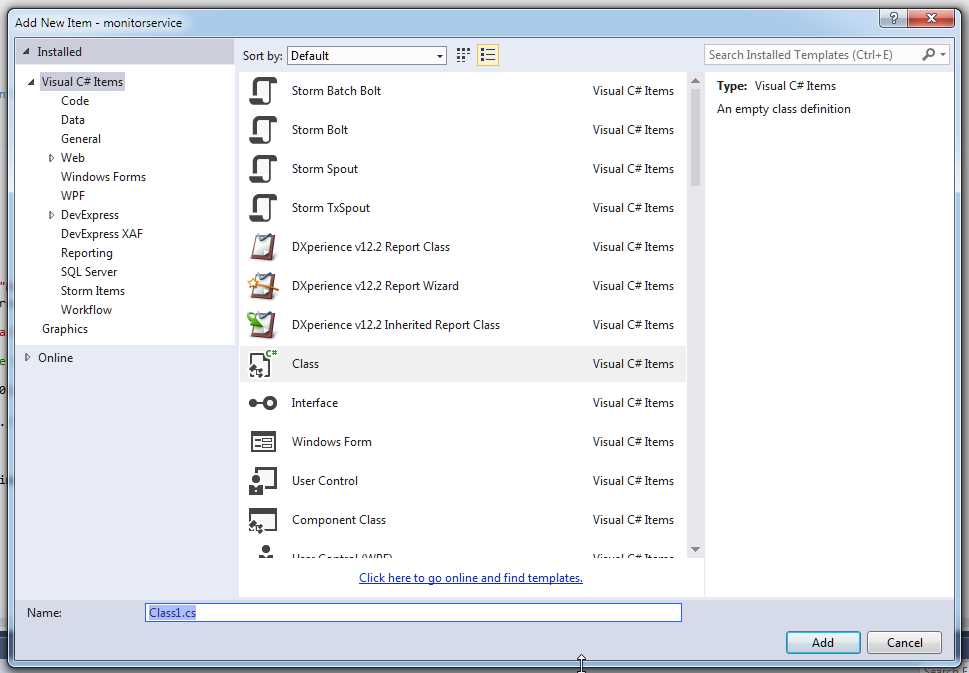
- Add New Item dialog
Type the class name on the proper textbox, and click Add to add the following code into the project.
Code Sample 15
using System; using System.Collections.Generic; using System.Linq; using System.Text; using System.Threading.Tasks;
namespace monitorservice { class backupfiles { } } |
The entire class will be written up on the baseline code added to the project. One thing that must be taken into account is that the requirements previously mentioned dictate that backup must be stored in a ZIP file. The Ionic.Zip library will be used for this purpose, and can be downloaded here. After downloading, the library files need to be copied into the project folder and added into the project References node.
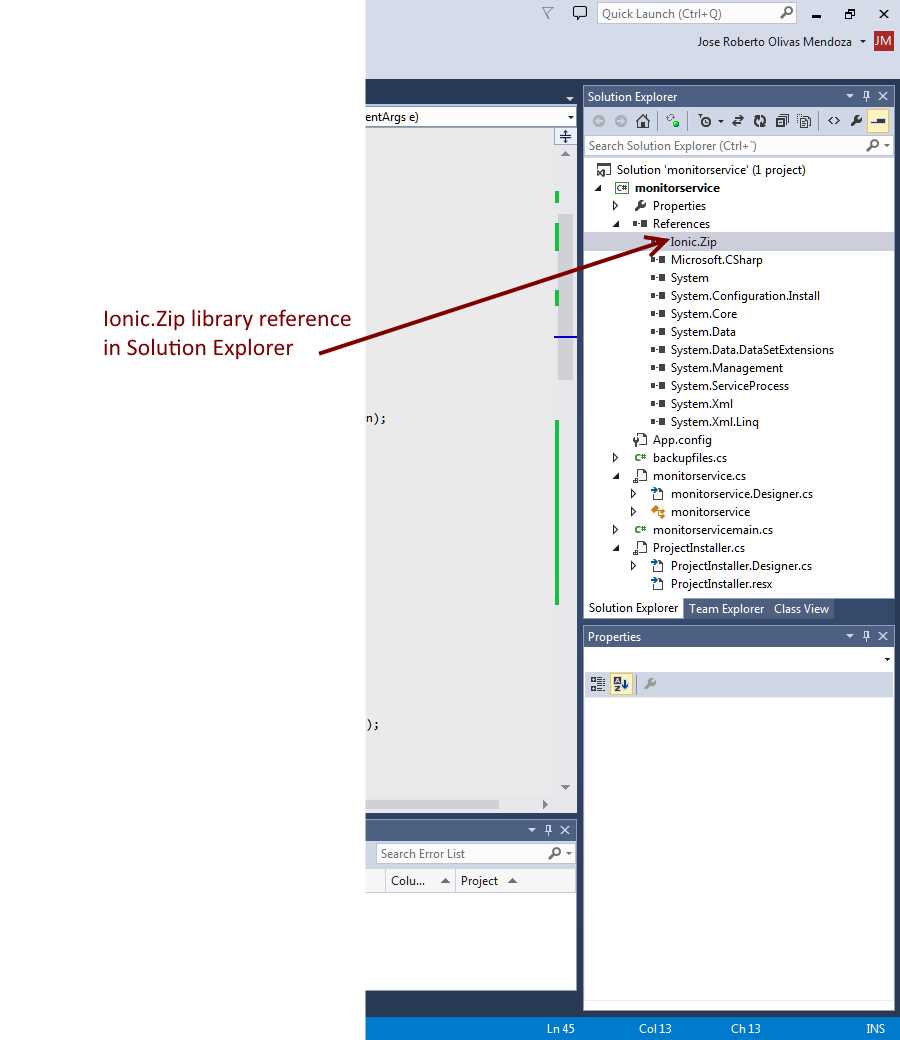
- Ionic.Zip library added to References node
The entire code for the backupfiles class is shown in the following snippet.
Code Sample 16
using Ionic.Zip; using System; using System.Collections.Generic; using System.IO; using System.Linq; using System.Text; using System.Threading.Tasks;
namespace monitorservice { public class backupfiles { public string source_path = ""; public string destination_path = ""; public string error_message = "";
public Boolean DoBackup() { Boolean result = default(Boolean);
string destFileName = this.destination_path + "\\backup_" + System.DateTime.Now.ToString("MMM-dd-yyyy") + "-" + System.DateTime.Now.ToString("hh:mm:ss").Replace(":","-")+".zip";
using (ZipFile zipFile = new ZipFile()) { string[] fileList = new string[1]; result = true;
this.error_message = "";
try { fileList = Directory.GetFiles(this.source_path + "\\"); } catch (Exception exception) { this.error_message = String.Format("MonitorService: Folder file list can't be read: {0}",exception.Message); result = false; } finally { if (result) { zipFile.Encryption = EncryptionAlgorithm.WinZipAes256; zipFile.AddProgress += (this.zipFile_AddProgress); zipFile.AddDirectory(this.source_path);
zipFile.Save(destFileName); }
} }
return (result); }
void zipFile_AddProgress(object sender, AddProgressEventArgs e) { switch (e.EventType) { case ZipProgressEventType.Adding_Started: break; case ZipProgressEventType.Adding_AfterAddEntry: break; case ZipProgressEventType.Adding_Completed: break; }
} } } |
This class has only two methods. The DoBackup() method performs the backup process and stores the files from the source folder in a compressed ZIP file. The zipFile_AddProgress() method is a delegate for the AddProgress event of the ZipFile class. This event is fired every time there is a change in compression work progress.
Executing the backup process
As previously described, the service definition class contains a Timer object, which is programmed to fire an Elapsed event every 300 milliseconds. Every time the Elapsed event is triggered, the method timer_Elapsed() is executed. So, the backup process will be executed within this method.
Checking that backup conditions are met
First, the timer_Elapsed() method needs to check to see if the backup weekday and time read from the XML configuration file match the current weekday and time at the moment when the method is executed. This can be done with the following code.
Code Sample 17
if (this.weekday != 0) //Need to know if current weekday matches parameter's weekday { if (((int)System.DateTime.Now.DayOfWeek) + 1 != this.weekday) { return; } }
if (System.TimeSpan.Parse(this.time) > DateTime.Now.TimeOfDay) //If current daytime is earlier than defined in parameters, the process is stoped { return; } |
The first thing the method does is to check if weekday parameter is zero. If it is, it means that the backup process must be performed every day. Otherwise, the method needs to check if the weekday parameter matches the current weekday. This is done by comparing weekday parameter value against System.DateTime.Now.DayOfWeek property value. Since the DayOfWeek property is zero-base indexed, it’s needed to add 1 before comparison, because the parameter established in the XML file is one-base indexed. If comparison gets true as a result, the execution continues. Otherwise, the method returns control to the calling process.
The next thing to do is to check if backup time parameter value matches current time value. The first thing the code does is to parse the time string parameter value, in order to transform it in a TimeSpan value. Then, compares the result against the TimeOfDay property of DateTime.Now, and if the values don’t match, the method returns control to the calling process. Otherwise, the method execution continues.
Running the backup process
If parameter conditions are met, the backup process is executed. The following code accomplishes this.
Code Sample 18
this.BackupEngine.source_path = this.source_path; this.BackupEngine.destination_path = this.destination_path; this.BackupEngine.DoBackup(); |
At this point, a BackupEngine property was added to the service class definition, in order to keep an instance of the backupfiles class available while the service is running. The values of source_path and destination_path service class properties are passed to the respective properties in the BackupEngine instance, and the DoBackup() method is executed to start the backup process.
An issue to be solved
The timer_Elapsed() method is executed every 300 milliseconds while the service is running, and this method performs the backup process if the parameter conditions are met. As mentioned, an instance of the backupfiles class is available along service lifetime. So, the first time that backup conditions are met, DoBackup() method is executed and the control returns outside the timer_Elapsed() method.
What will happen if, next time, the timer_Elapsed() method is executed and backup conditions are met? The DoBackup() method will be executed again, and if a previous backup is started, it’s likely that the service will crash. To avoid this situation, a property named IsBusy will be added to the backupfiles class in order to flag when the backup process is in progress. Now, the code for the backupfiles class will look like the following snippet.
Code Sample 19
using Ionic.Zip; using System; using System.Collections.Generic; using System.IO; using System.Linq; using System.Text; using System.Threading.Tasks;
namespace monitorservice { public class backupfiles { public string source_path = ""; public string destination_path = ""; public string error_message = ""; public Boolean IsBusy = false;
public Boolean DoBackup() { Boolean result = default(Boolean); this.IsBusy = false;
string destFileName = this.destination_path + "\\backup_" + System.DateTime.Now.ToString("MMM-dd-yyyy") + "-" + System.DateTime.Now.ToString("hh:mm:ss").Replace(":","-")+".zip";
using (ZipFile zipFile = new ZipFile()) { string[] fileList = new string[1]; result = true;
this.error_message = "";
try { fileList = Directory.GetFiles(this.source_path + "\\"); } catch (Exception exception) { this.error_message = String.Format("MonitorService: Folder file list can't be read: {0}",exception.Message); result = false; } finally { if (result) { this.IsBusy = true;
zipFile.Encryption = EncryptionAlgorithm.WinZipAes256; zipFile.AddProgress += (this.zipFile_AddProgress); zipFile.AddDirectory(this.source_path);
zipFile.Save(destFileName);
this.IsBusy = false; }
} }
return (result); }
void zipFile_AddProgress(object sender, AddProgressEventArgs e) { switch (e.EventType) { case ZipProgressEventType.Adding_Started: break; case ZipProgressEventType.Adding_AfterAddEntry: break; case ZipProgressEventType.Adding_Completed: break; }
} } } |
Every time the backup process starts, the IsBusy property is set to the value of true, indicating that the method won’t be allowed to execute until the current process finishes. When backup process finishes, IsBusy is set to false.
The entire code for the timer_Elapsed() event
Now, the code for the event will look like the code shown in the following sample.
Code Sample 20
private void timer_Elapsed(object sender, System.Timers.ElapsedEventArgs e) { if (!this.IsReady) { return; }
if (this.weekday != 0) //Need to know if current weekday matches parameter's weekday { if (((int)System.DateTime.Now.DayOfWeek) + 1 != this.weekday) { return; } }
if (DateTime.Now.TimeOfDay < System.TimeSpan.Parse(this.time)) //If current daytime is earlier than defined in parameters, the process is stoped { return; }
if (this.BackupEngine.IsBusy) //If backup process was previously started we do nothing { return; }
this.BackupEngine.source_path = this.source_path; this.BackupEngine.destination_path = this.destination_path; this.BackupEngine.DoBackup();
} |
After backup conditions are checked, the property IsBusy of the BackupEngine instance is checked. If the value for the property is true, the method stops its execution and returns the control to the calling process. Otherwise, the backup process is executed.
The puzzle has been assembled
Now, all the pieces have been gathered together, and the service class code looks like the following snippet.
Code Sample 21
using System; using System.Collections.Generic; using System.ComponentModel; using System.Data; using System.Diagnostics; using System.Linq; using System.ServiceProcess; using System.Text; using System.Threading.Tasks; using System.Xml;
namespace monitorservice { public partial class monitorservice : ServiceBase { private System.Timers.Timer serviceTimer = null; private string HomeDir = (new System.IO.DirectoryInfo(System.AppDomain.CurrentDomain.BaseDirectory)).FullName.Trim(); private string source_path = ""; private string destination_path = ""; private int weekday = 0; private string time = ""; private Boolean IsReady = false; private backupfiles BackupEngine = new backupfiles();
public monitorservice() { InitializeComponent(); }
protected override void OnStart(string[] args) { if (!System.Diagnostics.EventLog.SourceExists("MonitorService")) System.Diagnostics.EventLog.CreateEventSource("MonitorService", "Application");
this.LogEvent(String.Format("MonitorService starts on {0} {1}", System.DateTime.Now.ToString("dd-MMM-yyyy"), DateTime.Now.ToString("hh:mm:ss tt")), EventLogEntryType.Information);
this.check_parameters(); //Need to load service behavior parameters
this.serviceTimer = new System.Timers.Timer(300); this.serviceTimer.AutoReset = true; this.serviceTimer.Elapsed += new System.Timers.ElapsedEventHandler(this.timer_Elapsed); this.serviceTimer.Start(); }
private void timer_Elapsed(object sender, System.Timers.ElapsedEventArgs e) { if (!this.IsReady) { return; }
if (this.weekday != 0) //Need to know if current weekday matches parameter's weekday { if (((int)System.DateTime.Now.DayOfWeek) + 1 != this.weekday) { return; } }
if (DateTime.Now.TimeOfDay < System.TimeSpan.Parse(this.time)) //If current daytime is earlier than defined in parameters, the process is stoped { return; }
if (this.BackupEngine.IsBusy) //If backup process was previously started we do nothing { return; }
this.BackupEngine.source_path = this.source_path; this.BackupEngine.destination_path = this.destination_path; this.BackupEngine.DoBackup();
}
protected override void OnStop() { this.serviceTimer.Stop(); this.serviceTimer.Dispose(); this.serviceTimer = null;
this.LogEvent(String.Format("MonitorService stops on {0} {1}", System.DateTime.Now.ToString("dd-MMM-yyyy"), DateTime.Now.ToString("hh:mm:ss tt")), EventLogEntryType.Information);
}
private void LogEvent(string message, EventLogEntryType entryType) { System.Diagnostics.EventLog eventLog = new System.Diagnostics.EventLog();
eventLog = new System.Diagnostics.EventLog(); eventLog.Source = "MonitorService"; eventLog.Log = "Application"; eventLog.WriteEntry(message, entryType);
}
private void check_parameters() { if (!System.IO.Directory.Exists(this.HomeDir + "\\parameters")) { System.IO.Directory.CreateDirectory(this.HomeDir + "\\parameters"); this.LogEvent(String.Format("MonitorService: parameters file folder was just been created"), EventLogEntryType.Information); this.IsReady = false; } else { if (System.IO.File.Exists(this.HomeDir + "\\parameters\\srvparams.xml")) { Boolean docparsed = true; XmlDocument parametersdoc = new XmlDocument();
try { parametersdoc.Load(this.HomeDir + "\\parameters\\srvparams.xml"); } catch (XmlException ex) { docparsed = false; this.IsReady = false; this.LogEvent(String.Format("Parameters file couldn't be read: {0}", ex.Message), EventLogEntryType.Error); }
if (docparsed) { XmlNode BackupParameters = parametersdoc.ChildNodes.Item(1).ChildNodes.Item(0); this.source_path = BackupParameters.Attributes.GetNamedItem("source").Value.Trim(); this.destination_path = BackupParameters.Attributes.GetNamedItem("destination").Value.Trim(); this.weekday = Convert.ToInt32(BackupParameters.Attributes.GetNamedItem("dayofweek").Value.Trim()); this.time = BackupParameters.Attributes.GetNamedItem("hour").Value.Trim();
this.IsReady = true;
this.LogEvent(String.Format("Backup Service parameters were loaded"), EventLogEntryType.Information); }
parametersdoc = null; } else { this.LogEvent(String.Format("Backup Service parameters file doesn't exist"), EventLogEntryType.Error); } } }
} } |
Now it’s time to build the solution and get the application executable file.
Chapter summary
To build the backup files service, the first thing that must be done is to create a XML file to store all the parameters needed to control service behavior. The root node of the XML file will be called Parameters, and will be intended to hold all the actions the service will perform. Each action will be stored as a child node, and for backup service, a Backup child node will be stored with the following attributes: Source, which indicates the folder in which the files to be backed up are contained; Destination, which indicates the folder that will store the zip backup file; Dayofweek, which indicates the day of the week, starting with 1 for Sunday, in which the backup process will be executed (zero means every day); and Hour, which indicates the time of the day for executing backup process.
A method called check_parameters() is created for reading the XML file, using the XmlDocument .NET class. This method is called when service execution starts, and stores all the parameters in a set of corresponding properties defined in the service class definition.
A class named backupfiles is created to deal with the backup process. This class uses the IonicZip library to compress the backup. This library must be added as a reference into the Visual Studio project, and can be downloaded here. The service class definition holds an instance for this class in a property called BackupEngine.
Every time the timer_Elapsed() method of the service class definition is executed, it checks to see if the backup conditions are met. If they are, the method inquires if a previous backup process is being performed, by using a property named IsBusy that belongs to the backupfiles class, and comparing its value to true. If it is, the method execution stops. Otherwise, the backup process starts. When it is complete, the value of IsBusy is set to false, in order to allow the execution of a new backup process.
At the end, an executable file is obtained when the solution is built.


- 1800+ high-performance UI components.
- Includes popular controls such as Grid, Chart, Scheduler, and more.
- 24x5 unlimited support by developers.