
Visual Studio 2017 Succinctly®

CHAPTER 2
The Start Page Revisited
Visual Studio 2017 has improved performance and efficiency in many ways. You will immediately notice this when you launch the IDE, which will load faster than its recent predecessors. Not limited to performance, the new version provides an enhanced start experience through a revised Start Page.
Optimized start experience
The Start Page is the first contact you will have with Visual Studio 2017, which means it plays an important role. In the new version, the Start Page has been reorganized and optimized to offer more space for common shortcuts and tools. Figure 5 shows the new Start Page.
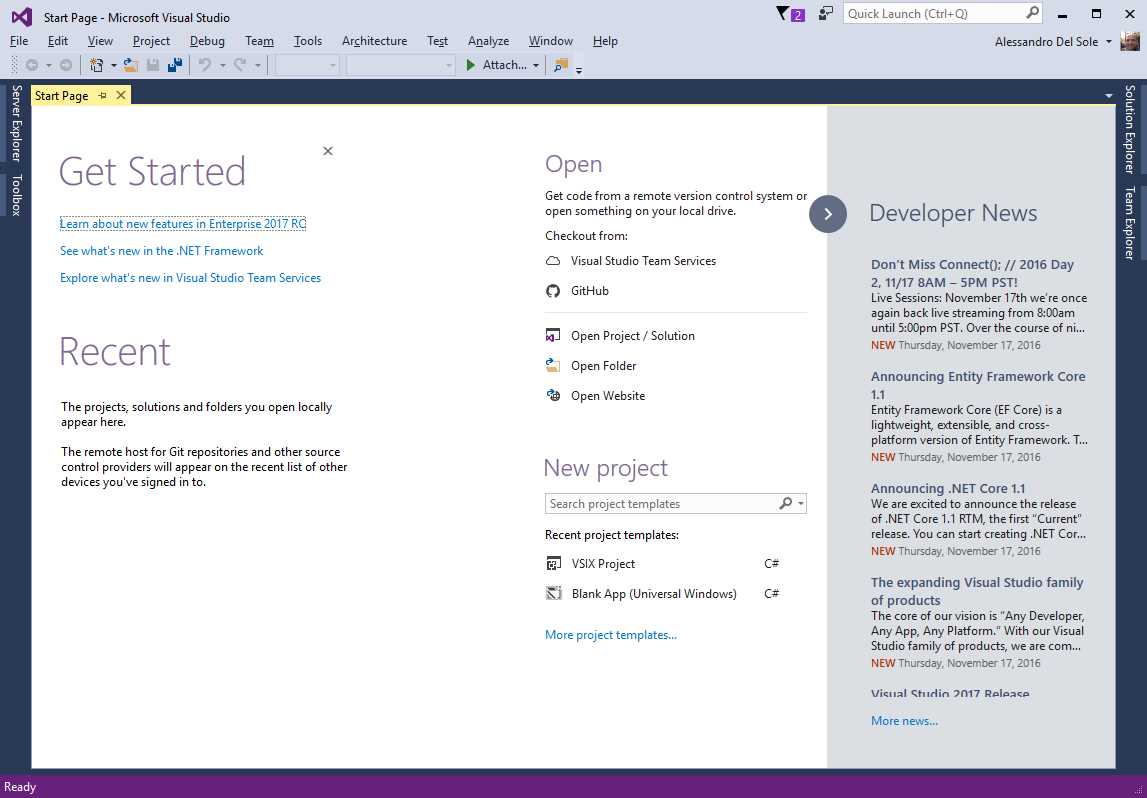
Figure 5: The New Start Page
The first new feature in the Start Page allows the Get Started area to be removed by clicking the X icon at the upper-right corner. This area contains shortcuts to learning resources and documentation, but you can also hide it to save space for other contents. These are described in the next sections.
Tip: In Visual Studio 2017, the menu command to open the Start Page has been moved from the View menu to the File menu.
Staying up to date: Announcements and news
As with its predecessors, Visual Studio 2017 offers a list of announcements and news from official Microsoft channels (see Figure 5). However, in the new version, this list has been moved to a collapsible panel on the right side of the page called Developer News. Figure 6 shows how the Start Page appears with the Developer News panel hidden.
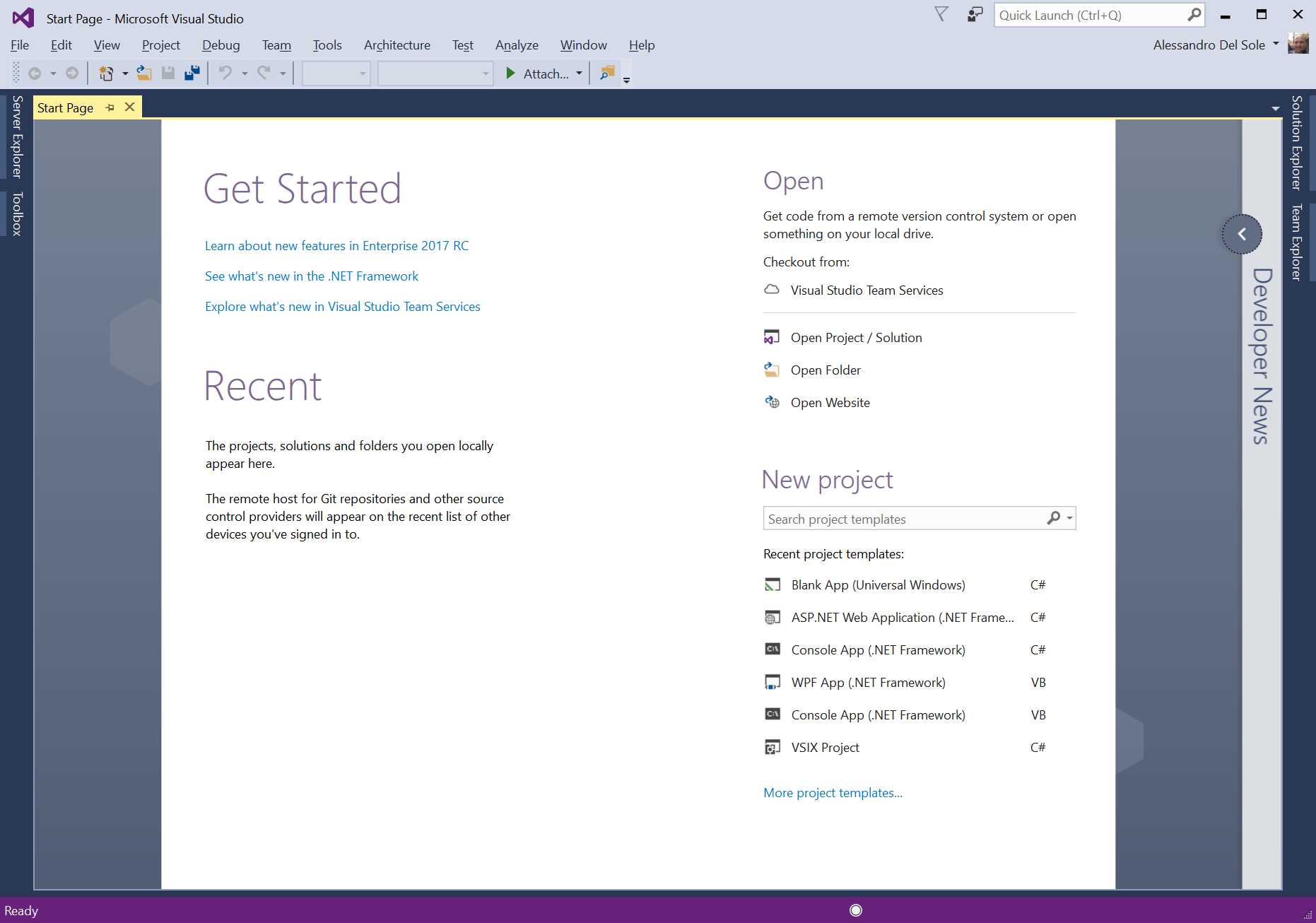
Figure 6: Collapsing the Developer News Panel
By collapsing the Developer News panel, you can have more space for recently used items and tools. Just click the arrow to restore the panel. However, note that when it is collapsed, you will be notified of updated news via an orange glyph that will overlay the arrow.
Shortcuts for solutions, projects, and folders
Visual Studio 2017 offers shortcuts to open and create projects quickly. This is not in fact new, but there are several changes and improvements in the new version.
Working with most recently used projects
The list of most recently used projects (MRUs) is on the left side of the Start Page. Along with recently used projects, Visual Studio 2017 will also show the list of repositories you have recently cloned from Visual Studio Team Services and GitHub, which are represented with a folder icon. Even more interesting, this list is synced across machines if you log into Visual Studio with a Microsoft Account, which means that you will see this list on any of your installations of Visual Studio 2017. This will make it easier to clone the same repositories on all your machines. Figure 7 shows the list of MRUs, including cloned repositories.
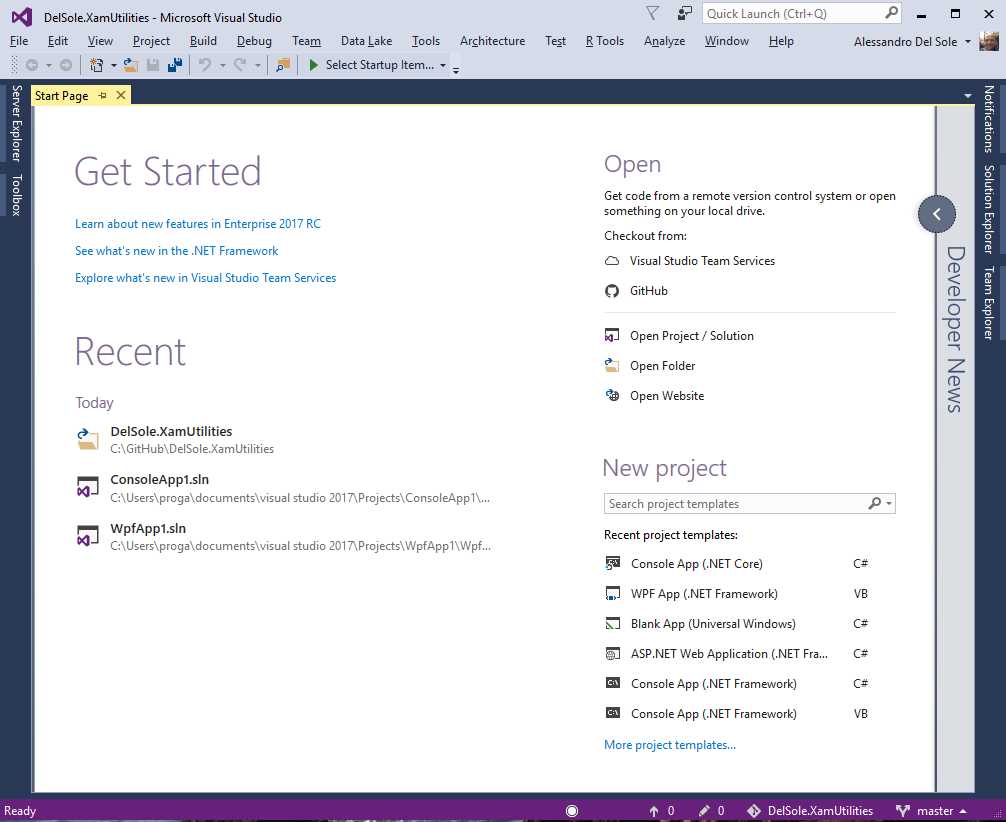
Figure 7: List of MRUs and Cloned Repositories
Accessing project templates
The new Start Page makes it easier to create new projects by selecting different templates. In the New project area, which you can see in all the previous figures, you can find a list of recently used project templates that you can click to create a new project based on that template. This list is synchronized across machines, and it also shows the programming language used with the project template. In fact, when you click a recent template, Visual Studio 2017 shows the New Project dialog with the specified template already selected. Also, by clicking More project templates, the New Project dialog will appear and provide an option for deciding which project template to use. Finally, you can search for project templates directly within the Start Page by typing in the Search project templates text box.
Opening projects, folders, and repositories from source control
The Open area in the Start Page provides shortcuts to open projects and websites. There are several very interesting new features in Visual Studio 2017. The first feature comes with a shortcut called Open Folder. This allows you to open folders containing loose assortments of code files that are not based on proprietary project systems. This will be examined thoroughly in Chapter 5, "Working with solutions, folders, and languages."
The second new feature makes it easier to open projects from source control engines such as Team Foundation Server, Visual Studio Team Services, and Git. As you can see in Figure 7, the group called Checkout from offers two shortcuts:
- Visual Studio Team Services
- GitHub
The first shortcut will allow you to open team projects or Git repositories from both Visual Studio Team Services and Team Foundation Server. The second shortcut allows you to open or clone Git repositories from GitHub. Of course, you can still manage team project connections with the Team Explorer tool window.
Tip: The GitHub shortcut is available only if you install the GitHub extension for Visual Studio 2017. This can be easily selected from the list of individual components within the Visual Studio Installer.
Chapter summary
Visual Studio 2017 improves developer productivity from the moment it starts up. With the new Start Page, the available space has been reorganized in order to offer more shortcuts to commonly used tools. Also, new features have been introduced to support team projects and repositories, including the list of recently cloned repositories (which is synced across machines), and the option to open projects from source control engines such as Git and Visual Studio Team Services.


- 1800+ high-performance UI components.
- Includes popular controls such as Grid, Chart, Scheduler, and more.
- 24x5 unlimited support by developers.