
Visual Studio 2015 Succinctly®

CHAPTER 1
Account Management Experience
As you learned from my previous book, Visual Studio 2013 Succinctly, Visual Studio 2013 for the first time gave developers the ability to sign into Visual Studio by using their Microsoft account. Although not mandatory, this provides many benefits such as unlocking Visual Studio if you are an MSDN subscriber, permanently unlocking Visual Studio Express editions (now replaced by Visual Studio Community), and extending a trial version period. Most importantly, developers can take advantage of synchronized settings, which roam across multiple installations of Visual Studio; this means that they will automatically have the same settings on any computer they use. As you will learn in this chapter, Visual Studio 2015 further enables additional possibilities via signing in with a Microsoft account.
Account Management
Visual Studio 2015 extends the Sign In experience by supporting multiple Microsoft accounts for signing into the development environment. Having multiple accounts to sign into Visual Studio is common for the following reasons:
- Separate accounts for developing and testing applications (or other purposes).
- Separate accounts for work and home.
- Separate accounts for multiple developers working on a single machine.
To simplify account management, use the Account Settings window. You have two options to start it:
- Select File > Account Settings.
- Click the Account settings... hyperlink located under the current profile’s information, available on the upper-right corner of the IDE (see Figure 1).

- Locating the Account settings hyperlink.
Supposing that you have only one Microsoft account associated with Visual Studio, the Account Settings window should like Figure 2.
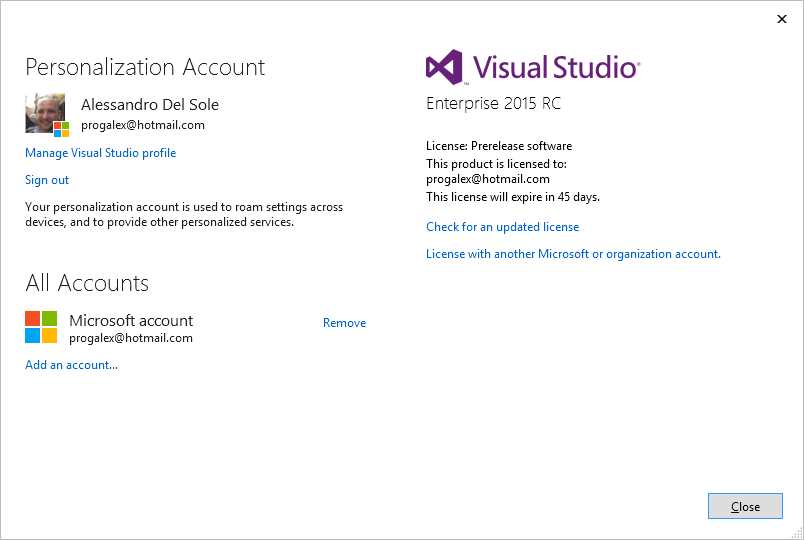
- The Account Settings window.
As you can see, Visual Studio 2015 shows summary information about the current user. At the bottom, you can find the All Accounts group, which contains the list of associated Microsoft Accounts; the list allows for adding and removing accounts. To add another account, click the Add an account… hyperlink. At this point, Visual Studio requires specifying the Microsoft account you want to add, as shown in Figure 3.
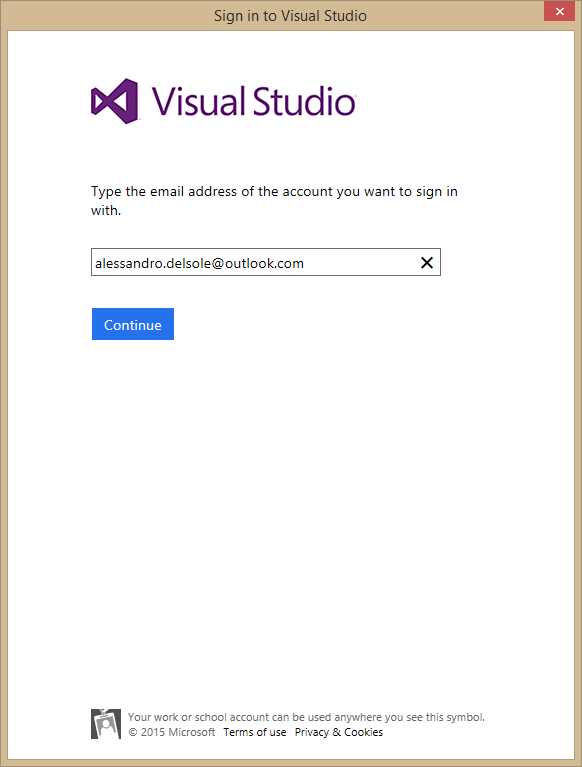
- Adding a Microsoft Account to Visual Studio 2015.
If this is the first time that you use the account to sign in, Visual Studio 2015 will also create a new online profile, which is required for synchronizing information and registering an account on Visual Studio Online (formerly known as Team Foundation Service). If this is your case, Visual Studio will ask you to specify basic identity information, as shown in Figure 4.
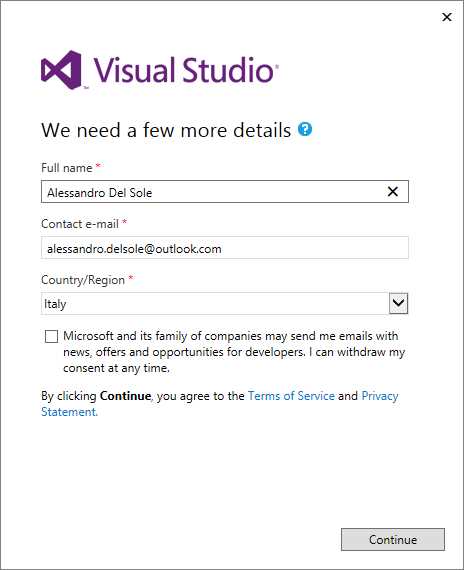
- Specifying basic identity info when creating a new online profile.
Tip: You can edit the online profile for a Microsoft account by selecting Manage Visual Studio Profile in the Personalization Account group of the Account Settings window. You will also be able to specify a picture and see the list of Visual Studio Online account memeberships associated with the profile
Once the online profile has been created, or if it’s not the first time you’ve used the account, the Account Settings window will update the list of associated Microsoft accounts, as represented in Figure 5.
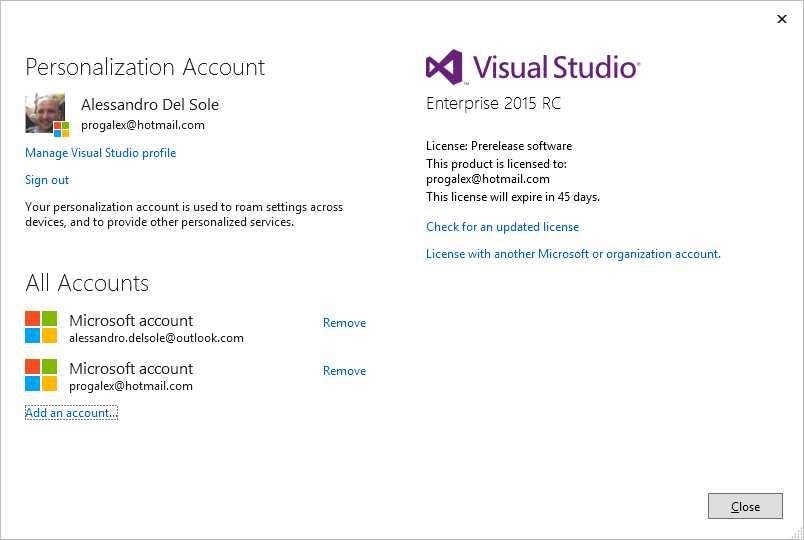
- The updated list of available accounts.
In this way, you have a centralized place to manage accounts, and every Microsoft account can take advantage of benefits such as synchronized settings. When you have finished managing accounts, simply click Close or sign out from the current account and sign in with a different one.
Tip: You do not need to close an open project when changing accounts.
Automatic Sign In for Microsoft Services
When building an application with Visual Studio 2015, you might need to access many Microsoft services, such as your Azure subscription, Visual Studio Online account, Application Insights (hosted on Azure), Azure Mobile Services, or Windows Store developer subscription.
Note: Application Insights is currently a preview service hosted on your Microsoft Azure subscription, which allows live monitoring and telemetry for availability, performance, and usage of web and mobile applications. You can enable Application Insights when you create a project for a web or mobile app. Support for Application Insights was introduced in Visual Studio 2013 Update 2, so it’s not being covered here. You can find additional information here.
All of the previously mentioned services require signing in with a Microsoft account. In Visual Studio 2015, when you sign in, the IDE will automatically connect the current account to any associated Microsoft service; you will not need to enter your credentials every time. For example, if the Microsoft account you use to sign in is also an administrator account on a Microsoft Azure subscription, Visual Studio 2015 will automatically connect the Server Explorer window to the Azure subscription, so that you will be immediately able to interact with services from within the IDE; if you previously set up a Visual Studio Online account, Visual Studio will automatically connect to the account and make source control immediately available. In addition, Visual Studio 2015 makes it easy to select an account when creating connected services or when setting up Application Insights. For example, Figure 6 shows both Team Explorer connected to Visual Studio Online and the option of choosing one of the associated accounts when accessing a subscription.
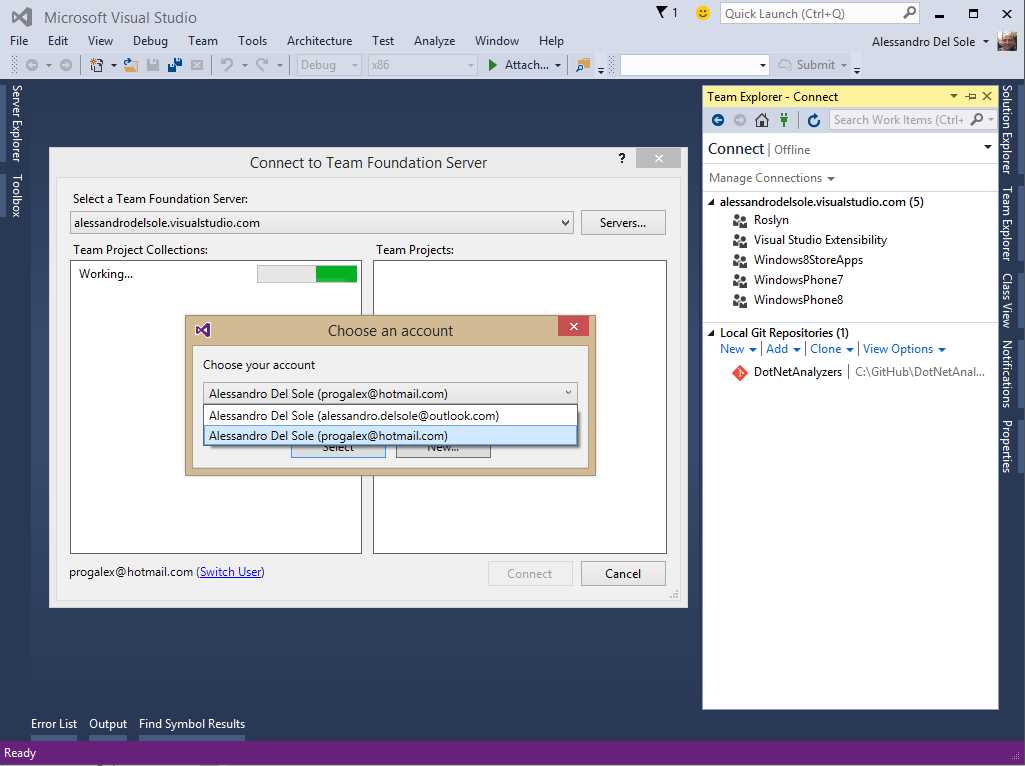
- Easy sign into services with Microsoft accounts.
Figure 7 shows how easy it is choosing a Microsoft Account when adding Application Insights telemetry to a new project (this requires an active Azure subscription).
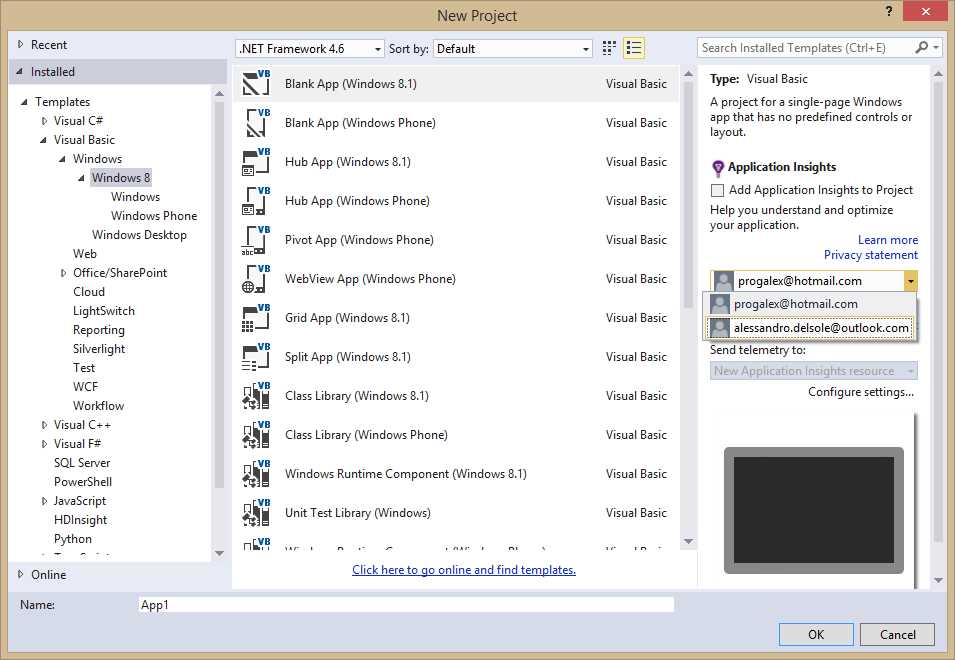
- Choosing a Microsoft account for Application Insights.
It is worth mentioning that, when you sign in with a Microsoft Account, Visual Studio 2015 does not store any of your credentials. Authentication happens against a web-based identity provider, which can be the Microsoft Account provider or the Azure Active Directory. If the authentication succeeds, the identity provider gives Visual Studio some authentication tokens, which allows Visual Studio 2015 to handle the authentication tokens securely.
Chapter Summary
Visual Studio 2015 extends and enhances the sign in experience by introducing support for multiple Microsoft Accounts and by enabling automatic connection to Microsoft services that are associated to the account that logged in. Without a doubt, this makes it easier to connect to service and improves productivity by avoiding the need of signing out and then signing in again with different accounts.


- 1800+ high-performance UI components.
- Includes popular controls such as Grid, Chart, Scheduler, and more.
- 24x5 unlimited support by developers.