
Visual Studio 2013 Succinctly®

CHAPTER 2
The Start Page Revisited
The Start Page has been an important place in Visual Studio since the early days. In the first versions of Visual Studio .NET, it was a static page containing shortcuts for creating new or opening existing projects, and a place to get the latest announcements from Microsoft. In Visual Studio 2010, the Start Page was completely redesigned; it was built upon Windows Presentation Foundation (WPF), providing not only a better integration with the IDE but also offering an opportunity to build completely customized entry points. In Visual Studio 2013 the Start Page has evolved even more, becoming the place where you start your work as well as learn about new and updated technologies.
A new Start experience
An important concept behind the development experience in Visual Studio 2013 is that programmers should have everything they need inside the active page. The Start Page in Visual Studio 2013 has been reorganized based on this concept and includes not only shortcuts for working with projects, but also updated links to learning resources and announcements, all in one place. The Start Page has a dynamic layout, meaning that items inside the page are automatically rearranged when you resize the Visual Studio’s window. Figure 7 shows how the Start Page appears when you run Visual Studio 2013.
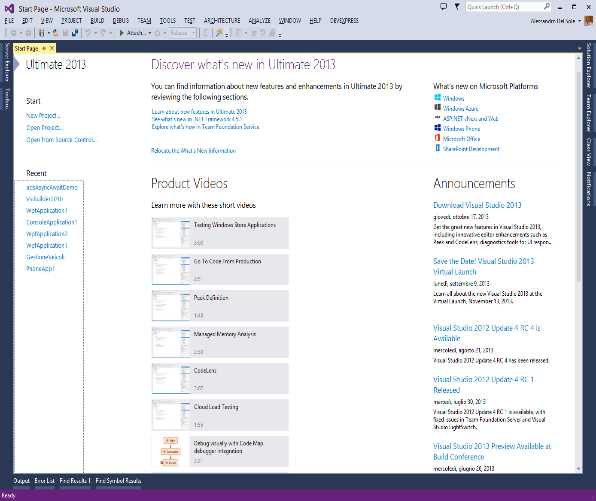
- The Start Page in Visual Studio 2013
The Start Page is made of several areas, each described in the next sections of this chapter. Of course, you can still create and use custom start pages based on WPF (as you could do in Visual Studio 2010 and 2012) or you can disable the Start Page and choose a different entry point by using Tools, Options, Startup.
Note: This chapter does not cover how to build custom start pages. If you wish to create your own start page, read Start Pages in the MSDN documentation.
What you find here is a description of what the Start Page contains and how it can make your life easier.
Work with projects
Tip: In this and the next subsections, use Figure 7 as a reference to locate items in the Start Page
The first thing you probably do when you launch Visual Studio is open a project. On the left side of the Start Page you will find two areas related to working with projects, Start and Recent. Start contains shortcuts for creating new projects or opening existing ones, including from source controls platforms such as Team Foundation Server, Team Foundation Services, and GIT. Recent shows a list of recent projects; if you right-click the name of a project in the recent list, you will be able to open the project, open the containing folder, or remove the project from the list.
Staying up to date: Announcements
The Announcements area shows news about product updates, new releases, events/conferences, and technical content from the various teams in Redmond working on Visual Studio. This is not new in the Start Page, but the behavior is different. First, you can no longer customize the source of the announcements; in the previous versions of Visual Studio you could specify a different RSS feed to show contents, but now the news channel cannot be changed. However, the news channel is now filtered with information that you actually need to stay up to date with new releases and with events focused on Visual Studio 2013.
Learning
The Start Page now has more content for getting started with Microsoft technologies and with specific product features, as described in this section.
What’s new on Microsoft platforms
The What’s new on Microsoft platforms area has shortcuts that make it easier to access the MSDN documentation for each of the most recent development platforms, operating systems, and collaboration platforms, such as Windows 8, Windows Azure, the web and ASP.NET, Windows Phone, Office, and SharePoint.
Product Videos
The Product Videos area allows watching short instructional videos about specific features in the Visual Studio IDE. This is very useful for a better understanding of most of the new features, because the videos show them in action with practical examples. You might see the following text:
We have a lot of great content to show you, but we need your permission to get it and keep it updated.
If you see this message, you need to click Tools, then click Options, and select Startup under the Environment node in the Options dialog; finally, check the Download content every check box. The default time interval is 60 minutes but you can increase or decrease the value. The reason for this is that Visual Studio uses your Internet connection to retrieve the list of available contents, so it needs your permission first.
Discover what’s new
At the top of the Start Page you can find an area that offers shortcuts to learn what new features are available in Visual Studio 2013, the .NET Framework 4.5.1, and Team Foundation Services. Such shortcuts will direct you to the appropriate page of the MSDN documentation.
Chapter summary
With its revisited and dynamic layout, the Start Page in Visual Studio 2013 is more than a simple place where you create new projects or pick up existing ones; the Start Page is now the place where you can easily find all the learning resources and product releases you need to start building applications for the most recent Microsoft platforms.


- 1800+ high-performance UI components.
- Includes popular controls such as Grid, Chart, Scheduler, and more.
- 24x5 unlimited support by developers.