
Visual Studio Add-Ins Succinctly®

CHAPTER 14
Tool Windows
The Visual Studio IDE consists of a number of different tool windows to manage the solution. You can access these windows through the ToolWindows property of your _applicationObject variable. A few of the commonly used windows have classes written specifically for those windows, but every window is accessible, either through one of the common classes or through the GetToolWindow() method.
Error List
The Error List window contains all errors, warnings, and messages that the most recent compile or build step encountered.
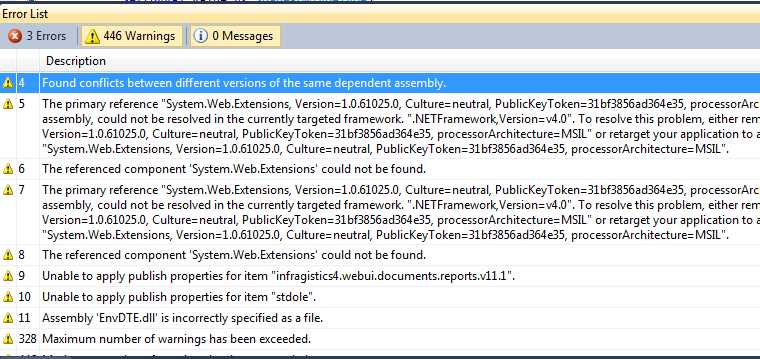
- Error List
You can programmatically access the error messages using the Error List window.
EnvDTE80.ErrorList errList = _applicationObject.ToolWindows.ErrorList; |
The Error List object contains three Boolean properties, indicating which messages are included in the error list:
- ShowErrors
- ShowMessages
- ShowWarnings
You can toggle these properties to control the content of the error items list.
Task List
Visual Studio provides a Task List Manager which allows developers to build a task list by entering tasks or by adding TODO comments in the source code.
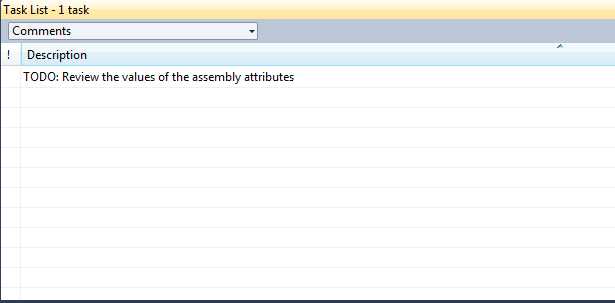
- Task List Manager
You can programmatically access the Task List window and all tasks with your add-in using the following code:
EnvDTE.TaskList TaskList = _applicationObject.ToolWindows.TaskList; |
The task list object allows you to read or set the Default Comment Token (which is usually “TODO”) via the DefaultCommentToken string property.
The primary interface with the task list is the TaskItems object. You can find the number of items in the list using the integer Count property. You can also get details about any single task by using the Item() indexed property. This will return an individual task item entry, with the following properties:
Property | Data Type | Description |
|---|---|---|
Category | String | Comment or User Task |
Checked | Boolean | Is the task item checked? |
Description | String | Descriptive text of the task |
Displayed | Boolean | Is the task item currently displayed? |
FileName | String | If a file is associated with the task, its fully qualified path name is provided |
Line | Integer | Line number in file where TODO comment is found |
Priority | Enum | vsTaskPriorityLow, PriorityMedium, PriorityHigh |
Solution Explorer
The Solution Explorer window shows a tree view UI element displaying the currently open solution, as the following figure illustrates:
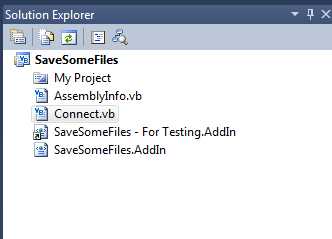
- Solution Explorer
You can access the Solution Explorer using the following code:
EnvDTE.UIHierarchy SolExplore = _applicationObject.ToolWindows.SolutionExplorer |
You can traverse the tree of the Solution Explorer using the UIHierarchyItems property to provide you access to each level of the tree display. Each item represents a single element in the view. In our previous example, the first hierarchy item would be the SaveSomeFiles level. That item would have a UIHierarchyItems collection as well, which would contain the My Project item, the AssemblyInfo.vb item, Connect.vb, etc.
Output Window
The Output Window is a text window showing the output of various IDE tools, such as the build process, the debug process, etc. You can use the ToolWindow object to gain access to the Output Window, as shown in the following example:
OutputWindow outWnd = _applicationObject.ToolWindows.OutputWindow; |
Each tool has its own pane, which is selected by the user via a drop-down menu. You can add your own pane if you want a place to collect and display messages from your own tool. For example, the following code adds a pane to keep track of user interface issues your tool might discover:
OutputWindowPane OutputPane = outWnd.OutputWindowPanes.Add("UI issue "); |
Searching for bad words
Another useful add-in module we could write would search a solution’s source projects looking for a list of “forbidden words." A famous CAD design software application once contained a message (probably left over by a programmer) that said, “this is a message, you idiot.” While the programmer might have thought it was humorous, the company that had to write an apology letter and send out a patched version of the software probably didn’t see the humor. In order to prevent a similar incident, we can write an add-in to search all files within a project and add to the error list any occurrences of the forbidden words. I’ll define that as a regular expression constant so you can create your own list of words.
For this add-in, we will add a button to the standard toolbar. If a solution is open, we will scan all the projects and add the bad words and locations to our own pane in the output window. We will also add an entry into the task list with a high priority to clean the words up.
Bad words scan
We are still going to use the wizard to create our basic add-in, and then attach our module to the standard toolbar of the IDE. So let’s start up the wizard with the following:
- Visual C# (or your preferred language).
- Application Host: Only Visual Studio.
- Name/Description: Bad Words and Scan files for bad words.
- Create UI Menu and do not load at start-up.
After the wizard generates your class source file, add the following variables to the class definition. You can customize your list of words by adding them to the BAD_WORD_LIST string.
const int RED_STAR_ICON = 6743; const string BAD_WORD_LIST = "(stupid|idiot|fool)"; bool AddedToTaskList = false; |
Using a tool button
For this example, we are going to call our add-in module from the toolbar rather than a menu item. We will also disable the item if a solution is not open in Visual Studio, since this add-in searches all project items with a solution in order to mark the occurrences of your bad word list. Change your OnConnection method code to add an icon to the standard toolbar instead, as shown in the following code sample:
|
// Add the command. Command cmd = (Command)_applicationObject.Commands.AddNamedCommand(_addInInstance, "BadWords", "BadWords", "Search for bad words", true, RED_STAR_ICON, null, (int)vsCommandStatus.vsCommandStatusSupported + (int)vsCommandStatus.vsCommandStatusEnabled); CommandBar stdCmdBar = null; // Reference the Visual Studio standard toolbar. CommandBars commandBars = (CommandBars)_applicationObject.CommandBars; foreach (CommandBar cb in commandBars) { if(cb.Name=="Standard") { stdCmdBar = cb; break; } } // Add a button to the standard toolbar. CommandBarControl stdCmdBarCtl = (CommandBarControl)cmd.AddControl(stdCmdBar, stdCmdBar.Controls.Count + 1); // Set a caption for the toolbar button. stdCmdBarCtl.Caption = "Search for bad words"; // Set the toolbar's button style to an icon button. CommandBarButton cmdBarBtn = (CommandBarButton)stdCmdBarCtl; cmdBarBtn.Style = MsoButtonStyle.msoButtonIcon;
|
Only if a solution is open
Since we only want to display the icon if a solution is open, we need to add code to check that condition during our QueryStatus method call.
|
if(commandName == "BadWords.Connect.BadWords") { if (_applicationObject.Solution.Count > 0) { status = (vsCommandStatus)vsCommandStatus.vsCommandStatusSupported | vsCommandStatus.vsCommandStatusEnabled; } return; } |
Getting tool windows
In our Exec() method, we want to make sure a solution is open and if so, get references to the Output window and the task list. We also want to add our custom pane called “Bad Words” and activate the Output window, as shown in the following code sample:
|
handled = true; if (_applicationObject.Solution.Count <1) { MessageBox.Show("Please open a solution to scan..."); return; } // Need to get all project items and search for "bad words". OutputWindow outWnd = _applicationObject.ToolWindows.OutputWindow; TaskList theTasks = _applicationObject.ToolWindows.TaskList; OutputWindowPane OutputPane = outWnd.OutputWindowPanes.Add("Bad words"); OutputPane.Clear(); bool FoundBadWords = false; // Activate the output window. Window win = _applicationObject.Windows.Item(EnvDTE.Constants.vsWindowKindOutput); win.Activate(); |
Looping through the project
We are now ready to loop through the solution and all projects within. Within each project, we search through the project items. If the project item has a document object attached to it, and the document item contains a text document object, we’ve found a file with text (source, XML configuration file, etc.) that we should scan for entries. Some files, such as the Assembly file, will not have a text document object, so we will skip scanning those files.
|
foreach (Project CurProject in _applicationObject.Solution) { foreach (ProjectItem CurItem in CurProject.ProjectItems) { Document theDoc = null; Try { theDoc = CurItem.Document; } catch { } if (theDoc != null) { TextDocument theText = (TextDocument)theDoc.Object("TextDocument"); if (theText != null) { |
Marking bad words
Using the Mark Text method of the Text Document object, we apply a regular expression search to see if the file contains any words from the list. The lines are bookmarked and the file name is added to our Output window. The following code performs the search task:
|
if (theText.MarkText(BAD_WORD_LIST,(int)vsFindOptions.vsFindOptionsRegularExpression)) { OutputPane.OutputString(CurItem.Name + " contains bad words"+Environment.NewLine); FoundBadWords = true; } |
Adding a clean-up task
Our final step in the process is to add an entry to the task list, reminding the programmer to clean up the code that contains the bad words. We only do this if the add-in found bad words and we’ve not yet added the task. The task priority and task icon control the appearance of the task in the task, with red being a high priority item.
|
if (FoundBadWords && AddedToTaskList==false) { TaskItems2 TLItems = (TaskItems2)theTasks.TaskItems; TLItems.Add("Bad Words", "Bad Words", "Remove bad words " + BAD_WORD_LIST + " from source files", vsTaskPriority.vsTaskPriorityHigh, vsTaskIcon.vsTaskIconNone, true, null, 10, true, true); AddedToTaskList = true; } |
When the add-in completes, it will have marked all lines with words from your bad word list and added the list of files to the output window with the drop-down pane of bad words.
Summary
While the Tool windows have a more narrow focus than the general source editing windows, the object types available provide your add-in with the ability to integrate easily with the toolbars, so you can add your custom output, save to-do items, etc.


- 1800+ high-performance UI components.
- Includes popular controls such as Grid, Chart, Scheduler, and more.
- 24x5 unlimited support by developers.