
Visual Studio Add-Ins Succinctly®

CHAPTER 15
Source Code Generation
One time-saving option you can add to the Visual Studio IDE is the ability to generate source code. As developers, there are often common code-writing tasks we need to perform, and by designing an input screen and code generator, we can create an add-in module to save time with the development cycle.
Source code helper class
To assist in the generation of source code, it can be beneficial to create a helper class, which is basically a collection of routines to perform some common tasks that are likely to occur in generating code. We start our class definition by defining the different programming languages we want to support and providing a property to allow users to decide which language they want to generate code in.
|
// <summary> // Code Gen class: Helper class to generate code for add-ins. // </summary> public class CodeGen { // <summary> // List of programming languages generator works with. // </summary> public enum ProgrammingLanguages { VisualBasic = 1, CSharp = 2 } private ProgrammingLanguages theLang = ProgrammingLanguages.VisualBasic; private bool inComment = false; // <summary> // Programming language to generate code for. // </summary> public ProgrammingLanguages Programming_Language { get { return theLang; } set { theLang = value; } } }
|
Once the basic class is created, we can add some methods to generate the appropriate comment text. The simplest method is SingleLineComment() which generates the appropriate syntax and comment text for a comment in a line of code.
|
public string SingleLineComment(string theComment) { string res = string.Empty; switch (theLang) { case ProgrammingLanguages.CSharp: res = "// " + theComment; break; case ProgrammingLanguages.VisualBasic: res = "' " + theComment; break; } return res; } |
The code determines the appropriate delimiter based on the chosen programming language, and then returns a string of the delimiter and the comment text. We can also add a method called StartComment(), which writes a multi-line comment starting delimiter and sets a flag to indicate we are in commented code.
|
public string StartComment() { return StartComment(""); } public string StartComment(string theComment) { string res = string.Empty; switch (theLang) { case ProgrammingLanguages.CSharp: res = "/* " + theComment; break; case ProgrammingLanguages.VisualBasic: res = "’ " + theComment; break; } inComment = true; return res; } |
The StopComment() method writes the appropriate ending comment delimiter and turns off the commenting flag.
|
public string StopComment() { string res = string.Empty; switch (theLang) { case ProgrammingLanguages.CSharp: res = "*/ "; break; case ProgrammingLanguages.VisualBasic: break; } inComment = false; return res; } |
There are a couple of additional methods to round out our helper class. These include MakeFileName(), which is used to append the appropriate extension to a file name.
|
public string MakeFileName(string theName) { string res = theName; switch (theLang) { case ProgrammingLanguages.CSharp: res += ".cs"; break; case ProgrammingLanguages.VisualBasic: res += ".vb"; break; } return res; } |
We can also use DeclareVariable() to create a variable in any of the languages.
|
public string DeclareVariable(string varName, string DataType, string DefaultValue) { string res = string.Empty; switch (theLang) { case ProgrammingLanguages.CSharp: res = DataType + " " + varName; if (DefaultValue.Length > 0) { res += " = " + DefaultValue; } res += ";"; break; case ProgrammingLanguages.VisualBasic: res = "DIM " + varName + " AS " + DataType; if (DefaultValue.Length > 0) { res += " = " + DefaultValue; } break; } return res; } |
Our final function, StartRoutine(), returns a function declaration and delimiter shell.
|
public string StartRoutine(string typeOfCall, string RoutineName,string ReturnType) { string res = string.Empty; switch (theLang) { case ProgrammingLanguages.CSharp: if (typeOfCall.StartsWith("P")) { res = "public void "; } else { res = "public "+ReturnType+" "; } res += RoutineName+"()"+Environment.NewLine; res += "{"; break; case ProgrammingLanguages.VisualBasic: if (typeOfCall.StartsWith("P")) { res = "sub " + RoutineName; } else { res = "function " + RoutineName + "() as " + ReturnType; } res += Environment.NewLine; break; } return res; } |
With this simple class library available to help out code generation, we can now begin our add-in code.
Standardized headers
Imagine your company has a set of standard headers that every code module must include. These headers include the date and time the program was created, as well as the version of Visual Studio used to create the file.
Wizard settings
Start your standard headers add-in using the wizard and the following settings:
- Visual C# (or your preferred language).
- Application Host: Only Visual Studio.
- Name/Description: StdHeaders and Generate a standard heading module.
- Create UI Menu and do not load at start-up.
Verify the settings at the Summary screen, and if they look okay, generate the code.
Moving to File menu
For our standard headers add-in, we would rather have the menu item attached to the File menu using an icon instead of the Tools menu. We need to change a couple of lines in our onConnection method:
|
public void OnConnection(object application, ext_ConnectMode connectMode, object addInInst, ref Array custom) { _applicationObject = (DTE2)application; _addInInstance = (AddIn)addInInst; if(connectMode == ext_ConnectMode.ext_cm_UISetup) { object []contextGUIDS = new object[] { }; Commands2 commands = (Commands2)_applicationObject.Commands; string toolsMenuName = "File"; |
In this case, we are changing the toolsMenuName variable from Tools to File.
|
const int DOCUMENTS_ICON = 1197; |
We will also add the constant for the documents icon, and use that value rather than the hard-coded 59 in the AddNamedCommand2() call.
|
//Add a command to the Commands collection: Command command = commands.AddNamedCommand2(_addInInstance, "StdHeaders", "StdHeaders", "Standardized headers", true, DOCUMENTS_ICON, ref contextGUIDS, (int)vsCommandStatus.vsCommandStatusSupported+ (int)vsCommandStatus.vsCommandStatusEnabled, (int)vsCommandStyle.vsCommandStylePictAndText, vsCommandControlType.vsCommandControlTypeButton); |
Options screen
The options screen is a Windows form that asks users a few questions about the type of code header they want to generate. As a starting point, we will need to know the file to save, the programming language to use, and whether to generate a function or subroutine call.
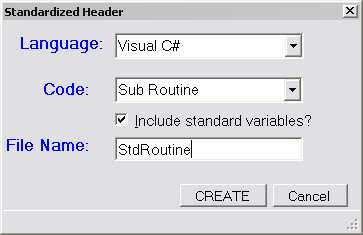
- Options screen for standard header add-in
Generate the header
If the user clicks OK to generate the header code, we will pull the selected options from the Windows form and use them to set our generated header and code template.
|
StringBuilder sb = new StringBuilder(); // String to hold header. CodeGen Gen = new CodeGen(); // Code generation helper. StdHeaderForm theForm = new StdHeaderForm(); theForm.ShowDialog(); if (theForm.DialogResult == DialogResult.OK) { string cFile = theForm.CODEFILE.Text; // Get programming language choice. switch (theForm.LANGCOMBO.SelectedIndex) { case 0: { Gen.Programming_Language = CodeGen.ProgrammingLanguages.CSharp; break; } case 1: { Gen.Programming_Language = CodeGen.ProgrammingLanguages.VisualBasic break; } } sb.AppendLine(Gen.StartComment()); sb.AppendLine(Gen.WriteCode("==============================================")); sb.AppendLine(Gen.WriteCode(" Program: " + cFile )); sb.AppendLine(Gen.WriteCode(" Author: " + Environment.UserName)); sb.AppendLine(Gen.WriteCode(" Date/Time: " + DateTime.Now.ToShortDateString() + "/" + DateTime.Now.ToShortTimeString())); sb.AppendLine(Gen.WriteCode(" Environment: Visual Studio " + _applicationObject.Edition)); sb.AppendLine(Gen.WriteCode("==============================================")); sb.AppendLine(Gen.StopComment()); sb.AppendLine(Gen.WriteCode("")); |
Add sub/function call
The following code sample adds a call to the routine TBD (hopefully the developer will update the name of the routine):
|
//Write the function prototype. sb.AppendLine(Gen.StartRoutine(theForm.TYPECOMBO.Text.ToUpper(), "TBD", "string")); |
Add standard variables
In some applications, standard variables are used so that every programmer uses the same variable names and meanings. In our example here, we use variables called SourceModified and StartTime to track modifications and monitor performance.
|
// Optionally, write standard variables. if (theForm.INCLUDECHECK.Checked) { sb.AppendLine(Gen.DeclareVariable("SourceModified","string")); sb.AppendLine(Gen.DeclareVariable("StartTime","DateTime","DateTime.Now()")); } sb.AppendLine(Gen.EndRoutine(theForm.TYPECOMBO.Text.ToUpper())); |
Open a new window
Once the string builder variable is created with the headers, we need to save it to a file and then open it within the IDE.
|
cFile = Gen.MakeFileName(cFile); StreamWriter objWriter = new System.IO.StreamWriter(cfile); objWriter.Write(sb.ToString()); objWriter.Close(); ItemOperations itemOp; itemOp = _applicationObject.ItemOperations; itemOp.OpenFile(cfile, Constants.vsViewKindCode); |
After the add-in completes, a new window will be open with code similar to the following example:
’ ' ======================================================== ' Program: Sample ' Author: Joe ' Date/Time: 10/13/2012/9:24 AM ' Environment: Visual Studio Professional ' ======================================================== ' Function TBD() As String Dim SourceModified As String Dim StartTime As DateTime = DateTime.Now() End Function |
Item Operations object
The ItemOperations object of the _applicationObject provides methods to open and add files in the Visual Studio IDE. In the previous example, we’ve created the file, and using the ItemOp variable, instructed Visual Studio to open the file in a code editor window. The object allows you to programmatically perform some of the options from the File menu.
Other methods of the Item Operations object include:
- AddExistingItem(): Add an existing file to the project.
- AddNewItem(): Add a new item to the project. You can pass two parameters: the category name/item name (such as General/XML File), and the display name in the project window.
- IsFileOpen(): Is the file name passed as a parameter open in an IDE window?
- Navigate(): Open a browser window to a specified URL.
- NewFile(): Create a new file using the virtual path indicating the type of file. You can optionally specify the file name for the item and the view kind to open the file in.
- OpenFile(): Open an existing file in the editor using a specified view kind. In our example code, we created a file and opened it in a code view.
Summary
This chapter demonstrated how to build a source code file by pulling information from Visual Studio and the environment to create a standardized header. It also showed how to open the source file in a Visual Studio document window to allow the user to start programming immediately.


- 1800+ high-performance UI components.
- Includes popular controls such as Grid, Chart, Scheduler, and more.
- 24x5 unlimited support by developers.