
Visual Studio for Mac Succinctly®

CHAPTER 1
Introducing Visual Studio 2019 for Mac
Visual Studio for Mac is the latest addition to the Microsoft Visual Studio family, and it allows you to reuse your existing development skills on macOS for cross-platform development. This chapter provides an introduction to Visual Studio for Mac, with an overview of the scenarios it best fits in and how to configure your Mac for development.
Introducing Visual Studio 2019 for Mac
In the past, if you wanted to build applications for different operating systems, platforms, or devices, you had to use proprietary development tools and native frameworks on each specific platform. For example, Microsoft Visual Studio has always been the development environment of choice if you want to build Windows and web applications based on the .NET Framework with C#, F#, Visual Basic, and C++. If you have a lot of experience with .NET on Windows, you know how powerful the .NET Framework is, but it runs only on Windows. This limitation can be important because it requires you to publish your .NET web apps and services only to Windows Server systems, while many companies actually want Linux as the host.
Note: With .NET Core, you now have the .NET runtime capable of running on multiple operating systems.
Additionally, developers working on the Apple stack do not have a framework available that allows for building web apps and services at all. As another example, building mobile apps for Android, iOS, and Windows 10 requires knowledge of native frameworks, development tools and languages, such as Java and Google Android Studio for Android, Apple Xcode and Swift or Objective-C for iOS, Microsoft Visual Studio, and C# (or Visual Basic) for Windows 10. The effort needed to publish an app on all the major stores can be huge, and might involve hiring several specialized developers to reduce the development time (but with higher costs) or waiting for current developers to get the skills and experience they need to build apps for different systems. This might save some money on one side, but requires much more time—and time is money.
The list of examples could be longer and involve other technologies, such as cloud platforms and containers, but these two are enough to give you an idea of what software development was like at a certain point in time. Concurrently, the demand for applications and services that are available on multiple platforms has increased in the market. In summary, many companies were in a situation in which they needed to be on multiple platforms, but either with limited resources or facing a very big effort.
Microsoft is aware of all the aforementioned problems, and in recent years the company has significantly changed its vision and strategy by opening up to other platforms, embracing open source, and focusing even more on cloud services. In fact, Microsoft has been making huge investments to bring technologies, platforms, developer tools, frameworks, and services to other operating systems such as Linux and macOS, and to typically non-Microsoft audiences by focusing on services much more than in the past. Cross-platform development is of primary importance to this strategy, and relies on two major technologies (apart from cloud services and platforms):
- .NET Core: A modular, open-source, cross-platform subset of the .NET Framework that enables developers to write applications and services that run on Windows, Linux, and Mac in C# and F#.
- Xamarin: A technology that allows developers to write mobile applications that run on Android, iOS, and Windows with C# and F#.
In this vision, there is one important pillar: using .NET languages such as C# and F# to write code for any platform. The most important thing is that developers can reuse their .NET skills on Linux and macOS, not just Windows. But to make this possible, developers need professional tools they can use to create the next generation of applications. Those working on Windows have Visual Studio 2019, the most powerful version of the premiere development environment from Microsoft, which now supports a variety of non-Microsoft technologies. For other systems, Microsoft first released Visual Studio Code, an open-source, cross-platform tool that puts evolved coding at its center. However, Visual Studio Code has no built-in designer tools, has no support for Xamarin (at least currently), and does not provide specialized tools that developers might need, such as integrated publishing tools or profiling instruments. After all, its focus is providing an evolved editing experience.
True to its history of delivering the best developer tools in the world, and because you need a Mac to build, sign, and distribute apps for iOS and macOS, in 2017 Microsoft finally released the first version of Visual Studio for Mac. Visual Studio for Mac is an integrated development environment that can be used on macOS to build apps that run on any platform and any device in C# and F#, and that perfectly fits into this mobile-first, cloud-first vision. Visual Studio for Mac is neither a simple porting of Visual Studio on Windows, nor is it an evolution of Visual Studio Code. Instead, it is a professional development environment specifically built for the Mac, with a native user interface and tools tailored for macOS and cross-platform development.
This book provides a guide to Visual Studio for Mac, paying particular attention to the integrated development environment, the workspace, and all the integrated tools you can leverage to build high-quality, professional applications for mobile devices and the web, using C# as the programming language of choice. A basic knowledge of C# is strongly recommended to get the most out of the book. You will also find an introduction to building apps with Xamarin and .NET Core, so that you will have the necessary foundations to get started. Then you will be able to dive deep into both technologies autonomously.
Note: With Visual Studio for Mac, you can also develop games based on Unity (Unity3d.com). Game development with Unity will not be covered in this book, but it is worth mentioning that Visual Studio for Mac already includes the tools for Unity out of the box, and you only have to install the Unity engine separately.
Visual Studio for Mac is available in three different editions: Community, Professional, and Enterprise. If you do not have an MSDN subscription and you are an individual developer, you can install the Community edition for free. This edition can also be used under strict licensing terms in both enterprise and non-enterprise organizations. Microsoft has a specific page that describes the license for Visual Studio for Mac Community.
Unless otherwise specified, all the topics described in this book are available in all three editions. System requirements: you will need a Mac with at least 4 GB RAM, a 1.8 GHz processor, and 1 GB of disk space. El Capitan 10.11 is the minimum version of macOS that supports Visual Studio for Mac. Of course, the recommended configuration is with macOS Sierra 10.12 and with 8 GB RAM. After this short introduction, it is time to get started. But before you can put your hands on Visual Studio for Mac, you need to set up and configure your Mac machine for development.
Note: I will refer to the product as Visual Studio 2019 for Mac, Visual Studio, and VS for Mac interchangeably.
Setting up the development environment
In order to build applications with Visual Studio for Mac, you need to configure your Mac machine for development. Actually, you only need to install Visual Studio for Mac if you plan to work with .NET Core. If you also plan to work with Xamarin for mobile app development, you will need a few more components, as described in the next paragraphs.
Configuring the Mac for mobile app development
Among others, with Visual Studio for Mac, you can build mobile apps using Xamarin. For Android, all the necessary configuration is done by the installer, while for iOS, you first need to further configure the Mac. In fact, you must install Xcode, the Apple IDE, and Apple SDKs, which you get from the (Apple) App Store for free. At the time of writing, the current Xcode version is 12 and the download is approximately 5 GB, so it will take some time to get it ready.
The reason you need Xcode is simple: Apple’s policies establish that only Xcode can generate and sign iOS app packages; therefore, tools such as Visual Studio for Mac will need to invoke Xcode and the Apple SDKs behind the scenes to generate and sign your app binaries. When Xcode has been installed, you should at least create and run a new blank project, so that Xcode will generate all the necessary files for development. The official Xamarin documentation has a specific page that will help you configure a Mac computer; I recommend you read it carefully, especially because it explains how to configure profiles and certificates and how to use Xcode to perform preliminary configurations.
Note: If you want to sign and publish your apps to the App Store and Google Play, you will need paid developer accounts. These are not required in this book because Android does not require any account for development purposes, and Apple offers a free account.
Installing Visual Studio 2019 for Mac
Once you have downloaded the Visual Studio for Mac installer from the Microsoft website or from your MSDN subscription portal, simply double-click the .dmg (disk image) file. When the installer starts, you will need to specify which components you want to install, as shown in Figure 1.
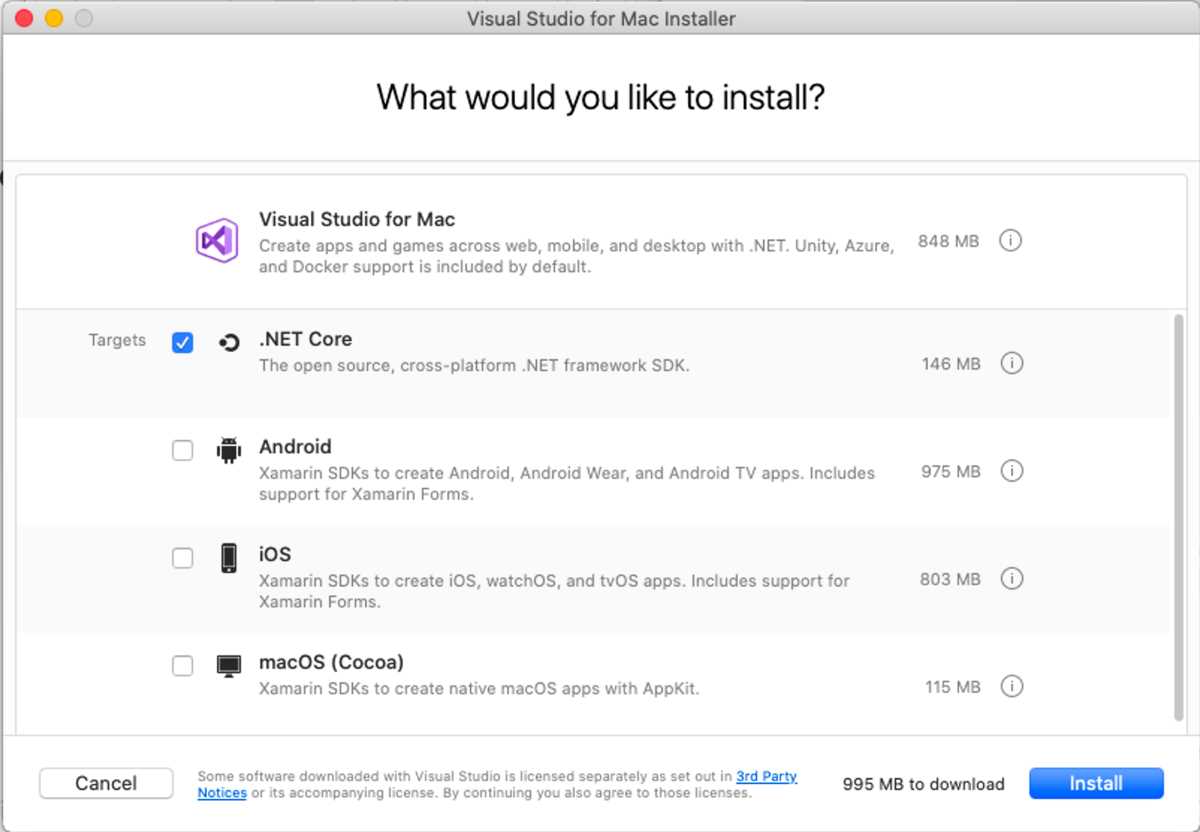
Figure 1: Selecting workloads to be installed
If you have used Visual Studio 2017 for Mac in the past, you will notice a simplified experience for component selection. I recommend you select all the available .NET Core and Xamarin components in order to fully set up your development environment, and to be able to follow all the examples provided in the next chapters. When you’re ready, click Install. The installer will show the installation progress and will inform you when setup is complete.
Visual Studio for Mac first start
Once the installation is completed, you can start Visual Studio 2019 for Mac. The first time you run it, you will be asked to enter your Microsoft account credentials (see Figure 2).

Figure 2: A new option is available to sign in with a Microsoft account
Though this is optional, it is strongly recommended because signing in with a Microsoft account will unlock features based on the account’s level (for example, if you have a MSDN subscription), and it will enable synchronized settings across installations on different machines. Starting with the 2019 version, it will also enable integrated services linked to your Azure subscription (if any). This is optional, so you can skip this step if you wish—it will always be possible later through the Visual Studio preferences.
In the next dialog, you will be able to specify a keyboard scheme (see Figure 3). This is very useful if you want to use different key combinations and shortcuts, especially if you work with other development environments, such as Visual Studio Code or Visual Studio on Windows.
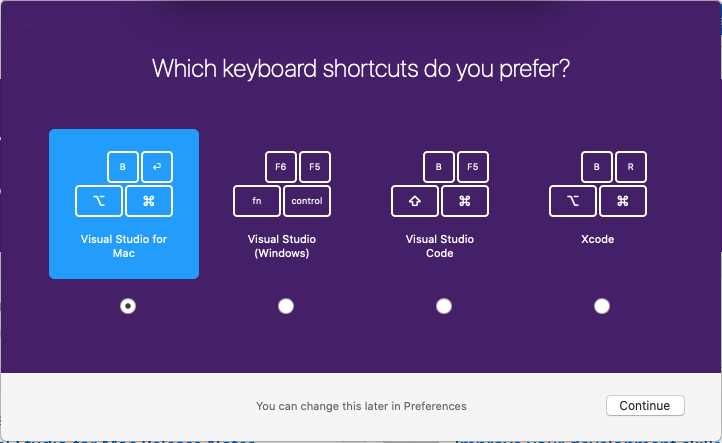
Figure 3: Selecting a keyboard scheme
You always have the option to change the keyboard scheme in the Visual Studio preferences, as described in Chapter 7. Once you have made your choice, Visual Studio 2019 for Mac will finally start. Chapter 2 continues the description of the IDE starting from this point.
Chapter summary
Visual Studio 2019 for Mac is a powerful development environment Microsoft built for macOS. It allows for cross-platform development using C# and F# to create .NET Core and Xamarin projects. Installing Visual Studio for Mac, also offered for free via the Community edition, is the only requirement to build .NET Core apps, whereas the Apple SDKs and Xcode are also required to build apps with Xamarin.
Now that the development machine is ready, it’s time to get started with the Visual Studio for Mac environment and its user interface, expressly designed for macOS.


- 1800+ high-performance UI components.
- Includes popular controls such as Grid, Chart, Scheduler, and more.
- 24x5 unlimited support by developers.