
Visual Studio for Mac Succinctly®

CHAPTER 7
Customizing and Extending Visual Studio for Mac
A development environment is productive only if it is capable of making the developer feel at home, and Visual Studio 2019 for Mac certainly does. Being the powerful tool it is, it can be customized and extended in many ways, as you will learn in this chapter.
Customizing Visual Studio for Mac
Visual Studio 2019 for Mac can be customized in many ways in order to better fit with your preferences. Most of the customizations are available via the Preferences dialog, which you enable via Visual Studio > Preferences. Once the Preferences dialog pops up, you can walk through the available options.
Applying a theme
Themes in Visual Studio for Mac are of two types: the first type is about the language for the user interface, and the second type is about changing the colors of the user interface. Both are available in the Visual Style tab (see Figure 78).

Figure 78: The Visual Style tab
Using the User Interface Language drop-down, you can select a different language. The default selection is called Default and makes Visual Studio use the same language as the language detected on your Mac. If the system language is not supported, English is then set as the default. With the User Interface Theme, you can select a visual theme between Light (default) and Dark. Figure 79 shows how Visual Studio for Mac looks with the Dark theme.
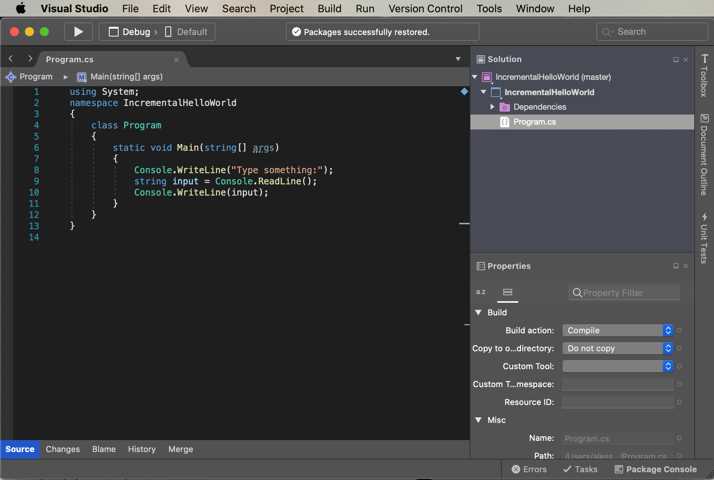
Figure 79: The Dark theme
Every time you select a theme, you will need to restart Visual Studio for Mac.
Customizing author information
The Author Information tab provides boxes that you can fill in with your personal information so that these will be automatically used in all projects to identify you as the developer.
Customizing key bindings
The Key Bindings tab (see Figure 80) allows for customizing keyboard shortcuts. You can customize by selecting a predefined scheme from the Scheme drop-down box and editing individual bindings. Available schemes are Visual Studio for Mac, Resharper/Rider, Visual Studio (Windows), Visual Studio (Mixed), Visual Studio Code, and Xcode, and you can also create custom schemes.

Figure 80: Editing key bindings
You can then click an existing key binding and enter the key combination for the selected command in the Edit Binding text box.
Customizing fonts
You can customize the fonts used for the code editor, the General pad, and the Output pad. This can be easily accomplished via the Fonts tab (see Figure 81), where you can simply click the current font and change it to a different one (with different size and color) in the appearing font editor. New in Visual Studio 2019 for Mac is the option to customize the font for the integrated terminal.

Figure 81: Customizing fonts
Customizing the color of comments
When coding, it’s not unusual to add tokens like TODO, FIXME, and so on. In Visual Studio for 2019 Mac, you can make the code editor present these tokens in different colors. In the Tasks tab of the Preferences dialog, you can specify the token and then select a color based on the token priority. You can also add custom tokens for a more customized experience.
Custom tools
Sometimes, you might need to invoke external tools from within the IDE. The External Tools tab allows for adding menu commands to invoke external tools, such as compilers, editors, and SDK applications.
In Figure 82, you can see an example that shows how to add a new command that invokes the dotnet command line tool, passing the run parameter and the working directory. The latter can be specified as either a plain path or a constant that represents a specific directory. This example uses the ${TargetDir} constant that represents the directory where the result of the build process resides.

Figure 82: Adding custom tools
Notice how you can specify a key binding for the new command, and how you can decide to redirect the output of the external tool to the Output pad. When you click OK, the new command is added to the Tools menu.
Introducing custom layouts
You typically organize the layout of your workspace depending on the project type you are working on or on the task you are performing. For example, with Xamarin solutions, you might need to open and arrange some pads, while in ASP.NET Core projects, you might need other pads. Or you might need the Debug pads when debugging an application, and need other pads when you’re finished debugging.
To make things easier, Visual Studio 2019 for Mac, as well as its predecessor, has the concept of layout. The View menu provides some built-in layouts called Code, Design, Debug, and Test, and each layout is configured to show appropriate pads according to the current task, such as writing code, designing the user interface, debugging, and testing code. You can quickly switch from one layout to another by clicking its name in the View menu.
You can also create custom layouts that allow you to arrange the pads you need in the way you want, and to store the layout for later reuse. To accomplish this, you select View > Save Current Layout. In the dialog that appears, simply specify a custom name for your layout and click Create Layout. At this point, your new layout will be available in the View menu with built-in layouts, and you will apply it by simply clicking its name. Visual Studio for Mac will also show a Delete command for your custom layouts.
Extending Visual Studio for Mac
Visual Studio for Mac can be extended with additional tools and components, such as new project templates, dialogs, tools that provide support for additional development platforms and services, and so on. You manage extensions via the Extension Manager dialog, which can be enabled via Visual Studio > Extensions.
The Extension Manager tool consists of three tabs. The first tab (Installed) lists the installed extensions. You can expand each group and select individual extensions to see details, and you can also disable or uninstall extensions via the Disable and Uninstall buttons. The Updates tab lists extension updates, if any. The Gallery tab (see Figure 83) allows you to search for extensions on the internet.

Figure 83: Extending Visual Studio for Mac
You can select an extension to see its details on the right, then simply click Install to download it and install it to your Mac.
Updating Visual Studio for Mac
By default, Visual Studio for Mac will automatically search for new updates to the IDE, .NET Core, and Xamarin libraries. Updates will be downloaded, but not installed until you give permission to do so. You can also manually check for updates by selecting Visual Studio > Check for Updates. When you do this, the Visual Studio Update dialog will appear and will list available updates. You can also select the update channel in this dialog, such as Stable and Preview. Obviously, Preview contains unstable software and should be avoided unless you want to get early access to the bits that cannot be used in production.
Tip: In the Visual Studio Update dialog, you can also disable automatic updates. Also, depending on what version of the IDE you currently have, additional update channels might be available specifically to match Xcode previews.
Chapter summary
Visual Studio 2019 for Mac can be customized and extended in many ways. You can change the language and theme of the user interface, change fonts and keyboard shortcuts, add custom commands, and save custom pad layouts for later reuse. You can also install extensions that provide further features and add support for new platforms and services. Visual Studio for Mac makes it easy to check for product updates, so that you’re always working with the most recent releases.


- 1800+ high-performance UI components.
- Includes popular controls such as Grid, Chart, Scheduler, and more.
- 24x5 unlimited support by developers.