
Visual Studio 2022 Succinctly®

CHAPTER 5
XAML Experience Improvements
XAML, the eXtensible Application Markup Language, is used to design user interfaces with a declarative mode in several development technologies, such as WPF, UWP, WinUI, and Xamarin.Forms. For this reason, the XAML code editor is always an important area of investment for Microsoft, and Visual Studio 2022 introduces interesting new features that are globally available to all XAML-based platforms, plus improvements that specifically target WPF. This chapter describes all the new features of the XAML code editor.
XAML Live Preview
XAML Live Preview is a tool that works while debugging that allows for capturing the user interface of an application into an integrated window, making it easier to view the result of changes you apply via XAML Hot Reload. XAML Live Preview supports the following development technologies:
· Windows Presentation Foundation.
· Universal Windows Platform.
· .NET MAUI with the Android emulator.
· Xamarin.Forms 5.x with the Android emulator.
· WinUI 3.
Suppose you have a WPF application with the following, very basic code in the main window:
<Window x:Class="HotReloadDemo.MainWindow"
xmlns="http://schemas.microsoft.com/winfx/2006/xaml/presentation"
xmlns:x="http://schemas.microsoft.com/winfx/2006/xaml"
xmlns:d="http://schemas.microsoft.com/expression/blend/2008"
xmlns:mc="http://schemas.openxmlformats.org/markup-compatibility/2006"
xmlns:local="clr-namespace:HotReloadDemo" Background="Blue"
mc:Ignorable="d"
Title="MainWindow" Height="450" Width="800">
<StackPanel Orientation="Vertical" VerticalAlignment="Center">
<TextBlock Text="Demonstration of XAML Live Preview"
Foreground="White"
FontSize="24" HorizontalAlignment="Center"/>
<Button x:Name="MainButton" Content="Click me!" Width="200"
Height="40"
Click="MainButton_Click"/>
</StackPanel>
</Window>
When you start the application, you will be able to start XAML Live Preview by either clicking the Show in XAML Live Preview button on the debugging toolbar (with the camera icon) or by selecting Debug > Windows > XAML Live Preview. Figure 47 demonstrates this.
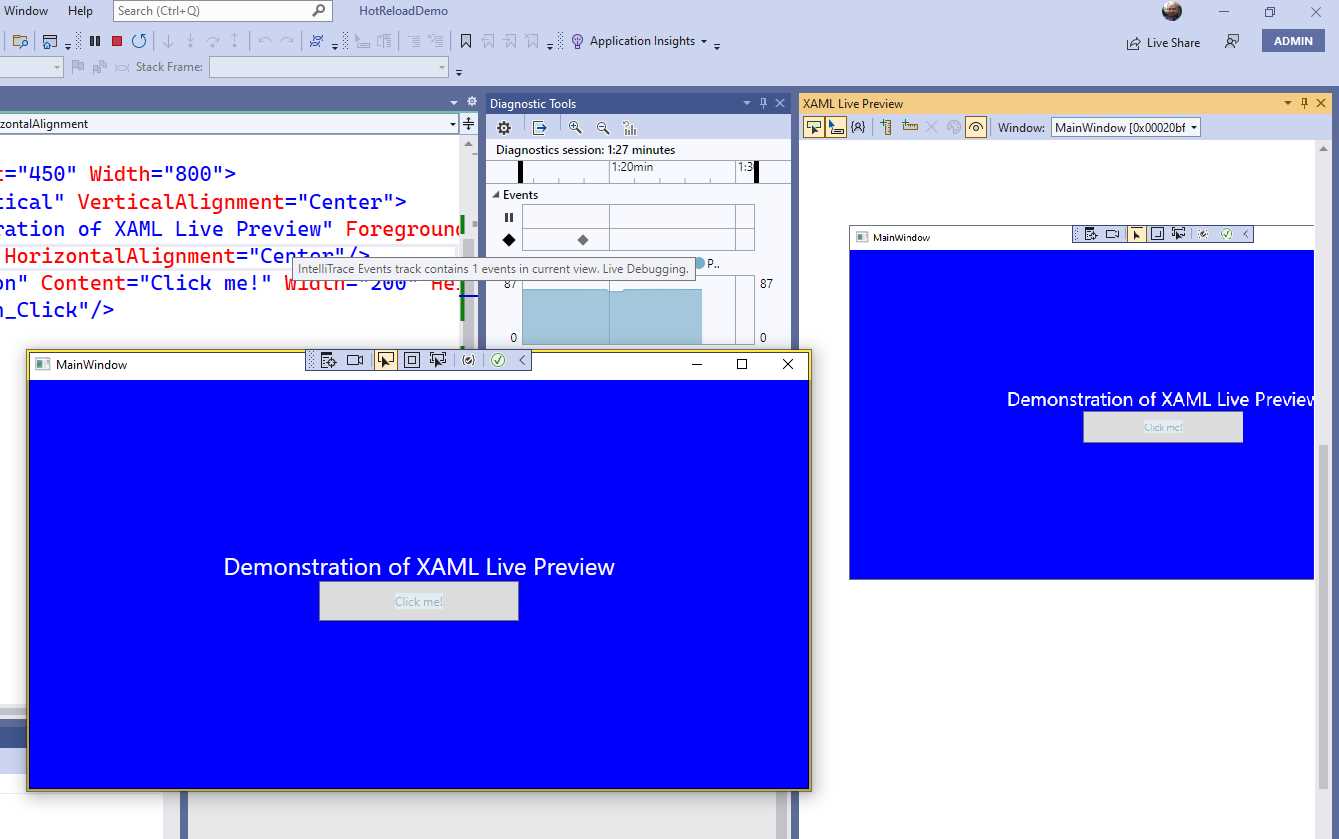
Figure 47: Previewing the UI with XAML Live Preview
In the XAML Live Preview tool window, you can zoom the user interface (Ctrl+mouse wheel), enable rulers with the appropriate buttons on the toolbar, and get information on a visual element by first clicking the Select button (the leftmost one on the toolbar) and then hovering over a visual element. The Show just my XAML button will allow you to focus only on the markup added by you. If your application has multiple windows, you can use the Window dropdown to switch between windows.
Note: Visual element selection is only available with WPF and UWP. For the other platforms, XAML Live Preview only supports rulers and zooming.
This tool is a convenient addition that simplifies investigating the behavior of visual elements at runtime and makes it easier to see changes you apply via XAML Hot Reload. The new settings are discussed shortly in this chapter.
IntelliCode for XAML
IntelliCode, the AI-powered code completion engine that now empowers IntelliSense, is now at the core of the XAML code editor. Due to the different editor purposes, the way suggestions work is not the same as for C#, but you still get suggestions based on context. More specifically, when you open an XML tag using the < character, IntelliSense will first show the IntelliCode suggestions that are easily recognizable because they are starred (see Figure 48).
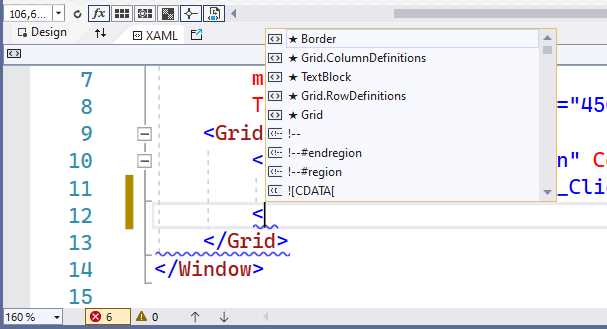
Figure 48: IntelliCode Suggestions in the XAML Code Editor
Suggestions will continue as you type. For example, if you add a Border, IntelliCode suggestions will focus on the most common properties for this control, as shown in Figure 49.
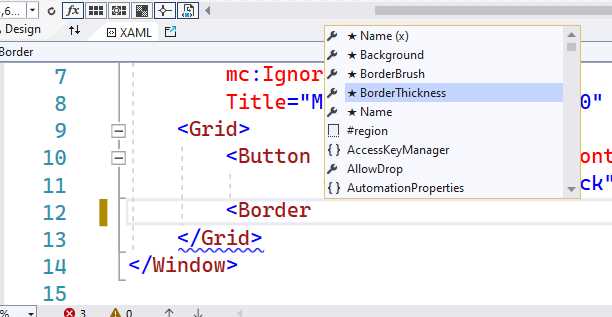
Figure 49: IntelliCode Suggestions Continuing as You Type
The way IntelliCode suggests completions makes writing XAML markup faster, and this is a nice productivity feature, especially because developers do not typically use design tools, and they tend to type XAML markup manually.
XAML Hot Reload settings
XAML Hot Reload is a popular feature that allows for making changes to your XAML markup while debugging to see the results of your changes without the need to restart the application. This feature has been introduced in previous versions of Visual Studio, and in VS 2022 there is a new settings dialog that groups options in a different way. It can be accessed via Tools > Options > Debugging > XAML Hot Reload, and it looks like Figure 50.
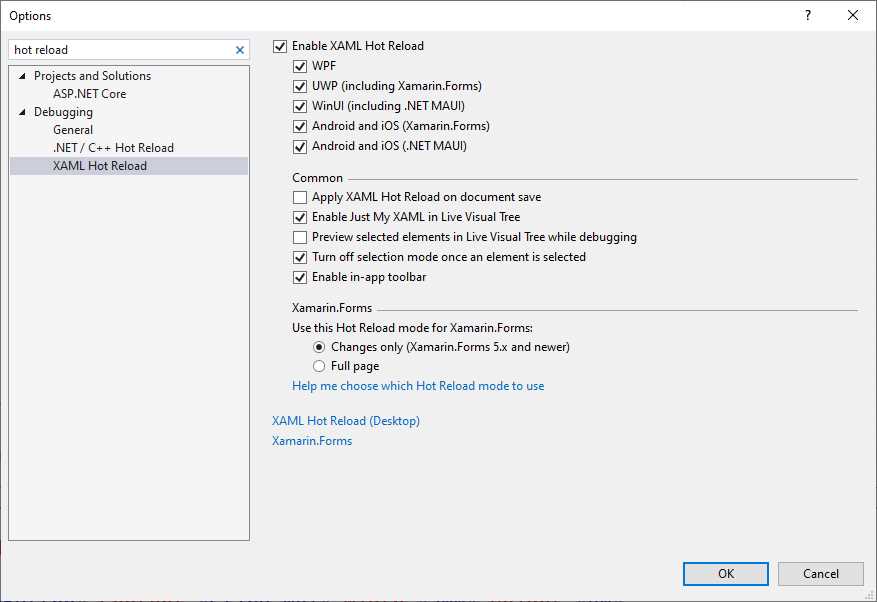
Figure 50: The New Settings Dialog for XAML Hot Reload
At the top of the dialog, you have the option to select the development platforms for which Hot Reload is enabled. In the Common group, you can manage settings that apply to all the supported development platforms and whose descriptions are provided in Table 3.
Table 3: XAML Hot Reload Common Settings
Setting | Description |
|---|---|
Apply XAML Hot Reload on document save | Changes are applied only when the XAML file is saved to disk. It is disabled by default so that changes are applied as you type. |
Enable Just My XAML in Live Visual Tree | When enabled (default), the Live Visual Tree tool window only shows visual elements added by the developer. |
Preview selected elements in Live Visual Tree while debugging | When enabled, the Live Visual Tree tool window highlights visual elements as you interact with the application. |
Turn off selection mode once an element is selected | When enabled (default), it ensures that visual elements are not highlighted when they are focused and that only user interactions are preserved. |
Enable in-app toolbar | When enabled (default), it shows the Hot Reload toolbar at the top of the application window. It does not apply to Xamarin.Forms emulators. |
At the bottom of the dialog, the Xamarin.Forms group shows one option that is specific to Xamarin.Forms only, and that is Use this Hot Reload mode for Xamarin.Forms. You can choose between the two following settings:
· Changes only (Xamarin.Forms 5.x and newer).
· Full page.
The first option, which is the default, makes sure that only the changes you make to your XAML are rendered on the page, whereas the second option completely redraws the page. Obviously, applying only the changes provides the better performance, but it is only available with projects based on Xamarin.Forms 5.x. When lower versions are detected, the full-page option is applied by default.
WPF data-binding enhancements
Visual Studio 2022 introduces specific improvements to the data-binding experience in Windows Presentation Foundation, the premier technology from Microsoft to build desktop applications. This section describes such improvements, including a simplified way to add sample data with the so-called item controls.
Note: It is also worth mentioning that in Visual Studio 2022, the XAML designer for WPF projects based on the .NET Framework has been replaced with the XAML designer for WPF projects based on .NET Core.
Data context shortcut
For bindable properties of a control, the Properties window now shows a new cylinder icon that represents a shortcut to the Create Data Binding dialog. Figure 51 highlights this new icon.
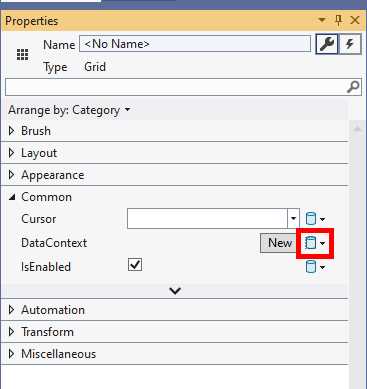
Figure 51: New Shortcut to Create Binding Expressions
Clicking this icon will launch the Create Data Binding dialog (see Figure 52) that you already know if you are familiar with WPF and its binding expressions.
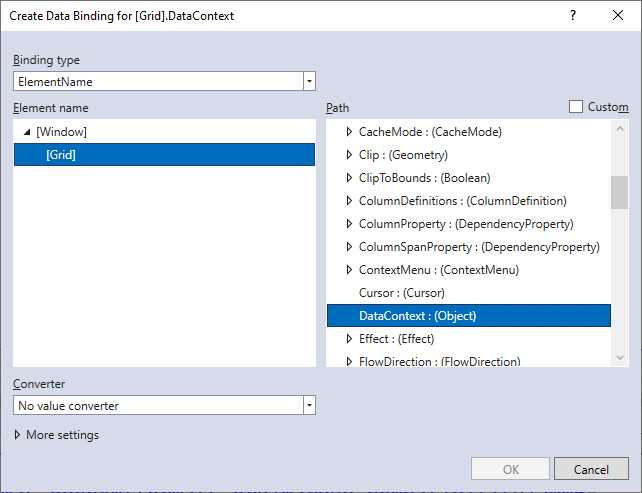
Figure 52: Creating Binding Expressions via User Interface
Obviously, a discussion about creating binding expressions in WPF would be out of scope here since the focus is on the new shortcut.
XAML Designer Quick Actions
Visual Studio 2019 introduced Quick Actions to the XAML Designer for WPF, which you access by selecting a visual element in the Designer and then clicking the light bulb icon. In Visual Studio 2022, quick actions have been extended with a new tab called Binding. Figure 53 shows how this looks.
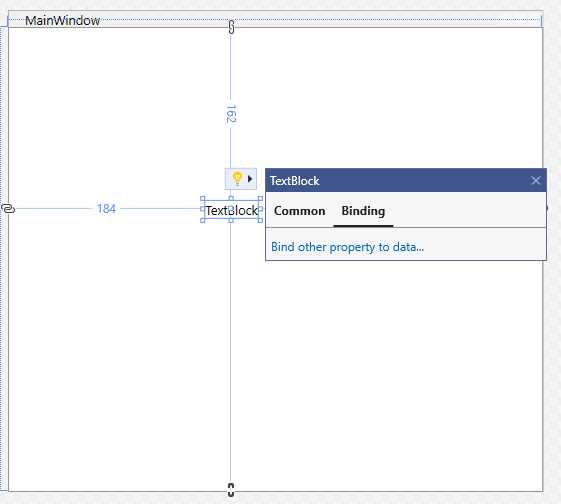
Figure 53: Accessing New Quick Actions
When you click the Bind other property to data shortcut, Visual Studio will open the Create Data Binding dialog (see Figure 52), where it also adds a new dropdown called Target Property at the top where you can select the property that needs to be data bound. The default property of the current control will be automatically selected. So, in the case of the TextBlock, the Text property will be automatically selected, and you will have an option to pick a different one.
Tip: Remember that these Quick Actions are only available in the XAML Designer and not in the code editor.
Automatic sample data
Another improvement to data binding in WPF is the automatic addition of sample data when you drag an item control from the Toolbox onto the designer surface. This feature is supported by the DataGrid, ListBox, and ListView. Figure 54 shows what happens when you drag a DataGrid onto the designer.
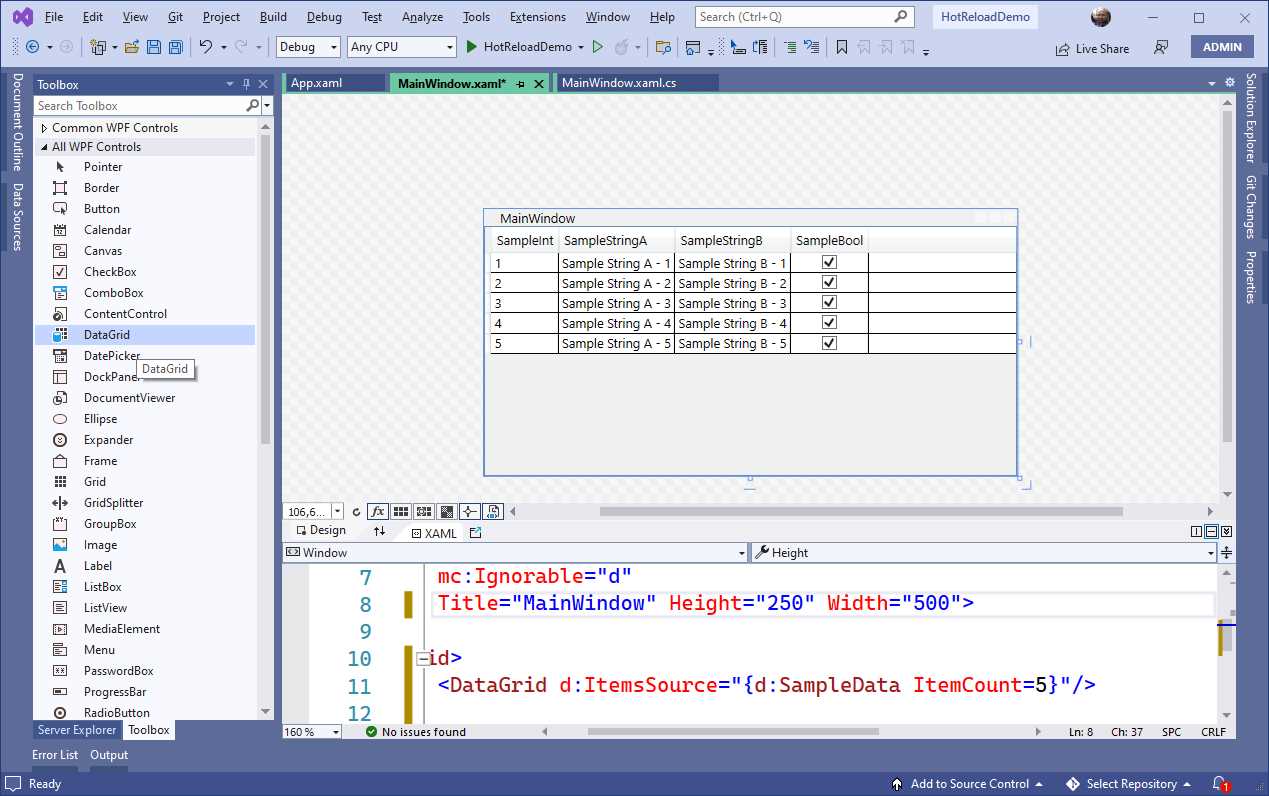
Figure 54: Automatic Sample Data
Tip: If you drag a control to the code editor, sample data is not added.
Sample data is exposed by the http://schemas.microsoft.com/expression/blend/2008 XML namespace, represented by the d shortcut, which means that nothing is added to your source code and that it will be ignored at runtime. In fact, such an XML namespace is only intended to be used at design time, but at least you have something ready to use. You can also remove the d:ItemsSource assignment if you do not want to see sample data. The ItemCount property can be increased or decreased, depending on how many sample items you want to display.
Chapter summary
The eXtensible Application Markup Language (XAML) is at the core of the most important, modern development technologies from Microsoft, such as WPF, UWP, WinUI, and Xamarin.Forms. For this reason, Visual Studio 2022 delivers many improvements to the XAML designer and code editor. With XAML Live Preview, you can quickly investigate the XAML behavior at runtime; with a new IntelliSense engine powered by IntelliCode, you will get better suggestions as you type. Specifically for WPF, the improved support for data binding at design time will increase your productivity. But productivity is not just something that is about you individually; building applications is teamwork, and Visual Studio 2022 introduces a new feature for team collaboration on source code, as you will discover in the next chapter.


- 1800+ high-performance UI components.
- Includes popular controls such as Grid, Chart, Scheduler, and more.
- 24x5 unlimited support by developers.