
Visual Studio 2022 Succinctly®

CHAPTER 7
Web and Cloud Support
There are important changes in the way Visual Studio supports web and cloud projects. This is due to the natural evolution of the Azure platform on the cloud side and the development tools on the web side. These changes could be impactful to you as a developer, so this chapter summarizes what’s new in web and cloud development with Visual Studio 2022, highlighting what scenarios are no longer supported and the workaround you could use.
Note: The focus of this chapter is on tooling, not development technologies, so you will not find explanations about techniques and implementation. Appropriate links will be provided to the official documentation where required.
What’s new with web development tools
Web development tools in Visual Studio allow you to build ASP.NET applications and publish them to both web and cloud hosts, so the concepts described here also apply to Azure. The following sections describe the most relevant new features in the development tools offered in VS 2022.
Adding identity support from Connected Services
Connected Services is a window that appears at the end of the generation of a new ASP.NET Core project. You can also enable it at any time by clicking Connected Services in Solution Explorer. In Visual Studio 2022, it is possible to add authentication based on the Microsoft identity platform directly from Connected Services. When in this window, click the Add a service dependency shortcut, and you will see the Add dependency dialog (see Figure 68).
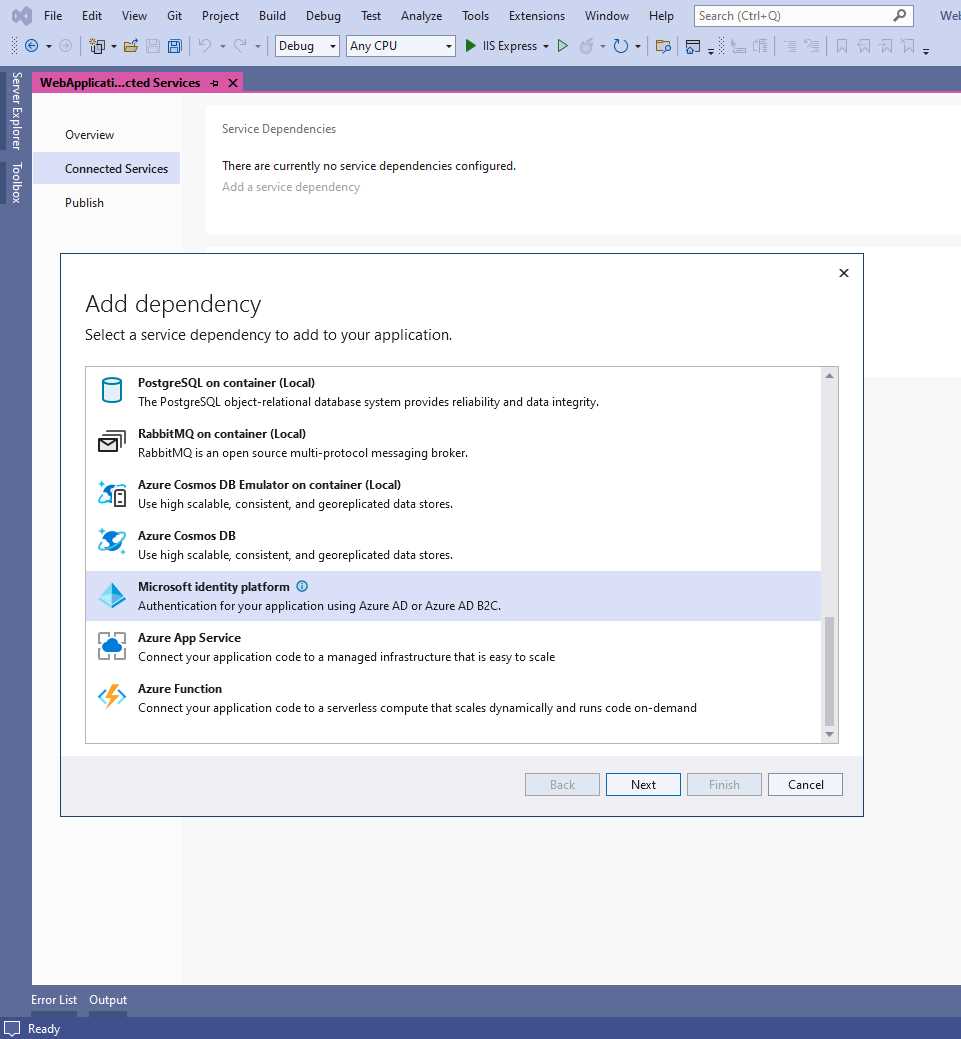
Figure 68: Adding the Microsoft Identity Platform as a Connected Service
Locate the Microsoft identity platform service and then click Next. Depending on your setup configuration, you might get the warning shown in Figure 69, where you can see Visual Studio saying that some additional components are required, more specifically dotnet msidentity. Click Finish when ready.
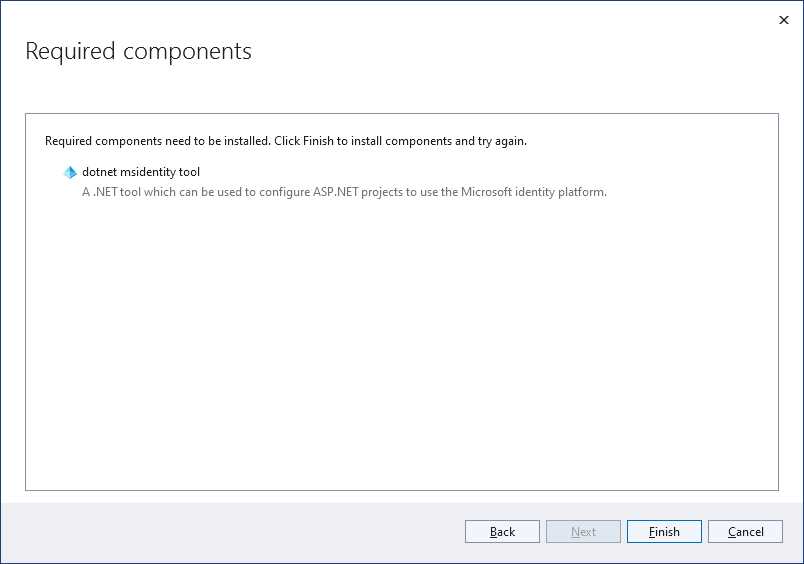
Figure 69: Installing Microsoft Identity Platform Components
Tip: At the time of this writing, Visual Studio closes the dialog after installing the components without doing any work. This means you will need to again select the Microsoft identity platform in the Add dependency dialog and start the process again.
At this point you will be able to select your Azure subscription and the application you want to target. You can complete the registration of the application by following the Microsoft official guide.
Empty projects and minimal APIs
Another thing you might want to know when developing with ASP.NET Core in VS 2022 is that the ASP.NET Core Empty project template is now automatically based on a minimal API if the target framework is .NET 6. The purpose of a minimal API is to create web API projects with minimal dependencies and with the minimum set of files, features, and dependencies of ASP.NET Core.
Updated designer for Web Forms
Despite the evolution of development platforms for web applications, there are many sites built with ASP.NET Framework on the market that need continuous maintenance and updates. In order to better support such applications, Visual Studio 2022 introduces an updated designer for Web Forms with several interesting features. When you split the designer in two parts, the code editor and a designer, you enable a feature called Web Live Preview, discussed in the next sentences. Figure 70 shows an example.
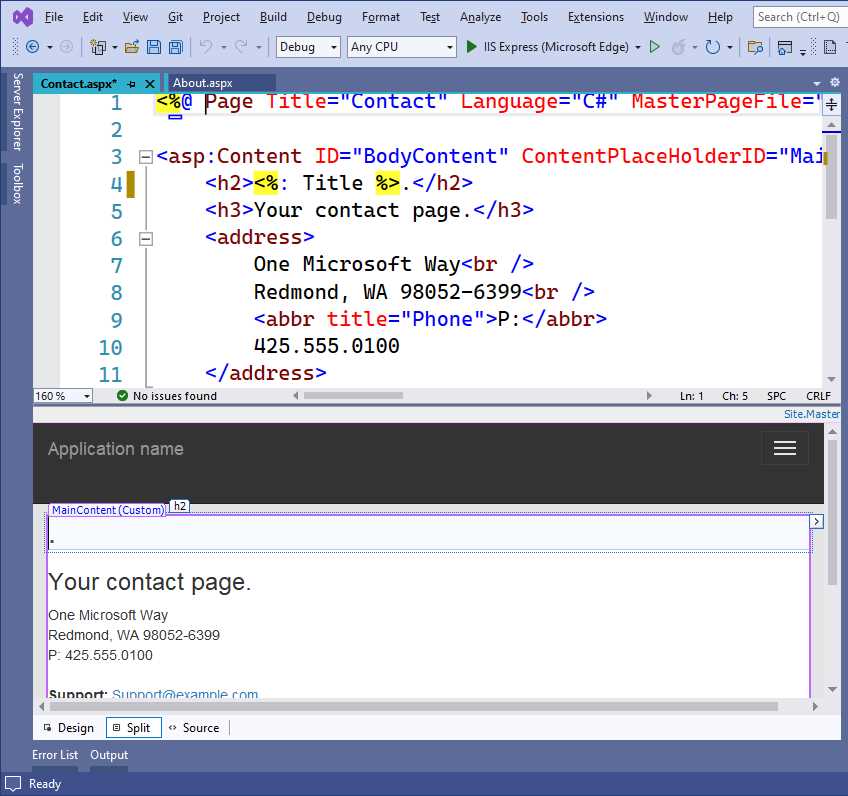
Figure 70: Web Live Preview in Action
You can click the Split button at the bottom of the designer so that both the source markup and the live preview are visible. When you click a view in the code editor, it will also be highlighted in the preview and vice versa. The updated designer allows you to work with well-known techniques, for example the ability to drag and drop controls from the Toolbox onto the design surface, or double-clicking a control to add a default event handler. However, it also adds new capabilities. For example, the preview is powered by the Microsoft Edge engine. This makes it possible to work with the support of the latest web technologies.
Additionally, changes you make to markup code, such as to .aspx and .css files, are visible in the Web Live Preview as you type. You do not need to save changes every time. Last but not least, the designer now supports live data instead of placeholder data. For a better illustration, if you had a control that was data-bound in earlier versions of Visual Studio, the Web Forms designer displayed auto-generated placeholder data. Now the designer is able to instantiate the data-bound object and show its result in the user interface at design time.
What’s new for cloud development
In Visual Studio 2022, the Azure Cloud Service project template has been deprecated. The new Azure Cloud Service (extended support) template should be used for new projects (see Figure 71).
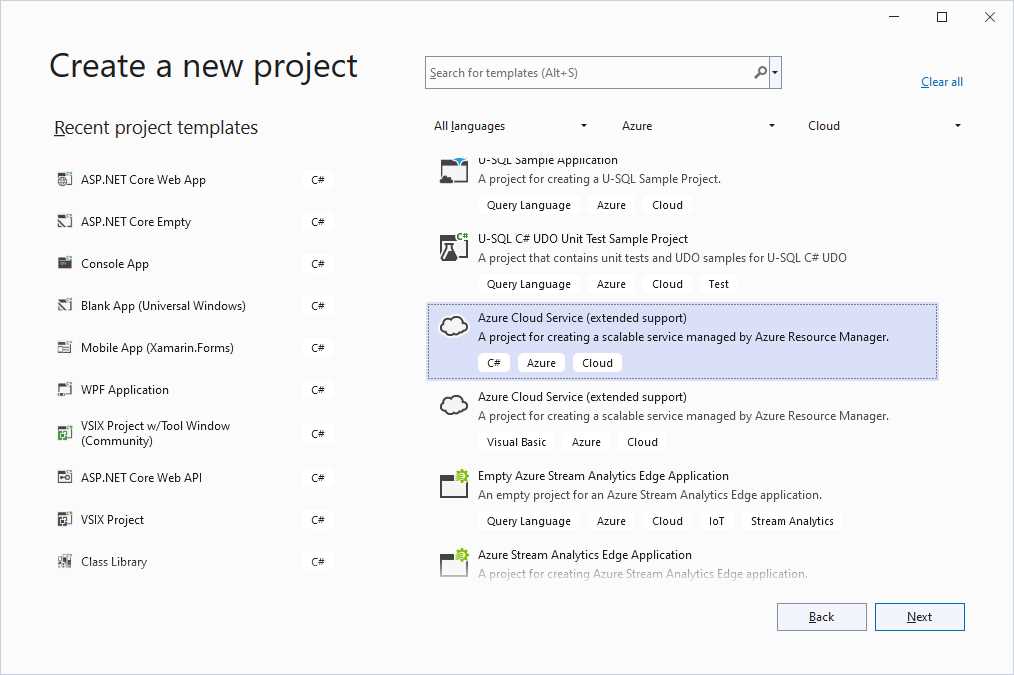
Figure 71: New Azure Cloud Service Project Template
The reason for the deprecation of the old template can be found in many infrastructural changes that Microsoft made to the Azure platform for new customers, so a new template was needed. In practice, when you create a new Azure Cloud Service project in VS 2022, you will still be able to add roles like in the past (see Figure 72).
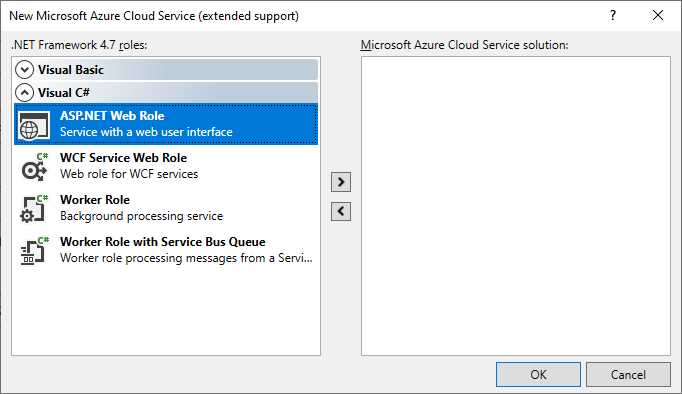
Figure 72: Adding Roles to a New Azure Cloud Service Project
Azure projects in Visual Studio 2022 no longer use the Azure Storage emulator, which has also been deprecated in favor of a tool called Azurite, introduced in the next paragraphs. This is one of the main reasons a new project template was needed. Existing Azure customers will still be able to open cloud service projects created with the previous versions.
Local storage emulation with Azurite
As you might know, one of the most important and popular services offered by Azure is storage, where files, tables, and message queues can be hosted. Applications you develop for Azure can access the storage and, for debugging purposes, the Microsoft SDKs have always offered a local emulator of the storage that you could use instead of debugging against remote storage.
In Visual Studio 2022, the local storage emulation is no longer provided by the Azure Storage Emulator tool. Instead, it is now provided by an open-source tool called Azurite. Azurite is based on Node.js and TypeScript code. It supports the majority of the Azure Storage API, and it allows local storage with a cross-platform architecture. Azurite runs as a console application (see Figure 73) that keeps listening to Storage API calls.
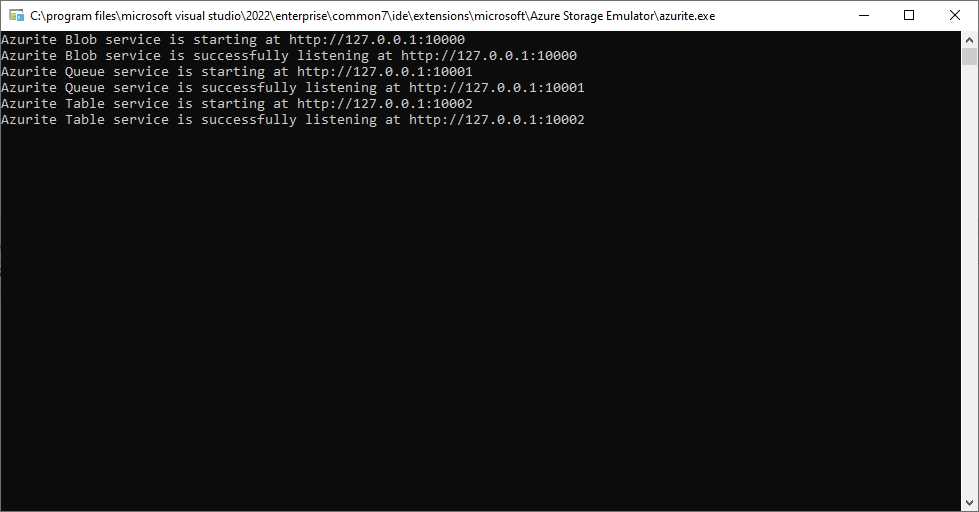
Figure 73: Azurite Listening to Storage API Calls
With Visual Studio 2022, like the old storage emulator, you do not need to directly interact with Azurite. The IDE will take care of sending all the necessary Storage API requests to Azurite.
New Connected Services
The Connected Services tool has been extended to include additional services when creating Azure projects. More specifically, Connected Services now allows you to use container images to provide a local debugging experience for areas like Redis Cache, MongoDB, RabbitMQ, Cosmos DB, Azure Storage, and SQL. Even if these dependencies are not listed one after the other in the Add dependency dialog, they can be easily recognized because their names end with the following literal: on container (Local). Figure 74 shows the dialog with some of the aforementioned options.

Figure 74: Container Images for Local Data Services are Now Supported
Some new options are also available for publishing applications to Azure. Visual Studio 2022 allows you to publish apps to a new container called Azure Container Apps, which is based on Linux. When you start the Publish wizard in Visual Studio 2022, you will have an option to choose the target, as shown in Figure 75.
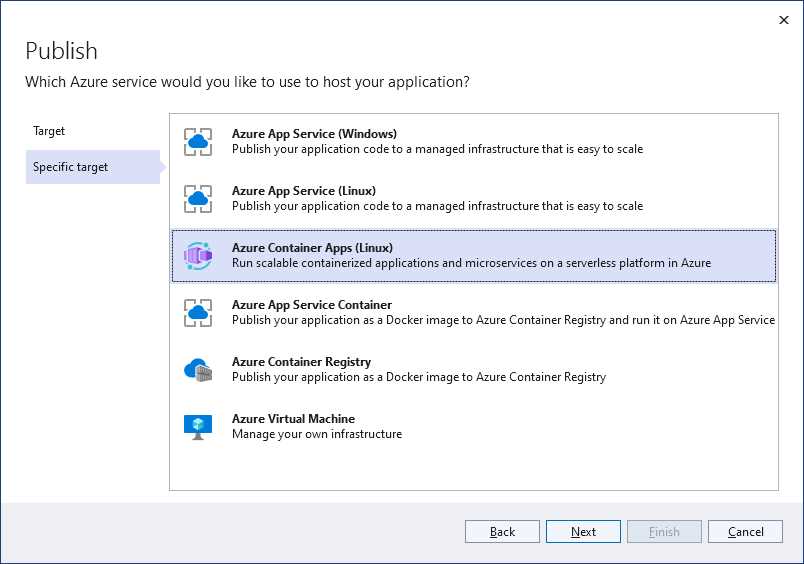
Figure 75: Choosing a Publish Target
The Azure Container Apps (Linux) option allows you to publish your apps to this service. When you select this option, you will be prompted to select an Azure subscription and a container app based on the Azure Container Apps service, as shown in Figure 76.
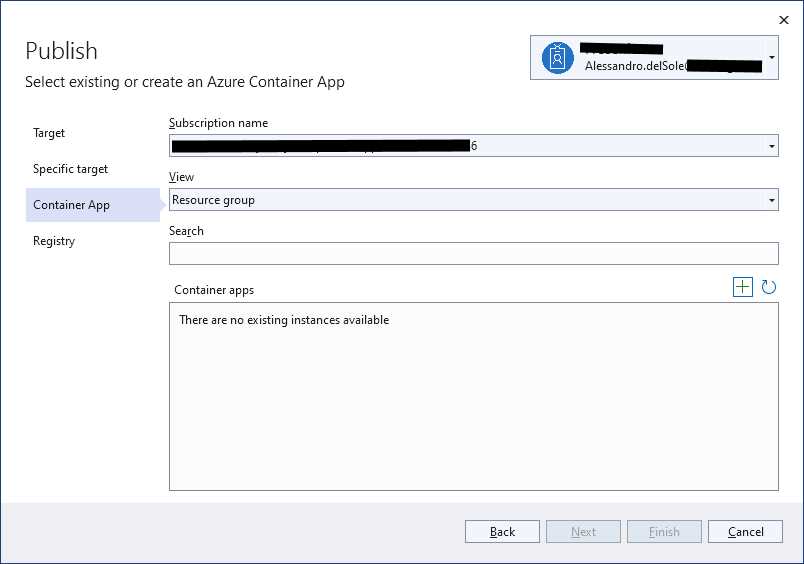
Figure 76: Selecting an Azure Subscription for the Container App
You can connect to an existing container app or click the + button at the right of the header of the Container apps group to create a new one. If you create a new container app from this dialog, you will need to enter all the service details shown in Figure 77.
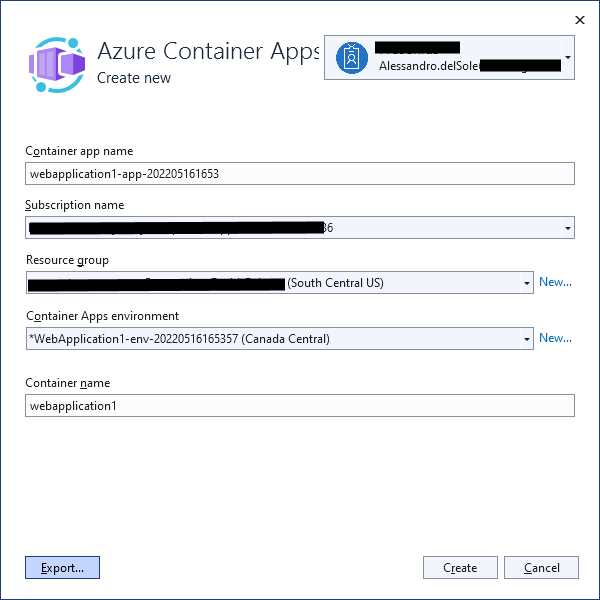
Figure 77: Details for Creating a Container App
You will need to specify the name, the subscription, the Azure resource group, the host web application with its data center, and finally the container name. If you click Create, Visual Studio will generate all the services you need. Obviously, it is out of the scope of this book to go further on this topic, but you can always look at the official documentation about Azure Container Apps if you are interested in learning more about this topic.
Razor editor improvements
Razor is the markup language of choice with ASP.NET Core web projects, and Visual Studio has always offered the usual first-class code editor for it. In Visual Studio 2022, additional interesting improvements were made to the Razor editor. The first addition is Hot Reload, which you saw in Chapter 4, and that works in the same way. If you want to quickly try it yourself, you can follow these steps:
- Create a new ASP.NET Core web project.
- Run the project by pressing F5 so that the debugger is enabled.
- Open the Privacy page of the auto-generated application (see Figure 78).
- Change the following line of code:
ViewData["Title"] = "Privacy policy";
As follows:
string privacyText = "Our privacy policy";
ViewData["Title"] = privacyText;
This way, you have not only changed the markup and the text, but also added managed references.
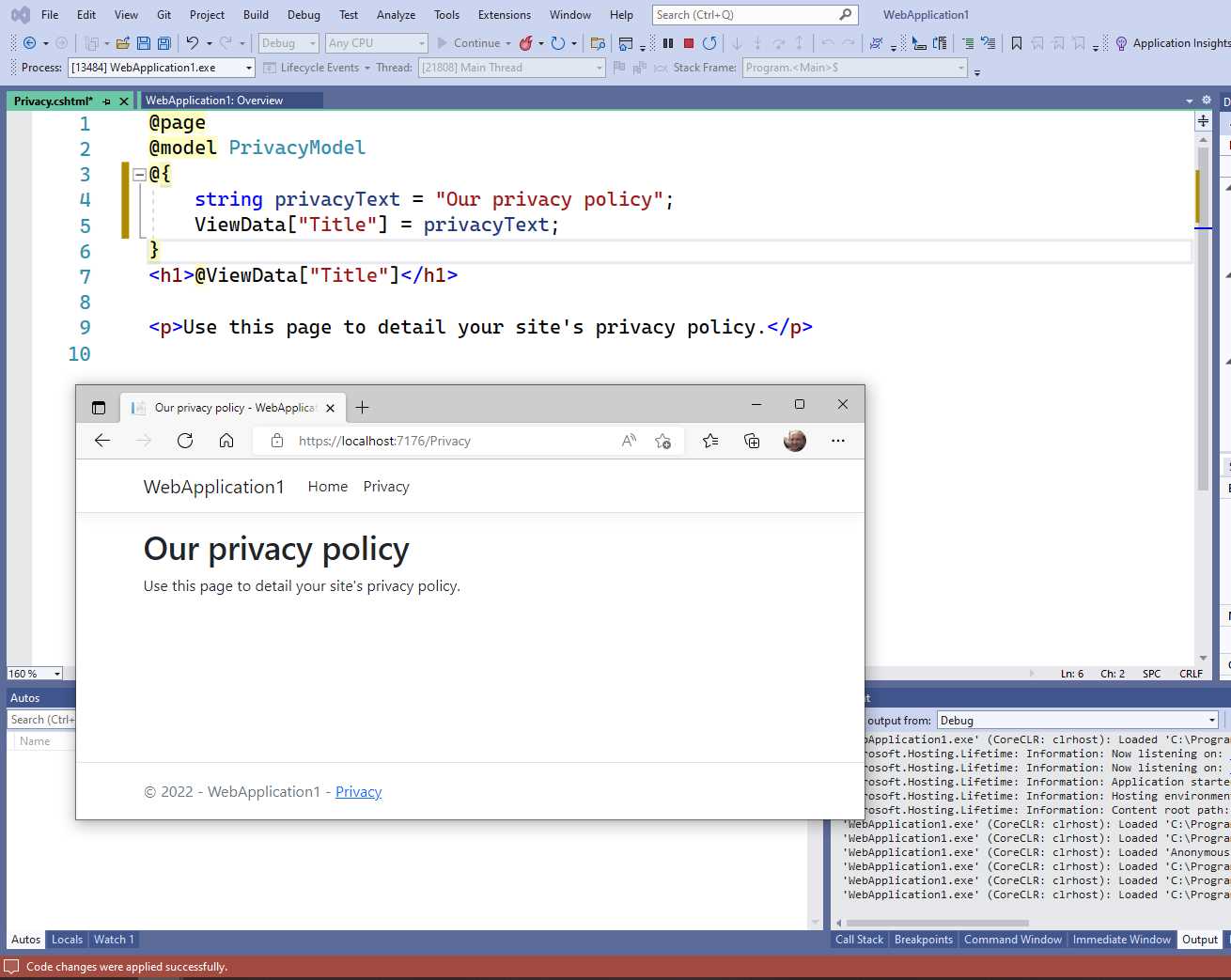
Figure 78: Hot Reload with Razor Files
Click the Hot Reload button on the toolbar (the flame icon) and you will see how changes will be reflected in the webpage without needing to restart the application.
General editor improvements
There are several additional improvements in the Razor code editor that are worth mentioning. First, performance: The code editor is now much faster. Second, the editor now fixes indentation and formatting much better than before. Another new feature of the Razor code editor is the ability to collapse regions, as you can see in Figure 79.
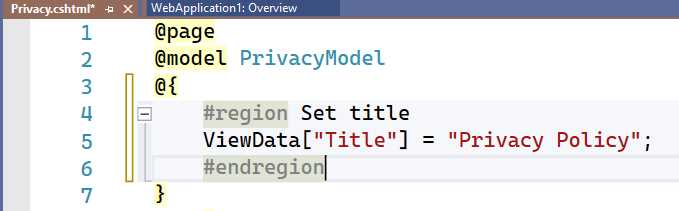
Figure 79: An Option to Collapse Regions Inside Razor Files Has Been Added
This is certainly a nice addition to improve code readability and organization. Visual Studio 2022 also adds new colors to the Razor editing experience that you can customize via Tools > Options > Environment > Fonts & Colors. Moreover, when you add comments, they now have autocompletion, and they automatically include commenting continuation and smart indentation. Finally, something new has been added to tag helpers. Look at Figure 80.
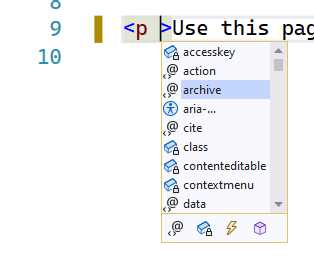
Figure 80: Tag Helper Improvements
Tag helpers are now classified in the IntelliSense pop-up together with other members, such as fields, events, and methods. This allows you to quickly filter the list by tag helpers.
Chapter summary
As the Azure platform and web technologies evolve, so does Visual Studio. In the new version, specific tools have been added to simplify integration with the Microsoft identity platform and minimal APIs. For cloud development, VS 2022 provides a new project template for Azure Cloud Services, which is required to support many infrastructural changes in the platform, including the usage of Azurite as the new storage simulator for local development and debugging. The Razor editor has also been updated to support Hot Reload, and has received several improvements like smarter indentation and better performance.


- 1800+ high-performance UI components.
- Includes popular controls such as Grid, Chart, Scheduler, and more.
- 24x5 unlimited support by developers.