
Visual Studio 2022 Succinctly®

CHAPTER 3
Support for .NET 6
Together with Visual Studio 2022, Microsoft also released .NET 6, the new major release of the popular development technology. You can build applications based on .NET 6 only with Visual Studio 2022, since the previous versions do not have specific support for it. Obviously, the focus of this chapter will not go into the details of .NET 6 as a development platform, but an overview of the architecture will be provided with information about how Visual Studio 2022 allows for building apps on the most important release of .NET in recent years.
Overview of the .NET 6 architecture
Before .NET 6, you had to choose between .NET Framework, .NET Core, and Xamarin to build a specific type of application. All these technologies share many APIs, libraries, tools, and programming languages, though they target different scenarios.
The goal of Microsoft has been unifying all these platforms into one .NET technology, with one set of APIs, libraries, and tools. This unification goes under the name of .NET, without any additional descriptor like Framework or Core. The work of bringing all the platforms under one .NET started with .NET 5, released in October 2020, whose main goal was making Xamarin use .NET Core instead of Mono and have one code base for both. The next step was unifying the .NET Framework and .NET 5 into one shared set of APIs, which goes under the name of .NET 6, released on November 2021. Figure 26 shows the .NET 6 architecture through an illustration from Microsoft, available in the blog post titled “Announcing .NET 6.”
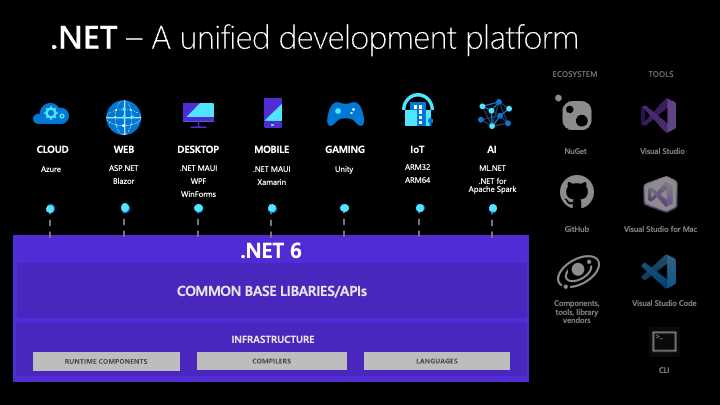
Figure 26: High-Level Architecture of .NET 6 (Source: Microsoft)
As you can see, all the high-level development platforms now rely on the same runtime, libraries, API, and tools. The most relevant addition to .NET 6 is probably the .NET Multi-platform Application User Interface, also referred to as .NET MAUI, the new mobile app development technology that can be considered an evolution of Xamarin.Forms and that allows for targeting mobile and desktop devices from one shared code base. At the time of this writing, .NET MAUI is available as Preview 12 and not yet in production, but later in this chapter you will see how to enable VS 2022 for MAUI. Obviously, .NET 6 not only improves productivity for developers who now have to deal with one platform, but it also provides general performance improvements and allows for using the new Hot Reload feature, described in Chapter 4, “Debugging Improvements.”
Creating projects for .NET 6
In Visual Studio 2022, you will be able to create projects that target .NET 6 from the New Project dialog. It is possible to target .NET 6 with console, ASP.NET Core, Windows Forms, and Windows Presentation Foundation projects. After specifying the project type, you will be asked to select the target .NET version. Figure 27 shows how this option appears for a console application, whereas Figure 28 shows how this option appears for an ASP.NET Core project.
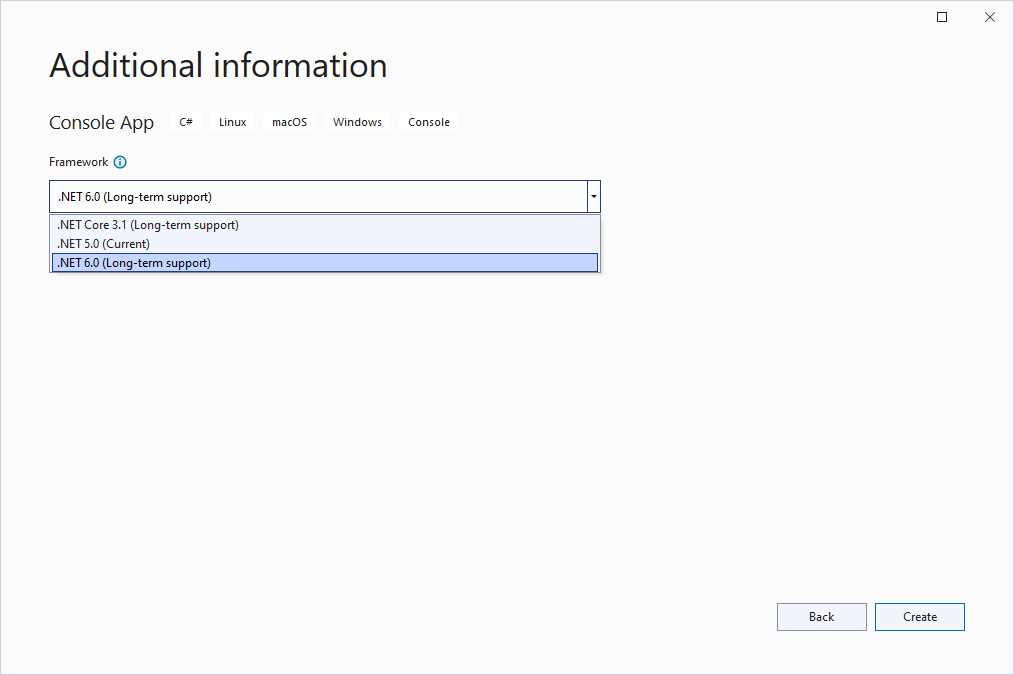
Figure 27: Targeting .NET 6 in a Console App
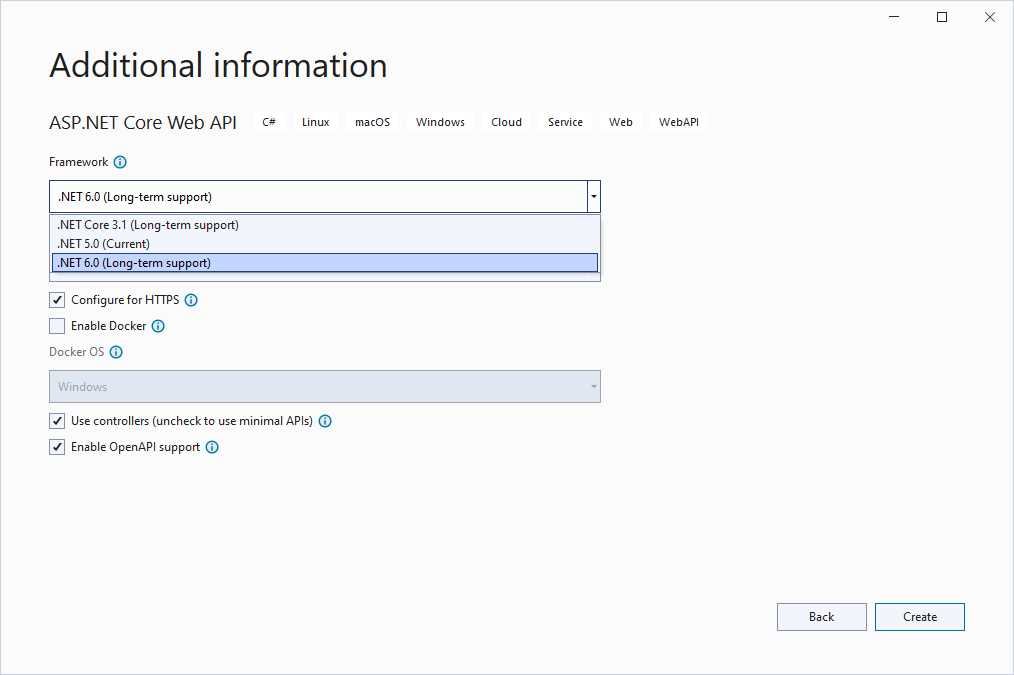
Figure 28: Targeting .NET 6 in an ASP.NET Project
As you can see, .NET 6 is identified as Long-term support, which means that it will be supported by Microsoft for three years. When you create a project based on .NET 6, you will immediately notice some changes in those project types that include a Program.cs file, such as console and ASP.NET Core. For a better understanding, consider Code Listing 1 which shows the content of the Program.cs file for a new ASP.NET Core project based on .NET 6.
Code Listing 1
var builder = WebApplication.CreateBuilder(args); // Add services to the container. builder.Services.AddControllers(); // Learn more about configuring Swagger/OpenAPI at https://aka.ms/aspnetcore/swashbuckle builder.Services.AddEndpointsApiExplorer(); builder.Services.AddSwaggerGen(); var app = builder.Build(); // Configure the HTTP request pipeline. if (app.Environment.IsDevelopment()) { app.UseSwagger(); app.UseSwaggerUI(); } app.UseHttpsRedirection(); app.UseAuthorization(); app.MapControllers(); app.Run(); |
Notice that there are no namespace or class Program blocks. Starting with C# 9, it is possible to consider the root elements of the application’s entry point, such as the Program class, as implicit. This feature is known as top-level statements and is used by default in Visual Studio 2022. In addition, Visual Studio 2022 is implicitly declaring the following using directives:
· using System;
· using System.IO;
· using System.Collections.Generic;
· using System.Linq;
· using System.Net.Http;
· using System.Threading;
· using System.Threading.Tasks;
This allows for writing code that leverages types exposed by the aforementioned namespaces without declaring them explicitly. Top-level statements make it possible to write cleaner code, but you are still allowed to explicitly add the namespace and class definition. This can be either done manually or by using the old-style file template. If you want to do so, you can create a project based on .NET 5.0 and, when ready, change the target framework to .NET 6.0 in the project properties, as suggested by the Microsoft documentation.
Adding references to .NET 6 projects
Like .NET Core and .NET 5, .NET 6 makes it possible to distribute an application with only the subset of core libraries and dependencies it needs. This avoids having an entire runtime technology like the classic .NET Framework installed on the target machine, which might not also be possible on smaller devices like phones and tablets. Consequently, .NET 6 does not rely on a Global Assembly Cache like .NET Framework does, and dependencies are usually installed via NuGet packages. This also implies that the way you add a reference to another assembly has also changed in .NET 6 projects. If you look at Figure 29, you can see which options you now have to add a reference for in Visual Studio 2022.
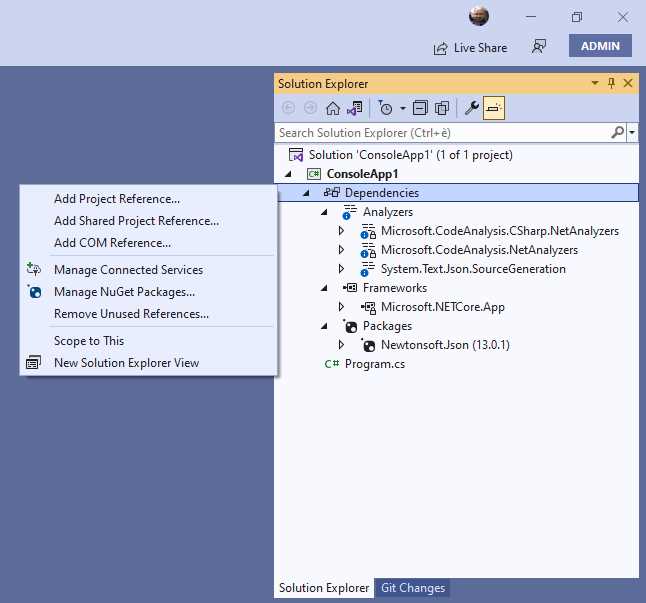
Figure 29: Adding References in Visual Studio 2022
Note: The concepts described in this section do not apply to projects based on .NET Framework, which behave like they did in the past.
Here’s a short list of the relevant points:
· The root node of referenced libraries is now called Dependencies, and it groups references by code analyzers, required Microsoft frameworks, and packages added via NuGet.
· The Add Reference command in the context menu is no longer available.
· Options to add a reference only appear if you right-click the Dependencies node. Right-clicking group names has no effect regarding this.
Assuming you need to add a reference to a local assembly, you can follow these steps:
- Right-click the Dependencies node.
- Select the Add Project Reference option.
- When the Reference Manager dialog appears, click Browse and locate the assembly on disk. Figure 30 shows an example.
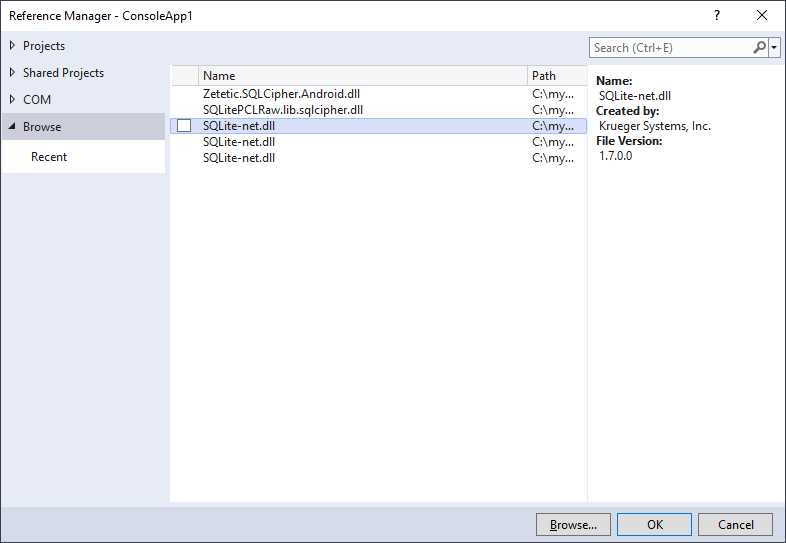
Figure 30: Adding References to Local Assemblies
At this point, the reference will be added and will appear under the Packages group.
Enabling .NET MAUI in Visual Studio 2022
The .NET Multi-platform Application UI framework can be considered the successor of Xamarin.Forms, with many improvements not only to supported platforms and package generation, but also to project development. Discussing .NET MAUI is outside the scope of this ebook, but it can be interesting for you to know how to enable .NET MAUI development in Visual Studio 2022. To enable .NET MAUI on your machine, you need to follow these steps:
- Download the latest Visual Studio 2022 Preview. This can be installed side-by-side with the production version.
- In the Visual Studio Preview Installer, select the Mobile Development with .NET workload. This is what you will also need to do with the final release.
- When the installation is completed, open Visual Studio 2022 Preview and create a new project.
- In the New Project dialog, search for the .NET MAUI App project template (see Figure 31).
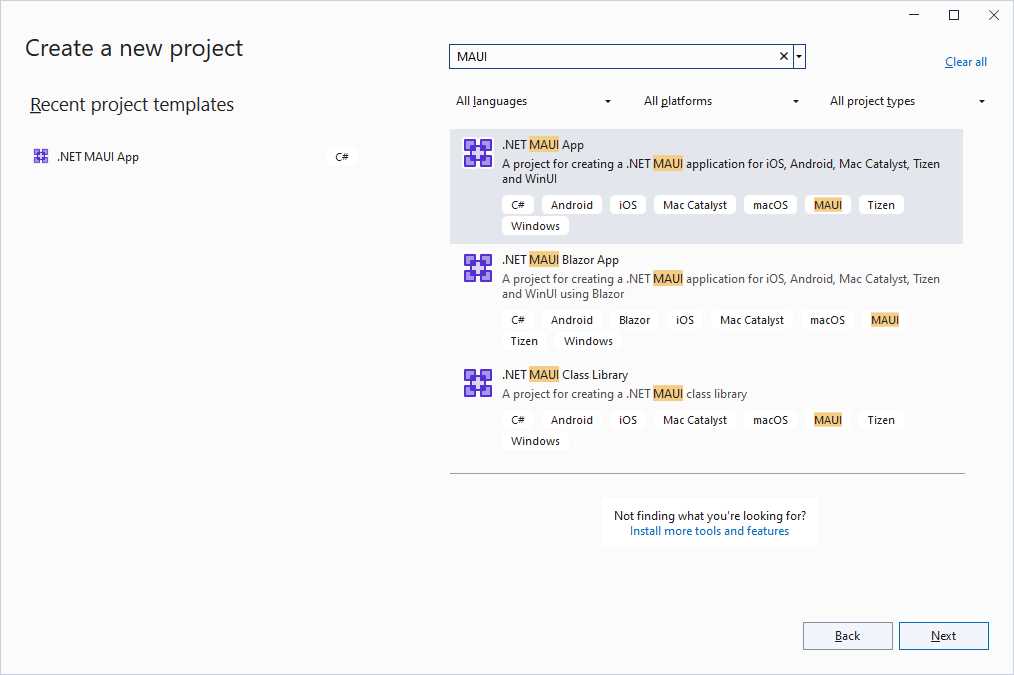
Figure 31: Creating a .NET MAUI Project
When the new project is ready, you will be able to develop your first .NET MAUI application, leveraging the new project structure and the dedicated Visual Studio tooling. You can refer to the official documentation to learn how to create your first app.
Chapter summary
Visual Studio 2022 is the only version of the IDE that allows for creating projects based on .NET 6, and it offers all the tools you need to do so. Targeting .NET 6 is something you can do when creating a new project, and Visual Studio automatically takes advantage of the new C# 10 features, offering support for top-level statements. Because of the way apps are distributed, the way you add references has also changed accordingly, so you typically install libraries via NuGet, but you can still add references to local assemblies by browsing the disk. Visual Studio 2022 also adds support for .NET MAUI, which is based on .NET 6, with new project templates and simplified project structure. In its natural evolution, the new edition of Visual Studio adds important productivity tools to the debugging experience, which are discussed in the next chapter.


- 1800+ high-performance UI components.
- Includes popular controls such as Grid, Chart, Scheduler, and more.
- 24x5 unlimited support by developers.