
Visual Studio 2022 Succinctly®

CHAPTER 2
.NET Productivity
As you would expect from a new major release of Visual Studio, several productivity improvements are also available to the code editor since this is the place where you spend most of your developer life. This already powerful editor is enhanced with a new code completion engine, new code refactorings, and new visual tools that help you understand the structure of complex code while keeping your focus on what you are writing. This chapter describes all the new productivity features available in the code editor, with suggestions on how to get the most out of them.
IntelliCode Completions
IntelliCode is a technology from Microsoft that extends the popular IntelliSense code completion engine with a richer experience based on artificial intelligence and machine learning. In fact, IntelliCode really learns from your code patterns and from the way you write code to provide better suggestions based on the context and based on the type of code you are writing. In Visual Studio 2022, the code editor receives an important improvement called IntelliCode Completions, which consists of full, in-line suggestions as you type that you can simply accept or reject.
Note: At the time of this writing, the full IntelliCode Completions experience is available only for C#, though languages such as C++, JavaScript, and TypeScript also leverage this feature, especially with IntelliSense. Updates to IntelliSense based on IntelliCode are discussed shortly.
For a better understanding, consider Figure 12 where you can see some C# code that makes an API call to retrieve a list of hypothetical Book objects. If you look at the line where the resultContent variable is declared, you can see how Visual Studio 2022 suggests completing the whole line of code based on the current context, which is completely appropriate in this case because the code needs to read response content in the form of a string, and that’s exactly the way you would need to complete the line.
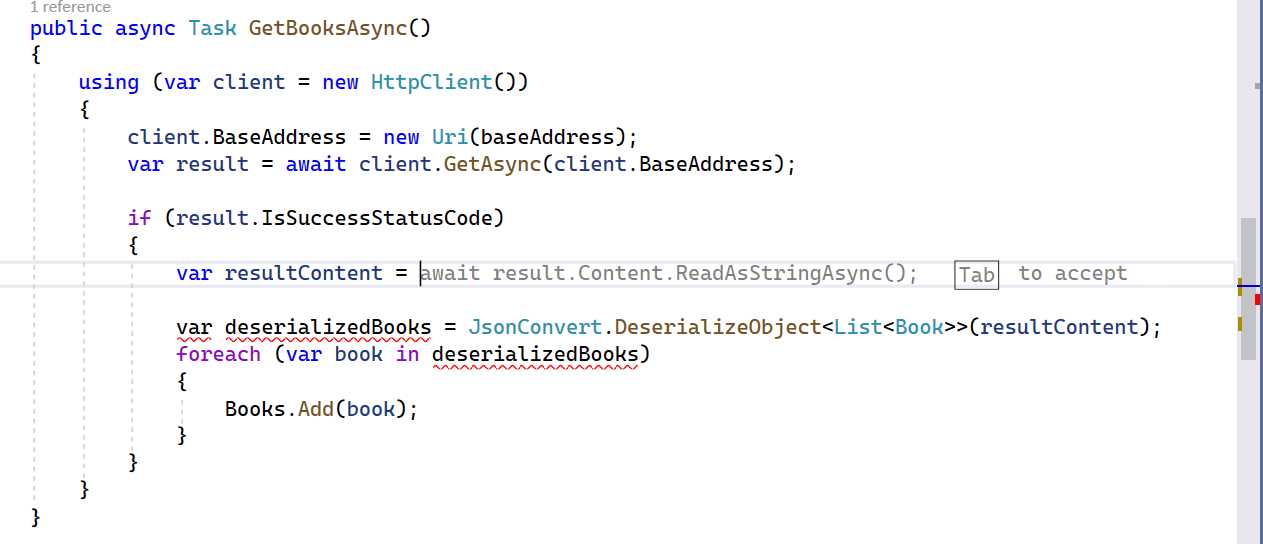
Figure 12: IntelliCode Completions
You can simply press Tab to insert the provided suggestion, press Esc to ignore the suggestion, or type your code manually. Figure 13 shows another example based on the definition of a Person class. Here, IntelliCode understands the context and suggests adding a property called Name, of type string, which would perfectly fit within a Person class.
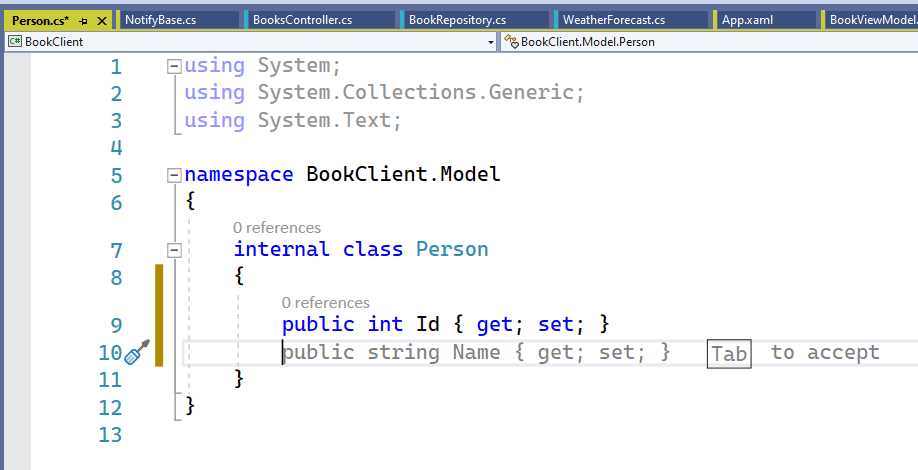
Figure 13: IntelliCode Suggesting Member Definition and Names
As a last example, consider Figure 14. There is the definition of a method that needs to open a file, and IntelliCode understands the intention of first checking if the file exists so it provides a suggestion on how to properly complete the line of code.

Figure 14: IntelliCode Context-Based Suggestion
As you can imagine, the number of suggestions that IntelliCode can provide is nearly infinite. Because it is built upon machine learning, it learns from your code more and more. For your curiosity, the IntelliCode engine has been trained with over half a million open-source repositories on GitHub (source) and, among the others, it takes into consideration the libraries you use, nearby code, and variable names. IntelliCode also improves the popular IntelliSense completion engine in several ways. First, IntelliSense now suggests, at the top of the list, completions that could satisfy a specific context. If you look at Figure 15, a hypothetical collection called products, of type List<Product>, is being instantiated and IntelliSense first suggests instance members that could fit in that context. A star icon on the left of the member represents an IntelliCode suggestion.
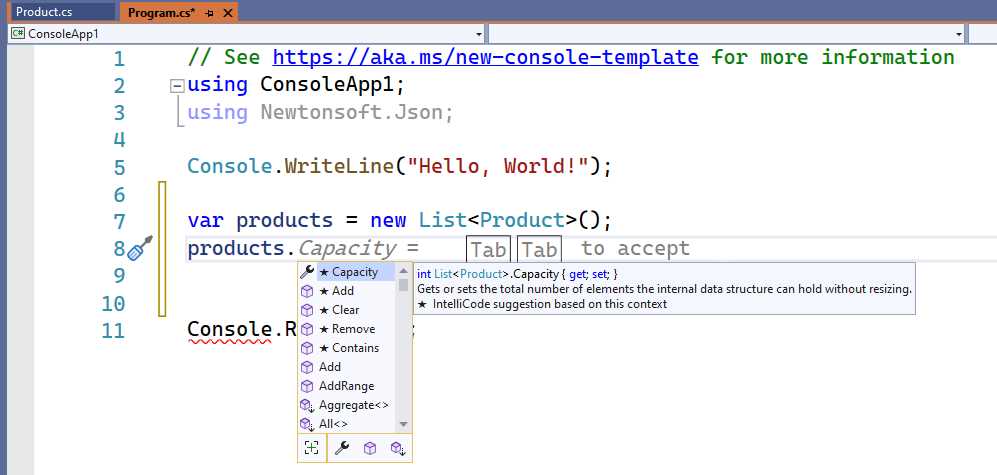
Figure 15: IntelliCode Empowering IntelliSense Suggestions
You can scroll to the member that you need to add and then press Tab twice to quickly insert the code. IntelliSense improvements based on IntelliCode also include suggestions as you type, which are discussed in the next section.
IntelliCode Completions as you type
In some situations, the code editor can provide IntelliCode suggestions that would normally be available as code refactorings, and that you would then manually show via the light bulb and screwdriver icons in the editor. If you look at Figure 16, you can see how a suggestion called Generate constructor appears directly in the IntelliSense list.
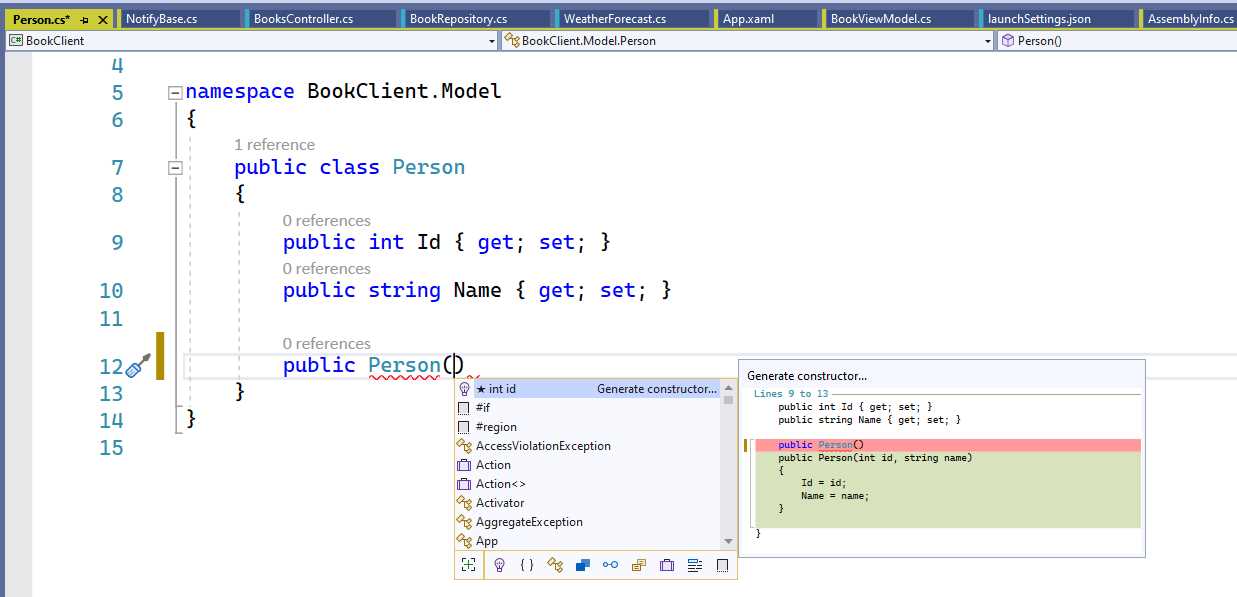
Figure 16: IntelliCode Completions as You Type
If you accept this suggestion, a parameterized constructor will be generated based on the number of properties defined in your class. The IntelliSense pop-up now also includes a new icon represented by a light bulb that you can click to filter by IntelliCode completions. In general, this feature is available when Visual Studio detects code for which a refactoring is available.
Note: At the time of this writing, this feature is available for a few scenarios only, such as constructor and property generation. It is reasonable to expect that it will be enhanced with the coming service releases.
Managing IntelliCode Completions
IntelliCode Completions are enabled by default. If you wish to disable this feature, you can open the Options window and locate the IntelliCode node (see Figure 17).
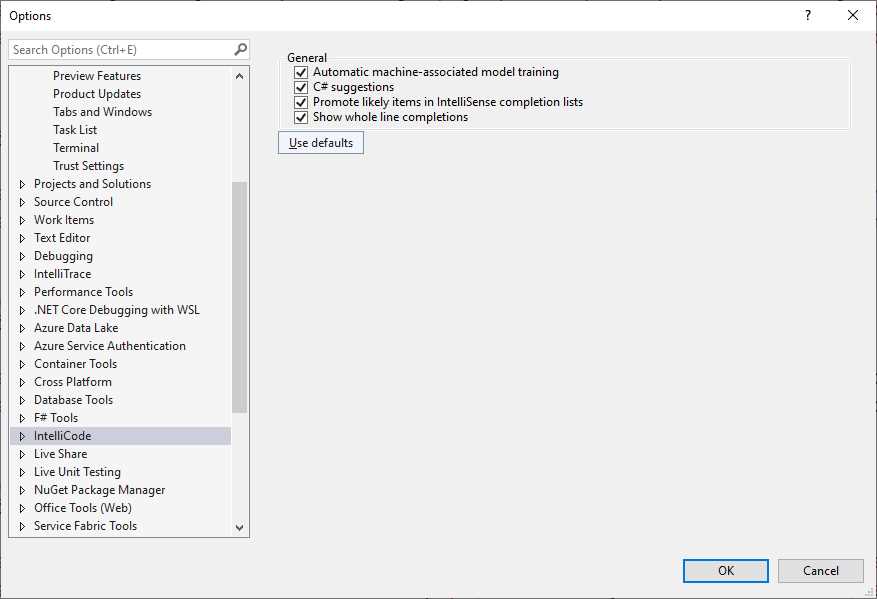
Figure 17: Managing IntelliCode Completions Options
Table 2 summarizes the options and their descriptions.
Table 2: IntelliCode Completions Options
Option | Description |
|---|---|
Automatic machine-associated model training | By enabling this option, you give IntelliCode permission to learn from your coding styles and patterns so that suggestions will be improved and more personalized as the engine learns from you. |
C# suggestions | Enables IntelliCode Completions as you type, discussed in the previous section. |
Promote likely items in IntelliSense completion lists | When enabled, this option allows IntelliSense to display suggestions based on the context, powered by IntelliCode (see Figure 15 for an example). |
Show whole line completions | This option controls the full line suggestion feature that was the first topic of this chapter. |
Click OK when ready. This is probably one of the most interesting and powerful features of Visual Studio 2022, especially for .NET, so using it and getting familiar with it will bring your coding experience to the next level.
Inheritance margin
Inheritance margin was introduced with later updates of Visual Studio 2019 and improved over time, so it is a good idea to show how it works in Visual Studio 2022. This feature shows the base members and interfaces that a type is implementing through an icon displayed on the code editor margin. Figure 18 shows an example.
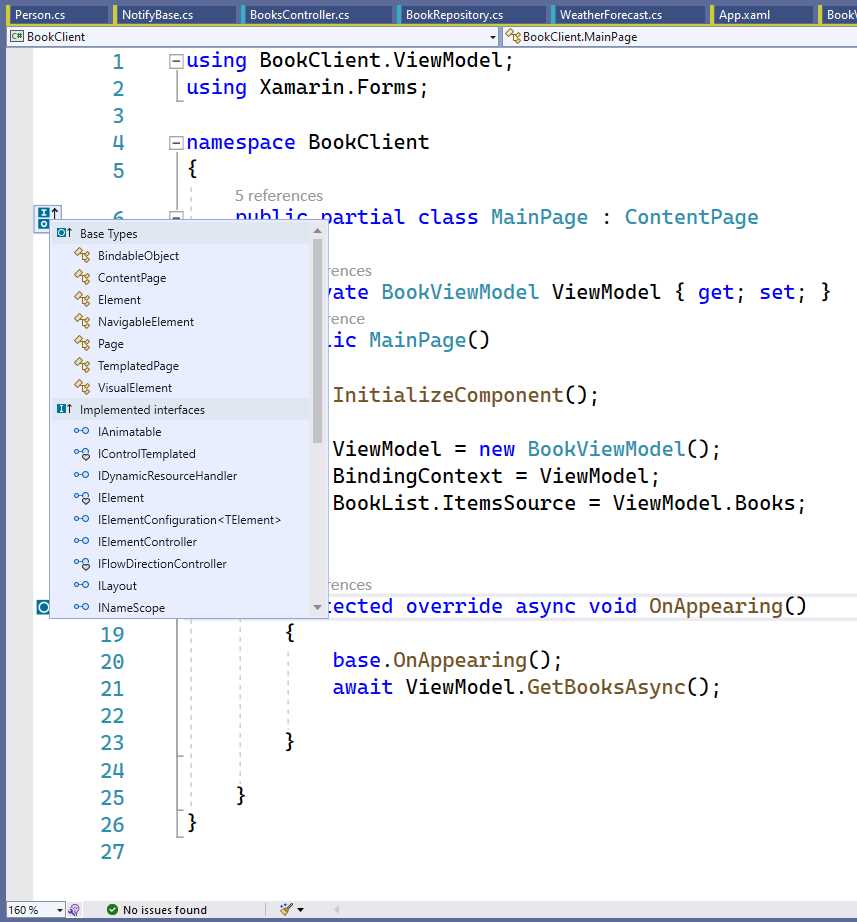
Figure 18: Displaying Base Types and Implemented Interfaces with Inheritance Margin
This feature also applies to individual members so that it is possible to know what base members have been overridden. Figure 19 shows an example based on a method called OnAppearing that overrides the same-named method from its base class.
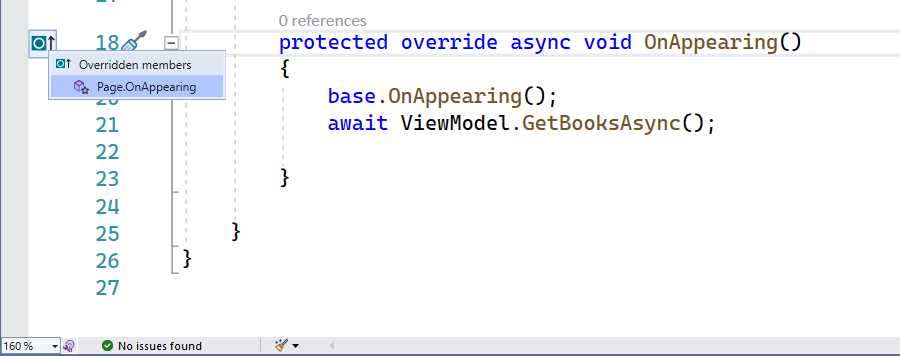
Figure 19: Displaying Overridden Base Members
This feature can be useful when you have very complex class hierarchies and you want a visual representation of the code structure.
Improvements to code typing
Some minor yet useful improvements have been added to the coding experience and are summarized in the following paragraphs.
Document autosave
Visual Studio 2022 offers a new autosave feature that allows for automatically saving all open dirty documents when the IDE loses focus. Files are saved to disk if possible, otherwise they will need to be saved manually (the * indicator will still indicate dirty documents). This feature is not enabled by default, but you can enable it in the Options dialog under the Documents group of the Environment node. The option you need to enable is called Automatically save files when Visual Studio is in the background (see Figure 20).
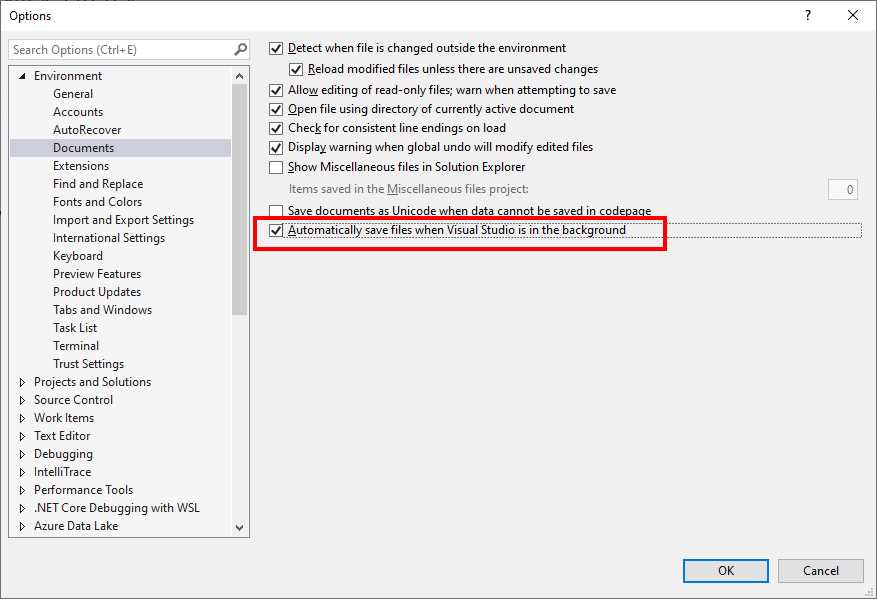
Figure 20: Enabling Document Autosave
Subword navigation
Visual Studio 2022 introduces subword navigation. For example, if you have the FirstName literal, First and Name are recognized as individual words, so navigating with Ctrl+Alt+Left Arrow and Ctrl+Alt+Right Arrow will cause Visual Studio to highlight both individually. This feature is enabled by default, but you can go back to the classic behavior by disabling the Select subword on double click option in the Text Editor > General group of the Options window (see Figure 21).
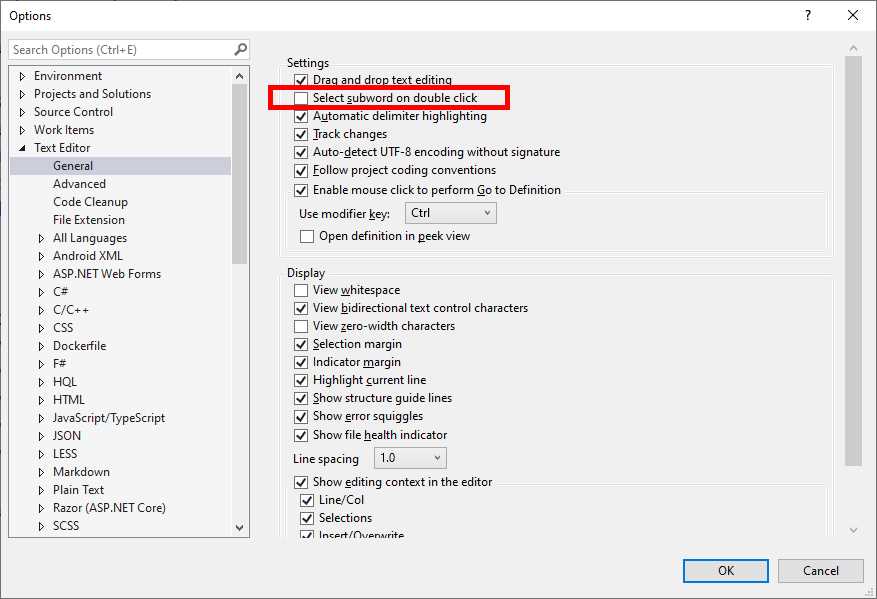
Figure 21: Controlling Subword Navigation
Multi-caret copy/paste improvements
As you may know, Visual Studio has offered a multi-caret developer experience for several years, but when you copied and pasted with multi-carets, the entire clipboard content was duplicated on each line. In Visual Studio 2022, this has improved. Now, when you paste over multiple carets, individual lines are pasted at the appropriate location.
Multiline XML comments
With XML comments, which you use to implement source code documentation, it is now possible to have multiline CData sections, and the white space will no longer be normalized. Figure 22 shows an example of how this works.
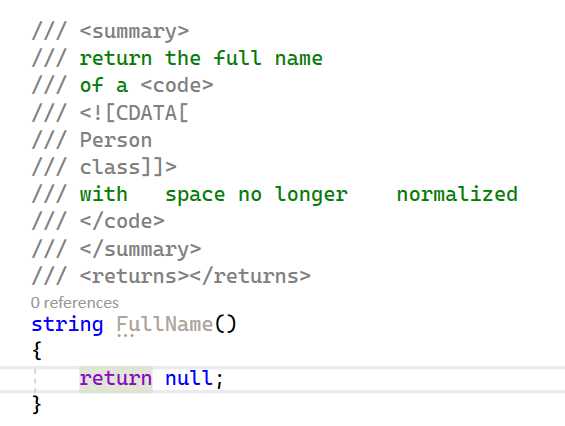
Figure 22: Multiline CData Sections inside XML Comments
This can be useful when you need to add long CData sections and you want to keep indentation and spacing.
Synchronizing namespaces between objects
Visual Studio 2022 introduces a new feature that allows for synchronizing namespaces with the folder structure of a project. This is considered a code refactoring, and it is available by right-clicking a project name in Solution Explorer and then selecting Sync Namespaces. When finished, Visual Studio will show an informational dialog about the result of the operation. This feature can be very useful especially if you have added files under folders that, over time, you realize are no longer appropriate.
The Stack Trace Explorer window
A new tool window called Stack Trace Explorer has been added to Visual Studio 2022 in order to simplify the way you browse an exception’s stack trace. It can be enabled by clicking the Stack Trace Explorer command in the View > Other Windows submenu. When an exception is thrown, you should be able to see the stack trace in the new window. If this does not happen, you can copy the stack trace text from the exception data tip and paste it into the tool window. Figure 23 shows an example based on a FileNotFoundException.
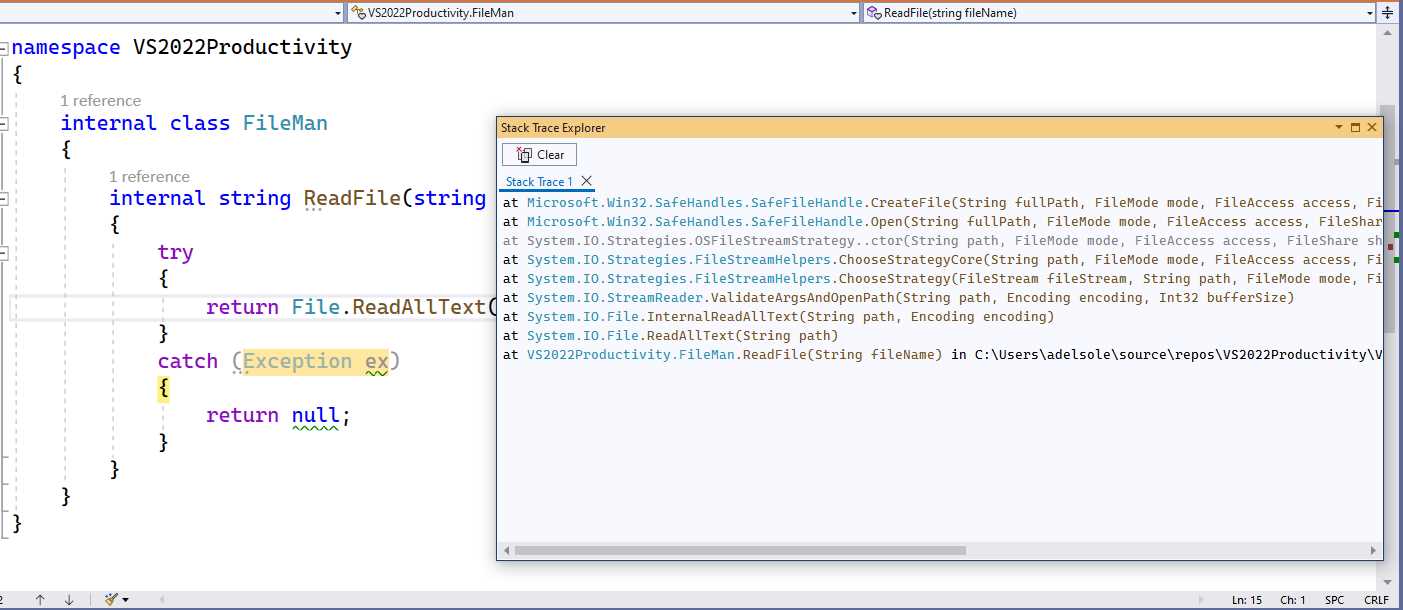
Figure 23: The Stack Trace Explorer Tool Window in Action
As you can see, the Stack Trace Explorer displays method calls with syntax colorization for improved legibility. In addition, you can click on user code to quickly move to a specific line in the stack trace. By following the same steps described previously, it is also possible to display multiple stack traces. You can click the Clear button to delete the content of the window.
Underlying reassigned variables
It is quite common to have variables that are reassigned with another value during their lifecycle. Visual Studio 2022 makes it easier to highlight variables that have been reassigned via an option that underlines the variable name and is specific to C# and Visual Basic. If you look at Figure 24, you can see how the IncreaseCounter method receives a value through the startValue variable, which is reassigned in the method body and is underlined.
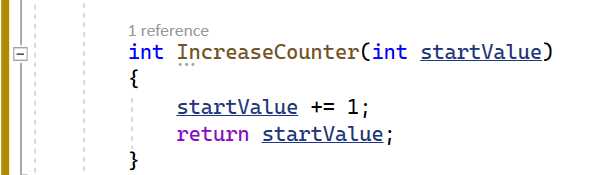
Figure 24: Underlining Reassigned Variables
This feature is not enabled by default. You need to open the Options dialog and then enable the Underline reassigned variables option in the Advanced node of the C# and Visual Basic text editor options.
Tracking source values
Another new, useful feature in Visual Studio 2022 allows for tracking a variable’s assignments through the code. To accomplish this, you right-click a variable name anywhere in the code and then select Track Value Source. Figure 25 shows an example based on a variable called startValue, and it shows a visual representation of all the assignments of this variable.
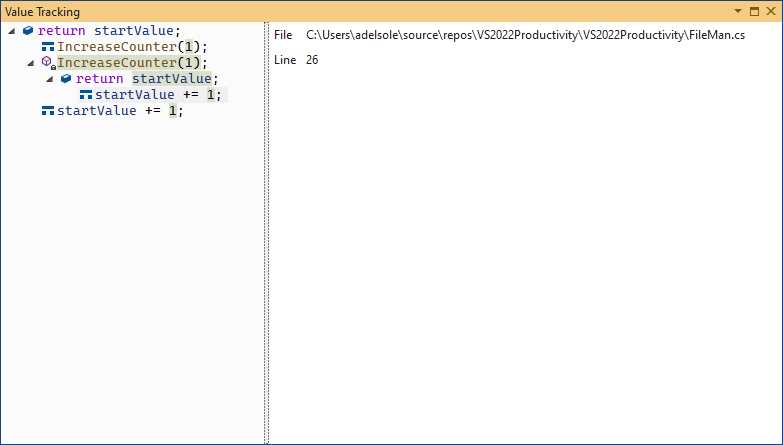
Figure 25: Tracking Value Sources
As you can see, the left side of the window shows the list of members that are manipulating the selected variable. Each member is identified with an icon that matches the way IntelliSense represents it. If you click on a member, you will see the code file and the line where the member is manipulating the variable. This tool window is very useful when you need to walk through a variable’s assignments, which can be many.
Note: Rather than values, the track value source feature shows where a variable is manipulated.
Chapter summary
Productivity improvements are at the center of every major release of Visual Studio, and version 2022 makes no exception. In this new release, you can take advantage of the powerful IntelliCode code completion engine, which literally learns from your code patterns and suggests code depending on the context. You can now take advantage of visual features like inheritance margin, stack trace explorer, and track value source, which allow for investigating the behavior of types, exceptions, and variables without losing focus on the active file. All these improvements to .NET productivity also apply to developing for .NET 6, whose support in Visual Studio 2022 is discussed in the next chapter.


- 1800+ high-performance UI components.
- Includes popular controls such as Grid, Chart, Scheduler, and more.
- 24x5 unlimited support by developers.