
Visual Studio 2022 Succinctly®

CHAPTER 1
Design Improvements
Visual Studio 2022 introduces several design improvements, including new iconography, new fonts, updated themes, and the option to have colored tabs. About icons and fonts, these are based on the popular open-source Microsoft Fluent design system. This chapter describes the design improvements in VS 2022, and it explains how to replace the default settings with custom ones.
Updated iconography
Icons in Visual Studio 2022 have been updated based on the following criteria: consistency, legibility, and familiarity. Consistency means that icons should represent predictable items. Legibility means using colors, fills, and contrast to improve accessibility for all users. Familiarity means that icon symbols with a long tradition should be kept, preserving colors when they help find items. Figure 6, taken from the blog post “We’ve upgraded the UI in Visual Studio 2022,” compares some icons between Visual Studio 2019 (on the left) and Visual Studio 2022 (on the right), making the iconography changes clear.
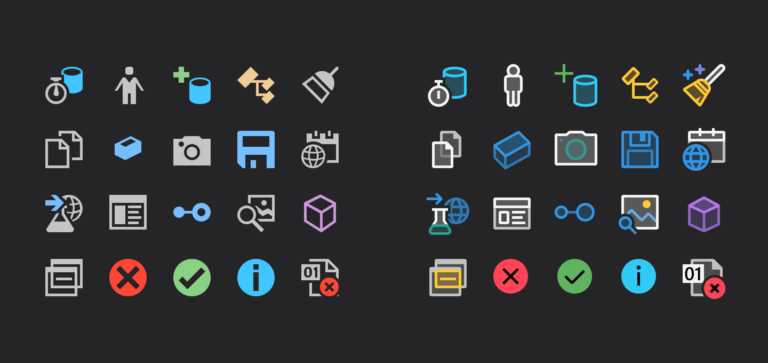
Figure 6: Iconography Comparison (Source: Microsoft)
The new icons, which also work much better with dark themes, still make commands and shortcuts easy to recognize but improve accessibility and contribute, together with the other improvements, to make your eyes less tired when spending many hours in front of a screen.
Microsoft has kept in mind additional principles when updating the icons. More specifically, a change is acceptable if it does not alter the original meaning of an icon; legibility works only with appropriate combinations of contrast and icon symbols; and colors should always make it easy to understand what an icon refers to. Icons are not the only update in terms of legibility, accessibility, and rest for your eyes. There is also some news about fonts, as discussed in the next section.
New fonts
Visual Studio 2022 introduces a new font called Cascadia, with two flavors: Mono and Code. By default, Cascadia Mono is enabled for both the user interface and the code editor. Cascadia is a new monospaced font that improves readability and accessibility especially for text editors and command-line tools. Figure 7 shows how the code editor looks with the Cascadia Mono font enabled.
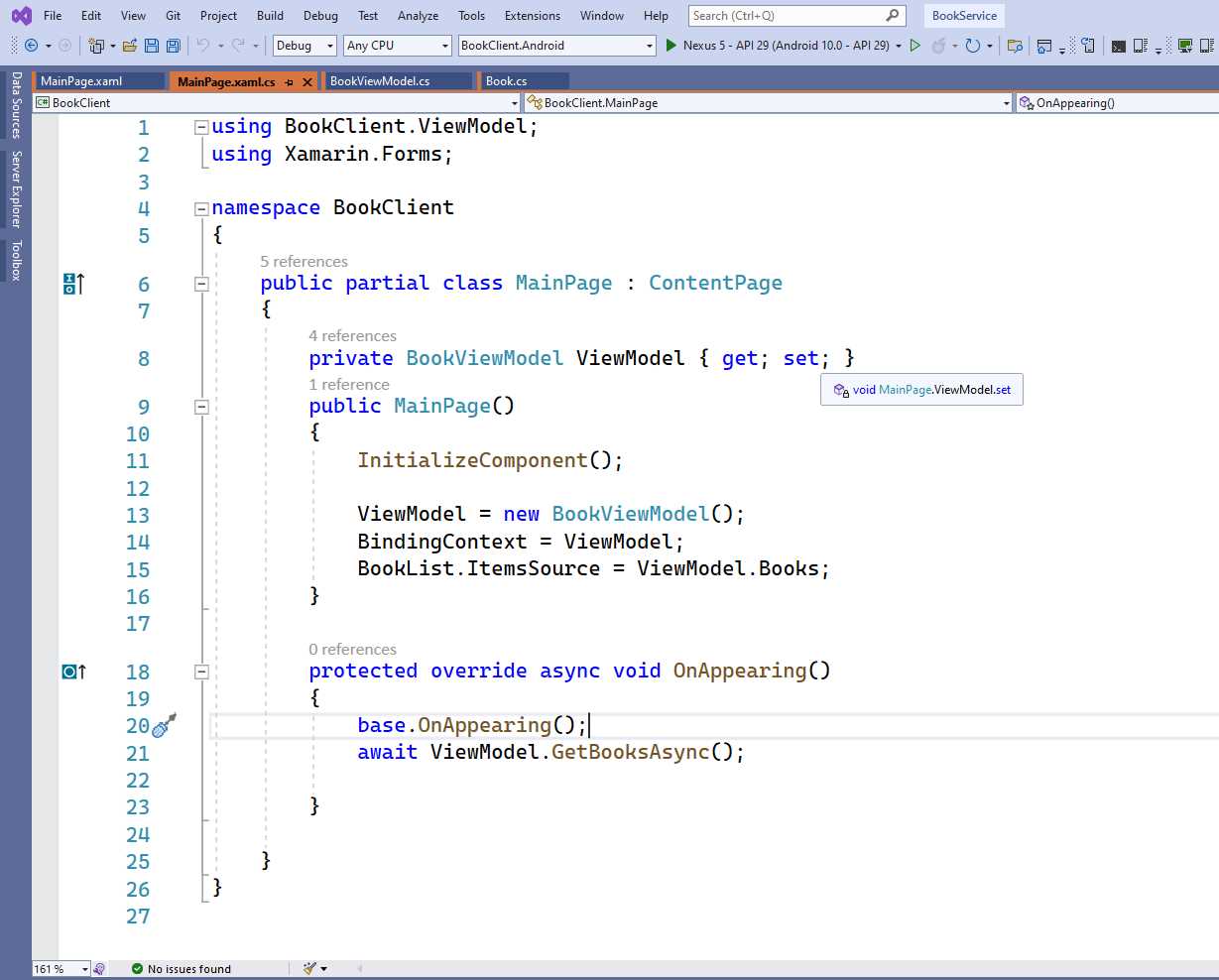
Figure 7: The Cascadia Mono Font Improves Accessibility and Readability
You can always select a different font the usual way, by selecting Tools > Options, and then in the Options dialog locate the Fonts and Colors option under the Environment tab. The biggest difference between Cascadia Mono and Cascadia Code is that the latter better supports the addition of ligatures (glyphs used by many developers to improve readability).
Enabling color tabs
Another new feature in Visual Studio 2022 is color tabs. It enables coloring tabs that represent open files. Figure 8 shows an example where the tab of the currently open file is colored in volt and the inactive tabs are colored blue.

Figure 8: Colored Tabs for Open and Closed Tabs
Colored tabs are not enabled by default, so you need to manually enable the feature in the Options dialog under the Environment > Tabs and Windows group, selecting the Colorize documents tab by option (see Figure 9). You can enable tab colorization by project or by file extension. If your solution contains several projects, it might be useful to have colored tabs by project so you can quickly determine which project a file belongs to.
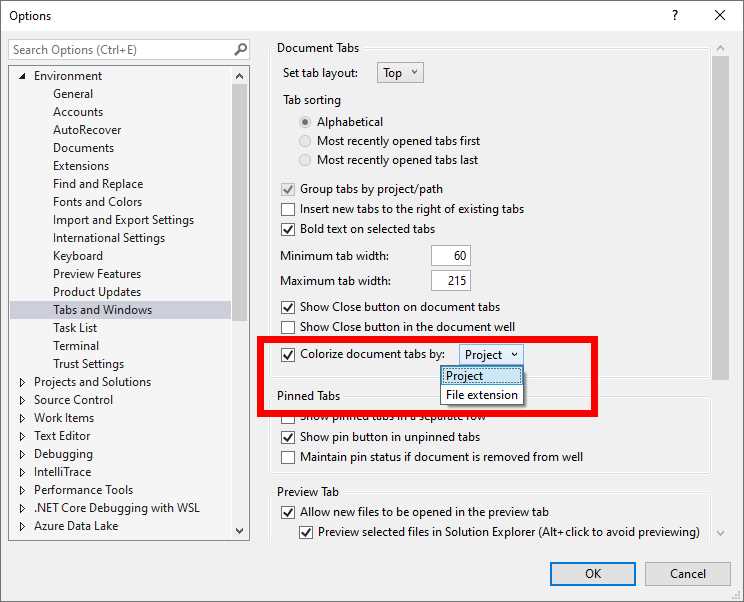
Figure 9: Enabling Tab Colorization
Every time you select a tab, it will be fully colored. You can also control the tab layout. If you right-click a tab and then select Set Tab Layout, you will be able to select the tab position (left, top, or right). Top is the default, like in Figure 8. Figure 10 shows how tabs appear when placed on the left side of the IDE.
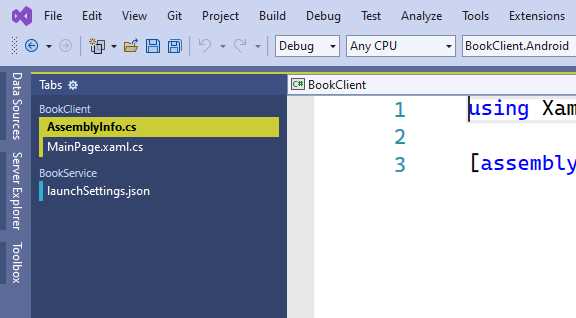
Figure 10: Selecting a Tab Layout
Notice how tabs are grouped by project for easier reference. Visual Studio automatically chooses tab colors, but this is something you can customize by right-clicking a tab and then selecting Set Tab Color. You will be able to pick a color that will be applied to all the tabs of the same group.
Tip: Visual Studio detects if other instances of the IDE are running. In this case, every instance will show tabs with colors that are different from one instance to another to avoid confusion.
Further tab layout management
If you look at Figure 9, you can see options that allow for further tab customization:
· Bold text on selected tabs allows you to show the text of a tab in bold (see Figures 8 and 10 for examples).
· Minimum tab width and Maximum tab width allow you to respectively specify minimum and maximum values for the tab width. This is a new feature that can be helpful with long file names.
Customizing tabs is part of a strategy in Visual Studio 2022 that makes it easier to personalize the environment according to your needs, and this also involves themes, discussed in the next section.
Theme personalization
Several improvements have also been made to the graphical themes in Visual Studio. First, you can now access available themes directly from the Tools menu via the Themes submenu, which provides shortcuts to enable a theme plus a shortcut to the Visual Studio Marketplace to download additional themes specifically designed for VS 2022. The second improvement is related to the dark theme, which is one of the most popular themes. This theme has been upgraded to better support with the Microsoft Fluent design language and the new iconography discussed previously; therefore, it also better supports accessibility, and prevents your eyes from fatiguing. Figure 11 shows how the dark theme appears.
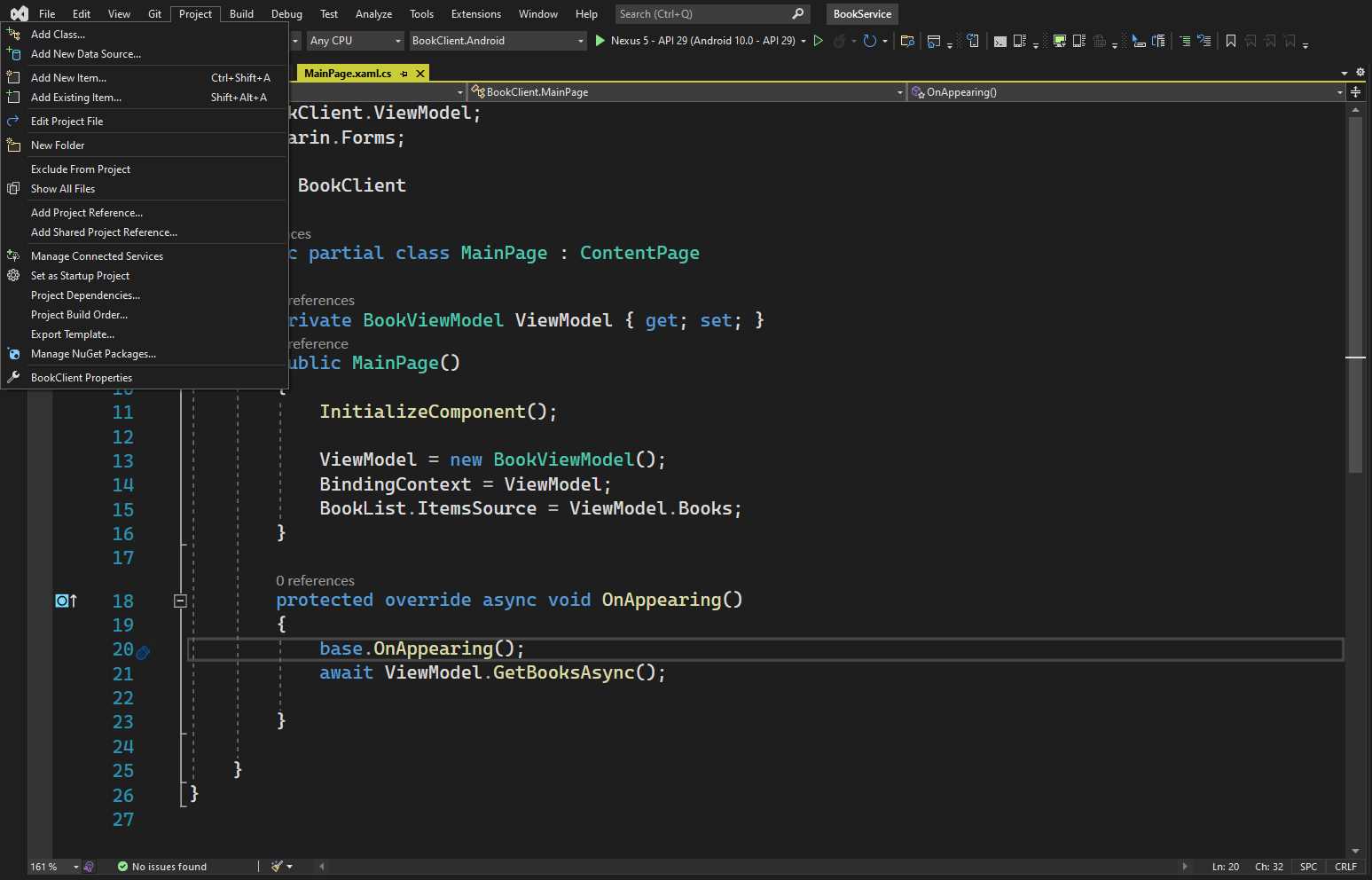
Figure 11: Updated Dark Theme
Tip: If you still want to use the dark theme as it was in Visual Studio 2019, you can download it as an extension.
Another interesting option is the ability to use the current Windows theme. This is accomplished by selecting Tools > Themes > Use system settings. When you select this option, Visual Studio 2022 will synchronize its theme with the Windows theme, including specific settings such as ambient light. Finally, Microsoft also created an open-source tool called Visual Studio Theme Converter that allows for quickly converting themes from Visual Studio Code (you will need to compile the tool with Visual Studio on your own).
Chapter summary
Without a doubt, an environment where the user feels at home improves productivity. With this in mind, Microsoft has enhanced Visual Studio 2022 by introducing new and updated features that allow for better tab and theme personalization, plus new fonts and iconography that improve consistency, legibility, and accessibility for all developers. Productivity is key, and a comfortable environment is not only made of the look and feel of an IDE, but also the coding tools. This is the topic of the next chapter.


- 1800+ high-performance UI components.
- Includes popular controls such as Grid, Chart, Scheduler, and more.
- 24x5 unlimited support by developers.