
Visual Studio 2022 Succinctly®

CHAPTER 6
Collaboration and Source Code Management
Collaboration in software development is crucial because it involves many people who may work remotely in different parts of the world and different time zones (as highlighted by the recent pandemic). Microsoft adds new collaboration tools to every major release of Visual Studio, and version 2022 is no exception. There are many additions, but certainly the most relevant ones are related to simplifying and enhancing the integrated tools to support Git repositories and collaboration on source code. In this chapter, you will see what’s new in VS 2022 from a collaboration point of view, and you will be able to elevate your Git productivity to the next level.
Note: The topics described in this chapter require that you are already familiar with Git and team collaboration in Visual Studio.
Live Share improvements
Live Share is a tool that has existed for several years in Visual Studio, and that allows for remote, real-time live collaboration over source code. It is available for Visual Studio and Visual Studio Code, and now through a new web client as well. Remote instances of Live Share can connect to a host instance (regardless of the development environment) and developers can write code and collaborate with one another. This is very useful with pair programming scenarios or when you need help from team members who are not in the same location. In Visual Studio 2022, Live Share introduces an integrated chat. Once you have started a hosting session, you can click the Sharing shortcut at the top right corner (see Figure 55) and then select Live Share Chat.
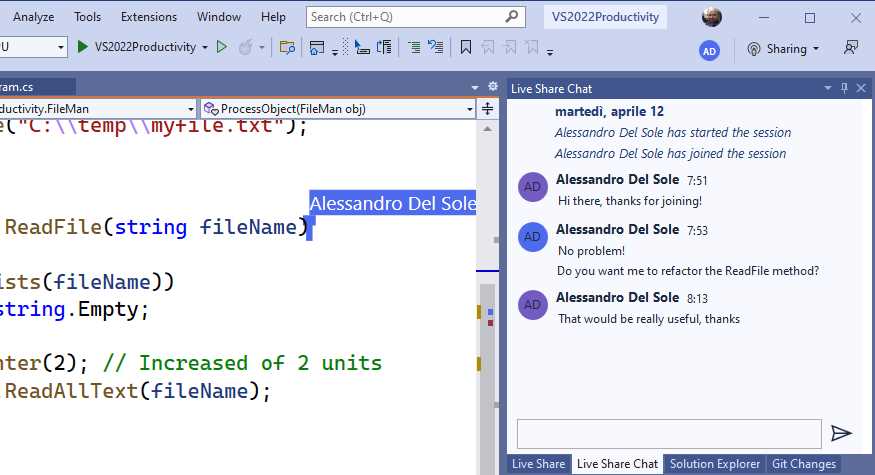
Figure 55: Live Share Integrated Chat
Figure 55 shows an example of how developers can interact in the chat window during the sharing session. Opening a live chat is totally optional, but it can be useful if you need to communicate with other colleagues without using an external program.
Git tooling updates
Visual Studio 2022 introduces new support tools for working with Git repositories, and some existing tools have been modified. The first major change is that you no longer interact with source code changes using the Team Explorer tool window, which has been replaced by a new tool window called Git Changes. This is enabled by selecting View > Git Changes.
Tip: The Team Explorer tool window still exists, but it only shows a message saying that Git features have been moved. It explains where you can find them in VS 2022, such as in the Git menu.
Figure 56 shows an example of how the Git Changes window appears.

Figure 56: New Git Changes Tool Window
The Git Changes tool window basically works like Team Explorer did in the past. You have a list of modified files grouped by changes, staged changes (changes that will go into the next commit), and stashed changes (changes that you keep aside but that you will not commit). You are still able to right-click files and folders to access shortcuts to common tasks, such as Undo Changes, View History, and Compare with Unmodified.
Comparing branches made easy
A new addition to the Git tooling in Visual Studio 2022 is the ability to compare branches with a few mouse clicks. If you open the list of branches in the current repository, by clicking the name of the current branch on the status bar, you can right-click a different branch and select the Compare with Current Branch command, as shown in Figure 57.
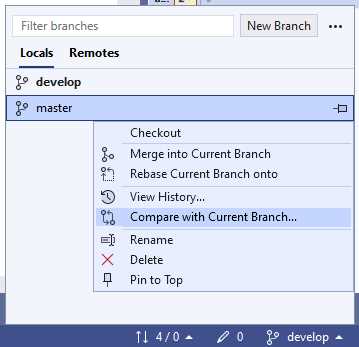
Figure 57: New Shortcut to Compare Branches
Tip: Branches can be compared only if they do not have any pending changes, so all changes must be committed before comparison.
When you click this command, Visual Studio will show files from the current branch on the left, the file difference with the branch selected for comparison at center, and the commit details with a list of modified files on the right. Figure 58 shows an example.
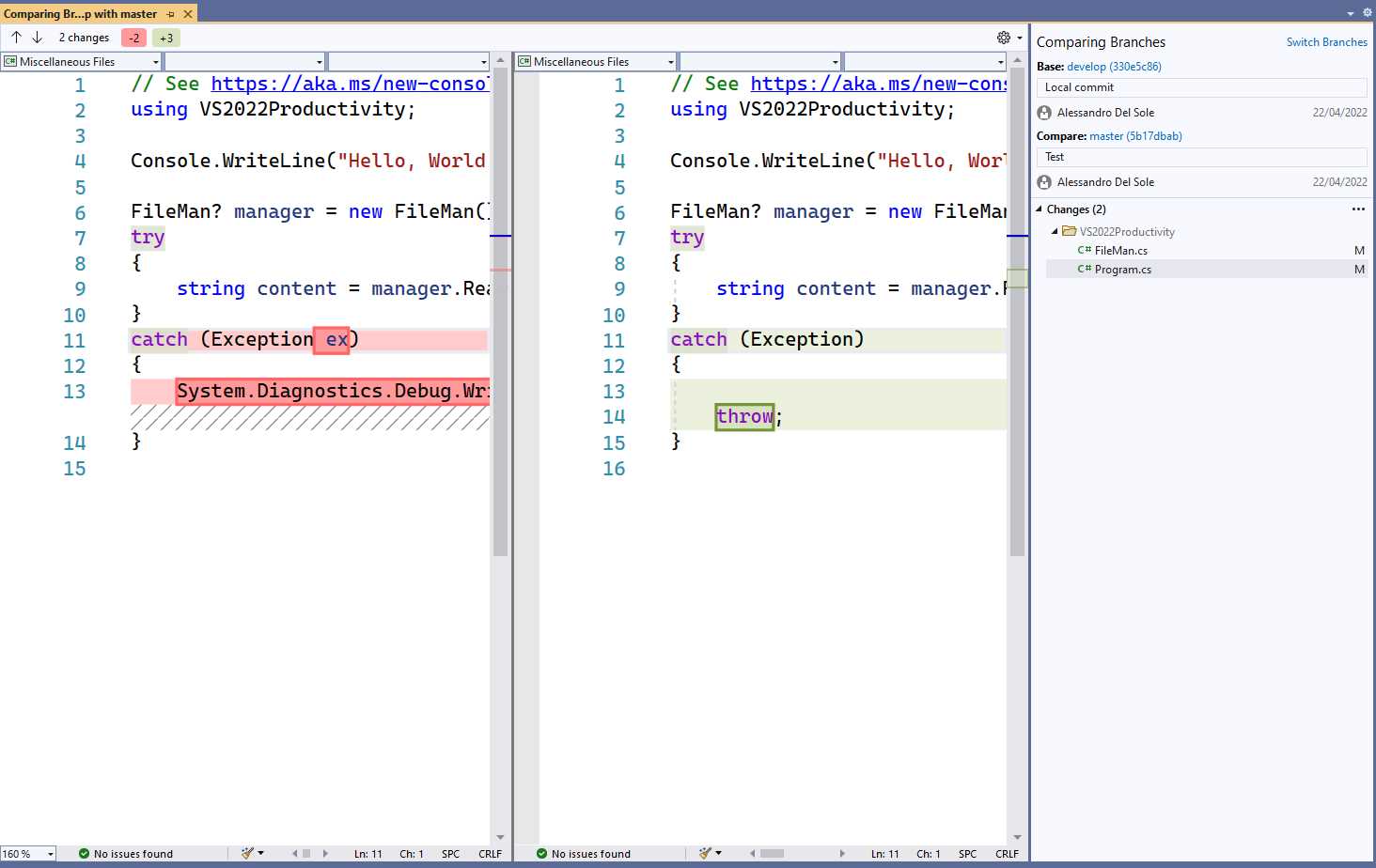
Figure 58: Branch Comparison in Visual Studio 2022
Simply click one of the files in the list to compare changes with the selected branch.
Working on specific commits
Sometimes you need to work on specific commits in a repository. For example, you might need to review a colleague’s work without checking out a branch where you do not plan to contribute. In this case, you can follow these steps to check out a commit:
- Select View > Git Repository.
- When the Git Repository window appears, in the history of the code, right-click the commit you are interested in and then select Checkout (--detach) as shown in Figure 59.
- You will need to accept Visual Studio’s warning about the fact that you will work on a commit that is in a detached state before accessing the code.
Note: Put succinctly, when code is in a detached state, you point to a commit that works like a local folder, rather than to a branch. This means that you can still make changes to the code, but you will need to create and push a new branch to save and share those changes, otherwise they will be lost.
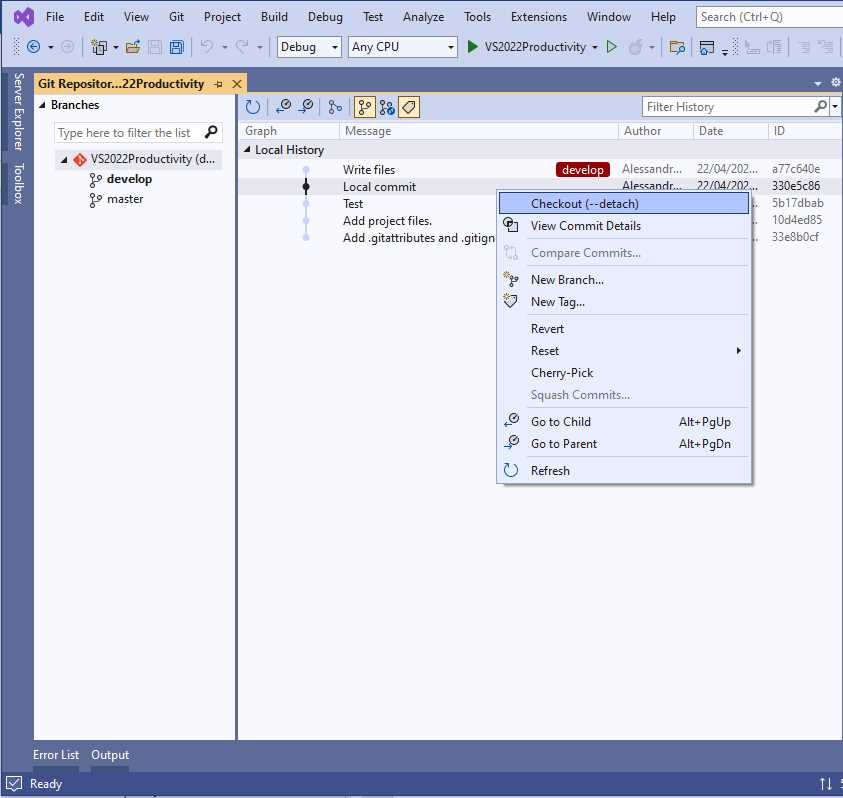
Figure 59: Checking Out Commits in a Detached State
Once code has been checked out, you will be able to run it and change it as usual (keeping in mind the comment in the previous note). This feature is very useful, especially for code reviews. Obviously, it needs some attention when you think the code needs changes or if you plan to contribute to the branch where the selected commit resides.
Colored editor margins
Visual Studio 2022 adds a new feature to the code editor with projects under source control, known as colored editor margins. In short, when you make changes to a file, the margin of the code editor shows a color that represents the change you made: green for new code, red for deleted code, and blue for modified code. Figure 60 shows an example where lines have been added to and removed from a method called ReadFile.
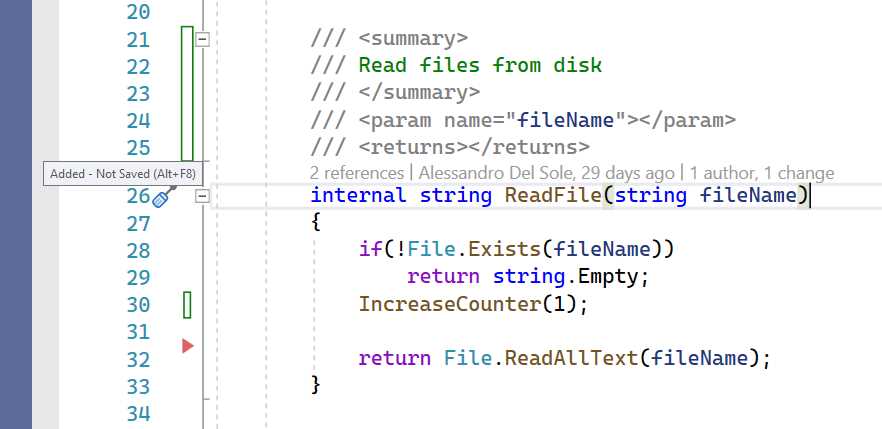
Figure 60: Colored Editor Margins
Note: Colored editor margins are still in preview at the time of this writing. You can enable this feature in the Preview Features of the Options dialog, selecting the Enable line-staging support option. This is also required for the inline staging feature discussed in the next section. You can look at Figure 47 to see where this option is.
A red glyph indicates the point where code was removed. Green vertical lines indicate points where new code was added. If the code file has not been saved yet, such lines only show a border, whereas they are filled if the file has been saved. When you hover over a change indicator, you can see a tooltip that describes the current status—for example, Added – Not Saved, which you can see in Figure 60. The purpose of this feature is not just to give you a visual representation of changes in the code editor, but also to provide support for a feature called inline staging.
Inline staging
Inline staging is a new feature in Visual Studio 2022 that allows you to stage chunks of code files, instead of staging an entire file. This can be useful when you want to stage changes over different commits. Staging code blocks is accomplished by clicking one of the indicators in the colored editor margins. Figure 61 shows how Git changes are now shown inline.

Figure 61: Inline Staging
The code editor highlights the differences before the previous and current versions of the code block. If you are satisfied with your changes, you can click the Stage button at the top. Once you stage changes, these will also be visible in the Git Changes tool window, under the Staged Changes node. From here, you will have the option to unstage edits if you change your mind.
Support for multiple Git repositories
Among others, support for multiple Git repositories in Visual Studio 2022 has been the most publicized new feature when it comes to team collaboration. With this feature, it is now possible to work on solutions made of projects that are hosted in different Git repositories on any provider (e.g., Azure DevOps, GitHub, Bitbucket, etc.) and Visual Studio will track changes accordingly. At this writing, this feature is still in preview, so it must be explicitly enabled. To do so, select Tools > Options, and in the Options window locate the Preview Features under the General node. Here you must turn on the feature called Enable multi-repo support (requires Solution reload). Figure 62 shows how it appears in Visual Studio.
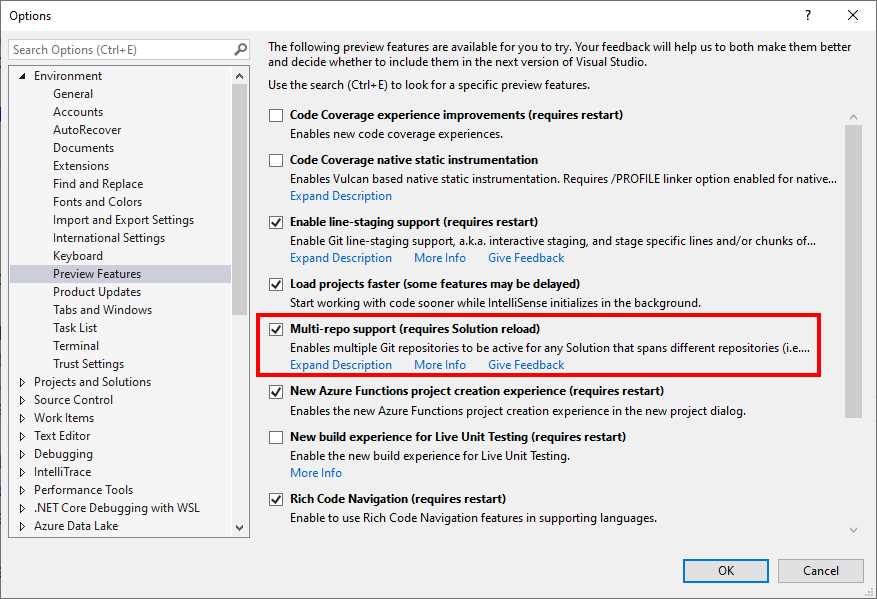
Figure 62: Enabling Support for Multiple Git Repositories
In the next section, you will learn how to work against multiple repositories from one solution. Because it is not possible to predict which Git accounts you have, and for the sake of simplicity, you will get some hints about setting up an appropriate solution, and then the explanation will be based on a solution on my personal machine.
Note: It is not uncommon to have solutions with projects hosted in different repositories. For example, imagine you develop a component library that is hosted in one repository and app projects that reference the library while hosted in different repositories. Instead of referencing the library binaries, you can use the source code and update it without working with separate instances of Visual Studio and without the need to update the binary references.
Setting up a solution
There is no limit on the number of Git repositories that Visual Studio can handle from one solution, but two is enough for demonstration purposes. You can generally follow these steps to set up a solution:
- Push an existing project, even if empty, to a Git repository of your choice (Azure DevOps, GitHub, Bitbucket, etc.).
- Push another project to a Git repository. If you have multiple accounts, it is worth trying against a different provider.
- In Visual Studio 2022, create a blank solution.
- Add both projects that you have pushed previously to the solution.
This is enough for now. It is not necessary to push the solution file to Git, but it can be done if you wish. In the example you will see in the next paragraphs, there are two projects that have been added to a blank solution. One project is hosted in an Azure DevOps repository, and the other one is hosted in GitHub. Figure 63 shows how this solution looks in Solution Explorer. Both are personal projects of mine. Memorello is a Xamarin.Forms solution, and YouTubeChannelReader is a .NET Standard library hosted on GitHub. So, the two projects are not only in different Git repos, but also on different providers.
Tip: Should you be interested, YouTubeChannelReader is an open-source project that you can use in your .NET projects to retrieve information from a YouTube channel.
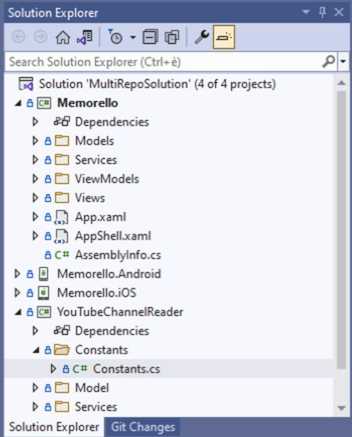
Figure 63: Solution Containing Projects Hosted in Different Repos
As you can see in Figure 63, Visual Studio shows the usual source control icons close to the file names. In the next sections, you will see how the Git tooling in VS 2022 can target multiple repositories.
Displaying and filtering repositories
You can display and filter the list of repositories involved in the current solution by clicking the number of repositories located at the bottom right of Visual Studio’s status bar, as shown in Figure 64.
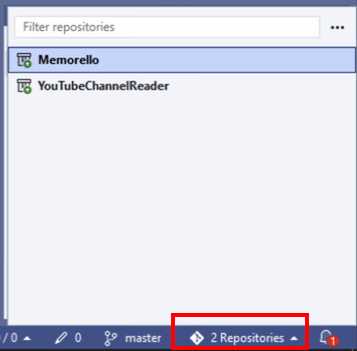
Figure 64: Displaying and Filtering the List of Repositories
If you hover over a repo’s name, you will see its physical path on disk.
Handling Git changes
When you make changes to files that are under source control, such files are highlighted in the Git Changes tool window. This behavior remains exactly the same even when your solution is based on multiple repositories. Figure 65 shows an example, where you can see two files from different repositories that have been changed.

Figure 65: Highlighting Changes Across Repositories
At the top left corner of the window, you can see a dropdown that shows the list of involved repositories. You can filter the list of changes by selecting only one repository. At the right side of this dropdown, a second dropdown allows for showing and selecting branches (see Figure 66).

Figure 66: Branch Selection Inside Git Changes
You can select between local and remote branches individually for each project so that it is easier to decide where your code commits must go. You can also right-click a branch name to access shortcuts that would normally be available when you select a branch from the status bar.
When you are ready to submit your changes, add a comment and then click the Commit All Repos button. As you can see, nothing is different from what you would usually do against one repository.
Managing branches
You can select Git > Manage Branches to nicely manage your branches in all the involved repositories. Figure 67 shows an example.
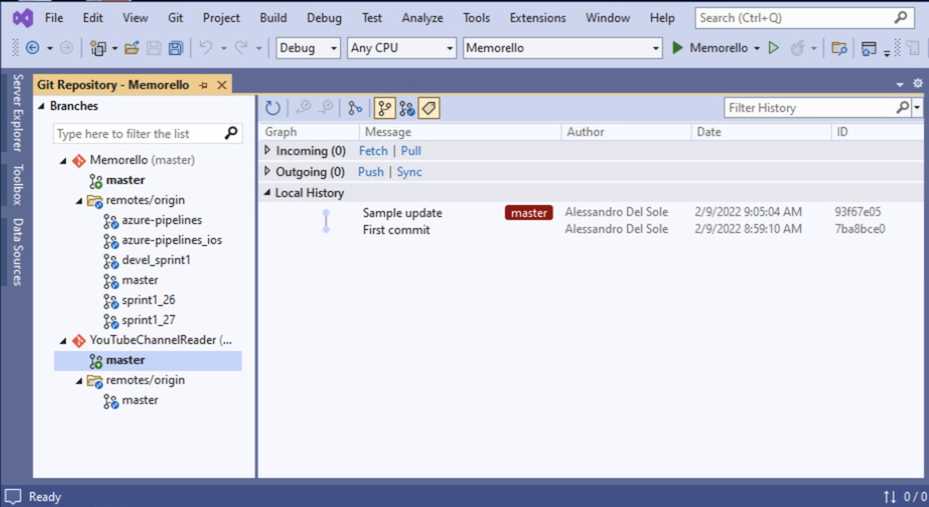
Figure 67: Branch Management with Multiple Repositories
On the left side, a tree view shows the list of branches per repo, both local and remote. When you click a branch, you can see the history inside the main space of the window. Right-clicking a branch name provides shortcuts that are related to branches, such as checking out, code synchronization, deletion, rebasing, or resetting the branch. Right-clicking a commit in the window’s main space provides shortcuts that are specific to individual commits, such as commit comparison and details view, but they are also for working on individual commits, as you learned in the first part of this chapter. Obviously, you can also create new branches from here. Right-click anywhere in the user interface and then select the New Branch command.
Final considerations about multirepo support
Supporting solutions based on multiple Git repositories is a tremendous addition to the Visual Studio toolbox, because many real-world solutions are based on projects that reside in different repositories, which does not necessarily mean different Git providers. In fact, a company might have several projects hosted by the same provider, such as Azure DevOps or private GitHub workspaces, that are interconnected with one another. This is the typical case of libraries that are referenced by application projects. The new team collaboration feature avoids the need of having multiple instances of Visual Studio open if you need to work on different projects at the same time, and it avoids the need of adding a binary reference, such as a NuGet package, of another project that must be continuously updated and maintained. Supporting multiple Git repositories means saving a lot of time and resources, improving team collaboration and productivity.
Chapter summary
Team collaboration is the core of software development, and Visual Studio has always offered first-class tools to support teams. Visual Studio 2022 introduces chats in the Live Share collaboration tool, and it rearranges Git tooling by moving Team Explorer into Git Changes and simplifying the tools required to work with Git repositories and source control. In terms of new features, you can now quickly compare branches, work against individual code commits rather than against branches, and you can work with solutions based on projects that are hosted on different Git repositories, regardless of the provider. These are all important additions, especially now that remote team collaboration has been widely adopted by many companies as a result of the recent pandemic.


- 1800+ high-performance UI components.
- Includes popular controls such as Grid, Chart, Scheduler, and more.
- 24x5 unlimited support by developers.