
Visual Studio 2019 Succinctly®

CHAPTER 1
The Installation Experience
Visual Studio 2019 adds new, interesting features to the installation experience. This chapter describes what’s new about the Visual Studio Installer tool and how you can customize the installation process.
Installing Visual Studio 2019
In order to install Visual Studio 2019, you will run the appropriate web installer file, which you download from the source you selected, such as your MSDN subscription for the Professional and Enterprise editions, or the Microsoft website for the Community edition. The installer file name varies depending on the selected edition:
- vs_community.exe
- vs_professional.exe
- vs_enterprise.exe
This will download and launch the installation program, called Visual Studio Installer. The Visual Studio Installer in Visual Studio 2019 uses the same design logic as its predecessor and allows for installing sets of components, each targeting a specific development scenario. Each set of components is referred to as a workload.
Workloads make installation and maintenance easier and allow developers to install what they actually need without unnecessary components, software development kits (SDKs), and tools. This way, you can save a lot of space on disk. You could even decide to install only the Visual Studio core editor without any additional workloads in order to get the basic coding environment. At startup, you will be able to select one or more workloads of your interest, as shown in Figure 1.
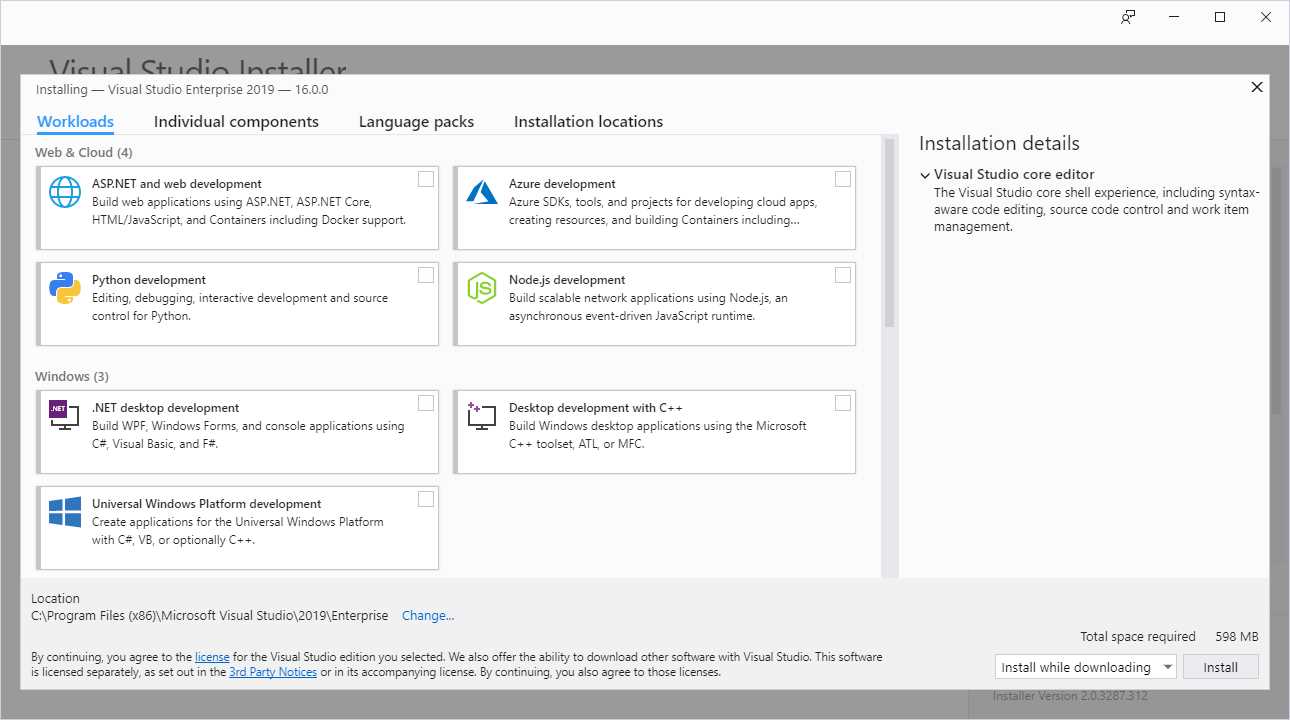
Figure 1: Selecting workloads in the Visual Studio Installer
Table 1 provides a description of each available workload.
Table 1: Available workloads in Visual Studio 2019
Available workloads in Visual Studio 2019 | |
|---|---|
ASP.NET and web development | Select this workload to develop web applications using ASP.NET and standards-based technologies like HTML, JavaScript, CSS, and JSON. It also enables you to quickly deploy your app to a web server or to Azure. |
Azure development | This workload installs the latest Azure SDK for .NET and tools for Visual Studio 2019. This allows you to view resources in Cloud Explorer, create resources using Azure Resource Manager tools, and build applications and services ready to be hosted in Azure. |
Python development | Select this workload to enable full Python support within Visual Studio, including editing, debugging, interactive windows, profiling, package management, and source control. It works with your existing Python install to help you develop cross-platform scripts, web apps, native extension modules, and IoT applications. |
Node.js development | This workload adds everything you need to build apps for Node.js, including IntelliSense, local and remote debugging, profiling, npm integration, an interactive window, test runners, and Azure integration. |
Universal Windows Platform Development | Select this workload if you want to write universal applications for Windows 10, including PC, tablet, smartphone, the HoloLens, Xbox, and IoT devices. |
.NET desktop development | Select this workload if you want to build classic Windows desktop applications with WPF, Windows Forms, and console apps using .NET Framework. |
Desktop development with C++ | Select this workload if you wish to create, build, and debug native, classic desktop applications that run on versions ranging from Windows XP to the latest Windows 10 release, using the C++ language and environment. |
Mobile development with .NET | This workload installs Xamarin, the technology that allows you to create native iOS, Android, and Universal Windows Platform apps using a shared C# codebase. |
Game development with Unity | Select this workload if you want to develop cross-platform 2D and 3D games using the Unity framework and integrated tools for Visual Studio 2019. |
Mobile development with C++ | Select this workload if you want to create cross-platform mobile apps using C++. |
Game development with C++ | Select this workload if you want to create games using C++. |
Data storage and processing | This workload provides tools for accessing on-premises SQL Server databases, SQL databases on Azure, and Azure Data Lakes resources. It also provides support for U-SQL, Hive, and Big Data on Azure. |
Data science and analytical applications | This workload installs languages such as Python, R, and F#, which are tied to building applications for data analysis. |
Office/SharePoint development | This workload provides the Office developer tools, which allow for creating Office and SharePoint add-ins and solutions. |
Visual Studio extension development | This workload installs the Visual Studio SDK and allows you to write extensions such as new commands, tool windows, and templates. |
Linux development with C++ | This workload enables you to author C++ code for Linux servers, desktops, and devices from within Visual Studio 2019. |
.NET Core cross-platform development | This workload installs all the tools you need to write cross-platform web applications with .NET Core, and includes support for Docker. |
For the instructional purposes of this e-book, the following workloads are required:
- ASP.NET and web development
- .NET desktop development
- Universal Windows Platform development
- Mobile development with .NET
- .NET Core cross-platform development
You are not required to do the same—feel free to select only those you need. You can later install additional workloads as required.
Note: Visual Studio 2019 has fewer workloads than Visual Studio 2017. These have been reorganized so that the installation is more efficient and allows for saving more space on disk, especially for mobile development with .NET.
Customizing the installation
As you would expect from an advanced setup tool, you can customize the Visual Studio installation in several ways. You can select additional individual components, and you can also select language packs and target folders on disk. This section will describe these customizations.
Installing individual components
More often than not, selecting workloads is not enough to get the tools you actually need and you will need to install additional individual components. As an example, the GitHub extension for Visual Studio 2019 is not installed by default, which means you might want to select this component if you plan to work with Git repositories on that popular service. You can click the Individual components tab to see the full list of available individual components. Figure 2 shows an example.
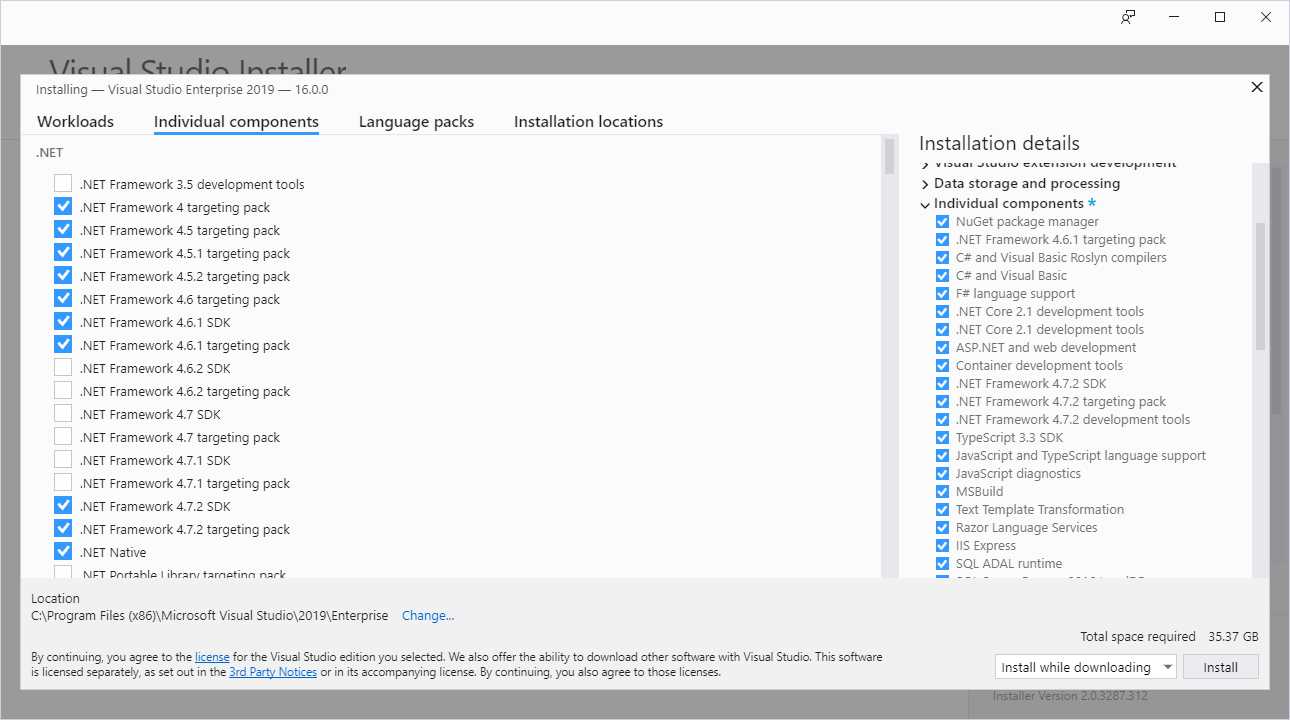
Figure 2: Selecting individual components
Individual components are grouped by development areas. On the right side of the installer, you can see a summary of all the individual components currently included in the installation.
Installing language packs
A new feature in the Visual Studio Installer allows for installing language packs, so that you can use the IDE in the language of your choice. Simply click the Language packs tab and select one or more languages (see Figure 3).
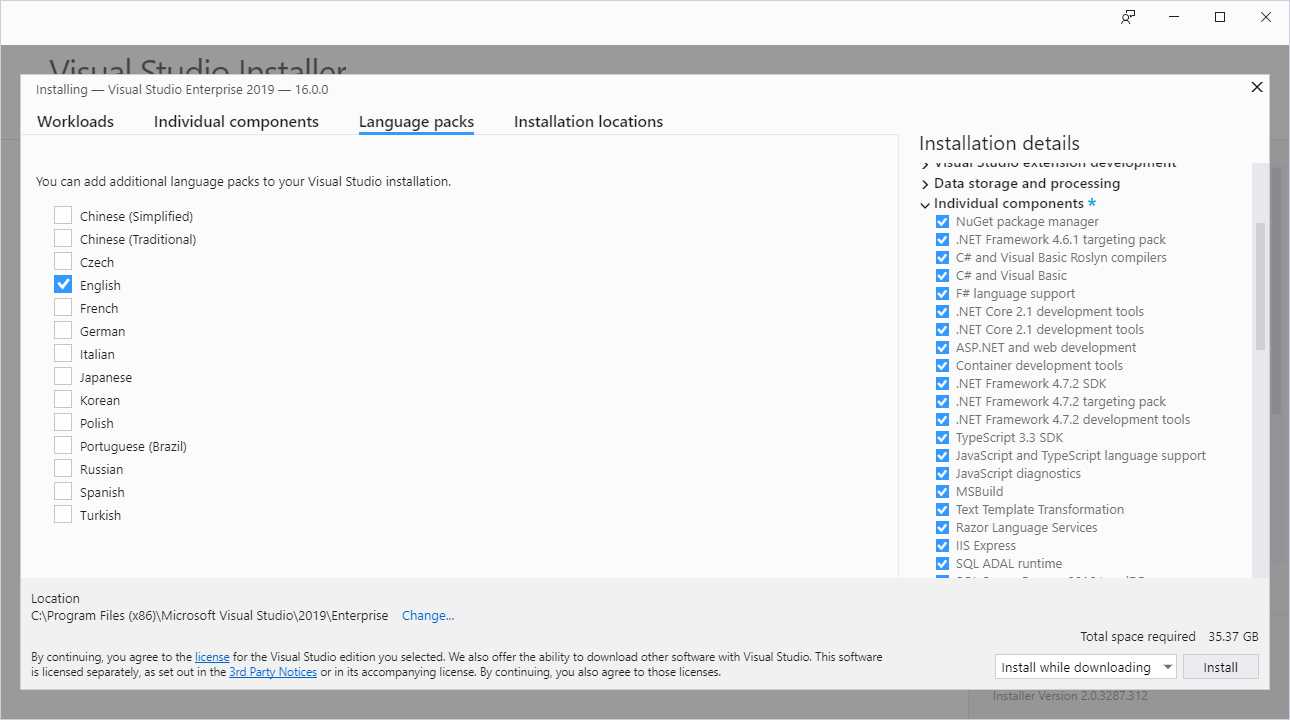
Figure 3: Adding language packs
Once Visual Studio 2019 is installed, you will be able to select a different language by selecting Tools > Options > Environment > International Settings.
Tip: Changing the language requires restarting Visual Studio.
Customizing the installation folders
The Visual Studio Installer now allows for customizing the destination folders on disk. If you select the Installation locations tab (see Figure 4), you will be able to change the following target folders:
- Visual Studio IDE: By default, the target path is C:\Program Files (x86)\Microsoft Visual Studio\2019\{editionName}.
- Download cache: By default, the target path is C:\ProgramData\Microsoft\VisualStudio\Packages.
- Shared components, tools, and SDKs: The default target path is C:\Program Files (x86)\Microsoft Visual Studio\Shared.
Note: The target folders for the download cache and for shared components can only be changed if no other versions of Visual Studio are installed on your machine. For example, if you also have Visual Studio 2017, the Installer will use the same target folders as for Visual Studio 2017, and you won’t be able to select different destinations.
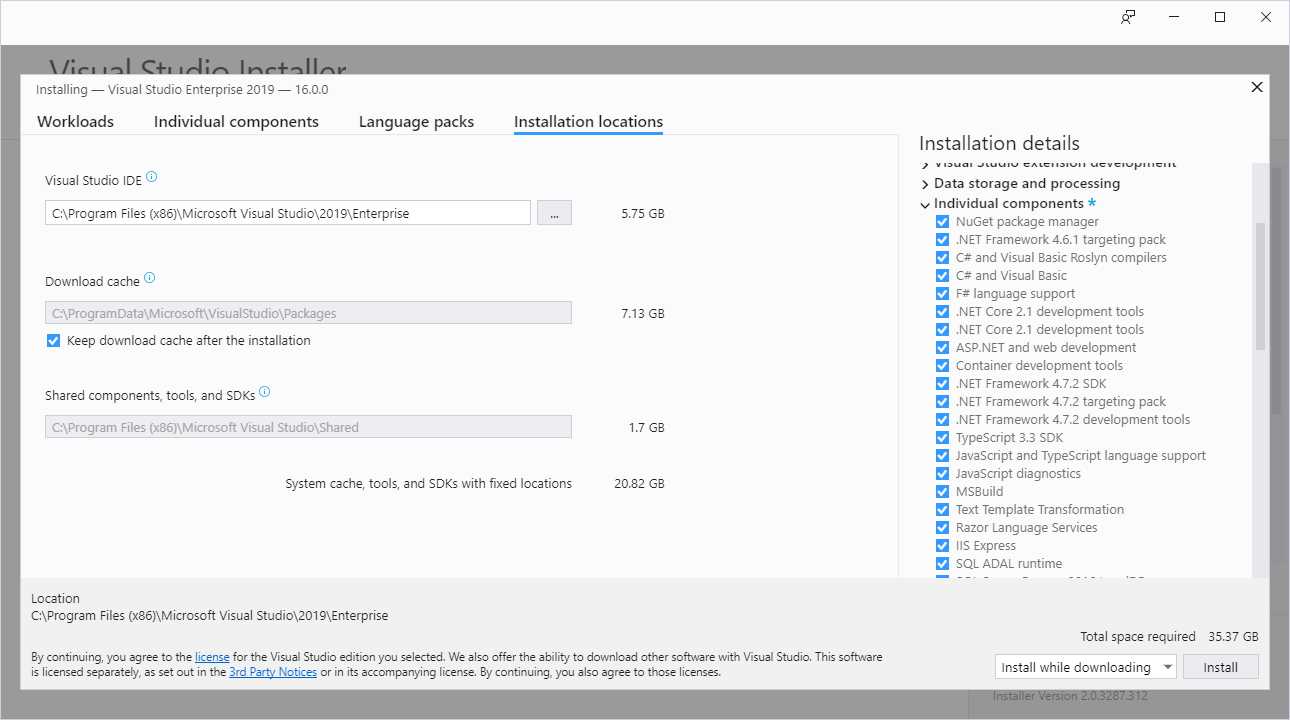
Figure 4: Changing the installation folders
Managing multiple versions and editions
Like in Visual Studio 2017, you can install multiple editions side by side in Visual Studio 2019. For example, you might need to install both Professional and Enterprise editions on the same machine. Not limited to this, the Visual Studio Installer adds support for managing the installation of both Visual Studio 2017 and Visual Studio 2019. Figure 5 shows how the Installer recognizes the availability of Visual Studio 2017 on the machine while installing Visual Studio 2019.
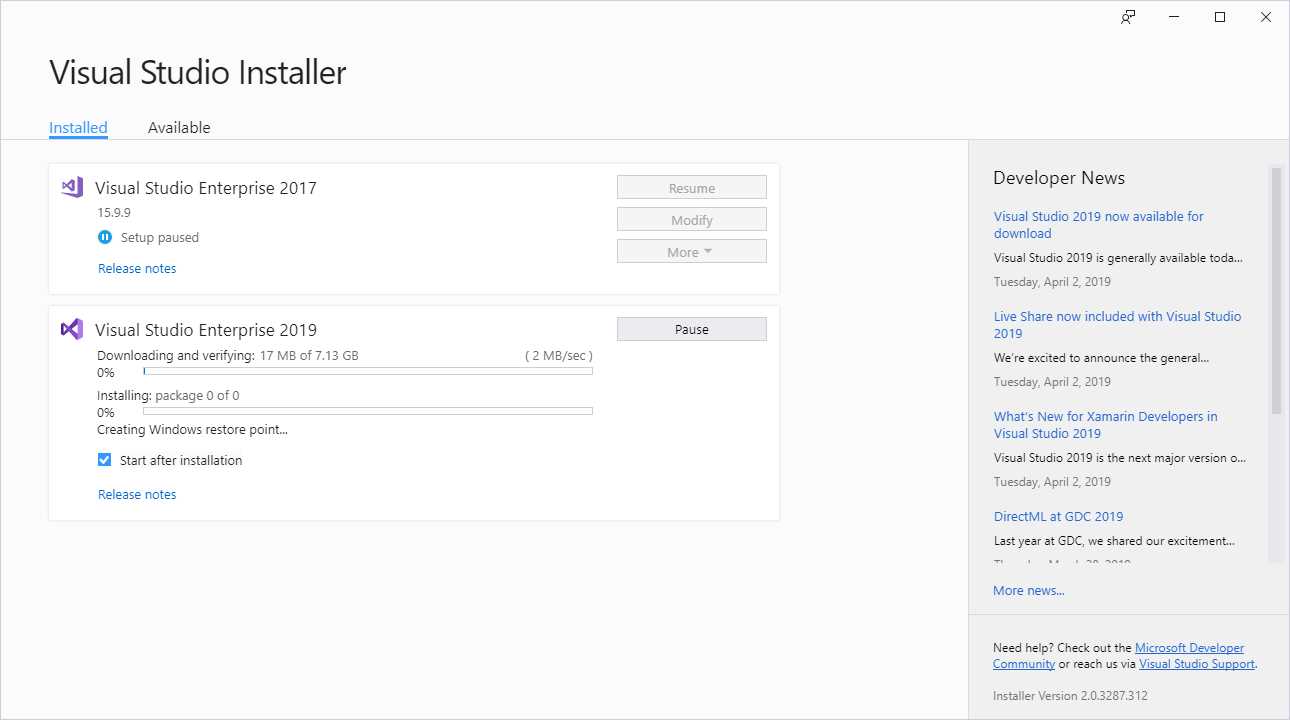
Figure 5: The Visual Studio Installer can manage multiple versions
The list of installed Visual Studio versions will be displayed when you launch the Visual Studio Installer.
Note: It’s not possible to modify the installation of another edition while a setup operation is in progress.
Creating an offline installer
When you download the installation bootstrapper from the source of your choice, you’ll need an internet connection to download all the components you select. However, it is possible to create an offline installer, which can include all the workloads for full installation, or only the ones you need. The MSDN library offers a specific article about creating offline installers, explaining all the possible options and settings. The full offline installer size is about 35 GB. Obviously, creating an offline installer for the first time requires an internet connection.
Tip: The Visual Studio Installer is also the tool through which you update Visual Studio 2019. When new updates are available, the Visual Studio Installer will make the update process straightforward. Later, in Chapter 2 Layout and Project Management, you will see how you get notifications of product updates from within the IDE.
Trying out preview features
Together with the stable release, Microsoft offers preview builds of Visual Studio 2019 that you can use to have an early look at what will be included with the next updates. In fact, it is possible to download and install the so-called Visual Studio 2019 Preview from a dedicated download page. You can install Visual Studio 2019 Preview side by side with the stable release, which enables you to test not only upcoming features in the IDE, but also to preview builds of the various SDKs (such as .NET Core 3.0 Preview).
Remember that this is pre-release software, so it is not supported, not to be used in production, and intended only for testing purposes.
Starting Visual Studio 2019
As with its predecessor, Visual Studio 2019 is launched by using the same-named shortcut in the All Programs menu. When it starts for the first time, Visual Studio will ask for your Microsoft account credentials to log in (optional). As you might know, entering a Microsoft account will allow for synchronizing settings across machines. This will also automatically restore customized settings you might have on an existing VS 2017 or VS 2019 installation.
Controlling Visual Studio updates
In Visual Studio 2019, you have an option to control how product updates are downloaded and installed. If you select Tools > Options > General > Product Updates (see Figure 6), you will be able to:
- Download updates automatically over nonmetered connections, and when the machine is idle.
- Decide whether to download updates and then install, or install while downloading.
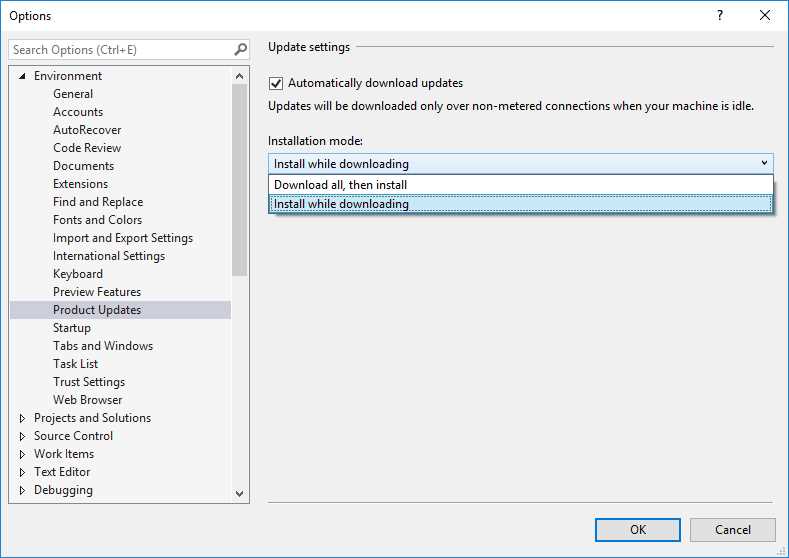
Figure 6: Controlling product updates
These settings are sent to the Visual Studio Installer engine, which will manage product updates based on your decision. Figure 6 also shows the default settings: automatic download and installation while downloading.
Chapter summary
The installation experience in Visual Studio 2019 is based on the Visual Studio Installer tool, introduced with Visual Studio 2017. In the new version, not only can you still select only the workloads you actually need for easier setup and maintenance, but you can now select language packs and change the installation folders. You can also manage multiple editions and versions in one place.


- 1800+ high-performance UI components.
- Includes popular controls such as Grid, Chart, Scheduler, and more.
- 24x5 unlimited support by developers.