
Ubuntu Server Succinctly®

CHAPTER 9
Desktop Experience in Ubuntu Server
Overview
So far, all aspects related to the configuration and operation of Ubuntu Server have been made from the command line. For those users coming from Windows this might seem a little bit weird, since Windows Server offers a friendly GUI for performing both configuration and operational tasks. However, Ubuntu Server can also have a desktop interface like Windows, and bringing that interface to the server is just a few package installations away.
Installing the desktop environment
The following commands will install the desktop environment in Ubuntu Server.
Code Listing 153
$ sudo apt-get update $ sudo apt-get install buntu-desktop |
All necessary packages for installing a desktop environment will be downloaded. These packages include some applications like the Firefox web browser, the LibreOffice suite, and others. Because of this, the process could take several minutes, depending on the Internet connection bandwidth available.
After the download is complete, Ubuntu will take care of the installation of every package downloaded. This process can also consume several minutes, depending on the computer’s resources available. Unfortunately, because the process is executed from the command line, there’s no progress bar indicator to tell how far along the installation is.
When the installation ends, the command prompt will appear. To run Ubuntu’s desktop environment, it’s necessary to reboot the system with the following command.
Code Listing 154
$ sudo reboot |
Now, Ubuntu Server will take the user into the desktop environment to work.
The login screen
Like Windows, Ubuntu Server starts by showing the login screen to ask for the user’s credentials. These credentials correspond to the username and password for the administrative user created during the installation process, or to the username and password of any other user added after that process.
For the purposes of this section, the login screen has been divided into four sections. These sections are shown in Figure 36.
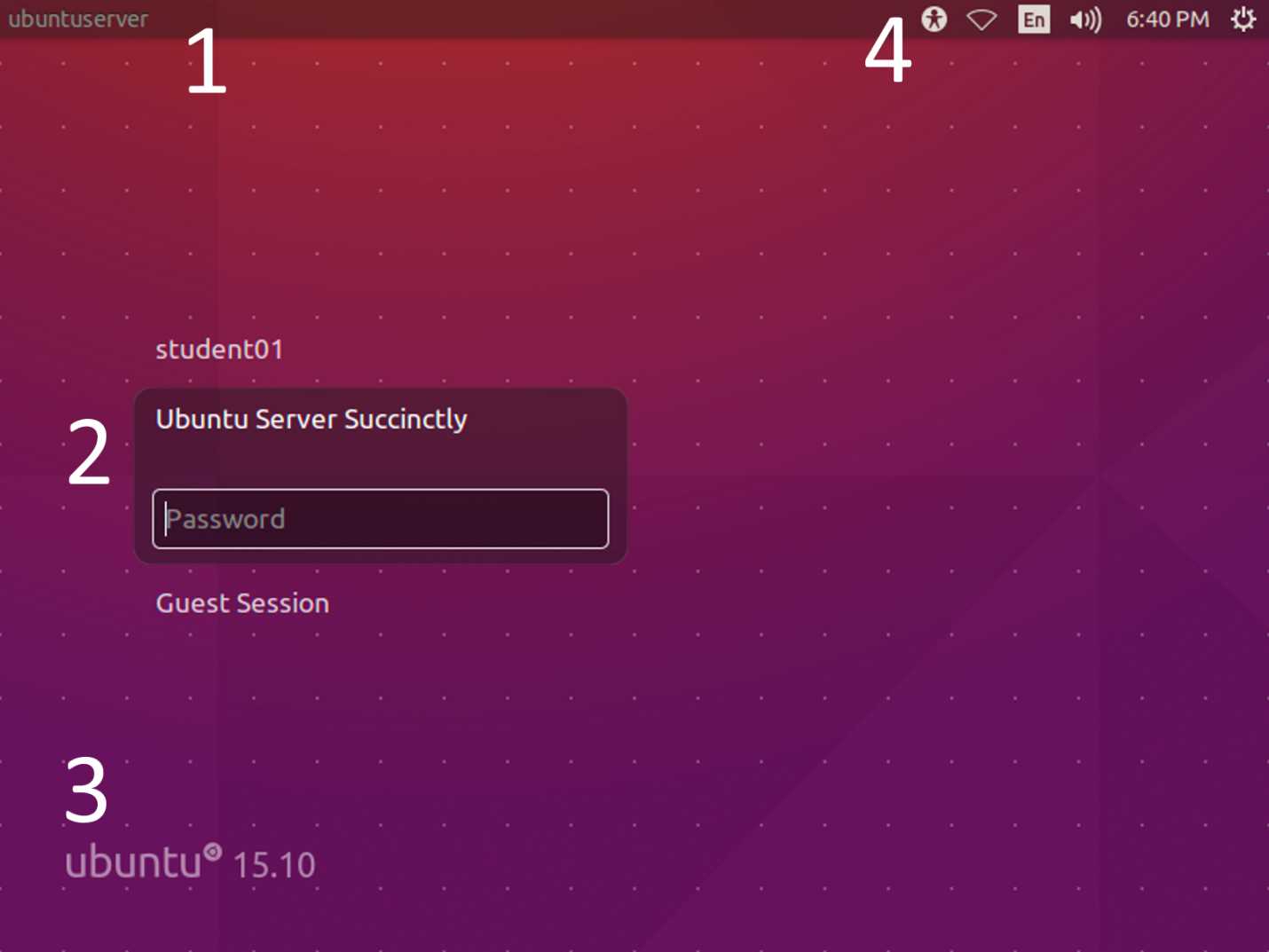
Login screen divided in four sections
The following table explains the sections shown in the previous figure.
Purposes of Every Section in the Login Screen
Section | Description |
|---|---|
1 | Panel. This section shows the name assigned to the computer during the installation process. |
2 | Users list and password entry area. This area displays the name of all users registered in the system. By default, the password for the administrative user is required. Above the text entry that asks for the password, the user’s full name is displayed, unless there is no full name defined. In that case, the username will be displayed. To log into the system, the password must be entered and Enter must be pressed. |
3 | This section displays the Ubuntu software’s version. |
4 | Panel indicators. This area shows a set of six graphical element, intended to perform a series of common tasks that have no administrative clearance. |
The panel indicators
These indicators are shown at the screen’s upper-right hand corner. They are six graphical elements or icons that each have a specific function. They are shown in the following figure.

The Panel Indicators
The function for each icon is explained in the following sections.
Accessibility options menu
This menu is shown by clicking on the first icon in the common tasks bar, and contains the available options to provide handicapped-user-friendly computing work. The options appear in the following figure.
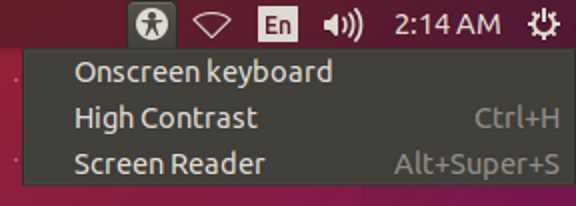
Accessibility Options in the Login Screen
The name of each option in the menu gives a good idea of its purpose. Onscreen keyboard will bring up a graphic keyboard on the screen, generally intended to be used in a touch screen device. The High Contrast option enables the desktop interface to be used easily for visually impaired people. The Screen Reader enables voice-guided help for vision-impaired and blind users. When one of these options is enabled, a check mark will appear to the left of its description. If no check mark is displayed, then the option is disabled.
Some options display a description for a combination of keys to the right of the menu. In this case, if the user presses Ctrl+H, the High Contrast option will be enabled or disabled. For the Screen Reader option, pressing Alt, the Super (Windows logo) key, S will enable or disable it.
Network connections menu
The second icon in the common tasks bar shows the network adapters available for making connections. At this point, the user only can connect to the network using any of the adapters shown in the menu, or get information about connections.
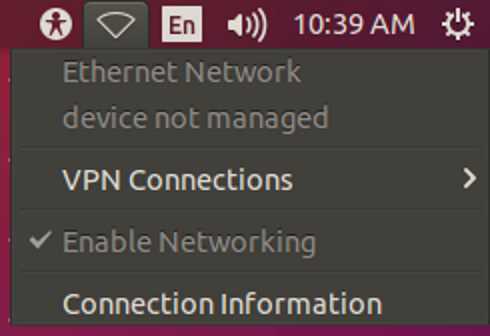
The Network Connections Menu
Language options menu
This menu appears when the user clicks the icon with the language initials (En for English), and shows the languages available to establish the keyboard layout to be used by the system. A keyboard layout can be selected by clicking on its name. A white dot appears to the left of the name corresponding to the keyboard layout currently used.
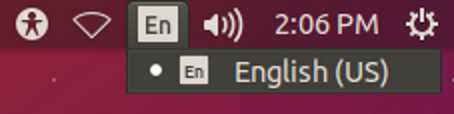
Keyboard Layouts Available
Sound configuration control
This menu is shown when the user clicks on the speaker icon. It is used to adjust or mute the machine’s speakers.
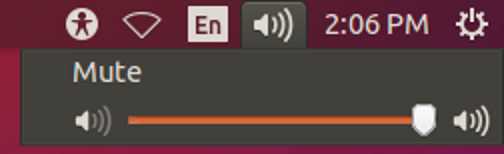
Sound Configuration Control
Interactive calendar
This calendar appears when the user clicks the clock in the panel indicators bar.
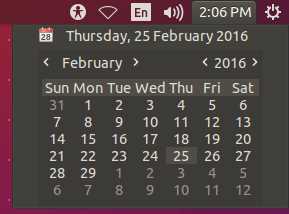
Interactive Calendar
The previous figure shows the interactive calendar. By default, the current date appears at the top. The day corresponding to this date is highlighted. The user can navigate through months and years by clicking the left and right arrows placed next to the month name and the year number.
Settings menu
This menu appears by clicking the gear placed at the end of the panel indicators bar.
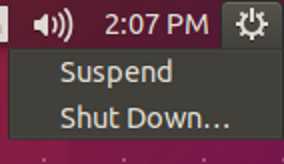
Settings Menu
Since the menu is called from the Login screen, the user is allowed to suspend, reboot, or shut down the computer.
The Shut Down dialog
This dialog appears when the user selects the Shut Down option from the Settings menu.
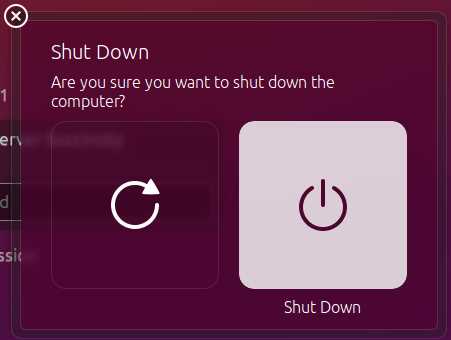
The Shut Down dialog
There are two huge icons in the Shut Down dialog. The icon on the right side of the dialog allows the user to power off (shut down) the computer by clicking on it. The icon on the left is used to reboot the computer.
The desktop interface
Once the user is logged in, the system launches the Ubuntu Desktop. This is the starting point for using the desktop interface.
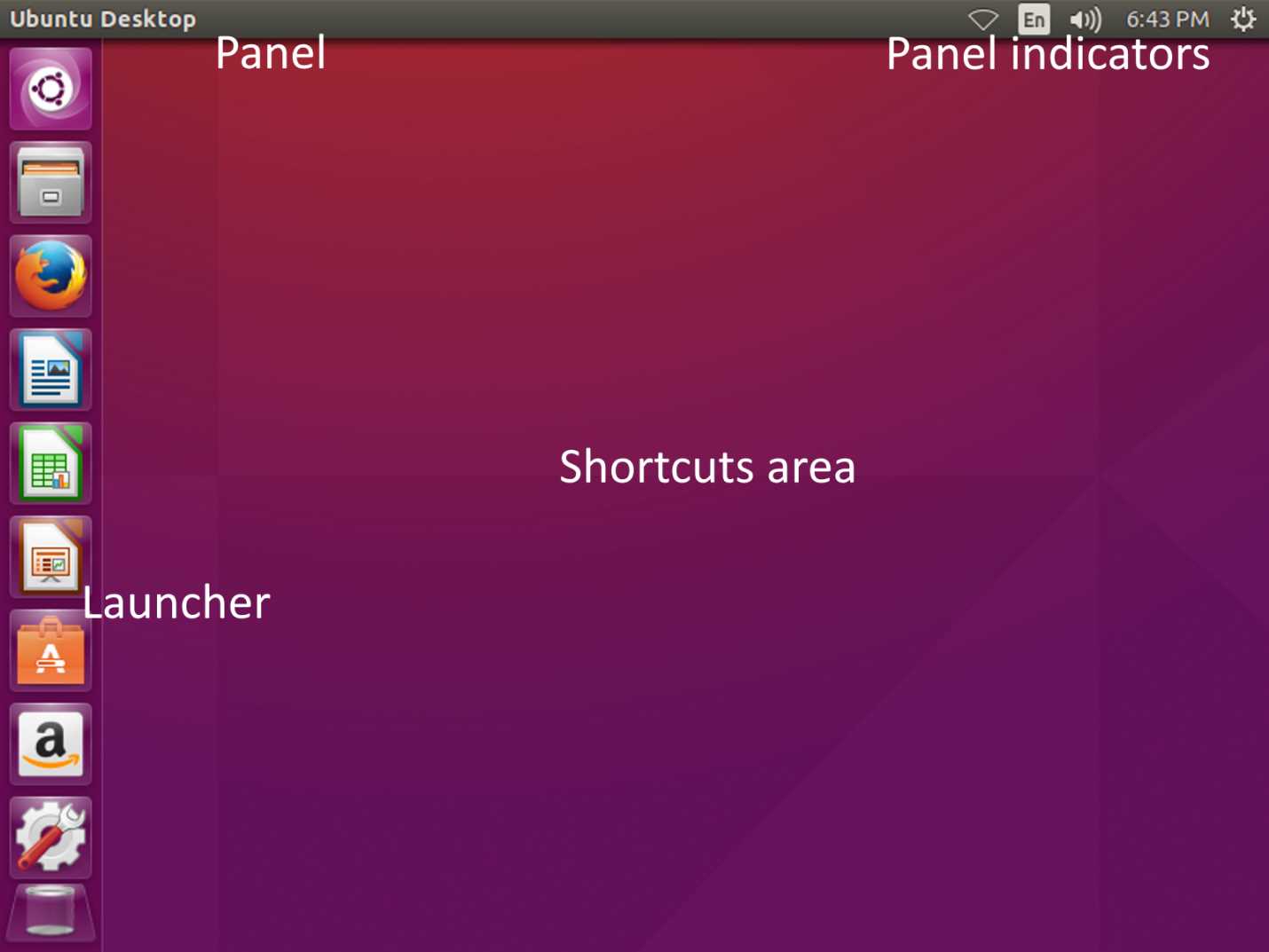
The Ubuntu Desktop Interface
Figure 45 shows the Ubuntu Desktop and labels its main features. At the top, the panel shows the menus of every active application. It also contains a set of iconic indicators which can be used as shortcuts for certain tasks, such as configuring date and time, configuring sound, connecting to a network, or changing global system settings. At the left, a task bar, known as the Launcher, holds icons that work as shortcuts to execute certain applications, such as the Firefox web browser, the file explorer, the LibreOffice suite, and the Home button. Finally, the shortcuts area allows the user to place shortcuts to files or applications in an iconic form for quick access.
Dialogs (or windows): The main element in the desktop environment
In the desktop environment, there are no commands to work with the system; graphical elements replace the commands. To show these elements to the user, the desktop environment needs a place for doing such things. This place is known as a dialog (or window).
A dialog has a series of elements where each one has a particular function. These elements can be used by clicking on them with the pointer. The following figure shows an example of a dialog.
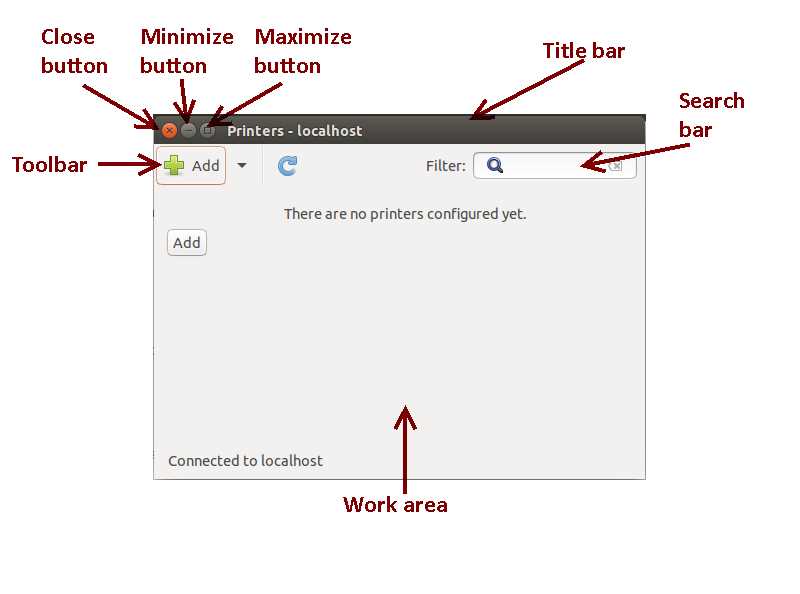
Dialog (Window) Structure
The function for each element shown in the following figure is detailed in the following list.
- Close button: Closes the dialog.
- Minimize button: Hides the dialog and places it as an icon in the desktop’s Launcher.
- Maximize button: Expands the dialog to fit the entire desktop, excluding the areas covered by the panel and the Launcher.
- Title bar: Shows the name of the application, command, or location that is using the dialog.
- Search bar: Allows the user to search objects (files, directories, devices, etc.) by name.
- Toolbar: Serves as a container of certain commonly used commands, displayed as buttons.
- Work area: Serves as a container of other graphic elements (buttons, text entries, labels, etc.) used to work with the system.
Matching text commands with the desktop environment
Until now, the Ubuntu Server command line was used in all the examples in this book that involved the execution of any class of command. Now, in the following sections, some of those commands that were explained will be matched with their corresponding actions in the desktop environment. Also, some important system settings will be explained.
Showing the contents of the user’s home directory
The command ls /home/<username> was previously used to show the contents of the user’s home directory. Doing this in the desktop environment is easier—it just takes a click on the Files button, located in the Launcher.
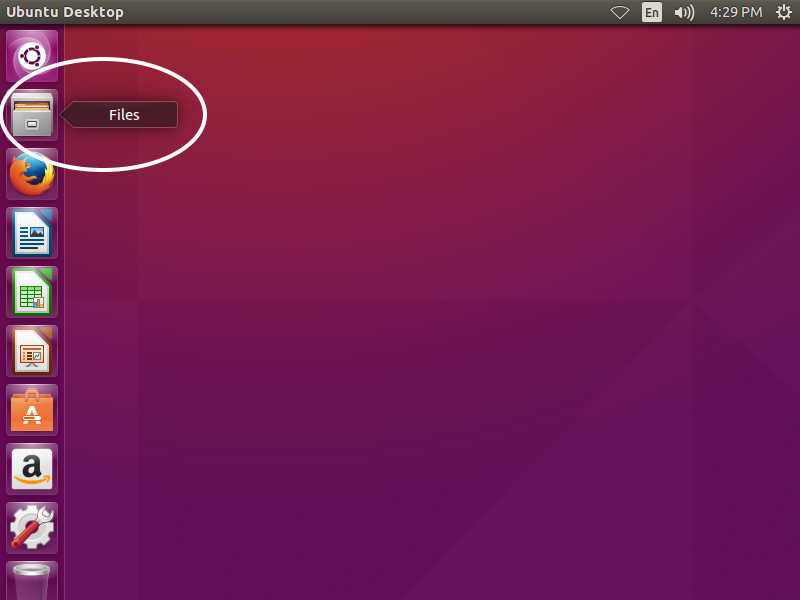
The File Explorer Button in the Launcher
When the user clicks on that button, the file explorer dialog will be shown, and the contents of the user’s home directory will be displayed.
The file explorer dialog is like a typical Windows dialog; it has a title bar and a content display area. It also has the commonly used Close, Minimize, and Maximize buttons.
The following figure shows the structure of the file explorer dialog with its elements fully identified.
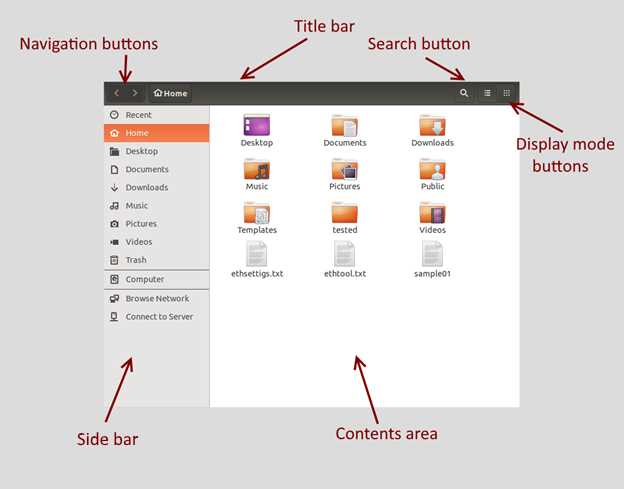
The File Explorer Dialog
- Title bar: Shows the folder’s name in which the user is located. Home is displayed for the user’s home directory.
- Navigation buttons: Allows the user to navigate back and forward in a nested directory.
- Side bar: Allows the user to go directly to one of the bookmarked filesystem locations, such as the Documents directory or the Downloads directory (used by the web browser to store files downloaded from the Internet).
- Search button: Activates the search bar to look for files or folders in the current directory.
- Display mode buttons: Shows the contents of the directory either as an iconic grid (the default) or as a list.
- Contents area: Shows the contents of the directory.
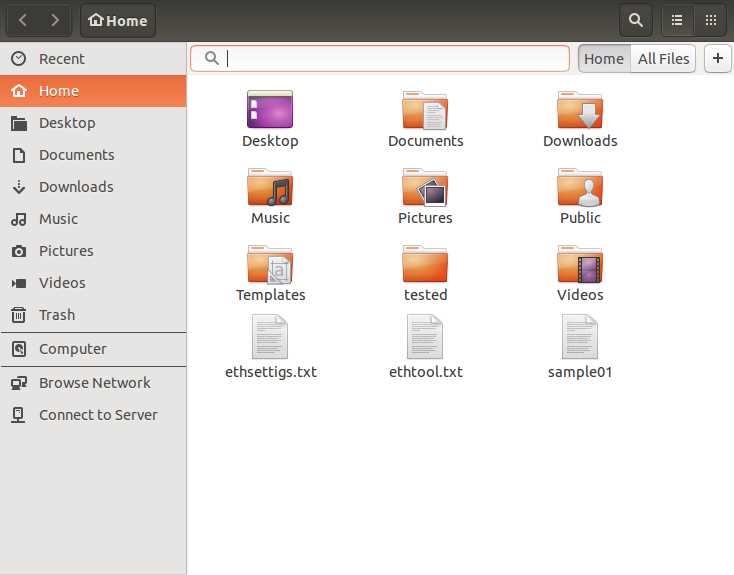
This feature allows you to search files or directories by name within the current directory. Also, a series of criteria based on the file type can be added to refine the search.
The File Explorer Dialog with Search Bar Activated
The file explorer dialog with an active search bar is shown in the previous figure. In order to search files, the user types the name to search for, and the file explorer will start the search as the filename changes in the text entry. The plus sign (+) at the end of the bar allows you to add a search criterion, based on the file type.
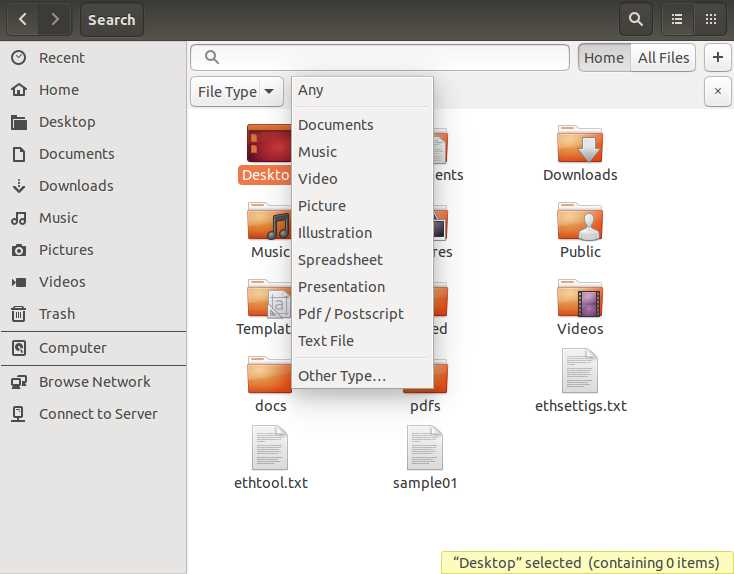
The default file type for searching is called Any, which implies that all files will be considered for searching, no matter what type of data is stored in them. Then, a series of common types are suggested to refine the search operation. These types are Documents, Music, Video, Picture, Illustration, Spreadsheet, Presentation, Pdf/Postscript, and Text File. The type names suggest the kind of data that must be stored for each file type to be considered for searching.
File type criteria are not limited to the types displayed. At the end of the file type list, the Other Type option is shown. When the user selects this option, a dialog box appears showing a list of different file types, based on the applications that are installed in the desktop environment. The user can select one of these types to include it in the search criteria.
When more than one criterion is specified, the search operation applies an or logical operation. For example, if Documents and Video are considered, searching is done by including all files whose names correspond with the text entry supplied, and for one or all of the file types indicated in the criteria.
The Search Bar Showing the File Types List
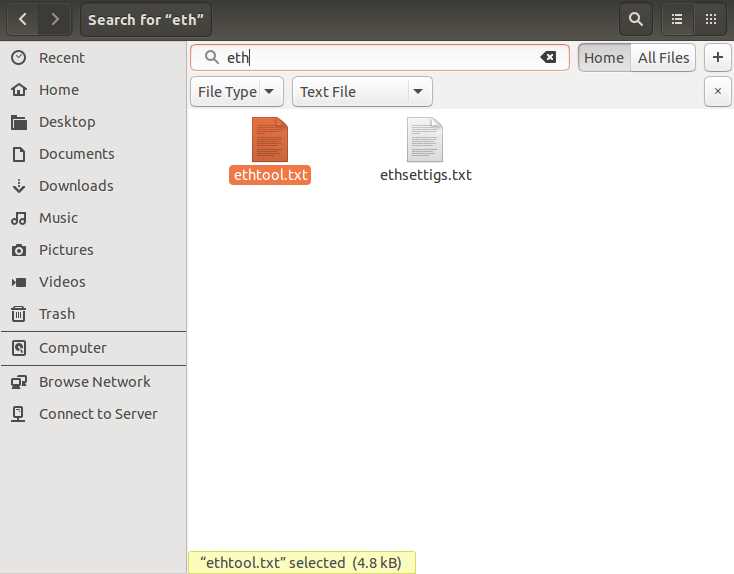
If the user wanted to search for files that contain eth in their name, considering only text files, this search would look like the following figure.
The File Explorer Dialog with Search Results
The menu bar for the file explorer dialog
The file explorer has several commands grouped into sections called menus. These menus are placed in a graphical element called the menu bar. This bar can be displayed by placing the pointer over the desktop’s panel. The following figure shows the File Explorer’s menu bar.

The File Explorer Menu Bar
There are six groups of commands or menus, named File, Edit, View, Go, Bookmarks, and Help. The classic Close, Minimize, and Maximize buttons also appear at the beginning of the bar. To execute any of these commands, the user must click on the desired menu and then click on the command to execute it.
The File menu
The commands located in this menu correspond to certain tasks about file management or navigation. The menu can grow and shrink, depending on the file type of the currently selected items, or if there is no item selected in the content area. The commands associated with the File menu are as follows:
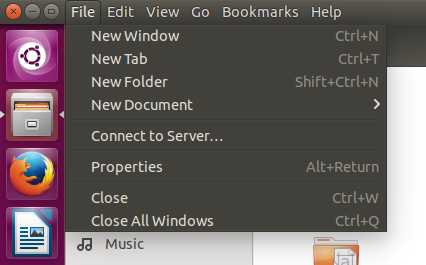
- New Window: Opens a new file explorer dialog. This command can also be executed by pressing Ctrl+N.
- New Tab: Creates a new tab in the content area. The user can navigate in both tabs to different locations in the filesystem. This command can also be executed by pressing Ctrl+T.
- New Folder: Creates a new directory in the current location. This command can also be executed by pressing Shift+Ctrl+N.
- New Document: Creates an empty document file in the current location.
- Open: Shows the content of the currently selected directory in the content area. This command can also be executed by pressing Ctrl+O.
- Open in New Tab: Shows the content of the currently selected directory, creating a new tab in the content area. This command can also be executed by pressing Shift+Ctrl+T.
- Open in New Window: Shows the content of the currently selected directory by opening a new file explorer dialog box. This command can also be executed by pressing Shift+Ctrl+O.
- Open With: Shows a set of commands that correspond to all possible applications capable of opening the directory or file selected.
- Connect to Server: Allows the user to connect to another server in the network.
- Properties: Shows file or folder permissions and other properties related to the current selected items.
- Close: Closes the file explorer dialog box.
- Close All Windows: Closes all file explorer dialogs opened.
As previously mentioned, the commands shown in the File menu depend on the selection of an item or items in the content area. If no item is selected, the Open commands disappear, except for the Open With command.
The following figures show the File menu in three different scenarios: When no item is selected, when a directory is selected, and when a file is selected. Notice how the menu changes according to the situation.
File Menu Commands When No Item is Selected
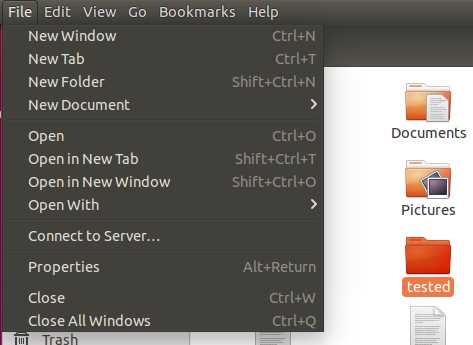
File Menu Commands When a Folder is Selected
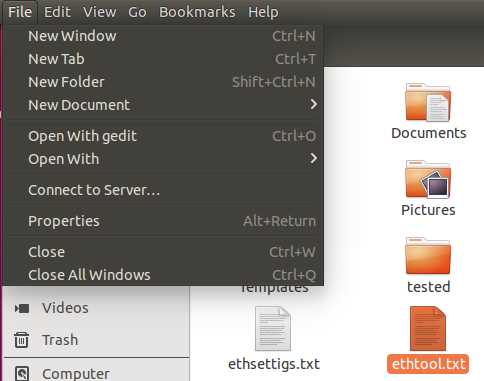
File Menu Commands When a File is Selected
The Edit menu
The Edit menu groups all commands related to selecting files or folders, moving files, deleting files, renaming files, and creating shortcuts. Also, the behavior of the file explorer dialog can be changed. The commands associated with the Edit menu are:
- Undo: Reverts the actions performed by the last command executed. Another way to execute the command is by pressing Ctrl+Z.
- Redo: Repeats execution of the last command. Another way to execute the command is by pressing Shift+Ctrl+Z.
- Cut: Marks the file or folder selected to be moved to another location. Another way to execute the command is by pressing Ctrl+X.
- Copy: Sends a copy of the file or folder selected to the clipboard. Another way to execute the command is by pressing Ctrl+C.
- Paste: Places the copy of the file or folder that’s on the clipboard to the current location. Another way to execute the command is by pressing Ctrl+V.
- Select All: Selects all items in the current location. Another way to execute the command is by pressing Ctrl+A.
- Select Items Matching: Selects all items that comply with a criterion. Another way to execute the command is by pressing Ctrl+S.
- Invert Selection: Selects all items opposite the current selection. That is, if no items are selected in the current location, all items will be selected by this command. Another way to execute the command is by pressing Shift+Ctrl+I.
- Make Links: Creates shortcuts to access the current file or directory selected. Another way to execute the command is by pressing Ctrl+M.
- Rename: Allows the current item selected to be renamed. Another way to execute the command is by pressing the F2 key.
- Move to Trash: Moves the item currently selected to the trash. This item will no longer be displayed. Another way to execute the command is by pressing the Delete key.
- Preferences: Allows the behavior of the file explorer dialog to be changed.
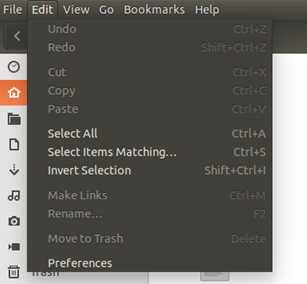
Edit Menu Commands
The View menu
This group of commands allows you to change the way items are displayed in the file explorer dialog box. The commands associated with the View menu are:
- Reload: Refreshes the content of the current location. Pressing Ctrl+R executes the command, too.
- List: Shows the content of the current location as a list, which includes details for each item. Pressing Ctrl+1 executes the command, too.
- Icons: Shows the content of the current location as an iconic view (the default). Pressing Ctrl+2 executes the command, too.
- By Name: Sorts the content of the current location by file or directory name.
- By Size: Sorts the content of the current location by file or directory size.
- By Type: Sorts the content of the current location by file type.
- By Modification Date: Sorts the content of the current location by the date of last modification.
- Reversed Order: In an iconic view, places the icons in a reversed order according to the default view, which places directories before files.
- Reset View to Defaults: Restores all view parameters to their default values.
- Show Hidden Files: Shows all files stamped with the hidden attribute. Pressing Ctrl+H executes the command, too.
- Show Sidebar: Shows and hides the side bar (where the bookmarks are displayed). Pressing F9 executes the command, too.
- Zoom In: Magnifies the content of the file explorer. Pressing Ctrl+Plus Sign executes the command, too.
- Zoom Out: Reduces the content of the File Explorer. Pressing Ctrl+Hyphen executes the command, too.
- Normal Size: Shows the content of the File Explorer at its normal scale (100%). Pressing Ctrl+0 executes the command, too.
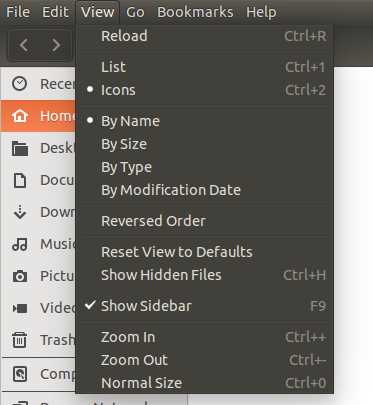
View Menu Commands
The Go menu
The Go menu commands allow operations that involve moving to another location in the filesystem. The commands associated with the Go menu are:
- Open Parent: Opens the directory that is an ancestor of the current directory, according to the filesystem hierarchy. Pressing Ctrl+Up Arrow executes the command, too.
- Back: Goes to the directory the File Explorer was in before viewing the current directory. Pressing Ctrl+Left Arrow executes the command, too.
- Forward: Goes to the directory that was been viewed, prior to the execution of a Back command. Pressing Ctrl+Right Arrow executes the command, too.
- Enter Location: Shows a pop-up dialog box to specify a location (absolute or relative) to go to directly.
- Search for Files: Activates the search bar of the file explorer dialog.
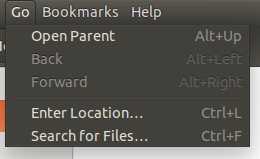
Go Menu Commands
The Bookmarks menu
The Bookmarks menu commands allow you to create shortcuts that point to specific locations in the filesystem in order to make them available quicker. The commands associated with the Bookmarks menu are:
- Bookmark this Location: Creates a shortcut for the current directory. If the current directory already has a shortcut defined, this command is disabled. Pressing Ctrl+D executes the command, too.
- Bookmarks: Shows the list of bookmarks available. Pressing Ctrl+B executes the command, too.
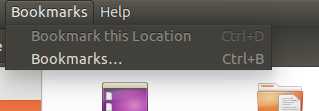
Bookmarks Menu Commands
Note: Bookmarks appear in the sidebar of the file explorer dialog.
The Help menu
This group of commands allows you to browse help documentation related to the file explorer. The commands for this menu are:
- All Topics: Shows all the topics covered by the file explorer help documentation. Pressing the F1 key executes the command, too.
- Search for files: Shows documentation about searching files and directories.
- Sort files and folders: Shows documentation about sorting the content of the file explorer dialog.
- Find a lost file: Shows documentation about the way a user can find a file in the filesystem.
- Share and transfer files: Shows documentation about file sharing and file transferring in the network.
- About: Show credits about the Files (file explorer) application.
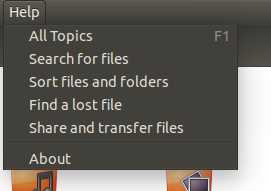
Help Menu Commands
Executing the shutdown and reboot commands
The shutdown and reboot commands explained previously can be executed in the desktop environment by selecting the Shut Down option located in the Settings menu that is shown by clicking the gear icon located at the end of the desktop panel.
The Shut Down command shows the dialog explained in The shut down dialog section earlier in this chapter.
The Settings menu in the desktop interface
Unlike in the login screen, the Settings menu shown in the desktop interface has more options (commands) available. Some of these options perform actions only available for system administrators. So, when the user attempts to execute one of these options, a dialog will appear asking for a password to check the authentication level for that user.
The options available in the Settings menu are:
- About This Computer: Shows detailed information about the computer on which Ubuntu Server is installed.
- Ubuntu Help: Shows a dialog with general help about the desktop environment.
- System Settings: Shows a dialog for customizing the system.
- Lock/Switch Account: Locks the computer and shows the lock screen.
- Log Out: Closes the current user’s session and returns to the login screen.
- Suspend: Puts the computer into a hibernate state. When the user “wakes up” the computer, the Lock screen is displayed, asking for a password.
- Shut Down: As explained in the previous section, this allows the user to execute the shut down or reboot commands.
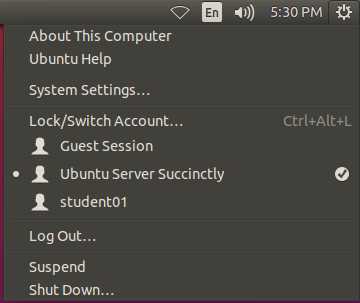
The Settings Menu
Besides the commands previously mentioned, the Settings menu shows a section with all registered user accounts. A checkmark is displayed to the right of the name of the current logged-in user.
The lock screen
Locking the computer when it is unattended is an important security issue, and the desktop environment of Ubuntu takes this into account. The lock screen is in charge of this task. The user only needs to press Ctrl+Alt+L to bring up this screen. Another way to lock the screen is by selecting the Lock/Switch Account item in the Settings menu, as explained in the previous section.
The lock screen looks almost like the login screen, except that only the name of the user logged in is displayed. The user must type their password to get back into the desktop interface.
The following figure shows the lock screen.
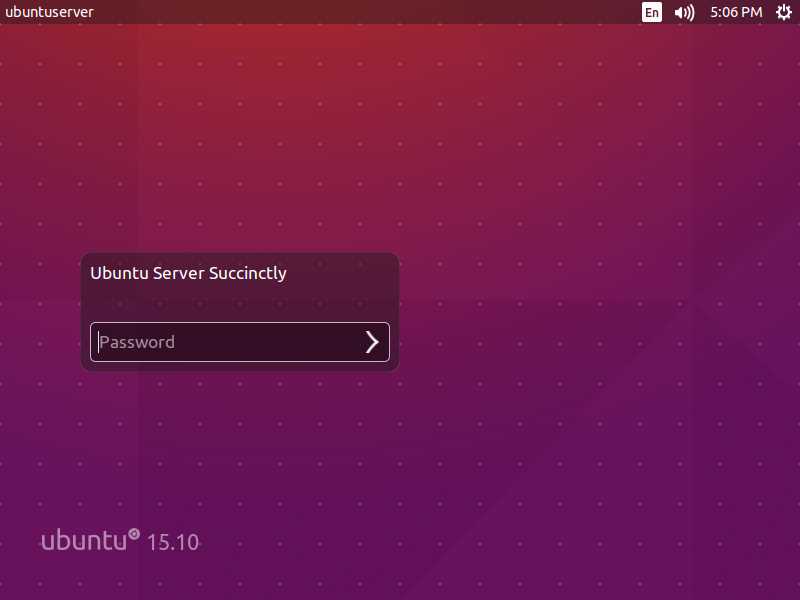
The Lock Screen
Customizing the system
The user can customize the system in many ways by selecting the System Settings option in the Settings menu. This customization includes the appearance of the interface, adding or removing hardware, and system-level changes like user account management or updating the software.
Many tasks explained in previous chapters, such as networking and security, can be managed by accessing the System Settings dialog. The dialog is divided into three sections:
- Personal: Allows you to change settings related to the interface appearance, text entry device usage, and privacy parameters.
- Hardware: Allows you to configure currently installed hardware and install new devices in order to attach them to the computer.
- System: Allows you to configure global system settings like software updates, time and date, and user accounts.
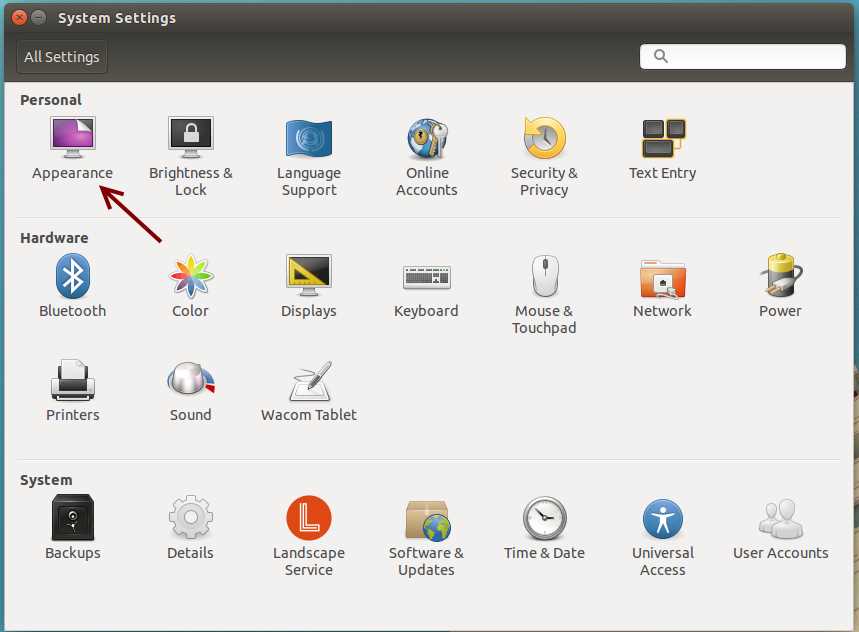
The System Settings Dialog with the Appearance Icon Highlighted
The Appearance dialog
The Appearance dialog can be shown by clicking on the Appearance icon, located in the Personal section of the System Settings dialog.
The Appearance dialog contains two sections:
- Look: Allows you to change the desktop’s background and the size of the Launcher’s icons.
- Behavior: Allows you to modify the behavior of the Launcher and the menus for dialogs (windows).
Changing the desktop background
The desktop background can be modified to show any desired image in the Look section of the Appearance dialog.
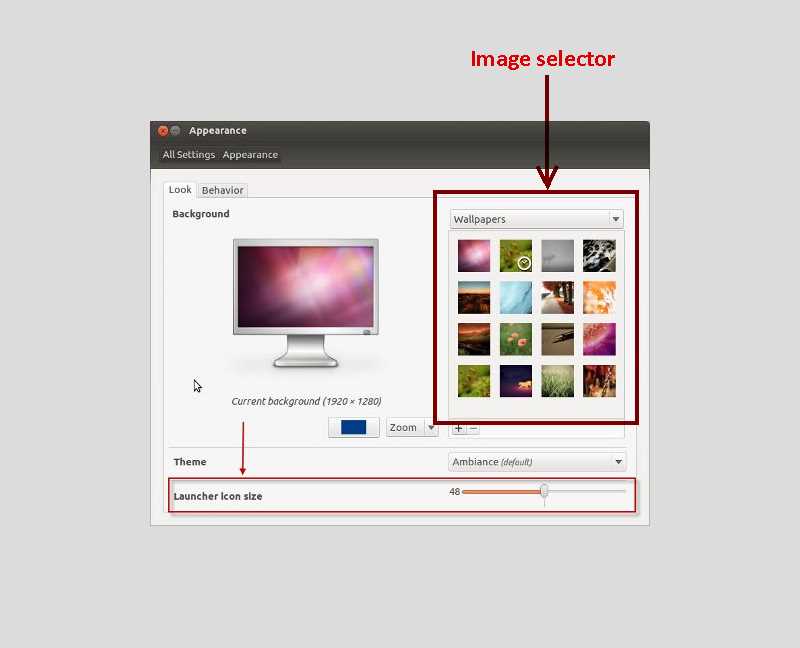
The Appearance Dialog Showing the Look Section
To change the background image for the desktop, the user needs to select a picture from the image selector shown in the previous figure. Ubuntu immediately replaces the previous image with the one selected. Also, the size of the icons for the Launcher can be changed with the slider control located at the bottom of the dialog. The size of icons is measured in pixels. The minimum size accepted is 16 pixels and the maximum size for the Launcher icons is 64 pixels. The default size is 48 pixels. Icon size changes take place immediately.
Changing the behavior of the Launcher and where menus are shown
In some cases, working with applications may be more comfortable if the screen area covered by the Launcher is available. A good idea for dealing with this issue is to tell the desktop environment that the Launcher must be hidden every time a dialog becomes active. The Behavior section of the Appearance dialog is used to do this.
Regarding application menus, the File explorer dialog section of this chapter explained that menus are displayed by placing the pointer over the desktop panel. This is true not only for the file explorer application, but for all applications executed in the desktop environment. This can also be changed in the Behavior section of the Appearance dialog.
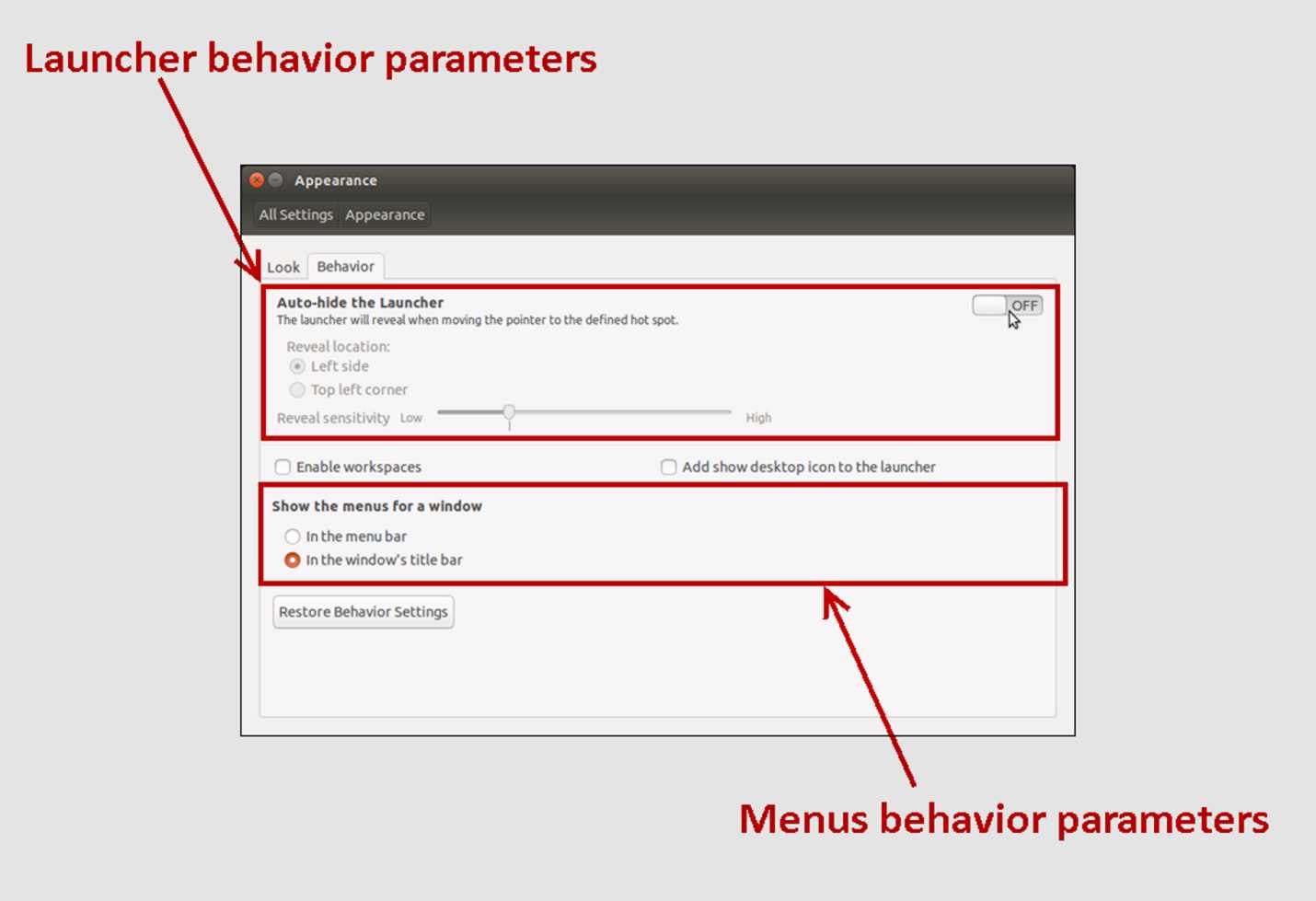
The Behavior Section of the Appearance Dialog
The previous figure highlights the areas for both the Launcher parameters and the menu parameters.
Dragging the button over the OFF label located at the right of the Launcher parameters area makes the desktop environment hide the Launcher immediately. The user can indicate where on the screen the pointer must be placed to reveal the Launcher when it’s needed. There are two places available: the left side, or the top-left corner of the screen. The sensitivity for the reveal process can also be adjusted. The lower the sensitivity adjustment, the more difficult (time consuming) the reveal process will be.
The menu behavior can be changed by selecting one of two options available in the dialog. The first one tells the desktop environment that all menus will be placed in the panel, which is the default behavior. The second one forces all menus to be placed in their own application dialog.
Controlling screen brightness and automatic computer lock
Nowadays, taking care of the natural environment has become one of the more important issues in many industries. Computers and software are not exceptions. So, to save power (and make the battery life cycle longer), the desktop environment allows you to adjust the brightness for the screen if a notebook computer is being used, and can turn the screen off for any kind of computer when there’s no activity in the system. Also, the lock screen can be configured to run automatically, either when the screen turns off, or when a certain amount of time has elapsed. The Brightness & Lock item in the System Settings dialog provides these options.
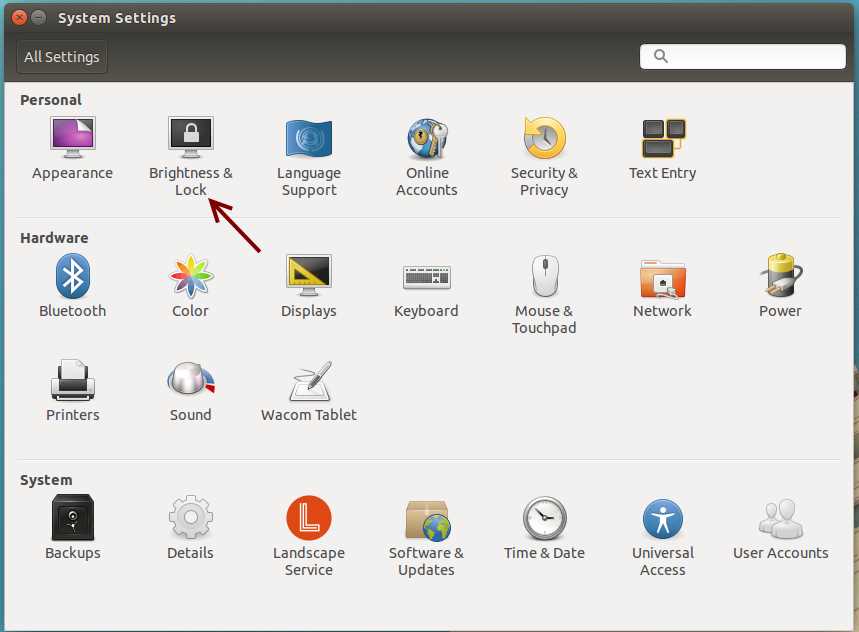
The Brightness & Lock Icon
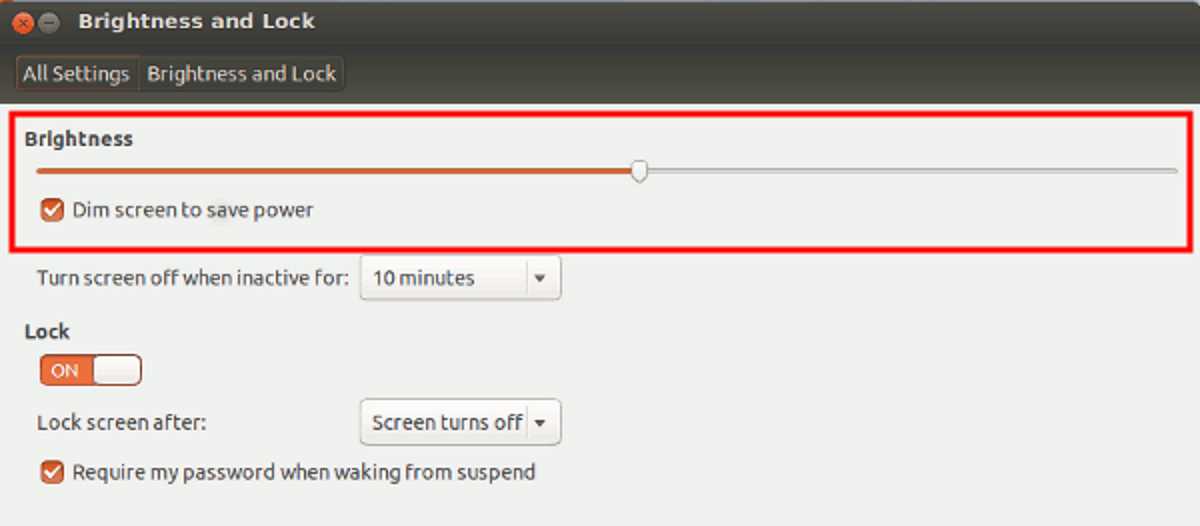
Brightness and Lock Parameters Dialog
To adjust brightness, the user can drag the slider shown in Figure 67. Dragging the slider to the left will reduce the screen brightness. The opposite will occur if the slider is dragged to the right. The Dim screen to save power option will reduce screen brightness when the system is idle (no keyboard or mouse movement). Screen brightness reduction can be avoided by clearing this option.
The Turn screen off when inactive for drop-down under the Brightness slider allows you to specify how many seconds must elapse after the system is idle to turn the screen off. This can be avoided by selecting Never from the list.
The lock screen can be disabled by dragging the Lock button shown in the dialog to the left. Dragging it to the right will enable the Lock screen. The Turn screen off when inactive for drop-down located after the Lock button allows you to specify how many seconds must elapse after the system turns idle to lock the computer automatically, and as a result, show the lock screen. If the user selects the Screen turns off option, the computer will be locked every time the screen is turned off. Then, when the user turns on the screen, the lock screen will be shown and the system will ask for the user password.
Managing user accounts
The User Accounts dialog is the desktop equivalent to all text commands about user accounts explained in the Chapter 5, “Security.” This dialog can be shown by clicking the User Accounts icon in the System Settings dialog.
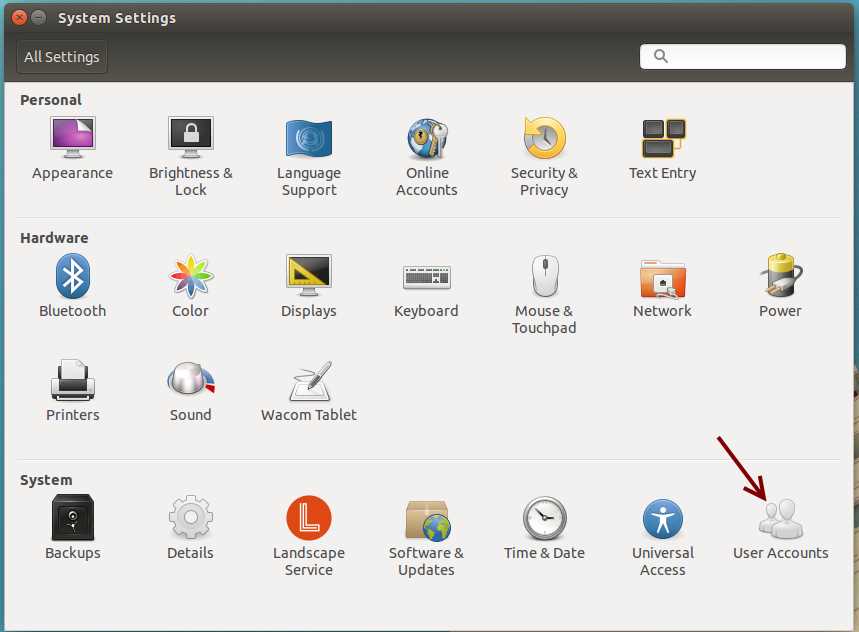
User Accounts Icon
Then, the User Accounts dialog will be shown.
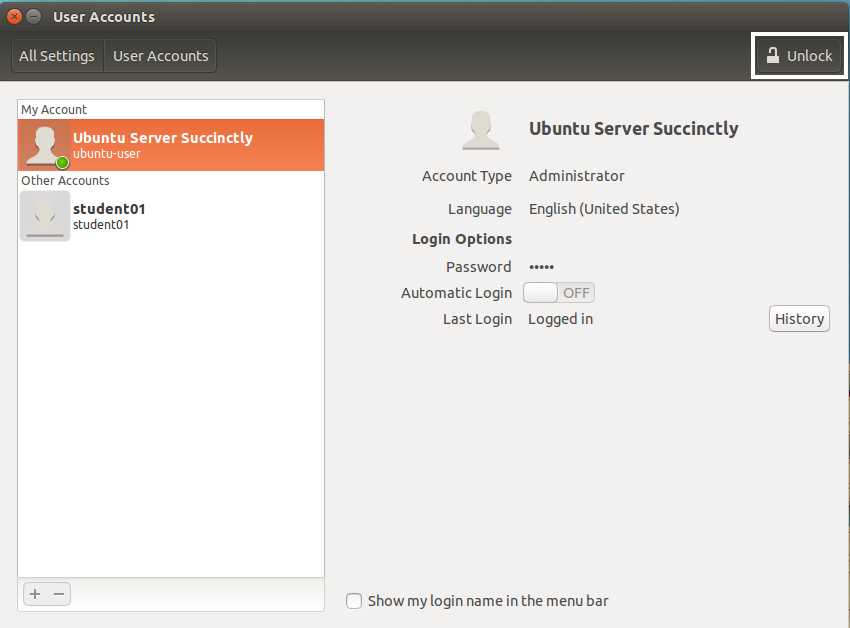
User Accounts Dialog
In the previous figure, the Unlock button is highlighted to indicate that any action with user accounts is prohibited. That is because user account management is an administrative task. It’s necessary to unlock the dialog before managing users. This is the same as executing the sudo command explained at the beginning of this book. The user needs to click the Unlock button, and then the system will ask for the user password in order to continue.
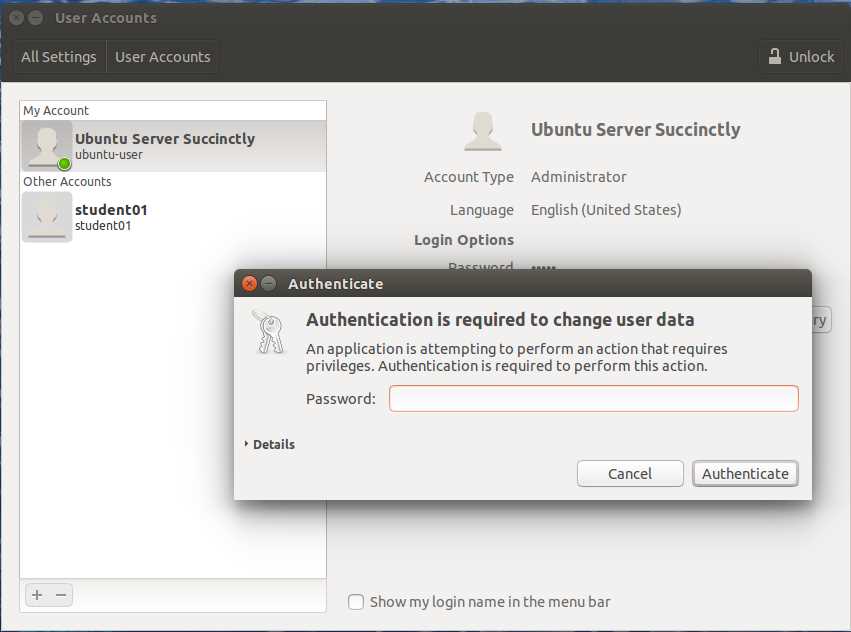
Authentication Dialog
The dialog will be unlocked after the user enters the correct password, and user account management will be allowed.
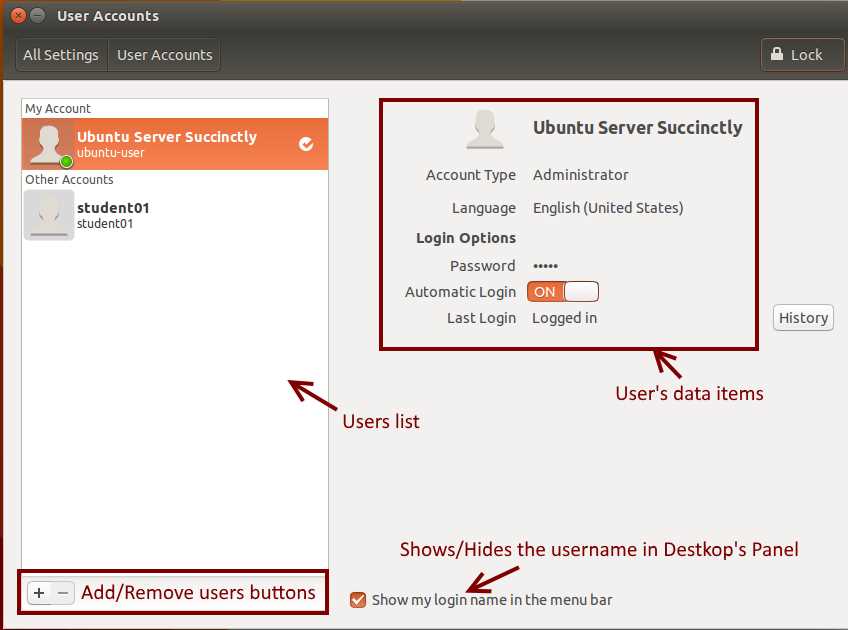
User Accounts Dialog Enabled
The buttons with the plus (+) and minus (-) characters, both located at the bottom of the dialog, can be used to add or remove user accounts. The minus button will be disabled automatically when the account for the currently logged-in user is selected.
When a user account is selected, the data associated with this account is displayed at the right side of the dialog, allowing the currently logged-in user to edit all items. Each one can be edited by clicking over it, except for the account type when the account selected belongs to the currently logged-in user. The following table explains user account data items.
User Account Data Items
Item | Description |
|---|---|
Account Type | Either Administrator or Standard. A Standard account can’t make changes to the system. |
Language Options | Language or language variation that is used by the user. |
Password | User password to log in to the system. |
Automatic Login | Allows the user to skip the password request when the computer is powered on, providing an automatic login. This can be accomplished by placing the Automatic Login button to the right, which will display an ON signal with an orange background color. |
The Show my login name in the menu bar check box located at the bottom of the dialog allows you to display the user’s full name at the right side of the desktop’s panel.
Adding accounts
A user account can be added by clicking the + (plus) button, located at the lower-left side of the dialog. Then, the following dialog will be shown.
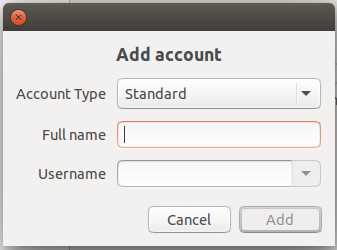
Add Account Dialog
The Add account dialog contains three items that must be filled to create the user account. These items are.
- Account Type: Either Standard or Administrator. Standard users can’t make changes to the system.
- Full Name: User’s full name (e.g., John Summers) to make the account name human-friendly.
- Username: User account name for system purposes (e.g., johnsummers).
The account will be added after clicking the Add button.
Deleting accounts
A user account can be deleted by clicking the – (minus) button located at the left bottom of the dialog. This action will show the following dialog.
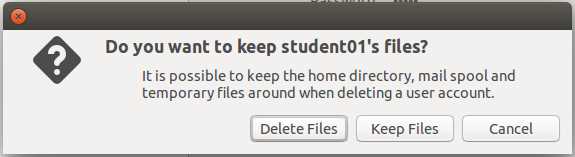
Delete Account Dialog
The options displayed in the dialog box correspond to those supplied by the deluser command, which was explained in the “Security” chapter of this book. The Cancel option is used to dismiss the delete account action with no consequences. The other buttons perform the following actions:
- Delete Files: The equivalent of the deluser –remove-home command, which deletes the user account and its home directory.
- Keep Files: The equivalent of the deluser command, which deletes the user account only, keeping the home directory on the disk.
Installing a printer
To install a printer device, the user needs to click on the Printers icon of the System Settings dialog.
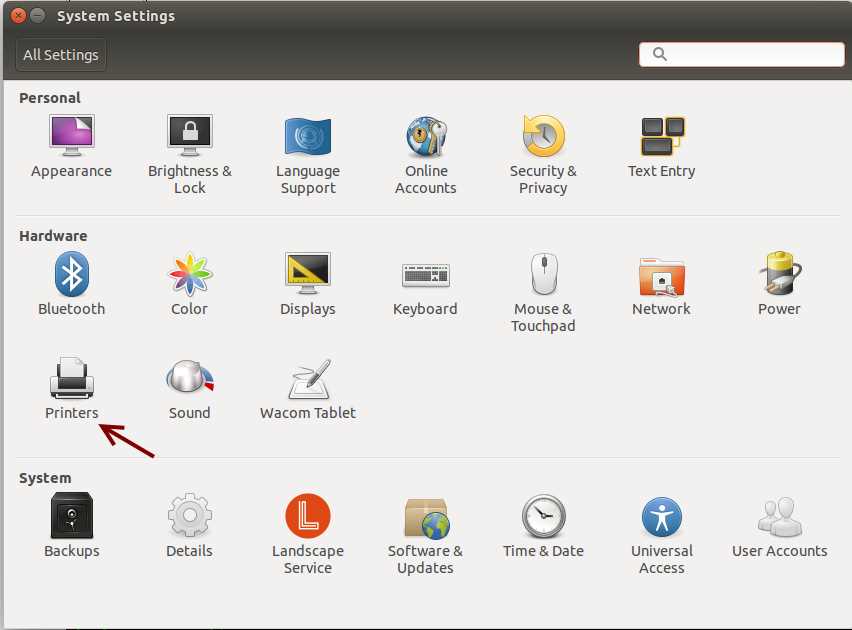
The Printers Icon in the System Settings Dialog
Then, the printers dialog will appear on the screen.
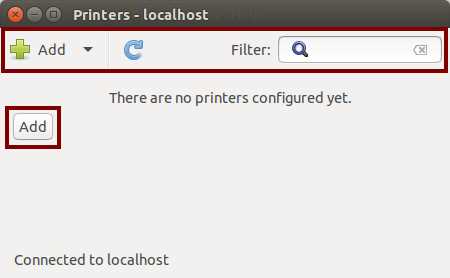
Printers Dialog for localhost
A new printer can be added by clicking the Add button located in the toolbar at the top, or by clicking the Add button that appears in the dialog box. The New Printer dialog will appear.
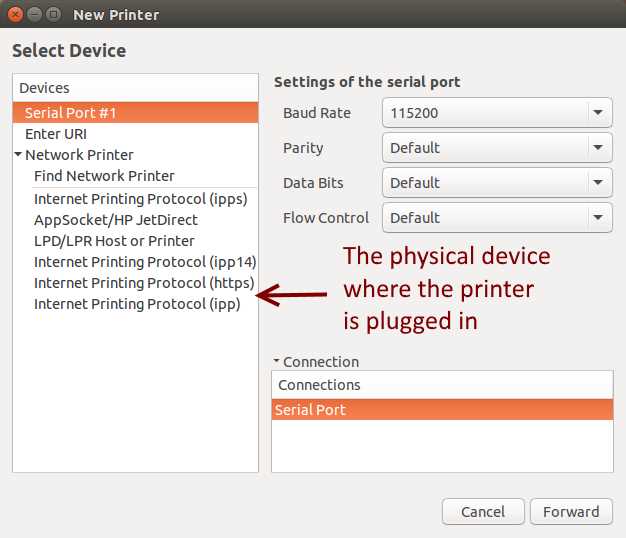
New Printer Dialog Asking for a Device
At this point, the user needs to select the physical device where the printer to add is plugged in, and then click the Forward button. In the previous figure, it’s assumed that the device where the printer is plugged in is a Serial (RS232) port.
Now, the system will allow the driver selection for the printer model that is being installed. There are three choices for selecting a driver. The first one is selecting it from the internal driver database; the second allows you to choose a previously downloaded PPD file located in the filesystem; the third one allows you to search the Ubuntu website for a specific manufacturer and model in order to download the appropriate driver.
The installation process will continue after you click the Forward button.
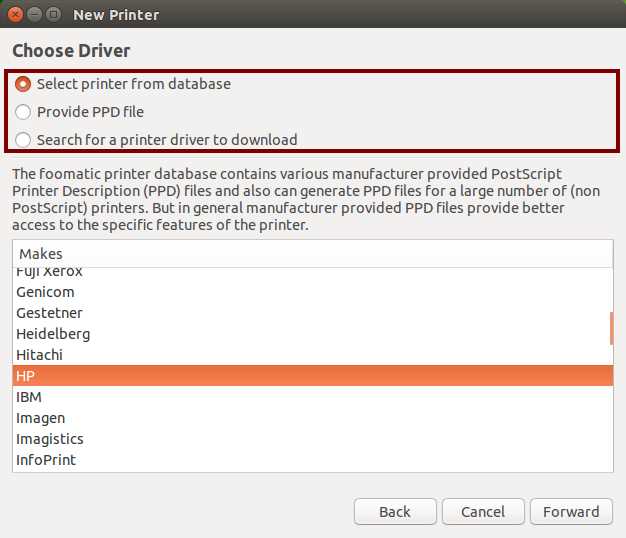
Driver Selection Dialog
When the user selects a manufacturer from the list, Ubuntu will ask for a specific model that must be selected from a list. Then, the user is asked for a description of the printer to assign a human-readable description and, optionally, a human-readable physical location (for example, “Sales Department”) for that printer.
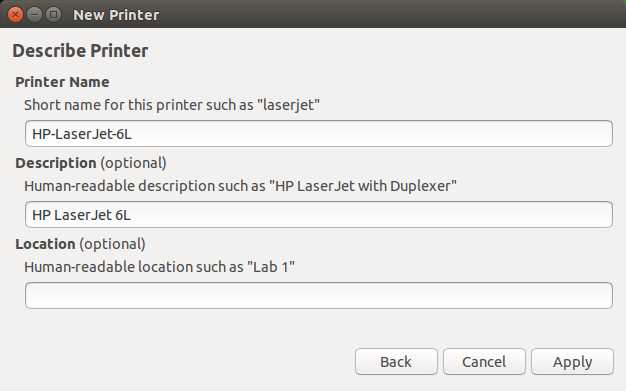
Printer Description Dialog
The installation process finishes when the user clicks the Apply button. Then, the system will ask to print a test page.
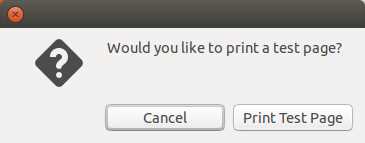
Test Page Dialog
The user can choose either to send a test page to the printer or cancel the request. In both cases, the installation process ends.
The Ubuntu Software Center
Ubuntu Software Center is a utility for installing, purchasing, and removing software in Ubuntu, a major part of Ubuntu’s overall software handling.
Ubuntu Software Center lets the user browse and install thousands of free and paid applications available for Ubuntu. The user can view available software by category, or search quickly by name or description. You can also examine the software already installed, and remove items that are no longer needed.
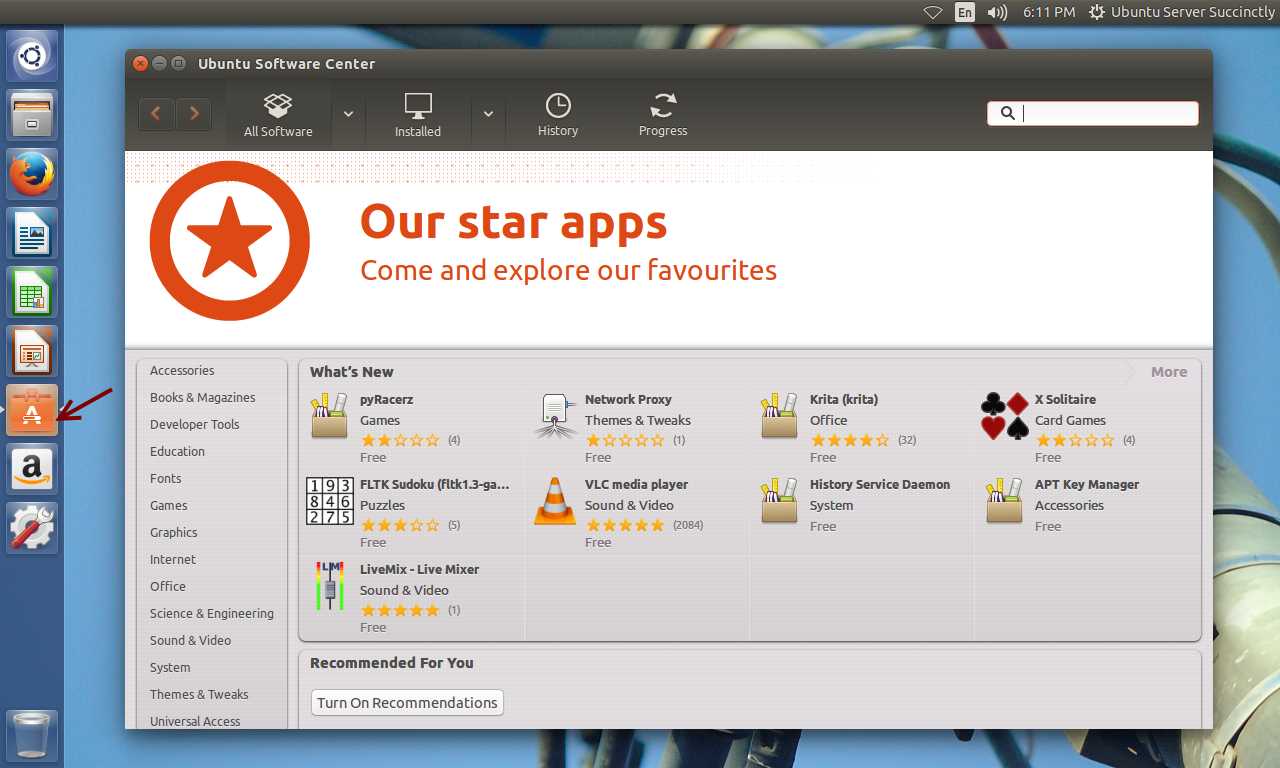
Ubuntu Software Center Main Screen
Ubuntu Software Center can be executed from the Launcher, as shown in the previous figure.
The Software Center toolbar
This toolbar contains four buttons for browsing all software available.

Software Center Toolbar
The All Software button shows all software available in a list, either provided by Ubuntu or from Canonical partners. When a software listed is already installed, a green checkmark is placed on its icon.
The Installed button filters the software list to show all software that is installed in the system only. Also, this software can be provided by Ubuntu or from Canonical partners.
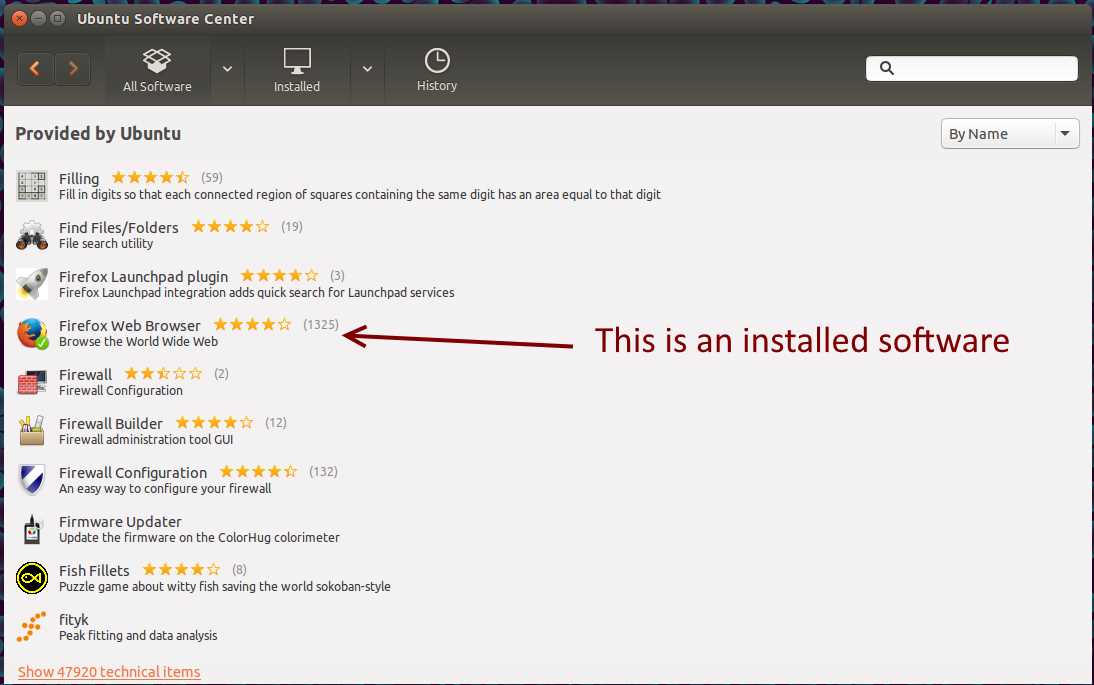
The All Software List
To remove software that is already installed, the user must select the software to uninstall from the list, and then click the Remove button.

Selecting Software to be Uninstalled
In the opposite way, new software can be installed by selecting the desired one from the list, and then clicking the Install button.

Selecting Software to be Installed
The History button allows the user to track every installation, update, or software removal by date. The list is presented from the most recent date of the operation. There are four groups in this list:
- All changes: Displays all changes made to the system. That includes installations, updates, and software removals.
- Installations: Displays only software installation operations.
- Updates: Displays only software update operations.
- Removals: Displays only those operations related to software uninstall operations.
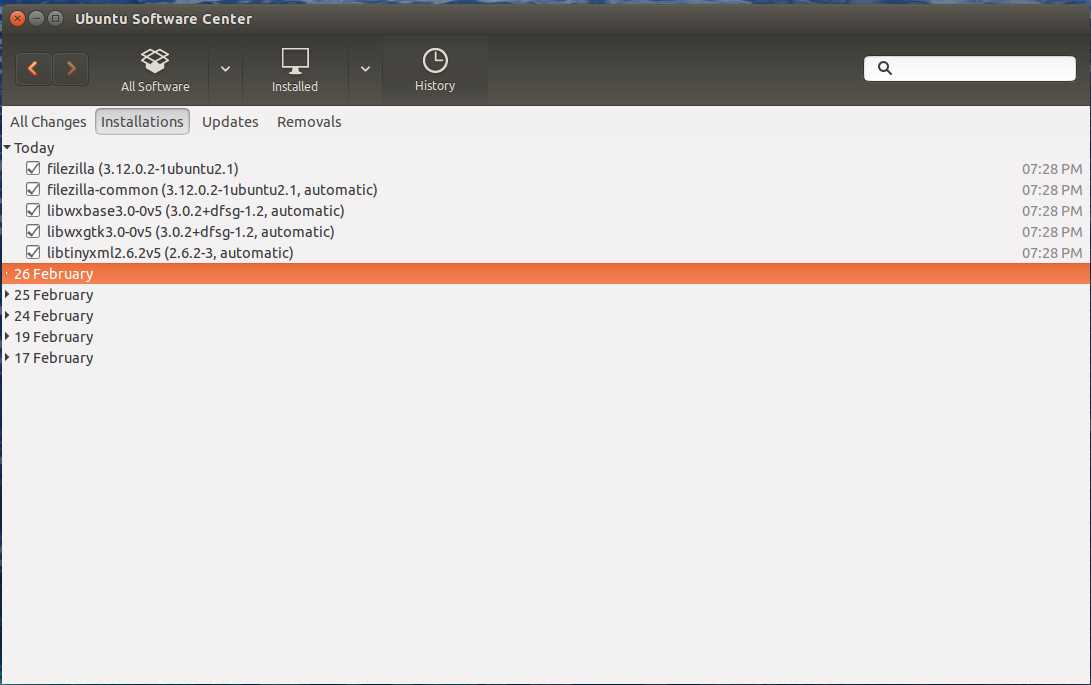
The Software History List
Finally, the Progress button is displayed only when a software install or software uninstall operation is in progress. When the operation finishes, the button disappears.
Searching for applications and other stuff
There is an interface in Ubuntu that allows searching for applications, files and folders, and even the web, from a text entry. This interface is called Dash, and can be activated by pressing the Super (Windows logo) key or by clicking the Dash button in the Launcher.
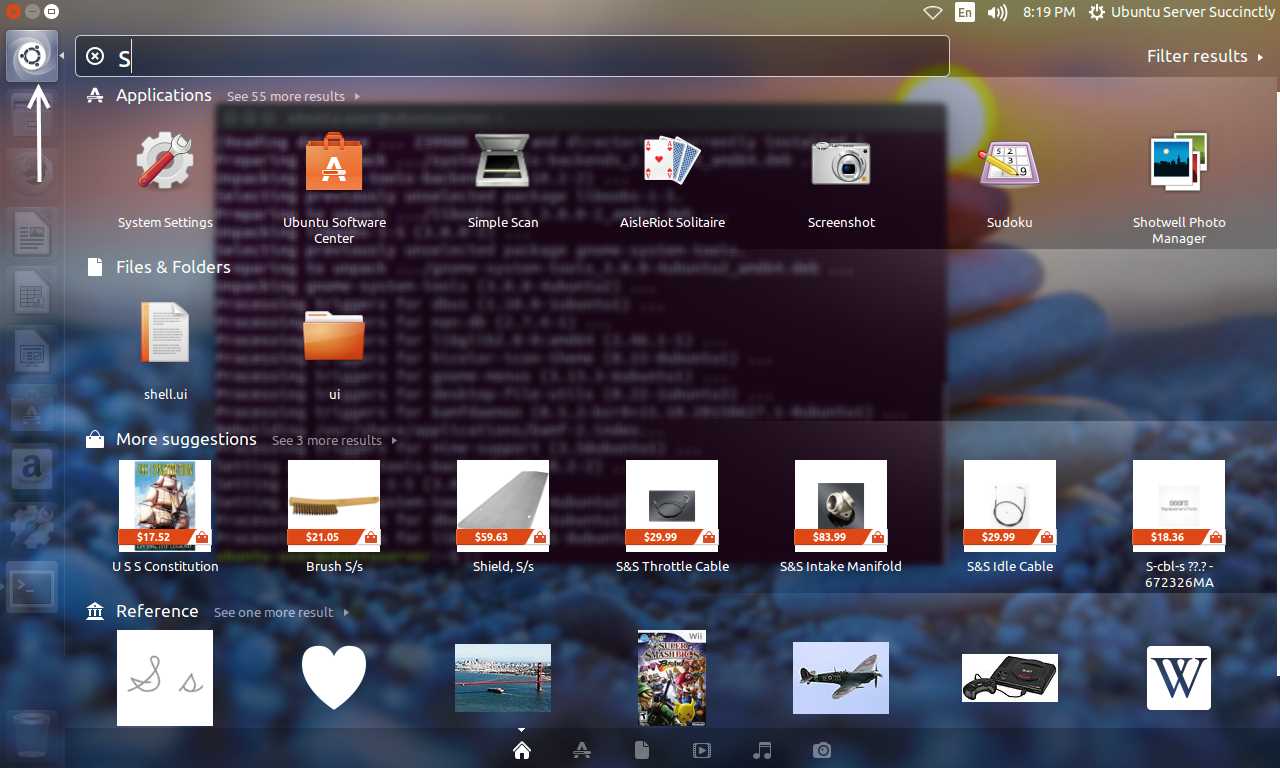
The Dash Activated in the Desktop
Every time a character is entered in the search bar, the Dash searches the system and then the web to find elements that match the text typed. This search is also performed when the user erases a character from the text entry in the search bar. The Dash searches for files, folders, applications, music, videos, and photos.
When a search is made, the user can click on the desired element’s icon and the object will be opened by the proper application.
To close the Dash, the user clicks the Dash button located in the Launcher, or presses the Esc key.
The Terminal
The desktop environment offers an interface that allows you to type and execute text-based commands, in the same way as if these commands were typed in the command line. This interface is called Terminal, and can be shown by pressing Ctrl+Alt+T.
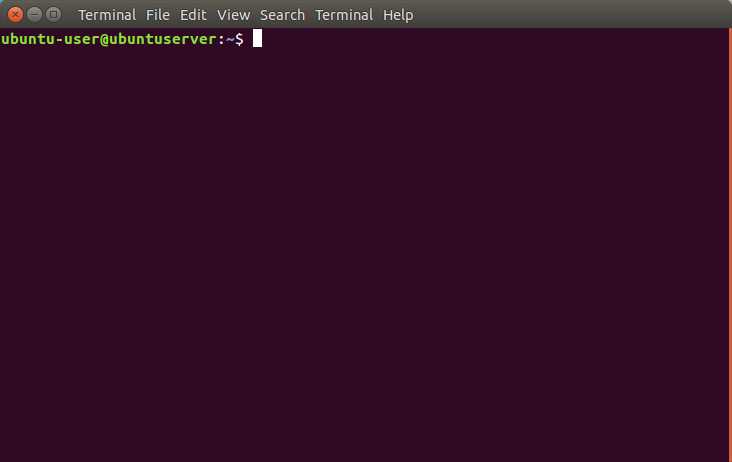
The Terminal Interface
The purpose of using this interface is to complete some tasks that can be done faster by typing text commands than using graphical applications. To close this interface, the user must type exit at the command prompt.
A common Terminal task performed by users is software installation. In some cases, installing an application can be more easily done by executing a single command, compared to navigating through the Software Center.
For example, if the name for the User and Groups utility software is previously known (gnome-system-tools), it’s easier to install the package by using the sudo apt-get install command. The following figure shows the Terminal interface while executing this command.
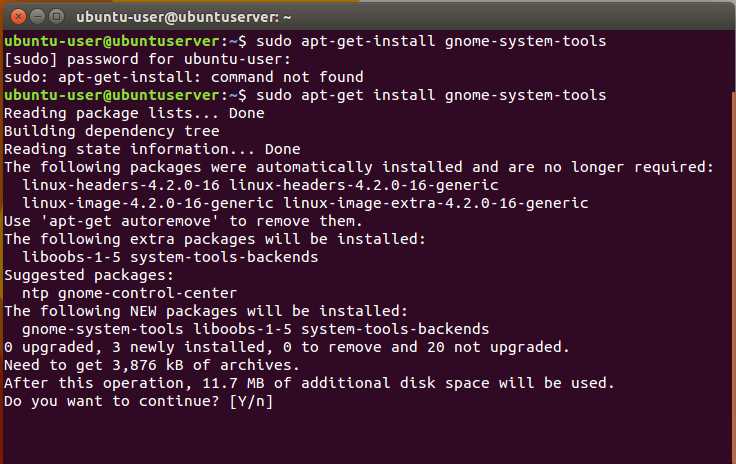
Installing the User and Groups Utility
Also, removing the User and Groups utility is easy by using the following command.
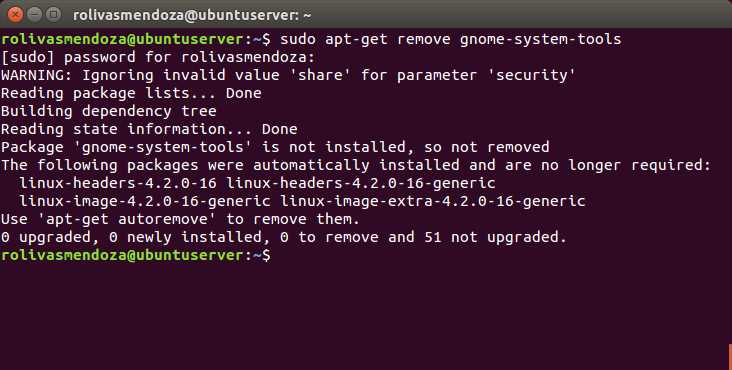
Removing the User and Groups Utility
Writing shell scripts in Ubuntu
In Ubuntu, a series of commands can be executed at once by writing them into a text file. This file is known as a shell script, and can be created with a text editor.
There is a Text Editor application for the desktop interface. To execute it, the user needs to call the Dash and write text in the Search bar.
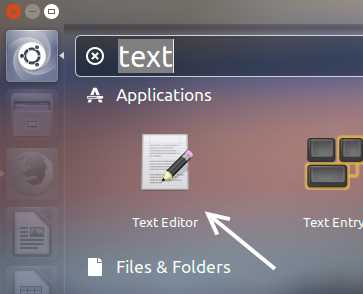
The Text Editor for the Desktop
The following sample shows a simple script.
Code Listing 155
#!/bin/bash #First script echo "Hello World" |
The first line of the script is important. This is a special clue, called a shebang, given to the shell indicating which program is used to interpret the script. In this case, it is /bin/bash.
The second line is a comment. Everything that appears after a # symbol is ignored by bash. As shell scripts become bigger and more complicated, comments become vital. They are used by programmers to explain what is going on so that other programmers can figure it out. The last line is the echo command. This command simply displays its arguments on the screen.
Once the script is saved in disk, the next thing to do is give it permissions to be executed by the shell. The following figure shows how to give execution permissions for the script and the result of running it, assuming that this script will be saved in a file named hello_world in the /home/Ubuntu-user directory.
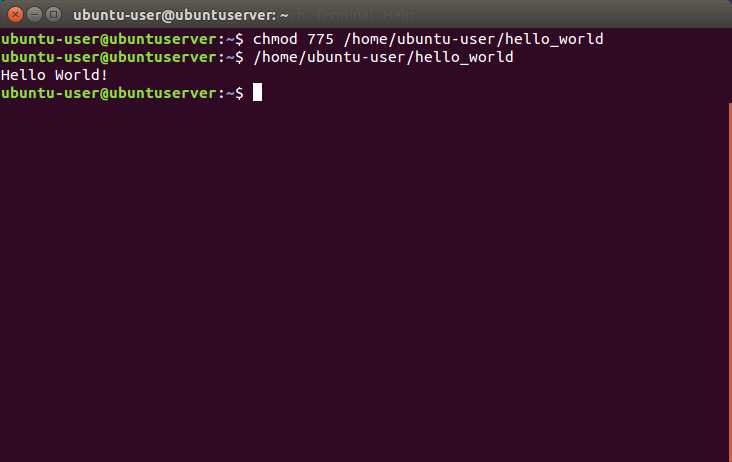
Giving Execution Permissions and Executing the Script
Going a little further, the following script sample makes a copy of the user’s home directory content to a backup folder, located in the /home directory.
Code Listing 156
#!/bin/bash #Backup Script echo "Backing Up Home Directory" cp -r /home/buntu-user /home/backups/Ubuntu-user |
For the most part, commands that can be entered on the command line are suitable for a shell script. A couple things might be considered regarding shell scripts:
- There are different command interpreters, called shells. The default is bash, but there are others, such as zsh, ksh, dash, perl, python, etc.
- To run a shell script, the user needs to make the file executable, which can be done with the chmod command.
- An extension can be added to the file name, usually .sh, but this is not necessary.
- #!/bin/bash must be written on the very first line of the file to tell Ubuntu what program to use to run the script.
Chapter summary
Ubuntu Server provides a GUI (Graphical User Interface) to replace the command line that is installed by default. This interface is called the desktop environment, and can be deployed by using the sudo apt-get update and the sudo apt-get install buntu-desktop commands.
Once installed, the login screen replaces the text login prompt. The user needs to supply a username and password in order to access the system.
The main program of the desktop interface is Ubuntu Desktop, which provides a point of entry for all applications installed in the system, and for all system management programs available.
The main element for user interaction in the desktop environment is called a dialog. A dialog has a series of elements, where each one has a particular function. These elements can be used when you click on them with the pointer. Also, some of these elements allow the user to enter text when needed.
The desktop environment provides a set of graphical applications to mimic the behavior of text commands. One of these applications is the Files dialog (file explorer), which is the equivalent of the ls command.
The shutdown and reboot commands have a graphical equivalent, called the Shut Down dialog. This dialog can be launched by clicking the Shut Down option in the Settings menu. This menu is accessed by clicking the gear icon, located in the upper-right corner of the Ubuntu Desktop screen.
A user’s session can be locked by pressing the Super (Windows logo) key+L, bringing up the Lock screen. To get back into the working session, the user must enter a password.
The System Settings dialog is used to customize the system. This dialog has three sections: Personal, which allows you to customize the interface appearance, text entry devices, and user privacy settings; Hardware, which allows you to install new hardware devices or configure installed ones; and System, which allows you to configure global settings like date and time, software updates, and user accounts.
The Ubuntu Software Center is a tool provided to manage installed applications, and to install new ones. The tool can filter software into three categories: All software available (installed in the system or located on the Ubuntu website), installed software in the system, and the history of software installation operations.
The Dash is an interface used for searching any content in the system or in the web. This interface can be executed by pressing the Super (Windows) key. It performs a text search to locate what the user is looking for. The kind of content searched can be files, directories, applications, music, images, or videos. The search operation is performed in the local system first, and then on the Internet.
Sometimes, typing a text command is a better choice instead of using the graphical interface. In this case, Ubuntu provides an interface called Terminal. This interface can be shown by pressing Ctrl+Alt+T. Any of the text commands explained in this book can be used in the Terminal interface.
A series of commands can be executed at once by placing the commands in a text file. This file is called a shell script, and can created using a text editor. Ubuntu Desktop has a Text Editor application available. This application can be executed by searching for it using Dash, and then clicking on the application’s icon.
For the most part, commands that can be entered on the command line are suitable for a shell script. A couple of things might be considered regarding shell scripts:
- There are different command interpreters, called shells. The default is bash, but there are others, such as zsh, ksh, dash, perl, python, etc.
- To run a shell script, the user needs to make the file executable, which can be done with the chmod command.
- An extension can be added to the file name, usually .sh, but this is not necessary.
- #!/bin/bash must be written on the very first line of the file to tell Ubuntu which program to use to run the script.


- 1800+ high-performance UI components.
- Includes popular controls such as Grid, Chart, Scheduler, and more.
- 24x5 unlimited support by developers.