
TypeScript Succinctly®

CHAPTER 3
Visual Studio
This chapter describes how to set up Visual Studio 2012 for TypeScript. If you are using a different development environment, you can skip this chapter. There are more details on using TypeScript with other tools in Appendix A: Alternative Development Tools.
Visual Studio Extension
The first task is to download and install the TypeScript for Visual Studio 2012 plug-in from the TypeScript language website at http://www.typescriptlang.org/.
This will add TypeScript language support as well as new project and file templates. You can add TypeScript files to an existing project, but for the examples in this book you can simply create a new project using the HTML Application with TypeScript template, which can be found under the Visual C# Templates—this is something of a misnomer as the project won’t contain C# or VB.NET.
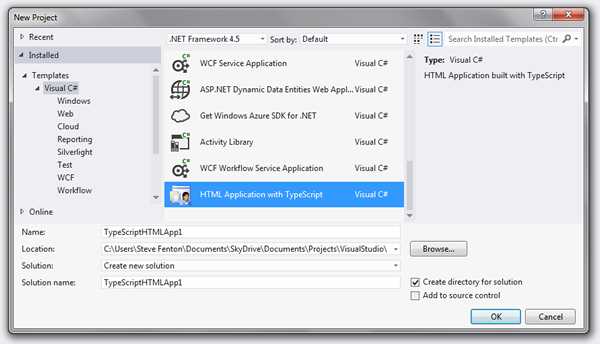
New project types in Visual Studio
The TypeScript file template can be accessed via the Add New Item menu, and also appears as a shortcut in the project context menu once you have added a TypeScript file to your project. The default template contains an example interface, module, and class, but you can change this template by navigating to the extensions zip file and editing the file named file.ts. The part of the path shown in bold is likely to be different on your computer, but you can perform a search for f.zip in the Extensions folder if you get stuck.
C:\Program Files (x86)\Microsoft Visual Studio 11.0\Common7\IDE\Extensions\ msfz1qy5.oca\~IC\IT\CSharp\1033\f.zip
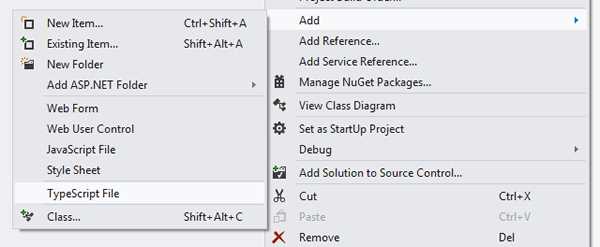
Add TypeScript file shortcut
The plug-in also installs the TypeScript compiler, which can be used from the command line, Visual Studio, and your build server.
C:\Program Files (x86)\Microsoft SDKs\TypeScript\tsc.exe
You can also use the Web Essentials 2012 extension, which adds side-by-side editing to Visual Studio.
Pre-Build Event
If you are using a project with automatic TypeScript support, such as the HTML Application with TypeScript project template, all of your TypeScript files will automatically be compiled into a paired JavaScript file each time you build the project, or each time a file is saved if you are using the latest version of the TypeScript Visual Studio extension.
If you want to add TypeScript to an existing project, for example, to an ASP.NET MVC Web Application, you can add the required sections to your project file. To edit your project file, select Unload from the context menu. Then re-open the context menu and select Edit.
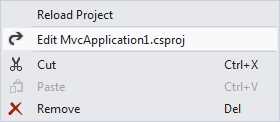
Project context menu
There are two sections to add. The ItemGroup element defines the files to be compiled (everything in your project with a .ts file extension). The Target element contains the build step that runs the TypeScript compiler against these files. The exact entries are shown below and can be pasted directly into your project.
<ItemGroup> <TypeScriptCompile Include="$(ProjectDir)\**\*.ts" /> </ItemGroup> <Target Name="BeforeBuild"> <Exec Command=""$(PROGRAMFILES)\Microsoft SDKs\TypeScript\tsc" @(TypeScriptCompile ->'"%(fullpath)"', ' ')" /> </Target> |
If you want the compiler to target ECMAScript 5, you can adjust this example to include the --target flag, as shown in the following example. You should only use this if you are certain that you don’t need to support older browsers.
<ItemGroup> <TypeScriptCompile Include="$(ProjectDir)\**\*.ts" /> </ItemGroup> <Target Name="BeforeBuild"> <Exec Command=""$(PROGRAMFILES)\Microsoft SDKs\TypeScript\tsc" --target ES5 @(TypeScriptCompile ->'"%(fullpath)"', ' ')" /> </Target> |
Trying it Out
Once you have performed these steps, Visual Studio is ready to use. Build your solution to make sure that there are no problems with any changes you have made to the project file.


- 1800+ high-performance UI components.
- Includes popular controls such as Grid, Chart, Scheduler, and more.
- 24x5 unlimited support by developers.