
Twitter Bootstrap 4 Succinctly®

CHAPTER 4
The Turning of the Tables
Not much has changed between BS3 and BS4 in terms of what was originally available— everything you were used to using in BS3 still works the same way in BS4. There are, however, some new classes that allow you to create some rather different table appearances.
The most basic example to use is still the good old <table> tag along with <th>, <td>, <tr>, <thead>, and <tbody> where needed, and then apply a table class to the main table element.
Code Listing 39: Basic BS4 table
<!-- Page content goes here --> <div class="container"> <div class="row"> <div class="col"> <table class="table"> <thead> <tr> <th scope="col">#</th> <th scope="col">Name</th> <th scope="col">Price</th> <th scope="col">Position</th> </tr> </thead> <tbody> <tr> <th scope="row">1</th> <td>Bootstrap 3</td> <td>Free</td> <td>1</td> </tr> <tr> <th scope="row">2</th> <td>Bootstrap 4</td> <td>Free</td> <td>2</td> </tr> <tr> <th scope="row">3</th> <td>Foundation</td> <td>Free/Paid</td> <td>3</td> </tr> <tr> <th scope="row">3</th> <td>UI Kit</td> <td>Free</td> <td>4</td> </tr> </tbody> </table> </div> </div> </div> |
The important thing to note about Code Listing 39 is the use of <thead> and <tbody>.
You must structure your tables in this manner; otherwise, Bootstrap won’t be able to style them correctly for you. This is a good thing, because the HTML5 specification stipulates that tables should be constructed this way so that screen readers and assistive technologies can better describe the parts of a table.
If you’ve gotten this far, you’re well aware that BS4 is not only designed for mobile first, but also leans heavily on the semantics and structure that is designed to make things easier for assistive technologies. I haven’t covered it much in this book, but BS4 also has a lot of support for things like ARIA roles, and if you’re keen on marking up your layouts to be as friendly as possible with screen readers, then you should also be adding ARIA attributes to your HTML. I’m not going to use ARIA in this book, but be aware (especially if you’re reading the Bootstrap docs) that the BS4 team does push ARIA very heavily, and it is something you should absolutely take into consideration when marking up your code.
If your table worked correctly, then you should see the following in your browser.
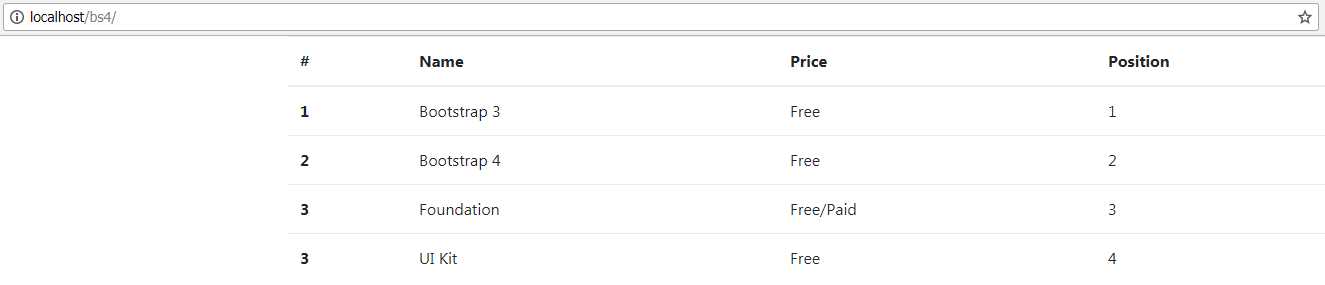
Figure 40: A basic BS4 table produced by Code Listing 39
One of the new style options added to tables in BS4 is the ability to give the entire table an inverted or dark style, and still use all the other stuff, such as borders and contextual colors.
To make your table entirely black, it’s as simple as adding an extra class name to the <table> tag, as Code Listing 40 shows.
Code Listing 40: Creating an inverted table
<!-- Page content goes here --> <div class="container"> <div class="row"> <div class="col"> <table class="table table-dark"> <thead> <tr> <th scope="col">#</th> <th scope="col">Name</th> <th scope="col">Price</th> <th scope="col">Position</th> </tr> </thead> <tbody> <tr> <th scope="row">1</th> <td>Bootstrap 3</td> <td>Free</td> <td>1</td> </tr> <tr> <th scope="row">2</th> <td>Bootstrap 4</td> <td>Free</td> <td>2</td> </tr> <tr> <th scope="row">3</th> <td>Foundation</td> <td>Free/Paid</td> <td>3</td> </tr> <tr> <th scope="row">3</th> <td>UI Kit</td> <td>Free</td> <td>4</td> </tr> </tbody> </table> |
Rendered in the browser, Code Listing 40 should look as follows.
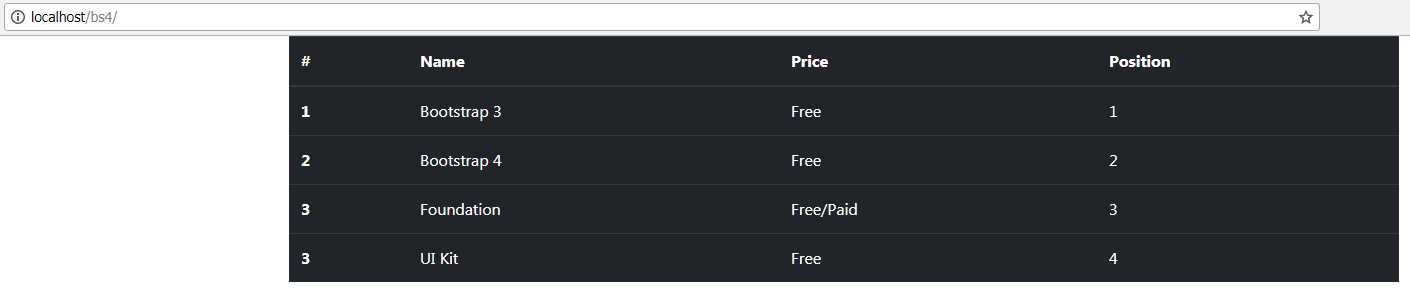
Figure 41: Inverted table produced by Code Listing 40
If you just want to invert the table header, then you can add the dark class just to the <thead> tag, as shown in Code Listing 41.
Code Listing 41: Inverting the header only
<!-- Page content goes here --> <div class="container"> <div class="row"> <div class="col"> <table class="table"> <thead class="thead-dark"> <tr> <th scope="col">#</th> <th scope="col">Name</th> <th scope="col">Price</th> <th scope="col">Position</th> </tr> </thead> <tbody> </tbody> </table> </div> </div> </div> |
In Code Listing 41’ I've removed the main table body, as it’s exactly the same as in Code Listing 40. The bit to pay attention to is the addition of the extra class in the <thead> tag, which produces the table seen in Figure 42.

Figure 42: Table with an inverted header
You can also use thead-light and table-light to apply a light gray color, giving you several different combinations of colors to choose from, which you can freely mix and match to your heart’s content.
You might have noticed that the header text is slightly bolder than the rest. You might assume this is because the text is in a <th> tag, and that is partly the reason. If you look closely, however, you’ll notice that the text in the first column is also in bold.
If you look at the code in Code Listings 40 and 41, you’ll notice that each <td> tag in the first column has a scope attribute attached to it.
BS4 notices this and makes the font slightly bolder to show that the row or column is a header in its appropriate direction. You can find more information on this technique in this W3C Working Group note.
Note: The scope attribute is not in common use, and is deprecated, so it may not be supported at all in future browsers. Still, if you use it, BS4 will see it and will change the appearance accordingly.
You can make the rows in your table striped by adding the table-striped class to the <table> tag, and you can add borders by adding table-bordered, as shown in Code Listing 42.
Code Listing 42: A striped and bordered table
<!-- Page content goes here --> <div class="container"> <div class="row"> <div class="col"> <table class="table table-bordered table-striped"> <thead> <tr> <th scope="col">#</th> <th scope="col">Name</th> <th scope="col">Price</th> <th scope="col">Position</th> </tr> </thead> <tbody> <tr> <th scope="row">1</th> <td>Bootstrap 3</td> <td>Free</td> <td>1</td> </tr> <tr> <th scope="row">2</th> <td>Bootstrap 4</td> <td>Free</td> <td>2</td> </tr> <tr> <th scope="row">3</th> <td>Foundation</td> <td>Free/Paid</td> <td>3</td> </tr> <tr> <th scope="row">3</th> <td>UI Kit</td> <td>Free</td> <td>4</td> </tr> </tbody> </table> </div> </div> </div> |
Rendered in Chrome, this should give you the following output.

Figure 43: BS4 table with the striped and bordered classes applied to it
You can also add the various dark and light prefixes as shown in Figure 43, and the styling will adapt to the chosen color scheme.
Pretty tables
Many tables have things like hover colors and row highlighting. BS4 provides all of these too, and it’s all easily achievable using simple, intuitive class names.
Add table-hover to the table class list.
Code Listing 43: The table-hover class
<!-- Page content goes here --> <div class="container"> <div class="row"> <div class="col"> <table class="table table-hover"> <thead> <tr> <th scope="col">#</th> <th scope="col">Name</th> <th scope="col">Price</th> <th scope="col">Position</th> </tr> </thead> <tbody> <tr> <th scope="row">1</th> <td>Bootstrap 3</td> <td>Free</td> <td>1</td> </tr> </tbody> </table> </div> </div> </div> |
I’m not going to show the output for Code Listing 43, as it’s not easy to capture a moving hover bar in a screenshot, but if you put the code in Code Listing 43 into your template file, open the file in your browser, and then move your pointer over the table, you’ll see your highlight bar.
You can color individual rows or cells using a set of contextual colors that have the same identifiers as those used for the text coloring utilities.
If you want to apply color to the entire row, apply it to the <tr> tag, and if you want to color only the cell, apply it to the <td> tag.
Code Listing 44: Table colors
<!-- Page content goes here --> <div class="container"> <div class="row"> <div class="col"> <table class="table"> <thead> <tr> <th scope="col">#</th> <th scope="col">Name</th> <th scope="col">Price</th> <th scope="col">Position</th> </tr> </thead> <tbody> <tr class="table-active"> <th scope="row">1</th> <td>Bootstrap 3</td> <td>Free</td> <td>1</td> </tr> <tr class="table-primary"> <th scope="row">1</th> <td>Bootstrap 3</td> <td>Free</td> <td>1</td> </tr> <tr class="table-secondary"> <th scope="row">1</th> <td>Bootstrap 3</td> <td>Free</td> <td>1</td> </tr> <tr class="table-success"> <th scope="row">1</th> <td>Bootstrap 3</td> <td>Free</td> <td>1</td> </tr> <tr class="table-danger"> <th scope="row">1</th> <td>Bootstrap 3</td> <td>Free</td> <td>1</td> </tr> <tr class="table-warning"> <th scope="row">1</th> <td>Bootstrap 3</td> <td>Free</td> <td>1</td> </tr> <tr class="table-info"> <th scope="row">1</th> <td>Bootstrap 3</td> <td>Free</td> <td>1</td> </tr> <tr class="table-light"> <th scope="row">1</th> <td>Bootstrap 3</td> <td>Free</td> <td>1</td> </tr> <tr class="table-dark"> <th scope="row">1</th> <td>Bootstrap 3</td> <td>Free</td> <td>1</td> </tr> </tbody> </table> </div> </div> </div> |
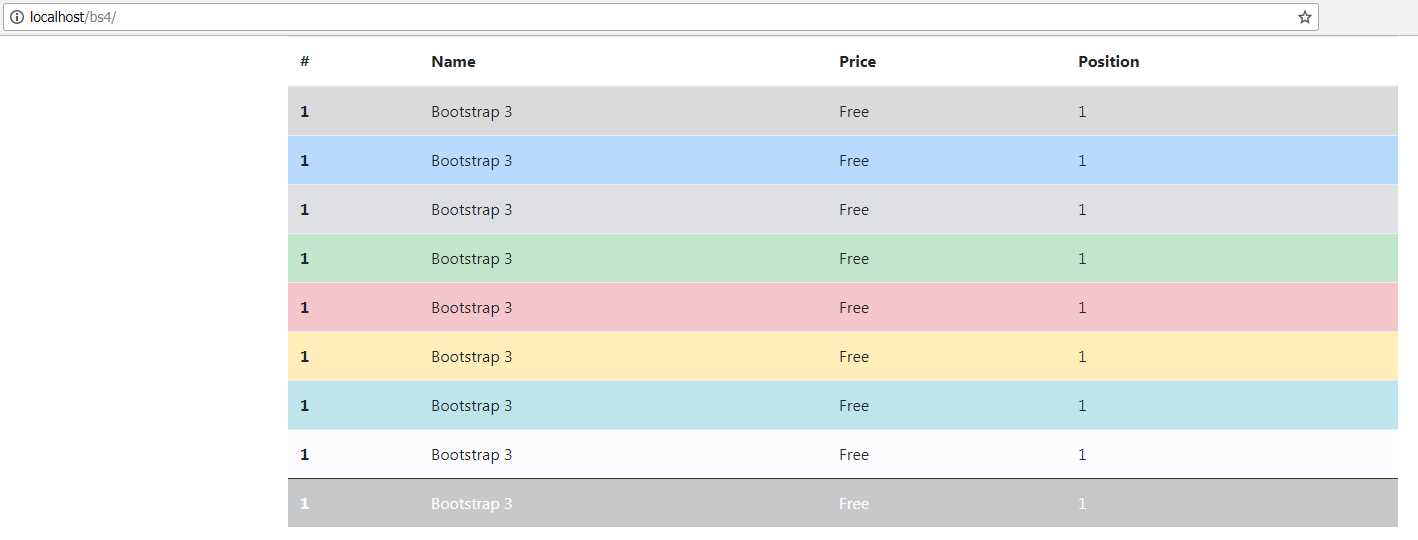
Figure 44: Bootstrap 4 table colors
There’s a whole lot more you can do with tables, such as making them scroll horizontally when the screen is too narrow, and using text classes to apply brighter colors when using table-dark and other modifiers.
You can find the rest of these and more in the official docs.


- 1800+ high-performance UI components.
- Includes popular controls such as Grid, Chart, Scheduler, and more.
- 24x5 unlimited support by developers.