
Twitter Bootstrap Succinctly®

CHAPTER 6
Buttons
Just like forms, Twitter Bootstrap has a huge array of classes to help you make the best use of buttons in your forms.
Admittedly, there are not as many classes as there are for forms, but the richness of the UIs you can create using them is just as spectacular.
Before we begin, though, please note that the TWB button classes are only designed to be used with two different types of tags: the <button> tag and the <a> tag. Which one you use is entirely up to you, but remember the age-old rule: if you're trying to initiate an action, then you should use a button tag and an appropriate "get", "post," or other restful method on your form to ensure the correct response.
If you’re creating buttons that are intended to perform full page navigation, then you should endeavor to use the anchor tag to provide the functionality.
When you style all your elements with the button classes, all of your buttons and anchors will look the same and it can be difficult to remember which element is where.
I'm sure the last thing any of us want is to style a delete button on a table with an anchor tag, and then watch in horror as a web spider deletes every record in our database because it tried to follow the links underneath.
I could do an entire chapter on the pitfalls of idempotence but I'll leave that to the HTTP Succinctly book that's already present in the Syncfusion library.
So, how do we turn a button or anchor element into a Twitter Bootstrap button? Well, just like with anything else in the framework, we add a class. In this case, the main class to be added is "btn."
Start a new template document and add the following body code to it:
<div class="container-fluid"> <div class="row-fluid"> <h1>Twitter Bootstrap</h1> <h3>Buttons Example</h3> <button class="btn">Please Click Me</button> </div> </div> |
Code Sample 18: Basic Twitter Bootstrap button
If all goes well, you should see the following in your browser:
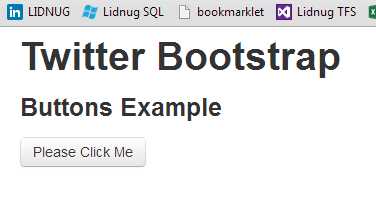
Basic Twitter Bootstrap button
As with everything else in TWB, you can also apply a consistent set of styles as optional style classes to add to your buttons.
Add the following extra buttons just under the button tag you placed in your new document from Code Sample 17 (Yes, I know I’ve spaced things out wth “<br>” tags but hey, this is just an example):
<br /><br /><button class="btn btn-primary">Please Click Me</button> <br /><br /><button class="btn btn-info">Please Click Me</button> <br /><br /><button class="btn btn-warning">Please Click Me</button> <br /><br /><button class="btn btn-danger">Please Click Me</button> <br /><br /><button class="btn btn-inverse">Please Click Me</button> <br /><br /><button class="btn btn-success">Please Click Me</button> |
If you save and refresh your page, you should hopefully see this:
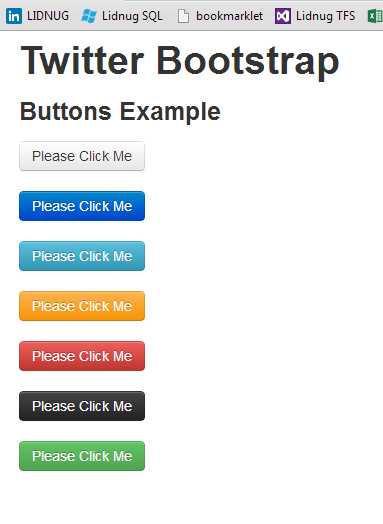
Twitter Bootstrap base button styles
The best way for me to describe the button styles, or the thinking behind them at least, is just to use the information from the Twitter Bootstrap documents.
Most of them have a similar purpose to the classes you've seen previously; however, the naming is a little different.
- btn-primary: Generally strong blue, designed to highlight default actions.
- btn-info: Aqua, used as an alternative to the default styles.
- btn-success: Green, indicates a successful or positive action.
- btn-warning: Yellow, indicates caution should be taken with this action.
- btn-danger: Red, indicates a dangerous or potentially negative action.
- btn-inverse: Alternate dark gray button, not tied to a semantic action or use.
One thing to note when using these button styles (and the TWB authors also mention it in the documents) is that Internet Explorer 9 does not render buttons with these styles applied correctly.
The background gradients are not cropped on the rounded corners and text has a rather nasty grey shadow that the authors have been unable to fix. From my own point of view, I cannot say if this has been resolved in Version 3 yet or not because, as noted earlier, I still need to go through the differences.
I can confirm, however, that in both Internet Explorer 10 and Firefox version 23.0, the buttons example renders and looks correct.
There are also handy classes for setting button sizes that are relative to the size of everything else. These classes are:
- btn-large
- btn-default
- btn-small
- btn-mini
As with the relative sizes used by the form components in the last chapter, you can also apply a class of "btn-block" to your buttons; this allows your button to expand to fill its parent container with a suitable margin, in exactly the same way as the block-level optional class works for a form input field.
Replace the body code in your HTML file with the following code:
<div class="container-fluid"> <div class="row-fluid"> <h1>Twitter Bootstrap</h1> <h3>Buttons Example</h3> <button class="btn">Please Click Me</button> <br /><br /><button class="btn btn-primary btn-large">Please Click Me (Large)</button> <br /><br /><button class="btn btn-info btn-default">Please Click Me (Default)</button> <br /><br /><button class="btn btn-warning btn-small">Please Click Me (Small)</button> <br /><br /><button class="btn btn-danger btn-mini">Please Click Me (Mini)</button> <br /><br /><button class="btn btn-inverse btn-small">Please Click Me (Small)</button> <br /><br /><button class="btn btn-success btn-block">Please Click Me (Block)</button> </div> </div> |
Code Sample 19: Button sizing
If everything worked as expected, here's the output you should see:
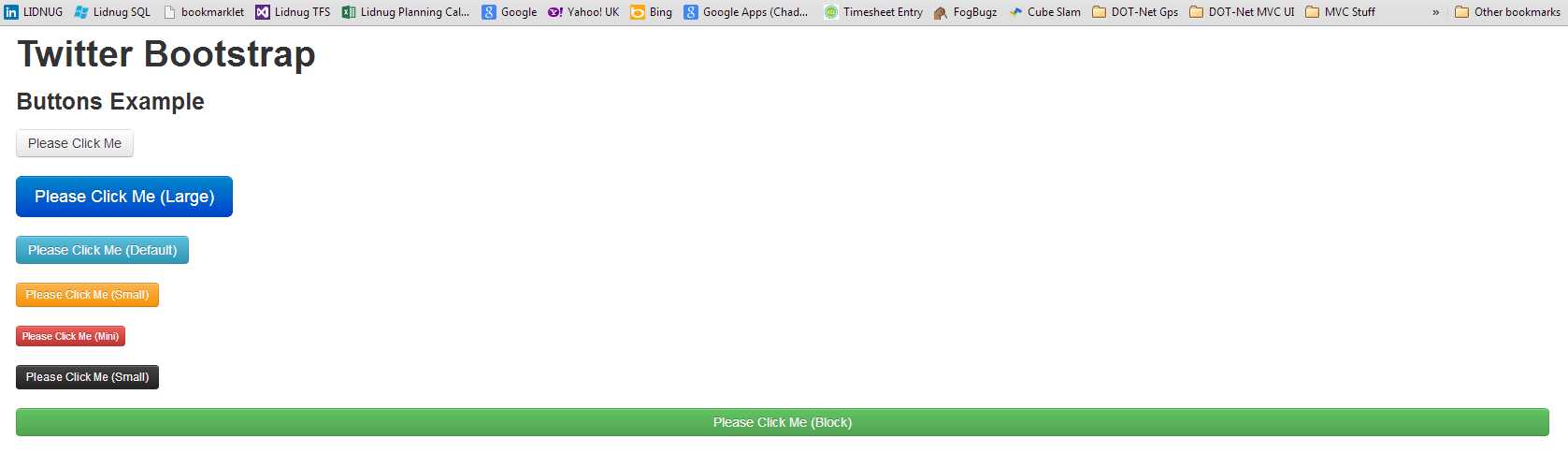
Button sizing example
Now, we've done nothing more than add different sizing classes to the buttons and styles that we already set up in the last example. As with everything in TWB, you can stack classes up on top of each other. I find the mini size to be particularly helpful in navigation bars for things such as logout buttons; however, if you're going to use them for this, I strongly advise also using the "inline" optional classes as seen in the chapter on forms.
Buttons can also be made to show a disabled state by adding the "disabled" class name to their class list; toggling this in client-side Javascript is a great way to give a consistent and user-focused experience in the application’s front end.
Icons
Twitter Bootstrap comes, by default, with a huge number of icons. These icons can be used in many different places such as bullet lists, menu items, and navigation items, but I mention them here as most people will want to use them with buttons.
To use an icon, it's as easy as hijacking the original <i> tag in the following manner:
<i class="icon-heart"></i> icon-heart |
That line of code will display the Heart Icon in front of the text "icon-heart."
Using them in a button is just as easy. If you want an icon in front of the text on your button, format your button, and input an anchor tag as follows:
<button class="btn"><i class="icon-heart"></i> Button Text</button> |
This should give you something like:
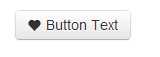
Default button with a heart icon
There are an absolute ton of icons provided (far too many to list here in this book). If you look at the bottom of the base CSS page in the Bootstrap docs, you'll see a cheat sheet of them all. There are also a few extra replacement icon projects available such as Font Awesome that aim to replace the built-in icons with better-looking, scalable vector font versions. They are well worth checking out.
Button Groups
If all TWB could do was make your buttons look pretty, there wouldn't be much reason for an entire chapter on them. As you may have guessed, however, they can do far more.
Many of you may be familiar with Office-style toolbars where options are grouped together into collections. For example, "left," "center," and "right" alignment buttons, as follows:
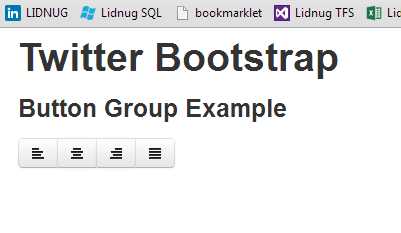
Twitter Bootstrap button group example
This can be very easily produced with the following body code added to a recommended HTML 5 template:
<div class="container-fluid"> <div class="row-fluid"> <h1>Twitter Bootstrap</h1> <h3>Button Group Example</h3> <div class="btn-group"> <button type="button" class="btn"><i class="icon-align-left"></i></button> <button type="button" class="btn"><i class="icon-align-center"></i></button> <button type="button" class="btn"><i class="icon-align-right"></i></button> <button type="button" class="btn"><i class="icon-align-justify"></i></button> </div> </div> </div> |
Button groups are purely cosmetic and offer no extra functionality to show the buttons as one related group graphically. That is, they don't maintain state for options and radios, etc.
That's not to say that they can't be used for this, however. But you have to start using the TWB JavaScript API to make that functionality work. So, for now, I leave that until we get to the chapter on working with TWB's JavaScript features.
You can also make your button groups stack vertically. If you change the classes on the div holding your button group from:
<div class="btn-group"> |
To the following:
<div class="btn-group btn-group-vertical"> |
Then save and refresh your page, and you should see your button group change to this:
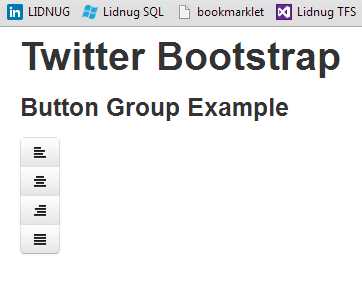
Vertical grouped button example
The final thing to cover before we move on is button dropdowns.
Button Dropdowns
Any button in Twitter Bootstrap can have a dropdown menu attached to it. However, for things to work correctly you must do the following:
- Have the Twitter Bootstrap JavaScript file referenced in your project.
- Have your buttons wrapped in a button group (even if it's only one button).
- Use a btn-toolbar class if you have more than one button.
Once you have your HTML 5 code structured correctly to do this, there's one more new concept you'll need to learn, and that's TWB's use of HTML 5 data attributes.
Data What?
Under HTML 5, you can provide a new type of attribute to your elements known as a data attribute. All data attributes must start with "data-" but, after that, it's entirely up to you what you use them for and how.
I'm not going to go into too much detail about this. But, if you're using one of the more popular libraries in your client code such as jQuery (just as TWB does), you can use data parameters to provide information to client-side JavaScript without ever having to touch any code directly.
Twitter Bootstrap makes heavy use of data attributes (you see more of these later on in the JavaScript chapter). But for now, all you need to know to make a button that incorporates a dropdown menu is the "data-toggle" attribute.
When you create your button using a standard anchor tag and then apply this data attribute to parent anchor, any <ul> element embedded within what would normally be the displayed text will be turned into a dropdown menu and be attached to your button.
Create a new HTML 5 template file as we have done with all the other examples in this book, and add the following body code to it:
<div class="container-fluid"> <div class="row-fluid"> <h1>Twitter Bootstrap</h1> <h3>Button Dropdown Example</h3> <div class="btn-group"> <a class="btn dropdown-toggle" data-toggle="dropdown" href="#"> Action <span class="caret"></span> </a> <ul class="dropdown-menu"> <li>Menu 1</li> <li>Menu 2</li> <li>Menu 3</li> </ul> </div> </div> </div> |
Code Sample 20: Basic dropdown button
Save the file and refresh your page. You should see the following:
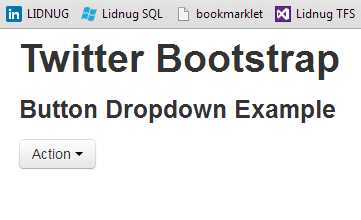
Basic dropdown button
If you click on the button, you should get a menu with three options displayed under it:
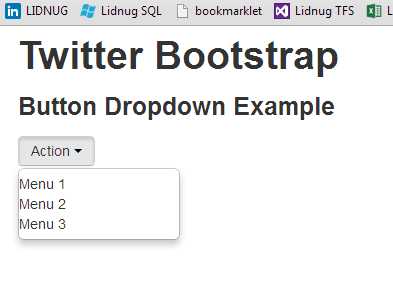
Dropdown button in its clicked state
As of now, I've not applied any of the dropdown menu classes to the options below as I'll be showing you more of these when we cover navigation bars in the components chapter. But there are optional classes that you can add to make the padding better, provide separator lines and, using the icon classes I introduced earlier, add icons to your menu entries.
You can also make your dropdown buttons into split buttons very easily. What's the difference?
Well, with a split button, the caret (or dropdown arrow) on the end of your button becomes the only part that triggers the menu for the button. Clicking on the main button section will actually trigger whatever action that button has in its href (or form submission if you're using a button tag).
To make Code Sample 20 into a split button, simply change it to the following code:
<div class="container-fluid"> <div class="row-fluid"> <h1>Twitter Bootstrap</h1> <h3>Button Dropdown Example</h3> <div class="btn-group"> <button class="btn">Action</button> <button class="btn dropdown-toggle" data-toggle="dropdown"> <span class="caret"></span> </button> <ul class="dropdown-menu"> <li>Menu 1</li> <li>Menu 2</li> <li>Menu 3</li> </ul> </div> </div> </div> |
Code Sample 21: Dropdown button with split button
Once saved and refreshed, the result from this should be a button with a dropdown menu and a split section to the button, as the following image shows:
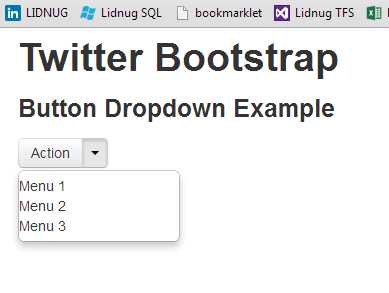
Dropdown button with split example
All the different button styles, classes, and sizes that you've seen so far all work perfectly well with dropdowns and button groups. Also, if you add the optional extra class "drop-up" to your parent button groups in the previous dropdown examples, you can make your dropdown menus appear above the button rather than below.
I've used these techniques with great success in toolkits such as Knockout.js where I've actually gotten different menu options to change the behavior of the split button in a Knockout view model.
They come in handy in places such as data editing grids where you can change the parent button to "edit," "delete," "disable," etc., values, and then just group your editing commands together for easy-to-navigate database management operations.
In the next chapter, we'll look at the various other Twitter Bootstrap components and start delving more into those parts of the framework that are built from correctly structured sets of elements and JavaScript functionality.


- 1800+ high-performance UI components.
- Includes popular controls such as Grid, Chart, Scheduler, and more.
- 24x5 unlimited support by developers.