
Twilio with C# Succinctly®

CHAPTER 4
Testing Code Contracts
Pex evolves into IntelliTest
Many of you might be familiar with Pex, and it probably will not come as a surprise that Pex has evolved into IntelliTest. IntelliTest is an integrated feature in Visual Studio Enterprise 2015. Code Contracts and IntelliTest integrate well, and it is really easy to get started with IntelliTest.
Getting started: Create IntelliTest
As mentioned previously, IntelliTest is integrated into Visual Studio Enterprise 2015. If you want IntelliTest integration in other versions of Visual Studio 2015, you can make your voice heard at the Visual Studio 2015 UserVoice site. The folks over at Microsoft in the Visual Studio team do keep a careful eye on this site—your vote will never be cast in vain.
Getting started with IntelliTest is really simple. Let us revisit one of the methods we worked with in a previous chapter.
/// <summary> /// Calculate the production volume of steel per bin /// </summary> /// <param name="binVolume"></param> /// <param name="factor"></param> /// <returns>Bin Volume less Remainder</returns> public int ProductionVolumePerBin(int binVolume, int factor) { Contract.Ensures(Contract.Result<int>() == binVolume, "The factor used will result in scrap. Please modify the cutting factor."); int remainder = CutSteel(binVolume, factor); return binVolume - remainder; } /// <summary> /// Calculate any remainder after the modulus operation between volume and factor /// </summary> /// <param name="volumeToCut"></param> /// <param name="factor"></param> /// <returns>Remainder after cutting</returns> private int CutSteel(int volumeToCut, int factor) { // Use modulus to determine if the factor produces any scrap return volumeToCut % factor; } |
Code Listing 61: Create IntelliTest for method
As before, the preceding code listing tells the calling method that the method under contract will result in the cut volume always equaling the bin volume. This means that all the steel has been cut perfectly and no off-cuts resulted by using the specific factor.
To generate a new IntelliTest for the ProductionVolumePerBin() method, right-click on the method and select Create IntelliTest from the context menu.
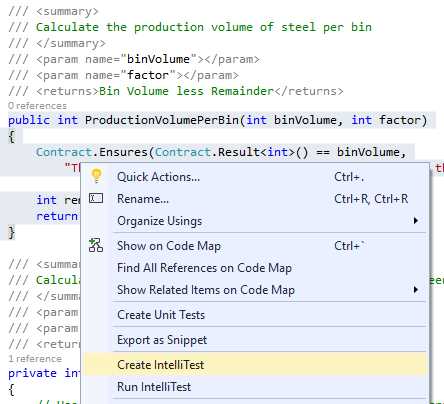
Figure 45: Create IntelliTest
Visual Studio will now display the Create IntelliTest window where you can configure additional settings for your generated IntelliTest.
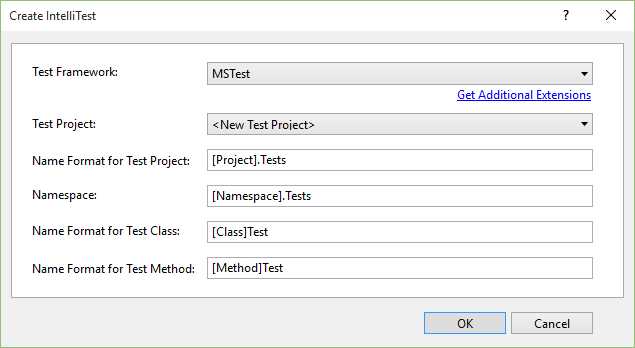
Figure 46: Create IntelliTest Settings
If this is your first time creating an IntelliTest, you will see that MSTest is the only option listed under Test Framework. You can, however, install third-party unit test frameworks if desired (more on this later). When you are done, click OK.
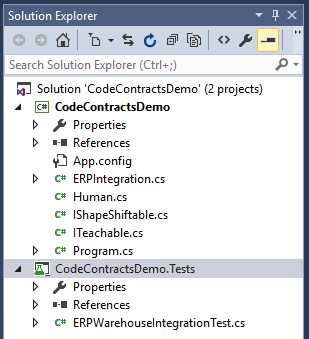
Figure 47: Test Project Added to Solution
Visual Studio will now create your test project for you. When it has completed the process, the new project will be visible in the Solution Explorer window.
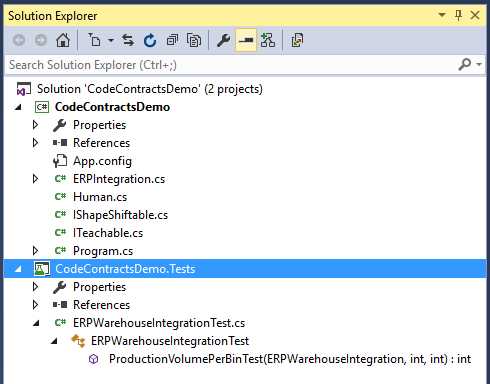
Figure 48: IntelliTest Created
Expanding the ERPWarehouseIntegrationTest.cs file, you will see that a test called ProductionVolumePerBinTest has been created.
// <copyright file="ERPWarehouseIntegrationTest.cs">Copyright © 2015</copyright> using System; using Microsoft.Pex.Framework; using Microsoft.Pex.Framework.Validation; using Microsoft.VisualStudio.TestTools.UnitTesting; namespace CodeContractsDemoProject.Tests { /// <summary>This class contains parameterized unit tests for ERPWarehouseIntegration</summary> [PexClass(typeof(ERPWarehouseIntegration))] [PexAllowedExceptionFromTypeUnderTest(typeof(InvalidOperationException))] [PexAllowedExceptionFromTypeUnderTest(typeof(ArgumentException), AcceptExceptionSubtypes = true)] [TestClass] public partial class ERPWarehouseIntegrationTest { /// <summary>Test stub for ProductionVolumePerBin(Int32, Int32)</summary> [PexMethod] public int ProductionVolumePerBinTest( [PexAssumeUnderTest]ERPWarehouseIntegration target, int binVolume, int factor ) { int result = target.ProductionVolumePerBin(binVolume, factor); return result; // TODO: add assertions to method ERPWarehouseIntegrationTest.ProductionVolumePerBinTest(ERPWarehouseIntegration, Int32, Int32) } } } |
Code Listing 62: ProductionVolumePerBinTest Created
All it took to generate this test was a few clicks. The integration of IntelliTest allows developers to easily create tests for critical logic in their code.
Run IntelliTest
After we have created the first IntelliTest, we need to do something with it. The logical option is to run the test and see what the results are of the test on the method. To do this, right-click the method and click Run IntelliTest in the context menu.
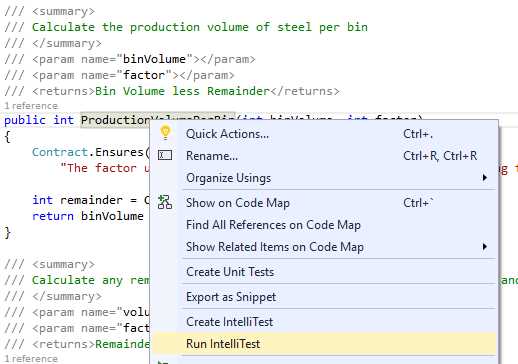
Figure 49: Run IntelliTest
Visual Studio will proceed to build your project and then launch the IntelliTest Exploration Results window. This window displays all the possible method parameters that would result in the maximum coverage of code for the method being tested. You can now get an overview of how the method fared under test.
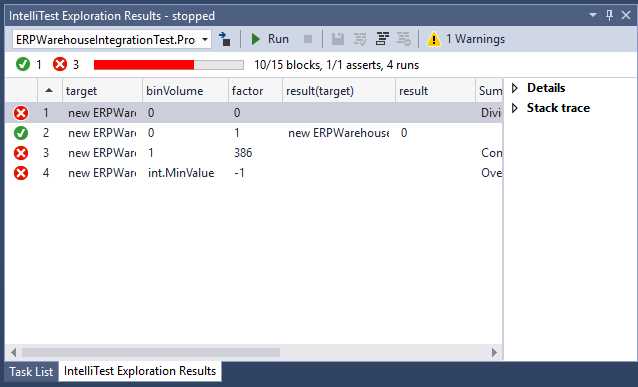
Figure 50: IntelliTest Exploration Results
Immediately we can see that three tests failed and one passed. To the right of the IntelliTest Exploration Results windows, the Details and Stack trace are displayed in collapsible nodes. Let’s have a closer look at the test results.
Test 2: Passed
The ProductionVolumePerBin() method must always result in a cut volume equal to the bin volume. From the variables used in Test 2, we can see that it passed because the bin volume was 0 and the result of the method was also 0.
[TestMethod] [PexGeneratedBy(typeof(ERPWarehouseIntegrationTest))] public void ProductionVolumePerBinTest33() { ERPWarehouseIntegration eRPWarehouseIntegration; int i; eRPWarehouseIntegration = new ERPWarehouseIntegration(); i = this.ProductionVolumePerBinTest(eRPWarehouseIntegration, 0, 1); Assert.AreEqual<int>(0, i); Assert.IsNotNull((object)eRPWarehouseIntegration); Assert.AreEqual<int>(0, eRPWarehouseIntegration.MaxBinQuantity); Assert.AreEqual<int>(0, eRPWarehouseIntegration.CurrentBinQuantity); } |
Code Listing 63: Generated Code in Details
Looking at the Details node, we can see the generated code for the unit test.
Test 1: Failed, DivideByZeroException
Looking at Test 1, we can see that it failed because it tried to divide by zero.
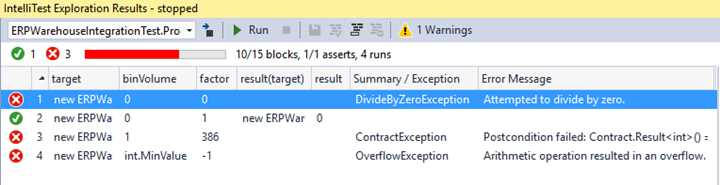
Figure 51: Divide by Zero Exception
This means that we forgot to take care of a factor value of zero. If you look at the CutSteel() method you will see that we are dealing with a modulus and not a divisor. So how can we have a divide by zero exception? Well the rule of thumb is that if the second operand of a / or a % is zero, we will have a divide by zero exception.
Test 3: Failed, ContractException
Test 3 failed because the Code Contract ensures a result that the method isn’t adhering to. Remember, the ProductionVolumePerBin() method ensures that the bin volume is returned to the calling code, which signifies that we have produced a perfect cut with zero scrap. The test failed, and in a production environment this situation will happen. Our Code Contract ensures that the result returned by the method will always equal the bin volume. This means that we need to deal with the eventuality of an imperfect cut.
Test 4: Failed, OverflowException
The last failed test is rather interesting. We can see that the test was passed int.MinValue for binVolume. According to the MSDN documentation, int.MinValue represents the smallest possible value for Int32. It is also a constant with a value of -2,147,483,648. The factor has a value of -1 and the modulus results in an OverflowException. This means that our code in the CutSteel() method will effectively be int.MinValue % -1; and this fails our test.
The reason that this happens is because the C# language specification implements it as such. In 7.8.3 Remainder operator of the C# Language Specification it states: “If the left operand is the smallest int or long value and the right operand is -1, a System.OverflowException is thrown.”
Note: If you would like to dig a little deeper, you can view this thread on StackOverflow for a very good explanation on why this is implemented this way in C#.
Fixing test failures
We can see from the previous IntelliTests that there are some loopholes in our ProductionVolumePerBin() method. These need fixing, and the most obvious one to fix is the divide by zero exception. Let’s add a Contract.Requires() to our method to only allow factor values greater than 1.
/// <summary> /// Calculate the production volume of steel per bin /// </summary> /// <param name="binVolume"></param> /// <param name="factor"></param> /// <returns>Bin Volume less Remainder</returns> public int ProductionVolumePerBin(int binVolume, int factor) { Contract.Requires(factor > 1, "The supplied cutting factor must be more than the value 1."); Contract.Ensures(Contract.Result<int>() == binVolume, "The factor used will result in scrap. Please modify the cutting factor."); int remainder = CutSteel(binVolume, factor); return binVolume - remainder; } |
Code Listing 64: Modified Code to Ensure Valid Integers
After adding the Contract.Requires() precondition, the method will only allow valid cutting factor values. Run the IntelliTest again by right-clicking on the ProductionVolumePerBin() method and selecting Run IntelliTest from the context menu.
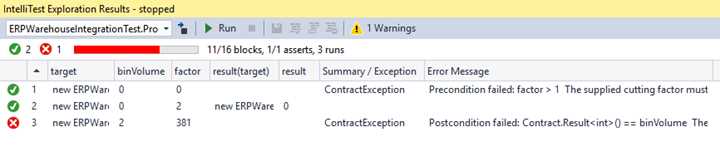
Figure 52: IntelliTest Results after Valid Integer Change
The results of the test are quite different. Our contract preconditions are working correctly and limiting the erroneous values from being passed to our method. However, we can see that the IntelliTest passed a binVolume value significantly smaller than the factor value. Let us work on this issue first by requiring the binVolume value to never be smaller than the factor value.
/// <summary> /// Calculate the production volume of steel per bin /// </summary> /// <param name="binVolume"></param> /// <param name="factor"></param> /// <returns>Bin Volume less Remainder</returns> public int ProductionVolumePerBin(int binVolume, int factor) { Contract.Requires(factor > 1, "The supplied cutting factor must be more than the value 1."); Contract.Requires(binVolume > factor, "The cutting factor cannot be greater than the bin volume"); Contract.Ensures(Contract.Result<int>() == binVolume, "The factor used will result in scrap. Please modify the cutting factor."); int remainder = CutSteel(binVolume, factor); return binVolume - remainder; } |
Code Listing 65: Modified Code to Ensure Valid Cutting Factor
To achieve this, we need to add another Contract.Requires() pre-condition that will require that the binVolume value is always greater than the factor value. Run the IntelliTest again from the context menu.
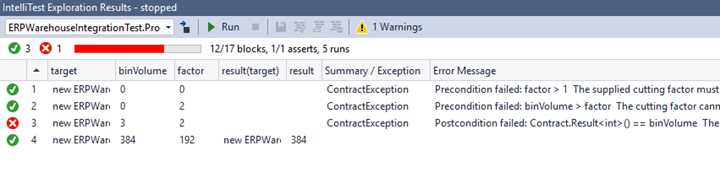
Figure 53: IntelliTest Results after Valid Cutting Factor Change
The results returned from this test tell us that the only issue we are experiencing with the ProductionVolumePerBin() method is that it still fails on the value being returned. Our method guarantees the calling code that it will return a perfect cut every time, and it is failing this contract. We might want to consider adding a bit more intelligence to this method by letting our code suggest a valid cutting factor to the user if the supplied one is not valid.
/// <summary> /// The new valid cutting factor calculated by ProductionVolumePerBin /// </summary> public int CalculatedCuttingFactor { get; private set; } = 0; /// <summary> /// Calculate the production volume of steel per bin /// </summary> /// <param name="binVolume"></param> /// <param name="factor"></param> /// <returns>Bin Volume less Remainder</returns> public int ProductionVolumePerBin(int binVolume, int factor) { Contract.Requires(IsEven(binVolume), "Invalid bin volume entered"); Contract.Requires(factor > 1, "The supplied cutting factor must be more than the value 1."); Contract.Requires(binVolume > factor, "The cutting factor cannot be greater than the bin volume"); Contract.Ensures(Contract.Result<int>() == binVolume, "The factor used will result in scrap. Please modify the cutting factor."); int remainder = CutSteel(binVolume, factor); while ((binVolume - remainder) != binVolume) { CalculatedCuttingFactor = CalculateNewCutFactor(binVolume); remainder = CutSteel(binVolume, CalculatedCuttingFactor); }
return binVolume - remainder; } /// <summary> /// Calculate any remainder after the modulus operation between volume and factor /// </summary> /// <param name="volumeToCut"></param> /// <param name="factor"></param> /// <returns>Remainder after cutting</returns> private int CutSteel(int volumeToCut, int factor) { // Use modulus to determine if the factor produces any scrap return volumeToCut % factor; } /// <summary> /// Calculate a new cutting factor /// r.Next(1, 7); returns a random number between 1 and 6 /// </summary> /// <param name="binVol">Upper range value of random (bin volume + 1)</param> /// <returns> /// A new cutting factor greater than 1 and equal to the bin volume /// </returns> private int CalculateNewCutFactor(int binVol) { Random r = new Random(); return r.Next(2, binVol + 1); } /// <summary> /// Ensure that the passed volume is even /// </summary> /// <param name="volume">The volume to verify</param> /// <returns>boolean</returns> public bool IsEven(int volume) { return volume % 2 == 0; } |
Code Listing 66: Intelligent ProductionVolumePerBin Method
As you can see from the previous modified code listing, I have done a few things. Business rules state that the bin volume will always be an even number. I have therefore added a Contract.Requires() pre-condition to ensure that only even integers are passed to the ProductionVolumePerBin() method.
Another addition to our code is a CalculatedCuttingFactor property that will hold the newly calculated cutting factor if the supplied factor is invalid. For this I have included a new method called CalculateNewCutFactor that will try alternate values for the cutting factor in order to produce the perfect cut.
The ProductionVolumePerBin() method will determine if the cutting factor is valid. If not, it will run the while loop until a valid cutting factor is returned and a perfect cut is achieved. In a production environment, however, you might want to consider using a sanity loop counter variable to create an exit condition or throw an exception when some maximum number of iterations is reached. There is still a lot of fine-tuning that can be done to the ProductionVolumePerBin() method, which I will not go into here as I simply want to illustrate a concept.
After the code is modified, run the IntelliTest again.
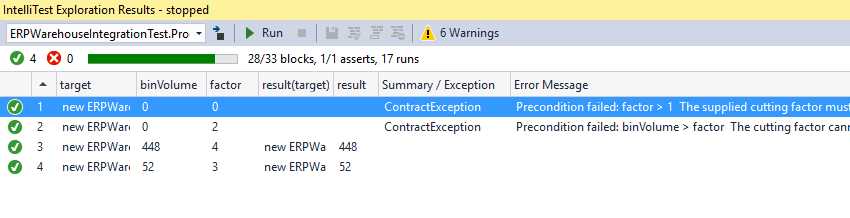
Figure 54: All IntelliTest Tests Passed
From the test result we can see that the ProductionVolumePerBin() method has held up to the requirements imposed by our Code Contracts. It has also generated six warnings, which I’ll discuss shortly.
The calling code can now implement the ProductionVolumePerBin() method without needing to cater for invalid values being returned. It knows that the method will return a perfect cut every time. The only check that needs to be done is to see whether a new factor has been suggested or if the supplied factor is valid.
int binVol = 20; int factor = 3; CodeContractsDemoProject.ERPWarehouseIntegration oWhi = new CodeContractsDemoProject.ERPWarehouseIntegration(); int result = oWhi.ProductionVolumePerBin(binVol, factor); if (oWhi.CalculatedCuttingFactor != factor && oWhi.CalculatedCuttingFactor != 0) { Console.Write($"The supplied cutting factor of {factor} resulted in " + "an imperfect cut. The system suggests using the following " + $"cutting factor: {oWhi.CalculatedCuttingFactor}"); } else Console.Write($"The cutting factor of {factor} resulted in 0 scrap");
Console.ReadLine(); |
Code Listing 67: Code Calling ProductionVolumePerBin
You will notice that I am using string interpolation in the Console.Write each time. This is one of the new features in C# 6. The preceding code only needs to check the CalculatedCuttingFactor property to see if the cutting factor has changed. It knows that under contract, the ProductionVolumePerBin() method will always result in a perfect cut.
We can further improve the preceding code, but the concept I wanted to illustrate is clear. Code Contracts lend themselves very well to tests created with IntelliTest in Visual Studio Enterprise 2015. You can combine the power of both technologies to create highly robust code and highly enforced business rules to make your applications perform well in a production environment.
IntelliTest warnings
A discussion of IntelliTest would not be complete without discussing the Warnings output screen.
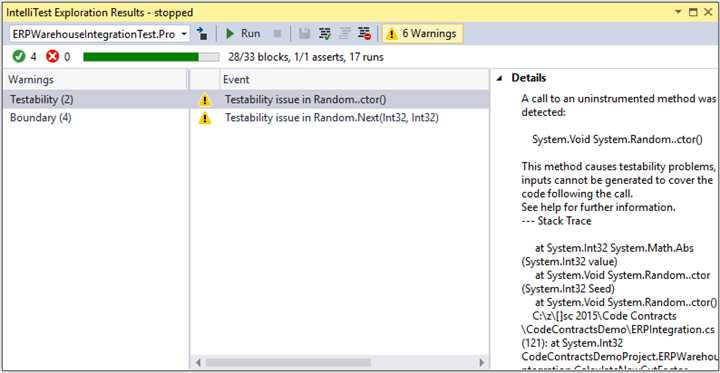
Figure 55: IntelliTest Warnings
You will notice that the IntelliTest Exploration Results screen generated six warnings. These are mostly normal warnings that might require your attention. To be on the safe side, review these for any obvious issues. While this is somewhat beyond the scope of this book, I will briefly mention two warning types seen in Testability and Boundary.
Testability
The warning we see is that an uninstrumented method was detected in our code. This is specific to the Random() method used in the CalculateNewCutFactor() method. This simply means that IntelliTest cannot dig down into all the paths in my code in order to generate the required outputs it needs in order to test.
Boundary
IntelliTest imposes certain limits on paths it executes in order to prevent it from getting stuck in the event that the application goes into an infinite loop. These limits can be modified by clicking the Fix icon on the menu bar.
Code coverage
Ideally you would want to see 100 percent code coverage (33/33 blocks). Our tests only covered 28/33 blocks. Further reading on IntelliTests would allow you to understand how to ensure good code coverage and which warnings can be suppressed safely.
Installing third-party frameworks
As mentioned previously, you are able to get additional extensions for the test framework to use when creating IntelliTests. To do this, you can use the Visual Studio Extension Manager or go to the Visual Studio Gallery on the MSDN website.
Here’s how to install third-party frameworks from Visual Studio Extensions:
- Navigate to Tools and select Extensions and Updates.
- Expand Online > Visual Studio Gallery > Tools, and select Testing.
- Browse the results and select the framework you require.
- Click Download.
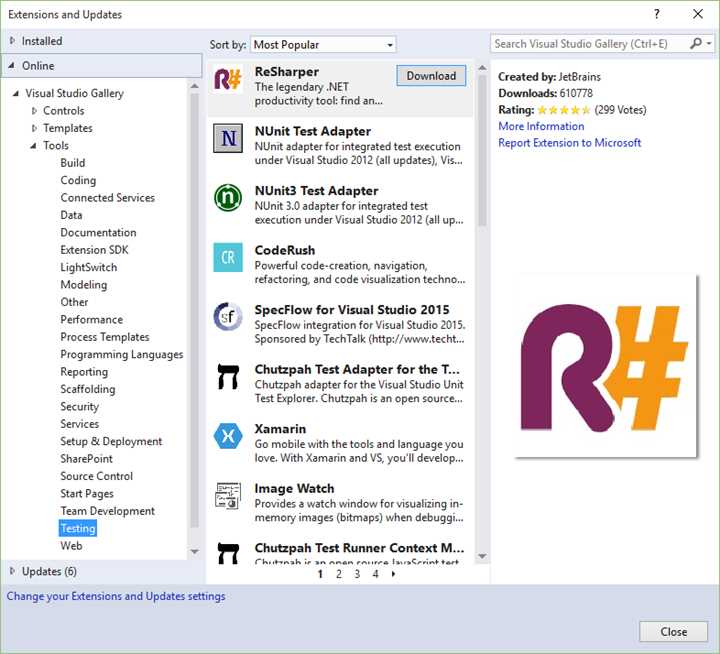
Figure 56: Installing Third-Party Frameworks from Visual Studio
Installing third-party frameworks from the Visual Studio Gallery:
- Go to the Visual Studio Gallery.
- Enter the framework name in the Find text box.
- Select the framework from the search results to download.
If you are not sure which framework you want or don’t know the name of the framework you are looking for, you can browse a list of frameworks on the Visual Studio Gallery:
- Go to the Visual Studio Gallery.
- Click the Browse link.
- Under Categories, expand Tools and choose Testing.
- Choose the framework you want and download the tool.


- 1800+ high-performance UI components.
- Includes popular controls such as Grid, Chart, Scheduler, and more.
- 24x5 unlimited support by developers.