
T4 Succinctly®

CHAPTER 4
Working with the Host
Overview of the DTE
The DTE is the object that Visual Studio provides to automate many tasks in Visual Studio. You may hear various stories for what DTE stands for. Some examples include:
- Design Time Extensibility
- Developer Tool Extensibility
- Development Tools Environment
Regardless of the name used, this object gives you access to programmatically control most aspects of Visual Studio. More important to our discussions here, this is also the Host for templates that are run from within Visual Studio.
To access this object, we start with the template directive.
<#@ template debug="true" hostSpecific="true" #> |
Setting hostSpecific to true will ensure that the base class for the template includes a property called host. Now that we have the host property, we will also need the assemblies and references to use the DTE.
<#@ assembly name="EnvDTE" #> <#@ assembly name="EnvDTE100" #> <#@ import namespace="EnvDTE" #> <#@ import namespace="EnvDTE100" #> |
References Needed to Work with the DTE
With this in place, we access this DTE through this host property. The common pattern is:
IServiceProvider serviceProvider = (IServiceProvider)host ; VisualStudio = serviceProvider.GetService(typeof(EnvDTE.DTE)) as DTE; |
Accessing the DTE Through the Host
Now that we have the DTE object, let’s see we can do with it.
Throughout this chapter, we will build up methods in a new class we will call DTEHelper.
In our solution, create a new Class Library project and name it T4Utilities. We will create our new DTEHelper class in this project. First, we will need to install the Visual Studio SDK. You can get the latest version from the Microsoft Download Center.
There are a couple of references we need to add to this T4Utilities project that will now be available:
- EnvDTE
- Microsoft.VisualStudio.TextTemplating.Interfaces.10.0
Because we depend on the host to get to the DTE, let’s provide a constructor requiring that any user gives us the host.
private DTE VisualStudio { get; set; } public DTEHelper(ITextTemplatingEngineHost host) { var serviceProvider = (IServiceProvider)host ; VisualStudio = serviceProvider .GetService(typeof(EnvDTE.DTE)) as DTE; } |
Constructor for DTEHelper
Navigating the Solution
The DTE provides access to all of the projects in the solution. This is a little bit complicated because the DTE is actually a C++ COM object. So navigating through a collection is not nearly as straightforward as we are used to. Let’s create a method to give us access to the list of projects in a format we can more easily deal with.
public IList<Project> GetAllProjects() { var returnValue = new List<Project>(); foreach (Project project in VisualStudio.Solution.Projects) { returnValue.Add(project); } return returnValue; } |
Getting a List of all the Projects in a Solution
Now that we have this in an IList, we can easily filter by any of the properties exposed by Project. Filtering by the Kind property, we can get a list of only the C# projects.
public IList<Project> GetCSharpProjects() { return GetAllProjects().Where (p => p.Kind == "{66A26720-8FB5-11D2-AA7E-00C04F688DDE}").ToList(); } |
Getting a List of CSharp Projects
"{66A26720-8FB5-11D2-AA7E-00C04F688DDE}" is the Guid for C# Projects. This works because the Kind property is actually returning the last project type Guid from the ProjectTypeGuids element in the project file. As you may know, a project may have multiple project types because they get to be fairly granular, but the language is generally considered to be the “real project” with any others being flavored. This makes sense, considering how the Add New Project dialog box is structured. You first select the language, and then the type of project within the language.
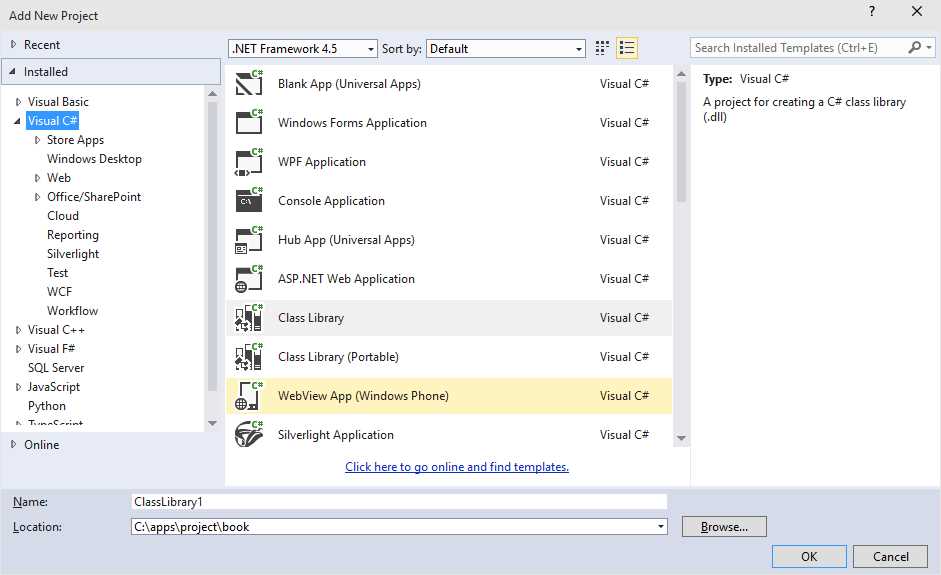
Add New Project Dialog Box. Select Language First.
The complete list of project types is long and subject to change, but can be found here.
In looking over this list, it is obvious that you may want to filter by more than just the language. This turns out to be a bit more complicated. To work this magic, we have to make a deeper dive into COM Interop.
public IList<string> GetProjectTypeGuids(EnvDTE.Project proj) { string projectTypeGuids = ""; int result = 0; var solution = GetService <Microsoft.VisualStudio.Shell.Interop.IVsSolution>(); Microsoft.VisualStudio.Shell.Interop.IVsHierarchy hierarchy = null; result = solution.GetProjectOfUniqueName(proj.UniqueName, out hierarchy); if (result == 0) { Microsoft.VisualStudio.Shell.Interop.IVsAggregatableProject aggregatableProject = (Microsoft.VisualStudio.Shell.Interop.IVsAggregatableProject) hierarchy; result = aggregatableProject.GetAggregateProjectTypeGuids (out projectTypeGuids); } return projectTypeGuids.Split(';'); } private T GetService<T>() where T : class { T service = null; IntPtr serviceIntPtr; int hr = 0; var guid = typeof(T).GUID; Microsoft.VisualStudio.OLE.Interop.IServiceProvider serviceProvider = (Microsoft.VisualStudio.OLE.Interop.IServiceProvider) VisualStudio; hr = serviceProvider.QueryService(ref guid, ref guid, out serviceIntPtr); if (hr != 0) { System.Runtime.InteropServices.Marshal .ThrowExceptionForHR(hr); } else if (!serviceIntPtr.Equals(IntPtr.Zero)) { service = System.Runtime.InteropServices.Marshal .GetObjectForIUnknown(serviceIntPtr) as T; System.Runtime.InteropServices.Marshal .Release(serviceIntPtr); } if (service == null) throw new Exception("Error retrieving service"); return service; } |
Deeper Dive into COM Interop to get All Project Type GUIDS
Now we can use the ProjectTypeGuids method to use some more interesting filters, such retrieving all test projects. The Guid for a test project is {3AC096D0-A1C2-E12C-1390-A8335801FDAB}.
public IEnumerable<Project> GetTestProjects() { var projects = GetAllProjects() .Where(project => GetProjectTypeGuids(project) .Any(subProject => subProject == "{3AC096D0-A1C2-E12C-1390-A8335801FDAB}")); return projects; } |
Getting all Test Projects
Navigating a Project
Now that we can identify the projects that we might be interested in, let’s turn our attention to what we may want to do with one of these projects.
One of the first things that we may want to do is get a list of items in the project. Because projects can contain folders that will also have project items (and in fact, any project item can have nested project items), retrieving a list of all projects will need to be recursive.
public IEnumerable<ProjectItem> GetAllProjectItems (ProjectItems projectItems) { foreach (ProjectItem projectItem in projectItems) { foreach (ProjectItem subItem in GetAllProjectItems(projectItem.ProjectItems)) { yield return subItem; } yield return projectItem; } } |
Get all Project Items in a Project
With this method, we can easily do things like find all of the templates in a project.
public IEnumerable<ProjectItem >GetAllTemplates (ProjectItems projectItems) { return GetAllProjectItems(projectItems) .Where(p => p.Name.EndsWith(".tt")); } |
Finding all of the Templates in a Project
Now that we can find a list of templates, it would be nice to be able to save each of them. This will also run the custom tool, which will evaluate the template.
We can easily do this given a ProjectItem. All we have to do is save the item.
public void SaveItem(ProjectItem item) { var needToClose = !item.IsOpen; item.Open(); item.Save(); if (item.Document != null) if (needToClose) item.Document.Close(); } |
Saving a Project Item
Visual Studio requires that an item be open before it can be saved. We don’t want to leave a bunch of templates open that were not originally open, and we don’t want to close any that were already open. This does the trick.
This opens up the possibility of orchestrating some complex workflows where you can have a template control the order of execution for a collection of templates. For example, you may want to ensure that a particular template is run before another if the first one creates artifacts needed by the second one.
Creating a New Project
You can also design a template that will create a new project. To do this, you will need to add a reference to EnvDTE80 in the T4Utilities project and include this to the using statements for the DTEHelper class.
Now we can add the CreateProject method:
public Project CreateProject(string projectName) { if (GetAllProjects().Any(p => p.Name == projectName)) return GetAllProjects() .FirstOrDefault(t=>t.Name == projectName); var solution = (Solution2)VisualStudio.Solution; var templatePath = solution.GetProjectTemplate("ClassLibrary.zip", "CSharp"); var solutionPath = Path.GetDirectoryName (VisualStudio.Solution.FullName); var path = Path.Combine(solutionPath, projectName); return solution.AddFromTemplate(templatePath, path, projectName, false); } |
Create a Project
This method will create a C# class library. If you need to create a different type of project, simply change the parameters to the GetProjectTemplate method call.
Note that this function first checks to ensure that the project has not already been created, so this method can safely be called multiple times without causing any damage.
Creating a New Project Item
Now that you have a new project, let’s explore what it takes to add an item to it.
The ProjectItems class exposes four methods of interest.
AddFolder
The AddFolder method creates a new folder in the project. With this, you could easily initialize the directory structure for an MVC project.
public void MimicMVCFolders(Project project) { var existingProjectItems = GetAllProjectItems(project.ProjectItems) .Select(s => s.Name); if (!existingProjectItems.Contains("Models")) project.ProjectItems.AddFolder("Models"); if (!existingProjectItems.Contains("Views")) project.ProjectItems.AddFolder("Views"); if (!existingProjectItems.Contains("Controllers")) project.ProjectItems.AddFolder("Controllers"); } |
Create the Folders Used by an MVC Application
AddFromFile
The AddFromFile method allows you to specify a file on disk and add it to the project. This comes in handy when we create a file and want to add it to the project.
public void AddFileToProject(Project project, string fileName) { if (File.Exists(fileName)) project.ProjectItems.AddFromFile(fileName); } |
Add an Existing File to the Project
AddFromDirectory
The AddFromDirectory method steps through a given directory and its subdirectories, automatically adding all of its items to the project. In effect, this recursively calls AddFromFile, and will save you from having to make repeated calls to the AddFromFile function.
AddFromTemplate
The AddFromTemplate method is not as relevant from a code-generation perspective, but it allows you to create a new project item from an existing template. We will generally create our project items in their entirety, and then add them to the solution, but this can also be useful to show what it expected to go into a folder structure for a generated project.
public void AddFileFromTemplateToProject (ProjectItems project, string fileName) { string parentPath = string.Empty; var parent = project.Parent as Project; if (parent != null) parentPath = parent.FullName; else { var parentItem = project.Parent as ProjectItem; if (parentItem == null) throw new Exception ("Could not retrieve parent path"); parentPath = parentItem.FileNames[0]; } var projectPath = Path.GetDirectoryName(parentPath); if (File.Exists(Path.Combine(projectPath, fileName))) return; Solution2 solution = this.VisualStudio.Solution as Solution2; var itemPath = solution.GetProjectItemTemplate ("Class.zip", "csharp"); project.AddFromTemplate(itemPath, fileName); } |
Adding a File from a Template
This function could be used to add a new class to a project or any folder added to a project. We have also taken care in this function to ensure that it can be called multiple times without throwing any exceptions, because it checks to ensure that the item has not already been added before adding it.
var proj = vs.CreateProject("book.help"); vs.MimicMVCFolders (proj); vs.AddFileToProject(proj, path); vs.AddFileFromTemplateToProject(proj.ProjectItems, "NewClass.cs"); var models = vs.GetAllProjectItems (proj.ProjectItems).FirstOrDefault (p=>p.Name == "Models"); vs.AddFileFromTemplateToProject(models.ProjectItems, "SampleModel.cs"); var controller = vs.GetAllProjectItems (proj.ProjectItems).FirstOrDefault (p=>p.Name == "Controllers"); vs.AddFileFromTemplateToProject(controller.ProjectItems, "SampleController.cs"); |
Pulling the Pieces Together
After running this snippet of code, we will have a new project called book.help with three folders called Models, Views, and Controllers. We will have a class in the root folder called NewClass, and sample classes in the Models and Controllers folders.
Generating More than One File from a Template
One annoying thing about T4 is that by default, the generated content will be stored in a nested file under the template with the same as the template, plus whatever extension you specified. This is actually rarely what we want.
In this chapter, we have seen various ways to add new content to a project, including creating a new project altogether. In the last chapter, we saw how to use run time templates, which allow us to create templates that we can run at run time and get the generated output in a string variable. We can combine these two pieces of information to be able to put the generated content wherever we want in the solution and name them whatever we want.
Let’s go back to the T4Utilities project that we have been working in, create a new run time template, and call it ClassCreater.tt.
ClassCreater will be fairly simple. We will define a template that has a couple of properties that are used to generate a class. Add the following code to ClassCreator:
<#@ template language="C#" #> <#@ assembly name="System.Core" #> <#@ import namespace="System.Linq" #> <#@ import namespace="System.Text" #> <#@ import namespace="System.Collections.Generic" #> using System; using System.Collections.Generic; using System.Linq; using System.Text; using System.Threading.Tasks; public class <#=ClassName#> { <# foreach (var property in Properties) { #> public <#=property.DataType #> <#= property.Name#> {get;set;} <# } #> } <#+ public string ClassName{get ; set;} public IList<PropertyDescription> Properties{get;set;} public class PropertyDescription { public string Name {get; set;} public string DataType {get;set;} } #> |
Class Generator Template
Now, back in the book project, create a new text template and name it SetupProject.tt.
In this template, we will need to declare an instance of the class created by the ClassCreator template. We will initialize the properties on this class and call the TransformText method, storing the output to a local variable. We’ll write the local variable out to a file that we will then add to a newly created project.
<#@ template debug="true" hostspecific="true" language="C#" #> <#@ assembly name="System.Core" #> <#@ import namespace="System.Linq" #> <#@ import namespace="System.Text" #> <#@ import namespace="System.Collections.Generic" #> <#@ output extension=".cs" #> <#@ assembly name="EnvDTE" #> <#@ assembly name="EnvDTE100" #> <#@ import namespace="EnvDTE" #> <#@ import namespace="EnvDTE100" #> <#@ import namespace="System.Linq" #> <#@ import namespace="System.Collections.Generic" #> <#@ import namespace="System.IO" #> <#@ assembly name="$(SolutionDir)T4Utilities\bin\Debug\T4Utilities.dll" #> <#@ import namespace = "T4Utilities" #> <# var template = new T4Utilities.ClassCreator(); template.ClassName = "SampleModel"; template.Properties = new List<ClassCreator.PropertyDescription>(); template.Properties.Add ( new ClassCreator.PropertyDescription {Name = "FirstName", DataType = "string"}); template.Properties.Add ( new ClassCreator.PropertyDescription {Name = "LastName", DataType = "string"}); template.Properties.Add ( new ClassCreator.PropertyDescription {Name = "StreetAddress", DataType = "string"}); template.Properties.Add ( new ClassCreator.PropertyDescription {Name = "City", DataType = "string"}); template.Properties.Add ( new ClassCreator.PropertyDescription {Name = "State", DataType = "string"}); template.Properties.Add ( new ClassCreator.PropertyDescription {Name = "Zip", DataType = "string"}); template.Properties.Add ( new ClassCreator.PropertyDescription {Name = "HireDate", DataType = "DateTime"}); template.Properties.Add ( new ClassCreator.PropertyDescription {Name = "LastStatusChangeDate", DataType = "DateTime"}); var vs = new DTEHelper(this.Host); var proj = vs.CreateProject("book.help.MVC"); vs.MimicMVCFolders (proj); var models = vs.GetAllProjectItems(proj.ProjectItems) .FirstOrDefault (p=>p.Name == "Models"); var path = Path.Combine(models.FileNames[0], "SampleModel.cs"); using (StreamWriter writer = new StreamWriter(path)) { var code = template.TransformText(); writer.Write (code); vs.AddFileToProject(proj, path); } #> |
SetupProject.tt
As you can see, being able to manipulate the DTE opens up some very exciting opportunities for our templates.


- 1800+ high-performance UI components.
- Includes popular controls such as Grid, Chart, Scheduler, and more.
- 24x5 unlimited support by developers.