
Svelte Succinctly®

CHAPTER 4
Finished App Features
The finished app
We are going to create an application that keeps a list of our favorite Succinctly books.
You can find this application's finished and complete source code in this GitHub repository. Before jumping into the code and what it does, let’s explore the finished application.
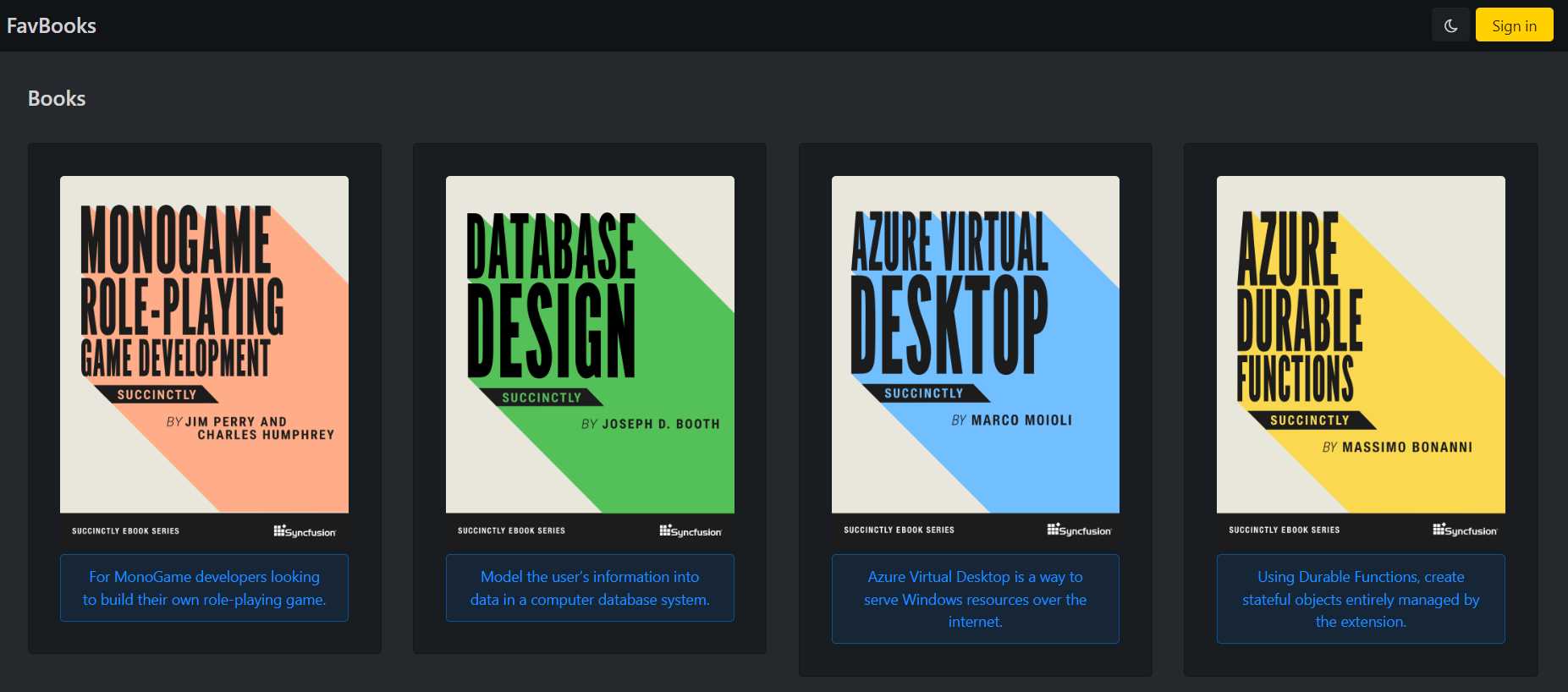
Figure 4-a: The Finished App (Main Page Using the Default Dark Mode)
The application has a main page that contains a static list of the most recent Succinctly books.
The list of the most recent books is obtained through an API endpoint that the application serves and returns as JSON.
You can also easily toggle between dark and light mode by clicking on the “moon” icon next to the Sign in button.

Figure 4-b: The Finished App (Main Page Using Light Mode)
The application comes with built-in authentication powered by Firebase, which means that if you sign up, you’ll then become a user of the app and be able to sign in and add any of those books to your list of favorites.
The finished Sign in page
So, the finished Sign in page comes with built-in validation. Validation is executed to ensure that the user name (email address) is properly formatted (is an actual email address).
Validation also ensures that the database's user name and password combination exist, and the user can be retrieved from Firebase and authenticated.
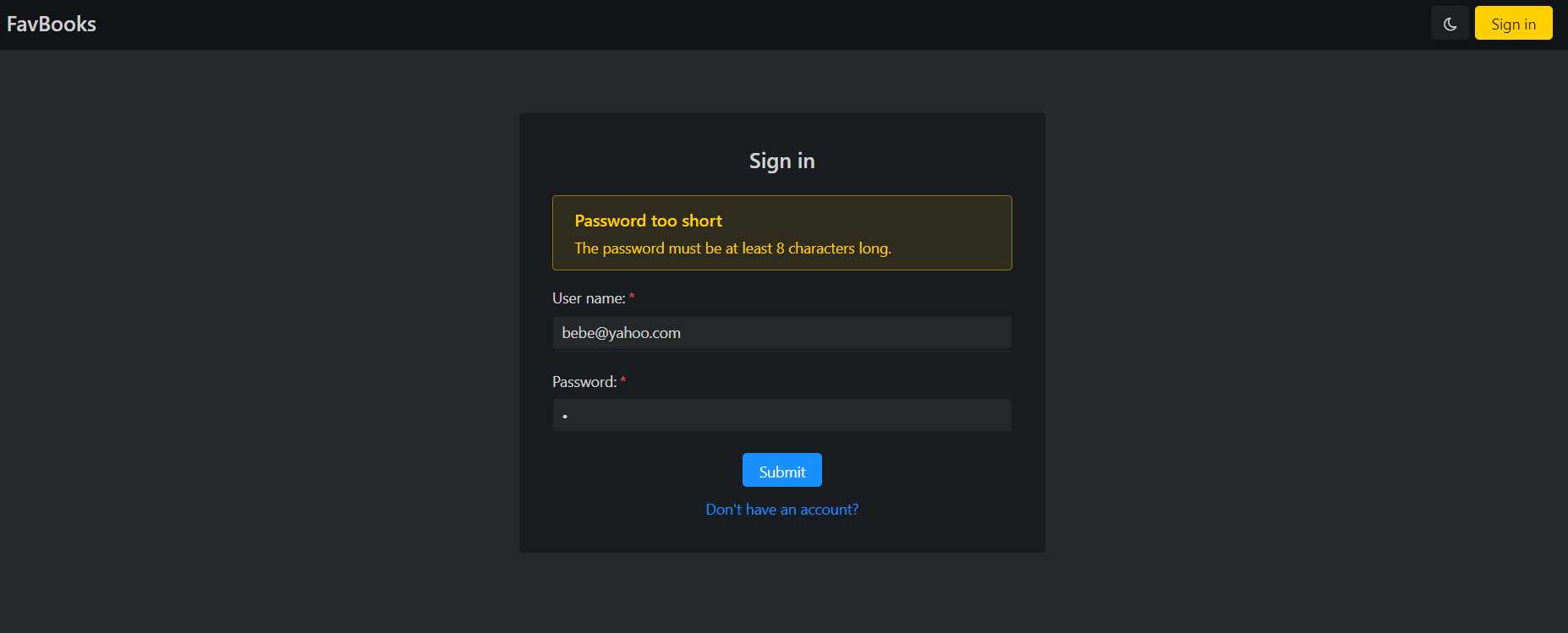
Figure 4-c: The Sign in Page
Note: I refer to this page as “Sign in” rather than “Sign-in” (because of the caption on the button on the top-right navigation bar), which is grammatically the correct way of writing it. The page is only accessible if you have not signed in. If you attempt to manually type in the URL of this page in the browser and you’re signed in, you’ll be redirected to the Favorites page.
The finished Sign up page
The Sign up page is almost identical to the Sign in page, except an additional password field is used to re-enter the password (to ensure they match).
The Sign up page also comes with full, built-in validation functionality and ensures that two users with the same email address cannot sign up. This functionality is visible in the following figure.

Figure 4-d: The Sign up Page
The finished main page (signed in)
Once we have an account and are signed in to the application, you’ll notice an Add to favorites button below each book, which allows you to add the book to your favorites list.
The Add to favorites button for each book is not visible if you are not signed in.
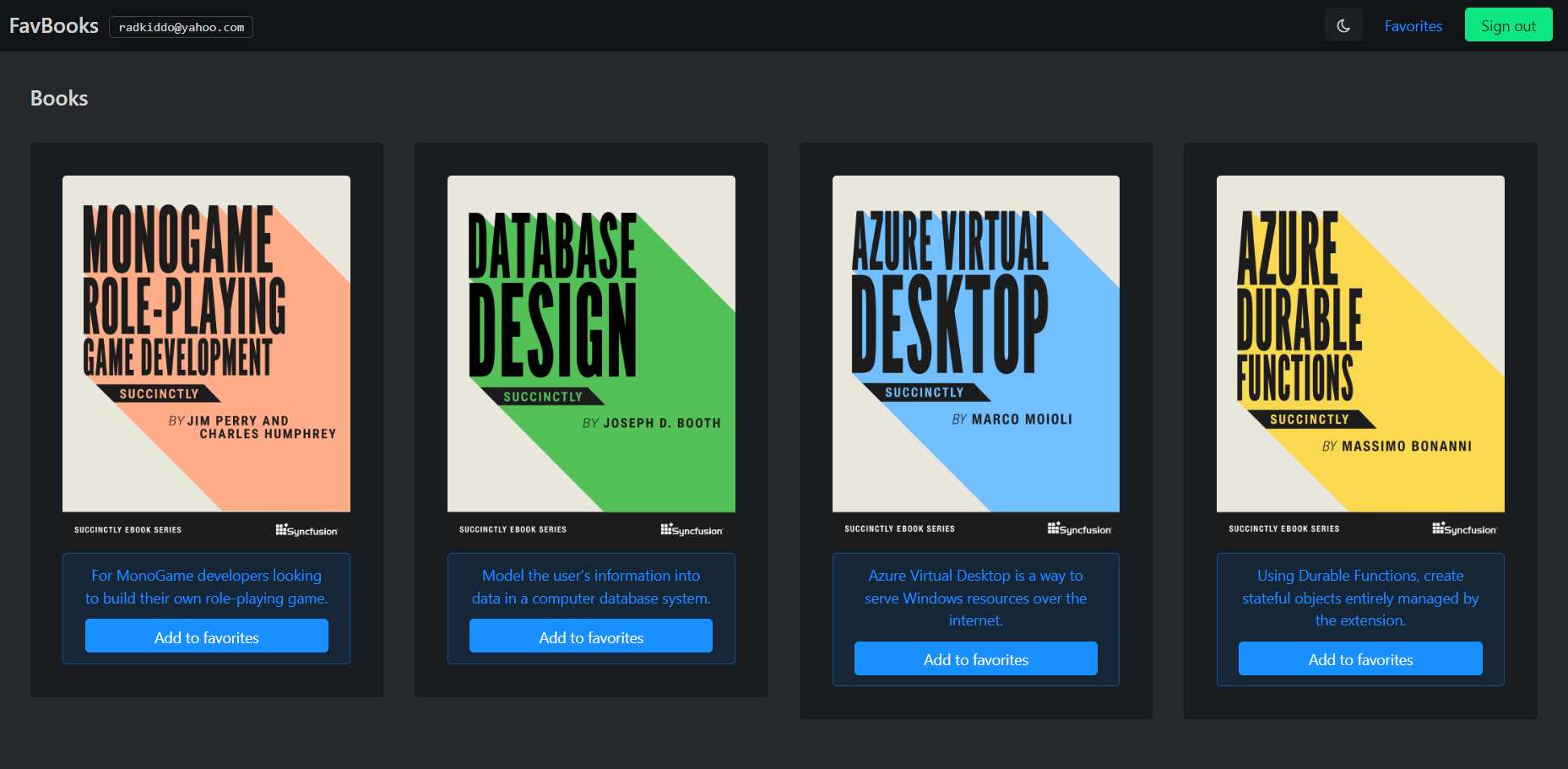
Figure 4-e: The App’s Main Page (Signed In)
When you click the Add to favorites button for a particular book, you’ll add that book to your favorites list.
Notice that on this page, you’ll also see the user name of the signed in user on the top-left side of the navigation bar, next to the application’s name.

Figure 4-f: The Signed-In User Name (Top-Left Navigation Bar—Main Page Signed In)
Notice that on the top-right part of the navigation bar, the Sign in button (which used to have a yellow background color) now reads as Sign out (with a green background color).

Figure 4-g: Favorites Link and Sign out Button (Top-right Navigation Bar—Main Page Signed In)
If you click Sign out, you’ll be signed out of the application and routed back to the main page (and the Add to favorites buttons will no longer be visible).
Notice that on the top-right of the main page’s navigation bar, there’s a Favorites link, which, as you might have guessed, will redirect you to the Favorites page.
The finished Favorites page (signed in)
The Favorites page is where the signed-in user has their list of favorite books, and it is only accessible if a user has signed in.
Note: If you attempt to manually type in the URL of the Favorites page in the browser and you’re not signed in, you’ll be redirected to the app’s Sign in page.
Here, the user can remove books from the favorites list by clicking the Remove button of a specific book. The list of favorites will differ from user to user.

Figure 4-h: The Favorites Page (As Seen by the User with the Yahoo Email Address)

Figure 4-i: The Favorites Page (As Seen by the User with the Gmail Email Address)
Notice that the navigation bar of the Favorites page includes the user’s email address on the top-left side, as shown in Figure 4-j.

Figure 4-j: The Signed-In User Name (Top-Left Navigation Bar—Favorites Page Signed In)
The navigation bar of the Favorites page includes the Sign out button on the top-right side, as shown in Figure 4-k.

Figure 4-k: The Sign out Button (Top-Right Navigation Bar—Favorites Page Signed In)
Unlike the top-right navigation bar of the main page, the Favorites link is no longer visible; this is because we are already on the Favorites page.
If the signed-in user wants to add another book to their favorites list, the user must navigate to the main page (by clicking the FavBooks link on the top-left side) and then click Add to favorites for the relevant book.
Note: For code reusability, the list of books displayed on the main page and the list of favorite books shown on the Favorites page are rendered by the same Svelte component. The difference is that the books on the main page are retrieved via an API endpoint as JSON, and the favorites are fetched and stored in the Cloud Firestore Database (Firebase). We’ll explore this topic in depth later.
Recap
Now that we know what the finished app looks like, what it does, and what its features do, we have a solid foundation to delve into the code and put things together. This is what we’ll do next with the main user interface functionality.


- 1800+ high-performance UI components.
- Includes popular controls such as Grid, Chart, Scheduler, and more.
- 24x5 unlimited support by developers.