
Successful Remote Working Succinctly®

CHAPTER 4
How to Stay Engaged and Collaborate with Others
Being a remote worker can be difficult, especially if all your colleagues are in the same office together. In this chapter, we’ll see how to work around the distance and keep engagement and effective collaboration.
Use the right tools
Have you ever heard the phrase “that meeting could have been an email”? It’s so common that there is also a meme about it:
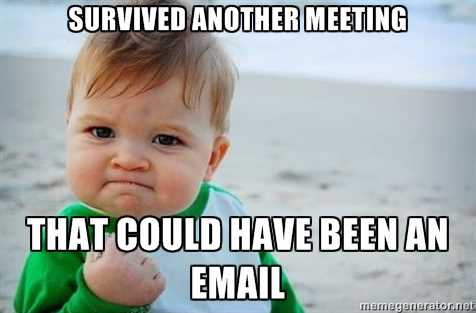
Figure 30: “Survived another meeting” meme. Source.
Chat, Teams, Slack channels, emails, virtual meetings, physical meetings—there are many different tools that we can use to collaborate with others.
Real-time communication is synchronous: people meet in person, in virtual meetings, have phone calls, and so on. It’s the fastest way to collaborate, but it has a strong tax on people’s productivity.
Asynchronous communication can use text, recorded audio, and video messages. If people read/view and respond on their own schedule, they can be more focused and productive. If they’re forced to respond immediately, productivity is often impacted like in synchronous communication.
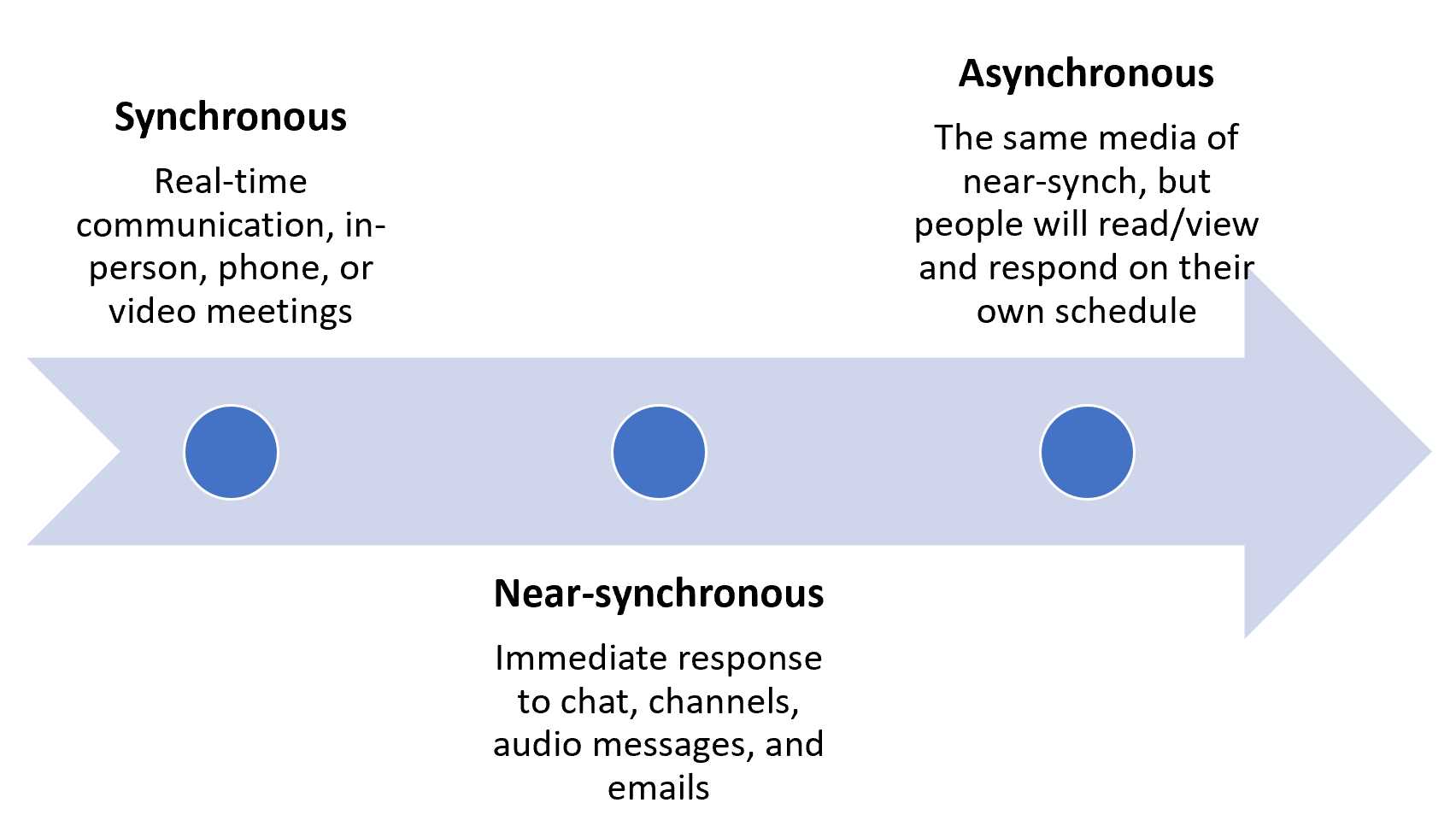
Figure 31: Different levels of synchronicity in communications.
To improve productivity, try to rely on asynchronous communication, have a clear netiquette, and reduce meeting duration.
Note: When inviting someone to a meeting, explain why you are inviting them by including them in the meeting agenda or by sending them a personal message. Even a message that asks someone to be there because you need a double-checker can be useful to prioritize their attendance.
And remember, there will always be meetings that can’t be replaced by emails or other forms of async communication:
- Meetings that are used to create more connections between the team, with new colleagues or with managers and employees.
- Hot topics that could easily become crucial conversations.
- Urgent decisions, perhaps with incomplete data. If a topic is urgent and complex, and you must make guesses or take shortcuts, it’s better to have a (virtual) meeting, instead of a long (and time-consuming) email thread.
Shared documents or repositories
Microsoft Office, Google Docs, OneDrive, Dropbox, GitHub, GitLab: there are a great selection of tools that enable working on shared documents or repositories of all sorts. Sometimes a shared document updated by multiple people with clear goals and a clear accountability (enforced by the tool) is much better than a long meeting.
People can work at their own pace, in their time zone, or when kids are sleeping. They can leave comments, open issues and solve them, and approve other people’s changes.
If possible, always use a shared document instead of a document sent back and forth using emails with poor tracking. It’s a recipe for a disaster!
Note: Sometimes having multiple people asynchronously updating documents can result in an infinite loop of changes. In that case, it’s good to schedule a meeting all together to finish the document and move on. The meeting can be recurrent if the team has many documents floating around every week or every month.
Chat etiquette: Get to the point!
I know too many colleagues and customers that send “hello” to a chat, and then wait for me to answer. I hate that!
Please, don’t waste my time with just a “Hello.” Go ahead and tell me how can I help you, or let me know if it’s just a greeting. In the first case, being able to see why you need me gives me the time to find an answer, or allows me to prepare one, asynchronously. In the other case, knowing that it’s just a greeting will not put pressure on me, and I can respond whenever I’ve time.
Write short emails
One simple rule with emails is to keep them short. Laura Bergells, a public speaking coach with over 14.500 LinkedIn followers, says: “If it’s over 150 words, it’s not an email. It’s a phone call.”
Of course, there are status reports and other kinds of emails that should be longer, but you should mark them as such, and you should begin them with the calls to action for those involved, so you don’t force everyone to read all the email to find information and actions that are relevant for them.
Webcam etiquette
We discussed webcams in Chapter 2, including how to protect them from unwanted webcam usage. We’ll see how to solve problems using the webcam in Chapter 7. In the next section, we’ll discuss some unspoken rules about using the webcam.
Don’t force people to turn on the webcam
The first rule is to be polite and don’t force people to use the webcam. You don’t know what’s happening behind them, or where they’re connecting from. The best way to suggest to other people to turn on their webcam is by turning on yours. That’s a moral suasion that tells your interlocutors that you’d like to see them, without asking directly.
Of course, if you have a good relationship with the other person, you can tell them that you’d like to see them, but I normally don’t like the feeling of being forced to turn it on when I don’t want to.
Don’t multitask with the camera on
If you’re in a good place, it’s always better to turn it on, but when you do, don’t multitask! It’s very rude and unprofessional.
Note: Multitasking is never a good idea. In most cases it hurts your productivity. If you do it in front of the camera, it is even worse.
Switch the camera on and off to simulate body language
You should turn the camera on when you are presenting essential points or opening a conversation or asking for feedback. You can turn it off when you’re doing complex tasks, like demos, and want the focus to be on the result, not on you.
You can also turn it off if you’re not supposed to talk, and another colleague is presenting, so you don’t distract others.
Use “presenter mode” when showing important data
People are impressed when I display slides with data and I use Teams presenter mode, so my picture appears integrated in the slides I’m presenting, and not on the side or at the top.
You can change your position live while presenting, from right to left, and also change the size of your image.
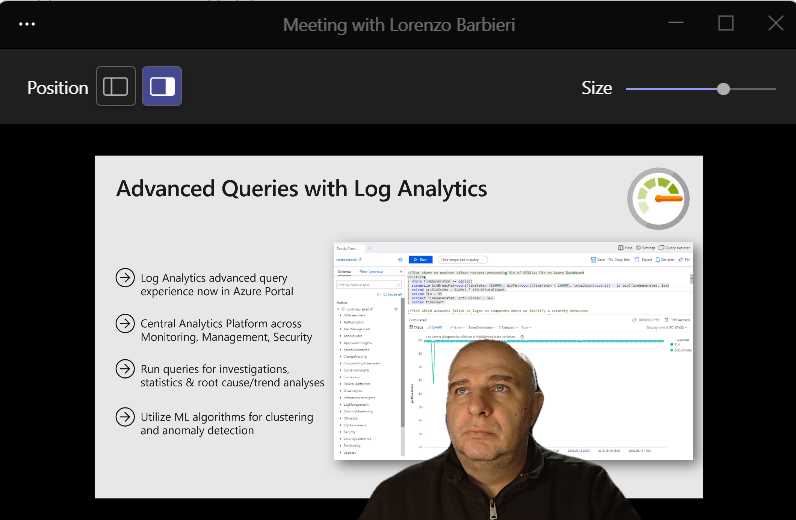
Figure 32: Teams standout presenter mode preview screen. The author was presenting a slide and looking at the title, “forcing” remote attendees to do the same.
Of course, you should prepare a slide deck that has space for the presenter. Then you can live inside the presentation and use your body language by pointing your eyes or your finger to the content you want to highlight. If you practice, it can be a powerful tool.
Being more effective with people during virtual meetings
Use names to interact with people, especially if they’re distracted
Calling people by name is a powerful tool, especially if people are multitasking in front of the camera or if they’ve turned off their camera and you don’t know if they’re ready.
The strategy I use is to call their name, summarize the point I was making, and then ask the question. People have time to listen again after you’ve called their name and before being asked the question.
Note: During virtual classes I have a sheet with the names of the attendees with spaces to summarize their responses to my questions. Imagine after a two-day course being able to say, “Jessica, as you said yesterday morning, it’s important to …”, and then you can continue by mentioning other people, using their names. You’ll make a powerful impression!
Have an advocate in the room when remotely speaking to a large room
Find a trusted person that will be physically present and instruct them in advance. Have them sitting near the PC that is projecting and near the phone or the speakers and microphone. Instruct them to repeat questions and ask them to draw your attention when needed. They’ll be your eyes and ears in the room, and your participation will be much more successful.
Whiteboard!
We already discussed using whiteboards or (graphics) tablets during meetings. Whiteboarding is great for discussions, brainstorming, or summarizing a discussion. Use it!
Call to action
Always have a call to action at the end of a meeting, especially virtual meetings. You can do it while still connected, or you can use a follow-up email as a reminder for the call to action agreed upon during the meeting.
If your meetings don’t have specific calls to action, think about why you scheduled the meetings and if they were necessary.
Socialize virtually, one to one, or with multiple people
Find ways to socialize virtually, with team members, other colleagues, and other people in your field or industry. One-to-one meetings, informal group meetings, virtual coffees, and virtual aperitifs are all good options—you should decide which is better for you to attend, both for your social needs and for your work-life balance.
If you decide to skip informal group meetings because of bad timing, or other family or personal reasons, talk with your colleagues so that they know that you care about them, but that you cannot attend those kinds of meetings. And find other ways to connect with them regularly.
Working together on a common task can be a good idea to socialize with a team member that is too shy to have other informal interactions.


- 1800+ high-performance UI components.
- Includes popular controls such as Grid, Chart, Scheduler, and more.
- 24x5 unlimited support by developers.