
SSIS Succinctly®

CHAPTER 2
Integration Services Architecture
Introduction
Microsoft's business intelligence suite is a very complex system of interconnected tools and platforms responsible for managing data, transforming it, delivering it to data warehouses, and visualizing it in many different perspectives so that a decision maker can have the information he or she needs. Each of the platforms are complex and demand a deep understanding of how they work.
This chapter will take you through an overview of the Integration Services architecture with all its components so that you understand how they interact with each other and what you, as a developer, should expect from these components. Let’s take a look at the main components of the Integration Services architecture. The following figure shows the diagram used by Microsoft to describe the architecture of Integration Services.
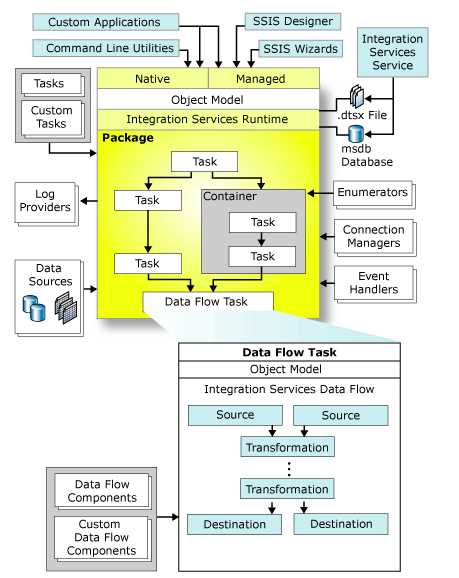
- Integration Services Architecture
Explaining the Components
Now let’s go through each one of the components of the architecture to give you an overview of what will be explained in depth in the following chapters.
Runtime Engine
The Runtime Engine is responsible for executing the packages that will work with the data according to our needs. As you can see in the previous figure, it’s the heart of SSIS as it not only executes the packages, but also saves their layout and provides support for logging, breakpoints, configuration, connections, and transactions. This engine is activated every time we invoke a package execution, which can be done from the command line, PowerShell scripts, the SSIS Designer, the SQL Agent tool, or even from a custom application.
Integration Services Service
The Integration Services service is a Windows service for managing Integration Services packages and is available only in SQL Server Management Studio. It enables developers to import and export packages, view running packages, and view stored packages. It also lets you use SQL Server Management Studio to monitor running Integration Services packages and to manage the storage of packages.
SSIS Designer
The SSIS Designer is where you will be spending most of your time when developing your packages. SSIS Designer is a graphical tool that you can use to create and maintain Integration Services packages. SSIS Designer is available in SQL Server Data Tools (SSDT) as part of an Integration Services project. You can use it to do the following tasks:
- Develop the control flow in a package.
- Develop data flows in a package.
- Add event handlers to the package and package objects.
- View the package content.
- At run time, to view the execution progress of the package.
Log Provider
Managed by the SSIS engine, the log provider’s responsibility is to create all the logs needed to monitor the package execution. Every time you run a package, the log provider will write logs with information about the package execution including duration, errors, warnings, and other related information.
Connection Manager
Managed by the SSIS engine, the connection manager’s responsibility is to manage the connections defined either at project level or package level. This is available as a tool inside the SSIS Designer so that you can create the connections you need to extract and load data. It can manage connections to FTP servers, databases, files, and Web services. The SSIS connection manager allows you to easily connect to several types of systems, both Microsoft and non-Microsoft platforms.
SSIS Wizard
The SSIS wizard is the simplest method by which to create an Integration Services package that copies data from a source to a destination. When using this wizard, you can only use one type of task.
Packages
The packages are the heart of the engine; in other words, they are the main component of the SSIS engine and they are also subsystems as they are composed of several other artifacts. So, these packages will make the connections to the source and destination targets using the connection managers. They contain the tasks we need to run in order to complete the entire sequence of ETL steps. As you can see in the architecture diagram (Figure 1), these package tasks can be executed singularly, in sequence, grouped in containers, or performed in parallel. Packages are the output of our Integration Services project and have the .dtsx extension.
Tasks
Tasks are control flow elements that define units of work that are performed in a package control flow. An SSIS package is made up of one or more tasks. If the package contains more than one task, they are connected and sequenced in the control flow by precedence constraints. SSIS provides several tasks out of the box that correspond to the majority of problems; however, it also allows you to develop and use your own custom tasks.
Event Handlers
Managed by the SSIS Runtime Engine, event handlers’ responsibility is to execute tasks only when a particular event is fired—for example, if an OnError event is raised when an error occurs. You can create custom event handlers for these events to extend package functionality and make packages easier to manage at run time.
Containers
Containers are objects in SSIS that provide structure to packages and services to tasks. They support repeating control flows in packages, and they group tasks and containers into meaningful units of work. Containers can include other containers in addition to tasks. There are four types of containers:
- Task Host Container (encapsulates a single task)
- For Loop Container
- Foreach Loop Container
- Sequence Container
Control Flow
The last four tasks described define the executables in the SSIS Runtime Engine. Packages, containers, tasks, and event handlers are what it will execute at run time. If you only look at the last three (containers, tasks, and event handlers), they are also called control flow tasks as they define the control flow of a package. In this way, packages will have only one control flow and many data flows as we will see later.
The control flow is the brain of a package; it orchestrates the order of execution for all its components. The components are controlled inside it by precedence constraints.
Data Flow Engine
Although we have been talking about the runtime engines, packages, and how you can develop control flow, we have yet to talk about how to define data movements and transformations. This is because it’s not an SSIS Runtime Engine responsibility. Instead, it’s the responsibility of the data flow engine, also known as the pipeline engine.
This engine is encapsulated in the data flow tasks which are part of the SSIS Runtime Engine and its task components. The data flow engine provides the in-memory buffers that move the data from source to destination. It calls the sources that extract the data from files and relational databases. The data flow engine also manages the transformations that modify data as well as the destinations that load data or make data available to other processes. Integration Services’ data flow components are the sources, transformations, and destinations that are included in Integration Services. You can also include custom components in a data flow.
As I have said before, a package can only have one control flow, in which you can add as many data flow tasks as you want.
Project and Package Deployment Models
There is an important detail of SSIS of which you should be aware. SSIS 2012 gives you two types of package deployment. The first type is the legacy deployment model in which each package is treated as a single unit of deployment. The second type is the project deployment model which creates a deployment package containing everything (packages and parameters) needed for deployment in a single file. The use of parameters is restricted to the project deployment model. So, if you want to use parameters, you should be aware that you will need to use the project deployment model. Both models will be discussed and demonstrated in the chapter related to package deployment.
Developer Environment
Introduction
The Integration Services developer environment is created on top of Visual Studio. In SQL Server 2012, the environment comes under the name SQL Server Data Tools - Business Intelligence for Visual Studio 2012. Developing packages will feel familiar to .NET developers who use Visual Studio in their daily work; however, the look and feel of an Integration Services package will be very different as it is a much more visual development environment.
To create an Integration Services project, open the SQL Server Data Tools. After you open it, select File > New > Project and then, when the new project window appears, select Business Intelligence and under it, Integration Services. When you select it, the following screen will be displayed.
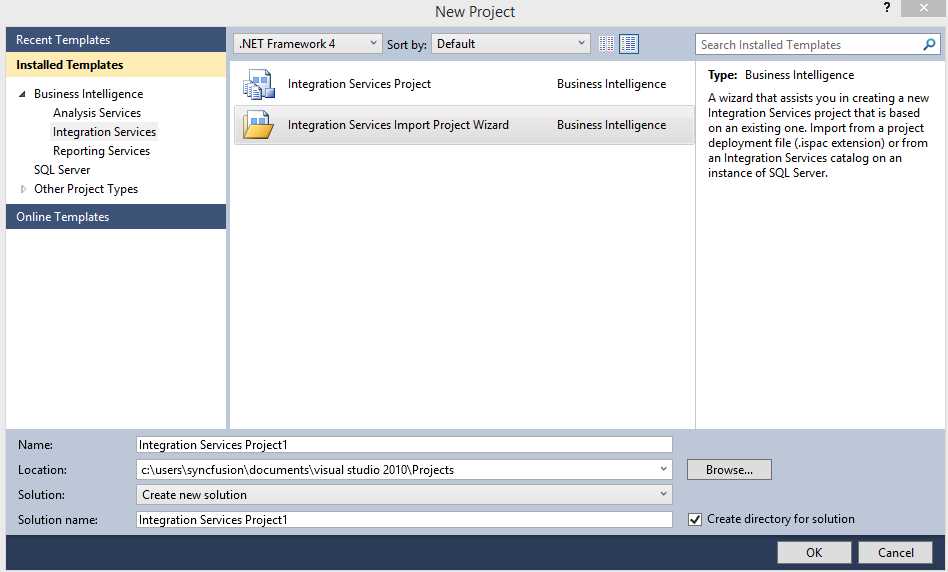
- New Integration Services Project
As you can see, there are two distinct project types:
- Integration Services Project
- Integration Services Import Project Wizard
As their names suggest, the difference between them is that the first will create an empty project in which you can start building your SSIS packages. The second one will allow you to import an existing SSIS project and continue your development. For our examples, we will always be using the first project type, Integration Services Project.
Now, select Integration Services Project and set its Name, Location, and Solution Name. As I have already mentioned, this is very similar to any other Visual Studio-based project. Once you click OK, the SSIS Designer will open and this is where all your developments are going to be made. Welcome to the Integration Services world.
SSIS Designer
The SSIS Designer is where you can create all your packages with its control flow and all its data flows. You can use SSIS Designer to drag and drop the components you want to use and then configure all of them. Before creating our first package, let’s take a look at the Designer.
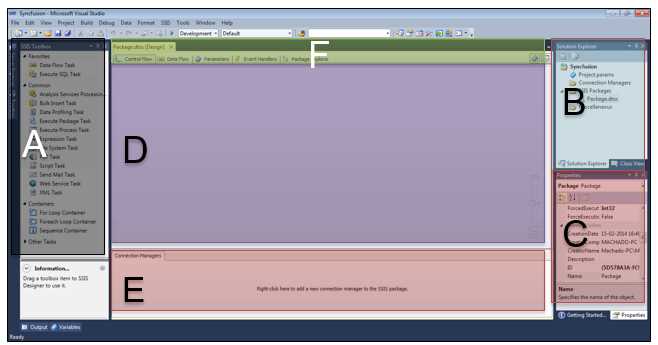
- SSIS Designer
As you can see in the previous figure, I have divided the SSIS Designer into six distinct areas. These six areas represent the tools and options you are going to use while developing your packages. The following list describes the six areas:
- The SSIS Toolbox—This is where you can find available tools to use. The tools displayed will depend on whether you are in the Control Flow tab or Data Flow tab. When you’re in the Control Flow tab, you will have tasks. When you’re in the Data Flow tab, you will have transformation options.
- The Solution Explorer—This is where you can find all the project artifacts including project connection managers, packages, and project parameters.
- Properties window—Again, like in any other Visual Studio-based project, this window displays all the available properties for the currently selected object.
- The design window—This is where you develop your flows. You start by dragging an object from the SSIS Toolbox and then dropping it into this design window. After adding the item to this designer, you configure it and connect it to the next component you add. This window displays all the package control flows and all its data flows.
- The package connection manager—This is where you create and see connection managers restricted to this package which cannot be used by any other package.
- The package tabbed-toolbar—This allows you to navigate between the control flow, the currently selected data flow (even so, you can change the currently selected data flow inside the data flow design window), the package parameters, the package event handlers, the package explorer, and the progress tab to see the package execution log information.
As Microsoft advises, it’s important to keep in mind that the SSIS Designer has no dependency on the Integration Services service, the service that manages and monitors packages. Plus, it is not required that the service be running to create or modify packages in SSIS Designer. However, if you stop the service while SSIS Designer is open, you can no longer open the dialog boxes that SSIS Designer provides, and you may receive the error message "RPC server is unavailable”.
To reset the SSIS Designer and continue working with the package, you must close the designer, exit SQL Server Data Tools, and then reopen SQL Server Data Tools, the Integration Services project, and the package.


- 1800+ high-performance UI components.
- Includes popular controls such as Grid, Chart, Scheduler, and more.
- 24x5 unlimited support by developers.