
SSIS Succinctly®

CHAPTER 4
Control Flow
Introduction
This chapter will explain how control flows are used inside Integration Services packages. The topics discussed will be based on their main components: tasks, connection managers, event handlers, and containers.
In the architecture chapter, I explained that packages can only contain one control flow, so let’s learn how to develop one. Start by adding a new package to the project and then opening the Control Flow tab in SSIS Designer. When the Control Flow tab is active, the SSIS Toolbox lists the tasks and containers that you can add to it. The following figure shows the location of the Control Flow tab inside the package designer.

- Control Flow Tab
Building the control flow is easy in the Integration Services Designer; you just need to access the Control Flow tab and then drag and drop all the tasks you need from the SSIS Toolbox into the Control Flow design pane. Once you have a task added to the design window, you can double-click it to specify its behavior within its properties. As I have already mentioned, the control flow is the orchestrator of your package execution. So, while dealing with this flow, you should be thinking about what you want your package to do—the “how” will be defined inside each task.
After you configure the task, you can link it to other tasks by using Precedence Constraints. Once you click on a task, you’ll notice a green arrow pointing down from it. If you drag and drop this arrow into another task, you will create what is called an OnSuccess constraint. Very simply, these precedence constraints link the individual executables together and determine how the workflow moves from one executable to the next. This topic will be explained in deeper detail in the section about Precedence Constraints.
The following figure shows three tasks connected using these precedence constraints; for example, in a scenario in which you want to send different emails if the execution of a SQL task succeeds or if it fails. In this scenario, the precedence constraints used differ (OnSucess and OnFail).

- Linked Tasks
Once you have all the tasks connected using these precedence constraints and configured the tasks using the appropriate wizards, you have the control flow of your package defined and the workflow of its execution completed. It might look simple; however, each task has its own properties and configuration. You may spend a significant amount of time developing all the tasks needed for the control flow execution.
Learning about the existing tasks is very important so you can know which one you’ll need to use to respond to a particular problem. Because of this, the next section will show you all the tasks that are available out of the box with Integration Services 2012. It will take you through some demonstrations about how to configure the most often used tasks. (The most often used tasks might be different from developer to developer; those included in the next section were chosen based on my experience).
Tasks and Containers
Introduction
Tasks are the atomic or individual work components inside the control flow. They allow you to execute a particular job inside your packages. The total number of tasks inside your package control flow defines the orchestration of its execution. Comparing these tasks to programming languages, you can see them as functions, a particular code block that changes or gets the state of your object. However, in Integration Services Designer, you don’t need to code anything; you just drag and drop tasks into the design surface and configure them using their configuration wizards.
Integration Services provides several built-in tasks in its Toolbox. To access them, select the Control Flow tab inside the package designer, and choose from the available ones. You will find four distinct groups: Favorites, Common, Containers, and Other Tasks. Expanding these groups will allow you to see and use their tasks.

- SSIS Toolbox Tasks
Choosing the correct task to use will not be easy if you don’t know which tasks exist and what they do. In this chapter, I will explain all the tasks available in the SSIS Toolbox. After that, I will demonstrate how you can use some of these tasks.
Favorite Tasks
This is your personal, customizable group of the control flow tasks toolbox. By default, it contains two tasks which are two of the most often used ones. The first is the data flow task which processes the source to the destination and retrieves, transforms, and inserts it into databases or files. The second is the execute SQL task which allows you to run DML (manipulation), DDL (definition), and DCL (control) commands against a relational database.
You can move your task group by right-clicking it and choosing one of the available move options as shown in the following figure.

- Moving a Task Group
The following table lists the default tasks available in the Favorites group.
- Favorite Tasks
Icon | Name | Description |
|---|---|---|
| Data Flow Task | This task allows you to move data between sources and destinations while transforming and cleaning. This is one of the most important tasks in Integration Services because it is responsible for the ETL processing. This can be the only task inside a package control flow. |
| Execute SQL Task | This task will run SQL data manipulation or data definition scripts, or allow you to execute stored procedures against a relational database. They could be creating a new table, truncating an existing one, or any other operation you need. |


Common
The Common tasks group includes the most commonly used tasks in Integration Services projects. The following table explains each task.
- Common Tasks
Icon | Name | Description |
|---|---|---|
| Analysis Services Processing Task | This task allows you to process SQL Server Analysis Services objects such as cubes, dimensions, and mining models. |
| Bulk Insert Task | This task allows you to load data into a table by using the BULK INSERT SQL command. This command is often used to insert large amounts of data more quickly because it does not allow data to be transformed while being inserted into a database; it’s inserted directly. |
| Data Profiling Task | This task allows you to examine data before or after managing it. This task will profile and identify data quality problems such as unexpected NULL values. |
| Execute Package Task | This task allows you to execute a package from within another package. This way, you can share the logics of your package between packages, creating a modular structure that is easier to maintain. |
| Execute Process Task | This task will execute a program external to the package. You can call applications such as Notepad or the Windows Calculator, batch files, command-line utilities, or third-party programs. |
| Expression Task | This task allows you to set variables to an expression at run time, such as the current number of records in a SQL Server database table. |
| File System Task | This task allows you to interact with your file system. You can perform operations such as create folders, rename or delete directories, and even handle performing the same operations against files. You can use it to create a log folder, for instance. |
| FTP Task | This task allows you to manage directories and send or receive files from an FTP server. You can, for instance, load a file from a remote FTP server into your data flow, or transfer a flat file to a remote FTP server. |
| Script Task | This task allows you to perform functions that are not provided by the standard SSIS tasks. You can, for instance, invoke an external API as a part of the control flow. Imagine, for instance, invoking a social network API and retrieving data from it, adding it to your data flow. |
| Send Mail Task | This task allows you to send emails using the SMTP protocol. You can use it to notify, via email, the success or failure of an ETL process. |
| Web Service Task | This task allows you to run a method on a Web service and assign the return to a variable or a file. You can, for instance, get the daily weather temperature or wind speed and then assign the return value to a variable. |
| XML Task | This task allows you to work with XML data. Common operations made with this task are retrieving XML documents, using XPath expressions, and merging multiple documents. You can also validate, compare, and save updated documents to files or variables. |


Containers
Containers are not tasks; they are used to group tasks together logically into unique units of work. In this way, you can treat several tasks as one in terms of flow logics. There are several advantages to using containers to group related work unit tasks. One of the advantages is having the ability to define the scope of variables and event handlers at a containers level or, even better, to be able to iterate a redefined enumeration until a condition is verified. There are four types of containers:
- Task Host Container
- For Loop Container
- Foreach Loop Container
- Sequence Container
You can find the containers in the SSIS Toolbox, inside the Containers group. The following table explains each of the four containers.
- Containers
Shape | Name | Description |
|---|---|---|
N/A | Task Host Container | This is not a usable container. This encapsulates a task every time you add one to the control flow. This means that every time you add a task to the control flow, you are creating a new container. |
| For Loop Container | This container allows you to iterate through a series of tasks until a condition is met. In this case, you can use container variables to define the expression being evaluated. You can, for example, use it to load a subset of files in a directory or perform a data flow for each day between dates. In this case, you could define a condition based on the day. |
| Foreach Loop Container | This container allows you to iterate through a series of files or records in a finite data set and then execute tasks inside the container for each of the elements. You can use it for the same purpose as the For Loop container; the difference is that this one will not use a condition to stop the iteration but, instead, the last element of the data set. This way, you don’t need any expression, just a data set. |
| Sequence Container | This container allows you to logically organize area-related tasks. This can be used, for instance, to execute in parallel sequences of tasks. This is a useful tool if you have big control flows with lots of tasks because these containers have a collapse and expand mechanism to better organize your flows. |


Other Tasks
The Other Tasks group includes infrequently used tasks in Integration Services projects. However, they are as important as, or even more important than, the common ones. If you master these tasks, you will be able to do pretty much anything against a SQL database without writing a line of code. The following table explains each of the tasks.
- Other Tasks
Shape | Name | Description |
|---|---|---|
| Analysis Services Execute DDL Task | This task allows you to execute DDL operations in SQL Server Analysis Services, such as creating, dropping, or altering a cube. |
| Back Up Database Task | This task allows you to specify the source databases, destination files or tapes, and overwrite options to run a backup operation over a database. |
| CDC Control Task | This task allows you to maintain and interact with the change data capture (CDC) feature of SQL Server. You can use it to control the life cycle of change data processing packages. |
| Check Database Integrity Task | This task allows you to perform internal consistency checks of the data and index pages within a database. |
| Data Mining Query Task | This task allows you to run predictive queries against Analysis Services data-mining models. |
| Execute SQL Server Agent Job Task | This task allows you to select SQL Server Agent jobs to run as part of the maintenance plan. |
| Execute T-SQL Statement Task | This task allows you to run any Transact-SQL query against your SQL Server database. |
| History Cleanup Task | This task allows you to delete historical data related to backup and restore, SQL Server Agent, and maintenance plan operations. The user interface allows you to specify the type and age of the data to be deleted. |
| Maintenance Cleanup Task | This task allows you to remove files left over from executing a maintenance plan. |
| Message Queue Task | This task allows you to send or receive messages from a Microsoft Message Queue (MSMQ). An important thing to note is that the queue must be on the same computer on which the package is running. |
| Notify Operator Task | This task allows you to send an email message to any SQL Server Agent operator. |
| Rebuild Index Task | This task allows you to rebuild indexes to reorganize metadata and index pages. This improves performance of index scans and seeks. This task also optimizes the distribution of data and free space on the index pages, allowing faster future growth. |
| Reorganize Index Task | This task allows you to defragment and compact clustered and non-clustered indexes on tables and views. |
| Shrink Database Task | This task allows you to reduce the disk space consumed by the database and log files by removing empty data and log pages. |
| Transfer Database Task | This task allows you to transfer a SQL Server database between two instances of SQL Server. It can also be used to copy a database within the same server. |
| Transfer Error Messages Task | This task allows you to transfer SQL Server user-defined error messages between instances of SQL Server. This task can be configured to transfer all error messages or only specified ones. User-defined messages have an identifier equal to or greater than 50000. |
| Transfer Jobs Task | This task allows you to transfer SQL Agent jobs between instances of SQL Server. You can transfer all jobs or just selected ones. |
| Transfer Master Stored Procedures Task | This task allows you to transfer one or more user-defined store procedures between master databases on instances of SQL Server. |
| Transfer Logins Task | This task allows you to transfer one or more logins between instances of SQL Server. You can transfer all logins or just some selected ones. |
| Transfer SQL Server Objects Task | This task allows you to transfer one or more types of objects between instances of SQL Server. |
| Update Statistics Task | This task allows you to update the query optimizer to have the most recent information of the distribution of data values in the tables. This will optimize your query execution. |
| WMI Data Reader Task | This task allows you to run WQL queries against the Windows Management Instrumentation. This enables you to read the event log, get a list of applications that are installed, or determine hardware that is installed. |
| WMI Event Watcher Task | This task allows you to make SSIS wait for and respond to certain WMI events that occur in the operating system. |


Precedence Constraints
Introduction
Precedence constraints are used by the Integration Services control flow component to define the order of execution of each task and container, manage the workflow of a package, and handle error conditions. There are three main types of precedence constraints, which can be defined by their colors:
- Blue—Defines the precedence constraint for a task or container completion; can be success or failure.
- Green—Defines the precedence constraint for a task or container success.
- Red—Defines the precedence constraint for a task or container failure.

- Available, basic precedence constraints
The behavior of these constraints is easy to understand. In the success case, the task or container linked to the current one being executed will only run if the current execution is successful. When dealing with the failure constraint, the behavior is the opposite: the next task or container will run only if the current execution fails. When using the completion constraint, the next task will be executed regardless of whether the current execution fails, which means that no matter what, this will always be executed.
It’s important to keep in mind that you can set up all three of these for the same task or container. Let me give you an example. You can define that after the execution of a data flow task you are always going to execute a SQL script, send an email in case of failure, and run four more data flow tasks in case of success.
While linking two tasks or containers, the default precedence constraint is a green arrow designating success because it is the most commonly used. However, you can change its behavior just by right-clicking the arrow and choosing a different evaluation. The previous figure shows what linking tasks using all precedence constraints looks like. The following figure shows the menu for changing the type of precedence constraint.

- Changing the precedence constraint type
Advanced Precedence Constraints
Although evaluating the success or failure of a task or containers might be a good mechanism to control the flow of your package, there are some scenarios in which you might need more control of the flow execution. Such scenarios include running only on a particular date or time, or even based on a particular number of records in the source table. To meet such requirements, you can edit the conditions that are being evaluated in a precedence constraint.
To edit the conditions inside a precedence constraint, start by linking the tasks or containers by using the three options available (green, red, or blue). Next, double-click the arrow linking them to open the Precedence Constraint Editor. The following figure shows what this editor looks like.

- Precedence Constraint Editor
By using the Precedence Constraint Editor, you are able to evaluate more than just the success or failure of a task or container execution. Without getting into too much detail, let’s take a brief look the four available options.
As you can see in the previous figure, the first option, Constraint, is the basic one. It is used when you need one of the three basic available constraints (Success, Failure, or Completion). However, the flexibility of precedence constraints comes with the other options. The full list of options is explained below.
- Constraint—Uses only the execution result of the precedence executable to determine whether or not the constrained executable runs. The execution result of the precedence executable can be Success, Failure, or Completion. This is the default operation.
- Expression—Evaluate an expression to determine whether the constrained executable runs. If the expression evaluates to true, the constrained executable runs.
- Expression and Constraint—An expression and a constraint that combines the requirements of the execution results of the precedence executable with the returned results from evaluating the expression.
- Expression or Constraint—An expression or a constraint that uses either the execution results of the precedence executable or the returned results from evaluating the expression.
There is also an interesting concept called multiple constraints, which is commonly used when a task has multiple inputs with different precedence constraints for each other. Grouping your constraints enables you to implement complex control flow in packages; however, you need to tell SSIS how to manage the interoperability of all precedence constraints.
To do so, you have two options: grouping them using the AND logical operator in which all constraints must be evaluated to true, or by using the OR logical operator in which one of the precedence constraints must be evaluated to true.
If you choose any evaluation operation other than Constraint, Integration Services will allow you to open the Expression Builder in the Precedence Constraint Editor so that you can develop the expression being evaluated. The following figure shows the Expression Builder and an example expression to evaluate. In this example, I use a preset variable to check if there are records to process.

- Expression Builder
Connection Managers
Introduction
Connection managers are components that allow you to connect to third-party platforms in order to retrieve, insert, or perform operations on their data. Integration Services allows you to specify two types of connection managers: one is at a solution level and the other is at a package level. If you define a connection at a package level, only the control flow and data flow of that specific package will be able to use it. On the other hand, if you define it at a solution level, then all control flows and data flows of all packages in that solution will be able to use them. The following figure shows the Add SSIS Connection Manager window.

- Available Connection Managers
Add a Connection Manager at a Solution Level
To configure a connection manager at a solution level, you should configure it in the Solution Explorer. Right-click the Connection Managers section, and select New Connection Manager. The following figure shows what this option looks like.

- Creating a solution-level connection
Add a Connection Manager at a Package Level
To configure a connection manager at a package level, you should use the Connection Manager pane on the bottom of your package. To create a new connection, right-click inside the Connection Manager pane. For this connection manager, you have several options. To use the default connection manager, select New Connection. If you prefer to use any of the shortcuts for connection types such as OLE Database, Flat File, ADO.NET, Analysis Services, or file, you can select them directly from here. The following figure shows the menu that is displayed after right-clicking in the Connection Manager pane.

- Creating a package-level connection
Available Connection Managers
There are several available connection managers in Integration Services for connecting to Excel files, SQL Server databases, FTP clients, and others. In this chapter, I will explain how to use some of the most commonly used connection types and how to configure them so that you can create a successful connection to your source or destination targets. The full list of available connection types is as follows:
- ADO
- ADO.NET
- Cache
- DQS Server
- Excel
- File
- Flat File
- FTP
- HTTP
- MSMQ (Message Queues)
- MSOLAP100 (Analysis Services)
- MULTIFILES (Multiple Files)
- MULTIFLATFILES (Multiple Flat Files)
- ODBC
- OLE Database (SQL Server)
- SMO
- SMTP
- SQL Mobile
- WMI
The OLE Database (SQL Server) emphasized in bold is the one that I will explain how to use. All the connection managers work similarly as they are wizards created to assist you in configuring your connections faster and with more security, thus avoiding errors.
Creating a New OLE Database (SQL Server Connection)
In this demo, we will create a new connection to a SQL Server 2012 database using the OLE Database (OLE DB) connection manager. To start the operation, follow the instructions provided previously to add a new connection manager at the project level.
After the connection manager wizard opens, start by selecting the OLEDB type and clicking the Add button as shown in the following figure.

- Selecting an OLE DB connection manager
The wizard for the OLE DB connection manager will open. At this time, you will need to know your server name as well as the database you want to access. Remember also that the username you will be using to connect to the database should now be configured in the database.
Integration Services stores the previous connections configured in previous projects. This way, when you open the wizard, if you have already configured any OLE DB connection type you will see it in the wizard as shown in the following figure. If the connection you need has already been configured, you can select it directly. For our example, let’s click New to configure a new connection from scratch.

- Previous Connections
Now let’s start configuring the connection to our SQL Server database. Once the new connection wizard starts, you need to provide all the properties I have mentioned before to establish a connection. As you can see in the following figure, you can test the connection by clicking Test Connection at the bottom left after providing all the required fields.

- Configuring the Connection
After you create a successful connection, click OK in the current screen, and then click OK in the Connection Manager screen to complete the configuration. You will now be able to see your new connection in the Connection Managers folder inside the Solution Explorer.
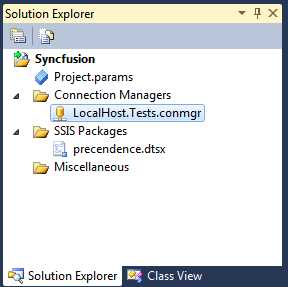
- New Connection Created
Fix: Excel/Access Connection Manager Error When Running Package in 64-bit Environment
Although I haven’t made a demo of the Excel or Access connection manager, I want to make a special note related to the use of these two connection managers as they are not compatible with 64-bit environments, but there is a way to fix this issue.
The problem only occurs in 64-bit environments because the Excel and Access connection manager isn’t compatible with them. This can be a problem in integration projects; many have an initial loading stage in which we get data from several Excel files and integrate them in a SQL Server database.
For example, imagine that you have installed SQL Server 2012 with business intelligence features in a 64-bit environment; however, you want to use an Excel source inside your data flow.

- Simple Package
When you compile and run a package like this, SSIS will try to execute it in a 64-bit version by default. You will get the following error:
[Read from source [16]] Error: SSIS Error Code DTS_E_CANNOTACQUIRECONNECTIONFROMCONNECTIONMANAGER. The AcquireConnection method call to the connection manager “YOUR CONNECTION NAME” failed with error code 0xC0209303. There may be error messages posted before this with more information on why the AcquireConnection method call failed.
This error occurs because the SSIS engine will try to run the package in a 64-bit version, and the Excel Connection Manager is only compatible with 32-bit packages. The solution for this problem is very easy. Right-click your project inside the Solution Explorer and open the Properties of your package as shown in the following figure.

- Opening the Properties window
Next, expand the Configuration Properties and open the Debugging options. Once they are open, change the Run64BitRuntime property to False to force the project package to run in 32 bits. The Configuration Properties should now look like the following figure.

- Changing properties to run 32-bit packages
Although this solution won’t mess with any other connection manager inside your project, you must be aware that all your packages inside this project will now run in 32 bits.
Event Handlers
Introduction
Event handlers allow you to capture and handle the events that executing an object with Integration Services raises. After defining the event you want to capture, SSIS allows you to develop data flows to be executed when the event is detected. It’s very important to be aware of the events you are able to capture in order to keep your packages’ execution from failing and your ETL process from stopping.
To better manage the event handlers configuration inside a package, SSIS provides a specific tab inside the package designer. To access it, select the Event Handler tab as shown in the following figure.

- Event Handlers
As you can see in the previous figure, this Event Handlers tab has two drop-down menus in it. The first dropdown menu, Executable, allows you to select the task or container in the package for which the event handler is associated (you can also define it at the current package level). The second drop-down menu, Event Handler, allows you to select which event you want to capture.
Using Event Handlers
In this section, I will show how you can use event handlers while developing packages with Integration Services. The first step is to open the package in which you want the event handler to be configured. Once you open it, select the Event Handlers tab inside the package designer.
Inside the event handler window, select the executable you want the event handler to be added to in the left combo box, and select the event you want to add in the right combo box as shown in the following figure.

- Creating an event handler
After you map the executable and the event handler, select the hyperlink in the bottom of the window as shown in the following figure. This will open a new event handler design window.

- Opening the event handler designer
Inside the event handler designer you can design a normal control flow to orchestrate the execution flow when this error is caught. In this example, I send an email to our ETL developer and save the error into an XML file. After you make your developments, save the package and test it.

- OnError Event Handler
Troubleshooting
Troubleshooting is important in every technology. You do it while working with programming languages as well as when working with databases. Integration Services isn’t an exception. The first step to handle errors inside your packages’ execution is to correctly use precedence constraints and event handlers.
However, these two mechanisms aren’t enough to identify and solve problems in your packages’ execution. Sometimes you need to place breakpoints or log the errors to predefined databases in order to evaluate the value of a variable, record values, and take action needed to fix it if the values recorded aren’t the expected ones.
Breakpoints
Let’s start by analyzing breakpoints. SSIS brings you its own breakpoints so that you can stop the package’s execution at a particular step and evaluate the state of the variables and other components. They work like they do in any other programming language; if you have worked with Visual Studio for programming in any language you are familiar with the breakpoints mechanism. The main difference is that in those cases, you define them by code lines, while in SSIS you define them in tasks, containers, or packages. As you can see, they aren’t available inside data flows.
To define breakpoints, you just need to right-click the component you want and select Edit Breakpoints. This will open the Set Breakpoints window where you will develop the breakpoints.

- Edit Breakpoints
Once again, if you are familiar with breakpoints in programming language IDEs, in SSIS the concept is different. You don’t click in the line you wish to stop the execution of, but rather, you enable break conditions which are based on events. The following figure shows what the breakpoint editor looks like.

- Breakpoints Editor
Using Breakpoints to Stop Before Executing a Task
In this example, I will show you how to use breakpoints to stop a package’s execution before it executes a specific task. In this example, we will stop before the Execute SQL Task. The first step is opening the breakpoint editor and selecting the OnPreExecute event as shown in the following figure.

- OnPreExecute Event
After adding the breakpoints, you want to save and close the breakpoint editor. Once you do, all executables to which you have added the breakpoints will be marked with a red dot as the following figure shows.

- Task with Breakpoint
With these breakpoints defined, when you run your executables, the engine will stop at these breakpoints; you can then inspect variables and parameters at this stage of the execution.
Logging
Once again, as in any programming language or information system platform, logging is essential to understanding errors, execution times, and many more pieces of information without having to debug the solution. In SSIS, the logging mechanism is very easy to use and understand. By simply selecting a few check boxes and configuring some components, you can start logging your ETL process executions in XML or in a SQL Server table. This is because it has a built-in set of features that captures details about package execution.
You have several options for output objects when logging your information. You can generate text files, XML files, log to SQL Server databases, and even generate a Windows Event. To show you how simple it is to activate logging, in the next section I will create a demo that will create XML files with your package execution logs.
Activate Logging in Your Packages
An important thing to note is that SSIS logging activation is not needed if the project will be stored in an SSISDB catalog. To activate the logging mechanism in your packages, click SSIS in the toolbar and select Logging. This will open the log configuration editor.

- Opening the Logging menu
After the editor opens, you need to specify in the Containers pane on the left which package you want the logging to be activated in. In this example, I enabled logging for the event handlers of the three tasks I have in the control flow. After this, we need to choose which provider we want to store the logs in. In this example, I am saving the logs into a file. Selecting the provider is as simple as choosing one from the Provider type combo box and clicking Add.

- Logging Configuration Editor
The next step to configure the logging in your selected executables is to define the provider into which you want the logs to be stored. In this case, we have chosen a text provider, and we need to configure a new file to connect to, which tells the provider where it should store the logs. Don’t forget to enable the provider by using the check box on the left. This allows you to enable and disable your providers easily.

- Configuring a Provider
As I’ve mentioned before, we need to define the file that will store the logs. The following figure shows the file connection properties window where we will define it.

- File Connection Manager Editor
Last but not least, we need to enable the events we want to associate this log configuration with. To do so, click in the Details tab and enable the ones you want. In this case, I’ve enabled all of them.

- Enabling Event Logging
After saving and closing the windows, you can now test this log mechanism. To do this, run the package and open the logging file. If everything goes all right, your file should look like the following figure.

Creating a Simple Control Flow
To use a control flow task, start by dragging and dropping it to the design window. For this example, add a new Execute SQL Task as shown in the following figure.

- Execute SQL Task
Next, rename this task “Create Staging Table” and then double-click it to open the configuration window. The configuration window for this test task type is shown in the following figure.

- Execute SQL Task Editor
To make this task work, you just need to configure two properties: the connection and the SQL statement. In the connection you need to configure the SQL database in which this SQL statement will be executed. This statement is a DDL, DML, or DCL statement.
In this example, our control flow will be creating a new staging table using the execute SQL task we just configured, and then executing a simple data flow task. So, to create our staging table, we set the SQL statement in the task as in the following code sample.
CREATE TABLE [dbo].[STG_FOOT_STAT_TB]( [Season] [varchar](9) NOT NULL, [Date] [datetime] NULL, [HomeTeam] [nvarchar](255) NULL, [AwayTeam] [nvarchar](255) NULL, [FTHG] [float] NULL, [FTAG] [float] NULL, [FTR] [nvarchar](255) NULL, [Referee] [nvarchar](255) NULL, [HS] [float] NULL, [AS] [float] NULL, [HC] [float] NULL, [AC] [float] NULL, [HF] [float] NULL, [HO] [float] NULL, [AO] [float] NULL, [HY] [float] NULL, [AY] [float] NULL, [HR] [float] NULL, [AR] [float] NULL ) ON [PRIMARY] |
The next step is to add the data flow task to the package control flow and connect the previous execute SQL task to it using precedence constraints. When adding the data flow task, you don’t configure it; instead, when you double-click it, SSIS will take you to the data flow designer so that you can develop it according to your requirements. The final simple control flow is shown in the following figure.

- Simple Control Flow
Note: This is just a simple example of how you can create control flows. In your own development, you need to know and understand all existing tasks and know how to combine them so that your project requirements are fulfilled. The data flow development will be detailed in the following chapter.


- 1800+ high-performance UI components.
- Includes popular controls such as Grid, Chart, Scheduler, and more.
- 24x5 unlimited support by developers.