
SQL on Azure Succinctly®

CHAPTER 5
Business Continuity Solutions for SQL Server on Azure VMs
High Availability Disaster Recovery (HADR) Solutions for SQL Server in Azure
One of the prime concerns of most operations team is business continuity and high availability of the application and the database in the event of hardware failure, infrastructure failure or site failure. SQL Server on Azure VMs supports all the High Availability and Disaster Recovery solutions which are available for on premise versions of SQL Server except Failover Clustering which is not supported in Azure yet.
As discussed earlier, while Azure storage supports Geo-redundancy and replication of storage across Azure datacenters, it is not consistent across disks which makes it unusable as HADR solution for SQL Server in Azure. Further while Azure storage maintains locally redundant copies of the database, it is not a substitute for backups or HADR solutions for SQL Server. Microsoft strongly recommends to setup an HADR solution for SQL Server databases running on Azure depending on Recovery Point Objective (RPO) and Recovery Time Objective (RTO) of the databases.
SQL Server HADR technologies that are supported in Azure include:
- AlwaysOn Availability Groups
- Database Mirroring
- Log Shipping
- Backup and Restore with Azure Blob Storage Service
Further using the above HADR technologies, it is also possible to setup Hybrid IT solutions where in an on premise version of SQL Server replicates data to SQL Server instance running on Azure VMs. The Hybrid solutions gives you the best of both the worlds where in SQL Server instance running on dedicated high performance box on premise replicating the data to low cost VM running on Azure datacenter. The secondary instance running on Azure can be scaled up to higher configuration to support production workload in the event of failure of primary node. Hence Hybrid solution can help you provide cost efficient, highly available and highly performant database solution using the SQL Server HADR solutions. A hybrid deployment requires a Site-to-Site VPN setup between on premise data center and Azure data center with Azure Network to allow connectivity and data replication over a secure VPN tunnel.
In this chapter, we will discuss the setup and configuration of AlwaysON Availability Groups and Backup/Restore in Azure VMs. Database Mirroring is deprecated and Microsoft strongly recommends the use of AlwaysON Availability Group as HADR solution which is the successor of Database Mirroring and provides more features than that provided by mirroring. The setup and configuration of Database Mirroring and Log shipping is similar to their corresponding on premise setups and hence will be not be discussed in this chapter.
AlwaysON Availability Groups in Azure
The AlwaysOn Availability Groups is a high-availability and disaster-recovery solution that provides an enterprise-level alternative to database mirroring. Introduced in SQL Server 2012, AlwaysOn Availability Groups maximizes the availability of a set of user databases for an enterprise. An availability group supports a failover environment for a discrete set of user databases, known as availability databases that fail over together as a group. An availability group supports a set of read-write primary databases and one to four sets in SQL 2012 and up to 8 sets starting SQL 2014 of corresponding secondary databases. Optionally, secondary databases can be made available for read-only access and/or some backup/checkdb operations. An availability group fails over at the level of an availability replica. Failovers are not caused by database issues such as a database becoming suspect due to a loss of a data file, deletion of a database, or corruption of a transaction log.
In AlwaysON Availability Group, each participating SQL Instance referred as availability replica is installed separately as a standalone instance on separate nodes. The participating nodes or servers are part of the same Windows Server Failover Cluster (WSFC) but have their own dedicated storage attached which allows the two nodes to be geographically disperse from each other. WSFC is required for arbitration and to support automatic failover discussed later in this section.
AlwaysON Availability Group supports the following modes of operation
Asynchronous-commit mode
In this mode, when a transaction is committed on the primary replica (active SQL Instance), the transaction is flushed immediately to transaction log of primary database on disk and simultaneously placed into the network queue to replicate the logs to the secondary replica, however the commit doesn’t wait for the acknowledgement from secondary replica and proceeds with the next set of transactions. This availability mode is a disaster-recovery solution that works well when the availability replicas are distributed over considerable distances since the performance of the transactions are not dependent on the network latency of the data replication.
Synchronous-commit mode
In this mode, when a transaction is committed on the primary replica (active SQL Instance), the transaction is flushed immediately to transaction log of primary database on disk and simultaneously placed into the network queue to replicate the logs to the secondary replica, however the commit transaction waits for the acknowledgement from secondary replica and proceeds with the next set of transactions only after the ack is received from remote replica. This availability mode emphasizes high availability and data protection over performance, at the cost of increased transaction latency. A given availability group can support up to one sync-commit replica in SQL 2012 and up to three synchronous-commit availability replicas in SQL 2014, including the current primary replica.
Synchronous-commit mode with Automatic Failover
This mode is variation of synchronous-commit mode where in the availability group is configured for automatic failover. With Automatic Failover, the cluster service performs IsAlive and LooksAlive check on the SQL instance to detect any failure and if the failure condition is met, the Availability group resource in cluster are failed over to secondary replica. Automatic failover is supported only with synchronous-commit mode since the two replicas are transaction-consistent whereas asynchronous-commit mode only supports manual failover also referred as forced failover which might lead to some data loss.
AlwaysON Availability Group topologies in Azure
AlwaysON Availability Group in Azure can be configured in following four topologies depending on the location of the availability replicas and intent for using it as a HA solution, DR solution, HADR solution or setting up a hybrid solution.
High Availability Solution for SQL Server in Azure
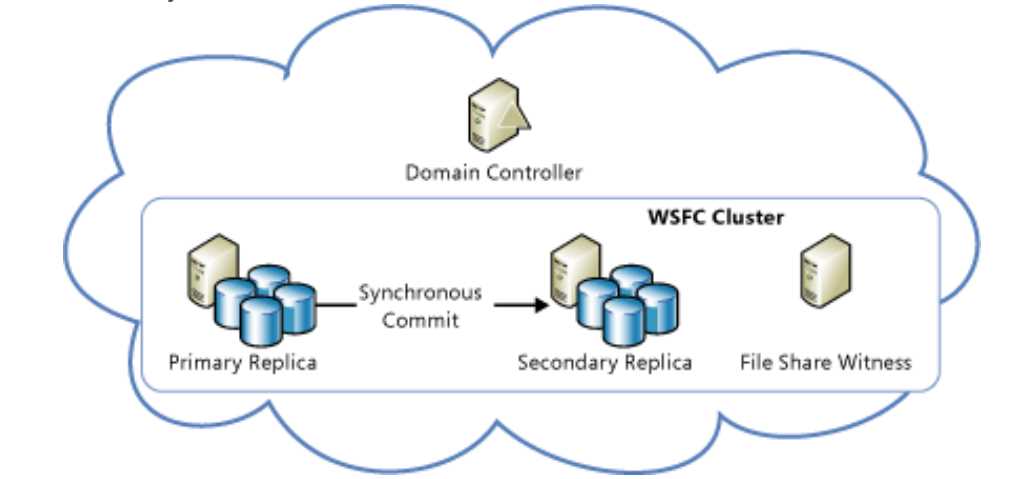
Figure 7: AlwaysON Availability Groups as HA Solution in Azure
When configuring Availability Groups as a High Availability Solution for SQL Server in Azure both the participating SQL Server VMs reside in the same azure data centers as a part of same Availability sets in Azure. Since the two VMs reside in same data centers, AlwaysON Availability Group can be configured in Synchronous commit with Automatic Failover since network latency is minimal when the VMs reside in the same data centers. Availability sets in Azure enable you to place the high availability VMs into separate Fault Domains (FDs) and Update Domains (UDs). This will ensure failure of one of the VMs in the datacenter due to hardware or infrastructure failure will not impact other VMs in the same availability set & vice-versa since it will be running on separate Fault tolerant hardware in the same datacenter. For Azure VMs to be placed in the same availability set, you must deploy them in the same cloud service. Only nodes in the same cloud service can participate in the same availability set.
Azure VMs are added to a cloud service and availability set at the time of provisioning of the Azure VM discussed in Chapter 2. In this case, the cloud service and availability set is created first and at the time of provisioning of the VM, it is mapped and associated with the cloud service and availability set.
The following PowerShell code snippet shows the example of creating a cloud service, new availability set and provisioning the 2 VMs participating in AlwaysON Availability Group as a part of the same cloud service and Availability set.
Code Listing 18: Provisioning two VMs for AlwaysON Availability Group as part of same cloud service and Availability set
New-AzureService -ServiceName $ServiceName -Location $Location|Out-Null New-AzureAvailabilityset -Name $AvSet -Location $Location|Out-Null New-AzureQuickVM -Windows -ServiceName $ServiceName -AvailabilitySetName $AvSet -Name $VM1 -ImageName $ImageName.imagename -Password $password -AdminUsername $AdminAccount -InstanceSize $VmSize -EnableWinRMHttp | out-null New-AzureQuickVM -Windows -ServiceName $ServiceName -AvailabilitySetName $AvSet -Name $VM2 -ImageName $ImageName.imagename -Password $password -AdminUsername $AdminAccount -InstanceSize $VmSize -EnableWinRMHttp | out-null |
While provisioning the VMs for configuring AlwaysON Availability Group as a High Availability Solution, all the VMs, Cloud Service, Availability set and storage for the VMs are created in the same Location which in other words resides in the same Azure datacenter.
If the VM was not added to availability set or added to a different availability set at the time of provisioning and if it is later on decided that the VM needs to participate in AlwaysON Availability Group, the VM can be added to Availability set after provisioning as well using Azure Management Portal or using Set-AzureAvailabilitySet cmdlet as shown below
Code Listing 19: Adding a VM to Availability Set after Provisioning
Get-AzureVM -ServiceName $ServiceName -Name "vm1" | Set-AzureAvailabilitySet -AvailabilitySetName $Avset |Update-AzureVM |
After the VM is updated, it needs to be shut down (Deallocated) and restarted to start the VM as a part of specified availability set.
You can also add a VM to Availability Set using Azure Management Portal. The following article describes the steps to achieve the same using Azure Management portal.
https://azure.microsoft.com/en-us/documentation/articles/virtual-machines-how-to-configure-availability/
Disaster Recovery Solution for SQL Server in Azure
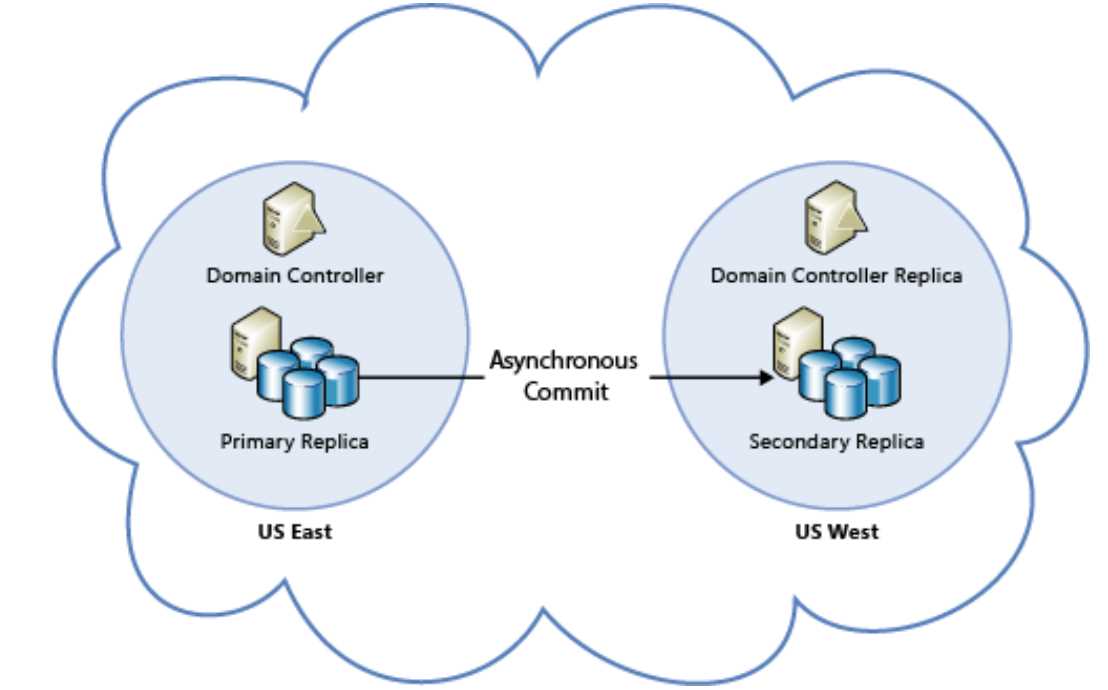
Figure 8: AlwaysON Availability Group as a DR Solution in Azure
When configuring Availability Groups as a Disaster Recovery Solution for SQL Server in Azure both the participating SQL Server VMs reside in different azure data centers which might be in the same country (for e.g. South Central US & East US) or different country (for e.g. East US & Europe). Since the two participating VMs in AlwaysON Availability Groups are in different datacenters, sync-commit mode is not recommended due to high network latency and hence asynchronous commit mode is preferred mode for this configuration. Within a data center or azure location all the replicas should be within the same cloud service, same availability set and same VNet as discussed earlier but cloud service & VNet cannot stretch across azure data centers or locations hence the participating VMs in different data centers are mapped to separate cloud service, separate VNet and this configuration requires Azure VNet to VNet connectivity which can be configured by setting up Site to Site VPN tunnel or ExpressRoute. Availability set configuration doesn’t apply to these VMs since the VMs already resides in separate datacenters and hence the VM do not necessarily be part of any availability sets.
High Availability and Disaster Recovery for SQL Server in Azure
This configuration is combination of the previous two configurations. AlwaysON Availability groups allows up to 4 availability replicas in SQL 2012 and 8 replicas starting SQL 2014. Hence it is possible to add multiple availability replica in sync-commit mode in the same azure data center to provide High Availability and configure one or more replica in async-commit mode in a separate data center to provide disaster recovery. Further the secondary replicas can be opened in Read-only mode which can used to offload reporting and backups. In this configuration, all the participating Azure VMs residing in the same location are part of same cloud service, availability set and VNet while the remote replicas are part of the separate cloud service, availability set and VNet. As discussed earlier, this configuration again would require VNet to VNet connectivity.
Hybrid IT: Disaster Recovery Solution for on premise SQL Server in Azure
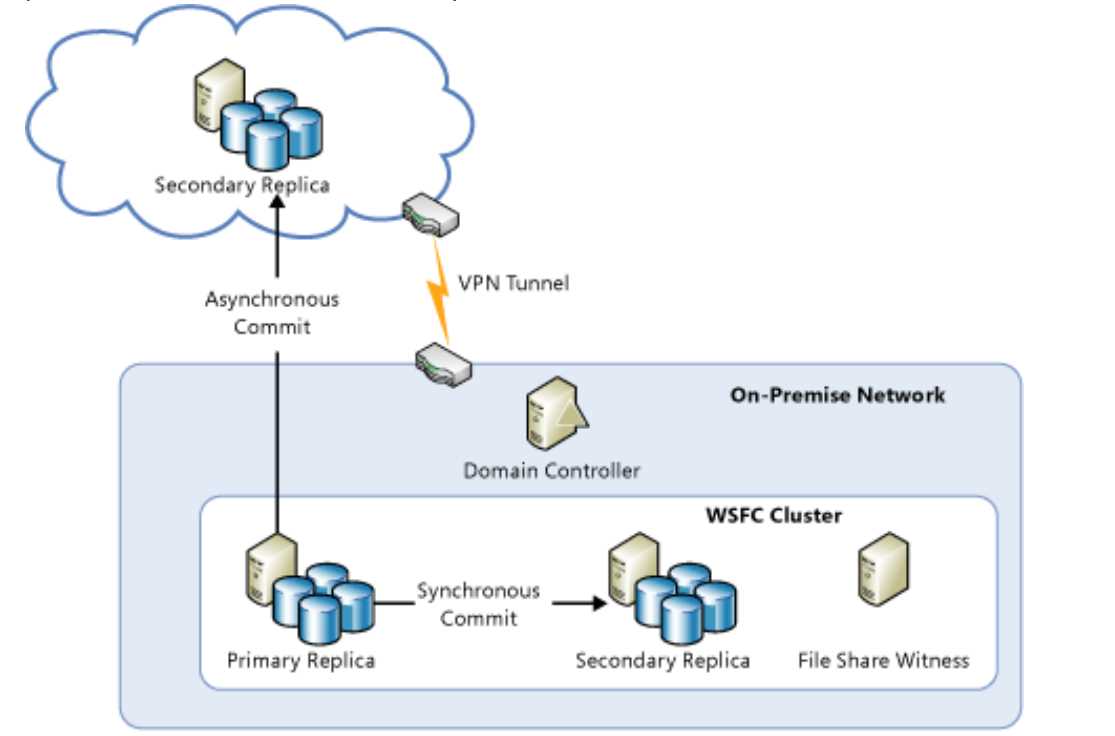
Figure 9: Hybrid IT: DR Solution for on premise SQL Server in Azure
This configuration allows you to setup the most cost efficient disaster recovery solution for an on premise instance of SQL Server by configuring the secondary replica of the availability group in an Azure VM. In this configuration, all the on premise replicas can be configured in sync commit mode while the secondary replica in Azure is configured in async commit mode. This configuration again requires VNet to VNet connectivity between on premise datacenter and azure datacenter which can be configured by setting up Site to Site VPN tunnel described in the following article or using ExpressRoute.
https://azure.microsoft.com/en-us/documentation/articles/vpn-gateway-site-to-site-create/
Preparing Azure Environment for AlwaysON Availability Group
In order to set up and configure AlwaysON Availability Group in Azure VMs to implement one of the previously discussed topologies, it is important to first meet the following pre-requisites
- Create an Azure Virtual Network (Azure VNet). While creating Azure Virtual Network you can setup DNS servers and VPN connectivity to another Site which will be required if you are planning to configure AlwaysON Availability Group to implement DR, HADR or Hybrid IT solution across data centers. VNet to VNet connectivity is not required when configuring AlwaysON Availability Group as HA solution since all the participating VMs reside in same azure data centers and hence VPN connectivity section can be skipped in this case.
- Create a New Active Directory Domain Controller or Install a replica Active Directory Domain Controller or setup Azure Active Directory Sync in Azure Virtual Network. Domain Controller is required since all the nodes of the Cluster should be part of the same domain. You can either create a new domain controller or install a replica of on premise domain controller or setup DirSync in which case you can replicate all the Users, OUs and security permissions from on premise to Azure.
- Ensure all the participating VMs in Availability Group are part of the same domains which is a pre-requisite for setting up Windows Server Failover Cluster (WSFC).Setup Windows Server Failover Cluster between the participating Azure VMs or servers. There is one important caveat here which is different from setting up WSFC in on premise environment. After you create a windows server failover clustering (WSFC) cluster between the two Azure VMs, the cluster name resource may fail to start and not come online because it cannot acquire a unique virtual IP address from the DHCP service. Instead, the IP address assigned to the cluster name is a duplicate address of one of the nodes. This has a cascading effect that ultimately causes the cluster quorum to fail because the nodes cannot properly connect to one another.
- To overcome this, you can assign an unused static IP address from the VNet or link local address 169.254.1.1 (for more information on link local address refer http://www.ietf.org/rfc/rfc3927.txt) to the Cluster IP resource and bring the cluster name resource online.
- To create WSFC between Azure VMs you need to follow the following steps
- Create a one-node cluster on one the Windows Azure VMs
- Set the cluster IP address to static IP in VNet or IP address 169.254.1.1, which is a link local address. More information on this address can be found at http://www.ietf.org/rfc/rfc3927.txt
- Bring the "Cluster Name" resource online so that it will create an entry in active directory.
The PowerShell script to create a one-node cluster with link local address can be found in the article below
https://gallery.technet.microsoft.com/scriptcenter/Create-WSFC-Cluster-for-7c207d3a
- Add the other nodes to the cluster.
- Ensure all the Windows Clustering Hotfixes are applied for WSFC to function correctly.
- Install Standalone instances of SQL Server in the participating VMs. You can also provision a SQL Server image from gallery at the time of provisioning of the VM as discussed earlier which will pre-install a standalone instance of SQL Server in the VMs.
- Open Firewall ports for alwayson data replication traffic between the VMs. Similar to Database Mirroring, AlwaysON Availability Groups communicates on TCP/IP port 5022 by default. In High Availability configuration, when all the availability replica VM are running behind the same cloud service and location there is no requirement to create endpoint on Azure VM. However for DR, HADR or Hybrid IT scenario when replicas are spread across datacenters or location we need to create endpoints in Azure VMs participating in Availability Group to open up TCP/IP port 5022 for mirroring traffic.
Preparing SQL Environment for AlwaysON Availability Group
- All the SQL Server services in Azure VMs should be preferably running under a domain account. The service account need not be same and can be running under different domain account as per the security practice but should be domain accounts preferably.
- Enable AlwaysON Availability Group Feature in each of SQL Instance participating in Availability Group using SQL Configuration Manager as shown in following figure
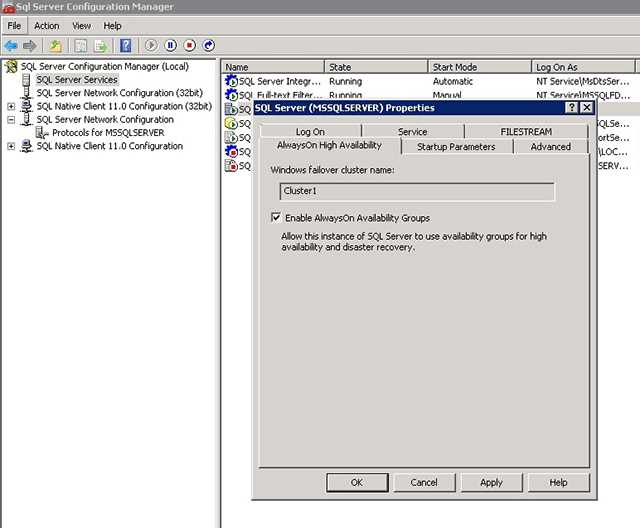
Figure 10: Enable AlwaysON AG Feature from SQL Configuration Manager
If there are any errors to enable AlwaysON AG feature, it means WSFC is not configured correctly since AlwaysON AG feature on SQL instance checks if the server is part of WSFC under a domain and hence if the feature detects any inappropriate configuration of WSFC, it fails to enable AlwaysON AG feature.
- Finally the account with which you have logged in to create Availability Groups must have sysadmin privileges on all the SQL Instance replicas to be able to create Availability Groups.
Creating Availability Groups
Once the previously mentioned pre-requisites are met, you are now ready to create availability group on the SQL instances. Below are the steps you need to perform to create Availability Group
- Ensure all the databases which needs to be added as part of Availability Group are created by the application on the primary replica and are set to Full Recovery Model.
- Take a full database backup followed by a transaction log backup of all the databases which needs to be added to Availability Group.
- Restore the full database backup and T-log backup created in step 2 on all the secondary replicas with NORECOVERY option.
- Create AlwaysON Availability Group using Availability Group Wizard in Management Studio (SSMS). Specify the Availability Group name and select the databases you would like to add the Availability Group. Add the secondary replica SQL instances where you have already restored the database and transaction log with NORECOVERY option. While adding the secondary replica, you can specify whether each of the secondary replica would be in synchronous commit or asynchronous commit mode and will be an automatic failover partner or not. DO NOT CREATE the Listener at this step since for running AlwaysON Listener in Azure we need to first setup Azure Internal Load Balancer (ILB). Click Join-only to join the replicas and finally complete the wizard to create an AlwaysON Availability Group.
- Once AlwaysON Availability Group is created, you can connect to Object Explorer in SSMS expand AlwaysOn High Availability, then expand Availability Groups and you should now see the new availability group in this container. Right-click Availability Group name and click Show Dashboard. This Dashboard shows the current states of all the replicas (Synchronized or Synchronizing). If you would like to test the failover, you can click on the Start Failover Wizard link in Dashboard to initiate the failover to secondary replicas.
Note: Do not try to fail over the availability group from the Failover Cluster Manager. All failover operations should be performed from within AlwaysOn Dashboard in SSMS. For more information, see Restrictions on Using The WSFC Failover Cluster Manager with Availability Groups
Configure an ILB Listener for AlwaysON Availability Group in Azure
Availability group listeners are supported on Azure VMs running Windows Server 2008 R2, Windows Server 2012, and Windows Server 2012 R2. This support is made possible by the use of Azure Internal Load Balancer (ILB) and load-balanced endpoints with direct server return (DSR) enabled on the Azure VMs that are availability group nodes. Only one availability group listener is supported per cloud service because the listener is configured to either use the cloud service VIP address or the VIP address of the Internal Load Balancer. Note that this limitation is still in effect although Azure now supports the creation of multiple VIP addresses in a given cloud service. The following article describes the steps to configure an ILB listener for AlwaysOn Availability Groups in Azure.
Client Configuration for connecting to AlwaysON Azure ILB Listener
For the client application to be able to connect to the AlwaysOn Azure ILB Listener, it must reside on a different cloud service than the one that contains your availability group VMs. Azure does not support direct server return with client and server in the same cloud service.
You must follow special configuration steps for the listeners to work for both client applications that are running in Azure as well as those running on-premises. Clients must connect to the listener from a machine that is not in the same cloud service as the AlwaysOn Availability Group nodes. If the Availability Group spans multiple Azure subnets such as in DR, HADR or Hybrid scenarios, the client connection string must include "MultisubnetFailover=True" to be able connect to IP addresses from multiple VNet quickly to support application transparent failover. This results in parallel connection attempts to the replicas in the different subnets.
You can still connect to each availability replica separately by connecting directly to the service instance. Also, since AlwaysOn Availability Groups are backward compatible with database mirroring clients, you can connect to the availability replicas like database mirroring partners as long as the replicas are configured similar to database mirroring: One primary replica and one secondary replica. The secondary replica is configured as non-readable (Readable Secondary option set to No)
An example client connection string that corresponds to this database mirroring-like configuration using ADO.NET or SQL Server Native Client is below:
Code Listing 20: Client connection string to connect to AlwaysON AG as mirroring failover partner
|
Data Source=ReplicaServer1;Failover Partner=ReplicaServer2;Initial Catalog=AvailabilityDatabase; |
You can use the above connection string as well if you do not wish to setup AlwaysON ILB Listener and still would like to use AlwaysON Availability Groups as a HADR solution in Azure. If you do not configure Azure ILB listener, the only functionality which you will lose is application transparent failover where in if the primary replica fails and if secondary replica instance becomes the new primary replica, the client connection might not connect transparently to the new primary replica and might need manual intervention to change the connection string. In this scenario, you can use client alias to ensure application config files are not required to be changed time and again as failover occurs and only alias needs to be quickly pointed to primary replica.
Backup and Restore with Azure Blob Storage Service
Backup and Restore with Azure Blob Storage Service Url is supported by SQL Server starting SQL 2012 SP1 CU2. Hence this method can be used as disaster recovery solution only for SQL instances running SQL 2012 and above. This feature can be used to backup SQL Server databases residing on premise instance or an instance of SQL Server running on Azure VMs to create off-site backup copies. Backup to cloud offers benefits such as availability, geo-replicated off-site storage, and ease of migration of data to and from the cloud. Backup to Azure Blob Storage Url is supported using t-sql, SMO, PowerShell as well as starting SQL 2014 SSMS.
Backup to Azure Blob Storage can be implemented as disaster recovery solution in following two topologies depending on whether database is backed up from on premise SQL Instance or SQL Server running on Azure VMs.
Disaster Recovery Solution for SQL Server in Azure
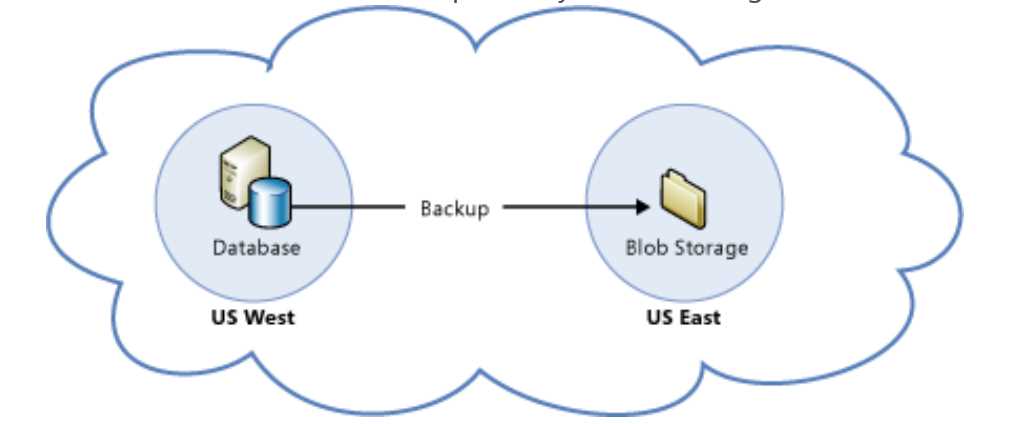
Figure 11: Backup to Azure Blob Storage as a DR Solution for SQL Server on Azure VMs
Hybrid IT: Disaster Recovery Solution for on premise SQL Server in Azure
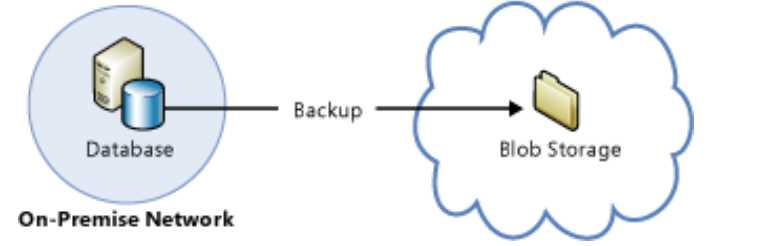
Figure 12: Hybrid IT: Backup to Azure Blob Storage as a DR Solution for on premise SQL Server instances
SQL Server Backup to Azure Blob Storage Url
As discussed earlier, when backing up to Azure Blob storage it is recommended to turn on BACKUP compression which is introduced in SQL Server starting SQL 2008 R2 to save storage cost and network bandwidth. The following articles provides the detailed steps to setup SQL Server backups to Azure Blob storage URL
https://msdn.microsoft.com/en-us/library/dn435916(v=sql.120).aspx


- 1800+ high-performance UI components.
- Includes popular controls such as Grid, Chart, Scheduler, and more.
- 24x5 unlimited support by developers.