
SQL Server Metadata Succinctly®

CHAPTER 3
Server Information
In this chapter, we will explore some of the hardware, operating system, and SQL version information, as well as the various configuration options of the server. All this information is available through various views in the sys schema. Most of the information comes from the subset called dynamic management views within the sys schema. These views begin with dm_ and provide a lot of information about the SQL environment.
Note: Your account may not have permission to access the various views described in this chapter, particularly if you are on a remote server. You will generally need the VIEW SERVER STATE permission for most of these queries.
Host version
You can determine the operating system information and version number by using the newly added sys.dm_os_host_info view (SQL 2017). Note that SQL Server does not return as much information if SQL is running on a Linux host.
Table 15: dm_os_host_info
Column name | Description |
|---|---|
host_platform | Windows or Linux. |
host_distribution | Description of the operating system. |
host_release | Version number on Windows OS, empty on Linux. |
host_service_pack_level | Service pack level (Windows) or empty (Linux). |
host_sku | Window stock keeping unit (maps to a Windows product version) NULL on Linux systems 4 is Enterprise Edition 7 is Standard Server Edition 8 is Datacenter Server Edition 10 is Enterprise Server Edition 48 is Professional Edition |
os_language_version | Windows Locale identifier (LCID) of operating system. |
You can find out more about the Windows version information at this website.
The locale ID can be found here.
If you are using an older version of SQL, the dm_os_windows_info view provides similar information (without the platform or distribution columns). Table 16 lists the columns in that view.
Table 16: dm_os_windows_info
Column name | Description |
|---|---|
windows_release | Version number of Windows OS |
windows_service_pack_level | Service pack level |
windows_sku | Window stock keeping unit (maps to a Windows product version) |
windows_os_language_version | Windows Locale identifier (LCID) |
SQL Server version information
There are a variety of ways to determine which version of SQL is being run.
@@version
The simplest approach is to use the @@version global variable. This will return a string containing the version and copyright information.
Microsoft SQL Server 2017 (RTM-CU14-GDR) (KB4494352) - 14.0.3103.1 (X64)
Mar 22 2019 22:33:11
Copyright (C) 2017 Microsoft Corporation
Developer Edition (64-bit) on Windows Server 2016 Datacenter 10.0 <X64>
(Build 14393: ) (Hypervisor)
If you want to report on this data, you can save it to a variable and split the variable on the linefeed (char(10)) character.
xp_msver
Another option is to use the extended stored procedure xp_msver in the master database. This returns a four-column table containing version and copyright information about the server. Table 17 shows some sample rows from this procedure.
Table 17: Sample xp_msver result
Index | Name | Internal_Value | Character_Value |
|---|---|---|---|
1 | ProductName | NULL | Microsoft SQL Server |
2 | ProductVersion | 917504 | 14.0.3103.1 |
3 | Language | 1033 | English (United States) |
4 | Platform | NULL | NT x64 |
SERVERPROPERTY
While the previous two approaches show the version number and description, you might want to simply get a numeric indication of the version number (for example, your procedure only runs on a version of the server). For this approach, you can use the SERVERPROPERTY function and get the ProjectMajorVersion, as shown in the following.
select SERVERPROPERTY('ProductMajorVersion')
Table 18 shows the mapping between the product version and the SQL version.
Table 18: Project Major Version
Major version ID | SQL version |
|---|---|
8 | SQL 2000 |
9 | SQL 2005 |
10 | SQL 2008 |
10.5 | SQL 2008 R2 |
11 | SQL 2012 |
12 | SQL 2014 |
13 | SQL 2016 |
14 | SQL 2017 |
15 | SQL 2019 |
We will cover the SERVERPROPERTY function in more detail later in this chapter.
CLR version information
You can use the sys.dm_clr_properties view to determine what version of the Common Language Runtime (CLR) is installed on the SQL Server box. The view returns three rows with a name and value set of columns. Table 19 shows the CLR properties.
Table 19: CLR properties
Name | Value |
|---|---|
directory | C:\Windows\Microsoft.NET\Framework64\v4.0.30319\ |
version | v4.0.30319 |
State | CLR is initialized |
The dm_clr_loaded_assemblies view will show all CLR assemblies running on the SQL server. SQL will generally keep these assemblies loaded for performance reasons but can unload them in a memory pressure situation.
Memory
SQL Server is designed to manage memory itself, rather than require administrators to allocate the memory. Basically, SQL will greedily take as much memory as it can get but will release memory to the operating system if the OS is needy (low memory situation). You can use the dm_os_sys_memory view to query the amount of memory on the server. Code Listing 12 is an example query.
Code Listing 12: Server memory
---------------------------------------------------- -- Script: Server_memory.sql -- Reports memory usage on the server ---------------------------------------------------- SELECT [total_physical_memory_kb] / 1024 as TotalPhysMemoryMB ,[available_physical_memory_kb]/ 1024 as AvailMemoryMB ,[total_page_file_kb]/1024 as PageFileTotalMB ,[available_page_file_kb]/1024 as PageFileAvailMB ,[system_memory_state_desc] FROM [sys].[dm_os_sys_memory] |
The system_memory_state_desc fields indicate whether memory is high (SQL can keep using it) or low (SQL needs to release some to operating system). Ideally, there are not a lot of memory-intensive processes running on the SQL server machine.
Disk usage
You can use the xp_fixedDrives stored procedure or, starting with SQL 2017, the new Dynamic Management view called dm_os_enumerate_fixed_drives. The stored procedure returns two columns: the drive letter and megabytes free. The new view returns the drive path and drive type (usually fixed or network), and the bytes free. Code Listing 13 uses the new view.
Code Listing 13: Drive information
--------------------------------------------- -- Script: Basic_Drive_info.sql -- Show free space on drives --------------------------------------------- if object_id('sys.dm_os_enumerate_fixed_drives') is not null SELECT fixed_drive_path,drive_type_desc, free_space_in_bytes/(1024*1024) as MB_Free FROM sys.dm_os_enumerate_fixed_drives else exec xp_fixedDrives |
You can combine this view with the sys.master_files view to determine where the various databases reside. Code Listing 14 shows the master and tempdb databases, as well as the database and log files for the current database.
Code Listing 14: Where databases are stored
---------------------------------------------------- -- Script: Detailed_Drive_info.sql -- Show free space and system and database files ---------------------------------------------------- IF object_id('sys.dm_os_enumerate_fixed_drives') is not null SELECT mf.type_desc,mf.name,mf.physical_name, fd.drive_type_desc,fd.free_space_in_bytes/(1024*1024) as MB_Free FROM sys.master_files mf JOIN sys.dm_os_enumerate_fixed_drives fd on substring(mf.physical_name,1,3)=fd.fixed_drive_path WHERE database_id in (1,2,db_id()) ELSE BEGIN create table #tmpDrives (drive char(1),free_space_in_bytes bigint) INSERT INTO #tmpDrives exec xp_fixeddrives SELECT mf.type_desc,mf.name,mf.physical_name, 'FIXED' as drive_type_desc,round((fd.free_space_in_bytes*1.0)/1024,0) as MB_Free FROM sys.master_files mf JOIN #tmpDrives fd on substring(mf.physical_name,1,1)=fd.drive WHERE database_id in (1,2,db_id()) DROP TABLE #tmpDrives END |
You should expect to see that the log and data files are stored on separate drives, and that the tempdb files (could be multiple files) are on their own drive, as well. While this hard drive configuration could vary, those are the generally recommended guidelines for performance purposes.
Enumerate file system
SQL Server 2017 added a new table-valued function called dm_os_enumerate_file_system. This function takes two parameters, the starting folder, and a search pattern. For example, to find out if any new DLLs were added recently, you could run the following SQL command.
SELECT * from sys.dm_os_enumerate_filesystem('c:\windows\system32\','*.dll')
WHERE creation_time>=dateadd(m,-3,getDate())
Registry information
SQL Server uses the system registry of the server machine to hold several settings, such as the SQL image, startup parameters, or port. You can use the dm_server_registry view to peek at these registry settings.
SELECT * FROM [sys].[dm_server_registry]
Table 20 shows some of the values this view returns.
Table 20: dm_server_registry
registry_key | value_name | value_data |
|---|---|---|
HKLM...\MSSQLSERVER | ObjectName | YPRIMECLOUD\svc_sql_az-irtsqldev |
HKLM...\MSSQLSERVER | ImagePath | C:\Program Files\...\sqlservr.exe |
HKLM...\SQLSERVERAGENT | ObjectName | |
HKLM...\SQLSERVERAGENT | ImagePath | C:\Program Files\...\SQLAGENT.EXE |
HKLM...\SQLSERVERAGENT | DependOnService | MSSQLSERVER |
HKLM\... CurrentVersion | CurrentVersion | 14.0.1000.169 |
HKLM\... \Tcp | TcpDynamicPorts | 1434 |
Databases on the server
A typical SQL server has multiple databases on it, some required by the server and those for your application data. The sys.databases view provides information about all the databases installed on the server. Code Listing 15 is a query that returns basic database names and version information.
Code Listing 15: Server databases
--------------------------------------------- -- Script: Server_databases.sql -- Server databases and versions --------------------------------------------- SELECT database_id,[name],create_date, CASE compatibility_level WHEN 80 THEN 'SQL 2005' when 90 then 'SQL 2005' when 100 then 'SQL 2008' when 110 then 'SQL 2012' when 120 then 'SQL 2014' when 130 then 'SQL 2016' when 140 then 'SQL 2017' when 150 then 'SQL 2019' else 'Unknown version' end as SQL_Level from sys.databases order by database_id |
The first four databases (master, tempdb, model, and msdb) are SQL internal databases.
Files for current database
The SQL tables are stored in a physical disk file (MDF files), and you can determine the files that are holding the current database tables using the sys.database_files view. Code Listing 16 shows a query to return the database file names.
Code Listing 16: Database files
--------------------------------------------- -- Script: Database_files.sql -- Files for current database --------------------------------------------- SELECT type_desc,name,physical_name FROM sys.database_files |
The type_desc will be either ROWS or LOGS. The logs and rows should be on separate drives for better performance.
Configuration
The sys.configurations view has key fields of a name, value, and description. Many of the configuration options are represented by a named row in this view. You can visit the Microsoft website to determine the usage of the various settings.
You can also view most of the configuration information in SSMS by opening the Properties dialog on the server name, as shown in Figure 2.
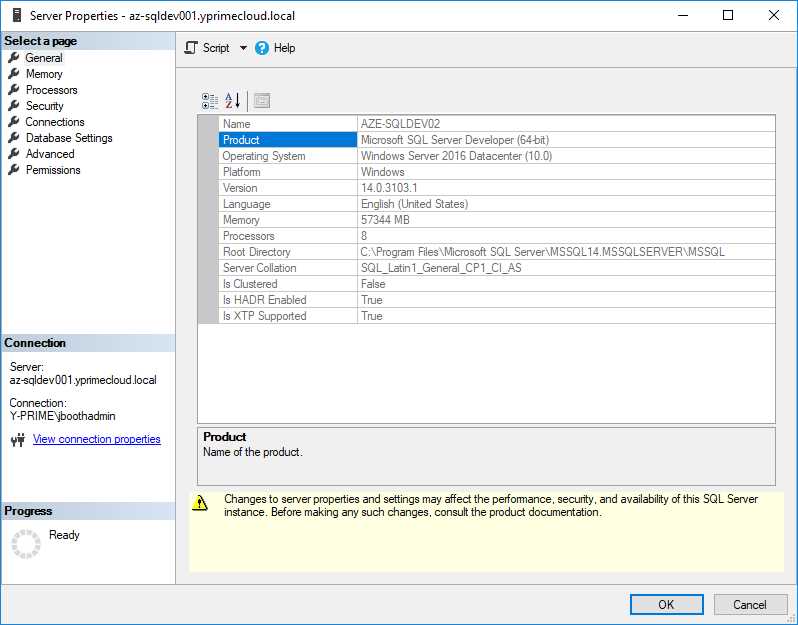
Figure 2: Server properties
Reading configuration data
You can run queries against the sys.configurations view to get the values of the settings. For example, the following SQL query checks whether CLR (common language runtime assemblies) are allowed on this server.
SELECT * FROM sys.configurations WHERE [name]='clr enabled'
You can also use the sp_configure stored procedure to look at any of the settings. You specify the setting name or leave off the parameter to see all settings available.
EXEC sp_configure 'clr enabled'
Advanced settings
Many of configuration settings are considered "advanced" as determined by the Is_advanced flag in the sys.configurations view. For example, the xp_cmdshell allows users to issue operating system commands on the server. By default, SQL Server is configured with this option disabled.
Updating configuration data
Configuration data is updated using the sp_configure stored procedure. It gets passed two parameters: the configuration name and new value. For example, the following command will enable CLR assemblies.
EXEC sp_configure 'clr enabled',1
SQL administrators will generally use scripts of sp_configure commands to configure the server. The Microsoft defaults are generally set toward a minimum machine, so the server will run even in lower memory/hardware configurations. Open connections allowed, server memory and query memory are often customized to get better performance based on knowledge of your server's hardware.
Note: Updating server configuration is the realm of experienced SQL administrators. In a well-designed system, developers would not have access to update the configuration. While you can use the configuration view to see how the server is set up, leave the configuration changes to the administrators.
SERVERPROPERTY
The SERVERPROPERTY function also provides a good deal of information about the server. It takes a single parameter, the property name, and returns the current property value. For example, the following code snippet shows the edition of SQL Server being run.
select SERVERPROPERTY('edition') as ServerEdition
Table 21: SERVERPROPERTY
ServerEdition |
|---|
Developer Edition (64-bit) |
The Microsoft website provides details as to the various server property parameters.
You can use the SERVERPROPERTY function to put together a detailed list of server information, as shown in Code Listing 17.
Code Listing 17: Server property snapshot
--------------------------------------------- -- Script: ServerProperties.sql -- Reporting server information --------------------------------------------- select 'SQL Server: ' as Label, SERVERPROPERTY('ProductVersion') as Version, SERVERPROPERTY('edition') as ServerEdition, SERVERPROPERTY('productLevel') as ServerEdition, SERVERPROPERTY('MachineName') as Machine, CASE SERVERPROPERTY('IsIntegratedSecurityOnly') WHEN 0 Then 'SQL and Windows logins' ELSE 'Windows Authentication' END as AuthMode |
Summary
In this chapter we covered a few of the dynamic management views you can use to explore the details of your SQL Server installation. There are over 100 different views to provide all sorts of server information. Hopefully, this chapter whetted your appetite to explore them further.
We will cover some additional views in later chapters and discuss indexing and performance.


- 1800+ high-performance UI components.
- Includes popular controls such as Grid, Chart, Scheduler, and more.
- 24x5 unlimited support by developers.