
Spark Succinctly®

CHAPTER 3
Hello Spark
The hello world applications of big data processing always involve searching for word occurrences. Usually the data for processing comes in from a stream, database, or distributed file system. The examples in this chapter are on a hello world level, so we are simply going to use files provided with Spark. Here is a list of files within the Spark directory:
Code Listing 13: Contents of Spark Directory
. ├── CHANGES.txt ├── LICENSE ├── NOTICE ├── R ├── README.md ß ├── RELEASE ├── bin ├── conf ├── data ├── ec2 ├── examples ├── lib ├── python └── sbin |
In this chapter, we are going to use the README.md file in our examples. Spark was written in Scala, so throughout the book we are going to start with Scala examples first. If you are interested in other programming languages, you can skip to the example that you need or like. I’m not really an R expert, so I won’t provide examples throughout the book for it. I also didn’t cover installation of R in previous chapters. At the moment, Java has no interactive shell support like Python and Scala do, so when we come to Java examples we are going to demonstrate how to set up a basic Java Spark project. Dependency management for Java examples can become pretty complex pretty fast, so we’ll also cover how to manage dependencies with the most popular dependency tool for Java today, Maven. We’ll start with a simple text search.
Counting Text Lines Containing Text
In this example, we are going to count lines of text containing certain words. Although this might not seem like much, this is already pretty useful. For instance, you could count how often an error appeared in the production log or something similar. In the introduction we mentioned that for simplicity’s sake we are just going to use the README.md file that comes with the Spark installation. Let’s begin with Scala.
Scala Example
Open the Command Prompt (Windows) or Shell (Linux) and go to the directory where you unpacked the Spark installation. The previous chapter describes how you can do this, but as a short refresher here is how:
Code Listing 14: Running Spark Shell from Command Prompt on Windows
C:\spark-1.4.1>bin\spark-shell |
Code Listing 15: Running Spark Shell from Shell on Linux
[root@localhost spark-1.4.1-bin-hadoop2.6]# ./bin/spark-shell |
The Advantage of using Spark Shell is that you have Spark Context available to you right away, and you don’t have to initialize it. We’ll cover how to do that in chapters to come, but for now it’s sufficient to say that Spark Context represents a connection to the Spark cluster and is used to do computational operations on it. The context available in the shell is not actually an out-of-the-box connection to a cluster, it’s a context intended for testing, evaluations, and runs on a single node or in the development phase. Luckily, that is just what we need at the moment. Enter the following:
Code Listing 16: Counting Lines Containing Word Spark in Scala
val readmeFile = sc.textFile("README.md") val sparkMentions = readmeFile.filter(line => line.contains("Spark")) // count the lines having Spark in them sparkMentions.count() |
If everything went fine, you should see something like this:
Code Listing 17: Result of Counting Lines in Spark Shell
scala> sparkMentions.count() res2: Long = 19 |
The textFile method on Spark Context turns a file into a collection of lines. After that, we will filter out the lines that don’t have Spark in them. In the end we will be calling an action called count. It’s all pretty straightforward. If you know a little bit more about Spark, you know that the readmeFile is not just any collection type like array or list, and that in Spark this collection is actually called resilient distributed dataset and that this type of collection has a lot of methods for various transformations and actions. We’ll come to that topic soon. For now, it’s sufficient that you think about the results as if they were collections of items.
From time to time you will also want to check if everything is fine with the files that you are reading just to make sure you can very easily have a peek into the file. For instance, if you wanted to print the first ten lines in a file, you would do the following:
Code Listing 18: Peek into File by Taking First Ten lines
scala> readmeFile.take(10) res5: Array[String] = Array(# Apache Spark, "", Spark is a fast and general cluster computing system for big data. It provides, high-level APIs in Scala, Java, and Python, and an optimized engine that, supports general computation graphs for data analysis. It also supports a, rich set of higher-level tools including Spark SQL for SQL and structured, data processing, MLlib for machine learning, GraphX for graph processing,, and Spark Streaming for stream processing., "", <http://spark.apache.org/>) |
Tip: Make sure you have the right file by using take.
The lines count example is case sensitive, so only the lines containing Spark written with capital case will be counted. But it’s enough to get you going. In the next section we are going to go over lines containing a string example from Python’s angle.
Python Example
To start using Spark with Python, we will use the PySpark utility. Running it is pretty much the same as running Spark Shell from the previous section:
Code Listing 19: Running Spark Shell from Command Prompt on Windows
C:\spark-1.4.1>bin\PySpark |
Code Listing 20: Running Spark Shell from Shell on Linux
[root@localhost spark-1.4.1-bin-hadoop2.6]# ./bin/PySpark |
The result of the previous commands should be a Python Spark shell as shown here:
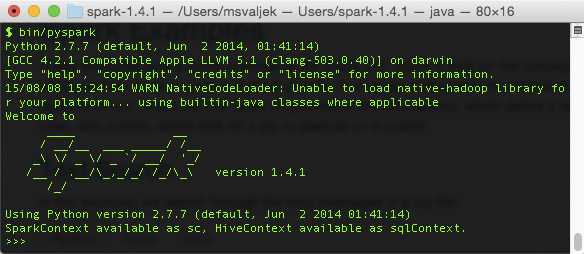
Figure 29: PySpark Shell in Action
Code Listing 21: Counting Lines Containing Spark the Python Way
readme_file = sc.textFile("README.md") spark_mentions = readme_file.filter(lambda line: "Spark" in line) # count the lines having Spark in them spark_mentions.count() |
As you can see, there are not that many lines included. After all, Python is very popular among developers that perform data science, and one of the reasons is that you don’t have to write a lot of code lines to get things done. In the next section, we’ll show how to do it the Java way.
Java Example and Development Environment Setup
At the moment of writing this book, Java does not have an interactive shell like Python and Scala do, so there is a bit more setup that you have to do if you want to write applications for Spark in Java. To be effective, we are going to use an IDE. Among Java developers, the most popular ones are IntelliJ IDEA, NetBeans, and Eclipse. It’s hard to estimate what readers will be using, but in my opinion Eclipse was very popular for a long time, and most readers will have at least some basic experience with it, so we’ll go with that. First you have to download Eclipse. Eclipse comes in many releases; at the time of writing this book the latest is Mars. You can look at http://www.eclipse.org/downloads/packages/release/Mars/R and download Eclipse IDE for Java Developers, just make sure that you download it for the right platform. Unpack the archive to a folder of your choosing, go into the Eclipse folder, and run Eclipse. Go through the steps in the following figures to setup the environment:
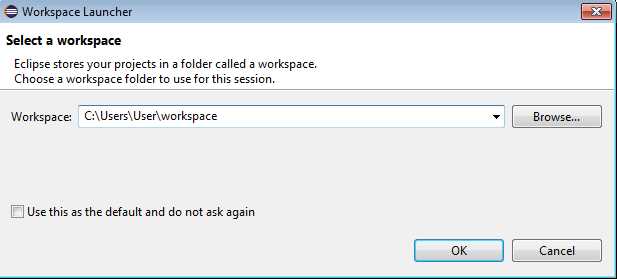
Figure 30: Choose workspace directory.
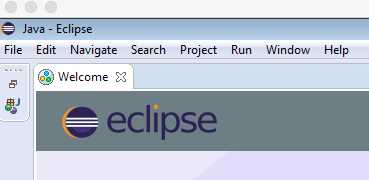
Figure 31: Close the Welcome Screen.
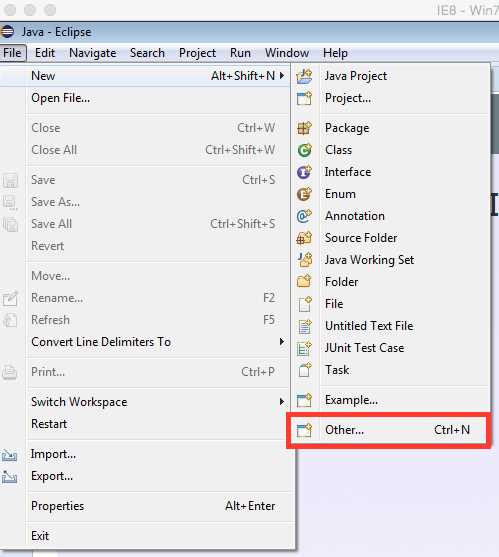
Figure 32: Click on File > New > Other.
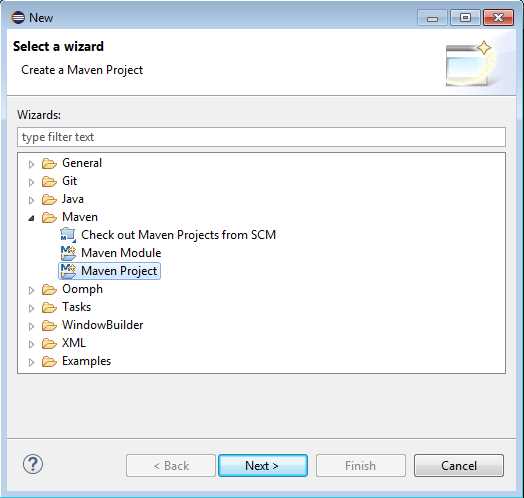
Figure 33: Choose Maven Project.

Figure 34: Check Create a Simple Project.
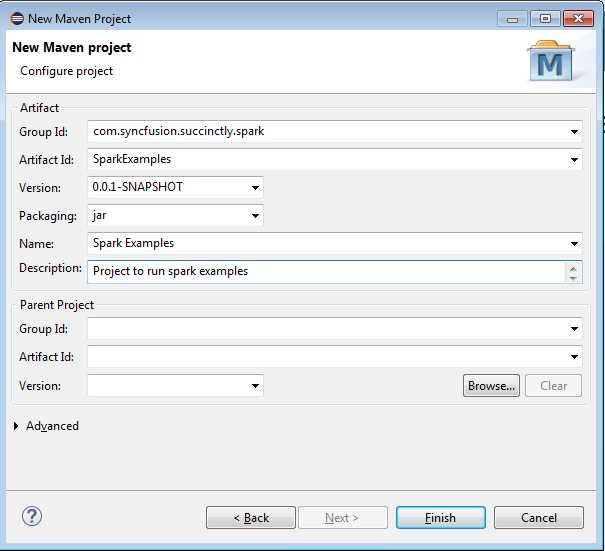
Figure 35: Fill Out New Project Configuration.
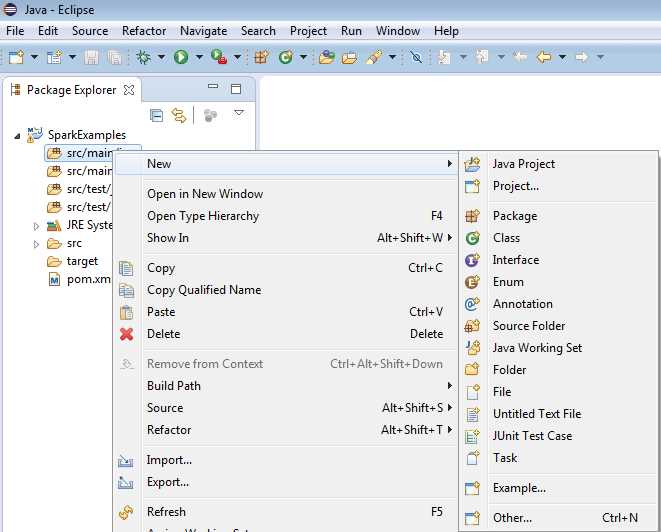
Figure 36: In src/main/java Create New Package.
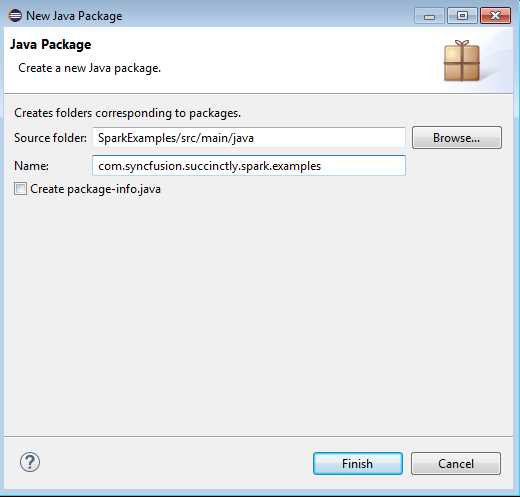
Figure 37: Create new package com.syncfusion.succinctly.spark.examples.
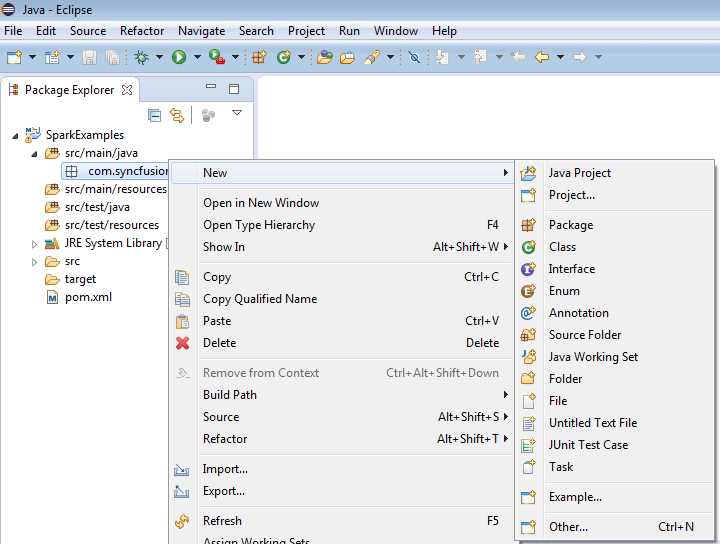
Figure 38: Create New Java Class in created package.
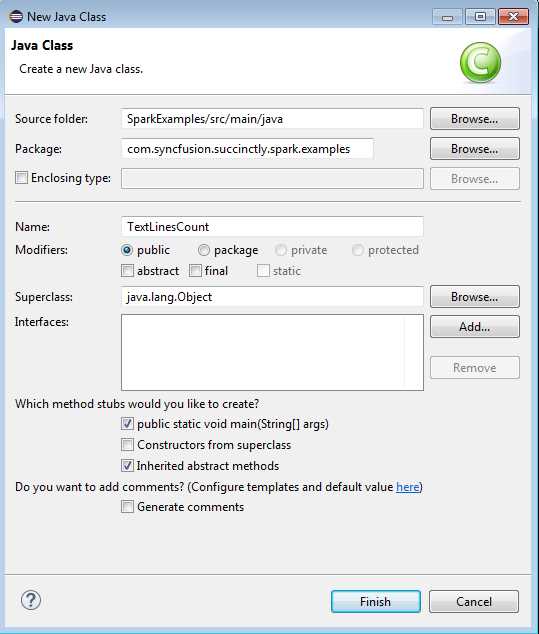
Figure 39: Enter Class Name into New Java Class Dialog, check Create Public Static Void Main.
Enter following code into newly created Java class:
Code Listing 22: Java TextLinesCount class
package com.syncfusion.succinctly.spark.examples; import java.io.FileNotFoundException; import java.io.PrintWriter; import java.io.UnsupportedEncodingException; import org.apache.spark.SparkConf; import org.apache.spark.api.java.JavaRDD; import org.apache.spark.api.java.JavaSparkContext; import org.apache.spark.api.java.function.Function; public class TextLinesCount { public static void main(String[] args) throws FileNotFoundException, UnsupportedEncodingException { if (args.length < 1) { System.err.println("Please provide a full path to the input files"); System.exit(0); } if (args.length < 2) { System.err.println("Please provide a full path to the output file"); System.exit(0); } SparkConf conf = new SparkConf().setAppName("TextLinesCount").setMaster("local"); JavaSparkContext context = new JavaSparkContext(conf); JavaRDD<String> inputFile = context.textFile(args[0]); Function<String, Boolean> filterLinesWithSpark = new Function<String, Boolean>() { public Boolean call(String arg0) throws Exception { return arg0 != null && arg0.contains("Spark"); } }; JavaRDD<String> sparkMentions = inputFile.filter(filterLinesWithSpark); PrintWriter writer = new PrintWriter(args[1]); writer.println(sparkMentions.count()); writer.close(); } } |
Now it’s time to set up the dependencies. To do this, we’ll edit the pom.xml file. Locate the pom.xml file in the Eclipse folder and double click on it. An editor will open, but since it’s a graphical one we will select the pom.xml option and edit it manually:
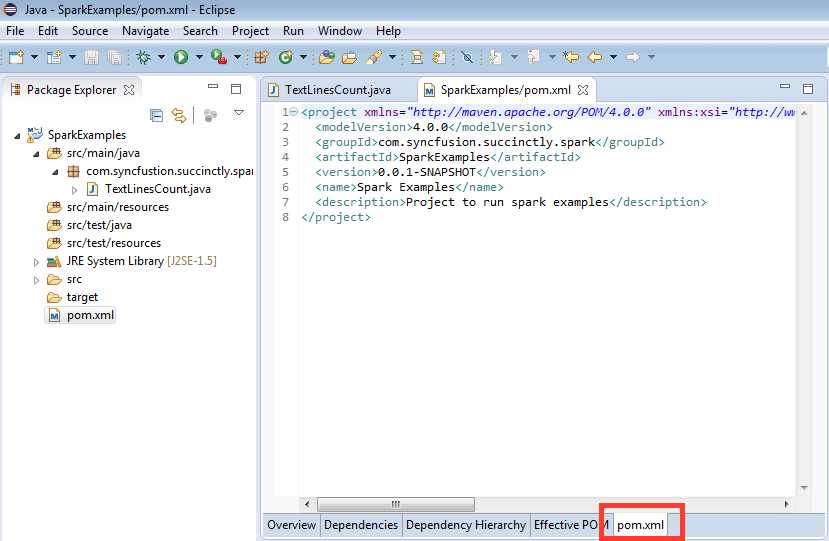
Figure 40: Maven pom.xml File Editor
After opening the editor, change the .xml file to the following:
Code Listing 23: TextLinesCount Maven pom file
<project xmlns="http://maven.apache.org/POM/4.0.0" xmlns:xsi="http://www.w3.org/2001/XMLSchema-instance" xsi:schemaLocation="http://maven.apache.org/POM/4.0.0 http://maven.apache.org/xsd/maven-4.0.0.xsd"> <modelVersion>4.0.0</modelVersion> <groupId>com.syncfusion.succinctly.spark</groupId> <artifactId>SparkExamples</artifactId> <version>0.0.1-SNAPSHOT</version> <name>Spark Examples</name> <description>Project to run spark examples</description>
<dependencies> <dependency> <groupId>org.apache.spark</groupId> <artifactId>spark-core_2.10</artifactId> <version>1.4.1</version> </dependency> </dependencies>
<build> <plugins> <plugin> <groupId>org.apache.maven.plugins</groupId> <artifactId>maven-compiler-plugin</artifactId> <version>3.3</version> </plugin> </plugins> </build>
</project> |
The next step is to package the application:
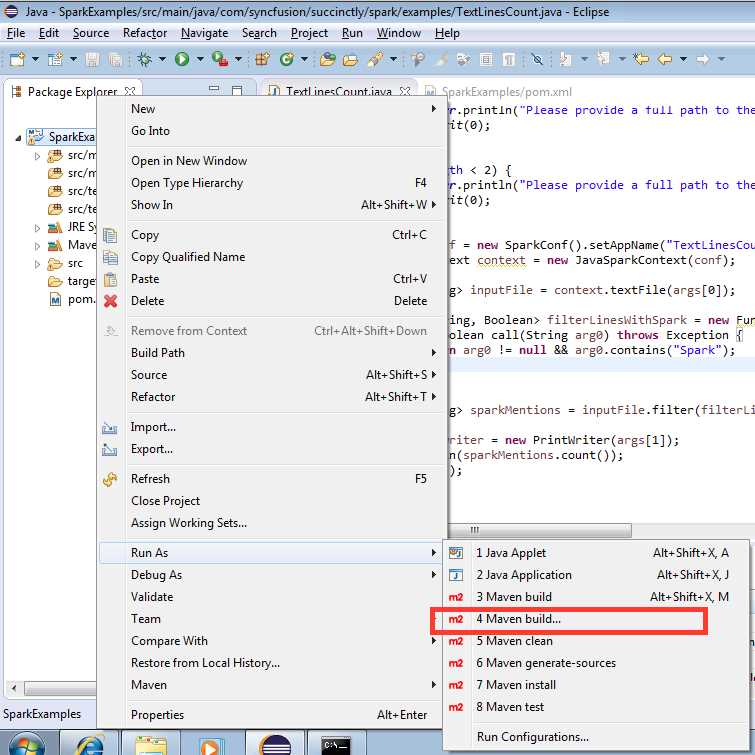
Figure 41: Running Maven Build with Options
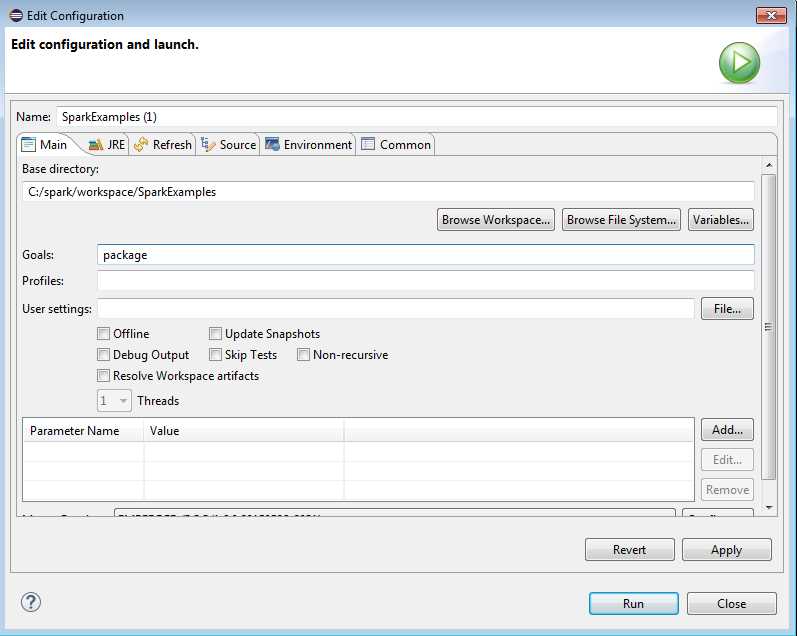
Figure 42: Under Goals type in package and click Run.
The result of the Run operation will be a Console window with the following output. Note that it may vary depending on how you make the setup from previous figures and on the platform that you are using for development:
Code Listing 24: Build Process Result
[INFO] Building jar: C:\spark\workspace\SparkExamples\target\SparkExamples-0.0.1-SNAPSHOT.jar [INFO] ------------------------------------------------------------------------ [INFO] BUILD SUCCESS [INFO] ------------------------------------------------------------------------ [INFO] Total time: 4.845 s [INFO] Finished at: 2015-08-08T13:46:32-07:00 [INFO] Final Memory: 9M/23M [INFO] ------------------------------------------------------------------------ |
Remember the location of the .jar file; you are going to need it when submitting a task to Spark. Now it’s time to submit the task and give it to Spark for processing. Open the command prompt or the shell and go to the location where you installed Spark. On Windows, the submit command will look something like the following:
Code Listing 25: Task Submit Operation on Windows
> bin\spark-submit ^ --class com.syncfusion.succinctly.spark.examples.TextLinesCount ^ --master local ^ file:///C:/spark/workspace/SparkExamples/target/SparkExamples-0.0.1-SNAPSHOT.jar ^ C:/spark/README.md C:/spark/result.txt |
If you are running Linux, the submit command will be a bit different:
Code Listing 26: Task submit operation on Linux
$ ./bin/spark-submit \ --class com.syncfusion.succinctly.spark.examples.TextLinesCount \ --master local \ /root/spark/SparkExamples-0.0.1-SNAPSHOT.jar \ /root/spark-1.4.1-bin-hadoop2.6/README.md /root/spark/result.txt |
After running the submit command a new file, result.txt, should be created, and it should contain a number representing total count of lines having the word Spark in them. For quite some time now, if you tried to run a previous example on a Windows platform you might run into problems and null pointer exceptions when trying to submit tasks. It is all documented under https://issues.apache.org/jira/browse/SPARK-2356. There is a relatively simple solution for this particular problem.
Note: Spark on Windows will probably have problems while submitting tasks.
To go around this problem, you need to create a folder somewhere on the disk. In my case, I used C:\hadoop. Under it I created a subfolder, bin, and I copied a file located under http://public-repo-1.hortonworks.com/hdp-win-alpha/winutils.exe into it. I also needed to create an environment variable, HADOOP_HOME, and set it to C:\hadoop in order to be able to submit a task to Spark and run the example.
We described how to add or change environment variables when we were going through the Java and Scala installation processes, and we won’t go over specific steps again. After changing the environment variable, make sure that you restarted your Command Prompt. If environment variable isn’t picked up, the submit process will result in failure.
The syntax that we used with this example is Java version 7. As you can see, there are a lot more lines of code than in Scala or Python. This is partially due to the fact that we have to do some initialization of Spark Context and command line parameter processing. We also need to print the results out to a file, but the critical section is defining a function to filter out the lines. We could use Java 8 to keep the number of lines smaller. You have to have JDK version 8 on your computer to be able to write Java 8 programs. Depending on your system configuration, you will probably need to change the pom.xml file as shown here:
Code Listing 27: pom.xml File for Java 8 Compatible Project
<project xmlns="http://maven.apache.org/POM/4.0.0" xmlns:xsi="http://www.w3.org/2001/XMLSchema-instance" xsi:schemaLocation="http://maven.apache.org/POM/4.0.0 http://maven.apache.org/xsd/maven-4.0.0.xsd"> <modelVersion>4.0.0</modelVersion> <groupId>com.syncfusion.succinctly.spark</groupId> <artifactId>SparkExamples</artifactId> <version>0.0.1-SNAPSHOT</version> <name>Spark Examples</name> <description>Project to run spark examples</description>
<dependencies> <dependency> <groupId>org.apache.spark</groupId> <artifactId>spark-core_2.10</artifactId> <version>1.4.1</version> </dependency> </dependencies>
<build> <plugins> <plugin> <groupId>org.apache.maven.plugins</groupId> <artifactId>maven-compiler-plugin</artifactId> <version>3.3</version> <configuration> <source>1.8</source> <target>1.8</target> </configuration> </plugin> </plugins> </build>
</project> |
The rest of the code will be pretty much the same, but the filtering lines will be much more elegant:
Code Listing 28: Collection Lines Fitered with Java 8 Syntax
JavaRDD<String> inputFile = context.textFile(args[0]); JavaRDD<String> sparkMentions = inputFile.filter(s -> s != null && s.contains("Spark")); sparkMentions.count(); |
This is actually pretty close to Python and Scala. In this section, we went over how to submit tasks to Spark in Java. We won’t go over how to submit Java tasks to Spark until the end of the book; there will only be the code for a Java class, and you can use instructions in this section to submit it to Spark and check it out. Note that the example receives the input and output file as parameters and that you have to provide them when submitting the task. This is due to the fact that Java doesn’t support REPL, so we have to do it by printing the results to a file. In the next section we are going to go over a bit more complex examples. We are going to count occurrences of words.
Counting Word Occurrences
Counting word occurrences is a very common example when it comes to introducing big data processing frameworks or techniques. In this example, we are going to count occurrences of words in a file, and then we are going to order the occurrences by their frequency. In this section, there will be no separate sections for every programming language used. Instead, we are just going to review the examples together. Let’s start with Scala:
Code Listing 29: Scala Word Count in README.md file, Ten Most Common Words
val readmeFile = sc.textFile("README.md") val counts = readmeFile.flatMap(line => line.split(" ")). map(word => (word, 1)). reduceByKey(_ + _) val sortedCounts = counts.sortBy(_._2, false) sortedCounts.take(10).foreach(println) |
If everything was fine, you should see the following output:
Code Listing 30: Top Ten Words in README.md File Produced by Scala
scala> sortedCounts.take(10).foreach(println) (,66) (the,21) (Spark,14) (to,14) (for,11) (and,10) (a,9) (##,8) (run,7) (can,6) |
Note that the most common word is actually an empty character, but we are still learning, so we’ll just go along with that. Just for this exercise, try to modify the example so that you filter the empty characters out. Here's what the same task would look like using the Python interface:
Code Listing 31: Python Word Count in README.md file, Ten Most Common Words
readme_file = spark.textFile("README.md") counts = readme_file.flatMap(lambda line: line.split(" ")) \ .map(lambda word: (word, 1)) \ .reduceByKey(lambda a, b: a + b) counts.takeOrdered(10, key=lambda x: -x[1]) |
The result of running the example in the PySpark shell should be something like:
Code Listing 32: Top Ten Words in README.md File Produced by Python
>>> counts.takeOrdered(10, key=lambda x: -x[1]) [(u'', 75), (u'the', 21), (u'Spark', 14), (u'to', 14), (u'for', 11), (u'and', 10), (u'a', 9), (u'##', 8), (u'run', 7), (u'is', 6)] |
Let’s have a look at what word count would look like in Java 7.
Code Listing 33: Top Ten Words in README.md File Produced by Java
package com.syncfusion.succinctly.spark.examples; import java.util.Arrays; import org.apache.spark.SparkConf; import org.apache.spark.api.java.JavaPairRDD; import org.apache.spark.api.java.JavaRDD; import org.apache.spark.api.java.JavaSparkContext; import org.apache.spark.api.java.function.FlatMapFunction; import org.apache.spark.api.java.function.Function2; import org.apache.spark.api.java.function.PairFunction; import scala.Tuple2; public class WordCountJava7 { public static void main(String[] args) { if (args.length < 1) { System.err.println("Please provide a full path to the input files"); System.exit(0); } if (args.length < 2) { System.err.println("Please provide a full path to the output file"); System.exit(0); } SparkConf conf = new SparkConf().setAppName("WordCountJava7").setMaster("local"); JavaSparkContext context = new JavaSparkContext(conf); JavaRDD<String> inputFile = context.textFile(args[0]); JavaRDD<String> words = inputFile.flatMap(new FlatMapFunction<String, String>() { public Iterable<String> call(String s) { return Arrays.asList(s.split(" ")); } }); JavaPairRDD<String, Integer> pairs = words.mapToPair(new PairFunction<String, String, Integer>() { public Tuple2<String, Integer> call(String s) { return new Tuple2<String, Integer>(s, 1); } }); JavaPairRDD<String, Integer> counts = pairs.reduceByKey(new Function2<Integer, Integer, Integer>() { public Integer call(Integer a, Integer b) { return a + b; } }); JavaPairRDD<Integer, String> swappedPairs = counts .mapToPair(new PairFunction<Tuple2<String, Integer>, Integer, String>() { public Tuple2<Integer, String> call(Tuple2<String, Integer> item) throws Exception { return item.swap(); } }); JavaPairRDD<Integer, String> wordsSorted = swappedPairs.sortByKey(false); wordsSorted.saveAsTextFile(args[1]); } } |
In the final step, we are saving the collection directly to the disk by using the Spark-provided function saveAsTextFile. If you submit a task with a previously defined Java class to Spark, you might run into FileAlreadyExistsException if you run it with the same output parameter as on the previous Java examples. If that happens, simply delete that file. The output might confuse you a bit; it will be a directory. If you submitted the task with the same parameters as in earlier examples, you might find the output to be something like this:
Code Listing 34: Java 7 Example Output Directory Structure
. └── results.txt ├── _SUCCESS └── part-00000 1 directory, 2 files |
Code Listing 35: Java Example Output File Content
(66,) (21,the) (14,Spark) (14,to) (11,for) (10,and) (9,a) (8,##) (7,run) (6,is) … |
Again, the reason why there are examples for Java 7 and Java 8 is that, at the moment, Java 7 is still the most used one while Java 8 provides much less code and is gaining a lot of momentum. Here is the situation with market share in 2015:
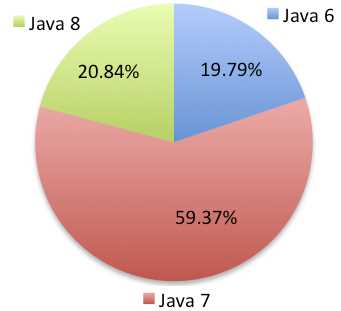
Figure 43: Java Versions Market Shares in 2015
Because of that, I’ll also include examples for Java 8. Here is the word count example written in Java 8. When it comes to the lines that do the work, there’s a lot less code involved:
Code Listing 36: Java 8 Word Count Example
package com.syncfusion.succinctly.spark.examples; import java.util.Arrays; import org.apache.spark.SparkConf; import org.apache.spark.api.java.JavaPairRDD; import org.apache.spark.api.java.JavaRDD; import org.apache.spark.api.java.JavaSparkContext; import scala.Tuple2; public class WordCountJava8 { public static void main(String[] args) { if (args.length < 1) { System.err.println("Please provide a full path to the input files"); System.exit(0); } if (args.length < 2) { System.err.println("Please provide a full path to the output file"); System.exit(0); } SparkConf conf = new SparkConf().setAppName("WordCountJava7").setMaster("local"); JavaSparkContext context = new JavaSparkContext(conf); JavaRDD<String> inputFile = context.textFile(args[0]); JavaPairRDD<String, Integer> counts = inputFile.flatMap(line -> Arrays.asList(line.split(" "))) .mapToPair(w -> new Tuple2<String, Integer>(w, 1)) .reduceByKey((x, y) -> x + y); JavaPairRDD<Integer, String> wordsSorted = counts.mapToPair(item -> item.swap()) .sortByKey(false); wordsSorted.saveAsTextFile(args[1]); } } |
The output should be the same as in Java 7. This completes the basic examples. In the next chapter we are going to dive deep into mechanisms provided by Spark.


- 1800+ high-performance UI components.
- Includes popular controls such as Grid, Chart, Scheduler, and more.
- 24x5 unlimited support by developers.