
SharePoint 2013 App Model Succinctly®

CHAPTER 7
Client-Side Object Model (CSOM)
Introduction
The CSOM was introduced in SharePoint 2010 with two aims. The first is to create apps (not SharePoint 2013 apps) that might be run outside of the server where SharePoint is installed, which is the main limitation of the Server Object Model. The second is to create apps directly within SharePoint pages or web parts using its JavaScript implementation.
The main idea is that the CSOM is an object model that reflects a subset of a server-side model but with a different operation mechanism. While the server-side works directly in memory or accessing SharePoint DB, the CSOM communicates with SharePoint using a particular WCF service called Client.svc.
Internally, the Client.svc uses the Server Object Model in order to make the operations that were sent to the same service from CSOM. In the following figure, you can analyze the CSOM flow used by SharePoint which is explained in the following paragraphs:
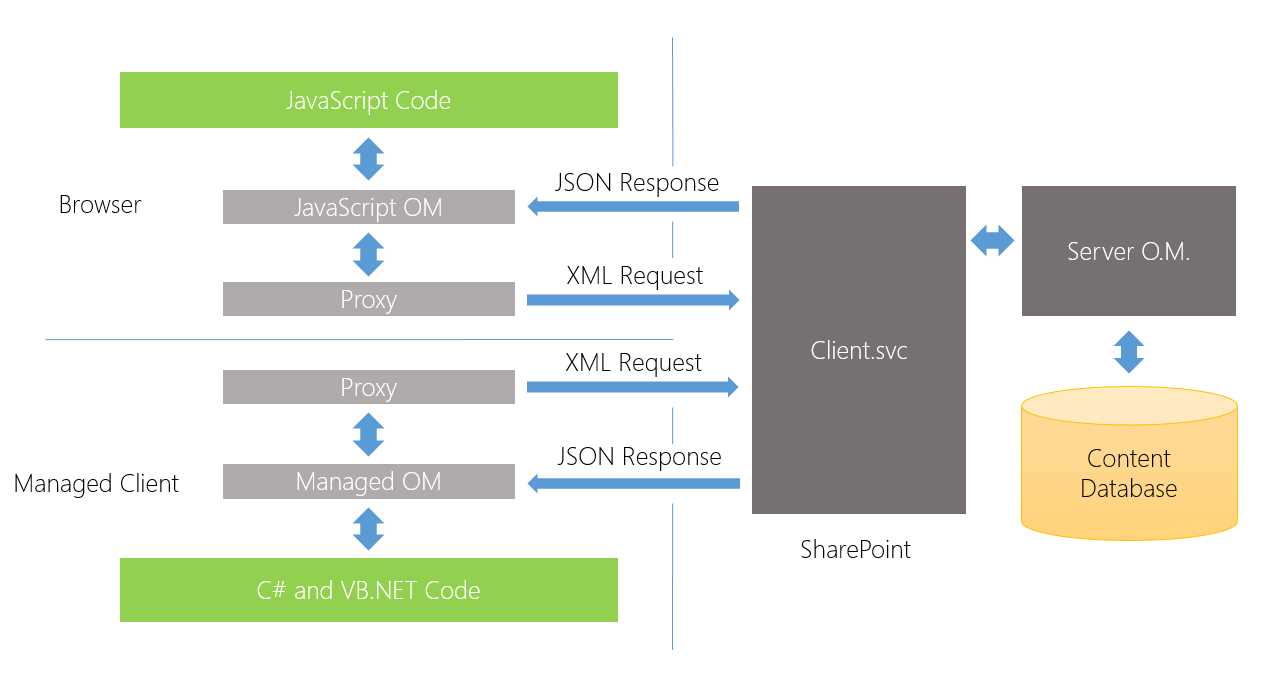
- CSOM workflow
Regardless of its implementation, whether it is managed or JavaScript, the operating mechanism and communication with Client.svc is identical. What concerns us is how to use the CSOM.
The CSOM provides access to core SharePoint objects such as sites, lists, libraries, items, documents, etc. This version also provides access to features of the SharePoint Server such as ECM, Taxonomy, User Profiles, Search, and BCS.
The CSOM communicates with SharePoint through an object called ClientContext. This serves as a bridge between our code and SharePoint. It is the class that allows us to coordinate the sending of server operations and the subsequent information retrieval needs.
The communication between our code and SharePoint takes place in batch mode to optimize calls to the server (via the Client.svc). It means that we're going to call what we want to do, but until we make a call to executeQuery() or ExecuteQueryAsync() (asynchronous mode) of the ClientContext, no operations will actually be executed.
The idea is that the CSOM keeps track of things we want to do and, when we are ready to execute, sends them to the server side. It is there that they are parsed and executed by using the server object model, and the results are returned to the client by the objects that we used.
If we try to access properties or methods of objects of CSOM that have not been initialized by first calling the load() method, then the ExecuteQuery() method will generate an exception of the type PropertyOrFieldNotInitializedException.
The load() method loads only simple properties and not those of complex type objects or type collections. If we also want to load this property type, we must invoke the load() method even on those properties. This is designed to optimize the loading of objects, leaving the programmer to indicate what he or she wants to use.
The main difference between a Managed CSOM and JavaScript CSOM is the language or platform used.
In JavaScript, due to compatibility between browsers, we have properties in objects that are converted into get_xxx methods, set_xxx. The types of data that we have in JavaScript are different than the ones we have in .NET, for example.
Managed CSOM
As mentioned before, the Managed CSOM (.NET or Silverlight) offers an object model to interact with SharePoint.
Using it in an app for SharePoint, for example, a provider-hosted app created with .NET, Visual Studio automatically adds the reference in your project to two assemblies:
- Microsoft.SharePoint.Client.dll
- Microsoft.SharePoint.Client.Runtime.dll
There are also other DLLs to access specific features, such as:
- Microsoft.SharePoint.Client.Search.dll
- Microsoft.SharePoint.Client.Taxonomy.dll
- Microsoft.SharePoint.Client.UserProfiles.dll
- Microsoft.Office.Client.TranslationServices.dll
- Microsoft.SharePoint.Client.WorkflowServices.dll
If you wanted to use this object model for SharePoint apps, but not as an import tool or as a plug-in, you can reference these assemblies manually. They can be found in the folder ..\Web Server Extension\15\ISAPI.
Insert the “using” directive to use the various basic objects of CSOM.
using Microsoft.SharePoint.Client; |
To use the CSOM, we must create an instance of the ClientContext object so we can communicate with SharePoint. Though there are many ways to create an instance of this object, the simplest is to pass the URL of the SharePoint site. Using the code in a provider-hosted app includes a class that allows us to create a ClientContext object according to the current context, which we will discuss later.
var URL = "http://site/"; using (ClientContext clientContext = new ClientContext(url)) { // ***** // CSOM Code goes here! // ***** } |
How to Use
The following sections describe how to perform basic operations on SharePoint Web objects with a managed CSOM.
Website Tasks
The following is a series of examples on how to perform basic operations on SharePoint Web objects.
Read Properties
Here is an example of loading properties of a Web object referenced by the URL that is passed to the ClientContext that we created:
// Reference to SharePoint Web. Web web = clientContext.Web; // Retrieve the Web's properties. clientContext.Load(web); // Real execution of the query. clientContext.ExecuteQuery(); |
This example instead lets us filter and load some properties using the lambda expression.
This allows us to load only the properties that we need or will use, which optimizes loading.
// Reference to SharePoint Web Web web = clientContext.Web; // Retrieve the Web's title and description properties clientContext.Load(web, x => x.Title, x => w.Description); // Real execution of the query clientContext.ExecuteQuery(); |
Modify Properties
Here is an example of code that allows us to modify the properties of the SharePoint site.
// Reference to SharePoint Web. Web web = clientContext.Web; web.Title = "Edited Title"; web.Description = "Edited Description"; // The command to update. web.Update(); // Real execution of the query or command. clientContext.ExecuteQuery(); |
Creating New Web
To create a new SharePoint website, we use an object (not present in the Server Object Model) that serves to inform all SharePoint values needed to create the new website.
This object is used by calling WebCreationInformation:
// Object for building a new web. WebCreationInformation webCreation = new WebCreationInformation(); // Property setting. webCreation.Url = "new-web"; webCreation.Title = "Welcome to the New Web"; webCreation.UseSamePermissionsAsParentSite = true; webCreation.WebTemplate = "STS#0"; // Adding the new web to the collection of the webs. Web web = clientContext.Web.Webs.Add(webCreation); // Retrieve the Web's title and description properties. clientContext.Load(web, w => w.Title, w => w.Description);
// Real execution of the query or command. clientContext.ExecuteQuery(); |
List Tasks
The following is a series of examples on how to perform basic operations on SharePoint Lists.
Read Properties
In this example, we will use a method called Include that lets us indicate what to include at load time. In this case, we will load the ID and Title of all lists in the web:
// Reference to SharePoint Web. Web web = clientContext.Web; // Retrieve all lists. clientContext.Load(web.Lists, lists => lists.Include(list => list.Title, list => list.Id)); // Real execution of the query or command. clientContext.ExecuteQuery(); // Enumerate the lists. foreach (List list in web.Lists) { var id = list.Id; var title = list.Title; } |
Creation of a New List
This example shows how we can create a new list on the website by using the ListCreationInformation object:
// Reference to SharePoint Web Web web = clientContext.Web; // Object for building a new List. ListCreationInformation creationInfo = new ListCreationInformation(); // Property setting. creationInfo.TemplateType = (int)ListTemplateType.GenericList; creationInfo.Title = "Generic List"; creationInfo.Description = "Description of Generic List"; // Adding the new web to the collection of webs. List list = web.Lists.Add(creationInfo); // Update command to set the fields as ID, etc. list.Update(); // Real execution of the query or command. clientContext.ExecuteQuery(); |
Add Columns to a List
Here is an example in which we can see how to add a new column to a list using the XML definition of the field. The AddFieldByXml method returns a base object of the type Field, and then we should convert it to access the properties that we want to modify:
// Reference to SharePoint Web. Web web = clientContext.Web; // Reference the list by its title. List list = web.Lists.GetByTitle("My List"); // Adding a new field using XML syntax. Field field = list.Fields.AddFieldAsXml( "<Field DisplayName='NumberField' Type='Number' />", true, AddFieldOptions.DefaultValue); // Properties setting (using CastTo to cast from base object). FieldNumber fieldNumber = clientContext.CastTo<FieldNumber>(field); fieldNumber.MaximumValue = 90; fieldNumber.MinimumValue = 18; // Update command. fieldNumber.Update(); // Real execution of the query or command. clientContext.ExecuteQuery(); |
Deleting Columns in a List
The following is an example of how to delete a column from a list by indicating the internal name or title:
// Reference to SharePoint Web. Web web = clientContext.Web; // Reference the list by its title. List list = web.Lists.GetByTitle("My List"); // Reference the field by its internal name or title. Field field = list.Fields.GetByInternalNameOrTitle("Status"); // Delete command. field.DeleteObject();
// Real execution of the query or command. clientContext.ExecuteQuery(); |
Deleting a List
Here is an example for deleting a list:
// Reference to SharePoint Web. Web web = clientContext.Web; // Reference the list by its title. List list = web.Lists.GetByTitle("My List"); // Command to delete. list.DeleteObject(); // Real execution of the query or command. clientContext.ExecuteQuery(); |
List Item Tasks
Below is a series of examples on how to perform basic operations on list items.
Query on Items
The following example shows how to query against a list using the CamlQuery object, allowing us to specify a query in CAML format (we can specify clauses, etc., in XML format):
// Reference to SharePoint Web. Web web = clientContext.Web; // Reference the list by its title. List list = clientContext.Web.Lists.GetByTitle("My List"); // Creates a CamlQuery that has a RowLimit of 500. var rowLimit = 500; CamlQuery query = CamlQuery.CreateAllItemsQuery(rowLimit); ListItemCollection items = list.GetItems(query); // Retrieve all items in the list. clientContext.Load(items); // Real execution of the query or command. clientContext.ExecuteQuery(); foreach (ListItem listItem in items) { // List item data. var title = listItem["Title"]; } |
Create New Item
The following is an example of how to create a new item and add a new folder in a list:
// Reference to SharePoint Web. Web web = clientContext.Web; // Reference the list by its title. List list = clientContext.Web.Lists.GetByTitle("My List"); // Creating a list item. ListItemCreationInformation listItemCreateInfo = new ListItemCreationInformation(); ListItem item = list.AddItem(listItemCreateInfo); item["Title"] = "New Item"; item.Update(); // Creating a list folder. ListItemCreationInformation folderCreateInfo = new ListItemCreationInformation(); folderCreateInfo.UnderlyingObjectType = FileSystemObjectType.Folder; ListItem folder = list.AddItem(folderCreateInfo); folder["Title"] = "New Folder"; folder.Update(); // Real execution of the query or command. clientContext.ExecuteQuery(); |
Edit an Item
The following is an example of how to edit an item in a list by retrieving the items via its numeric ID:
// Reference to SharePoint Web. Web web = clientContext.Web; // Reference the list by its title. List list = clientContext.Web.Lists.GetByTitle("My List"); // Get list item by ID. var id = 1; ListItem listItem = list.GetItemById(id); // Write a new value to the Title field. listItem["Title"] = "New Title"; listItem.Update(); // Real execution of the query or command. clientContext.ExecuteQuery(); |
Delete an Item
The following is an example of how to delete an item in a list by retrieving the items via its numeric ID:
// Reference to SharePoint Web. Web web = clientContext.Web; // Reference the list by its title. List list = clientContext.Web.Lists.GetByTitle("My List"); // Get list item by ID. var id = 1; ListItem item = list.GetItemById(id); // Delete the item. item.DeleteObject(); // Real execution of the query or command. clientContext.ExecuteQuery(); |
User Tasks
The following are code examples on how to work with users or groups and permissions programmatically.
Enumerate Users in a Group
The following is an example of how to do a query to find out which users belong to a SharePoint group:
// Reference to SharePoint Web. Web web = clientContext.Web; // Reference to SiteGroups of the Web. GroupCollection groups = web.SiteGroups; // Get group by Name. var groupName = "Members"; Group group = groups.GetByName(groupName); // Load Users. clientContext.Load(group.Users); // Real execution of the query or command. clientContext.ExecuteQuery(); foreach (User user in group.Users) { // Access to the user info. var title = user.Title; } |
Adding a User to a Group
The following is an example of how to add a user to a SharePoint group:
// Reference to SharePoint Web. Web web = clientContext.Web; // Reference to SiteGroups of the Web. GroupCollection groups = web.SiteGroups; // Get group by Name. var groupName = "Members"; Group group = groups.GetByName(groupName); // Create new user info. UserCreationInformation userCreationInfo = new UserCreationInformation(); userCreationInfo.Title = "User"; userCreationInfo.LoginName = "domain\\user"; userCreationInfo.Email = "[email protected]"; // Add the user to the group. User newUser = group.Users.Add(userCreationInfo); // Real execution of the query or command. clientContext.ExecuteQuery(); |
Creating a New Role
The following is an example of how to create a new Role by setting a range of permitted:
// Reference to SharePoint Web. Web web = clientContext.Web; // Create a new Permission object with some Permissions. BasePermissions permissions = new BasePermissions(); permissions.Set(PermissionKind.ViewListItems); permissions.Set(PermissionKind.ViewPages); permissions.Set(PermissionKind.ViewFormPages); // Create a new Role Definition. RoleDefinitionCreationInformation roleDefCreationInfo = new RoleDefinitionCreationInformation(); roleDefCreationInfo.BasePermissions = permissions; roleDefCreationInfo.Name = "View Only Role"; roleDefCreationInfo.Description = "A role for View Only Users"; // Add the new Role Definition. RoleDefinition roleDefinition = web.RoleDefinitions.Add(roleDefCreationInfo); // Real execution of the query or command. clientContext.ExecuteQuery(); |
Adding a Role to a User
The following is an example of how to add a role to a user previously created:
// Reference to SharePoint Web. Web web = clientContext.Web; // Get user by Login Name. Principal user = web.SiteUsers.GetByLoginName(@"domain\user"); // Get Role by Name. RoleDefinition roleDefinition = web.RoleDefinitions.GetByName("Read"); // Create new Role Definition. RoleDefinitionBindingCollection roleDefinitionCollection = new RoleDefinitionBindingCollection(clientContext); roleDefinitionCollection.Add(roleDefinition); RoleAssignment roleAssignment = web.RoleAssignments.Add( user, roleDefinitionCollection); // Real execution of the query or command. clientContext.ExecuteQuery(); |
JavaScript CSOM
The JavaScript version is provided through the use of a series of .js files, including the main one called sp.js. These files should be included within the pages of your app.
These files are located in ..\web server extensions\15\TEMPLATE\LAYOUTS.
Unlike in Managed mode where you can choose synchronous or asynchronous mode, here we are forced to use asynchronous mode.
Before we start, we need to make sure that sp.js the CSOM JavaScript, the file to use, is loaded.
If we are using a SharePoint-hosted, just check that the files are included, as shown here:
<script type="text/javascript" <script type="text/javascript" src="/_layouts/15/sp.runtime.js"></script> <script type="text/javascript" src="/_layouts/15/sp.js"></script> |
In all other cases, we can use this technique that allows us to recover files and SP.js SP.Runtime.js from the web host:
<script src="//ajax.aspnetcdn.com/ajax/4.0/1/MicrosoftAjax.js" type="text/javascript"> </script> <script type="text/javascript" src="//ajax.aspnetcdn.com/ajax/jQuery/jquery-1.7.2.min.js"> </script> <script type="text/javascript"> var hostweburl; // Load the required SharePoint libraries. $(document).ready(function () { // Get the URI decoded URLs. hostweburl = decodeURIComponent( getQueryStringParameter("SPHostUrl") ); // The js files are in a URL in the form: // web_url/_layouts/15/resource_file var scriptbase = hostweburl + "/_layouts/15/"; // Load the js files and continue to // the execOperation function. $.getScript(scriptbase + "SP.Runtime.js", function () { $.getScript(scriptbase + "SP.js", execOperation); } ); }); // Function to execute basic operations. function execOperation() { // Continue your program flow here. } // Function to retrieve a query string value. // For production purposes you may want to use // a library to handle the query string. function getQueryStringParameter(paramToRetrieve) { var params = document.URL.split("?")[1].split("&"); var strParams = ""; for (var i = 0; i < params.length; i = i + 1) { var singleParam = params[i].split("="); if (singleParam[0] == paramToRetrieve) return singleParam[1]; } } </script> |
How to Use
The following sections describe how to perform basic operations on SharePoint Web objects with a JavaScript CSOM.
Each function is passed as a ClientContext object which can be instantiated in different ways. For example:
// Using the current context. var clientContext = SP.ClientContext.get_current(); // Using the context from the URL. var clientContext = new SP.ClientContext(url); |
Website Tasks
The following is a series of examples on how to perform basic operations on SharePoint web objects.
Reading Properties
The following is an example of how to load properties of web objects referenced by the URL that is passed to the ClientContect that we created:
function retrieveData(clientContext) { // Reference to SharePoint Web. var website = clientContext.get_web(); // Retrieve the Web's properties. clientContext.load(website); // Real execution of the query or commands. clientContext.executeQueryAsync( function () { var title = website.get_title(); }, function (sender, args) { alert('Failed!! Error:' + args.get_message()); }); } |
For this example, let's instead filter load some properties using the lambda expression. This allows us to load only the properties we need or will use, which optimizes loading:
function retrieveData(clientContext) { // Reference to SharePoint Web var website = clientContext.get_web(); // Retrieve the Web's properties clientContext.load(website, 'Title', 'Created'); // Real execution of the query / commands clientContext.executeQueryAsync( function () { var title = website.get_title(); var created = website.get_created() }, function (sender, args) { alert('Failed!! Error:' + args.get_message()); }); } |
Changing Properties
The following is an example of code that allows us to modify the properties of the SharePoint site:
function setData(clientContext) { // Reference to SharePoint Web var website = clientContext.get_web(); // Set the Web's properties website.set_title(‘New Title'); website.set_description('New Description'); // Update website.update(); // Retrieve the Web's properties clientContext.load(website); // Real execution of the query / commands clientContext.executeQueryAsync( function () { var title = website.get_title(); var created = website.get_created() }, function (sender, args) { alert('Failed!! Error:' + args.get_message()); }); } |
List Tasks
The following is a series of examples on how to perform basic operations on SharePoint Lists.
Reading Properties
In this example, we will use the load method using the string that lets us indicate what to include at load time. In this case, we will load the ID and Title of all lists in the web:
function retrieveData(clientContext) { // Reference to SharePoint Web var website = clientContext.get_web(); // Reference to SharePoint Lists var lists = oWebsite.get_lists(); // Retrieve the List's properties using Include clientContext.load(lists, 'Include(Id, Title)'); // Real execution of the query / commands clientContext.executeQueryAsync( function () { while (collList.getEnumerator().moveNext()) { var list = listEnumerator.get_current(); var id = list.get_id().toString() var title = list.get_title(); } }, function (sender, args) { alert('Failed!! Error:' + args.get_message()); }); } |
Creating a List
The following is an example that shows how to create a new list on the website by using the ListCreationInformation object:
function addList(clientContext) { // Reference to SharePoint Web. var website = clientContext.get_web(); // Object for building a new list. var listCreationInfo = new SP.ListCreationInformation(); // Property setting. listCreationInfo.set_title('New Announcements List'); listCreationInfo.set_templateType( SP.ListTemplateType.announcements); // Adding the new list to the collection of lists. var list = website.get_lists().add(listCreationInfo); // Property setting. list.set_description('New Announcements List'); // Update list.update(); // Real execution of the query or commands. clientContext.executeQueryAsync( function () { var title = list.get_title(); }, function (sender, args) { alert('Failed!! Error:' + args.get_message()); }); } |
Adding Columns to a List
The following example shows how to add a new column to a list using the XML definition of the Field. The AddFieldByXml method returns a base object of type Field, and then we should convert to access properties that we want to modify:
function addFieldToList(clientContext) { // Reference to list by title. var list = clientContext.get_web() .get_lists() .getByTitle('Announcements'); // Add Field as XML. var field = list.get_fields().addFieldAsXml( '<Field DisplayName=\'MyField\' Type=\'Number\' />', true, SP.AddFieldOptions.defaultValue ); var fieldNumber = clientContext.castTo(field, SP.FieldNumber); fieldNumber.set_maximumValue(100); fieldNumber.set_minimumValue(35); fieldNumber.update(); clientContext.load(field); // Real execution of the query or commands. clientContext.executeQueryAsync( function () { var title = list.get_title(); }, function (sender, args) { alert('Failed!! Error:' + args.get_message()); }); } |
Deleting a List
This is a code example for how to delete a list:
function deleteList(clientContext) { // Reference to list by title. var list = clientContext.get_web() .get_lists() .getByTitle('Announcements'); // Delete list. list.deleteObject(); // Real execution of the query or commands. clientContext.executeQueryAsync( function () { // list deleted }, function (sender, args) { alert('Failed!! Error:' + args.get_message()); }); } |
List Item Tasks
The following is a series of examples on how to perform basic operations on list items.
Query on Items
The following is an example on how to query against a list using the CamlQuery object, allowing us to specify query in CAML format:
function camlQuery(clientContext) { // Reference to list by title. var list = clientContext.get_web().get_lists().getByTitle('Announcements'); // Create CAML query. var camlQuery = new SP.CamlQuery(); camlQuery.set_viewXml( '<View><Query><Where><Geq><FieldRef Name=\'ID\'/>' + '<Value Type=\'Number\'>1</Value></Geq></Where></Query>' + '<RowLimit>10</RowLimit></View>' ); // Get items. var items = list.getItems(camlQuery); clientContext.load(items);
// Real execution of the query or commands. clientContext.executeQueryAsync( function () { var listItemEnumerator = items.getEnumerator(); while (listItemEnumerator.moveNext()) { var item = listItemEnumerator.get_current(); var id = item.get_id(); var title = item.get_item('Title'); } }, function (sender, args) { alert('Failed!! Error:' + args.get_message()); }); } |
Create New Item
The following is an example of how to create a new item and a new folder in a list:
function addItem(clientContext) { // Reference to list by title. var list = clientContext.get_web() .get_lists() .getByTitle('Announcements'); // Creating a list item. var itemInfo = new SP.ListItemCreationInformation(); var item = list.addItem(itemInfo); // Setting properties. item.set_item('Title', 'New Item Title'); item.set_item('Body', 'New Item Body'); // Update item.update(); // Real execution of the query or commands. clientContext.executeQueryAsync( function () { var id = item.get_id(); }, function (sender, args) { alert('Failed!! Error:' + args.get_message()); }); } |
Modify an Item
The following is an example of how to edit an item in a list by retrieving the item via its numeric ID:
function modifyItem(clientContext) { // Reference to list by title. var list = clientContext.get_web() .get_lists() .getByTitle('Announcements'); // Get Item by Numeric ID. var id = 54; item = oList.getItemById(id); // Setting Properties item.set_item('Title', 'New Title'); // Update item.update(); // Real execution of the query or commands. clientContext.executeQueryAsync( function () { var id = item.get_id(); }, function (sender, args) { alert('Failed!! Error:' + args.get_message()); }); } |
Delete an Item
The following is an example of how to delete an item in a list by retrieving the items via its numeric ID:
function deleteItem(clientContext) { // Reference to list by title. var list = clientContext.get_web().get_lists().getByTitle('Announcements'); // Get item by numeric ID. var id = 54; item = oList.getItemById(id); // Delete the object. item.deleteObject(); // Real execution of the query or commands. clientContext.executeQueryAsync( function () { var id = item.get_id(); }, function (sender, args) { alert('Failed!! Error:' + args.get_message()); }); } |
Working with the Web Host
The operations described here are acceptable when we are working on objects within the web app. When we want to access objects in the web host, we have to work with access to resources that have a different domain (remember the URL of the web app?)
We can use server-side code and OAuth to avoid cross-domain issues (because the communication is server to server), but there are potential problems when working with JavaScript.
By default, the browser locks up cross-domain calls to avoid security issues, because we could potentially have access to sensitive data to unauthorized code.
Then, when we do a call to cross-site collection, we can use the ProxyWebRequestExecutorFactory object (this always SP.js and SP.Runtime.js) which acts as a proxy to the SharePoint site to which we want access.
Then we use the AppContextSite object to reference objects that we want to use, which allows us to make invocations only if the app has access to the host site.
Below is a code example:
// Reference to the app context. var context = new SP.ClientContext(appweburl) // Reference to ProxyWebRequestExecutorFactory var factory = new SP.ProxyWebRequestExecutorFactory(appweburl); // Reference to the AppContextSite var appContextSite = new SP.AppContextSite(context, hostweburl); // Set the new executor factory. context.set_webRequestExecutorFactory(factory); // Use the AppContextSite to reference the objects to load. var web = appContextSite.get_web(); // Use Context to make the load command. context.load(web); |
Summary
In this chapter, we learned some examples of how to use the CSOM, both Managed and JavaScript. Of course, the examples do not reflect everything that we can do with the CSOM, but serve to show the potential of this iteration model with SharePoint.
<p class="MsoNormal" style="margin-top:0in">


- 1800+ high-performance UI components.
- Includes popular controls such as Grid, Chart, Scheduler, and more.
- 24x5 unlimited support by developers.